
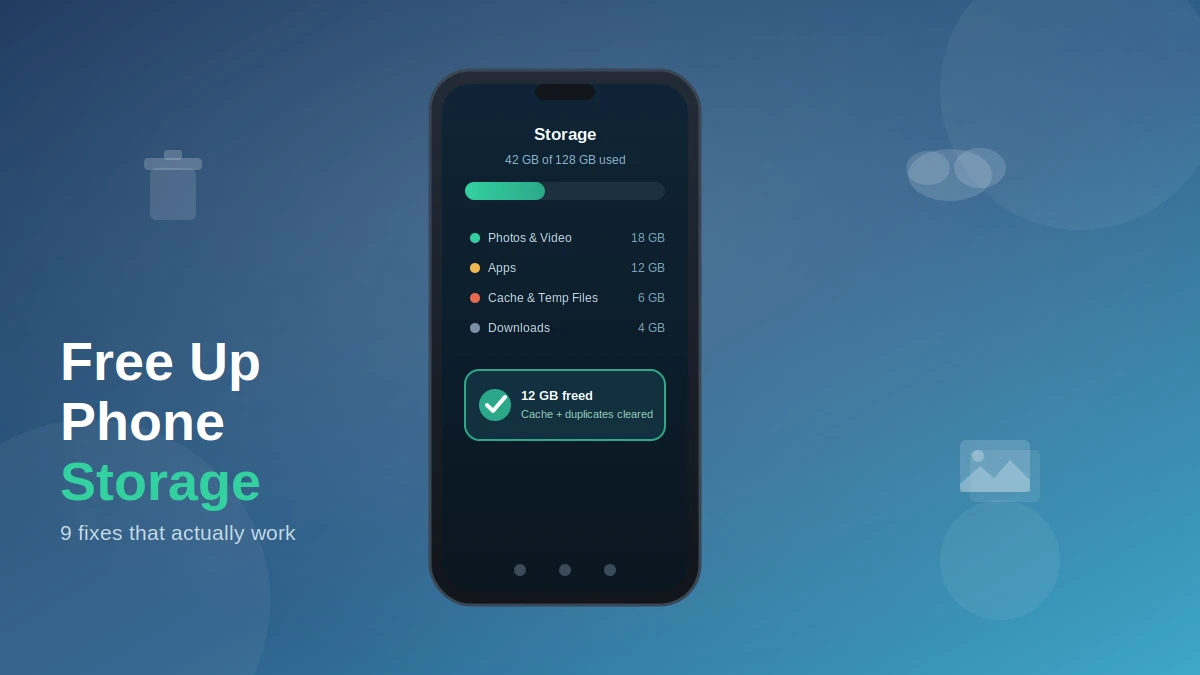

You go to take a photo, and there it is — “Storage Almost Full.” It never happens at a convenient time. The good news is you almost never need to delete anything you actually care about to fix it.
Quick answer: To free up phone storage, start by checking Settings > Storage (or Settings > General > iPhone Storage) to see what’s using space, then clear app cache, delete duplicate photos, offload unused apps, and move large files to Google Photos, iCloud, or Dropbox. Most people recover several gigabytes in under 15 minutes.
Why Your Phone Runs Out of Storage in the First Place
Storage and memory (RAM) get confused constantly, and it’s worth untangling before you touch a single file. RAM is what your phone uses while an app is actively running — it clears itself automatically and closing apps rarely helps. Storage is the permanent space where your photos, apps, and files actually live, and that’s the one that fills up and needs your attention.
Three things typically eat storage the fastest: high-resolution photos and video (especially 4K or HDR), apps that quietly accumulate data over months of use, and cached files your phone creates to load things faster but never really needs to keep. None of this is your fault — it’s just how phones work by default.
Step 1 — Find Out What’s Actually Eating Your Space
Guessing wastes time. Both platforms have a built-in breakdown that tells you exactly where your gigabytes went.
- On Android: Settings > Storage. You’ll see a color-coded bar split by photos, apps, videos, audio, and system files.
- On iPhone: Settings > General > iPhone Storage. Same idea — a visual breakdown plus a list of every app sorted by size.
- On Samsung devices: Settings > Device Care > Storage gives a nearly identical view, tuned for One UI.
Whatever category is largest is where you should spend your first ten minutes. For most people, that’s photos and videos. For heavy app users, it’s often games or social apps with large local caches.
Step 2 — Clear Photos and Videos the Smart Way
Your camera roll is usually the single biggest space hog on the phone, so it deserves the first real pass.
- Sort photos and videos by size (both Google Photos and the Photos app support this) and start with the largest files.
- Delete duplicate photos and old screenshots — these pile up silently, especially from messaging apps that auto-save images.
- Turn on cloud backup, then remove the local copies once they’re safely backed up.
On iPhone, go to Settings > Photos and turn on Optimize iPhone Storage. Full-resolution originals stay in iCloud, while your phone keeps smaller versions locally — you barely notice the difference day to day. Google Photos offers something similar: open the app, tap your profile picture, and choose Free up space on this device to remove local copies of anything already backed up to the cloud.
Quick takeaway: Never delete before backing up. Cloud storage is your safety net — treat “free up space” as “move, not lose.”
Step 3 — Deal With Apps: Delete, Offload, or Clear Cache
Apps are the second-biggest culprit, and this is where people make the most avoidable mistakes — mainly by not understanding the difference between the options.
| Action | What it does | When to use it |
|---|---|---|
| Clear cache | Removes temporary files (search history, thumbnails). Doesn’t touch your saved data or settings. | First thing to try — always safe, no data loss |
| Clear data | Wipes an app back to factory defaults, including your logins and settings. | Only if the app is broken and you’re okay re-setting it up |
| Offload app (iPhone) | Removes the app itself but keeps your documents and settings, so reinstalling picks up where you left off. | Apps you use rarely but don’t want to fully lose |
| Delete/uninstall app | Removes everything — app and data. | Apps you genuinely don’t use anymore |
On Android, go to Settings > Apps, tap Unused Apps to instantly see anything untouched for three months or more — a much faster path than scrolling your whole app library. On iPhone, tap any app under iPhone Storage to choose between Offload App and Delete App.
Step 4 — Don’t Forget Downloads and Messaging Attachments
This is where most guides fall short, and it’s often several free gigabytes hiding in plain sight.
Your Downloads folder (Files by Google on Android, the Files app on iPhone) fills up with things you grabbed from the web months ago and forgot about. Sort by size, clear anything you don’t recognize, and move on.
Messaging apps are worse. WhatsApp, Instagram, and TikTok in particular auto-save every photo and video sent to you, whether you asked for it or not. On iPhone, go to Settings > Messages > Keep Messages and set it to 30 Days or 1 Year so attachments stop accumulating indefinitely. Inside WhatsApp, look for storage categories like “Larger than 5MB” or “Forwarded many times” — these tend to be the least essential files sitting in your phone.
Step 5 — Move the Rest to the Cloud (or a microSD Card)
Once you’ve cleared what you genuinely don’t need, the next lever is moving what you want to keep off the device itself.
Cloud services — Google Drive, Dropbox, OneDrive, or your phone’s native cloud (iCloud or Samsung Cloud) — let you keep full access to files without eating local space. This is the better option for most people, since it works on any phone and gives you a backup at the same time.
If you’re on Android and want a cheaper, one-time fix, a microSD card (look for one rated A2 for decent app performance) lets you physically add storage. Keep in mind microSD cards are slower than a phone’s built-in storage, so they’re better suited to photos, videos, and downloads than apps you use daily. iPhones don’t support expandable storage at all — cloud storage is the only equivalent option.
READ MORE: Phone Running Slow? Here’s How to Actually Fix It
Should You Use a Cleaner App?
Third-party “cleaner” apps promise one-tap storage recovery, and results are genuinely mixed. Real user reviews on both the App Store and Google Play describe two recurring problems worth knowing before you install one: cleanup actions that report success in the app but don’t actually reflect any change in your native gallery or file manager, and aggressive subscription pricing — some apps bill weekly rather than monthly, which adds up fast if you don’t cancel during the trial window.
None of this means every cleaner app is bad — some genuinely do a decent job finding duplicate photos faster than doing it manually. But your phone’s built-in tools (iPhone Storage, Files by Google, Samsung Device Care) already do most of this for free, with no subscription and no risk of a phantom cleanup. Treat a paid cleaner app as a convenience, not a necessity.
A Quick Word on “You’re Out of Storage” Scam Texts
If you get a text or email claiming you’re out of cloud storage with a link to fix it, pause before clicking. According to consumer protection guidance, scammers create phishing messages that impersonate storage providers like Apple, Microsoft, or Google to steal personal information or install malware, and the safest way to check is to log into your account directly rather than tapping the link in the message. If you don’t even use that provider’s cloud service, that alone is a strong sign the message is fake.
iPhone vs. Android: Quick Comparison
| Task | iPhone | Android |
|---|---|---|
| Check storage breakdown | Settings > General > iPhone Storage | Settings > Storage |
| Remove app without losing data | Offload App | Move app to SD card (if supported) |
| Clear browser/app cache | Limited — mostly per-app in Settings | Settings > Apps > [app] > Storage > Clear Cache |
| Free up backed-up photos | Photos > Optimize iPhone Storage | Google Photos > Free up space on this device |
| Expandable storage | Not supported | microSD card (where supported) |
| Built-in unused-app finder | iPhone Storage list, sorted by size | Settings > Apps > Unused Apps |
When Cleanup Isn’t Enough
If you’ve cleared cache, offloaded apps, moved photos to the cloud, and you’re still constantly at the storage ceiling, that’s usually a sign your phone’s storage tier is genuinely too small for how you use it — not that you’re doing something wrong. At that point, a factory reset (after a full backup) can clear out accumulated system clutter, but if you’re back to “storage full” again within a few weeks, it’s a signal to consider more cloud storage or, eventually, a phone with a larger storage tier.
The Bottom Line: Free Up Phone Storage
Freeing up phone storage isn’t about ruthlessly deleting things you love — it’s about being deliberate with what stays local versus what moves to the cloud. Start with the built-in storage breakdown, clear cache before you clear anything else, back up before you delete, and check Downloads and messaging attachments — the spots almost everyone forgets. Do that once, and a five-minute monthly check will keep “Storage Almost Full” from ever popping up again.
LOOKING FOR MORE FIXES? OUR FULL TROUBLESHOOTING HUB AND KEEP LEARNING.
FAQ Section
Does deleting an app free up storage immediately?
Yes, uninstalling an app removes it and its stored data right away. If you offload it instead (iPhone) or move it to an SD card (Android), some space is freed but your data and settings are preserved for next time.
What’s the difference between clearing cache and clearing data?
Clearing cache removes temporary files like thumbnails and search history — always safe. Clearing data resets the app to factory defaults, wiping your logins and settings, so only do this if the app is malfunctioning.
Will clearing my cache delete my photos or messages?
No. Cache clearing only removes temporary files an app creates to load faster. Your photos, messages, and saved data are untouched.
Is it safe to use a phone storage cleaner app?
It can be, but reviews show mixed results — some report the app claiming a cleanup happened when nothing actually changed, plus costly subscription pricing. Your phone’s built-in storage tools do most of the same job for free.
Why does my phone say storage is full even after I deleted things?
Deleted files often sit in a Trash or Recently Deleted folder for up to 30 days before being permanently removed, and cached data can rebuild quickly. Empty the trash manually and recheck your storage breakdown.
How do I know if a “you’re out of storage” text is a scam?
According to consumer protection guidance, these messages are frequently phishing attempts, and the safest check is logging into your account directly rather than clicking any link in the text. If you don’t use that provider’s storage service at all, it’s almost certainly fake.
Should I buy a microSD card or use cloud storage?
microSD cards work only on supporting Android devices and are best for media you don’t access daily, since they’re slower than internal storage. Cloud storage works on any phone, backs up your files, and doesn’t require buying hardware.
Does clearing storage make my phone faster?
Sometimes, but storage and speed (RAM/performance) aren’t the same thing. Clearing storage helps if your phone was nearly full, but a slow phone with plenty of free space usually needs an app or software fix instead.
