
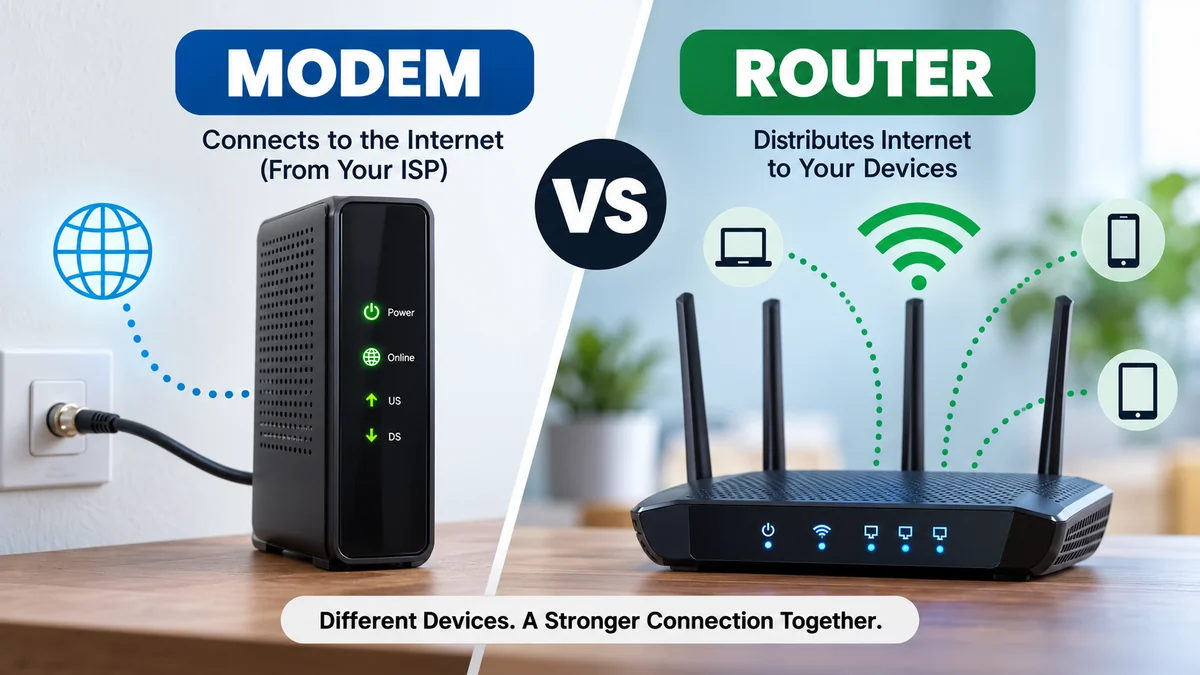

A modem and a router may sit next to each other, blink similar-looking lights, and sometimes even live inside the same box. But they perform different jobs.
Understanding the modem vs router difference makes it much easier to set up home internet, diagnose connection problems, improve Wi-Fi coverage, and decide which piece of networking equipment actually needs attention.
A modem connects your home network to your internet service provider (ISP), while a router creates and manages your local network and distributes that connection to phones, computers, TVs, and other devices through Wi-Fi or Ethernet. Most homes need both functions, although a modem and router can be combined in one device called a gateway.
Here is the basic connection path:
Internet provider → modem → router → your devices
Once that distinction is clear, most home-networking terminology becomes much easier to understand.
modem vs router: Quick Comparison
The simplest difference is that a modem connects your network to the internet, while a router connects your devices to your network.
| Feature | Modem | Router |
|---|---|---|
| Main purpose | Connects your home to your ISP | Connects and manages devices on your local network |
| Connects to ISP | Yes | Usually through the modem or gateway |
| Creates a local network | No | Yes |
| Provides Wi-Fi | Usually no | Yes, if it is a wireless router |
| Ethernet | Usually one or more ports | Usually multiple LAN ports |
| Handles local devices | Limited | Yes |
| Assigns local IP addresses | Generally no | Yes |
| Manages network traffic | ISP-facing connection | Traffic among local devices and internet |
| Common network side | WAN/internet connection | LAN and Wi-Fi |
| Can exist in a combo device? | Yes | Yes |
This distinction also explains why having working Wi-Fi does not necessarily mean you have working internet. Your router can continue broadcasting a wireless network even when the modem or ISP connection has failed.
What Is a Modem?
A modem is the equipment that establishes the connection between your premises and your internet service provider.
The word modem historically comes from modulator-demodulator. Traditional modems converted digital data into signals suitable for a communication medium and converted incoming signals back again.
Modern broadband technologies are more complicated, but the modem still performs the boundary function between the provider’s network and your home networking equipment.
Depending on your internet service, the incoming connection might use:
- Coaxial cable
- Telephone or DSL line
- Fiber-optic infrastructure
- Fixed wireless equipment
- Satellite equipment
Cable internet commonly uses a cable modem connected through coaxial cable, while DSL equipment connects through a telephone line. Fiber connections are different and may terminate at an Optical Network Terminal (ONT) rather than a conventional modem.
That distinction is useful because people often call every ISP box a “modem,” even when the underlying technology technically uses different equipment.
What Does a Modem Actually Do?
Think of the modem as the connection point between two networks.
On one side is your ISP and the wider internet. On the other side is your router or, in a simple configuration, an individual Ethernet device.
A modem’s responsibilities depend on the broadband technology, but generally it:
- Establishes communication with the ISP
- Receives and sends data over the provider’s access network
- Provides an Ethernet connection for downstream networking equipment
- Bridges your internet service to your home network
- Works with the connection technology supported by your provider
A modem does not normally create the Wi-Fi network you see on your phone.
That job belongs to a wireless router unless both functions are built into the same gateway.
Does a Modem Have an IP Address?
Internet connections involve both public and private IP addressing, which can make this question confusing.
Your ISP provides connectivity toward the public internet, while your router typically manages private IP addresses for devices inside the home. The exact public-IP arrangement varies by ISP and technology, including whether the provider uses mechanisms such as carrier-grade NAT.
For everyday troubleshooting, the useful distinction is simple: your modem or ISP-facing equipment handles the external connection, while your router manages the local network.
What Is a Router?
A router is a networking device that directs data between networks.
In a typical home, the router sits between the modem and your phones, laptops, game consoles, smart TVs, security cameras, printers, tablets, and other connected equipment.
Its job is much broader than simply “making Wi-Fi.”
A home router usually creates a LAN (local area network) and allows devices on that network to communicate with one another and access the internet. Routers can connect devices wirelessly or through Ethernet.
What Does a Router Do?
A modern home router can perform several functions simultaneously:
- Routes network traffic
- Creates a wired LAN
- Provides Wi-Fi through a built-in wireless access point
- Assigns private IP addresses through DHCP
- Uses Network Address Translation (NAT) in common IPv4 home configurations
- Provides basic firewall functionality
- Connects Ethernet devices
- Creates guest networks
- Applies parental controls
- Manages bandwidth and Quality of Service (QoS)
- Supports security and firmware updates
This is why replacing a router can change your wireless coverage, features, and local network performance even when your internet plan stays exactly the same.
Router, Switch, and Access Point Are Not the Same Thing
Consumer wireless routers are confusing because one box often contains several networking functions.
A typical home Wi-Fi router may effectively combine:
Router: Moves traffic between networks.
Ethernet switch: Connects multiple wired devices within the LAN.
Wireless access point: Allows Wi-Fi devices to join the network.
Firewall: Filters certain incoming and outgoing network traffic.
DHCP server: Automatically gives local devices network configuration information.
So when someone says “router,” they are often referring to a multi-function home networking appliance rather than only the routing component.
modem vs router: How They Work Together
The easiest way to understand modem vs router is to follow what happens when your phone opens a website.
Imagine your smartphone is connected to your home Wi-Fi.
- Your phone connects to the router.
The router has created the wireless network and given the phone the information it needs to communicate on the LAN. - Your phone requests internet data.
The request travels through the router. - The router forwards the traffic toward the internet connection.
In a standard separate-device setup, that means sending it to the modem through the router’s WAN or internet port. - The modem communicates through the ISP’s network.
Your broadband connection carries the traffic toward the wider internet. - The response returns.
Incoming data travels back through the ISP connection and networking equipment. - The router sends the data to the correct local device.
Your phone receives the requested information.
The process happens extremely quickly and continuously while you browse, stream video, play games, make video calls, or use cloud services.
LAN vs WAN
Two networking terms help explain this relationship.
A LAN, or local area network, is the network inside your home or office. Your router manages this environment.
A WAN, or wide area network, covers a much larger geographic area. From the perspective of your home router, its WAN interface points toward your internet connection.
You may even see physical ports labeled LAN and WAN on your router.
The WAN or Internet port normally connects toward the modem or gateway, while LAN ports connect devices such as desktop computers, TVs, network switches, or game consoles.
Do You Need Both a Modem and a Router?
For a conventional home broadband setup, you generally need both modem and router functions.
You may not need two separate boxes.
That distinction matters.
If your ISP provides a single gateway containing modem and routing functions, then one physical device is doing both jobs.
If your equipment is separate, the setup usually looks like this:
ISP line → modem → Ethernet cable → router → wired and wireless devices
Most households benefit from a router because they have many devices that need simultaneous connectivity.
A modem alone may technically provide an Ethernet internet connection to a compatible single device in some setups, but directly connecting a computer this way is usually not the practical or desirable home-network configuration. Modern households need local networking, Wi-Fi, traffic management, and security functions that a router provides.
Can You Have a Router Without a Modem?
Yes.
A router can create a local network without internet access. Devices on that LAN may still be able to communicate with each other, depending on configuration.
For example, computers could potentially access local network storage or another local device even when the internet connection is unavailable.
But if you want internet access, the router needs an upstream internet connection. That may come through a modem, fiber ONT, fixed-wireless receiver, another gateway, or another suitable service-specific device.
This is why saying “every router needs a modem” is slightly too simplistic.
It needs an internet connection, but the equipment providing that connection depends on the access technology.
Can You Have a Modem Without a Router?
Technically, yes, in some configurations.
A compatible Ethernet device can sometimes connect directly to modem equipment. However, that does not provide the convenient multi-device LAN and Wi-Fi functionality expected in a modern home.
For normal household use, a router is the sensible way to share the connection.
Quick Takeaway: You usually need both modem functionality and router functionality, but you don’t necessarily need two separate pieces of hardware.
What Is a Modem-Router Combo or Gateway?
A gateway combines modem and router functions into a single device.
This is why many people have difficulty identifying the modem vs router in their homes: there may be only one box.
ISP-provided gateways are common because they simplify installation. A single unit can connect to the broadband service, create the home network, provide Ethernet ports, and broadcast Wi-Fi.
Separate Modem and Router vs Gateway
| Setup | Advantages | Disadvantages |
|---|---|---|
| Separate modem + router | More upgrade flexibility, greater router choice, easier to replace one component | More cables, two devices, potentially more setup |
| Gateway/combo | Simple installation, fewer boxes, convenient ISP support | Less flexibility, one device handles multiple critical functions |
| ISP-supplied gateway | Provider can often troubleshoot it more easily | Features and controls may be limited |
| Personally selected equipment | Greater control over features and upgrades | Compatibility and troubleshooting become your responsibility |
Neither configuration is automatically better.
A gateway makes sense when simplicity matters most. Separate devices are useful when you want to upgrade Wi-Fi independently, use advanced networking features, or keep greater control over the router.
Current router technology can also change faster than the broadband equipment serving the connection, which is another reason enthusiasts often prefer separate devices.
What Is Bridge Mode?
Bridge mode becomes relevant when you have a gateway but want to use another router.
Running two routing layers unintentionally can create double NAT, which may cause complications for some online games, port-forwarding configurations, VPN scenarios, and other network services.
Bridge mode can disable or bypass the gateway’s routing functionality so that your separate router becomes the primary router.
The exact procedure depends on your ISP and hardware. Some providers let users enable bridge mode themselves; others require different settings or support assistance.
Which Device Provides Wi-Fi: Modem or Router?
The wireless router normally provides Wi-Fi.
This is one of the most useful modem vs router distinctions to remember.
A standalone modem generally does not need to broadcast Wi-Fi because its primary responsibility is the ISP connection.
A wireless router contains radio hardware and antennas that create the wireless network your devices join.
However, a modem-router gateway can provide Wi-Fi because it contains router and wireless-access-point functionality in the same enclosure.
So if the box connected to your ISP cable also broadcasts your Wi-Fi network, you probably have a gateway or another integrated networking device rather than a simple standalone modem.
Does a Better Router Increase Internet Speed?
A router cannot create bandwidth that your ISP does not provide.
If you subscribe to a certain internet speed, buying a high-performance router does not magically increase the speed of the broadband connection itself.
But a better router can remove a local bottleneck.
Suppose your internet service is fast but your old router uses outdated Wi-Fi technology, has weak coverage, or struggles with many simultaneous devices. Replacing it with more capable equipment could allow your devices to use more of the connection you already have.
Router performance can be influenced by:
- Wi-Fi generation
- Radio bands
- Channel congestion
- Distance from the router
- Walls and other obstructions
- Router placement
- Ethernet port speeds
- Number of connected devices
- Client-device capabilities
- Network traffic
- Interference
- Firmware and configuration
Current routers may support technologies such as Wi-Fi 6 (802.11ax), Wi-Fi 6E, and Wi-Fi 7, while older equipment can become a performance bottleneck. Wi-Fi 6E extends Wi-Fi 6 capabilities into the 6 GHz band, while Wi-Fi 7 represents a newer generation of wireless networking.
What About 2.4 GHz, 5 GHz, and 6 GHz?
Modern wireless networks can operate across different frequency bands.
2.4 GHz generally offers longer reach but has less available bandwidth and more potential interference.
5 GHz typically provides higher performance over shorter distances and has long been common in dual-band routers.
6 GHz provides additional spectrum for compatible Wi-Fi 6E and Wi-Fi 7 equipment, but both the router and client device must support it.
These are router/Wi-Fi considerations, not modem features.
Does a Better Modem Increase Internet Speed?
Sometimes—but only when the modem is the limiting factor.
For cable broadband, modem capabilities can determine which service speeds and network features the equipment can support. Cable systems commonly use DOCSIS, or Data Over Cable Service Interface Specification.
An outdated modem that cannot properly support your subscribed service tier may prevent you from getting the expected connection performance.
But replacing a perfectly adequate modem with a newer model will not automatically make an ISP plan faster.
The same principle applies to routers:
Upgrade the component that is actually creating the bottleneck.
Before replacing a modem, confirm that the equipment is approved or supported by your ISP and compatible with the specific internet service.
Modem vs Router Problems: How to Tell Which One Is Failing
Knowing the difference between these devices becomes especially valuable when your internet stops working.
The symptoms often point toward a particular part of the network.
Wi-Fi Works, but There Is No Internet
Your phone connects successfully to the Wi-Fi network, but websites and apps cannot reach the internet.
That means the router is at least broadcasting a wireless network. The problem could be:
- Modem or ONT connection
- ISP outage
- Cable or line problem
- Router’s WAN connection
- DNS problem
- Authentication or provisioning issue
Check the modem or gateway’s status indicators and your ISP’s service status before assuming the Wi-Fi router itself has failed.
Internet Works Over Ethernet but Wi-Fi Is Poor
If a wired device performs well but wireless devices experience slow speeds or disconnections, the router or wireless environment deserves attention.
Check:
- Router placement
- Signal strength
- Interference
- Wi-Fi channels
- Distance
- Device compatibility
- Router firmware
- Mesh or access-point coverage
Moving a router from a closed cabinet to a central, open location can sometimes make a bigger practical difference than changing the internet plan.
One Device Has Problems but Everything Else Works
If every other device is online normally, neither the modem nor router should be your first suspect.
The affected phone, computer, TV, network adapter, saved Wi-Fi configuration, or software may be responsible.
Testing another device is one of the quickest ways to narrow down the problem.
Nothing Has Internet Access
If wired and wireless devices all lose external connectivity, work outward through the network:
- Check whether the ISP reports an outage.
- Verify that the modem, ONT, or gateway has power.
- Inspect incoming and Ethernet cables.
- Check status lights.
- Verify the connection between modem and router.
- Restart equipment according to the manufacturer’s or ISP’s instructions.
- Test again before changing settings.
Avoid repeatedly factory-resetting networking equipment as an early troubleshooting step. A factory reset can erase Wi-Fi names, passwords, ISP-specific configuration, port-forwarding rules, and other custom settings.
How to Tell Which Box Is the Modem and Which Is the Router
If you have several boxes near your internet connection, follow the cables.
Look at the Incoming Service Cable
The device directly connected to the ISP’s incoming cable or service equipment is generally the modem, ONT, or gateway.
For cable broadband, look for coaxial cable.
For DSL, look for the appropriate telephone-line connection.
Fiber setups may have an ONT before the router.
Look for Wi-Fi Information
A device labeled with a Wi-Fi network name (SSID), wireless password, QR code, or Wi-Fi configuration information is likely a router or gateway.
Look at the Ethernet Ports
A standalone router commonly has:
- One WAN/Internet port
- Several LAN Ethernet ports
A simple standalone modem may have far fewer Ethernet connections.
Hardware designs vary, so port count alone should not be treated as definitive.
Check the Model Number
If you’re still unsure, search the exact manufacturer and model number printed on the equipment.
The specifications should identify it as a:
- Cable modem
- DSL modem
- Router
- Wireless router
- Mesh router
- Gateway
- ONT
- Access point
This is much more reliable than trying to identify networking equipment by appearance.
Router vs Mesh Wi-Fi: Where Does Mesh Fit?
A mesh Wi-Fi system is not a replacement for the modem function.
It is another way of providing routing and wireless coverage.
Traditional Wi-Fi setups often use one primary wireless router. Mesh systems use a primary unit and one or more additional nodes placed around the home to extend coverage more seamlessly.
Mesh can be useful for:
- Large homes
- Multiple floors
- Thick walls
- Awkward layouts
- Areas with Wi-Fi dead zones
Modern mesh systems can offer broad coverage and seamless roaming, though they generally cost more than a basic single-router setup.
The network might therefore look like:
Internet → modem/ONT → mesh router → mesh nodes → devices
The modem’s job remains essentially unchanged.
Public IP vs Private IP: Another Key Difference
IP addresses are an important part of understanding how routers manage multiple devices.
Inside a typical home network, devices receive private IP addresses. These identify equipment within the LAN.
Your laptop might have one local address, your phone another, and your smart TV another.
With common IPv4 home networking, the router uses Network Address Translation (NAT) to help multiple local devices communicate externally through the internet connection.
The router also commonly runs DHCP (Dynamic Host Configuration Protocol), automatically providing devices with local network configuration instead of requiring you to configure every device manually.
This happens quietly in the background, which is why connecting a new phone often requires little more than selecting the SSID and entering the Wi-Fi password.
Ethernet vs Wi-Fi: Does the Modem Matter?
Ethernet and Wi-Fi describe different ways devices connect within the networking setup.
Ethernet uses physical network cables.
Wi-Fi uses radio communication.
A desktop computer or game console connected to your router through Ethernet can avoid many of the interference and signal-strength issues associated with Wi-Fi.
For devices that stay in one place and need consistent performance—such as desktop PCs, network storage, smart TVs, or gaming systems—Ethernet can be a useful option when practical.
Wi-Fi is more convenient for mobile devices and locations where running cable is difficult.
Neither changes the modem’s fundamental role: providing the connection toward the ISP.
Should You Use Separate Devices or a Modem-Router Combo?
There is no universal answer.
A Gateway Makes Sense When:
- You want the simplest setup.
- You prefer one device instead of two.
- Your ISP manages the equipment.
- You do not need advanced network controls.
- The gateway already provides adequate Wi-Fi coverage.
Separate Equipment Makes Sense When:
- You want more control over Wi-Fi.
- You expect to upgrade the router independently.
- You want a specific mesh system.
- You need advanced networking features.
- Your ISP allows compatible customer-owned equipment.
- You want easier component-by-component troubleshooting.
Before buying a modem, always verify compatibility with your ISP. Cable providers in particular may maintain approved-device lists, and compatibility can vary by service tier.
A router is less tied to the physical broadband technology, but it still needs appropriate WAN and Ethernet capabilities for your connection speed and network design.
Common modem vs router Myths
Several networking misconceptions make troubleshooting harder than it needs to be.
“The modem is the Wi-Fi.”
Not necessarily.
A standalone modem and a wireless router are separate devices with different functions. If your ISP supplied one Wi-Fi box, it probably combines several functions.
“A Faster Router Makes My Internet Plan Faster.”
No.
It may improve local Wi-Fi performance or remove a bottleneck, but it cannot increase the bandwidth provisioned by your ISP.
“If Wi-Fi Is Connected, the Internet Must Be Working.”
No.
Wi-Fi only confirms that your device has a wireless connection to the access point/router. The router’s connection to the internet can still be down.
“Every Fiber Connection Uses a Modem.”
Not in the traditional sense.
Fiber service commonly terminates through an ONT, after which Ethernet may connect to a router. The exact architecture depends on the provider.
“More Antennas Automatically Mean Better Wi-Fi.”
Not necessarily.
Wireless performance depends on radio design, supported standards, spatial streams, client capabilities, interference, placement, firmware, channel conditions, and other factors. Counting external antennas is not a reliable performance test.
modem vs router: Which One Should You Upgrade?
Start with the problem you are trying to solve.
If your ISP connection cannot deliver the subscribed speed even through a suitable wired test, investigate the modem, ONT, ISP service, cabling, provisioning, and service tier.
If the internet connection itself performs correctly but Wi-Fi is slow in certain rooms, focus on the router, access points, mesh coverage, placement, or wireless environment.
If both devices are old, don’t automatically replace both.
Test the connection logically:
Poor service entering the home → investigate ISP/modem/ONT side.
Good wired internet but poor wireless performance → investigate router/Wi-Fi side.
Dead zones in a large property → consider router placement, access points, or mesh Wi-Fi.
Need newer security or network-management features → evaluate the router.
This problem-first approach prevents spending money on equipment that was never causing the issue.
The Bottom Line
The modem vs router difference comes down to two separate responsibilities.
A modem or equivalent service-specific device connects your home to your internet provider. A router creates and manages your local network, directing that internet connection to multiple wired and wireless devices.
Most modern homes need both functions, but those functions can exist in separate boxes or inside a single gateway.
If you’re troubleshooting your network, identify the connection path first: ISP → modem or ONT → router → device. Then test each stage rather than assuming every slow connection is an ISP problem or every Wi-Fi problem requires a new modem.
Once you know which device handles which job, choosing equipment and diagnosing home internet problems becomes considerably simpler.
