
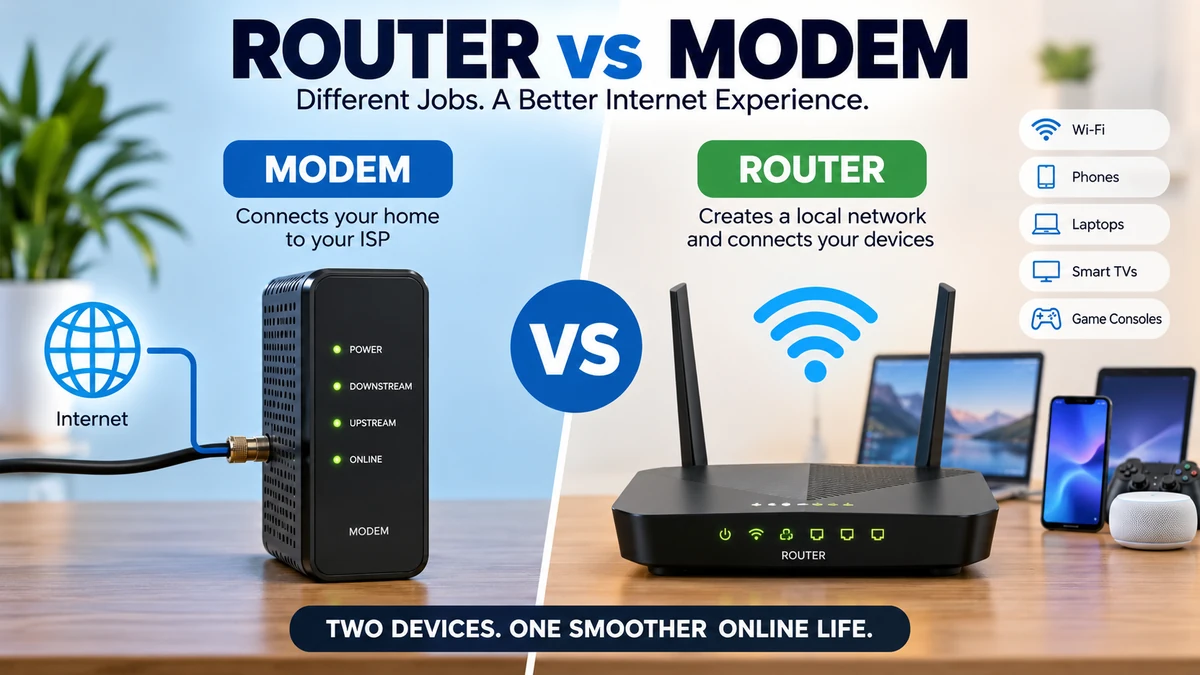

A modem and a router may sit next to each other, flash similar lights, and both seem responsible for your internet. But they do very different jobs.
Understanding router vs modem becomes especially useful when setting up home internet, fixing a connection problem, upgrading Wi-Fi, or figuring out which piece of equipment your internet service provider (ISP) actually gave you.
A modem connects your home network to your internet service provider, while a router creates a local network and distributes that internet connection among your phones, computers, TVs, and other devices. Many modern ISP gateways combine both functions in one physical device.
Here is the simplest way to remember it:
Internet → Modem/ONT → Router → Your devices
The modem is the connection to the outside internet. The router manages what happens inside your home network.
router vs modem: Quick Comparison
The biggest difference between a router and modem is what each device connects.
| Feature | Modem | Router |
|---|---|---|
| Main purpose | Connects you to your ISP | Connects and manages your devices |
| Network side | WAN/internet | LAN/home network |
| Connects directly to ISP | Yes | Usually no |
| Creates Wi-Fi | Usually no | Yes, if it is a wireless router |
| Ethernet ports | Usually limited | Usually multiple |
| Handles multiple local devices | Not its primary job | Yes |
| Assigns private IP addresses | Usually no | Typically yes |
| NAT/DHCP | Usually no | Typically yes |
| Local device communication | Limited | Yes |
| Typical incoming connection | Coax, DSL/phone line or another broadband interface | Ethernet WAN |
| Can exist in a combination unit? | Yes | Yes |
A modern gateway can perform both sets of functions, which is one major reason the terminology gets confusing.
Quick Takeaway
If you remember only two sentences, remember these:
The modem gets the internet connection to your home.
The router gets that connection to your devices.
What Is a Modem?
A modem is networking equipment that provides the connection between your premises and your ISP’s network.
The word traditionally comes from modulator-demodulator, describing the process of converting signals so information can travel across a communications medium.
The exact hardware involved now depends heavily on the broadband technology.
You might have:
- A cable modem connected through coaxial cable
- A DSL modem connected to a telephone line
- Fixed-wireless equipment
- Satellite internet equipment
- A fiber Optical Network Terminal (ONT)
That last example deserves some clarification. People often casually call every device that “brings in the internet” a modem. With fiber-to-the-premises connections, however, an ONT commonly terminates the optical connection rather than a traditional modem.
For example, Verizon explains that its fiber service uses an ONT to convert optical signals into electrical signals and deliver the connection to the router.
What Does a Modem Actually Do?
Think about your network as having an outside and an inside.
Your ISP operates the outside network. Your laptops, smartphones, smart TVs, game consoles, printers, cameras, and other connected equipment make up the inside network.
The modem or broadband termination device sits at the boundary.
Depending on the access technology, it handles the communications necessary to establish service between your ISP’s infrastructure and your equipment.
For a typical cable connection, the path looks something like:
ISP cable network → Coaxial cable → Cable modem → Ethernet → Router
For fiber, it may look like:
ISP fiber network → Fiber-optic cable → ONT → Ethernet → Router
The technologies are different, but the basic concept remains the same: your broadband connection needs equipment capable of communicating with your provider’s network.
Types of Modems and Broadband Terminals
Not every internet service uses the same type of hardware.
Cable Modem
Cable internet commonly uses coaxial infrastructure and DOCSIS technology.
DOCSIS stands for Data Over Cable Service Interface Specification. CableLabs develops DOCSIS specifications to support interoperability between cable network equipment. DOCSIS 3.1 remains widely deployed, while DOCSIS 4.0 represents the newer generation of cable technology.
A cable modem normally has a coax connection for the ISP network and Ethernet for connecting your local networking equipment.
DSL Modem
DSL delivers broadband over telephone-line infrastructure.
A DSL modem communicates with the provider through that line and supplies an Ethernet connection for a computer, router, or combined networking system.
Fiber ONT
Fiber internet works differently.
Instead of using a traditional cable or DSL modem, many fiber connections use an Optical Network Terminal.
The ONT terminates the fiber connection and converts the optical signal into a form that customer networking equipment can use. An Ethernet cable can then connect the ONT to the WAN port on a router.
So when comparing router vs modem on fiber internet, you may actually be comparing a router vs ONT.
What Is a Router?
A router is a networking device that directs traffic between networks.
In a typical home, it creates and manages the local area network (LAN) containing your computers, phones, televisions, smart-home products, consoles, and other devices.
The router then connects that local network to the wider internet through your modem, ONT, or another ISP termination device.
This is why “router” is such an appropriate name: it determines where network traffic needs to go.
What Does a Router Do?
Suppose four devices are online simultaneously:
- Your phone is loading a website.
- A television is streaming a movie.
- A laptop is downloading a file.
- A console is playing an online game.
The incoming information has to reach the correct device.
Your router manages traffic between the local network and the internet while also allowing compatible devices on the LAN to communicate with one another.
A typical consumer router can perform several functions:
- Create a local network
- Connect multiple devices
- Route IP traffic
- Provide Ethernet LAN connections
- Provide wireless access
- Assign private IP addresses through DHCP
- Perform Network Address Translation (NAT)
- Provide firewall functionality
- Create guest networks
- Support parental controls
- Manage traffic and bandwidth
That makes a router considerably more than a box that “creates Wi-Fi.”
What Are WAN and LAN Ports?
Look at the back of a standalone router and you’ll often find two categories of Ethernet connections.
The WAN (Wide Area Network) port faces outward. It normally connects the router to the modem, ONT, or upstream gateway.
The LAN (Local Area Network) ports face inward. They connect wired devices such as desktop computers, televisions, switches, network-attached storage, and game consoles.
For example:
Modem Ethernet port → Router WAN port
Then:
Router LAN port → Desktop PC
Wireless devices connect through the router’s Wi-Fi radio instead.
Is Wi-Fi the Same as Internet?
No. This distinction solves a surprising number of home-networking mysteries.
Wi-Fi is a wireless networking technology. Internet access is connectivity to external networks.
You can therefore have Wi-Fi without having a working internet connection.
Imagine that your ISP connection fails but your router is still powered on.
Your phone might still display a strong Wi-Fi signal because it is successfully communicating with the router. But websites won’t load because the router has no functioning path to the internet.
The opposite is possible too.
A modem can have a perfectly healthy ISP connection while your router or wireless network has a problem.
This distinction is valuable during troubleshooting:
Strong Wi-Fi does not automatically mean your internet connection is working.
How a Modem and Router Work Together
Most home networks need the functions provided by both devices.
Here’s a simplified example of what happens when you open a webpage:
- Your laptop connects to the router through Wi-Fi or Ethernet.
- The router receives the laptop’s request.
- The router forwards appropriate traffic toward the modem or broadband terminal.
- The modem communicates across the ISP connection.
- Internet data returns through the provider’s network.
- The modem passes the connection back toward the router.
- The router directs the traffic to the correct device.
This happens continuously and extremely quickly.
The important distinction is that the modem and router are responsible for different portions of the journey.
Public and Private IP Addresses
IP addressing makes the difference easier to understand.
Your ISP generally provides your internet-facing connection with a public IP address. Inside your home, meanwhile, the router commonly assigns private IP addresses to individual devices.
You might have separate private addresses for your:
- Smartphone
- Laptop
- Tablet
- Smart TV
- Printer
- Security camera
- Game console
The router keeps track of these devices and their network traffic.
DHCP
Most consumer routers include a DHCP server.
DHCP stands for Dynamic Host Configuration Protocol. It automatically supplies devices with the network configuration they need when joining the local network.
Without DHCP, ordinary users could face much more manual network configuration.
NAT
Home routers also commonly perform Network Address Translation (NAT).
NAT allows multiple devices using private addresses on the local network to communicate through the internet-facing connection.
You don’t normally need to configure NAT manually. For most households, it quietly operates in the background.
Do You Need Both a Modem and a Router?
For a typical multi-device home network, you need the functions of both.
That doesn’t necessarily mean you need two separate boxes.
There are three common configurations.
1. Separate Modem and Router
The setup looks like this:
Internet line → Modem → Router → Devices
This is common with cable broadband and gives you separate hardware for each job.
2. Gateway
The setup becomes:
Internet line → Gateway → Devices
A gateway, sometimes called a modem-router combo or residential gateway, combines the modem and router functions in a single enclosure. Many ISPs supply these devices.
3. ONT and Router
With fiber, you may have:
Fiber → ONT → Router → Devices
In this situation, the ONT performs the fiber-termination role while the router manages the home network.
Can You Use a Modem Without a Router?
Technically, a standalone modem may allow a compatible computer to connect directly through Ethernet in certain service configurations.
But this is not how a normal modern household should be configured.
You lose the router’s ability to conveniently connect and manage numerous local devices, provide Wi-Fi, and supply the normal network boundary and security features expected in a home network.
If you have multiple devices, you want a router or gateway.
Can You Use a Router Without a Modem?
Yes—but that doesn’t automatically give the router internet access.
A router can create a LAN without an active internet connection. Devices on that local network may still communicate with one another.
For example, local file sharing or communication with a network printer can potentially continue even when your broadband connection is unavailable.
For internet access, however, the router needs an upstream connection. That might come from a cable or DSL modem, fiber ONT, fixed-wireless receiver, cellular modem, or another suitable internet gateway.
Modem-Router Combo vs Separate Devices
One of the most practical router vs modem questions is whether the two functions should be combined.
Neither configuration is universally better.
| Factor | Separate Modem + Router | Gateway/Combo |
|---|---|---|
| Number of devices | Two | One |
| Setup simplicity | More connections | Simpler |
| Upgrade flexibility | High | Lower |
| Router replacement | Easy | Entire system may be affected |
| Wi-Fi placement | More flexible | Limited by service connection |
| Troubleshooting | Components easier to isolate | Convenient but less modular |
| Space required | More | Less |
| Cables/power outlets | More | Fewer |
| Advanced customization | Usually greater | Depends on gateway |
Why Separate Equipment Can Be Better
Separate hardware gives you more flexibility.
Suppose your cable modem continues to handle your internet plan perfectly, but your wireless coverage is poor. You can replace only the router.
That matters because broadband access technologies and Wi-Fi don’t necessarily advance at the same pace.
You might want newer Wi-Fi capabilities without needing to replace the modem.
Separate hardware also lets you position the router more intelligently. A modem may need to sit near the incoming coax connection, while the ideal Wi-Fi router location is usually more central and unobstructed.
Why a Gateway Can Be Better
Gateways are convenient.
You have:
- One device
- One power connection
- Fewer cables
- One management system
- Simpler ISP support
For users who just want a straightforward home network, that simplicity can be valuable.
The tradeoff is flexibility. If either side becomes outdated or inadequate, you may need to replace or reconfigure the combined system.
Does a Better Router Increase Internet Speed?
Sometimes—but there is an important distinction between internet speed and local Wi-Fi performance.
Your internet plan and ISP connection determine the service available to your home. Buying a router cannot magically turn a 100 Mbps broadband subscription into a 1 Gbps internet plan.
However, an old or poorly positioned router can become a bottleneck.
A newer router may improve:
- Wi-Fi throughput
- Coverage
- Network capacity
- Performance with many devices
- Latency under certain conditions
- Stability
- Wireless security features
Modern wireless standards include Wi-Fi 6, Wi-Fi 6E, and Wi-Fi 7. Wi-Fi 7 introduces technologies such as wider 320 MHz channels and multi-link capabilities intended to increase throughput, capacity, and connection performance on compatible hardware.
But both ends matter. Buying a Wi-Fi 7 router won’t make an older Wi-Fi 5 device suddenly operate as a Wi-Fi 7 client.
Does a Better Modem Increase Speed?
A modem upgrade can matter if your existing modem cannot properly support your broadband technology or subscribed speed tier.
Cable users, for example, need equipment compatible with their provider and the relevant DOCSIS implementation. CableLabs describes DOCSIS 3.1 as a major cable broadband technology and continues development and interoperability work around DOCSIS 4.0.
But replacing a perfectly adequate modem with another compatible modem won’t necessarily make your internet faster.
The slowest relevant part of the connection can become the bottleneck.
Which Device Is Responsible for Wi-Fi?
The wireless router or wireless access point provides Wi-Fi—not a standalone modem.
This is one of the easiest ways to distinguish the devices.
If your home has separate hardware and you’re trying to improve:
- Wi-Fi coverage
- Dead zones
- Wireless capacity
- Wireless features
- Local network management
…the router side deserves attention first.
If your problem involves:
- ISP synchronization
- The incoming broadband line
- Cable signal connectivity
- DSL connectivity
- Broadband provisioning
…the modem or ISP side may be more relevant.
A combination gateway complicates this distinction because both functions live inside the same box.
Router vs Modem vs Access Point vs Switch
Home networking becomes much easier once four commonly confused devices are separated conceptually.
| Device | Primary Job |
|---|---|
| Modem/terminal | Connects premises to broadband service |
| Router | Routes traffic between networks |
| Wireless access point | Provides wireless access to a LAN |
| Network switch | Connects multiple wired devices on the same LAN |
Consumer routers often combine several functions.
A typical “Wi-Fi router” may actually contain:
- A router
- Ethernet switch
- Wireless access point
- DHCP server
- Firewall
And a gateway can combine all of those with broadband termination functionality.
That’s why one box can appear to do everything.
What Is a Mesh Wi-Fi System?
A mesh Wi-Fi system uses multiple wireless nodes to provide broader coverage throughout a home.
Mesh does not replace the need for an internet connection or broadband termination device.
Depending on the system and configuration, one mesh unit may act as the main router while additional nodes extend network coverage.
For a large or difficult-to-cover home, mesh can be more effective than expecting a single centrally located router to reach every room.
How to Tell Which Box Is the Modem and Which Is the Router
If you have two boxes beside each other, follow the cables.
Look at the Incoming Service Connection
A standalone cable modem commonly has a round coaxial connector.
A DSL modem may connect to a telephone-style line.
Fiber installations may have an ONT mounted on or near a wall.
The router generally connects downstream of that equipment through Ethernet.
Check the Ports
A typical router often has:
- One WAN/internet Ethernet port
- Multiple LAN Ethernet ports
- Power
- Sometimes USB
- Wireless antennas, either internal or external
A standalone cable modem commonly has:
- Coax input
- Ethernet output
- Power
The exact design varies, so don’t rely only on appearance.
Check the Label
Look at the manufacturer’s label or model number.
Search the model documentation and determine whether it is listed as a:
- Cable modem
- DSL modem
- Router
- Wireless router
- Gateway
- Mesh router
- ONT
This is much more reliable than deciding based on antennas or blinking lights.
How to Troubleshoot a Modem and Router
Knowing the router vs modem distinction makes troubleshooting far more systematic.
Instead of randomly unplugging equipment, determine where the connection stops working.
Step 1: Check Whether the Problem Affects One Device or Everything
If one laptop has trouble but every other device works normally, the modem probably isn’t the first suspect.
The issue may be the laptop, Wi-Fi connection, network configuration, or router-client relationship.
If every device suddenly loses internet access, investigate the router, modem/ONT, cabling, and ISP service.
Step 2: Check Wi-Fi Separately From Internet Access
Look at whether your device remains connected to the wireless network.
Wi-Fi connected + no internet suggests the local wireless connection is functioning but something farther upstream may have failed.
That could include:
- Router WAN connectivity
- Ethernet cable between router and modem
- Modem synchronization
- ONT connection
- ISP outage
- DNS or configuration issues
Don’t assume that “Wi-Fi connected” means the broadband service is healthy.
Step 3: Inspect the Modem or ONT
Check power and status indicators according to the manufacturer’s or ISP’s documentation.
Warning lights, loss-of-signal indicators, or failure to establish service can point toward the broadband side of the network.
Step 4: Inspect the Router
If the broadband connection appears healthy, check the router.
Confirm:
- It has power
- The WAN cable is secure
- Wi-Fi is enabled
- Devices receive network addresses
- Ethernet connections work where applicable
Step 5: Restart Equipment in a Controlled Way
If your ISP or equipment manufacturer recommends restarting the network, don’t repeatedly pull random cables.
For separate devices, the general objective is to let the upstream broadband equipment establish service before relying on the downstream router. Exact startup procedures can vary, so provider-specific instructions should take priority.
Quick Takeaway
A useful troubleshooting question is:
“Can my device reach the router, and can the router reach the internet?”
That separates local Wi-Fi problems from upstream broadband problems much faster than treating everything as “the internet.”
Where Should You Place a Modem and Router?
Placement matters much more for the router than for a standalone modem.
The modem is normally constrained by wherever the broadband line enters your home.
A wireless router should ideally be:
- Near the center of the coverage area
- In an open location
- Elevated where practical
- Away from large physical obstructions
- Away from equipment that creates significant radio interference
Hiding the router inside a cabinet at one corner of a large home can produce poor Wi-Fi even when your ISP connection is excellent.
This is another advantage of separate equipment: Ethernet can sometimes allow the router to be positioned farther from the modem or ONT.
What Equipment Do You Actually Need?
Start with your internet connection type.
For cable internet, you typically need a compatible cable modem or gateway plus routing/Wi-Fi functionality.
For DSL, you need appropriate DSL termination equipment plus routing functionality, whether separate or combined.
For fiber, the ISP commonly installs an ONT, with a router providing the home network and Wi-Fi.
For fixed wireless, satellite, or cellular broadband, the exact equipment differs, but the same conceptual split remains useful: something establishes the external internet connection, while routing and wireless equipment distributes connectivity locally.
Before replacing broadband equipment, verify compatibility with your ISP. Cable modems in particular need to work with the provider’s network and supported standards; certification programs exist specifically to test DOCSIS compliance and interoperability.
router vs modem: Which One Matters More?
Neither device is inherently more important because they solve different problems.
Think of your home network as a chain:
Internet service → Broadband terminal → Router → Local connection → Device
A failure anywhere in that chain affects your experience.
If the modem cannot establish broadband service, a powerful router has nothing to distribute.
If the router provides poor wireless coverage, a perfectly functioning modem cannot fix the dead zone in your bedroom.
If your laptop has an outdated or malfunctioning network adapter, upgrading both modem and router may still fail to solve that device-specific problem.
The best approach is to identify the bottleneck before replacing hardware.
Final Thoughts on router vs modem
The router vs modem difference comes down to two distinct networking jobs: the modem or equivalent broadband terminal connects your home to your ISP, while the router creates your local network and directs that connection to your devices.
You may have two separate boxes, a combined gateway, or—in a fiber installation—an ONT connected to a router. The labels change, but the underlying network functions remain largely the same.
When diagnosing your setup, follow the connection path rather than the device names:
ISP → modem or ONT → router → Wi-Fi/Ethernet → device
Once you understand that path, choosing equipment, identifying Wi-Fi problems, and troubleshooting home internet becomes considerably easier.
