
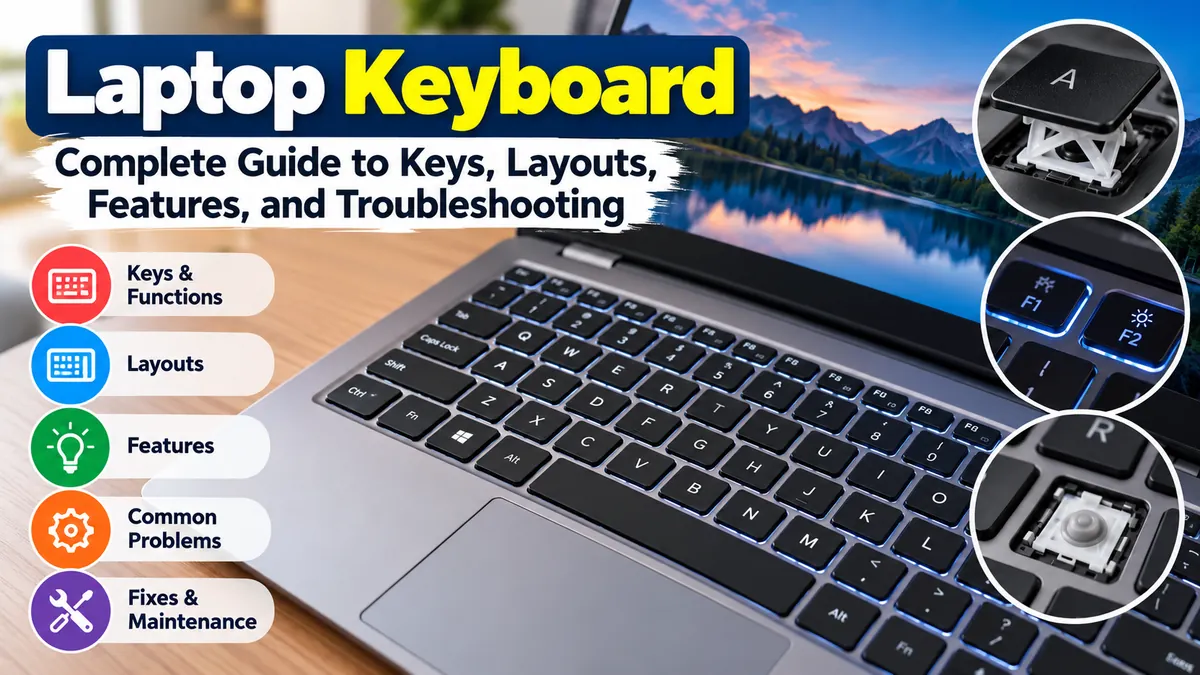

A laptop keyboard looks simple, but a lot happens beneath each key. It is one of the laptop’s primary input devices, handling everything from typing documents and passwords to controlling brightness, volume, navigation, shortcuts, and system functions.
Modern laptop keyboards are designed differently from most desktop keyboards because manufacturers must balance typing comfort, durability, portability, and limited chassis space. Understanding the keys, layouts, switch mechanisms, function controls, maintenance, and common failures can make everyday laptop use much easier.
A laptop keyboard is a compact built-in input device that converts key presses into commands or characters understood by the computer. Most models contain alphanumeric, modifier, navigation, function, and special-purpose keys, typically using low-profile scissor or membrane mechanisms to provide short key travel while keeping the laptop thin. Lenovo
What Is a Laptop Keyboard?
A laptop keyboard is the integrated set of keys used to enter text, numbers, symbols, shortcuts, and commands into a notebook computer.
Although it performs the same basic job as a desktop computer keyboard, its physical construction is usually much more compact. Manufacturers often combine functions, reduce key spacing, shrink navigation controls, or remove a dedicated numeric keypad to fit the keyboard into smaller laptops.
Typical laptop keyboards include:
- Letter and number keys
- Punctuation and symbol keys
- Shift, Ctrl, Alt, and other modifier keys
- An Fn key
- F1–F12 function keys
- Arrow and navigation keys
- Enter, Backspace, Delete, Tab, and Escape
- Windows, Command, or other operating-system-specific keys
- Brightness, volume, microphone, media, or wireless controls
Some larger laptops also have a dedicated numeric keypad.
The precise arrangement varies considerably between manufacturers, screen sizes, operating systems, and regional keyboard standards.
How Does a Laptop Keyboard Work?
Pressing a laptop key starts a chain of events that eventually produces a letter, number, shortcut, or command on the computer.
The visible part is the keycap. Under many laptop keycaps is a low-profile retaining mechanism, commonly called a scissor mechanism. Beneath that mechanism is typically a rubber dome and an electrical membrane or contact system. Dell describes these components as the keycap, scissor-style hinge or retaining clip, rubber dome, and keyboard membrane. Dell
When you press a key:
- Your finger pushes down the keycap.
- The mechanism guides its downward movement.
- The underlying contact is activated.
- The keyboard electronics identify the key position.
- A scan code or corresponding input signal is sent to the computer.
- The operating system interprets that input according to the active keyboard layout and software context.
This last point explains why the symbol printed on a key does not always determine what appears on screen.
Physical vs. Logical Keyboard Layout
A useful distinction is between the physical keyboard and its logical layout.
The physical layout describes where keys are positioned and their shapes. The logical layout determines what character or command the operating system assigns to those keys. Lenovo
For example, a laptop may physically have a US-style keyboard while Windows is configured for another language. Pressing some punctuation or symbol keys can then produce characters that do not match their printed legends.
That situation is usually a configuration issue rather than a broken keyboard.
Laptop Keyboard Keys and Their Functions
Laptop keyboards compress many desktop keyboard functions into a smaller area. Understanding the main groups of keys makes the layout much easier to use.
| Key group | Common examples | Main purpose |
|---|---|---|
| Alphanumeric | A–Z, 0–9 | Typing letters and numbers |
| Modifier | Shift, Ctrl, Alt | Modify other key actions |
| Function | F1–F12 | Application and system commands |
| Navigation | Arrows, Home, End | Move through pages and documents |
| Editing | Backspace, Delete | Edit text and other content |
| System | Windows, Command | OS shortcuts and menus |
| Special | Esc, Tab, Enter | Navigation and command execution |
| Laptop controls | Fn + function keys | Brightness, volume and hardware controls |
These groups are broadly consistent, but their exact locations and functions vary between models. Lenovo
Alphanumeric Keys
The alphanumeric section is the main typing area.
It includes the alphabet from A to Z, numbers 0 through 9, punctuation marks, and commonly used symbols.
On a QWERTY keyboard, the first six letters on the upper letter row are Q-W-E-R-T-Y, which gives the layout its name.
Modifier Keys
Modifier keys change what happens when another key is pressed.
Common examples include:
- Shift
- Ctrl
- Alt
- AltGr on some regional keyboards
- Windows key
- Command and Option on Mac keyboards
For example, Ctrl + C commonly copies selected content in Windows applications, while Shift changes lowercase letters to uppercase during normal typing.
Function Keys
Most traditional laptop layouts provide F1 through F12 along the upper portion of the keyboard. Lenovo
Their exact behavior depends on the operating system, application, and laptop manufacturer.
On many modern notebooks, these keys have a second job. They might control:
- Display brightness
- Speaker volume
- Microphone muting
- Media playback
- Keyboard backlighting
- Wireless features
- Display output
That leads to one of the most distinctive laptop controls: the Fn key.
What Does the Fn Key Do on a Laptop Keyboard?
The Fn, or Function, key activates secondary commands assigned to other keys.
A key labeled F5, for example, might also carry a brightness icon. Depending on the laptop’s configuration, pressing F5 alone or Fn + F5 may trigger that secondary feature.
The Fn implementation can occur at the keyboard firmware level, which is one reason it may behave differently from ordinary modifier keys such as Ctrl or Shift. Lenovo
Some computers also support Fn Lock, which changes whether the top row defaults to F1–F12 commands or multimedia/system controls.
If your function keys suddenly adjust volume or brightness instead of performing their normal F-key commands, check Fn Lock or your manufacturer’s keyboard settings before assuming anything is broken.
Common Laptop Keyboard Layouts
Not every laptop keyboard has the same arrangement.
Two types of variation matter most: language/layout standards and keyboard size.
QWERTY
QWERTY is widely used for English-language keyboards. Its name comes from the first six letters of the upper alphabetic row.
However, even two QWERTY keyboards can differ. US and UK layouts, for example, have differences in key shapes and symbol placement.
AZERTY
AZERTY is associated particularly with French-language typing. Several letter and symbol positions differ from QWERTY.
QWERTZ
QWERTZ is found in parts of Central Europe. One immediately visible difference from QWERTY is the placement of the Y and Z keys.
ANSI, ISO, and JIS
You may also encounter terms such as ANSI, ISO, and JIS when discussing physical keyboard layouts.
These describe physical arrangements rather than simply the language being typed. Differences can include the shape of Enter, the size and location of Shift keys, and the presence of additional keys.
This distinction matters when replacing keycaps or an entire keyboard because a part that fits one regional configuration may not correctly fit another.
Laptop Keyboard Sizes and Number Pads
Screen size and chassis width strongly influence laptop keyboard design.
A compact notebook may have no numeric keypad and compressed arrow keys. A larger 15-inch, 16-inch, or 17-inch laptop may have enough room for a dedicated number pad.
A numeric keypad can be particularly useful for:
- Spreadsheet work
- Accounting
- Data entry
- Repeated calculations
- Numeric-heavy business applications
Removing it gives manufacturers more room for larger keys, speakers, or a centered keyboard and trackpad.
Neither arrangement is inherently better. The useful choice depends on the work being performed.
Scissor Switch, Membrane, and Chiclet Laptop Keyboards
Keyboard terminology can become confusing because words such as scissor, membrane, and chiclet describe related but not always identical aspects of keyboard construction.
Scissor-Switch Keyboard
Scissor mechanisms are common in laptops and other thin keyboards. A small interlocking structure stabilizes the keycap as it moves up and down.
This design is well suited to notebooks because it permits a low profile and relatively short travel. Lenovo identifies scissor switches as common in laptop keyboards. Lenovo
Membrane Keyboard
A membrane keyboard uses flexible layers to register key presses rather than giving every key a separate traditional mechanical switch.
Many laptop keyboards combine membrane circuitry with scissor-style key mechanisms, so “scissor” and “membrane” are not necessarily mutually exclusive descriptions.
Chiclet Keyboard
“Chiclet” usually describes the appearance and arrangement of the keys: flat or slightly sculpted individual keycaps separated by visible space.
It does not necessarily identify the underlying electrical switch technology.
This separated-key design has become common on modern notebooks because it works well with thin laptop bodies.
Mechanical Laptop Keyboard
Mechanical switches are far more common in standalone desktop keyboards, but some gaming and specialist laptops have used mechanical or mechanical-style keyboard designs.
The trade-off is space. Individual mechanical switches generally require more depth than the low-profile mechanisms commonly used in mainstream notebooks.
What Makes a Good Laptop Keyboard?
Typing quality cannot be judged from the number of keys alone.
Several physical characteristics affect how a keyboard feels.
Key Travel
Key travel is the distance a key moves when pressed.
Very shallow travel can help make a laptop thinner, while more travel may provide a more noticeable physical response. The preferred amount is subjective, so specifications alone cannot fully predict typing comfort.
Key Spacing and Size
Well-spaced keys help users distinguish neighboring keys without looking down.
Extremely compact designs may shrink punctuation, arrow, or modifier keys to save room.
Feedback
Feedback tells your fingers that a press has registered.
The sensation depends on the switch mechanism, dome resistance, travel, keycap stability, and chassis construction.
Keyboard Flex
Pressing firmly on a poorly supported keyboard can cause the surrounding deck to bend. A rigid keyboard deck generally produces a more consistent feel across the typing area.
Noise
Some people want a quiet laptop for meetings, libraries, or shared offices. Others prefer more pronounced tactile or audible feedback.
Layout
An excellent switch mechanism cannot compensate for an inconvenient layout if keys you constantly use are awkwardly positioned.
Programmers may care about symbol placement. Spreadsheet users may prioritize a number pad, while writers may prefer larger Shift, Enter, Backspace, and arrow keys.
Backlit Laptop Keyboard Explained
A backlit laptop keyboard illuminates key legends or the area beneath the keys, making them easier to identify in low-light environments.
Depending on the laptop, backlighting may offer:
- On/off control
- Multiple brightness levels
- Automatic illumination
- White lighting
- Multi-zone lighting
- RGB lighting on gaming models
Backlight controls are commonly assigned to an Fn combination or a dedicated function-row key.
If the keyboard works normally but the lighting does not, the issue may involve a keyboard shortcut, BIOS/firmware setting, manufacturer utility, or the backlight hardware itself rather than the typing mechanism.
Useful Laptop Keyboard Shortcuts
Learning a small collection of shortcuts can reduce dependence on the trackpad.
On Windows, commonly useful combinations include:
| Shortcut | Typical action |
|---|---|
| Ctrl + C | Copy |
| Ctrl + V | Paste |
| Ctrl + X | Cut |
| Ctrl + Z | Undo |
| Ctrl + A | Select all |
| Alt + Tab | Switch between open applications |
| Windows + D | Show desktop |
| Windows + L | Lock computer |
| Windows + E | Open File Explorer |
Shortcuts can vary between applications and operating systems. Mac laptops commonly substitute Command for Ctrl in many everyday editing shortcuts.
The Fn layer adds another group of hardware-specific shortcuts for functions such as brightness and audio.
Why Is My Laptop Keyboard Not Working?
Keyboard problems generally fall into two broad categories: software/configuration problems and physical hardware problems.
Common symptoms include:
- One key not working
- Several keys not responding
- Entire keyboard unresponsive
- Wrong characters appearing
- Repeated characters
- Delayed input
- Sticky keys
- Function keys behaving incorrectly
- Backlight failure
Dell’s current troubleshooting documentation lists unresponsive keys, input lag, intermittent operation, incorrect characters, malfunctioning function keys, and stuck keys among common laptop keyboard symptoms. Dell
The symptom itself provides useful diagnostic information.
How to Fix a Laptop Keyboard That Is Not Working
Start with simple, reversible checks before removing keys or opening the computer.
1. Restart the Laptop
A restart can clear temporary operating-system or input problems.
Save your work, shut down or restart normally, and test the keyboard again.
2. Look for Dirt or Physical Damage
Inspect the problem keys carefully.
Dust, crumbs, or other debris can interfere with key movement. Dell recommends checking for debris and cleaning with a soft microfiber cloth and compressed air as part of basic troubleshooting. Dell
Do not aggressively pry off a keycap just because a key feels sticky. Laptop retaining mechanisms are small and can break easily.
3. Test an External Keyboard
Connect a USB or compatible wireless keyboard.
If the external keyboard works while the built-in keyboard consistently does not, that is useful evidence that the problem may be confined to the laptop’s integrated keyboard or its connection. Dell specifically recommends an external keyboard as a diagnostic step. Dell
4. Check the Keyboard Layout
If keys work but produce the wrong characters, check the active input language and keyboard layout.
In Windows, these settings are available under language and regional configuration. Dell recommends checking these settings when a keyboard produces incorrect characters. Dell
5. Check Accessibility Settings
Features such as Sticky Keys and Filter Keys can alter how keyboard input behaves.
Microsoft notes that changed accessibility keyboard settings can make repeated presses appear to be ignored or otherwise make a keyboard seem to behave incorrectly. Microsoft Support
6. Check Windows and Drivers
For Windows computers, check for system updates and relevant manufacturer updates.
Microsoft recommends Windows Update as part of input-device troubleshooting, while Dell’s laptop guidance includes reinstalling keyboard devices and checking system drivers and BIOS where appropriate. Microsoft Support
Use the support resources for your exact laptop model rather than downloading random keyboard drivers from third-party sites.
7. Test the Keyboard Outside the Operating System
If your manufacturer provides preboot diagnostics or a BIOS/UEFI test, try the keyboard there.
This is valuable because a keyboard that fails before Windows even loads points more strongly toward a hardware issue.
HP, for example, recommends testing notebook keyboard operation through startup and hardware diagnostics as part of distinguishing hardware problems from Windows-related ones. HP Support
Why Are Only Some Laptop Keyboard Keys Not Working?
When only one or several keys fail, inspect the physical area first.
Possible causes include:
- Dirt under a key
- A damaged keycap
- Broken scissor mechanism
- Worn contact
- Liquid contamination
- Internal membrane damage
A whole group of neighboring keys failing can indicate a deeper problem than a single dirty key because keyboard circuitry organizes keys into an electrical matrix.
If the same keys remain dead after cleaning, restarting, and testing outside the operating system, professional inspection may be more appropriate than repeatedly removing keycaps.
Why Is My Laptop Keyboard Typing the Wrong Letters?
A keyboard producing the wrong character is not automatically defective.
The active logical keyboard layout may simply differ from the physical legends.
For example, changing between regional layouts can alter punctuation, symbol, and letter positions. This commonly happens after accidentally switching input languages.
Check:
- Active input language
- Keyboard layout
- Num Lock or embedded number-pad mode
- Fn Lock
- Accessibility settings
- Keyboard-remapping software
Physical and logical layouts operate separately, so software configuration can change what a physical key produces. Lenovo
How to Clean a Laptop Keyboard Safely
Regular cleaning can prevent debris from accumulating around keys.
First, shut down the laptop and disconnect its charger and unnecessary accessories.
Use a clean, soft microfiber cloth for the surface. Compressed air can help remove loose debris around keys, but follow the laptop manufacturer’s cleaning guidance because designs vary.
For supported MacBook models, for example, Apple provides a specific compressed-air procedure involving holding the notebook at approximately a 75-degree angle and spraying across the keyboard in a controlled pattern. Apple Support
Avoid:
- Pouring cleaning liquid onto the keyboard
- Saturating the cloth
- Scraping keys with sharp objects
- Forcefully pulling keycaps
- Spraying unsuitable cleaners directly between keys
A tiny plastic retaining clip can turn a simple cleaning job into a keyboard repair if it snaps.
What Should You Do After a Liquid Spill?
A liquid spill deserves more caution than ordinary dirt.
Do not keep typing just to check whether every key still works. Continuing to power wet electronics can worsen damage.
Disconnect external power and follow the shutdown and service guidance for your specific manufacturer and model. Liquid can travel beneath the keyboard and affect components that are not visible from above.
HP’s notebook support guidance cautions that liquid-damaged keyboards may require replacement. HP Support
Even if the laptop appears normal immediately after a spill, residue can cause sticky keys or later corrosion.
Can You Replace One Laptop Keyboard Key?
Sometimes.
If only the keycap has popped off and the underlying retaining mechanism is undamaged, it may be possible to refit the original cap or install a compatible replacement.
But compatibility is more complicated than matching the printed letter.
Laptop keys can differ in:
- Keycap dimensions
- Hinge design
- Retaining clips
- Stabilizers
- Keyboard generation
- Regional layout
Even visually similar laptop models can use different mechanisms. Dell advises identifying the exact manufacturer, series, model, and layout when matching replacement keyboard components. Dell
Large keys such as Space, Enter, Shift, and Backspace can be especially complicated because they may use additional stabilizers.
When Should a Laptop Keyboard Be Replaced?
Replacement becomes more reasonable when troubleshooting confirms a persistent hardware failure.
Typical reasons include:
- Many dead keys
- Serious liquid damage
- Damaged membrane
- Broken or missing key mechanisms
- Severe wear
- Intermittent input caused by internal damage
- Complete keyboard failure
A keyboard replacement should match the exact laptop model and regional layout. Backlit and non-backlit versions may also have different connections or assemblies.
The repair procedure varies enormously between laptops. On some models, the keyboard can be removed relatively directly. On others, it forms part of the upper case or palm-rest assembly and substantial disassembly is required.
HP recommends confirming compatibility with the specific laptop before replacing a keyboard and following model-appropriate service information. HP
If significant disassembly is necessary, professional repair may reduce the risk of damaging ribbon cables, connectors, batteries, or the motherboard.
Built-In Laptop Keyboard vs. External Keyboard
An external keyboard can be useful even when the integrated keyboard works perfectly.
| Feature | Built-in laptop keyboard | External keyboard |
|---|---|---|
| Portability | Excellent | Requires extra device |
| Desk space | Minimal | Requires more space |
| Number pad | Model-dependent | Easy to obtain |
| Switch choice | Limited | Very broad |
| Positioning | Fixed | Adjustable |
| Replacement | Model-specific | Usually simple |
| Mechanical switches | Uncommon | Commonly available |
| Ergonomic flexibility | Limited | Greater choice |
The built-in keyboard makes the laptop a self-contained computer. An external keyboard becomes attractive for long desk sessions, specialized switch preferences, gaming, numeric entry, or ergonomic positioning.
It is also a useful temporary solution when the internal keyboard needs repair.
How to Choose a Laptop Based on Keyboard Quality
People who type for hours each day should treat the keyboard as an important laptop specification rather than an afterthought.
Before choosing a model, consider:
Layout
Make sure frequently used keys are where you expect them to be.
Pay particular attention to:
- Arrow keys
- Right Shift
- Enter
- Backspace
- Delete
- Home and End
- Function row
- Number pad
Typing Feel
Whenever possible, type several paragraphs on the actual laptop.
Specifications cannot fully communicate key resistance, stability, sound, or bottoming-out feel.
Key Travel and Stability
Look for consistent movement across the keyboard. Keys should register reliably without requiring excessive pressure.
Backlighting
If you often work at night or in dim rooms, check whether backlighting is available and whether its brightness can be adjusted.
Regional Layout
Confirm the actual keyboard supplied in your market.
Photos on a manufacturer’s global product page may show a different regional layout from the unit being sold locally.
Workload
Match the layout to what you actually do.
A writer may value comfortable full-size letter keys. A programmer may pay more attention to brackets, function keys, and navigation. Someone working extensively in Excel may prefer a dedicated numeric keypad.
Laptop Keyboard Care Tips
Good habits can extend the useful life of the keyboard.
Keep food and drinks away from the computer whenever practical. Clean loose debris before it accumulates, and press keys normally rather than striking them harder when an application appears slow.
Also avoid treating every keyboard problem as a hardware problem. Incorrect language settings, Fn Lock, accessibility features, or software configuration can all change keyboard behavior without anything physically failing. Dell
If a problem does appear, diagnose it systematically: determine whether one key, a group of keys, or the entire keyboard is affected; restart the computer; check configuration; test an external keyboard; and use manufacturer diagnostics where available.
Final Thoughts on the Laptop Keyboard
The laptop keyboard is more than a smaller version of a desktop keyboard. It combines alphanumeric input, modifier and function keys, navigation, hardware controls, and often backlighting in a thin integrated assembly.
Understanding physical versus logical layouts, Fn controls, scissor mechanisms, keyboard shortcuts, and basic troubleshooting makes many apparent keyboard problems easier to diagnose. For wrong characters or unusual function-key behavior, check software settings first. For persistent dead keys, physical damage, or liquid exposure, hardware inspection or replacement may be necessary.
Most importantly, treat keyboard quality as part of the laptop itself. If typing is central to your work, the right layout, key spacing, stability, feedback, and travel can affect your experience every day.
