
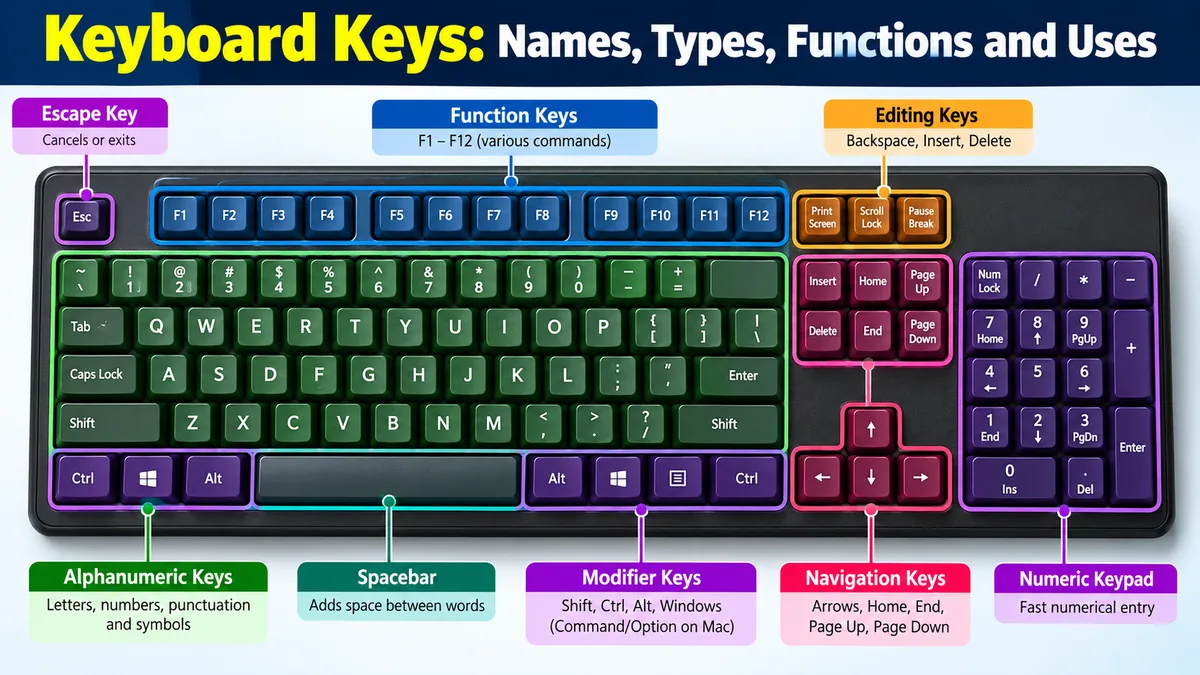

A computer keyboard can look simple until you notice how many different buttons, symbols, and secondary functions it contains. Some keyboard keys type characters, while others move the cursor, modify commands, control applications, or trigger operating-system features.
Keyboard keys are the physical buttons used to enter characters and commands into a computer or other digital device. They are commonly grouped into character keys, modifier keys, function keys, navigation keys, editing keys, lock keys, system keys, and numeric keypad keys. Their exact behavior depends on the keyboard layout, operating system, application, and active modifiers. Microsoft Learn
Understanding these groups makes typing, editing, navigating, and using keyboard shortcuts much easier.
What Are Keyboard Keys?
Keyboard keys are individual controls on a physical keyboard. Pressing one generates an input event that the computer interprets according to the active keyboard layout and software.
This distinction matters because the symbol printed on a keycap does not always determine what appears on the screen. A physical key can produce different characters when you change the language layout, hold a modifier such as Shift, or remap the keyboard in software. iTechGuides
For practical purposes, most keys fall into a few major categories.
| Type of key | Common examples | Main purpose |
|---|---|---|
| Character keys | A–Z, 0–9, punctuation | Enter text and symbols |
| Modifier keys | Shift, Ctrl, Alt, Command | Change another key’s action |
| Function keys | F1–F12 | Perform application or system commands |
| Navigation keys | Arrows, Home, End | Move through text and pages |
| Editing keys | Backspace, Delete, Insert | Edit text and data |
| Lock keys | Caps Lock, Num Lock | Toggle keyboard modes |
| System keys | Windows, Command, Print Screen | Control operating-system functions |
| Numeric keypad | 0–9, +, −, *, / | Fast numerical entry |
Microsoft’s keyboard guidance similarly distinguishes character, modifier, navigation, editing, function, and system keys. Microsoft Learn
Alphanumeric Keyboard Keys
The largest and most frequently used area of most keyboards is the alphanumeric section.
It contains alphabet keys, number keys, punctuation, and symbols used for everyday typing.
Alphabet Keys
The 26 alphabet keys run from A to Z.
On a standard English QWERTY keyboard, they are arranged in three rows rather than alphabetically. You use them to type words, names, commands, email addresses, URLs, and other text.
Holding Shift while pressing a letter normally produces an uppercase version. Turning on Caps Lock allows you to type multiple capital letters without continuously holding Shift.
Number Keys
Most keyboards have the digits 0 through 9 in a row above the letters.
These keys usually have a second symbol printed on them. On a US keyboard, for example, Shift combined with a number-row key can produce symbols such as:
! @ # $ % ^ & * ( )
The symbols are layout-dependent, so keyboards configured for other languages or regions may produce different characters.
Punctuation and Symbol Keys
The main typing area also contains punctuation and special-character keys.
Common examples include:
- Comma
, - Period
. - Semicolon
; - Apostrophe
' - Slash
/ - Backslash
\ - Hyphen
- - Equals
= - Brackets
[ ]
These keys can produce additional symbols when combined with Shift or, on some international layouts, modifiers such as AltGr.
Modifier Keyboard Keys
Modifier keys are especially important because they change what another key does rather than usually entering a character themselves.
Microsoft identifies Ctrl, Alt, Shift, and the Windows logo key as common modifier keys on Windows. Microsoft Learn
Shift
The Shift key has two major everyday functions.
It creates uppercase letters when held with an alphabet key and accesses the upper symbol printed on many number and punctuation keys.
For example:
Shift + a → A
On many US layouts:
Shift + 1 → !
Most keyboards provide a Shift key on both sides of the main typing area.
Ctrl or Control
Ctrl, short for Control, is heavily used in keyboard shortcuts.
Familiar Windows and application combinations include:
| Shortcut | Common action |
|---|---|
| Ctrl + C | Copy |
| Ctrl + V | Paste |
| Ctrl + X | Cut |
| Ctrl + Z | Undo |
| Ctrl + A | Select all |
| Ctrl + S | Save |
| Ctrl + F | Find |
These are conventions rather than universal rules. Applications and operating systems can assign different commands to the same combination.
Alt
The Alt key modifies other keys and can activate menus, shortcuts, or system commands.
A well-known Windows combination is Alt + F4, which commonly closes the active window. Logitech’s current function-key documentation also lists Alt + F4 for closing the current window. Logitech
AltGr
AltGr, or Alternate Graphic, appears on many international keyboards.
It provides access to additional characters that would otherwise require extra keys. Its usefulness varies considerably according to language and keyboard layout.
Windows Key
Windows-compatible keyboards commonly include a key displaying the Windows logo.
Pressing it normally opens the Start interface, while combinations such as Windows plus another key can launch operating-system shortcuts.
Command and Option Keys on Mac
Apple keyboards use Command (⌘) for many operations performed with Ctrl on Windows.
For example, copying commonly uses:
Windows: Ctrl + C
Mac: Command + C
Mac keyboards also have an Option key, which performs modifier functions broadly comparable to Alt in many contexts.
This is why memorizing the purpose of a key is often more useful than memorizing its physical location.
Function Keyboard Keys: F1 Through F12
The function row typically contains F1 through F12.
Unlike ordinary character keys, function keys do not have one universal action. Their behavior can depend on the operating system, active program, keyboard firmware, and manufacturer. Lenovo
Some widely recognized uses include:
| Key | Common use |
|---|---|
| F1 | Open Help |
| F2 | Rename a selected item in Windows |
| F3 | Search |
| F5 | Refresh |
| F6 | Move focus to browser address bar in many browsers |
| F7 | Spell-check in some applications |
| F10 | Activate menu functions in some software |
| F11 | Enter or leave full-screen browser mode |
| F12 | Application-specific tools or commands |
These should not be treated as guaranteed functions. Software developers can assign different actions, and modern keyboards frequently give the same physical keys secondary controls for volume, screen brightness, media playback, or other hardware features. Logitech
What Does the Fn Key Do?
The Fn key is especially common on laptops and compact keyboards.
It activates a secondary function assigned to another key. For example, a laptop may use its F1–F12 row for both conventional function-key commands and controls such as brightness or volume.
An important technical detail is that Fn may operate at the keyboard firmware level rather than behaving exactly like a standard operating-system modifier. That can affect how it is detected or remapped. Lenovo
Navigation Keyboard Keys
Navigation keys let you move through documents, spreadsheets, web pages, menus, and other interfaces without relying entirely on a mouse.
Common navigation keys include:
Arrow keys, Home, End, Page Up, and Page Down. Microsoft Learn
Arrow Keys
The four arrow keys move in corresponding directions:
- ↑ Up
- ↓ Down
- ← Left
- → Right
When editing text, Left and Right usually move the insertion point between characters, while Up and Down move it between lines.
Their exact behavior changes with context. In a game, for example, arrow keys may control movement rather than a text cursor.
Home and End
Home commonly moves the cursor toward the beginning of a line or section.
End generally moves toward the end.
Combining these keys with modifiers can produce larger navigation jumps in many applications.
Page Up and Page Down
Page Up and Page Down move the visible content upward or downward by a larger amount than an arrow key.
They are particularly useful for navigating long documents, spreadsheets, webpages, and text editors.
Editing Keyboard Keys
Several keyboard keys exist primarily to edit text or data.
Backspace
Backspace generally removes the character immediately before the insertion point.
If you type:
keyboadr
and place the cursor after the unwanted d, Backspace can remove the preceding character.
Delete
Delete commonly removes the character after the insertion point or deletes a currently selected item.
That creates a useful distinction:
Backspace → removes backward
Delete → generally removes forward
The exact result still depends on the application and current selection.
Insert
Insert is an older editing key that can switch between inserting new characters and overwriting existing ones in applications that support overwrite mode.
It is much less prominent on modern compact and laptop keyboards, but it remains part of the traditional editing-key group. Microsoft categorizes Insert alongside Backspace and Delete as an editing key. Microsoft Learn
Enter, Spacebar, Tab, and Escape Keys
Some keyboard keys are so common that users rarely think about what category they belong to.
Enter or Return
Enter is one of the most frequently used keys.
Depending on context, it can:
- Start a new paragraph
- Confirm a selection
- Submit information
- Run a command
- Open a selected item
Apple keyboards may label the key Return, although its everyday role is broadly similar.
Spacebar
The Spacebar is the long key near the bottom center of the keyboard.
Its primary purpose is to insert spaces between words, but applications can assign additional behavior. For example, software may use Spacebar to activate a selected control or perform an application-specific command.
Tab
The Tab key can move the cursor to the next tab stop in text-editing contexts.
In graphical interfaces and web forms, it is also valuable for moving keyboard focus from one interactive element to another.
That makes Tab particularly useful for efficient keyboard navigation.
Esc
Esc, short for Escape, sits near the upper-left corner of many keyboards.
It commonly cancels an operation, dismisses a menu or dialog, or exits a mode such as full-screen display, although its precise action depends on the application. Virtual Curiosities
Lock Keyboard Keys
Lock keys toggle a mode and keep it active until the mode is changed again.
Caps Lock
Caps Lock enables continuous uppercase alphabet entry.
Instead of holding Shift for every letter, you press Caps Lock once, type your capitals, and press it again to return to normal lowercase entry.
Many keyboards provide an indicator light showing whether it is active.
Num Lock
Num Lock controls the operating mode of the numeric keypad on keyboards that support this behavior.
When enabled, the keypad primarily enters numbers. Depending on the keyboard and operating system, disabling it may give some keypad keys navigation functions.
Scroll Lock
Scroll Lock is a legacy key with limited everyday use today.
Some software still recognizes it, but it is absent from many compact keyboards.
Lock keys such as Caps Lock and Num Lock remain a distinct keyboard category because they change how other keys behave until toggled again. RTINGS.com
Numeric Keypad Keys
A full-size desktop keyboard normally includes a numeric keypad, or numpad, on the right.
Its calculator-like arrangement makes repeated numerical entry faster.
Typical keys include:
0 1 2 3 4 5 6 7 8 9
along with mathematical operators such as:
+ − * /
and a decimal key and Enter key.
The numeric keypad is particularly useful for accounting, spreadsheets, calculations, finance, and other data-entry workloads. Digital Citizen
Compact keyboards may omit it entirely to save desk space.
Special and System Keyboard Keys
Modern keyboards may contain several keys that communicate with the operating system or control hardware features.
Print Screen
Print Screen, sometimes labeled PrtSc, is associated with capturing screenshots on Windows systems.
Its exact behavior can vary according to Windows settings and the shortcut combination used.
Menu Key
Some Windows keyboards include a Menu or Application key.
It can open a context menu similar to the menu displayed by right-clicking an item.
Media Keys
Many keyboards now include dedicated or secondary controls for:
- Volume up
- Volume down
- Mute
- Play/pause
- Previous track
- Next track
These may be separate physical keys or secondary functions assigned to the F-key row.
Brightness and Device Controls
Laptop keyboards commonly provide icons for display brightness, keyboard backlighting, wireless features, microphone control, and other device settings.
Because these controls depend heavily on the computer manufacturer and operating system, they are not standardized across every keyboard.
Keyboard Keys and QWERTY Layouts
QWERTY gets its name from the first six letter keys in the upper alphabet row:
Q-W-E-R-T-Y
However, QWERTY is not the only keyboard layout.
Other layouts and language configurations include QWERTZ, AZERTY, Dvorak, Colemak, and numerous localized layouts for different writing systems. A keyboard’s physical design and its software configuration do not necessarily have to match. iTechGuides
A useful way to understand keyboard layouts is to separate three concepts:
Physical layout — where the actual keys are positioned.
Visual layout — what characters or symbols are printed on the keycaps.
Functional layout — what the operating system actually interprets when you press those keys. Wikipedia
This explains a common problem: you press the key showing one symbol, but a different symbol appears on screen.
The hardware may be perfectly fine. The computer may simply be using a different software keyboard layout.
How Keyboard Keys Actually Work
A physical key does more than simply “send a letter.”
When you press a key, the keyboard detects the action and communicates a key event to the computer. The operating system then interprets that event according to the active layout, modifiers, settings, and application context.
In other words, the computer does not have to interpret a key solely according to the character printed on its keycap. Keyboard mapping determines what the input ultimately means. Wikipedia
That is why the same physical keyboard can be configured for different languages and layouts.
It also explains keyboard remapping. Software or firmware can change what a key does without physically moving or replacing the keycap.
Why Keyboard Keys Differ Between Keyboards
Not every keyboard has the same number or arrangement of keys.
A traditional full-size model normally provides an alphanumeric section, function row, navigation cluster, arrow keys, and numeric keypad. Smaller keyboards deliberately remove or combine some of these sections. Lenovo
Common form factors include:
| Keyboard size | Typical characteristic |
|---|---|
| Full-size | Includes number pad and most traditional key groups |
| Tenkeyless (TKL) | Usually removes the numeric keypad |
| 75% | Condenses navigation and function areas |
| 65% | Keeps arrows while removing many dedicated keys |
| 60% | Removes dedicated function row and many navigation keys |
When a physical key disappears, its function is not necessarily lost. Compact keyboards often place that command on another key layer accessed with Fn.
This is why a 60% keyboard can still provide functions normally associated with F1–F12 even though dedicated F-key buttons are absent.
Windows vs. Mac Keyboard Keys
Windows and Mac keyboards share most basic typing keys, but several modifier and system keys differ.
| Windows keyboard | Mac keyboard | General role |
|---|---|---|
| Ctrl | Control/Command depending on shortcut | Modifier |
| Alt | Option | Modifier |
| Windows key | Command | System/shortcut control |
| Backspace | Delete | Delete previous character |
| Enter | Return | Confirm/new line |
The most noticeable difference for everyday users is shortcut behavior.
For many familiar commands:
Windows: Ctrl + key
macOS: Command + key
So copying is commonly Ctrl + C on Windows and Command + C on macOS.
The underlying concept remains the same: a modifier changes the action performed by another key.
Useful Keyboard Shortcuts to Learn
Knowing individual keyboard keys becomes far more useful once you start combining them.
Some widely used Windows-style shortcuts are:
| Shortcut | Typical function |
|---|---|
| Ctrl + C | Copy |
| Ctrl + X | Cut |
| Ctrl + V | Paste |
| Ctrl + Z | Undo |
| Ctrl + A | Select all |
| Ctrl + F | Find |
| Ctrl + S | Save |
| Alt + F4 | Close active window |
| Tab | Move to next field/control |
| Shift + Tab | Move to previous field/control |
Shortcut behavior can vary by operating system and application, so these combinations should be understood as common conventions rather than fixed hardware functions.
Why Do Some Keyboard Keys Have Two or More Symbols?
A single physical key can represent several possible inputs.
For instance, a number key may produce its printed digit normally and another symbol when Shift is held.
International layouts can add further levels through modifiers such as AltGr. Software can also remap keys or switch the entire active language layout.
This means one keycap may have multiple legends because the output depends on the current modifier state and software configuration.
What If Keyboard Keys Type the Wrong Characters?
If several keys suddenly produce unexpected symbols, don’t immediately assume the keyboard is damaged.
Check the active keyboard language and layout first.
For example, switching between regional or language layouts can alter punctuation positions and other characters even though the physical keyboard has not changed. Because physical, visual, and functional keyboard layouts are separate concepts, the printed legends can stop matching the actual software mapping. iTechGuides
If only one key fails, possible causes include debris, switch failure, damaged hardware, remapping software, or an application-specific configuration.
If many keys change together in a consistent pattern, checking the keyboard layout is usually a sensible first troubleshooting step.
Understanding Keyboard Keys Makes Computers Easier to Use
Learning keyboard keys is less about memorizing every button and more about understanding the groups.
Character keys enter text. Modifier keys change other commands. Function keys provide context-dependent shortcuts. Navigation keys move around documents and interfaces. Editing keys alter content. Lock keys toggle modes, while system and media keys control broader computer functions.
Once those categories make sense, unfamiliar keyboards become much easier to understand—even when you move between a full-size desktop keyboard, laptop, compact mechanical keyboard, Windows PC, or Mac.
