
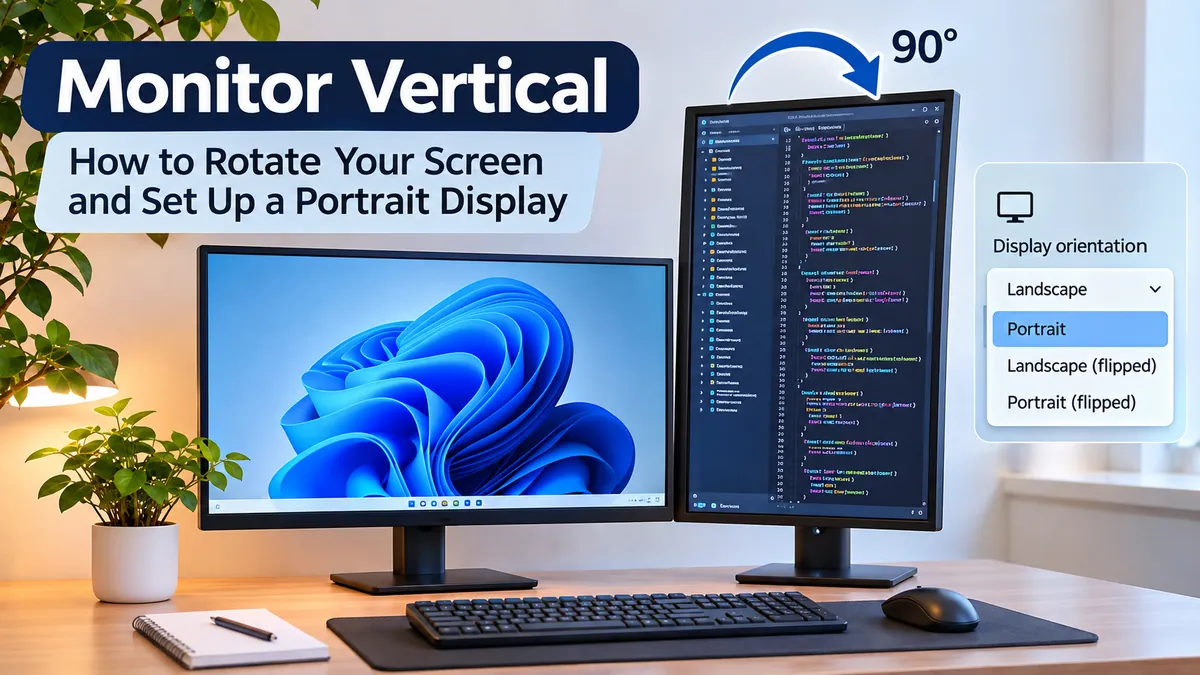

A monitor displaying content vertically can be useful for coding, reading documents, browsing long webpages, and managing multiple applications. But when your screen suddenly rotates without warning, the same feature can become frustrating.
A monitor vertical setup means using a computer display in portrait orientation rather than the traditional landscape position. You can rotate a compatible monitor 90 degrees and change its display settings in Windows, macOS, or Linux. The result is a taller viewing area that can make certain tasks easier.
Understanding how portrait monitors work, what equipment you need, and how to correct orientation problems will help you create a comfortable workspace without compromising display quality.
What Is a monitor vertical Display?
A vertical monitor is a computer screen positioned with its longer dimension running from top to bottom. It uses portrait orientation, similar to how a smartphone displays content when held upright.
Most desktop monitors use a landscape aspect ratio of 16:9 or 16:10. Rotating a widescreen monitor by 90 degrees changes its physical orientation and the way content appears.
For example, a 1920 × 1080 monitor becomes a 1080 × 1920 portrait display when the operating system adjusts its orientation.
| Feature | Horizontal Monitor | Vertical Monitor |
|---|---|---|
| Orientation | Landscape | Portrait |
| Typical resolution | 1920 × 1080 | 1080 × 1920 |
| Best for | Gaming, videos, spreadsheets | Coding, reading, writing |
| Screen width | Wider | Narrower |
| Screen height | Shorter | Taller |
| Multitasking | Side-by-side windows | Stacked windows |
| Physical rotation | Standard position | Usually 90 degrees |
A portrait monitor does not require special display technology. Many ordinary LCD, LED, IPS, and OLED monitors can work vertically if their stands or mounts support rotation.
However, physically turning the monitor does not automatically guarantee that the displayed image will rotate. You may also need to change the operating system’s orientation settings.
Why Use a monitor vertical Setup?
Vertical monitors have become popular among programmers, writers, researchers, and professionals who frequently work with long documents.
Their main advantage is simple: they show more content vertically without requiring constant scrolling.
1. More Space for Coding
Software developers often work with hundreds of lines of code. A portrait monitor can display more lines at once, depending on the editor’s font size and interface layout.
This makes it easier to inspect functions, review code, and follow long files.
Applications such as Visual Studio Code, IntelliJ IDEA, and Sublime Text support portrait displays through normal operating-system window management.
However, long lines of code may wrap more frequently because a vertical monitor offers less horizontal space.
2. Easier Reading and Research
Long articles, academic papers, PDFs, and digital books naturally fit a portrait-oriented screen.
Instead of displaying a wide page with substantial unused space, a vertical monitor can provide a layout closer to a printed document.
Researchers can also benefit from keeping reference material visible while working on another screen.
3. Better Document Editing
Writers and editors often prefer seeing an entire page or a larger portion of a document.
Microsoft Word, Google Docs, and similar applications work well in portrait mode because their document layouts are usually taller than they are wide.
A vertical screen can reduce scrolling when editing articles, reports, and manuscripts.
4. Improved Multitasking
A portrait monitor can display multiple applications stacked vertically.
For example, you might keep a browser window at the top and a notes application below it.
Windows Snap Layouts, macOS window tiling, and Linux desktop window managers can help organize these applications.
5. A Practical Secondary Display
A vertical monitor is especially useful as part of a dual-monitor setup.
The primary landscape monitor handles video calls, spreadsheets, or design applications, while the secondary portrait monitor displays email, documentation, chat applications, or reference material.
This arrangement provides different screen shapes for different tasks.
How to Make a Monitor Vertical on Windows 11 and Windows 10
Windows includes built-in display orientation settings, so most users do not need third-party software.
Step 1: Rotate the Monitor Physically
If your monitor has a pivot stand, carefully rotate it 90 degrees.
Check the manufacturer’s instructions before turning the screen. Some stands require raising the monitor to its highest position before rotation.
If the stand does not support pivoting, you may need a compatible VESA monitor arm or replacement stand.
Step 2: Open Display Settings
Right-click an empty area of your Windows desktop and select Display settings.
If multiple monitors are connected, click the display you want to rotate.
Use the Identify button if you are unsure which screen is selected.
Step 3: Change Display Orientation
Find the Display orientation dropdown menu.
Windows generally provides four options:
- Landscape
- Portrait
- Landscape (flipped)
- Portrait (flipped)
Select Portrait for a standard vertical monitor.
If the picture appears upside down, choose Portrait (flipped).
Step 4: Confirm the New Orientation
Windows may ask whether you want to keep the changes.
Select Keep changes if the screen appears correctly.
If you do not confirm, Windows normally reverts to the previous orientation after a short period.
Step 5: Check Resolution and Scaling
After rotating the display, verify that the recommended resolution is selected.
For a Full HD monitor, portrait mode commonly uses 1080 × 1920.
You can also adjust display scaling to make text and interface elements comfortable to read.
A scaling setting of 100%, 125%, or 150% may be appropriate depending on screen size, resolution, and viewing distance.
Can You Rotate a Windows Screen With Keyboard Shortcuts?
Some graphics drivers support keyboard shortcuts such as Ctrl + Alt + an arrow key.
However, these shortcuts are not universal Windows features and may be disabled or unavailable.
Using Display settings is the more reliable method.
How to Rotate a Monitor Vertically on macOS
Apple computers also support portrait-oriented external monitors, although available settings depend on the Mac, connected display, and macOS version.
Step 1: Connect the External Monitor
Connect your monitor using a compatible HDMI, DisplayPort, Thunderbolt, or USB-C connection.
Make sure the Mac recognizes the external display.
Step 2: Open Displays Settings
Open the Apple menu and select System Settings, then Displays.
Select the external monitor you want to rotate.
Step 3: Choose Rotation
If rotation is supported, look for the Rotation setting.
Choose 90 degrees or 270 degrees, depending on which direction you physically turned the screen.
The available options can differ by hardware and software configuration.
Step 4: Adjust the Display Arrangement
If you use multiple screens, arrange their positions in Displays settings to match their physical placement.
This makes moving the mouse pointer between monitors more natural.
If the Rotation option is missing, your particular display configuration may not support rotation through the standard macOS interface.
How to Set Up a Vertical Monitor on Linux
Many Linux desktop environments support portrait displays.
On Ubuntu with GNOME, open Settings and select Displays.
Choose the relevant monitor, then change Orientation to Portrait Left or Portrait Right, depending on the options available.
Apply the changes and confirm that the image appears correctly.
KDE Plasma provides similar controls through System Settings and Display Configuration.
For X11-based systems, the xrandr utility can also rotate supported displays.
For example:
xrandr --output HDMI-1 --rotate leftReplace HDMI-1 with the actual display output name shown by xrandr.
This command is intended for compatible X11 sessions. Wayland desktop environments typically use their graphical display settings or compositor-specific tools instead.
Can Any Monitor Be Used Vertically?
Not every monitor can be rotated using its original stand, but many displays can support portrait orientation with suitable mounting hardware.
The main requirement is a safe way to physically rotate the screen.
Pivot Stands vs. Standard Stands
A pivot stand allows the monitor to rotate around its mounting point, usually by 90 degrees.
This is different from other stand adjustments:
| Adjustment | Function |
|---|---|
| Pivot | Rotates the screen into portrait orientation |
| Tilt | Angles the screen forward or backward |
| Swivel | Turns the screen left or right |
| Height adjustment | Raises or lowers the display |
| VESA mounting | Attaches a compatible stand or monitor arm |
A monitor advertised as having tilt and swivel adjustment does not necessarily support pivoting.
Using a VESA Monitor Arm
If your monitor lacks a rotating stand, a compatible VESA arm may solve the problem.
Common mounting patterns include 75 × 75 mm and 100 × 100 mm.
Before installing an arm, check the monitor’s mounting pattern, weight, dimensions, screw requirements, and the arm’s rotation capability.
Also verify that cables have enough slack and the screen can rotate without hitting the desk.
A VESA mounting pattern alone does not guarantee compatibility with every arm.
Can You Turn a Monitor Sideways Without a Stand?
You should not simply balance a monitor on its side or lean it against another object.
Doing so can damage the panel, block ventilation, strain connectors, or cause the screen to fall.
Use a manufacturer-supported stand or appropriately rated mount, and confirm that the monitor is approved for portrait operation.
Best Monitor Size, Resolution, and Panel Type for Portrait Mode
The ideal vertical monitor depends on the content you use and the available desk space.
A large display provides more viewing area, but it may also require uncomfortable head movement if positioned incorrectly.
Choosing the Right Screen Size
Vertical Monitor Guide for Coding & Document Work
24-inch monitor
A manageable choice for reading, programming, email, and office work. Its relatively compact height makes placement easier.
Alogic Clarity Pro 27-Inch 4K Monitor with 8MP Retractable 4K Webcam a – Focus Camera
27-inch monitor
Offers more physical viewing space, especially at 1440p or 4K. Height adjustment becomes more important.
32″ 4K UHD Smart Monitor with webOS and Ergo Stand – 32SQ780S-W | LG Canada
32-inch monitor
Suitable for specialized workflows but potentially awkward in portrait mode because of its considerable height.
Understanding Portrait Resolution
Rotating a monitor changes the orientation of its pixel grid, not the number of pixels.
| Native Resolution | Portrait Resolution | Typical Use |
|---|---|---|
| 1920 × 1080 | 1080 × 1920 | General office work |
| 1920 × 1200 | 1200 × 1920 | Documents and coding |
| 2560 × 1440 | 1440 × 2560 | Detailed text and multitasking |
| 3840 × 2160 | 2160 × 3840 | High-density professional work |
A higher resolution can produce sharper text when combined with an appropriate screen size and scaling setting.
However, higher pixel counts do not automatically mean better usability. Interface scaling and viewing distance also matter.
IPS vs. VA vs. TN Panels
IPS monitors are often well suited to portrait use because they generally maintain consistent colors and contrast across wider viewing angles.
VA panels can offer strong contrast, but some exhibit noticeable changes in appearance when viewed off-axis.
TN panels typically have more limited viewing angles, which can become particularly noticeable after rotation.
OLED monitors may provide excellent contrast and response times, but users should consider static-image retention risks, text rendering characteristics, and manufacturer orientation guidance.
For long sessions involving documents and code, an IPS display is often a practical option.
How to Set Up Dual Monitors With One Vertical Screen
A landscape-and-portrait combination can provide a flexible workstation without requiring two identical monitors.
Vertical Monitor for Coding: Worth It?
Portrait & Landscape Monitor Setup for Design & Reading
11
Positioning Your Screens
Place the primary monitor directly in front of you.
Position the vertical secondary display beside it, angled slightly inward so you can read it without excessive neck rotation.
If you use both displays equally, arrange them to minimize repeated head turning.
Configuring Windows for Two Monitors
- Connect both monitors to your computer.
- Open Settings → System → Display.
- Select Extend these displays.
- Identify the screen intended for portrait use.
- Change its Display orientation to Portrait.
- Drag the display rectangles to match the physical arrangement.
- Apply the settings.
Microsoft’s multiple-monitor setup instructions explain how to identify, arrange, and configure separate displays. Microsoft Support+1
Organizing Applications
A practical workflow might use the landscape monitor for primary work and the portrait monitor for supporting material.
For example, a developer could keep Visual Studio Code on the horizontal display and documentation on the vertical screen.
A writer might place a document editor on one screen and research sources on the other.
This arrangement works best when each display has a clear purpose rather than requiring constant window movement.
Common monitor vertical Problems and How to Fix Them
Screen rotation problems usually involve display settings, graphics drivers, unsupported mounting hardware, or incorrect monitor selection.
Monitor Is Vertical but the Image Is Sideways
This happens when the physical screen has been rotated without changing the software orientation.
Open Display settings, select the affected monitor, and choose Portrait or Portrait (flipped).
The display should then match the screen’s physical position.
Screen Suddenly Rotated 90 Degrees
An accidental keyboard shortcut, automatic rotation setting, or display configuration change may cause this problem.
On Windows, open Settings → System → Display and change Display orientation back to Landscape.
If the device supports automatic rotation, inspect its rotation-lock settings.
Samsung also documents these troubleshooting methods for unexpectedly rotated PC displays. Samsung es+1
Portrait Orientation Is Missing
If the rotation option is unavailable, check whether the correct display is selected.
Next, inspect your graphics driver and operating-system settings.
Some remote desktop environments, display adapters, and hardware combinations have orientation restrictions.
On macOS, the Rotation setting appears only for supported configurations. Apple Support (AE)+1
Text Looks Blurry After Rotation
Rotated screens can sometimes make text appear less sharp, particularly when the display’s subpixel arrangement interacts with text-rendering techniques.
Try the following:
- Use the monitor’s recommended native resolution.
- Check operating-system scaling.
- Run the Windows ClearType Text Tuner where applicable.
- Avoid unnecessary non-native resolutions.
- Inspect application-specific text-rendering settings.
Physical rotation does not inherently reduce pixel count or native resolution.
Mouse Movement Feels Incorrect Between Monitors
If the pointer appears to jump between screens or cannot cross certain edges, the virtual monitor arrangement may not match the physical setup.
Open Display settings and reposition the monitor rectangles.
Align their edges in a way that matches your preferred mouse movement.
Monitor Cannot Physically Rotate
Check whether the original stand supports pivot adjustment.
If not, inspect the monitor’s specifications for compatible mounting options.
Do not force a fixed stand to rotate, as this can damage the stand or display.
Is a Vertical Monitor Better for Your Neck and Eyes?
Portrait orientation can improve the layout of reading-heavy tasks, but it is not automatically more ergonomic than landscape orientation.
A vertical display is taller, so placing it too high can encourage repeated upward head movement.
The goal is to position frequently viewed content within a comfortable field of vision.
Adjusting Monitor Height
Position the screen so your normal viewing area is at or slightly below eye level.
A large portrait display may need to sit lower than a landscape monitor to avoid excessive upward viewing.
Keep the display at a comfortable distance, commonly around an arm’s length, while adjusting for screen size and vision needs.
Reducing Eye Strain
Use comfortable text scaling and avoid excessive brightness differences between the screen and surrounding environment.
Regularly change your viewing distance and take short visual breaks during prolonged screen use.
The 20-20-20 approach—looking approximately 20 feet away for 20 seconds every 20 minutes—is a commonly suggested reminder for visual breaks, although it should not be treated as a guaranteed medical solution.
Avoiding Awkward Head Movement
If you use a portrait display as a secondary monitor, avoid positioning it far to one side when it contains material you constantly need to read.
Move frequently used applications toward the center of your viewing area.
A good setup should support your natural working posture rather than forcing you to adapt to the screen.
When a Vertical Monitor Is Not the Best Choice
Portrait orientation offers advantages, but some activities benefit more from horizontal space.
Gaming
Most PC games are designed primarily for landscape displays.
Although some games and applications support portrait resolutions, others may display black bars, restrict available resolutions, or provide an uncomfortable field of view.
A landscape screen is generally the more practical primary gaming monitor.
Video Editing and Streaming
Most mainstream video content uses landscape aspect ratios such as 16:9.
Watching a horizontal video on a portrait display can leave large unused areas above and below the image.
Video editors may also find that timelines and wide preview panels fit more naturally on landscape monitors.
However, portrait displays can be useful when creating vertical videos for social media.
Large Spreadsheets
Wide spreadsheets with many columns are often easier to navigate on landscape or ultrawide displays.
Portrait orientation can reduce the number of visible columns and increase horizontal scrolling.
For spreadsheet-heavy work, a landscape primary display with a portrait secondary monitor may offer a better balance.
Graphic Design
Graphic designers frequently work with horizontal canvases, toolbars, and multiple panels.
A portrait monitor may be useful for posters, mobile layouts, or page designs, but it is not necessarily the best default for every design project.
The most suitable orientation depends on the shape of the content being created.
Practical Tips for a Reliable Portrait Monitor Setup
A successful setup depends on more than simply rotating the display.
Before making the change permanent, consider the following:
- Confirm rotation support. Check the monitor manual for pivot operation or approved portrait mounting.
- Verify mounting compatibility. Match the VESA pattern, weight capacity, and screw requirements.
- Allow cable clearance. HDMI, DisplayPort, power, and USB cables should not be pulled tightly during rotation.
- Use native resolution. Preserve the monitor’s intended pixel clarity.
- Adjust scaling. Make text readable without excessive leaning or squinting.
- Check ventilation. Ensure portrait positioning does not block cooling openings.
- Test your applications. Confirm that frequently used software fits comfortably within the narrower screen.
- Rearrange your workspace. Keep the most frequently viewed screen in a comfortable position.
It is also worth checking whether your monitor supports automatic image rotation. Some monitors provide this through manufacturer-specific software or sensors, but many require manual operating-system adjustments.
Final Thoughts on monitor vertical Setups
A monitor vertical arrangement can make reading, coding, writing, and document-heavy workflows more convenient by providing additional vertical viewing space.
Most modern operating systems support portrait display settings, and many standard monitors can be adapted with a pivot stand or compatible VESA arm.
The most effective configuration depends on your monitor’s physical design, resolution, screen size, viewing comfort, and daily tasks.
For many workstations, keeping the primary display horizontal and using a second screen vertically provides a useful combination of wide and tall viewing areas.
Before rotating your monitor, confirm that its hardware supports portrait operation, adjust the display orientation through your operating system, and position the screen for comfortable long-term use.
