
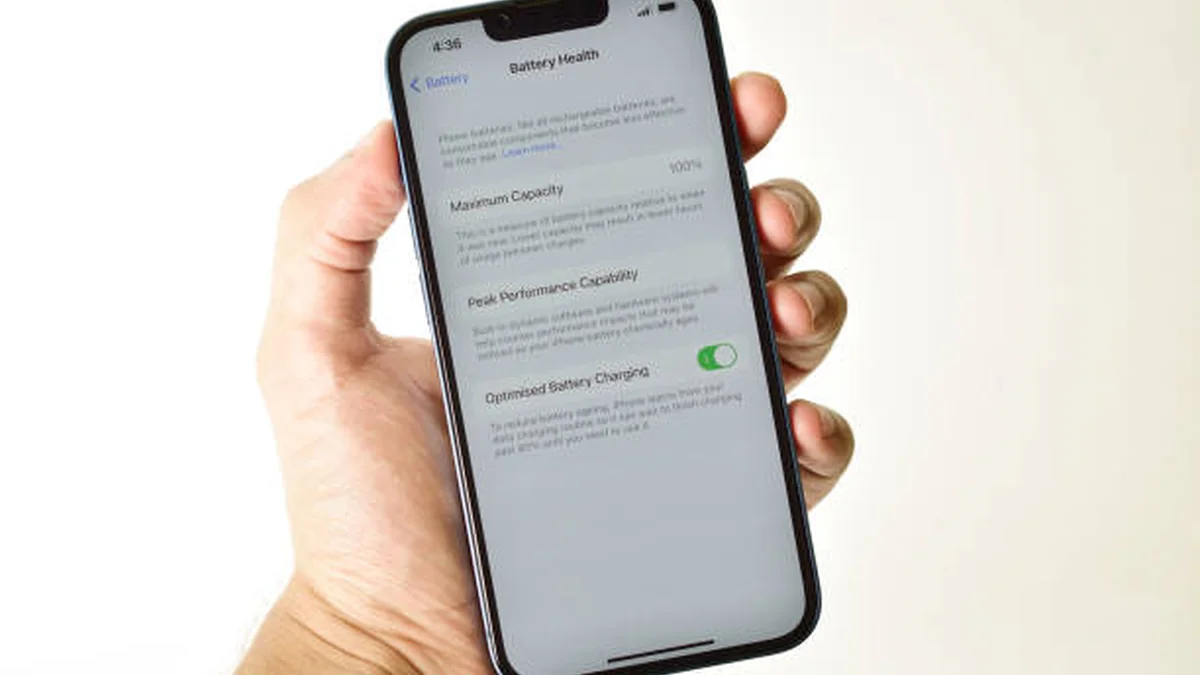

If you want to check phone battery health, the fastest way is Settings > Battery on both iPhone and Android — but what that screen actually shows you, and what counts as “good,” is where most guides fall short. Your phone dies by 4 p.m. even though you barely used it. Before you blame an app or your Wi-Fi signal, check the one number that actually explains it: battery health.
Battery health is the percentage of your battery’s original capacity that it can still hold. To check phone battery health on iPhone, go to Settings > Battery > Battery Health & Charging (or Charging, on iPhone 15 and later) and read Maximum Capacity. On Android, the path varies by brand — Samsung users can check it in the Samsung Members app, while most others need a third-party app like AccuBattery.
Why You Should Check Phone Battery Health (What It Actually Means)
People mix up three different things: battery health, battery life, and battery level. They’re not the same, and confusing them is why so many people misread their own phone.
- Battery level is the percentage shown in your status bar right now — how much charge is left today.
- Battery life is how long that charge actually lasts you, which depends on your screen brightness, apps, and signal strength as much as the battery itself.
- Battery health is the long-term one. It’s how much capacity your battery can hold compared to when it was brand new. A phone with 100% health can store its full designed capacity. A phone with a 4,000mAh battery at 90% health effectively works with about 3,600mAh — meaning shorter runtime and more frequent charging, even if you use the phone exactly the same way you always have.
Every lithium-ion battery degrades. It’s not a defect — it’s chemistry. Full charge-to-discharge cycles, heat exposure, and time all wear the cell down gradually. Health is the number that tracks how far along that wear you are.
How to Check Phone Battery Health on iPhone
Apple makes this the easiest version of the process by far — no app download required.
Native Settings Method
- Open Settings.
- Tap Battery.
- On iPhone 14 and earlier, tap Battery Health & Charging. On iPhone 15 and later, tap Charging.
- Read the Maximum Capacity percentage at the top.
That number reflects your battery’s current capacity relative to when it was new. Apple’s own guidance treats a complete charge cycle as using an amount equal to 100% of capacity — not necessarily in one sitting, so charging from 60% to 100% one day and 0% to 40% the next still adds up to a single cycle.
Checking Cycle Count
Maximum Capacity tells you how much your battery has degraded, but cycle count tells you why. On iPhone 15 and later, you can see this directly under Settings > General > About. On earlier models, Apple doesn’t surface it in the UI at all — you’d need to dig into Analytics Data under Settings > Privacy & Security > Analytics & Improvements, which most people find isn’t worth the trouble.
For context: Apple’s iPhone 14 and earlier are rated to retain 80% capacity at around 500 full cycles, while iPhone 15 and later are rated for roughly 1,000 cycles before hitting that same 80% mark — effectively doubling the expected lifespan under normal conditions.
Understanding Peak Performance Capability
Below Maximum Capacity, you’ll sometimes see a second status called Peak Performance Capability. This is the one people skip past, and it’s arguably more useful day-to-day than the percentage itself.
If your phone has ever shut down unexpectedly because a degraded battery couldn’t supply enough power for a demanding task, iOS may automatically enable Performance Management — throttling the processor to prevent it from happening again. Practically, that shows up as slower app launches, choppier scrolling, dimmer screen brightness, quieter speaker output, and in extreme cases a disabled camera flash. You can turn this off manually in Settings, but doing so brings back the risk of random shutdowns, so most people are better off leaving it on and treating it as a signal that a replacement is due.
Quick takeaway: Maximum Capacity is the long-term trend line. Peak Performance Capability is the “is this actively affecting me right now” flag. Check both.
How to Check Phone Battery Health on Android
Android doesn’t have one universal answer here, because Google doesn’t mandate a single battery health screen the way Apple does. What you see depends entirely on your phone’s manufacturer.
Settings Menu (Brand-Dependent)
Some manufacturers, including newer HONOR models, build a dedicated Battery Health section right into Settings > Battery, showing a Maximum Capacity figure much like Apple’s. Others show only usage stats and a power-saving toggle with nothing resembling a health percentage. If your phone has it, you’ll typically find it under Settings > Battery > More battery settings, or by searching “battery health” in the Settings search bar.
Samsung Members App
Samsung takes a different approach — rather than a raw percentage, it gives you a plain-language rating.
- Open the Samsung Members app (pre-installed on most Samsung phones, or downloadable from the Galaxy Store).
- Select Diagnostics (or Get Help > Interactive checks on some versions).
- Choose Battery or Phone diagnostics > Battery status.
- Read the result — typically Good, Normal, or a warning that the battery is weak and should be assessed.
It won’t hand you an exact percentage, but “Good” is a reliable enough signal that your battery isn’t the reason your phone feels sluggish.
The Hidden Dial Code
Several Android manufacturers — including Xiaomi, Google, and OnePlus in independent testing — expose a hidden diagnostic menu through the phone dialer.
- Open your Phone app’s dial pad.
- Enter
*#*#4636#*#*. - Look for Battery information in the menu that appears.
- Tap it to view health status, charge level, and temperature.
This doesn’t work universally — it’s been reported to fail on some Samsung models, for example — so treat it as a bonus method rather than your primary one.
Best Third-Party Battery Health Apps
If your phone’s Settings menu doesn’t show a health percentage and you don’t own a Samsung, a third-party app is genuinely the most reliable route on Android.
| App | Best For | Notes |
|---|---|---|
| AccuBattery | Overall accuracy | Widely regarded as the most reliable Android option; tracks real discharge in mAh rather than a vague “good/bad” label, and logs charging speed and cycle count over time |
| Battery Guru | Enthusiasts | Adds temperature and charging-speed tracking alongside health estimation |
| CPU-Z | Quick hardware snapshot | Lightweight, shows battery info alongside broader device specs |
| DevCheck | Power users | Deep diagnostic detail beyond just battery |
| GSam Battery Monitor | Visual usage breakdowns | Strong at showing which apps are actually draining your battery |
A word of caution worth repeating: apps that promise an instant “AI-powered battery health score” with no methodology behind it tend to be far less trustworthy than ones that show you raw mAh discharge curves and let you interpret the trend yourself. If an app can’t explain how it calculated the number, don’t treat that number as gospel.
Quick takeaway: iPhone users rarely need a third-party app — Apple’s own number is accurate. Android users without a manufacturer health screen should start with AccuBattery.
What Counts as Good vs. Bad Battery Health
There’s a widely-cited threshold, and it’s worth understanding rather than just memorizing.
- 90–100% — Effectively new. No noticeable difference in daily use.
- 80–89% — Normal wear for a phone that’s a year or two old. You may notice slightly faster drain by evening, but nothing dramatic.
- Below 80% — Apple officially considers the battery “consumed” at this point, and most Android manufacturers use a similar informal line. This is where unexpected shutdowns, throttling, and visibly shorter runtime become common.
That said, the percentage alone doesn’t tell the whole story. A battery at 78% that’s still delivering a full day of light-to-moderate use isn’t necessarily an emergency — the number matters most when it’s paired with something you can actually feel: shutdowns, sudden drain spikes, or a phone that struggles to make it through a workday. Chasing a perfect percentage for its own sake isn’t a productive use of your time.
What Actually Damages Battery Health (and How to Slow It Down)
Degradation is inevitable, but the rate of it isn’t fixed — daily habits move the needle more than most people realize.
Heat is the single biggest factor. Lithium-ion cells degrade fastest when hot. Apple’s recommended operating range is roughly 16–22°C (62–72°F), and exposure above 35°C (95°F) can cause permanent capacity loss. Leaving your phone in a hot car or gaming for an hour under direct sunlight does real, cumulative damage.
Deep discharges add stress. Regularly letting your phone die to 0% strains the cells more than topping up from 30–40%. Plugging in before you hit empty, rather than waiting for a shutdown, extends overall cycle life.
The 40–80 rule. Keeping your battery between roughly 40% and 80% charge, rather than cycling fully between 0% and 100%, can meaningfully extend a battery’s usable lifespan — some estimates suggest close to double the cycle life compared to constant full charges.
Cheap chargers and cables matter more than people assume. Chargers that don’t properly regulate voltage can cause heat spikes during charging, which accelerates wear. Sticking to MFi-certified or USB-C Power Delivery-compliant hardware avoids this.
What you can’t undo: Optimized or Adaptive Battery Charging (available on both iPhone and many Android phones) reduces future wear by learning your routine and holding charge below 100% until shortly before you need it — but no setting reverses capacity already lost. Once a cell has degraded, the only way to restore original performance is a physical battery replacement.
When to Replace Your Battery
Replace your battery when health drops below roughly 80% and you’re actually feeling it — not the moment the number ticks down. The signals worth acting on:
- Frequent unexpected shutdowns, even with charge remaining
- Noticeable throttling (sluggish apps, dropped frame rates) tied to a “Performance Management” or similar notice
- The phone no longer makes it through a normal day of use
- You’re planning to trade in or sell the phone — battery health is one of the first things resellers and trade-in programs check, and a healthy battery can meaningfully improve your device’s resale value
For cost and booking, check pricing directly with your manufacturer or an authorized repair provider, since it varies by model and changes over time — Apple, for instance, publishes current battery service pricing on its own support site rather than a fixed universal rate.
Battery health isn’t something to obsess over daily, but it’s worth a two-minute check every few months — especially before a big trip, a trade-in, or when your phone starts feeling unreliable. Once you know your number, the next step is simple: if it’s healthy, keep doing what you’re doing; if it’s not, decide between adjusting your charging habits or booking a replacement before it becomes an unexpected-shutdown problem at the worst possible moment.
FOR MORE HELPFUL GUIDES LIKE THIS, SEE TECHKOU.NET’S HOMEPAGE AND EXPLORE MORE.
FAQ Section
Q1: What is a healthy battery health percentage? Anything above 85–90% is essentially like new. 80–89% is normal wear and rarely noticeable. Below 80% is where most manufacturers, including Apple, consider the battery meaningfully degraded and start recommending a replacement if you’re feeling the effects.
Q2: How do I check Android battery health without installing an app? Try Settings > Battery > More battery settings first — some brands like HONOR show it directly. If not, Samsung users can use the Samsung Members app, and many phones support the *#*#4636#*#* dial code for a hidden diagnostics menu.
Q3: Why is my battery health dropping so fast? Usually heat exposure, frequent deep discharges (0–100% cycles), or an aging battery nearing its rated cycle limit. Cheap or uncertified chargers can also accelerate wear through inconsistent voltage.
Q4: Does fast charging ruin battery health? It contributes to it over time, mainly through added heat during charging. Occasional fast charging isn’t a problem, but relying on it constantly, especially in warm environments, speeds up degradation more than standard charging.
Q5: Is 80% battery health bad? Not automatically. It’s the general threshold where manufacturers flag the battery as “consumed,” but if your phone still lasts a full day without shutdowns or throttling, it’s not urgent — just something to keep an eye on.
Q6: How much does it cost to replace a phone battery? Pricing varies significantly by brand, model, and whether you use an authorized provider or third party. Always check current pricing directly with the manufacturer’s support site or a trusted repair shop before booking.
Q7: Can I improve battery health once it’s degraded? No — capacity already lost can’t be restored through software. You can slow future degradation with habits like the 40–80 charging rule and avoiding heat, but a physical replacement is the only way to recover lost capacity.
Q8: What’s the difference between battery health and battery life? Battery health is a long-term measure of how much original capacity your battery retains. Battery life is how long a single charge lasts you today, which depends on usage, screen brightness, and background apps as much as the battery’s underlying health.
