
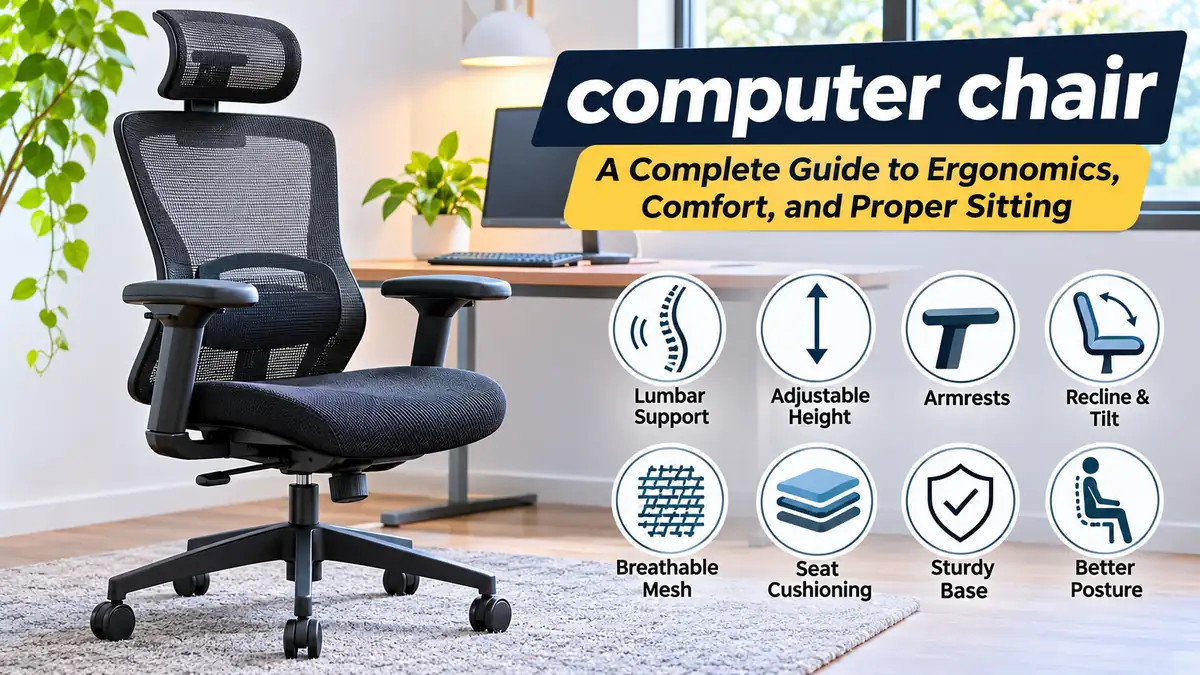

A computer chair can make a noticeable difference in how comfortable you feel during long hours at a desk. Yet even an expensive chair may cause discomfort if its dimensions, adjustments, or positioning do not suit your body.
The most useful computer chair is one that supports a natural sitting posture, allows movement, and fits your desk and daily activities. Understanding seat height, lumbar support, armrests, backrest design, and ergonomic adjustments helps you create a more comfortable workstation without assuming that one chair works for everyone.
What Is a computer chair?
A computer chair is a seat designed for use at a desk or computer workstation. Most models include a backrest, padded or mesh seat, adjustable height, swivel mechanism, and wheeled base. Ergonomic versions offer additional adjustments intended to accommodate different body sizes, working positions, and sitting preferences.
Computer chairs are commonly used for office work, studying, gaming, remote work, and other activities involving extended screen time.
Unlike a basic dining chair, a computer chair typically allows the user to change their sitting position without moving the entire chair. This flexibility can reduce awkward reaching and make it easier to maintain a comfortable relationship with the keyboard, mouse, and monitor.
However, a chair alone cannot prevent every problem associated with prolonged sitting. Movement, workstation arrangement, and individual comfort remain essential.
Different Types of Computer Chairs
Computer chairs come in several designs, each with distinct features and limitations.
Ergonomic Office Chairs
Sihoo M102C Chaise de bureau – FR Sihoo Official Shop
Ergonomic office chairs emphasize adjustability and support. Common features include adjustable seat height, lumbar support, armrests, tilt mechanisms, and seat-depth adjustment.
These chairs are particularly useful when several people share a workstation or when one person spends substantial time performing computer-based tasks.
Their main advantage is adaptability. Their main limitation is that more adjustments do not automatically produce better comfort unless they are used correctly.
Mesh Computer Chairs
Galaxy Mesh Office Chair | Office Furniture Online
Mesh chairs use a woven material across the backrest and sometimes the seat. This design allows air to circulate more easily than many solid upholstered surfaces.
They are often preferred in warm environments, although mesh tension and frame shape affect how comfortable they feel.
A poorly designed mesh seat may create pressure around its edges, while a well-designed mesh backrest can provide flexible support.
Executive Office Chairs
Executive chairs usually feature high backs, thicker cushioning, and upholstered surfaces such as fabric, synthetic leather, or genuine leather.
They may provide a plush sitting experience, but their size and padding can limit movement or trap heat. Some also offer fewer meaningful adjustments than task-oriented ergonomic chairs.
Gaming Chairs
Pemberly Row Sport Ergonomic High-Back Fabric Racer Style PC Gaming Chair- Black
Gaming chairs frequently feature high backrests, pronounced side bolsters, reclining mechanisms, and adjustable armrests.
Their appearance is inspired partly by automotive seating, although the visual similarity does not guarantee ergonomic benefits.
Some gaming chairs offer useful adjustments, while others have rigid contours that may not accommodate wider shoulders or different sitting positions.
Task Chairs and Compact Computer Chairs
Task chairs are generally smaller and simpler than executive or gaming models. They often include seat-height adjustment, a swivel base, and basic back support.
Compact chairs can work well in bedrooms, student study areas, and small home offices.
The trade-off is that some models omit adjustable armrests, seat depth, or lumbar support.
Kneeling Chairs and Saddle Chairs
Alternative seating designs change the angle between the torso and thighs.
Kneeling chairs distribute some body weight through angled shin supports, while saddle chairs encourage a more open hip angle.
Neither design should be assumed to be universally superior. Their suitability depends on the individual, task, comfort, and ability to change positions.
Key Ergonomic Features of a computer chair
The ergonomic value of a chair depends less on its marketing description and more on how effectively it fits the person using it.
Adjustable Seat Height
Seat height is one of the most important adjustments.
When seated, your feet should generally rest flat on the floor or on a stable footrest, with your thighs comfortably supported and without excessive pressure behind the knees.
A chair that is too high may leave the feet unsupported. A chair that is too low may place the knees considerably above the hips and make it difficult to maintain a comfortable working position.
Lumbar Support
The lumbar region is the lower portion of the spine. It normally has an inward curve when viewed from the side.
Lumbar support is designed to help accommodate this curve while sitting.
Adjustable lumbar systems may allow changes in height, depth, or firmness. Fixed lumbar supports can also be comfortable when their shape happens to fit the user’s body.
Support should feel gentle rather than forcing the lower back into an exaggerated arch.
Seat Depth and Width
Seat depth is the distance from the front edge of the cushion to the backrest.
A seat that is too deep can press against the backs of the knees or prevent the user from comfortably reaching the backrest. A seat that is too shallow may provide inadequate thigh support.
A useful starting point is to leave approximately two or three finger-widths between the seat edge and the back of the knees, although this is a practical guideline rather than a universal measurement.
Seat width should allow the hips and thighs to rest comfortably without being squeezed by armrests or side structures.
Adjustable Armrests
Armrests support the forearms during appropriate tasks and can help reduce unnecessary shoulder tension.
Ideally, the shoulders remain relaxed, the elbows stay near the torso, and the forearms receive support without being pushed upward.
Common adjustment types include:
- Height adjustment
- Width adjustment
- Forward and backward movement
- Pivoting or rotation
Some manufacturers describe armrests with several directions of adjustment as 3D or 4D armrests. These labels are not standardized across every manufacturer.
Backrest Recline and Tilt
A reclining backrest allows the torso to change position throughout the day.
Tilt mechanisms vary. Some move the seat and backrest together, while others permit the backrest to recline more independently.
A synchro-tilt mechanism coordinates seat and backrest movement, generally allowing the backrest to travel farther than the seat.
Recline can be useful for changing posture and redistributing pressure, provided the chair remains stable and the user’s task allows it.
Seat Cushioning and Edge Design
Cushion thickness alone does not determine comfort.
Foam density, resilience, seat contour, upholstery, and body weight all influence how the cushion performs.
A waterfall-style seat edge slopes downward near the front, which may reduce concentrated pressure beneath the thighs for some users.
Very soft cushions can feel pleasant initially but may compress excessively during extended use.
How to Adjust a Computer Chair Correctly
Illustration of a basic ergonomic computer workstation. Exact positioning should be adapted to individual comfort and equipment.
Proper chair adjustment begins with your body and work surface, not with a preset measurement.
- Set the seat height. Place your feet firmly on the floor or footrest and ensure your thighs are comfortably supported.
- Adjust the seat depth. Sit back against the backrest while leaving a small clearance behind your knees.
- Position the lumbar support. Align it with the natural curve of your lower back without creating excessive pressure.
- Adjust the armrests. Keep your shoulders relaxed and elbows close to your body.
- Set the backrest tilt. Choose a comfortable angle that allows some movement rather than locking yourself into one posture.
- Align the keyboard and mouse. Position them so you can work without repeatedly reaching forward or elevating your shoulders.
- Check the monitor. Keep the screen directly in front of you at a comfortable viewing distance, generally with the top of the display around or slightly below eye level.
If your desk is too high, raising the chair may improve arm positioning, but you may then need a footrest to keep your feet supported.
This illustrates why chair adjustment and workstation design must be considered together.
Computer Chair Dimensions and Size Guide
A chair’s dimensions should match the person using it, not simply the available floor space.
The Occupational Safety and Health Administration (OSHA) provides general purchasing guidance for office chairs, including adjustable seat height, suitable seat dimensions, and stable bases. Occupational Safety and Health Administration
| Feature | General reference |
|---|---|
| Seat height | Approximately 15–22 inches (38–56 cm) |
| Seat width | Around 18 inches (46 cm) minimum for many adults |
| Seat depth | Approximately 15–17 inches (38–43 cm) in OSHA’s general checklist |
| Backrest | Supportive of the lower back and suitable for the user’s torso |
| Armrests | Adjustable to support relaxed shoulders |
| Base | Stable five-point design |
| Weight capacity | Follow the manufacturer’s specified rating |
These figures are reference points, not universal requirements. Some people need smaller or larger seats, different gas-cylinder ranges, or specialized chairs.
Computer Chairs for Tall People
Taller users may benefit from greater seat depth, a higher backrest, and an increased seat-height range.
The seat should support the thighs without forcing the knees into an uncomfortable position. A chair with a sliding seat pan can be particularly useful.
Headrest height also matters if the chair includes a headrest.
Computer Chairs for Short People
Shorter users often encounter problems with seats that are too deep or cannot be lowered sufficiently.
A suitable chair should allow them to use the backrest without pressure behind their knees.
If the desk requires a higher sitting position, a stable footrest may help.
Computer Chairs for Larger Users
Users who need additional seating space should pay attention to seat width, the clearance between armrests, base stability, and the manufacturer’s weight rating.
A wide seat is not automatically better if the armrests become too far apart to provide useful support.
Computer Chair Materials: Mesh vs. Fabric vs. Leather
Upholstery affects temperature, cleaning, durability, and the feel of a chair.
| Material | Advantages | Limitations |
|---|---|---|
| Mesh | Breathable, lightweight, flexible | Tension and frame edges affect comfort |
| Fabric | Wide range of textures, generally comfortable | Can absorb stains and odors |
| Genuine leather | Durable when properly maintained, easy to wipe | Can be warm and requires conditioning |
| PU leather | Smooth appearance, relatively easy cleaning | Surface may peel or crack with age |
| Foam cushioning | Pressure distribution and softness | Quality varies; may compress over time |
Is Mesh Better Than Leather?
Mesh is often more comfortable in warm rooms because it allows airflow through the backrest.
Leather and synthetic leather may feel warmer, especially during extended sessions without air conditioning.
However, seat construction matters as much as upholstery. A breathable mesh back combined with a supportive padded seat can provide a useful balance.
Does Cushion Thickness Matter?
A thicker cushion does not necessarily provide better support.
High-quality foam should distribute pressure while retaining its shape. Excessively soft padding may compress under the pelvis, reducing support during longer sessions.
The best test is sustained comfort rather than the initial softness of the seat.
Ergonomic Computer Chair vs. Gaming Chair
Gaming and ergonomic office chairs share many mechanical components, but their design priorities may differ.
| Feature | Ergonomic office chair | Gaming chair |
|---|---|---|
| Primary design focus | Adjustable work support | Gaming-oriented seating and appearance |
| Backrest | Often shaped for flexible support | Frequently tall with pronounced contours |
| Lumbar support | Fixed or adjustable integrated systems | Integrated or removable cushions |
| Armrests | Basic to multidirectional | Basic to multidirectional |
| Upholstery | Often mesh or fabric | Often fabric or synthetic leather |
| Recline | Work-oriented tilt mechanisms | Sometimes extensive recline range |
| Main limitation | Quality and adjustment range vary | Side bolsters may restrict some users |
A gaming chair can be ergonomic if it provides suitable dimensions, effective support, and meaningful adjustments.
Similarly, an office chair marketed as ergonomic may still fit poorly.
The label matters less than the fit.
Is a Gaming Chair Good for Office Work?
It can be, particularly if the seat is wide enough, the backrest supports the user comfortably, and the armrests allow proper keyboard positioning.
For prolonged typing, consider whether the chair’s side bolsters restrict natural arm and shoulder movement.
Can a Computer Chair Help With Back Pain?
A properly fitted computer chair may reduce awkward postures and improve comfort, but it should not be considered a treatment for back pain.
Back discomfort can have multiple causes, including prolonged inactivity, workstation layout, muscle fatigue, and medical conditions.
According to OSHA’s computer workstation guidance, suitable back support, appropriate seat dimensions, and proper adjustment can help reduce exposure to uncomfortable working positions. Occupational Safety and Health Administration
Why Does Your Back Hurt After Sitting?
Several factors may contribute:
- A backrest that does not support the lower back comfortably
- A seat that is too deep or too high
- Leaning forward to reach the keyboard or screen
- Staying in one position for extended periods
- A workstation that requires repeated twisting or reaching
- Inadequate opportunities to stand and move
A useful first step is to assess the complete workstation rather than immediately replacing the chair.
Should You Sit Straight All Day?
Not necessarily.
A comfortable, supported sitting position is useful, but maintaining one rigid posture for hours can become tiring.
The goal is to avoid prolonged awkward positions while allowing natural movement.
A slightly reclined posture may be comfortable for some computer tasks, while a more upright position may work better for writing or detailed keyboard use.
How Often Should You Get Up?
There is no single movement schedule that suits everyone.
As a practical habit, consider standing, stretching, or walking briefly every 30–60 minutes, adjusting the frequency to your comfort and work requirements.
Short, frequent changes of position are generally more practical than attempting to maintain a perfect sitting posture throughout the day.
Persistent pain, numbness, weakness, or symptoms that worsen should be evaluated by a qualified healthcare professional.
How to Choose the Right computer chair for Your Needs
Different computer activities place different demands on seating.
For Working From Home
A home-office chair should provide enough adjustment to accommodate the user’s body and desk height.
For frequent computer work, prioritize seat height, lumbar support, suitable seat depth, and adjustable armrests.
The chair should also fit beneath the desk without forcing the user to sit too far from the keyboard.
For Students
Students often use desks for reading, handwriting, and computer work.
A compact task chair with reliable height adjustment and supportive seating may be sufficient.
The desk-chair relationship is particularly important because a desk that is too high can encourage raised shoulders during writing.
For Programming and Extended Computer Work
Programming, graphic design, editing, and similar activities may involve lengthy periods of concentrated screen use.
Useful features include adjustable seat depth, a comfortable backrest, supportive armrests, and a tilt mechanism that encourages position changes.
Screen positioning, keyboard placement, and regular movement should receive equal attention.
For Small Rooms
A compact chair may be preferable where space is limited.
Before selecting one, measure the available area and check whether the armrests fit under the desk.
Also consider the space required to roll backward and rotate without striking nearby furniture.
For Shared Workstations
A chair used by multiple people should have controls that are easy to locate and operate.
Height adjustment, seat depth, armrest positioning, and lumbar support become especially valuable when users have different body dimensions.
How to Evaluate Computer Chair Quality
A chair’s appearance does not reliably indicate its durability or comfort.
Several mechanical and structural details deserve attention.
Gas Lift Cylinder
The gas lift cylinder allows the seat height to change.
A properly functioning mechanism should raise and lower the seat smoothly and hold the selected height during use.
A chair that gradually sinks may have a worn or faulty lift cylinder.
Chair Base and Casters
A five-point base is widely recommended for office seating because it provides stable support.
Caster selection should match the floor surface. Wheels intended for carpet may perform differently on hard flooring.
OSHA specifically recommends stable five-legged bases and suitable casters for computer workstations. Occupational Safety and Health Administration
Tilt Mechanism
Tilt mechanisms control how the chair responds when the user leans backward.
Common designs include basic tilt, knee tilt, and synchronized tilt.
More sophisticated mechanisms may provide adjustable resistance and several locking positions.
The important question is whether the mechanism allows comfortable, controlled movement.
Structural Standards
Office furniture manufacturers may reference standards developed by organizations such as the Business and Institutional Furniture Manufacturers Association (BIFMA) and the American National Standards Institute (ANSI).
For example, the ANSI/BIFMA X5.1 family addresses performance testing for general-purpose office chairs.
Such standards concern product testing and performance; they do not guarantee that a chair will fit every individual.
When evaluating a manufacturer’s claim, check which standard and edition were used and whether testing was independently verified.
Common Computer Chair Problems and Solutions
Many chair problems can be addressed through adjustment, maintenance, or replacement parts.
| Problem | Possible cause | Practical response |
|---|---|---|
| Chair gradually sinks | Worn gas lift cylinder | Replace with a compatible cylinder |
| Chair squeaks | Loose joints or friction | Inspect fasteners and lubricate appropriate moving parts |
| Wheels do not roll smoothly | Hair, debris, or unsuitable casters | Clean or replace casters |
| Lower back feels unsupported | Incorrect lumbar position | Adjust backrest or lumbar support |
| Legs feel uncomfortable | Seat height or depth mismatch | Adjust seat and foot support |
| Armrests cause shoulder tension | Armrests positioned too high | Lower or reposition them |
| Chair feels unstable | Damaged base or loose components | Stop using until inspected or repaired |
How to Fix a Squeaky Computer Chair
First, identify whether the noise comes from the tilt mechanism, casters, armrests, or seat connections.
Inspect accessible fasteners and tighten them according to the manufacturer’s instructions.
A suitable lubricant may reduce friction at designated metal joints, but it should not be applied indiscriminately to upholstery, braking surfaces, or sealed mechanisms.
Avoid disassembling the pressurized gas cylinder.
Why Does a Computer Chair Keep Sinking?
A sinking chair commonly indicates a failing pneumatic height-adjustment mechanism.
The appropriate repair is usually to replace the gas lift with a compatible part.
Improvised clamps or modifications may create safety risks and should not replace a proper repair.
How Long Does a Computer Chair Last?
Chair lifespan varies substantially depending on construction quality, usage, maintenance, user weight, and environmental conditions.
Components such as casters, armrests, cushions, and gas cylinders may wear at different rates.
Rather than relying on a fixed number of years, inspect the chair for structural damage, unstable movement, failing adjustments, and persistent loss of support.
Computer Chair Maintenance and Cleaning
Routine maintenance can help preserve function and appearance.
Cleaning Mesh and Fabric
Use a vacuum with a suitable upholstery attachment to remove dust and debris.
For stains, follow the manufacturer’s cleaning instructions and test any approved cleaning solution on an inconspicuous area first.
Avoid soaking foam cushions or using aggressive chemicals that may damage the upholstery.
Cleaning Leather and Synthetic Leather
Wipe the surface with a soft cloth and an appropriate cleaning product.
Genuine leather may require conditioning, while synthetic leather should be maintained according to its specific material instructions.
Avoid prolonged exposure to strong sunlight and excessive heat.
Maintaining Wheels and Moving Parts
Remove accumulated hair and dust from casters.
Inspect accessible bolts, armrest connections, and the chair base periodically.
If a caster, base, or tilt mechanism is cracked or damaged, replace the affected component with an approved compatible part before continuing use.
Common Computer Chair Mistakes to Avoid
Even a highly adjustable chair may feel uncomfortable when used incorrectly.
Choosing a chair solely by appearance: A chair that looks supportive may have unsuitable seat dimensions or limited adjustment.
Ignoring seat depth: An excessively deep seat can prevent shorter users from comfortably using the backrest.
Setting armrests too high: This may cause the shoulders to remain elevated during typing.
Keeping the chair too far from the desk: Reaching forward repeatedly can increase fatigue.
Using a footrest unnecessarily: A footrest can be useful when the feet cannot reach the floor, but it is not required for everyone.
Assuming an expensive chair prevents pain: Comfort depends on fit, movement, working habits, and the complete workstation.
Remaining seated for too long: Even comfortable seating does not eliminate the need for physical movement.
A Practical Computer Chair Fit Checklist
Workstation fit assessment
0 of 8Feet rest comfortably on the floor or a stable footrestSeat supports thighs without pressing behind kneesBackrest supports the lower back comfortablyShoulders stay relaxed when using armrestsKeyboard and mouse remain within easy reachChair rolls and swivels smoothly without instabilitySeat and backrest allow comfortable position changesAll adjustments hold their selected positions
Review any unchecked areas for possible adjustments.Reset
This checklist is a practical starting point, not a medical or formal ergonomic assessment.
Final Thoughts on Choosing a computer chair
A good computer chair should accommodate your body, support comfortable working positions, and allow regular movement. Adjustable seat height, suitable seat depth, lumbar support, armrest positioning, and a stable base are more meaningful than decorative features or marketing labels.
Before replacing your chair, check whether your current seating and workstation can be adjusted to fit you better. If a replacement is necessary, prioritize fit, reliable mechanisms, and sustained comfort over appearance alone.
The most effective setup combines a properly adjusted chair with sensible monitor placement, accessible input devices, and regular breaks from sitting.
