
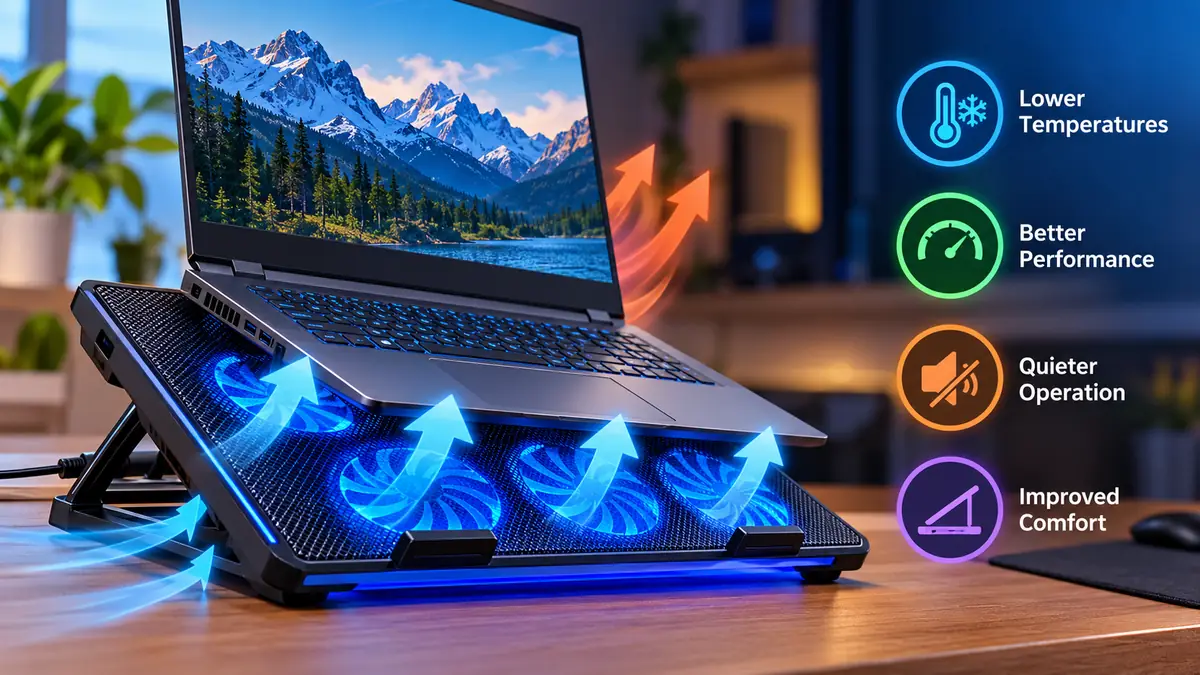

A laptop that becomes uncomfortably hot during gaming, video editing, or everyday work can be frustrating. Excess heat may increase fan noise, reduce performance, and make the keyboard or surrounding surfaces uncomfortable to touch.
A laptop cooling pad is an external accessory designed to improve airflow around a laptop and help dissipate heat. Most models use one or more fans to move air toward the laptop’s underside, while passive designs rely on elevation and ventilation. Their effectiveness depends on the laptop’s cooling system, vent placement, workload, and surrounding environment.
Understanding how these accessories work makes it easier to determine whether additional cooling will actually help your laptop.
What Is a laptop cooling pad?
A laptop cooling pad is a platform placed underneath a laptop to improve ventilation and reduce heat buildup. It generally supports the laptop at a slightly elevated angle and may contain built-in fans, ventilation openings, or heat-conductive materials.
Unlike a laptop’s internal cooling system, which uses components such as heat pipes, heat sinks, and fans to remove heat from the processor and graphics chip, an external cooling pad mainly improves the airflow available around the chassis.
Cooling pads are commonly used with gaming laptops, high-performance workstations, and older laptops that operate at elevated temperatures.
Main components of a cooling pad
Most active cooling pads contain several basic elements:
- Cooling fans: Move air toward the underside of the laptop.
- Ventilated surface: Allows air to pass through the platform.
- USB connection: Supplies power to the fans.
- Fan speed controls: Adjust airflow and noise on supported models.
- Adjustable stand: Raises the laptop to improve ventilation and viewing position.
- Anti-slip supports: Help prevent the laptop from sliding.
Some models include RGB lighting, USB passthrough ports, removable dust filters, or foam seals designed to direct airflow toward laptop intake vents.
These additional features may improve convenience, but they do not necessarily increase cooling performance.
How Does a laptop cooling pad Work?


9
A laptop produces heat primarily through its central processing unit (CPU), graphics processing unit (GPU), voltage regulation components, and other internal electronics.
During demanding tasks, these components consume electrical power and convert much of it into heat. The laptop’s internal cooling system transfers that heat to heat sinks and expels warm air through exhaust vents.
A cooling pad attempts to improve this process by supplying additional air or reducing restrictions around the laptop’s intake openings.
Active cooling through external fans
Active cooling pads use electrically powered fans to push air toward the laptop’s underside.
When the external fans align with the laptop’s intake vents, they can increase the availability of cooler surrounding air. This may reduce the temperature of the air entering the internal cooling system.
However, an external fan does not automatically cool the CPU or GPU directly. The results depend on how effectively the additional airflow reaches the internal cooling components.
A cooling pad may have little effect on a laptop whose main air intakes are located elsewhere.
Passive cooling through elevation
Passive cooling pads have no powered fans.
Instead, they raise the laptop above the desk, creating space for natural airflow around the bottom panel.
This is particularly useful when a laptop has underside ventilation openings that would otherwise sit close to a solid surface.
A simple elevated stand can sometimes provide much of the benefit of an inexpensive fan-based cooling pad, especially during light workloads.
Why airflow direction matters
Laptop cooling systems are not identical.
Some laptops draw air from underneath and exhaust it through the rear or sides. Others use different intake arrangements or rely partly on airflow through the keyboard.
A cooling pad that blows air toward a bottom intake may help. One that pushes air against an exhaust opening could interfere with the intended airflow.
Before using an external cooling accessory, examine the laptop’s ventilation layout and identify its intake and exhaust openings.
Does a laptop cooling pad Actually Reduce Temperature?
Yes, a laptop cooling pad can reduce temperatures, but the improvement varies considerably between laptops and cooling pad designs.
A pad that delivers airflow directly to accessible intake vents may provide measurable cooling during sustained workloads. A poorly matched pad may offer little more than the benefit of raising the laptop above the desk.
There is no reliable universal temperature reduction that applies to every cooling pad.
Factors affecting cooling performance
| Factor | Effect on cooling |
|---|---|
| Laptop intake location | Determines whether external airflow reaches the internal cooling system |
| Fan airflow and pressure | Influence how effectively air moves through openings and restrictions |
| Cooling pad alignment | Helps direct airflow toward useful areas |
| Ambient room temperature | Sets a practical limit on air-cooling effectiveness |
| Internal dust buildup | Can restrict airflow regardless of external cooling |
| Laptop workload | Determines how much heat the system generates |
| Pad height and clearance | Affect the space available for air movement |
| Fan speed | Changes airflow, noise, and power consumption |
CPU temperature versus surface temperature
It is useful to distinguish between the temperature of internal components and the temperature of the laptop’s exterior.
A cooling pad may make the bottom panel feel cooler without significantly changing CPU or GPU temperatures.
Likewise, the processor temperature may improve while the keyboard remains relatively warm because heat distribution inside the chassis is uneven.
For a meaningful evaluation, monitor both component temperatures and sustained performance rather than relying only on how the laptop feels.
Can a cooling pad prevent thermal throttling?
Thermal throttling occurs when a processor or graphics chip reduces operating speed or power to remain within its thermal limits.
If a laptop is throttling because of restricted airflow, a suitable cooling pad may help it maintain higher performance during extended workloads.
However, throttling can also result from inadequate internal cooling, dust, aging thermal interface materials, or power and firmware limits.
An external cooling pad cannot fix every underlying cause.
A laptop operating near its designed thermal limit is not necessarily malfunctioning. Manufacturers establish temperature and power-management behavior for specific components and systems.
Types of Laptop Cooling Pads
Cooling pads can be divided into several categories based on how they move air and support the laptop.
1. Multi-fan cooling pads

Multi-fan pads typically contain several small fans positioned beneath a mesh surface.
Their main advantage is broad airflow coverage, which may suit laptops with multiple underside intake openings.
However, the number of fans does not directly determine cooling effectiveness. Fan quality, placement, airflow restrictions, and pressure all matter.
Several small fans may also generate a higher-pitched sound than a larger fan operating at a lower rotational speed.
2. Single large-fan cooling pads

These pads use one relatively large fan to move air beneath the laptop.
They often provide broad airflow with a simpler mechanical design. Depending on fan speed and construction, they may operate more quietly than models using numerous small fans.
Their effectiveness still depends on whether the airflow reaches the laptop’s intake vents.
3. High-pressure sealed cooling pads

Some high-performance cooling pads use blower-style fans and a foam seal around the laptop’s underside.
The seal is intended to reduce air leakage and force more air toward the laptop’s intake openings.
This approach can be effective with compatible laptops, but it introduces several considerations:
- The seal must fit the laptop’s underside properly.
- Exhaust openings must remain unobstructed.
- Higher fan speeds can produce substantial noise.
- Dust filters require periodic cleaning.
- Cooling improvements depend on the laptop’s internal airflow design.
Examples of manufacturers associated with this category include IETS and Llano, although features vary by model.
4. Passive laptop stands

Passive stands improve clearance without adding external fans.
They are often suitable for office work, web browsing, studying, and other tasks that do not continuously push the CPU or GPU to high power levels.
Their main advantages include silent operation, portability, and no additional electrical consumption.
5. Vacuum-style laptop coolers
Vacuum-style laptop coolers attach near a compatible exhaust vent and attempt to assist the removal of warm air.
They are different from traditional cooling pads and are not suitable for every laptop.
Poor fitting, excessive mechanical pressure, or interference with an existing exhaust system may reduce their usefulness.
The laptop’s ventilation design should be checked carefully before using this type of accessory.
Benefits of Using a laptop cooling pad
A properly matched cooling pad can offer several advantages beyond simply making the laptop feel cooler.
Improved thermal management
Additional airflow may reduce the amount of heat accumulating around the laptop’s underside.
This can be particularly useful during sustained activities such as gaming, compiling software, 3D rendering, and video editing.
For example, a 2020 Notebookcheck test of the Havit HV-F2056 with an MSI GP65 gaming laptop recorded the following results during The Witcher 3.
Notebookcheck News
| Measurement | Without cooling pad | With cooling pad |
|---|---|---|
| Average CPU temperature | 92°C | 80°C |
| Average GPU temperature | 76°C | 70°C |
| Surface hot spot | 44°C | 40°C |
| Combined fan noise | 53.9 dB(A) | 59.2 dB(A) |
These results demonstrate that external cooling can make a substantial difference under favorable conditions.
However, the tested laptop had relatively large underside ventilation openings. The same improvement should not be expected from every laptop.
More consistent performance
A processor may reduce its operating frequency when thermal limits are reached.
By improving cooling, an external pad can sometimes allow the system to sustain higher clock speeds during demanding tasks.
The improvement is most relevant when temperature is the factor limiting performance.
If a laptop already maintains its intended performance without overheating, a cooling pad may not increase its speed.
Better comfort during extended use
A hot laptop chassis can make typing and prolonged desk use uncomfortable.
By improving airflow, some cooling pads reduce surface temperatures around the bottom panel and keyboard.
Adjustable stands may also improve screen positioning, although a separate keyboard and mouse are generally preferable when the laptop is raised significantly.
Potential reduction in internal fan workload
In some laptops, additional external airflow allows the internal cooling system to maintain temperatures at a lower fan speed.
This could reduce the sound generated by the laptop’s own fans.
However, the external cooling pad also produces noise. The combined sound level may therefore increase rather than decrease.
Reduced exposure to sustained excessive heat
Electronic components generally benefit from operating within their specified thermal conditions.
Better cooling may reduce prolonged exposure to elevated temperatures, but there is insufficient evidence to claim that an external cooling pad will extend every laptop’s lifespan by a particular number of years.
Proper maintenance and manufacturer-recommended operating conditions remain essential.
How to Choose the Right laptop cooling pad
Although this is primarily a cooling and ventilation decision, several physical and technical characteristics determine whether a pad will work with a particular laptop.
Check laptop size and weight
Laptop cooling pads are commonly designed around screen-size categories such as 13-inch, 15.6-inch, 16-inch, and 17.3-inch laptops.
However, screen size alone does not determine the laptop’s physical dimensions.
A compact 16-inch laptop may have a smaller footprint than an older 15.6-inch model.
Check the laptop’s width, depth, and weight against the platform’s actual dimensions and load capacity.
The laptop should sit securely without blocking essential ventilation openings.
Match the fan placement to intake vents
Fan placement is one of the most important compatibility factors.
Inspect the underside of the laptop and identify where air enters the cooling system.
For a laptop with two separated intake regions, a pad with multiple appropriately positioned fans may distribute air more effectively.
A model with one large central intake may work well with a large-fan design.
If the laptop has no bottom intake vents, external fan airflow may offer limited benefits.
Understand airflow and static pressure
Cooling accessories sometimes advertise airflow in cubic feet per minute (CFM).
CFM describes the volume of air a fan moves under specified conditions.
Static pressure describes a fan’s ability to overcome resistance to airflow. This matters when air must pass through restrictive mesh, filters, or narrow ventilation openings.
Neither measurement alone guarantees better laptop cooling.
Manufacturers may also measure fan performance under different conditions, making direct comparisons difficult.
Consider fan noise
Cooling pad noise is often expressed in decibels, usually dB(A).
A higher fan speed can improve airflow but also increase acoustic output.
Fan blade design, motor quality, vibration, and bearing construction influence the sound produced.
For quiet environments, adjustable fan speeds are useful because they allow a balance between cooling and noise.
Examine materials and build quality
Cooling pads commonly use plastic frames, metal mesh surfaces, or aluminum components.
Metal surfaces can provide structural rigidity and may spread some surface heat, but the cooling effect of a fan-based pad primarily depends on airflow.
Other useful characteristics include secure laptop stops, stable hinges, adequate ventilation clearance, and accessible dust filters.
USB power requirements
Many conventional cooling pads receive power through a USB-A connection.
Some designs use USB-C or a separate power adapter, especially when they contain powerful blowers.
USB-powered fans draw electrical energy from the laptop or another connected power source.
Check the accessory’s power requirements and avoid connecting devices that exceed the supported output of a USB port.
RGB lighting and multiple fans may increase total power consumption.
laptop cooling pad vs Laptop Stand: Which Is More Effective?
A powered cooling pad and a passive laptop stand solve related but slightly different problems.
A stand primarily improves clearance and ergonomics, while a powered pad adds forced airflow.
| Feature | Cooling pad | Laptop stand |
|---|---|---|
| Powered fans | Usually yes | No |
| Additional airflow | Forced airflow | Natural airflow |
| Noise | Depends on fan speed | Silent |
| Power requirement | Usually USB or adapter | None |
| Portability | Varies by design | Often lightweight |
| Maintenance | Fan and dust cleaning | Minimal |
| Temperature improvement | Depends on ventilation compatibility | Depends on improved clearance |
| Main purpose | Supplemental cooling | Elevation and positioning |
For a laptop used mainly for documents, online classes, and web browsing, a ventilated stand may provide sufficient clearance.
For a gaming laptop operating under sustained CPU and GPU loads, a powered pad may offer additional cooling.
The distinction becomes clearer when both accessories are tested under identical conditions.
A powered pad is not automatically better simply because it contains fans.
How to Use a Laptop Cooling Pad Correctly
Even a well-designed cooling pad can perform poorly if it is positioned incorrectly.
Follow these steps to maximize airflow while maintaining safe operating conditions.
- Place the cooling pad on a firm surface. Use a stable desk or table rather than a bed, blanket, or cushion.
- Identify the laptop’s intake vents. Check the underside and the manufacturer’s documentation.
- Position the laptop securely. Align the pad’s airflow with the intake openings without obstructing exhaust vents.
- Connect the power source. Use the appropriate USB port or manufacturer-specified adapter.
- Start with a moderate fan speed. Increase airflow gradually if temperatures remain high.
- Monitor temperatures under load. Compare readings with the same workload before and after using the pad.
- Keep the pad clean. Remove accumulated dust from mesh surfaces, fan guards, and filters.
Avoid placing objects around the laptop that restrict warm exhaust air from escaping.
How to test cooling performance accurately
Testing is the most reliable way to determine whether a cooling pad benefits a particular laptop.
Use a monitoring application such as HWiNFO, HWMonitor, or a manufacturer-provided performance utility to record relevant temperatures.
For a gaming laptop, monitor CPU package temperature, GPU temperature, sustained clock speeds, and frame rates where available.
Run three comparable tests:
- Laptop resting normally on a hard desk.
- Laptop elevated with the cooling pad fans switched off.
- Laptop elevated with the cooling pad fans operating.
Keep the workload, power settings, room temperature, and test duration as consistent as possible.
The elevation-only test is particularly valuable because it separates the benefit of additional clearance from the benefit of powered airflow.
Record average and sustained temperatures rather than relying solely on brief peak readings.
For example, if the CPU averages 88°C on the desk, 84°C when elevated, and 82°C with the fans operating, most of the improvement may come from elevation rather than the powered fans.
These figures are illustrative, not measured results.
Repeat the tests to account for normal variation.
Common Laptop Cooling Pad Mistakes
Several mistakes can reduce cooling effectiveness or create unnecessary problems.
Assuming more fans always means better cooling
A cooling pad with six fans is not necessarily more effective than one with a single large fan.
Fan placement, pressure, airflow direction, and the laptop’s ventilation design are more important than fan count alone.
Blocking exhaust openings
Some laptop exhaust vents are located near the rear hinge or along the sides.
An oversized frame, foam seal, or incorrectly positioned accessory may obstruct these openings.
This can interfere with heat removal even when the cooling pad supplies additional air.
Using maximum fan speed continuously
Running external fans at maximum speed may increase noise, vibration, dust accumulation, and power consumption.
If moderate airflow provides nearly the same thermal benefit, higher speeds may be unnecessary.
Ignoring internal dust buildup
Dust accumulation inside the laptop can restrict heat sinks and internal fan passages.
An external cooling pad cannot reliably compensate for severely restricted internal airflow.
HP recommends checking ventilation openings and cleaning them according to the manufacturer’s instructions when overheating occurs.
HP® Support
Expecting a cooling pad to repair hardware problems
A cooling pad cannot replace a failed internal fan, repair a damaged heat pipe, or correct defective thermal management hardware.
Persistent overheating, unexpected shutdowns, or unusual fan noises may require professional diagnosis.
Can a Cooling Pad Damage a Laptop?
A compatible, correctly used cooling pad is generally a low-risk accessory.
However, improper use can introduce problems.
An unstable stand may allow the laptop to slip. Poorly designed fan housings can cause vibration, while incompatible power connections may overload a USB port.
A powerful blower-style pad may also force more dust toward the laptop’s intake openings, particularly if its filter is missing or dirty.
Cooling accessories should not obstruct vents or place excessive pressure on the chassis.
Is condensation a concern?
Ordinary fan-based cooling pads move ambient air and generally cannot cool the laptop below the surrounding air temperature.
Consequently, they do not normally create condensation through their cooling action.
Thermoelectric or refrigerated cooling systems are different. If they cool a surface below the surrounding air’s dew point, moisture may condense.
Such systems require appropriate condensation management and should not be treated as equivalent to ordinary USB fan pads.
Is it safe to leave a cooling pad running?
Most properly designed cooling pads are intended for extended operation within their rated conditions.
Nevertheless, users should follow the manufacturer’s operating instructions, maintain clear fan openings, and inspect cables for damage.
A malfunctioning fan, overheating adapter, or damaged USB connector should not be ignored.
Laptop Cooling Pad for Gaming and Heavy Workloads

Gaming laptops often generate substantial heat because their CPUs and dedicated GPUs operate simultaneously under demanding loads.
Modern Intel Core, AMD Ryzen, and NVIDIA GeForce RTX-based systems use thermal and power-management controls to balance performance, temperature, and electrical consumption.
External cooling can sometimes influence this balance.
Gaming performance and frame rates
A cooling pad may improve gaming performance when thermal throttling is limiting CPU or GPU operation.
For example, if a graphics processor repeatedly reduces its clock speed because of temperature limits, improved airflow may help it sustain performance.
However, if the laptop is limited by power settings, game-engine behavior, or another component, lower temperatures may not produce noticeably higher frame rates.
A 2026 review of cooling-pad test evidence highlighted substantial differences between individual laptop and cooler combinations.
iTechGuides
The practical benefit should therefore be measured rather than assumed.
Video editing and rendering
Video editing, 3D rendering, and engineering simulation workloads may keep processors under heavy load for extended periods.
Applications such as Adobe Premiere Pro, Blender, and CAD software can place sustained demands on the CPU or GPU.
A compatible cooling pad may help reduce heat buildup during these tasks.
However, rendering performance also depends on software optimization, memory capacity, storage speed, power limits, and hardware capabilities.
Coding and everyday productivity
Most routine programming, browsing, and office activities do not require continuous maximum processor performance.
For these workloads, proper ventilation and a stable stand may be enough.
More demanding activities, such as compiling large projects, running virtual machines, or processing large datasets, can create sustained thermal loads that make additional airflow more useful.
Other Ways to Keep a Laptop Cool
A cooling pad is only one part of effective laptop thermal management.
Several maintenance and operating habits can improve cooling without additional hardware.
Keep ventilation openings clear
Avoid using laptops directly on blankets, pillows, mattresses, or other soft materials that may cover intake openings.
Lenovo recommends a firm, flat surface and unobstructed vents to support normal cooling.
Lenovo US
Reduce unnecessary background workloads
Applications running in the background may consume processor resources and generate additional heat.
On Windows, Task Manager can help identify unusually demanding processes.
On macOS, Activity Monitor provides similar information.
Close unnecessary applications while avoiding the termination of essential operating-system processes.
Adjust power and performance settings
Many laptops offer power modes such as Balanced, Performance, and Battery Saver.
A balanced or efficiency-oriented mode may reduce processor power consumption and operating temperatures.
Some gaming laptops also provide manufacturer-controlled thermal profiles.
Use supported settings rather than making undocumented changes to firmware or fan controls.
Maintain a suitable room temperature
Air-cooled laptops transfer heat into their surrounding environment.
As ambient temperature rises, the temperature difference available for heat transfer generally decreases.
A cooling pad cannot create genuinely cold air unless it uses a separate cooling mechanism.
Improving room ventilation, avoiding direct sunlight, and operating within the laptop manufacturer’s environmental specifications can therefore help.
Clean fans and heat sinks appropriately
Dust accumulation can reduce airflow through internal heat sinks.
Follow the laptop manufacturer’s cleaning guidance. If internal disassembly is required, consider professional servicing, especially when the device is under warranty.
Thermal paste replacement should not be treated as routine maintenance for every laptop. It is more appropriate when a specific thermal problem has been diagnosed.
Is a laptop cooling pad Worth Using?
A laptop cooling pad is most useful when three conditions are present: the laptop generates sustained heat, it has accessible ventilation openings, and external airflow produces a measurable improvement.
For gaming laptops and mobile workstations, the potential benefit may include lower component temperatures and more consistent performance.
For thin ultrabooks, passively cooled devices, or laptops without substantial underside ventilation, a raised stand may be equally useful or more practical.
The best decision comes from examining the laptop’s airflow design and comparing its performance under consistent conditions.
A cooling pad should complement the internal cooling system rather than serve as a substitute for maintenance or necessary repairs.
Final Thoughts
A laptop cooling pad can improve ventilation, reduce surface or component temperatures, and sometimes help maintain performance during demanding workloads. Its effectiveness depends on the laptop’s design, intake vent placement, cooling pad airflow, and operating environment.
Before relying on external cooling, ensure that the laptop’s vents are clear, its internal fans are functioning properly, and its power settings suit the workload.
Start by improving clearance beneath the laptop. If additional cooling is still needed, use a compatible fan-based pad and compare temperatures and performance under repeatable conditions.
The goal is not simply to add more fans. It is to provide the laptop’s existing cooling system with the airflow it needs to operate effectively.
