
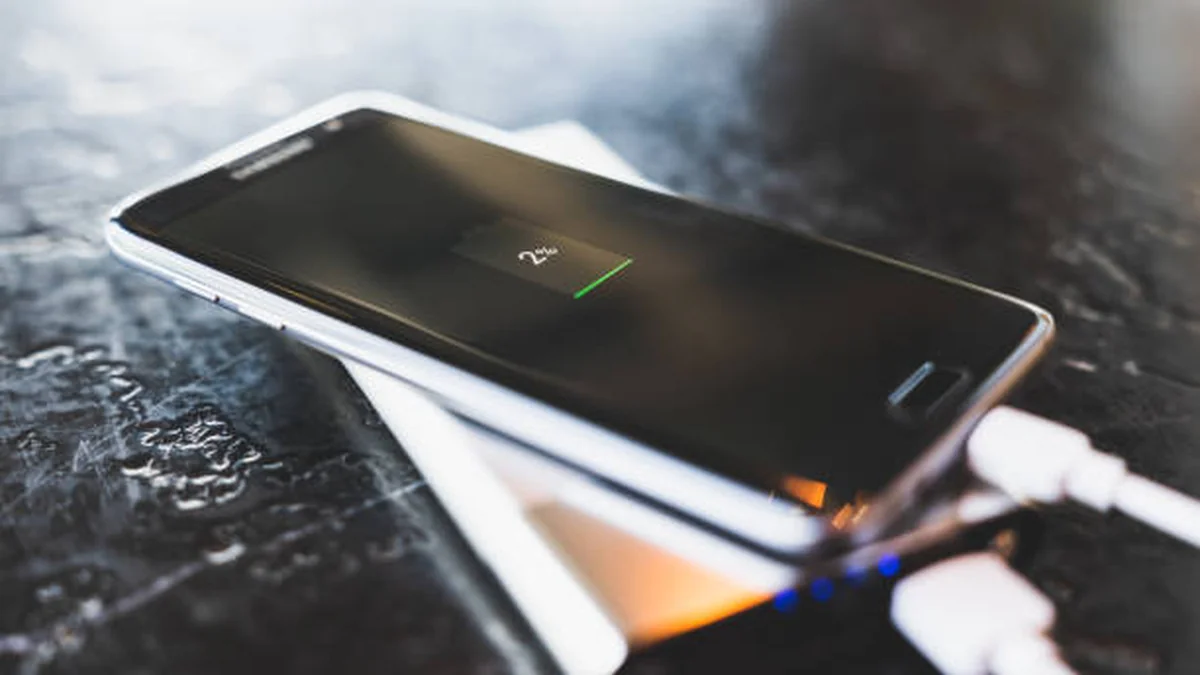

Your battery hits 19%, a banner pops up, and you tap “Turn On” without really thinking about it. Most people do. Few actually know what just changed on their phone.
Battery saver mode phone is a built-in power-management setting that extends your phone’s remaining charge by throttling the processor, pausing background app activity, dimming the screen, and limiting network features like 5G until you can recharge. It doesn’t shut anything down permanently — it just deprioritizes things you’re not actively using so the battery lasts longer.
That one paragraph answers the surface question. The rest of this guide answers the questions people actually get stuck on: what’s the real difference between Android’s version and Apple’s, does it wreck your battery over time, why does it sometimes seem to do nothing, and when is it actually worth the trade-off in performance.
What Battery Saver Mode Phone Actually Does
Strip away the marketing language and battery saver mode is really a set of software rules your phone applies temporarily. Nothing about your battery’s chemistry changes. Nothing gets damaged. The phone is simply told to spend less energy on things you’re not looking at right now.
Practically, that means:
- Background apps stop refreshing content automatically
- The processor runs at reduced clock speed
- Screen brightness drops and, on phones with high refresh-rate displays, the refresh rate caps at 60Hz
- Non-essential animations and visual effects are trimmed
- Network radios (5G, GPS, sometimes Wi-Fi/Bluetooth scanning) get restricted
You can still call, text, browse, and use maps normally. What changes is everything happening behind the scenes that you never directly asked for — an app quietly syncing, an email client checking for mail every few minutes, a screen refreshing at 120 frames a second for a static feed you’re barely scrolling.
Quick takeaway: Battery saver doesn’t make your phone “weaker.” It makes it stop spending power on convenience features you’re not currently using.
How Battery Saver Mode Works Under the Hood
The Big Four Power Drains It Targets
Every implementation — whether it’s Google’s Battery Saver, Apple’s Low Power Mode, or a manufacturer’s custom version — is really attacking the same four categories, because these are consistently the biggest sources of drain on any smartphone.
1. The processor. CPU and GPU clock speeds get reduced, sometimes by a significant margin — Apple’s own documentation and independent testing put the reduction at up to roughly 40% of peak performance on iPhone. You’ll notice this most in heavy apps: games stutter slightly, video exports take longer, and app-switching feels a beat slower.
2. Background activity. This is usually where the biggest real-world savings come from, because it’s constant. Apps that sync email, refresh social feeds, or back up photos in the background get paused until you open them directly. iOS specifically disables Mail fetch, automatic app downloads, and iCloud Photos uploads. Android pauses most background app refresh in the same way.
3. The display. Screens are the single largest power draw on most phones during active use, so brightness drops automatically and, on phones with adaptive or high refresh-rate panels (90Hz, 120Hz, ProMotion), the refresh rate locks to 60Hz. Auto-lock timers also shorten — iPhone defaults to 30 seconds in Low Power Mode — so the screen isn’t staying lit longer than it needs to.
4. Network radios. 5G is the most power-hungry connection type most phones use day to day, so battery saver typically steps the connection down to 4G/LTE, or at minimum deprioritizes fast 5G bands. GPS location tracking is often paused when the screen is off, and background Wi-Fi/Bluetooth scanning gets limited too.
None of these four categories touch how the battery physically charges or discharges. That distinction matters for the myth-busting section below.
Android Battery Saver vs. iPhone Low Power Mode
They solve the same problem with slightly different philosophies, and mixing up the two is one of the most common points of confusion in this whole topic.
Android’s Battery Saver (introduced with Android 5.0 Lollipop) is built into stock Android and used as the base for most manufacturers’ versions. It restricts background data, reduces performance, and enables dark mode-style visual dimming where supported. Turning it on is a toggle in Settings > Battery, or a Quick Settings tile.
Apple’s Low Power Mode, introduced in iOS 9, works from Settings > Battery (or Control Center) and applies a similar set of restrictions but with iOS-specific behaviors — pausing Mail fetch, automatic downloads, iCloud Photos syncing, and reducing 5G use. Newer iOS versions added Adaptive Power, which learns your usage patterns and applies lighter throttling automatically rather than waiting for you to hit 20%.
One practical difference worth knowing: on Android, battery saver typically turns itself off automatically once you plug in a charger. iPhone’s Low Power Mode does the same — both switch back on again once you unplug if the battery is still low.
Standard vs. Maximum Battery Saver (and What Each Brand Calls It)
Most people assume there’s only one “battery saver level.” On modern Android phones there are usually two, and the naming varies wildly by manufacturer — which is exactly the kind of detail most guides skip.
Standard battery saver makes moderate adjustments — slightly reduced brightness, limited background sync — while keeping nearly all features usable.
Maximum (or ultra/extreme) battery saver goes much further. On many devices this pauses notifications and access to all apps except a short list of essentials (phone, messages, and whatever you manually allow), graying out the rest until you switch back.
Brand Name Comparison Table
| Brand | Feature Name | Notes |
|---|---|---|
| Google (Pixel/stock Android) | Battery Saver | Standard + Extreme Battery Saver options |
| Samsung | Power saving mode | Includes Medium and Maximum power saving tiers |
| Apple (iPhone/iPad) | Low Power Mode | Single mode; Adaptive Power learns patterns on newer iOS |
| Realme | Power Saving Mode | Similar tiered structure to stock Android |
| OnePlus | Battery Saver | Kept close to stock Android naming |
| Xiaomi | Battery Saver | Custom MIUI/HyperOS tuning on top of the base feature |
| Motorola | Battery Saver | Standard + Maximum battery saver, plus Adaptive performance |
If you’re troubleshooting a specific phone, check the exact wording in Settings > Battery — the underlying mechanism is nearly identical across brands even when the label isn’t.
How to Turn On Battery Saver Mode (Android + iPhone)
On Android (varies slightly by brand):
- Open Settings
- Tap Battery
- Tap Battery Saver (or Power Saving Mode)
- Toggle it on, or choose Standard vs. Maximum where available
On iPhone/iPad:
- Open Settings
- Tap Battery
- Tap Power Mode (or the toggle directly, depending on iOS version)
- Turn Low Power Mode on or off
You can also enable either one faster through Quick Settings (Android) or Control Center (iPhone) once you’ve added the tile.
Setting a Custom Auto-Activation Threshold
Most Android phones let you set the battery percentage at which saver mode kicks in automatically — common options are 5%, 15%, 20%, 30%, or 50%. If you’d rather not think about it, setting the trigger around 20–30% gives you a buffer before things get critical. iPhone’s default trigger is fixed at 20% (with a second low-battery warning at 10%), though Adaptive Power on newer models can activate it earlier based on your usage pattern.
Does Battery Saver Mode Damage Your Battery or Slow Charging?
Short answer: no, and this is worth stating plainly rather than hedging.
Battery saver mode is a software throttle on performance and background activity — it has no control over charging voltage, charging current, or battery chemistry. It can’t damage the battery, and it doesn’t reduce the maximum charge level your phone reaches. If anything, running the phone under lighter load generates slightly less heat, which is marginally easier on the cell than running everything at full tilt.
On charging speed, the picture is more nuanced than most articles admit. Battery saver mode automatically disables itself once you plug in a charger on both Android and iPhone, so for most of a full charge cycle it isn’t even active. In the narrow window before it disables — or on setups where it stays partially active — some real-world tests have shown a marginal (1–2%) difference in how quickly the first chunk of charge goes in, likely because background processes aren’t competing for power at the same time. That’s a rounding error, not a meaningful speed boost or penalty either way.
Quick takeaway: Nothing about battery saver mode touches your battery’s long-term health. The only real cost is temporary — reduced performance and some paused conveniences while it’s switched on.
When You Should (and Shouldn’t) Use It
Battery saver earns its keep in specific situations, not as a permanent setting.
Turn it on when:
- You’re traveling, hiking, or otherwise away from a charger for an extended stretch
- You’re at a festival, conference, or event with limited outlet access
- Your battery has aged and doesn’t hold a full day’s charge like it used to
- You just want calls, texts, and maps to keep working through the evening without babysitting the percentage
Leave it off when:
- You’re at home or the office with a charger nearby — the performance and notification trade-offs aren’t worth it
- You’re gaming, video editing, or doing anything that benefits from full CPU/GPU speed
- You rely on instant background notifications (breaking news, delivery updates, work chat) — Maximum/Extreme modes in particular will delay or block these
- You’re using AirDrop, Handoff, or continuity-style features between an iPhone and other Apple devices, since Low Power Mode limits some of them
Leaving battery saver on permanently isn’t dangerous, but it’s also not necessary for most people under normal daily conditions. Modern phones manage power reasonably well on their own; save the more aggressive mode for when you actually need the extra hours.
Battery Saver Not Working? Troubleshooting Checklist
If you’ve turned battery saver on and your battery is still draining fast, work through these in order:
- Confirm which level is active. Standard saver is much gentler than Maximum/Extreme — check the label in Settings > Battery to see which one you actually enabled.
- Check for one or two heavy apps. Battery saver reduces background drain across the system, but it won’t fix a single app (often a poorly optimized game or a GPS-heavy app) actively draining power in the foreground. Check Settings > Battery > Battery Usage to find the culprit.
- Rule out a charging-state conflict. Both Android and iOS automatically switch battery saver off while plugged in — if you’re seeing it toggle off unexpectedly, check whether the phone is connected to a charger or a powered USB hub.
- Update your OS. Battery-management bugs are a known cause of saver mode underperforming; a pending system update sometimes fixes this outright.
- Check for a stuck automation. On Android, a third-party automation app or a battery-optimization setting conflict can override or re-trigger saver mode unexpectedly. Review any battery-related automations you’ve set up.
- Reset battery statistics (Android, advanced). On some devices, a battery calibration reset (fully draining, then fully charging uninterrupted) resolves inaccurate percentage readings that make saver mode seem ineffective.
If none of this helps, the issue is likely a failing battery rather than the software feature itself — worth a battery health check either through Settings (iPhone: Battery Health) or a manufacturer diagnostic tool.
STILL HAVE QUESTIONS? BROWSE MORE HOW-TO GUIDES FOR MORE ANSWERS.
FAQ Section
What does battery saver mode do on a phone? It reduces power use by throttling the processor, limiting background app activity, dimming the screen (and capping refresh rate), and restricting network features like 5G — extending the time left on your current charge without shutting core functions off.
Does battery saver mode damage your battery? No. It’s a software-level throttle on performance and background activity and has no effect on charging voltage or battery chemistry, so it can’t cause degradation.
Is it bad to leave battery saver mode on all the time? It’s not harmful, but it’s usually unnecessary. You’ll trade some performance and delayed background notifications for battery life you may not need if you’re near a charger regularly.
What’s the difference between battery saver mode and Low Power Mode? They’re the same concept under different names — Battery Saver is Android’s version, Low Power Mode is Apple’s. Both throttle the CPU, limit background tasks, and reduce screen power draw, with minor platform-specific differences like Mail fetch pausing on iPhone.
Does battery saver mode slow down charging? No meaningfully. Both platforms automatically disable saver mode once you plug in, so it isn’t active for most of a charge cycle, and any measured difference beforehand is negligible.
At what battery percentage does saver mode turn on automatically? iPhone defaults to 20%, with a further warning at 10%. Android phones typically let you choose a custom threshold — commonly 5%, 15%, 30%, or 50%.
Why isn’t battery saver mode extending my battery life? Check which saver level is active (Standard is far gentler than Maximum), and look at your battery usage stats — one power-hungry app running in the foreground can outweigh what saver mode restricts in the background.
Does battery saver mode turn off Wi-Fi and Bluetooth? Not entirely — it typically limits background scanning for both rather than disabling them outright, so an active Wi-Fi or Bluetooth connection you’re using keeps working.
