
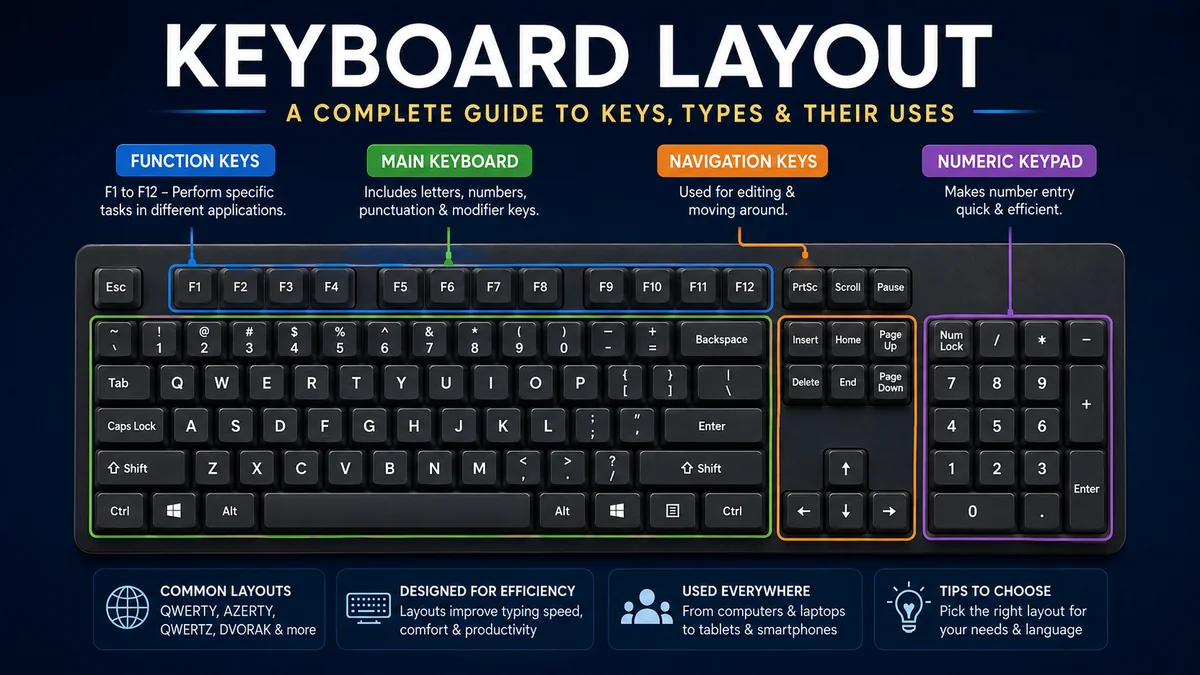

Look down at your keyboard. The letters probably begin with Q, W, E, R, T, and Y—but that arrangement is only one of many ways a keyboard can be organized.
A keyboard layout is the arrangement and mapping of letters, numbers, symbols, modifier keys, and other functions on a keyboard. The term can describe the physical position of keys, the characters printed on them, or the software mapping that determines what appears when a particular key is pressed.
Understanding these differences explains why keyboards vary between countries, why pressing the same physical key can produce different characters, and why alternatives such as Dvorak and Colemak exist alongside QWERTY.
What Is a Keyboard Layout?
A keyboard layout determines where characters and functions are located and what your computer does when you press each key.
There are actually three related parts:
- Physical layout: the size, shape, and physical arrangement of the keys.
- Visual layout: the letters, symbols, and other legends printed on those keys.
- Functional layout: the software mapping that decides which character or command a key produces.
These distinctions matter because the keyboard you see and the keyboard configuration selected in your operating system do not necessarily have to match.
For example, you might have a physical US QWERTY keyboard but configure your computer to use another language or input layout. The keycaps remain unchanged, but the characters produced by some keys can change.
Physical vs. Functional Keyboard Layout
Suppose a keycap has the letter A printed on it.
Physically, it is simply a key in a particular position. When pressed, the keyboard sends information about that key press to the computer. The operating system then interprets the input according to the active keyboard mapping.
This is why selecting the wrong keyboard language can produce unexpected symbols even though nothing is physically wrong with the keyboard.
Quick Takeaway: A keyboard’s printed letters do not completely determine what it types. The operating system’s selected input layout also controls the output.
QWERTY Keyboard Layout
QWERTY is the most recognizable keyboard arrangement for Latin-script typing. Its name comes from the first six letter keys on the upper-left alphabetic row:
Q – W – E – R – T – Y
The arrangement originated during the development of mechanical typewriters in the 19th century and became closely associated with Christopher Latham Sholes. A recognizable QWERTY arrangement existed by the 1870s and was used on early commercially successful Remington typewriters.
Why Is the Keyboard QWERTY Instead of ABC?
The answer is more complicated than the popular story that QWERTY was simply invented to slow typists down.
Sholes’ earliest writing machines experimented with arrangements much closer to alphabetical order. The design changed repeatedly while the machine itself was being developed. Historical explanations for QWERTY include managing mechanical interactions between type bars and accommodating the requirements of people transcribing telegraph messages.
Modern historical accounts caution against reducing its origin to a single “designed to slow people down” explanation. The exact forces behind the final arrangement remain debated.
The Sholes and Glidden typewriter reached the market in 1874, while Sholes received U.S. Patent No. 207,559 for an improvement to type-writing machines in 1878.
Once manufacturers, businesses, and typists had invested in QWERTY, changing to a completely different arrangement became increasingly difficult. Training, familiarity, hardware compatibility, and standardization all helped reinforce its position.
Why Is QWERTY Still Used?
Modern computers no longer have mechanical type bars that can collide, yet QWERTY remains widespread.
The main reason is familiarity.
Millions of people have learned to touch-type using it. Schools teach it, keyboards are commonly labeled for it, software supports it, and established users would have to retrain their muscle memory to move elsewhere.
This creates a powerful switching cost. Even when another arrangement offers potential ergonomic or efficiency advantages, changing may not provide enough practical benefit to justify weeks or months of relearning.
Common keyboard layout Types
QWERTY isn’t the only arrangement. Different languages, regions, and design goals have produced numerous alternatives.
Among Latin-script keyboards, three especially recognizable families are QWERTY, QWERTZ, and AZERTY.
| Layout | Recognizable Feature | Common Association | Main Purpose |
|---|---|---|---|
| QWERTY | Q-W-E-R-T-Y top row | English and many international configurations | General typing |
| QWERTZ | Y and Z positions differ from QWERTY | German-speaking and Central European regions | Language-specific typing |
| AZERTY | A-Z-E-R-T-Y top row | French-language keyboards | French typing |
| Dvorak | Major rearrangement of letters | Alternative English typing | Efficiency and ergonomics |
| Colemak | Retains some familiar QWERTY positions | Alternative English typing | Efficiency with easier transition |
The physical keyboard underneath these arrangements may be quite similar. Much of the difference comes from key legends and software mapping.
QWERTY
QWERTY is strongly associated with English-language computing, although numerous national QWERTY variants exist.
Even two QWERTY keyboards can differ.
A US keyboard and UK keyboard, for instance, may place certain punctuation and symbols differently. The underlying letter arrangement can therefore look familiar while symbol placement does not.
AZERTY
AZERTY is closely associated with French-language typing.
Its name follows the same convention as QWERTY: look at the first six letters of the upper alphabetic row and you get A-Z-E-R-T-Y.
Several letters occupy different locations compared with QWERTY, and the arrangement provides access to characters required for French writing.
Someone accustomed to QWERTY will immediately notice the changed positions of keys such as A and Q.
QWERTZ
QWERTZ is another major family of Latin-script layouts.
The obvious difference from QWERTY is reflected in its name: Z occupies the position where a QWERTY user expects Y.
QWERTZ configurations are associated particularly with German-speaking and parts of Central Europe. National versions can also provide convenient access to language-specific characters and diacritics.
QWERTY vs. AZERTY vs. QWERTZ
The three layouts are related, but regional language requirements produce meaningful differences.
| Feature | QWERTY | AZERTY | QWERTZ |
| Top letters | QWERTY | AZERTY | QWERTZ |
| Common association | English | French | German/Central European |
| Letter positions | Standard QWERTY arrangement | Several letters repositioned | Y/Z notably exchanged |
| Special characters | Depends on national variant | Adapted for French usage | Adapted for regional languages |
| Learning curve for QWERTY users | Familiar | Moderate | Usually smaller than a radically different layout |
None is universally “better.” Each developed around different linguistic and historical requirements.
Alternative Keyboard Layouts: Dvorak and Colemak
Some layouts were designed not primarily around national languages but around typing efficiency and ergonomics.
Two well-known examples are Dvorak and Colemak.
Dvorak Keyboard Layout
The Dvorak layout was developed as an alternative to QWERTY and rearranges letters substantially.
Its design philosophy emphasizes efficient typing patterns, including greater use of easily reached positions. That can potentially reduce unnecessary finger movement once the layout has been mastered.
The disadvantage is obvious: experienced QWERTY users must rebuild substantial muscle memory.
Shortcuts can also initially feel unfamiliar because commonly used letters may no longer occupy the physical positions people associate with commands.
Colemak Keyboard Layout
Colemak is a newer alternative intended for efficient English touch typing while making the transition from QWERTY less disruptive.
It was released in 2006 and is named after its creator, Shai Coleman.
Rather than moving virtually everything, Colemak retains many familiar QWERTY positions. According to the official Colemak documentation, 17 letter keys change positions compared with QWERTY.
The design emphasizes factors such as keeping fingers near the home position and limiting inefficient same-finger sequences.
QWERTY vs. Dvorak vs. Colemak
| Factor | QWERTY | Dvorak | Colemak |
| Familiarity | Very high | Low for QWERTY users | Moderate |
| Retraining required | None for existing users | Significant | Significant but less radical |
| Main goal | Established standard | Efficient typing | Efficiency plus easier QWERTY transition |
| Existing QWERTY shortcuts | Familiar | More disrupted | Many familiar positions retained |
| Availability | Extremely broad | Supported by major operating systems | Available across modern computing platforms |
A different layout does not automatically make someone a faster typist. Technique, practice, accuracy, muscle memory, keyboard hardware, and individual comfort all matter.
Quick Takeaway: Dvorak and Colemak can make finger movement feel more efficient for some users, but switching layouts involves a real learning cost. QWERTY remains practical largely because it is familiar and universally supported.
Physical Keyboard Standards: ANSI, ISO, and JIS
Letter arrangements such as QWERTY and AZERTY should not be confused with the physical shape of the keyboard.
Three terms frequently encountered when discussing physical keyboard layouts are ANSI, ISO, and JIS.
ANSI Keyboard Layout
ANSI-style keyboards are strongly associated with the United States.
A recognizable feature is the wide, horizontal Enter key. The left Shift key is also typically longer than on an ISO keyboard.
When people refer casually to a “US keyboard,” this is often the physical arrangement they have in mind.
ISO Keyboard Layout
ISO-style keyboards are widespread in Europe.
Compared with the common ANSI arrangement, an ISO keyboard typically has a differently shaped Enter key and an additional key around the left Shift area.
Importantly, ISO does not mean AZERTY.
The physical ISO arrangement can support different visual and functional layouts. British, French, and German keyboards, for example, can share a broadly similar ISO physical structure while displaying very different characters.
JIS Keyboard Layout
JIS keyboards are associated with Japanese computing.
They include additional keys needed for Japanese input methods and generally differ from typical US ANSI keyboards in several physical details.
This highlights an essential distinction:
ANSI, ISO, and JIS describe physical keyboard conventions, while QWERTY, QWERTZ, and AZERTY primarily describe character arrangements.
A keyboard can therefore be both ISO and QWERTY.
Understanding the Main Groups of Keys
A standard desktop keyboard does much more than enter letters.
Its keys can generally be understood by function.
Alphanumeric Keys
This is the main typing area containing:
- A–Z letters
- Number keys
- Punctuation
- Symbol keys
The exact arrangement depends on the selected language and layout.
Modifier Keys
Modifier keys change what another key does.
Common examples include:
- Shift
- Ctrl or Control
- Alt
- AltGr
- Windows key
- Command
- Option
- Fn
For example, holding Shift while pressing a letter normally creates an uppercase character. On many international layouts, AltGr provides access to additional symbols.
Function Keys
Traditional full-size keyboards usually include a row labeled F1 through F12.
Their behavior varies according to the operating system and application. Laptop manufacturers may combine these keys with controls for brightness, volume, media playback, wireless functions, and other hardware features.
Navigation and Editing Keys
Depending on keyboard size, you may find dedicated keys such as:
- Arrow keys
- Home
- End
- Page Up
- Page Down
- Insert
- Delete
These are especially useful for editing documents, navigating spreadsheets, coding, and working without a mouse.
Numeric Keypad
Full-size keyboards commonly include a numeric keypad on the right.
It resembles a calculator and can make repeated numerical entry faster.
Compact keyboards often remove the numpad to reduce width and give the mouse more desk space.
Keyboard Size Is Different From Keyboard Layout
Terms such as 100%, TKL, 75%, 65%, and 60% describe keyboard form factors rather than language mappings.
That distinction often causes confusion.
A 60% keyboard can still use QWERTY. A full-size keyboard can use AZERTY. Keyboard size determines which physical keys are available, while the character layout determines where letters and symbols are mapped.
Full-Size Keyboard
A traditional full-size board usually includes:
- Alphanumeric section
- Function row
- Navigation cluster
- Arrow keys
- Numeric keypad
It offers dedicated access to almost everything but takes up considerable desk space.
Tenkeyless Keyboard
A tenkeyless (TKL) keyboard generally removes the numeric keypad while retaining the function row, arrows, and navigation keys.
It is popular when users want a conventional desktop experience without the extra width of a numpad.
75% Keyboard
A 75% board compresses many of the keys found on a TKL keyboard into a tighter arrangement.
It can provide a useful compromise between functionality and desk space.
65% Keyboard
A 65% keyboard usually keeps dedicated arrow keys while removing the traditional function row and much of the navigation cluster.
Secondary functions are commonly accessed using an Fn layer.
60% Keyboard
A 60% board strips the design down further.
Dedicated function keys, navigation keys, and often separate arrow keys disappear from the main physical layer. Their functions remain accessible through key combinations or programmable layers.
For gaming and minimalist desks, this can be useful. For heavy spreadsheet work, data entry, or workflows that rely on many dedicated keys, it may be less convenient.
How Keyboard Mapping Works
Modern keyboards and operating systems separate physical key presses from the characters ultimately displayed on screen.
At a simplified level, the process looks like this:
- You press a physical key.
- The keyboard registers that key position.
- Input information is sent to the computer.
- The operating system interprets it according to the active input layout.
- The appropriate character or command is produced.
This explains a common problem: “Why is my keyboard typing the wrong characters?”
Often, the hardware is perfectly fine. The computer has simply switched to another keyboard layout.
For example, symbol positions can differ between US and UK configurations. Switching the software input language can therefore make the labels printed on your keycaps disagree with what appears on screen.
How to Change the keyboard layout in Windows
Windows allows multiple keyboard layouts to be installed for different languages or input preferences.
Microsoft documents two convenient ways to switch between installed layouts:
- Select the input language icon in the taskbar’s system tray.
- Choose the required keyboard configuration.
You can also hold the Windows key and press Spacebar to cycle through installed layouts. If nothing changes, Windows may have only one layout installed.
This shortcut is worth remembering if your keyboard suddenly starts producing unexpected characters. An accidental input-language switch is often the cause.
What If the Correct Layout Is Not Installed?
In Windows, keyboard layouts are managed through language and input settings.
You can add an appropriate keyboard under the language options and then select it through the input indicator.
Choose a software configuration that matches the legends printed on your physical keyboard unless you intentionally want a different mapping.
Language-Specific Keyboard Layouts
English is only one of thousands of languages people type digitally.
Keyboard designs therefore need ways to support accented letters, additional alphabets, diacritics, punctuation conventions, and characters that do not exist on standard US keyboards.
Latin-script layouts may use mechanisms such as:
- AltGr combinations
- Dead keys
- Shift layers
- Compose functions
- Dedicated accented-letter keys
- Software input methods
A dead key does not necessarily produce a complete character immediately. Instead, it can modify the character entered next, allowing users to create letters containing accents or other diacritical marks.
This is one reason apparently similar keyboards from different countries can have surprisingly different symbol arrangements.
Does Changing Keyboard Language Change the Physical Keys?
No.
Changing the input language changes the functional mapping, not the physical keyboard or its printed legends.
If you select a French mapping while using keycaps labeled for a US configuration, your computer follows the selected software mapping. The letters printed on the keycaps do not move.
You can therefore use multiple languages on the same physical keyboard without buying separate hardware, although matching legends can make typing easier.
How to Identify Your Keyboard Layout
If you aren’t sure which configuration you have, start with the visible letter arrangement.
Check the upper-left alphabetic row:
- QWERTY suggests a QWERTY family.
- AZERTY suggests an AZERTY family.
- QWERTZ suggests a QWERTZ family.
Next, inspect the physical keyboard.
Look at the Enter key and left Shift area. These features can help distinguish common ANSI and ISO physical designs.
Then check the operating system.
The active software layout should normally correspond to the symbols printed on your keys. If typing a symbol produces something completely different, check the selected input language before assuming that the keyboard is defective.
Which Keyboard Layout Is Best?
There is no single best layout for everyone.
For most users, the most practical option is the standard arrangement used for their language and region.
QWERTY makes sense when:
- You already type comfortably with it.
- You regularly use shared or public computers.
- Maximum compatibility matters.
- You do not want to retrain muscle memory.
Dvorak or Colemak may be worth exploring when:
- You type large amounts of English text.
- You are interested in alternative typing ergonomics.
- You are prepared to retrain.
- You mostly use computers that allow custom input configurations.
A national or language-specific layout makes sense when:
- You frequently type characters specific to that language.
- You want key legends that correspond directly with your input.
- You rely heavily on regional punctuation or diacritics.
For most people, switching solely because another arrangement is claimed to be “faster” is unnecessary. Typing speed depends heavily on practice and technique, and changing layouts temporarily reduces productivity while new muscle memory develops.
Does keyboard layout Affect Typing Speed?
It can, but layout alone does not determine how quickly you type.
Several factors matter:
- Touch-typing technique
- Accuracy
- Practice
- Familiarity
- Finger movement
- Keyboard size
- Key spacing
- Ergonomics
- Shortcut usage
- The language being typed
An experienced QWERTY typist may easily outperform a new Colemak or Dvorak user simply because years of practice have created strong muscle memory.
Alternative layouts can change how frequently fingers move between rows or repeat movements with the same finger, but theoretical efficiency does not instantly translate into real-world typing speed.
Is Colemak Better Than QWERTY?
“Better” depends on the goal.
Colemak was explicitly designed as a modern alternative for English touch typing, with an emphasis on home-row usage and reducing inefficient finger movements while preserving more familiar QWERTY positions than Dvorak.
QWERTY’s advantage is different: compatibility and familiarity.
If you frequently move between computers, work with other people’s machines, or depend on established shortcuts, QWERTY may remain the more convenient choice.
Common keyboard layout Problems
Many apparent keyboard failures are actually configuration problems.
Wrong Symbols Appear
If pressing a symbol key gives you another character, check the selected input language.
US and UK QWERTY configurations, for example, differ in the placement of some punctuation and symbols.
Y and Z Are Swapped
A switch between QWERTY and QWERTZ mappings can produce this behavior.
Check your operating system’s language/input indicator.
A and Q Are Swapped
This can happen when moving between QWERTY and AZERTY configurations.
Again, verify the software input layout first.
The Layout Changes Unexpectedly
Keyboard shortcuts can switch between installed languages.
On Windows, Windows key + Spacebar cycles through available layouts.
An accidental shortcut can therefore make the keyboard appear to malfunction.
Laptop Keys Don’t Match a Desktop Keyboard
Laptop manufacturers frequently combine functions to save space.
Brightness, volume, media controls, Home, End, Page Up, Page Down, and function keys may share physical keys and require the Fn modifier.
That is primarily a form-factor and hardware-design difference rather than a completely different alphabetic layout.
Keyboard Layouts on Phones and Touchscreens
The idea of a keyboard layout extends beyond physical computer keyboards.
Smartphones and tablets use virtual keyboards, where software draws the keys on a touchscreen. Because no permanent physical keycaps exist, these keyboards can change instantly when the user changes language, selects numbers, opens symbols, or activates another input method.
A phone can therefore move from English QWERTY to another alphabet or regional arrangement without changing any hardware.
Virtual keyboards can also add functions that traditional typewriters never had, including:
- Predictive text
- Autocorrect
- Swipe or gesture typing
- Emoji panels
- Voice input
- Multilingual suggestions
- Dynamic symbol layers
The fundamental concept remains the same: the layout determines how available characters and functions are presented to the user.
Why So Many Keyboard Layouts Still Exist
Keyboard design sits at the intersection of language, history, hardware, ergonomics, and habit.
QWERTY became deeply established through typewriters and later computers. AZERTY and QWERTZ evolved around different linguistic and regional requirements. Alternative systems such as Dvorak and Colemak approached the problem from the perspective of typing efficiency.
Physical standards such as ANSI, ISO, and JIS solve another problem: how the keys themselves should be shaped and arranged.
And compact form factors such as TKL, 75%, 65%, and 60% address yet another question—how many dedicated physical keys a user actually needs.
These categories overlap rather than replace one another.
A keyboard might simultaneously be:
ISO + QWERTY + UK English + TKL
Each term describes a different aspect of the same device.
Final Thoughts on keyboard layout
A keyboard layout is more than the familiar sequence of letters across your desk. It combines physical key placement, printed legends, language requirements, and software mapping to determine how you communicate with a computer.
QWERTY remains the familiar choice for many users, while AZERTY and QWERTZ serve important regional and linguistic needs. Dvorak and Colemak provide alternative approaches for people interested in typing efficiency, while ANSI, ISO, and JIS describe important physical keyboard conventions.
If your current keyboard works comfortably for your language and daily tasks, there is usually no reason to change it. But understanding how layouts work makes it much easier to choose a keyboard, work across different languages, troubleshoot unexpected characters, and decide whether an alternative arrangement is worth learning.
