
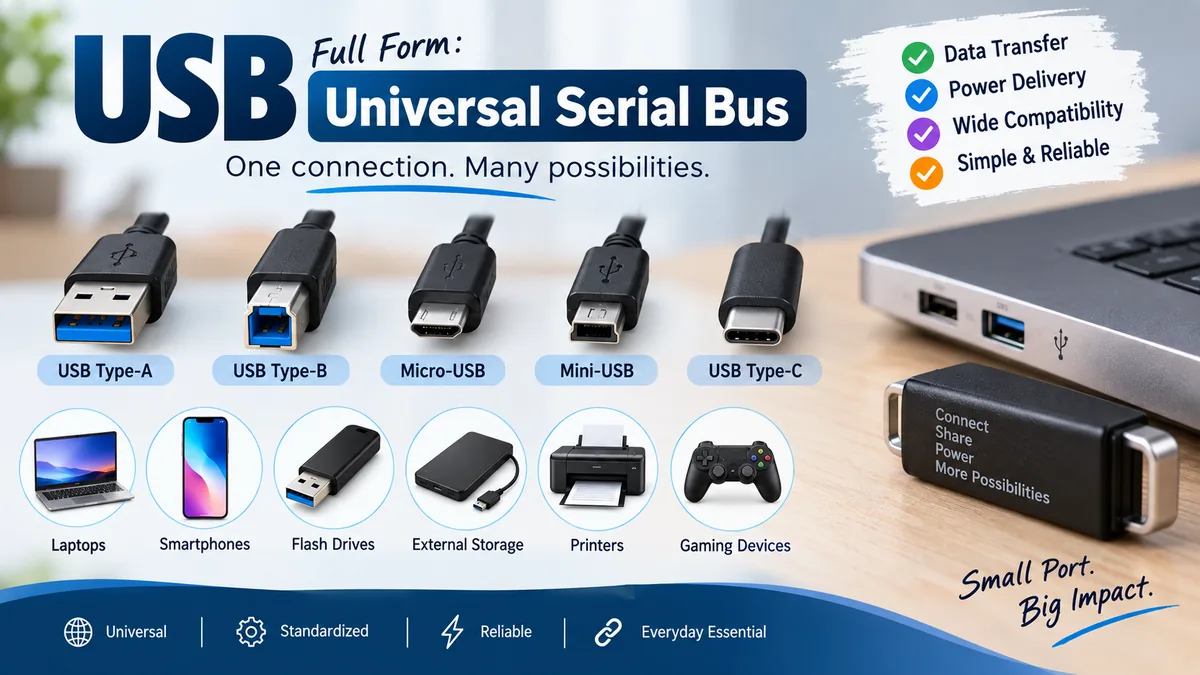

You see USB ports on laptops, phones, chargers, keyboards, televisions, cars, and countless other electronic devices. Yet the name itself does not immediately explain what the technology actually does.
The usb full form is Universal Serial Bus. USB is an industry-standard connection system that allows electronic devices to transfer data, receive electrical power, or do both through compatible cables and connectors. It was originally developed to make connecting computer peripherals simpler and has since become one of the world’s most widely used wired interfaces.
What Is the usb full form?
The usb full form is Universal Serial Bus.
Each word describes part of the technology:
- Universal means the interface was designed to work across many devices and manufacturers.
- Serial means information is transmitted through a serial communication system.
- Bus refers to a communication pathway used to move information between electronic components or devices.
In simple terms, USB provides a standardized way for computers and other electronics to communicate with connected equipment.
Cambridge Dictionary also defines USB as the abbreviation for Universal Serial Bus, commonly associated with connecting devices such as printers and cameras to computers.
USB Meaning in Computer Terms
In computing, USB is more than the physical socket you see on the side of a laptop.
It is a complete interface standard covering areas such as:
- connectors
- cables
- communication protocols
- data transfer
- device identification
- power delivery
- host and peripheral communication
A USB connection normally involves a host, such as a computer, and a connected device, such as a keyboard, flash drive, printer, camera, or external storage drive.
What Is USB Used For?
USB performs two major jobs: transferring data and supplying electrical power.
That combination is one reason the interface became so widely adopted.
1. Transferring Data
USB can move digital information between compatible devices.
Common examples include transferring:
- photos from a camera
- files from a USB flash drive
- documents to a printer
- video from a webcam
- keyboard and mouse input
- audio through compatible interfaces
- files between phones and computers
- data from external SSDs and hard drives
Different USB generations support different maximum data rates.
2. Powering Devices
USB cables can also carry electrical power.
This allows USB to power or charge devices such as:
- smartphones
- wireless headphones
- keyboards
- mice
- game controllers
- portable speakers
- smartwatches
- power banks
Modern USB Power Delivery, commonly called USB PD, significantly expands USB’s power capabilities. USB-IF continues to maintain specifications for USB Power Delivery alongside USB data and connector standards.
3. Connecting Computer Peripherals
USB was created largely to make peripheral connections easier.
Before USB became common, computers frequently relied on different interfaces for mice, keyboards, printers, joysticks, modems, and other equipment.
USB helped provide one standardized connection system instead.
Devices commonly connected through USB include:
| Device | Typical USB Purpose |
|---|---|
| Keyboard | Input and power |
| Mouse | Input and power |
| Printer | Data communication |
| Flash drive | File storage and transfer |
| External SSD | High-speed storage |
| Smartphone | Charging and data |
| Webcam | Video, audio, and power |
| Game controller | Input and power |
| Digital camera | Photo/video transfer |
| USB hub | Adds more USB connections |
How Does USB Work?
When a USB peripheral is connected, the host system detects the device and establishes communication with it.
USB supports plug-and-play, meaning compatible devices can generally be detected and configured without requiring users to manually configure hardware settings.
USB also supports hot swapping. This means many USB devices can be attached or removed while a computer remains powered on rather than requiring a complete shutdown. Tektronix notes that USB was designed to simplify peripheral installation and supports adding devices without restarting a PC.
The basic process looks like this:
- A USB device is connected to a host.
- The host detects the device.
- The device identifies itself.
- The operating system determines how to communicate with it.
- Data and/or power can then flow through the connection.
Some devices work immediately because their drivers are already included in the operating system. Others may require device-specific software.
What Does “Serial” Mean in USB?
The word serial refers to the method used for communication.
Serial communication sends information through a data stream rather than relying on the older-style parallel communication approach that used multiple lines simultaneously.
Modern USB implementations are far more sophisticated than early serial ports, but the term remains part of the Universal Serial Bus name.
History of USB
USB emerged during the 1990s as the computer industry searched for a simpler way to connect peripherals.
The standard was developed with involvement from major technology companies including Intel, Microsoft, IBM, Compaq, DEC, NEC, and Nortel. USB was introduced in 1996 and was intended to replace or reduce dependence on several older interfaces, including traditional serial and parallel ports.
The problem USB addressed was straightforward: computers had too many different connectors.
A keyboard might use one interface, a printer another, and a mouse another. Installing some peripherals could also involve configuring hardware settings manually.
USB made the experience far easier by introducing a broadly standardized connection and plug-and-play device architecture.
Why Did USB Become So Popular?
USB succeeded because it solved several practical problems at once.
It offered:
- a common connection standard
- easier peripheral installation
- plug-and-play functionality
- hot-swappable devices
- data and power through the same interface
- support for many device categories
- progressively faster transfer rates
- backward compatibility in many implementations
Over time, USB moved well beyond desktop computers and became common in smartphones, TVs, cars, cameras, gaming systems, industrial equipment, chargers, and embedded electronics.
Types of USB Connectors
One common source of confusion is that USB type and USB version are not the same thing.
A USB type usually describes the physical connector.
A USB version or data-rate specification describes communication capabilities and performance.
For example, USB-C describes a connector. It does not automatically tell you the exact transfer speed of a cable or device.
USB Type-A
USB Type-A, commonly called USB-A, is the familiar rectangular connector found on many desktop computers, laptops, chargers, game consoles, televisions, and USB hubs.
For many years, it was the most recognizable USB connector.
Typical USB-A devices include:
- flash drives
- keyboards
- mice
- printers
- charging cables
- external drives
USB-A can support multiple USB generations, so you cannot determine performance simply by looking at the connector shape.
USB Type-B
USB Type-B connectors have traditionally been used on peripheral equipment rather than computers themselves.
They are commonly associated with devices such as:
- printers
- scanners
- certain audio interfaces
- older external storage equipment
Different variations of Type-B have existed for different USB generations.
Mini-USB
Mini-USB became common on small electronics before Micro-USB took over much of that market.
It appeared on products such as:
- older digital cameras
- GPS units
- MP3 players
- portable electronics
It is now far less common in new consumer devices.
Micro-USB
Micro-USB was widely used on Android smartphones and other portable electronics before USB-C became dominant.
It can still be found on:
- older smartphones
- inexpensive accessories
- speakers
- power banks
- embedded devices
Unlike USB-C, a standard Micro-USB connector has a particular orientation and must be inserted the correct way.
USB Type-C
USB Type-C, usually shortened to USB-C, uses a small reversible connector.
It is now common across:
- smartphones
- laptops
- tablets
- monitors
- docking stations
- external SSDs
- chargers
- headphones
- gaming devices
USB-IF’s current document library lists USB Type-C Cable and Connector Specification Release 2.5, released in April 2026, showing that the connector specification continues to evolve.
A major benefit of USB-C is versatility. Depending on the device and cable, the same connector may support data, charging, display signals, or several of these functions.
However, not every USB-C port or cable has identical capabilities. Two cables may look the same but support different data rates, charging levels, or features.
Quick Takeaway: USB-A, USB-B, Micro-USB, and USB-C describe connector formats. They should not be confused with standards such as USB 2.0, USB 3.2, or USB4.
USB Versions and Data Transfer Speeds
USB technology has evolved substantially since the original standard.
Each major generation has increased performance or expanded capabilities.
| USB Standard | Maximum Nominal Data Rate |
|---|---|
| USB 1.1 | 12 Mbps |
| USB 2.0 | 480 Mbps |
| USB 3.2 Gen 1 | 5 Gbps |
| USB 3.2 Gen 2 | 10 Gbps |
| USB 3.2 Gen 2×2 | 20 Gbps |
| USB4 | Depends on implementation/generation |
Texas Instruments’ USB standards documentation lists USB 2.0 at 480 Mbps, USB 5Gbps implementations at 5 Gbps, USB 10Gbps implementations at 10 Gbps, and USB 20Gbps configurations at 20 Gbps.
USB 1.x
Early USB versions established the fundamental concept of a standardized peripheral interface.
USB 1.1 supported speeds up to 12 Mbps, which was sufficient for devices such as keyboards, mice, and basic peripherals.
USB 2.0
USB 2.0 brought a major performance increase, supporting a theoretical maximum of 480 Mbps.
It became one of the most widely deployed USB standards and remains present in many lower-bandwidth accessories.
USB-IF still maintains USB 2.0 specifications and compliance materials.
USB 3.x
The USB 3.x family introduced gigabit-level transfer speeds.
Depending on the specification, USB 3.x implementations can provide nominal rates of:
- 5 Gbps
- 10 Gbps
- 20 Gbps
The naming history of USB 3.x can be confusing because specifications have been renamed over time. For ordinary users, checking the advertised USB data rate is often more useful than relying only on a generation name.
USB4
USB4 represents a newer generation of USB architecture and uses the USB Type-C connector.
USB4 can provide much higher bandwidth than older USB generations and is designed to handle multiple types of traffic efficiently.
As of 2026, USB-IF lists USB4 Specification v2.0 in its official document library.
Is USB-C the Same as USB?
No. USB-C and USB are related, but they do not mean the same thing.
USB refers to the broader Universal Serial Bus family of technologies and standards.
USB-C refers specifically to the USB Type-C connector and cable system.
That distinction matters when shopping for or connecting equipment.
A device with a USB-C socket might support:
- basic USB data
- high-speed USB data
- USB Power Delivery
- video output
- other compatible protocols
Another USB-C device may support only some of those capabilities.
The physical connector alone does not guarantee them.
USB vs USB Flash Drive
People sometimes use the word “USB” to mean a flash drive, but technically they are different things.
USB is the Universal Serial Bus connection standard.
A USB flash drive is a storage device that uses a USB interface.
For example:
- “Plug the keyboard into a USB port” refers to the interface.
- “Copy the file to my USB” informally refers to a USB flash drive.
The second use is common in everyday language, but USB does not formally stand for a flash drive or pen drive.
USB Port vs USB Connector vs USB Cable
These terms are also easy to mix up.
USB Port
A USB port is the socket or receptacle built into a device.
You may find USB ports on a:
- computer
- laptop
- television
- car dashboard
- charger
- game console
- monitor
USB Connector
The connector is the physical plug that goes into the port.
Examples include USB-A and USB-C connectors.
USB Cable
A USB cable contains connectors and wiring used to carry data, power, or both.
A cable might have different connector types at each end, such as:
USB-A to USB-C
or:
USB-C to USB-C
The connectors alone do not always reveal everything the cable supports.
What Is USB OTG?
USB On-The-Go (USB OTG) allows certain USB devices to communicate without requiring a traditional PC to act as the permanent host.
For example, a compatible smartphone can operate as a host for another device such as a flash drive.
Analog Devices explains that USB OTG extends the normal USB host/peripheral model by allowing certain devices to take on host or peripheral roles when required.
This capability has been particularly useful for portable and embedded electronics.
What Is a USB Hub?
A USB hub expands one USB connection into several ports.
For example, if a laptop has only one available USB port, a hub may provide connections for a:
- mouse
- keyboard
- flash drive
- card reader
- printer
Some hubs draw power from the host device, while powered USB hubs use a separate electrical adapter.
The available data bandwidth is still shared among devices connected through the hub, so attaching several high-speed storage devices to one hub can affect real-world performance.
Can USB Transfer Data and Power at the Same Time?
Yes. This is one of USB’s most useful features.
A compatible USB connection can simultaneously:
- transfer information
- supply electrical power
For example, when you connect a smartphone to a computer, the connection may charge the phone while also allowing photographs and files to be transferred.
The exact charging power and data speed depend on the ports, devices, cable, USB specification, and supported power technology.
Does Every USB Cable Transfer Data?
No.
This is a practical detail that causes plenty of confusion.
Some USB cables are designed primarily or exclusively for charging. Others support both charging and data transfer. Even among data-capable cables, supported speeds can vary considerably.
Two USB-C cables can therefore look nearly identical while performing very differently.
When data transfer matters, check the cable’s stated USB data rate or certification rather than judging it only by connector shape.
What Are the Advantages of USB?
USB became successful because it combines convenience with broad device support.
Its main benefits include:
- standardized connectivity
- simple installation
- plug-and-play operation
- hot swapping
- data and power through one connection
- compatibility with numerous device categories
- support for hubs
- high-speed data transfer on modern standards
- compact connectors such as USB-C
- high-power charging through compatible USB Power Delivery equipment
USB also reduced the need for numerous dedicated computer ports.
Are There Any Limitations?
USB is versatile, but it is not completely uniform.
Common issues include:
- visually identical cables with different capabilities
- confusing version names
- different charging capabilities between ports
- older connectors requiring adapters
- real-world speeds being lower than theoretical maximums
- compatibility depending on the host, cable, and peripheral together
USB-C has simplified the physical connector, but it has not made every cable or port functionally identical.
That is why checking data speed, power rating, and supported features matters more than simply seeing a USB-C connector.
usb full form: The Key Point to Remember
The usb full form is Universal Serial Bus. It is a standardized interface designed to connect electronic devices while supporting data communication, power delivery, or both.
USB started as a way to simplify computer peripheral connections and evolved into a much broader technology used across computers, phones, storage devices, cameras, chargers, displays, cars, and countless other electronics.
The simplest way to understand USB is to remember three distinctions: USB is the overall standard, USB-A/USB-B/USB-C describe connector types, and USB 2.0/USB 3.2/USB4 describe technology generations or performance specifications. Once those differences are clear, USB terminology becomes much easier to understand.
