
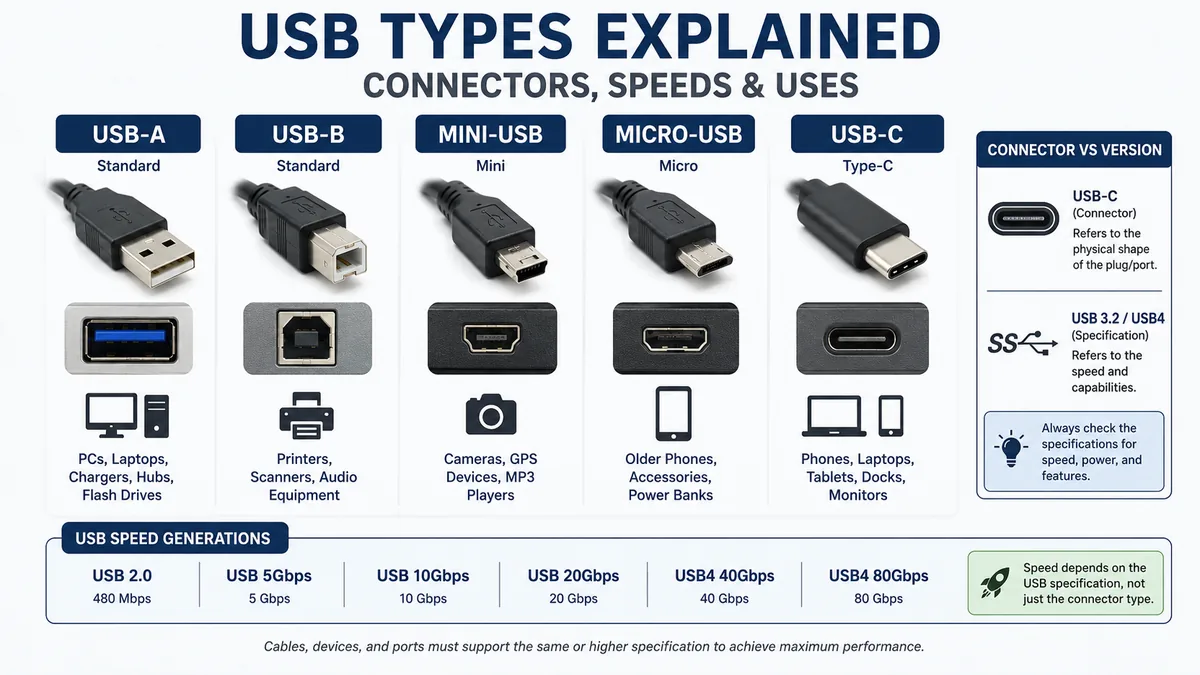

USB sounds simple until you need a new cable. One device has the familiar rectangular port, another has USB-C, an old camera uses Mini-USB, and a printer still relies on USB-B.
The confusion gets worse because usb types can describe two different things: the physical connector and the USB specification that determines performance. A USB-C connector, for example, does not automatically tell you how fast a device can transfer data or charge.
USB, short for Universal Serial Bus, uses several connector types, including USB-A, USB-B, Mini-USB, Micro-USB, and USB-C. USB-A and USB-C are common on modern computers and accessories, while older connector designs remain on legacy equipment. USB speed depends on the supported USB specification, not simply the connector’s shape.
This guide explains how to identify the different connectors, what they can do, and why two cables that look identical may perform very differently.
What Is USB and Why Are There Different usb types?
USB was developed as a standardized way to connect computers with peripherals while carrying data and electrical power through the same interface. It replaced many older dedicated connections used for devices such as keyboards, mice, printers, cameras, and storage drives.
Over time, devices became smaller while their bandwidth and charging requirements increased. That created a need for new connector designs.
The result is a USB ecosystem containing several physical connector families:
- USB Type-A
- USB Type-B
- Mini-USB
- Micro-USB
- USB Type-C
The first major distinction to understand is connector type versus USB version.
A connector describes the physical shape of the plug and port. A specification such as USB 2.0, USB 3.2, or USB4 describes communication capabilities and potential performance.
That distinction explains why simply saying “USB-C” does not fully describe a connection.
Quick comparison of USB connector types
| USB connector | Shape | Reversible? | Typical devices | Status |
|---|---|---|---|---|
| USB-A | Flat rectangular | No | PCs, chargers, hubs, flash drives | Still common |
| USB-B | Squarish | No | Printers, scanners, audio equipment | Specialized/legacy |
| Mini-USB | Small, thicker connector | No | Older cameras, GPS units, MP3 players | Mostly legacy |
| Micro-USB | Small, thin connector | No | Older phones, accessories, power banks | Mostly legacy |
| USB-C | Small rounded rectangle | Yes | Phones, laptops, tablets, docks, monitors | Current mainstream |
USB-C is increasingly replacing older formats because its smaller reversible interface can accommodate modern high-speed data, charging, and display capabilities. USB4 specifically uses USB Type-C for its physical interface.
USB Type-A: The Familiar Rectangular Connector
USB Type-A, commonly shortened to USB-A, is probably the connector most people picture when they hear “USB.”
It has a wide, flat rectangular shape and has appeared on desktop computers, laptops, wall chargers, televisions, game consoles, USB hubs, and countless other products.
A typical cable using this connector might have USB-A on one end and another connector on the other, such as:
- USB-A to USB-B
- USB-A to Mini-USB
- USB-A to Micro-USB
- USB-A to USB-C
USB flash drives have also traditionally used a USB-A plug.
Is USB-A the same as USB 2.0?
No.
This is one of the most common USB misunderstandings.
USB-A describes a connector, while USB 2.0 describes a USB specification.
USB-A has been used across multiple generations. Depending on the implementation, a Type-A connection may support older USB speeds or faster USB 3.x operation. Plugable, for example, documents USB-A implementations ranging from USB 2.0 at up to 480 Mbps to USB 3.2 Gen 2 at up to 10 Gbps.
So you cannot reliably determine maximum performance merely by recognizing a USB-A plug.
Where USB-A is still useful
USB-A remains widespread because billions of existing devices and accessories use it.
You’ll commonly encounter it with:
- Keyboards and mice
- USB flash drives
- External storage
- Printers
- Game controllers
- Chargers
- USB hubs
- Wireless receiver dongles
Its biggest limitation is physical design. The connector isn’t reversible, so it must be inserted in the correct orientation.
USB Type-B: The Printer-Style USB Connector
USB Type-B, or USB-B, looks noticeably different from Type-A.
The classic USB-B connector has a relatively square shape with beveled upper corners. Rather than being used primarily on host computers, it traditionally appeared on peripheral equipment.
Common examples include:
- Printers
- Scanners
- Audio interfaces
- Some external hard drives
- USB hubs
- Laboratory equipment
- Industrial equipment
A classic printer cable usually has USB-A on one end and USB-B on the other.
This host-to-device arrangement was intentional. Different connector shapes helped prevent users from incorrectly connecting equipment.
USB-B implementations have existed for both USB 2.0 and faster generations. Some later SuperSpeed Type-B connectors have a visibly different design to accommodate additional contacts.
Is USB-B obsolete?
Not completely.
You won’t normally see it on modern smartphones or thin laptops, but the connector remains useful on equipment where compact size isn’t a priority.
Professional audio gear, printers, industrial systems, and other long-life equipment can remain in service for many years, so USB-B cables are still relevant.
Mini-USB: An Older Compact USB Design
Before Micro-USB and USB-C became widespread, Mini-USB provided a smaller alternative to full-size Type-A and Type-B connectors.
It became particularly common during the 2000s.
You may still find Mini-USB on:
- Older digital cameras
- MP3 players
- GPS navigation units
- Older external drives
- Some game controllers
- Legacy electronics
Mini-A and Mini-B variants existed, although Mini-B became one of the more recognizable implementations.
Mini connectors were considerably more suitable for portable electronics than the much larger original USB connectors. However, technology continued moving toward thinner devices, eventually leading to Micro-USB.
Today, Mini-USB should generally be considered a legacy connector rather than a current USB standard for new consumer products.
Micro-USB: The Former Mobile Standard
Micro-USB became enormously popular as smartphones and portable electronics grew during the late 2000s and 2010s.
The connector is smaller and thinner than Mini-USB, making it better suited to compact devices.
Several variants exist, including:
Micro-A
Micro-A was designed for certain host-side applications and is considerably less familiar to ordinary consumers than Micro-B.
Micro-B
This is the connector most people mean when they say Micro-USB.
For years, Micro-B appeared on:
- Android smartphones
- Bluetooth speakers
- Wireless headphones
- Power banks
- E-readers
- Cameras
- Controllers
- Portable accessories
Micro-AB
A Micro-AB receptacle was designed to accept compatible Micro-A or Micro-B plugs in applications using USB On-The-Go functionality.
USB 3.0 Micro-B
There’s also a wider SuperSpeed Micro-B connector commonly associated with certain external hard drives.
It can look strange if you’ve never seen one: the connector effectively has an additional section beside the familiar Micro-B shape.
Is Micro-USB still used?
Yes, but its importance has declined significantly.
You may encounter Micro-USB on inexpensive accessories and older hardware, but USB-C has become the more important connector for modern mobile and computing equipment.
Micro-USB is also orientation-dependent, whereas USB-C solves this everyday annoyance with a reversible plug.
USB Type-C: The Modern Reversible USB Connector
USB Type-C—usually called USB-C—represents the biggest physical change in mainstream USB connectivity.
The connector is small, symmetrical, and reversible. You don’t need to determine which side is facing upward before inserting it.
USB-IF developed the Type-C ecosystem partly because older Standard-A and Standard-B connectors were becoming restrictive as computing devices became thinner and smaller.
USB-C can now be found on:
- Smartphones
- Tablets
- Laptops
- Desktop computers
- Monitors
- Docking stations
- External SSDs
- Headphones
- Cameras
- Game consoles
- Chargers
- Power banks
Its physical versatility is only part of its appeal.
Depending on the implementation, USB-C can carry high-speed USB data, significant charging power, and display signals.
USB-C has 24 contacts
The USB Type-C connector uses a substantially more sophisticated pin arrangement than early USB connectors.
Its architecture supports reversible insertion and allows the interface to accommodate multiple high-speed lanes and additional functions.
This makes USB-C extremely flexible—but it creates another problem:
Not every USB-C port or cable has the same capabilities.
That point matters more than almost anything else in this guide.
USB Connector Type vs USB Version: The Difference That Matters
When comparing usb types, people frequently mix up terms such as USB-C, USB 3.2, and USB4.
They aren’t interchangeable.
Think of it this way:
Connector = what it physically looks like.
USB specification = what the connection can potentially do.
For example, USB-C is a connector.
USB 2.0, USB 3.2, and USB4 are specifications or generations associated with performance capabilities.
That means two laptops can both have physically identical USB-C ports yet offer different capabilities.
One may provide basic data transfer and charging. Another may support much higher transfer speeds, display output, USB Power Delivery, or other advanced functionality.
Common USB speed generations
| USB specification / performance level | Maximum theoretical data rate |
|---|---|
| USB 2.0 | 480 Mbps |
| USB 5Gbps | 5 Gbps |
| USB 10Gbps | 10 Gbps |
| USB 20Gbps | 20 Gbps |
| USB4 40Gbps | 40 Gbps |
| USB4 80Gbps | 80 Gbps |
USB4’s current architecture can support operation up to 80 Gbps with appropriate certified cables and compatible hardware. It also retains backward compatibility with earlier USB generations.
Older resources can be confusing because USB naming has changed repeatedly. You may therefore encounter historical labels such as USB 3.0, USB 3.1 Gen 1, USB 3.2 Gen 1, and newer consumer-facing performance labels.
When evaluating modern equipment, the stated transfer rate is generally more useful than relying on an old “USB 3.x” label alone.
Does USB-C Always Mean Fast USB?
No.
This mistake causes a surprising number of cable and accessory problems.
A USB-C connector tells you the physical interface, not the complete performance specification.
A product can use a USB-C connector while supporting relatively modest USB data rates. Another physically identical USB-C connection might support much higher USB4 performance.
The same principle applies to cables.
A USB-C cable designed mainly for charging does not necessarily offer the data bandwidth expected for a fast external SSD or docking station.
When speed matters, check the specifications of:
- The source device
- The destination device
- The USB ports
- The cable
Your connection will effectively be constrained by the capabilities supported across that entire chain.
Quick Takeaway: Never buy or identify a USB cable based solely on connector shape when data speed, charging power, or video output matters.
USB Charging and USB Power Delivery Explained
USB began as a computer peripheral interface, but supplying electrical power became one of its most important roles.
Modern USB-C takes this much further through USB Power Delivery (USB PD).
USB Power Delivery enables compatible equipment to negotiate appropriate power levels rather than relying on one fixed charging arrangement.
Current USB Type-C technology can support power delivery up to 240 watts under the appropriate USB PD Extended Power Range implementation.
That is enough to make USB-C useful across a remarkably broad range of devices, from small accessories to demanding laptops.
But once again, having a USB-C connector does not guarantee 240W charging.
The charger, device, and cable must support the necessary capabilities.
Why some USB-C cables charge faster than others
Several factors can limit charging performance:
- Charger wattage
- Device charging capability
- USB PD support
- Cable rating
- Voltage and current profiles
- Cable electronics and identification
This explains why swapping an apparently identical USB-C cable can sometimes change charging behavior.
Can USB Carry Video?
USB-C can support display functionality when the relevant devices and ports provide it.
This is one reason USB-C has become popular on thin laptops and tablets. A single physical port may potentially handle data, power, and external displays.
However, the presence of a USB-C connector alone does not guarantee video output.
You need to check the device documentation or port markings to determine what is actually supported.
USB4 also allows high-speed links to dynamically share bandwidth between multiple types of data and display traffic. USB-IF describes USB4 as supporting multiple simultaneous data and display protocols over the connection.
For practical purposes, don’t assume that every USB-C-to-HDMI adapter will work with every USB-C port.
The source port must support the required display functionality.
USB-C vs Thunderbolt: Are They the Same?
No, although they can use the same physical connector.
Modern Thunderbolt implementations use the USB-C connector shape, which makes the two technologies easy to confuse.
Thunderbolt and USB describe different technologies and capability sets even when the ports look identical.
USB4 itself builds on technology originating from the Thunderbolt protocol specification contributed by Intel. USB-IF also states that USB4 provides compatibility with Thunderbolt 3 hosts and devices as part of its architecture.
The safest rule is simple:
Never identify a port’s full capabilities from its shape alone.
Check the computer or device specifications.
USB Plug vs USB Port: What’s the Difference?
The terminology is straightforward once you see it.
A plug is the connector at the end of a cable that you insert.
A receptacle or port is the socket built into the computer, charger, phone, or peripheral.
People sometimes use “male” for a plug and “female” for a receptacle, although plug and receptacle are clearer technical terms.
For example:
USB-C plug → USB-C receptacle
or:
USB-A plug → USB-A receptacle
This distinction becomes useful when shopping for adapters or diagnosing cable compatibility.
How to Identify Different usb types
You can usually identify a USB connector by examining its physical shape.
USB-A
Look for a large, flat rectangular connector.
It’s the classic USB plug found on many computers, chargers, and flash drives.
USB-B
Look for a comparatively square connector, typically with angled upper corners.
If you’re looking at a traditional printer cable, there’s a good chance it’s USB-B.
Mini-USB
Mini-USB is noticeably smaller than Type-A or Type-B but relatively thick compared with Micro-USB.
It commonly appears on older digital cameras and electronics.
Micro-USB
Micro-B has a small, thin, asymmetric design.
If you have an older Android phone or portable accessory made before USB-C became dominant, this may be its connector.
USB-C
USB-C has a compact, rounded, symmetrical shape.
Unlike USB-A, Mini-USB, and Micro-B, it can be inserted either way up.
That reversibility is the quickest visual clue.
Which USB Type Is Fastest?
The fastest physical connector in modern mainstream USB technology is USB-C when paired with an appropriate high-performance USB specification and cable.
USB4 uses USB Type-C and currently supports up to 80 Gbps operation with appropriate certified hardware and cabling.
But asking “Which connector is fastest?” can be misleading because speed isn’t determined by connector shape alone.
Consider two USB-C cables.
Cable A might be designed for relatively basic data transfer.
Cable B might support dramatically higher bandwidth.
They could look nearly identical.
So when transferring large files, connecting high-speed NVMe storage, or running a dock, verify the advertised Gbps rating rather than simply checking that both ends are USB-C.
Are Older USB Devices Compatible With Newer Ports?
USB has historically emphasized backward compatibility.
For example, many USB 2.0 peripherals can operate when connected to newer compatible USB ports, although they’ll remain limited by the slower device or connection standard.
USB4 likewise maintains backward compatibility with previous USB versions.
Physical compatibility is a separate question.
A USB-A plug obviously cannot be inserted directly into a USB-C receptacle. You’ll need a suitable cable or adapter.
The same applies to Micro-USB, Mini-USB, and USB-B.
So compatibility has two layers:
Physical compatibility: Do the connectors fit?
Protocol compatibility: Can the connected devices communicate using mutually supported standards?
A physically compatible connection does not necessarily provide every possible feature.
Why Isn’t My USB Cable Reaching Its Advertised Speed?
Real-world USB performance depends on much more than the port.
Suppose you connect an external SSD capable of very high transfer rates to your laptop. The connection could still be slowed by:
- A lower-bandwidth USB port
- A slower USB cable
- Storage limitations
- The drive enclosure
- System overhead
- File size and workload
- An intermediate hub or dock
The advertised USB rate is a theoretical interface maximum, not a guaranteed file-copy speed.
The practical lesson is to evaluate the entire connection rather than blaming the cable immediately.
For high-performance storage, identify the maximum supported data rate for both devices and use a cable rated accordingly.
How to Choose the Correct USB Cable
Connector fit is only the first requirement.
Before selecting a cable, work through these steps.
- Identify both ports. Determine whether each device uses USB-A, USB-B, Mini-USB, Micro-USB, or USB-C.
- Check the required data speed. Basic charging may need little bandwidth, while an external SSD can benefit enormously from a faster connection.
- Check charging requirements. For laptops and other high-power equipment, verify the cable and charger support the necessary USB Power Delivery level.
- Check video requirements. If you’re connecting a monitor or dock, confirm that the relevant ports and cable support the required display functionality.
- Consider cable length. High-performance connections can have more demanding cable requirements as length increases.
- Check certification and labeling. When maximum performance matters, clear performance and power markings are more useful than vague descriptions such as “fast USB-C cable.”
A cable that physically fits is not necessarily the cable that gives you the functionality you need.
Common USB Mistakes to Avoid
Understanding usb types becomes much easier when you stop treating every matching connector as equivalent.
Assuming USB-C automatically means high speed
It doesn’t.
Always check the supported USB data rate.
Assuming every USB-C port supports displays
Some do; some don’t.
Read the device specifications before buying display adapters or docking equipment.
Confusing USB-A with USB 2.0
USB-A is a physical connector. USB 2.0 is a USB specification.
Buying a cable based only on appearance
Two visually similar cables can support very different data and charging capabilities.
Expecting an adapter to upgrade performance
An adapter can solve a physical connector mismatch, but it cannot magically turn a slower device or protocol into a faster one.
Forcing a connector
USB-A, USB-B, Mini-USB, and Micro-USB are orientation-dependent. If a plug doesn’t enter easily, check its orientation instead of applying more pressure.
Which USB Connector Should You Use Today?
For existing hardware, use whatever connector the equipment requires. There’s nothing inherently wrong with USB-A, USB-B, Micro-USB, or Mini-USB when supporting devices designed around them.
For modern equipment, USB-C has become the most versatile USB connector.
Its advantages include:
- Reversible insertion
- Compact dimensions
- Modern high-speed USB support
- USB Power Delivery support
- Potential display capabilities
- Compatibility with USB4
- Suitability for phones, tablets, laptops, monitors, docks, and accessories
USB-IF’s Type-C specification was specifically designed to address the needs of newer, thinner computing platforms while retaining USB functionality. The specification continues to evolve; USB-IF published USB Type-C Cable and Connector Specification Release 2.5 in April 2026.
That makes USB-C the direction of modern USB connectivity, while older connector types remain relevant for legacy and specialized equipment.
Final Thoughts on usb types
The easiest way to understand usb types is to separate connector shape from connection capability.
USB-A is the familiar rectangular connector. USB-B remains common on printers and specialized equipment. Mini-USB and Micro-USB largely belong to earlier generations of portable electronics. USB-C is the modern reversible connector used across phones, laptops, docks, displays, chargers, and other devices.
But the connector is only half the story.
Before choosing a cable or adapter, check its supported data rate, charging power, USB specification, and display capabilities. A connector that fits does not automatically guarantee maximum speed or every USB feature.
Once you understand that distinction, identifying USB connections—and choosing the right cable—becomes much simpler.
