
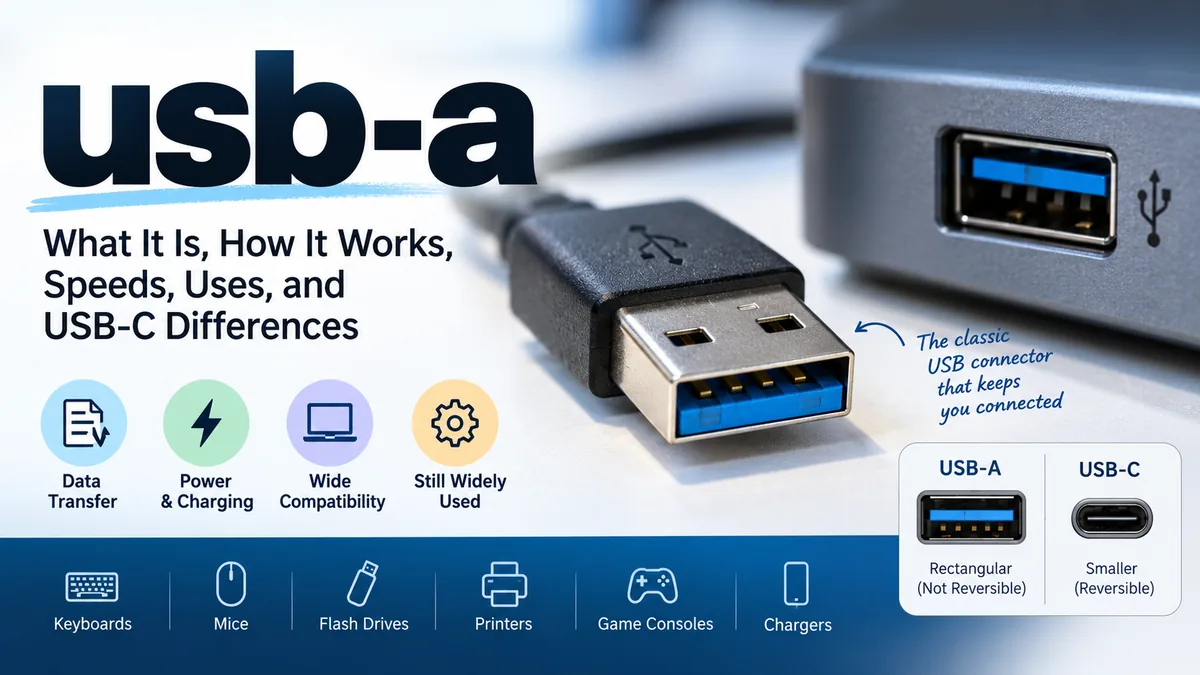

If you have used a desktop computer, laptop, flash drive, keyboard, mouse, game console, or traditional phone charger, you have almost certainly encountered usb-a. Its wide, rectangular connector became one of the most recognizable interfaces in consumer electronics.
The confusing part is that the connector’s appearance does not tell you everything about its capabilities. Two identical-looking USB-A ports can support very different data-transfer speeds, charging performance, and USB generations.
usb-a, commonly called USB Type-A, is the rectangular, non-reversible USB connector widely used on computers, chargers, hubs, game consoles, flash drives, keyboards, mice, and other electronics. It can carry both data and electrical power. Depending on the hardware, USB-A connections can support USB 2.0, 5 Gbps USB, or even 10 Gbps USB speeds.
Understanding the distinction between the connector type and the USB specification makes the entire subject much easier.
What Is usb-a?
USB-A is a physical connector format used by the Universal Serial Bus (USB) standard. It is also commonly described as USB Type-A or simply Type-A.
The connector has a flat, rectangular shape and has traditionally appeared on the host side of a USB connection. Desktop PCs, laptops, power adapters, USB hubs, televisions, game consoles, and similar equipment commonly provide USB-A receptacles.
A typical USB-A plug has:
- A rectangular metal shell
- A plastic internal tongue
- A fixed insertion orientation
- Contacts for power and data
- A relatively large physical footprint compared with USB-C
Unlike USB-C, USB-A is not reversible. The plug must be correctly oriented before it will enter the port.
USB-A dates back to the original generations of USB and remains widely used because an enormous installed base of computers, peripherals, cables, chargers, and accessories relies on it.
USB-A Is a Connector, Not a Speed
One of the most common USB mistakes is treating “USB-A” as if it describes performance.
It doesn’t.
USB-A describes the connector’s physical form. Terms such as USB 2.0, USB 3.2 Gen 1, and USB 3.2 Gen 2 describe USB specifications or performance generations.
That means a USB-A port might operate at 480 Mbps, 5 Gbps, or 10 Gbps depending on the host, device, cable, and implementation.
This distinction explains why two USB-A ports that look almost identical can perform very differently.
How Does usb-a Work?
A USB connection establishes communication between a host and an attached USB device. The host controls the connection and communicates with peripherals through the USB protocol.
For example, when you connect a USB flash drive to a computer’s USB-A port, the system detects the device, identifies what it is, loads the appropriate support, and allows data to move between the computer and storage device.
USB can also provide electrical power through the connection. This is why devices such as keyboards, mice, small external drives, USB lights, and many other peripherals can operate without separate power adapters.
A USB-A connection can therefore serve two major functions:
- Data transfer between compatible devices
- Power delivery or charging for connected equipment
Some USB-A ports or cables are designed primarily for charging and may provide limited or no data functionality. The physical connector alone does not guarantee a particular feature set.
USB-A Plug vs USB-A Port
The terminology is straightforward once you know the difference.
A USB-A plug is the male connector at the end of a cable or built into a device such as a flash drive.
A USB-A receptacle or port is the female socket into which that connector is inserted.
You might therefore have a cable with USB-A on one end and USB-C, Micro-USB, Mini-USB, or another connector on the opposite end.
usb-a Speeds and USB Generations
USB-A has survived several generations of the USB standard, which is why identifying performance from the connector alone can be difficult.
Here is the practical comparison:
| USB specification | Maximum signaling rate | USB-A support | Common description |
|---|---|---|---|
| USB 1.1 | 12 Mbps | Yes | Full-Speed |
| USB 2.0 | 480 Mbps | Yes | Hi-Speed |
| USB 3.2 Gen 1 | 5 Gbps | Yes | Formerly USB 3.0 / USB 3.1 Gen 1 |
| USB 3.2 Gen 2 | 10 Gbps | Yes | Formerly USB 3.1 Gen 2 |
| USB 3.2 Gen 2×2 | 20 Gbps | No | USB-C only |
| USB4 | 20 Gbps and above, depending on generation | No | USB-C only |
USB-IF’s USB 3.2 specification defines 5 Gbps, 10 Gbps, and 20 Gbps performance levels. The 20 Gbps USB 3.2 Gen 2×2 mode uses the multi-lane capabilities of USB Type-C rather than USB-A.
USB 2.0 and USB-A
USB 2.0 remains extremely common.
Its theoretical maximum signaling rate is 480 Mbps, or 60 MB/s before protocol overhead and other real-world limitations are considered. Actual transfer performance is normally lower.
USB 2.0 is more than adequate for many low-bandwidth peripherals, including:
- Keyboards
- Mice
- Basic printers
- Game controllers
- USB receivers
- Some webcams
- Older flash drives
A fast external SSD, however, would be severely limited by a USB 2.0 connection.
USB 3.0, USB 3.1, and USB 3.2 Naming
USB naming has changed repeatedly, which creates unnecessary confusion.
What was originally called USB 3.0 became USB 3.1 Gen 1 and was subsequently incorporated into the USB 3.2 naming structure as USB 3.2 Gen 1, offering a 5 Gbps signaling rate.
Similarly, the 10 Gbps generation associated with USB 3.1 Gen 2 became USB 3.2 Gen 2.
In practical terms:
- USB 3.0 = USB 3.1 Gen 1 = 5 Gbps generation
- USB 3.2 Gen 1 = 5 Gbps
- USB 3.1 Gen 2 = 10 Gbps generation
- USB 3.2 Gen 2 = 10 Gbps
USB-IF documentation emphasizes communicating the actual performance capability because connector shape and historical version names can otherwise mislead consumers.
Does USB-A Support 20 Gbps?
Not through USB 3.2 Gen 2×2.
USB 3.2 Gen 2×2 achieves 20 Gbps through two 10 Gbps lanes, and USB Type-C was designed to accommodate the required multi-lane operation. USB-A remains associated with single-lane legacy USB implementations.
For newer high-bandwidth technologies such as USB4, USB-C is the relevant connector.
How to Identify Different usb-a Ports
People often try to determine a USB port’s speed from its color.
That can provide a clue, but it should not be treated as definitive.
Traditionally:
- Black or white ports often indicate USB 2.0
- Blue often indicates a 5 Gbps USB 3.x connection
- Red or teal may be associated with certain faster or charging-capable implementations
Manufacturers are not required to follow a universal color convention, however. A blue port is therefore useful evidence, not an absolute specification.
For reliable identification, check:
- The computer or device specifications
- Labels or symbols next to the port
- The manufacturer’s documentation
- The cable specifications
- The connected device’s supported USB performance
A port labeled with a speed such as 5Gbps or 10Gbps provides much more useful information than color alone.
Quick Takeaway: Never assume USB speed from the rectangular connector or its color. USB-A tells you the physical connector; the host, cable, device, and supported USB mode determine actual performance.
What Devices Use usb-a?
The extraordinary installed base is USB-A’s biggest advantage.
USB-A ports and plugs can still be found across a huge range of consumer and business hardware.
Computers and Laptops
Desktop PCs have traditionally included several USB-A ports for connecting peripherals.
Many full-size laptops also retain them, although thin-and-light notebooks increasingly favor USB-C because of its smaller size and broader capabilities.
Common computer accessories connected through USB-A include:
- Keyboards
- Mice
- USB flash drives
- External hard drives
- Webcams
- Microphones
- Printers
- Scanners
- Wi-Fi and Bluetooth adapters
- Security keys
- Game controllers
USB Flash Drives and External Storage
Flash drives are one of the best-known examples of USB-A hardware.
Many external HDDs and SSDs can also connect to USB-A, either directly or through an appropriate cable.
For storage, speed matters much more than it does for a mouse or keyboard. Connecting a high-performance SSD through USB 2.0 can create a severe bottleneck.
A 5 Gbps or 10 Gbps connection is much better suited to fast external storage.
Chargers and Power Adapters
For years, wall chargers commonly provided one or more USB-A output ports.
This created the familiar USB-A-to-Micro-USB and USB-A-to-USB-C charging cables used with smartphones, headphones, power banks, speakers, cameras, and other electronics.
USB-C has increasingly replaced USB-A on newer chargers, particularly where higher power levels and modern USB Power Delivery capabilities are desired.
Game Consoles, TVs, and Media Equipment
USB-A also remains common on:
- Televisions
- Game consoles
- Streaming equipment
- Set-top boxes
- Car infotainment systems
- Routers
- Network-attached storage devices
- Audio equipment
These ports may support storage, accessories, firmware updates, media playback, charging, or other device-specific functions.
usb-a vs USB-C: What Is the Difference?
USB-A and USB-C are both USB connector types, but their physical design and potential capabilities are significantly different.
| Feature | USB-A | USB-C |
|---|---|---|
| Shape | Wide rectangular | Small rounded rectangle |
| Reversible | No | Yes |
| Size | Larger | Smaller |
| USB 2.0 support | Yes | Yes |
| 5 Gbps support | Yes | Yes |
| 10 Gbps support | Yes | Yes |
| USB 3.2 Gen 2×2 | No | Yes |
| USB4 | No | Yes |
| Modern high-power USB PD capabilities | Limited compared with USB-C ecosystem | Yes, when properly supported |
| Alternate modes | Generally no | Possible when supported |
| Common legacy peripherals | Extremely common | Increasingly common |
The biggest everyday difference is physical convenience. USB-C can be inserted in either orientation; USB-A cannot.
The more significant technical difference is that USB-C provides the connector architecture used by newer USB capabilities, including multi-lane USB 3.2 operation and USB4. USB-IF specifically notes that USB Type-C was designed from the outset to support multi-lane operation.
Is USB-C Always Faster Than USB-A?
No.
This is another case where connector type and USB performance must be separated.
A USB-C port can operate at a relatively modest USB data rate, while a properly implemented USB-A port may support 10 Gbps.
Simply seeing USB-C does not guarantee faster transfers.
For example, if a USB-C connection operates at USB 2.0’s 480 Mbps while a USB-A port supports 10 Gbps USB, the USB-A connection has much greater available data bandwidth.
Always compare the actual supported data rate rather than assuming the newer-looking connector is faster.
Is usb-a Backward Compatible?
Backward compatibility is one of USB’s most useful characteristics.
USB-IF states that USB 3.2 remains backward compatible with existing USB products and that a connection operates according to the lowest common performance capability in the chain.
Suppose you connect a USB 2.0 flash drive to a USB-A port capable of 5 Gbps. The flash drive does not suddenly become a 5 Gbps device. It continues operating according to its own supported standard.
The same principle applies when a faster peripheral is attached through a slower port or cable.
The Slowest Component Matters
For a USB connection to reach its intended speed, all relevant parts of the path must support it.
That includes:
- Host USB controller
- Physical port
- Cable
- Hub or adapter, if present
- Peripheral device
A 10 Gbps external SSD connected through a USB 2.0 cable cannot deliver 10 Gbps performance.
This is one of the most useful troubleshooting principles when a USB device seems unusually slow.
Can usb-a Charge Devices?
Yes. USB-A has supplied power to peripherals and charged portable devices for decades.
The actual charging rate, however, varies considerably.
A computer’s traditional USB port may provide relatively modest power, while a dedicated charging adapter with a USB-A receptacle may support a manufacturer-specific fast-charging system or higher current.
This means USB-A does not equal one fixed charging speed.
Charging depends on factors such as:
- Charger output
- USB specification
- Device requirements
- Cable quality and capability
- Charging protocol
- Port implementation
USB-C has become the preferred connector for modern high-power USB charging because the Type-C ecosystem works with advanced USB Power Delivery implementations and supports capabilities that extend well beyond traditional USB-A charging.
Can USB-A to USB-C Cables Be Used?
Yes.
A cable can have a USB-A connector on one end and USB-C on the other. This is common when connecting a newer USB-C phone, accessory, or peripheral to an older computer or charger.
However, putting USB-C on one end does not automatically give the connection every USB-C capability.
The host port, cable, and device must all support the relevant data and charging features.
Why Is My usb-a Connection Slow?
A slow USB connection does not necessarily mean anything is broken.
The most common causes include:
- Using a USB 2.0 port instead of a faster USB port.
- Using a slower cable that cannot support the desired data rate.
- Connecting through a limited hub or adapter.
- Using a storage device whose read/write performance is itself slow.
- Sharing bandwidth with other devices through the same controller or hub.
- Expecting theoretical signaling rates to equal actual file-transfer speeds.
Real-world throughput is lower than the theoretical maximum because USB communication has overhead, while storage hardware, file size, operating systems, and other conditions can further affect performance. SanDisk’s published interface guidance similarly distinguishes theoretical USB rates from typical real-world transfer performance.
How to Get Better USB-A Transfer Speeds
For large file transfers, check the complete connection rather than replacing components randomly.
Start by identifying the maximum speed supported by your external drive or other peripheral. Then verify the computer’s USB-A port supports the same performance class.
Use a cable rated for that speed and, where possible, connect directly to the computer instead of passing through an unknown hub.
If the hardware is capable of 5 Gbps or 10 Gbps but performance still resembles USB 2.0, the cable or intermediate adapter is often worth investigating.
USB-A vs USB-B, Micro-USB, and Mini-USB
USB-A is only one member of a much larger family of USB connectors.
USB-A vs USB-B
Traditional USB-B is the squarer connector commonly associated with printers and other larger peripherals.
Historically, a typical printer cable had:
- USB-A on the computer end
- USB-B on the printer end
USB-A generally represented the host-facing side of these traditional connections.
USB-A vs Micro-USB
Micro-USB is considerably smaller and became extremely common on smartphones and portable electronics before USB-C took over.
A USB-A-to-Micro-USB cable was once one of the most common charging cables in the world.
Micro-USB’s small size suited portable devices, while USB-A remained on computers and chargers.
USB-A vs Mini-USB
Mini-USB predates Micro-USB and was widely used on older digital cameras, GPS units, controllers, portable drives, and other electronics.
It has largely disappeared from new mainstream consumer products but remains relevant for maintaining older hardware.
Common usb-a Problems and How to Troubleshoot Them
The simplicity of USB can hide several potential failure points.
The Plug Does Not Fit
Do not force it.
USB-A is not reversible, so rotate the plug and try again. If it still does not fit easily, check whether you are actually dealing with a USB-A connector and inspect both the plug and receptacle for physical damage or debris.
The Device Is Not Detected
Try another USB port first.
If the device works elsewhere, the original port may have a hardware, driver, power, or configuration problem.
If it fails on multiple systems, test another cable when the cable is detachable.
The Device Disconnects Randomly
Intermittent connections can result from:
- Damaged cables
- Loose connectors
- Worn ports
- Insufficient power
- Faulty hubs
- Software or driver problems
External hard drives and other relatively power-hungry devices can expose power-related problems more readily than simple peripherals such as mice.
The Device Works but Transfers Slowly
Check whether the device has accidentally been connected to a USB 2.0 port.
Then confirm the cable, hub, and peripheral support the faster standard you expect. USB performance is ultimately limited by the weakest link in the connection.
Is usb-a Becoming Obsolete?
USB-A is gradually becoming less central, but calling it obsolete would be premature.
USB-C has clear design advantages. It is smaller, reversible, supports newer USB generations, and forms the physical foundation for technologies such as USB4. The industry has therefore been moving toward USB-C for newer computers, mobile devices, docks, chargers, and high-performance peripherals.
USB-A still has one enormous advantage: compatibility with decades of existing equipment.
Millions of keyboards, mice, flash drives, printers, controllers, receivers, chargers, and specialized devices continue to use it.
Desktop computers in particular can accommodate USB-A without the space constraints found on thin laptops and mobile devices. For basic peripherals, replacing USB-A solely for higher bandwidth often provides no practical benefit.
The likely pattern is therefore continued coexistence rather than an immediate disappearance.
Do You Need an Adapter for usb-a and USB-C?
Sometimes.
If your computer only has USB-C ports but your peripheral has a USB-A plug, a compatible USB-C-to-USB-A adapter or hub can bridge the physical connection.
Likewise, USB-A-to-USB-C cables can connect many USB-C devices to older USB-A hosts.
An adapter cannot create capabilities that the original interfaces do not possess.
For example, connecting a high-performance USB-C SSD through an older USB 2.0 USB-A port will not preserve the SSD’s maximum speed. The physical adapter solves the connector mismatch, but the USB connection still operates according to the capabilities available throughout the chain.
What to Check When Using usb-a
You rarely need to know every historical USB version. A few checks answer most practical questions.
For data transfers: Find the speed supported by the port, cable, and peripheral. Look for explicit 5 Gbps or 10 Gbps specifications rather than relying solely on connector color.
For charging: Check the charger’s rated output and the charging standards supported by the device and cable.
For adapters: Confirm both connector compatibility and data/power capabilities.
For external SSDs: Avoid USB 2.0 if you want high transfer speeds. A 5 Gbps or 10 Gbps interface is far more appropriate for modern high-speed storage.
For keyboards and mice: USB 2.0 is usually sufficient because these devices do not require anything close to the bandwidth available from modern high-speed USB interfaces.
For future compatibility: USB-C is increasingly important for newer devices, but retaining access to USB-A can still be extremely useful for legacy peripherals.
The Bottom Line on usb-a
usb-a is the classic rectangular USB connector that helped make Universal Serial Bus a standard interface across computers and consumer electronics. It remains common on PCs, chargers, hubs, flash drives, keyboards, mice, game consoles, printers, and countless other devices.
The key fact to remember is that USB-A describes a connector, not a speed.
A USB-A connection can support different USB generations, from older USB standards through 5 Gbps and 10 Gbps implementations. USB 3.2 Gen 2×2’s 20 Gbps operation and USB4, however, rely on USB-C rather than USB-A.
When checking a USB connection, look beyond the plug shape. Identify the supported data rate, charging capability, cable specification, host port, and peripheral requirements. That simple habit makes USB compatibility—and most USB troubleshooting—far easier to understand.
