
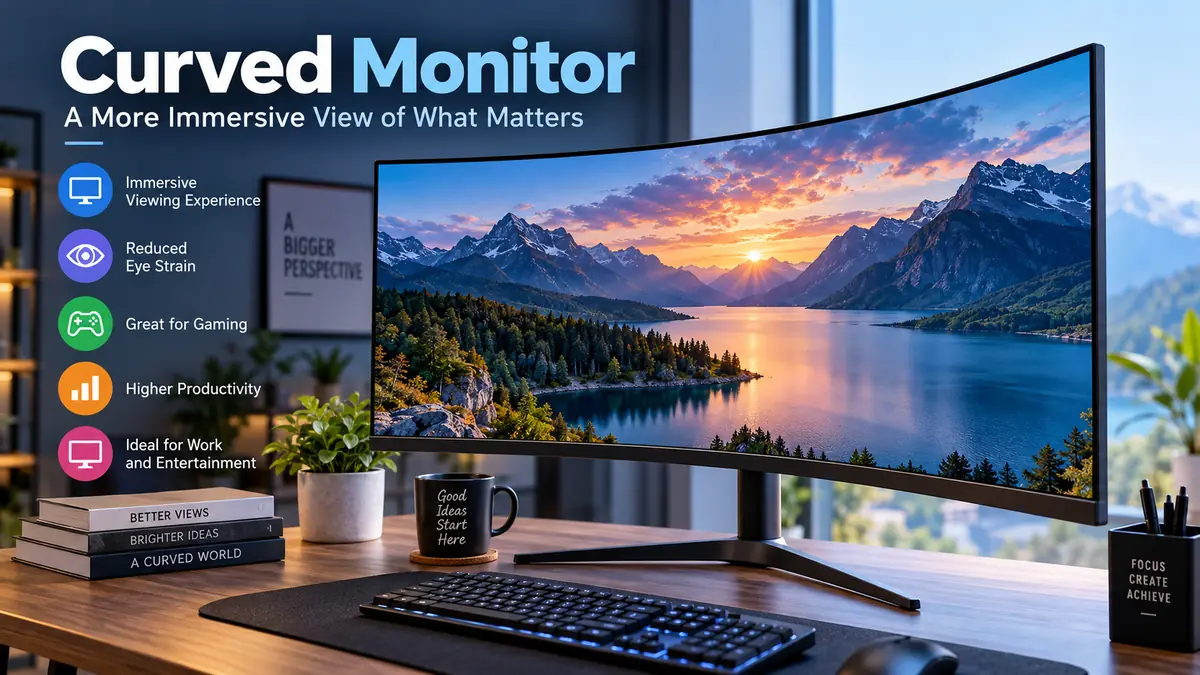

A curved monitor can make a wide desktop feel more natural by bringing the outer edges of the screen closer to your eyes. The effect is most noticeable on large and ultrawide displays, where a flat panel can place the far corners noticeably farther away than the center.
But the curve itself does not automatically make a monitor better. Screen size, resolution, panel technology, refresh rate, aspect ratio, viewing distance, and the work you do all matter just as much.
A curved monitor is a computer display whose screen bends inward toward the viewer. Curvature is expressed as a radius such as 1000R, 1500R, or 1800R. Its main purpose is to bring more of a wide display into the viewer’s field of vision, improving immersion and making large screens easier to view from a centered position.
This guide explains what those numbers actually mean, where curved displays work well, where they do not, and how they compare with traditional flat monitors.
What Is a Curved Monitor?
A curved monitor is a desktop display with a horizontally curved panel rather than a completely flat screen.
Instead of every part of the panel sitting on the same straight plane, the left and right edges bend toward the person sitting in front of it. This geometry becomes particularly useful as monitors become wider.
Think about sitting directly in front of a large flat display. The center is closest to you, while the corners are farther away. On a curved screen, those outer sections are physically brought forward.
That difference is relatively subtle on a small screen but becomes much more noticeable on a 34-inch ultrawide or 49-inch super-ultrawide display. Current monitor designs commonly combine curvature with 21:9 or 32:9 aspect ratios for this reason.
Curvature is only one monitor characteristic, however. Curved screens can use technologies such as:
- VA panels
- IPS panels
- OLED
- QD-OLED
- LCD backlighting
- High-refresh-rate gaming panels
They can also have Full HD, QHD, ultrawide QHD, 4K, 5K2K, and other resolutions.
So “curved” describes the screen’s physical geometry, not its image quality.
What Does 1000R, 1500R or 1800R Mean on a Curved Monitor?
The number followed by R describes the radius of the monitor’s curve in millimeters.
For example:
| Curvature | Radius | Relative Curve |
|---|---|---|
| 1000R | 1,000 mm | Strong |
| 1500R | 1,500 mm | Moderately strong |
| 1800R | 1,800 mm | Moderate |
| 2300R | 2,300 mm | Gentle |
| 3000R | 3,000 mm | Very gentle |
| 4000R | 4,000 mm | Very subtle |
A smaller number means a tighter curve.
A 1000R curved monitor, therefore, wraps around the viewer more aggressively than an 1800R model. An 1800R screen is noticeably gentler, while something such as 3000R has a comparatively subtle bend.
The R measurement comes from imagining the monitor as a small section of a complete circle. A 1000R screen would belong to a theoretical circle with a radius of 1,000 mm, while an 1800R display corresponds to a radius of 1,800 mm.
Does the curvature number tell you viewing distance?
It can provide a useful reference, but it should not be treated as a rigid ergonomic rule.
ViewSonic, for example, explains the relationship using approximately 1.8 meters for an 1800R display, 2.3 meters for 2300R, and 3 meters for 3000R.
In a real desktop setup, monitor size, text size, resolution, eyesight, desk depth, and the type of work being performed can change the comfortable distance substantially.
Quick Takeaway: Lower R number = stronger curve. Higher R number = gentler curve.
Why Are Curved Monitors Popular?
The basic idea is simple: as a display becomes wider, bending the edges inward can make the screen easier to take in from a central seating position.
This creates several practical effects.
More immersive viewing
Immersion is probably the most immediately noticeable advantage.
A large curved screen occupies more of your peripheral vision than a conventional flat panel. Rather than appearing like a rectangle sitting in front of you, an ultrawide display can begin to feel as though it surrounds your workspace.
This is particularly noticeable in:
- Racing games
- Flight simulators
- Open-world games
- Driving simulators
- Cinematic games
- Wide video-editing timelines
RTINGS notes that curved ultrawide displays can bring the edges closer to the viewer’s field of vision, while manufacturers including Corsair describe immersion as one of the central reasons for using curved gaming displays.
Easier viewing of very wide screens
A 34-inch or 49-inch monitor contains a lot of horizontal screen space.
With a flat display, looking toward the extreme edges can require more eye or head movement. A curve turns those sections toward the viewer.
This does not create additional pixels or desktop space. It simply changes how the existing screen is positioned relative to you.
Better fit for ultrawide aspect ratios
Curvature and ultrawide displays complement one another.
A conventional widescreen monitor usually uses a 16:9 aspect ratio, while many ultrawide screens use 21:9. Super-ultrawide models can extend to 32:9.
The wider the physical panel becomes, the more useful curvature can become because the screen edges extend farther from the viewer.
This explains why curved screens are particularly common among ultrawide monitors.
Curved Monitor vs Flat Monitor
There is no universal winner between curved and flat screens.
The useful comparison is how each design behaves in a particular setup.
| Feature | Curved Monitor | Flat Monitor |
|---|---|---|
| Immersion | Strong on large screens | Conventional |
| Ultrawide use | Excellent fit | Less common |
| Centered viewing | Very good | Very good |
| Side viewing | Less convenient | Usually easier |
| Straight-line perception | Can appear curved initially | Natural |
| Screen sharing | Less ideal | Better |
| Multi-monitor layouts | Can be awkward | Easier |
| Wall mounting | Requires more planning | Usually simpler |
| Small desks | Can take more depth | Usually easier |
| Gaming | Excellent for immersive titles | Excellent, especially competitive play |
| Design/CAD | Depends on workflow | Often preferred for geometric accuracy |
| Productivity | Strong on large ultrawides | Strong across most sizes |
The biggest distinction appears when screen width increases.
On a standard 24-inch display, adding a curve may make only a modest practical difference. On a 34-inch ultrawide or 49-inch super-ultrawide, curvature can meaningfully change how the edges of the display are perceived from a normal centered position.
Why might straight lines look unusual?
This is one drawback that specifications rarely communicate well.
If you have spent years using flat monitors, a spreadsheet grid, webpage border, timeline, or horizontal design element can initially appear slightly bent on a curved screen.
The pixels themselves are not distorted. You are seeing them on a physically curved surface.
RTINGS specifically highlights this effect when viewing documents and webpages and notes that it may take time to adjust.
For ordinary office work, many people adapt quickly. For CAD, technical drawing, architecture, graphic design, or other geometry-sensitive work, a flat display can still make more sense.
Is a Curved Monitor Good for Gaming?
Gaming is one of the strongest use cases for a curved monitor, especially when the screen is large or ultrawide.
The benefit comes primarily from immersion, not from an inherent performance advantage.
A curved 21:9 display can place more of the game world across your peripheral vision. That can feel particularly convincing in racing, flight simulation and exploration-heavy games. Samsung and LG both highlight racing, simulation and visually expansive games as use cases where curvature and ultrawide formats can be particularly effective.
But curvature does not determine gaming performance.
For that, pay attention to:
- Refresh rate
- Response time
- Input lag
- Resolution
- Adaptive sync
- GPU performance
- HDR performance
- Contrast ratio
- Motion clarity
- Panel technology
A 240 Hz flat gaming monitor can provide a better competitive experience than a 100 Hz curved model even though the latter looks more immersive.
Curved monitors for competitive gaming
Competitive FPS players often prioritize high refresh rates, low latency, predictable geometry, and the ability to see the whole interface without scanning a very large display.
That is one reason smaller flat high-refresh-rate monitors remain common for competitive play.
ASUS similarly distinguishes between immersive gaming, where curved displays can work well, and competitive FPS use, where flat panels may be preferable.
The practical rule is straightforward:
Choose specifications for performance first and curvature for viewing experience second.
Is a Curved Monitor Good for Work and Productivity?
Yes, particularly when curvature is combined with an ultrawide screen.
A 34-inch 21:9 display can provide enough horizontal room to place several applications side by side. A larger 32:9 screen can provide an even broader continuous desktop.
That makes curved ultrawides useful for tasks such as:
- Spreadsheets
- Programming
- Data analysis
- Video editing
- Audio production
- Research
- Browser-based work
- Financial dashboards
- Long timelines
- Multiple documents
Instead of separating applications across two physical monitors and a central bezel, you can arrange windows across one continuous desktop.
LG notes that ultrawide curved displays can be useful for multitasking because multiple applications can occupy the horizontal workspace without the bezels associated with separate monitors.
Does a curved screen give you more workspace?
Not by itself.
This is an important distinction.
A curve does not increase resolution, pixel count, or usable desktop area. A 3440 × 1440 curved display and a hypothetical flat display with the same resolution contain the same number of pixels.
The productivity advantage usually comes from the ultrawide resolution and aspect ratio, while the curve makes that wide workspace easier to view.
Are Curved Monitors Better for Your Eyes?
Claims that curved monitors automatically prevent eye strain should be treated carefully.
Curvature can make a large display feel more comfortable because the edges are oriented toward the centered viewer. Some manufacturers argue this reduces the amount of refocusing or scanning needed across a large screen.
But monitor shape is only one part of visual comfort.
Other factors can matter just as much, including:
- Viewing distance
- Screen brightness
- Text size
- Ambient lighting
- Glare
- Flicker
- Refresh rate
- Screen height
- Break frequency
- Individual eyesight
A curved screen should therefore be viewed as an ergonomic design option rather than a guaranteed solution for eye fatigue.
If your monitor is too bright, positioned incorrectly, or used continuously for long periods, curvature alone will not solve the problem.
What Are the Main Advantages of a Curved Monitor?
1. Greater immersion
The wraparound effect can make games and multimedia feel more engaging, particularly on large ultrawide screens.
2. Better experience on wide displays
Bringing the edges inward can make a large desktop easier to scan from a centered position.
3. Strong fit for 21:9 and 32:9 monitors
Curvature becomes increasingly useful as a screen grows horizontally.
4. Large continuous workspace
A curved ultrawide can provide substantial horizontal room without the physical bezel separating two monitors.
5. Useful for simulators
Racing and flight simulation benefit particularly well from peripheral screen coverage.
6. Potentially more natural centered viewing
When the size, curve and seating position are matched appropriately, the screen’s edges face the viewer more directly than those of an equally wide flat display.
Quick Takeaway: The real advantage is not simply that the display is curved. The benefit comes from combining the right curve with enough screen width and the correct seating position.
What Are the Disadvantages of a Curved Monitor?
Curved screens also involve compromises that can easily be overlooked.
Off-angle viewing is less convenient
The curve is designed around a viewer positioned near the center.
Move far to one side and the geometry no longer aligns with your position. This makes a strongly curved display less convenient when several people need to look at the screen simultaneously.
RTINGS found this particularly relevant for aggressive curves and when a display is viewed from the side.
Straight lines may initially look curved
This matters most for work involving geometry, page layout, architectural drawings, CAD or precision graphics.
They need more desk depth
The edges physically extend toward you.
Large ultrawide models can therefore occupy more front-to-back desk space than their screen diagonal suggests.
Wall mounting can be less straightforward
A curved monitor can be VESA-mounted when the model supports it, but the screen still projects outward at its edges. That can make a flush-looking installation harder to achieve.
Multi-monitor setups can become complicated
Two or three flat displays are easy to angle independently.
Multiple curved screens require more thought about curve radius, viewing position and physical alignment. For some setups, one large curved ultrawide is simpler than several curved monitors.
Not every application benefits from ultrawide resolutions
Some games and video formats do not fully support 21:9 or 32:9. Depending on the content, this can result in black bars, scaling or a narrower usable image.
What Size Curved Monitor Makes Sense?
Screen size changes how useful curvature feels.
24 to 27 inches
At conventional 16:9 sizes, the screen is not especially wide. A curve can still be pleasant, but the functional advantage is relatively modest.
32 inches
Curvature becomes more noticeable because the outer edges are farther apart. A gentle or moderate curve can make a large 16:9 screen feel easier to take in.
34 inches
This is a common ultrawide format.
A 34-inch 21:9 screen pairs naturally with curvature because of its substantial horizontal width. Resolutions such as 3440 × 1440 are common in this class.
38 to 40 inches
These larger ultrawides offer substantial workspace and can be particularly useful for productivity, editing and immersive gaming.
49 inches and larger
A 49-inch 32:9 super-ultrawide is extremely wide. Curvature becomes much more functionally relevant because the outer edges would otherwise be very far from a centered user.
This size is popular in simulator setups and expansive productivity workstations.
How Much Curvature Do You Need?
There is no single ideal curve.
The appropriate radius depends on screen width, desk depth and viewing preference.
1000R
A strong, wraparound curve.
It is most useful when immersion is a priority and the user sits centered in front of a large display. Samsung’s Odyssey family helped make aggressive 1000R curvature particularly visible in the gaming-monitor market.
1500R
Still clearly curved but somewhat less aggressive.
This can provide a middle ground for gaming and everyday desktop use.
1800R
A gentler curve commonly associated with ultrawide and larger monitors. It can be easier to adapt to if you are moving from a flat display.
2300R and above
These radii create progressively subtler curvature.
They can work well when you want the edges angled slightly inward without a pronounced wraparound effect.
Remember: 1000R is more curved than 1800R. The smaller number represents the tighter radius.
Curved Monitor Resolution and Aspect Ratio Explained
Curvature should never be evaluated separately from resolution.
A physically large display with insufficient resolution can produce lower pixel density, making text and fine details look less sharp.
Common formats include:
| Format | Typical Resolution | Aspect Ratio |
|---|---|---|
| Full HD | 1920 × 1080 | 16:9 |
| QHD | 2560 × 1440 | 16:9 |
| 4K UHD | 3840 × 2160 | 16:9 |
| Ultrawide QHD | 3440 × 1440 | 21:9 |
| 5K2K ultrawide | 5120 × 2160 | 21:9 |
| Super ultrawide | 5120 × 1440 | 32:9 |
Higher resolution provides more pixels, but it also places greater demands on a graphics card during gaming.
For office productivity, resolution affects how much usable desktop space and text clarity you receive. For gaming, the GPU must render every frame at that resolution, so resolution and refresh rate should be considered together.
Panel Type Still Matters More Than the Curve
A common mistake is comparing monitors only by curvature.
The panel itself can have a larger impact on picture quality.
VA panels are frequently used in curved monitors and can offer strong contrast, though viewing angles and motion performance vary by model.
IPS panels are known for wide viewing angles and generally consistent colors, making them common in productivity and creative displays.
OLED monitors can provide near-black blacks, extremely fast pixel response and strong HDR potential, although issues such as static-content burn-in risk and text rendering characteristics should be considered depending on the model.
QD-OLED combines OLED’s self-emissive characteristics with quantum-dot color technology and is increasingly used in premium gaming displays.
Curvature tells you how the screen is shaped. It tells you very little about contrast, color accuracy, HDR quality, brightness, response time or motion handling.
What Should You Check When Evaluating a Curved Monitor?
Start with your actual workload rather than the R number.
- Choose an appropriate screen size. Wider displays gain more from curvature.
- Check the aspect ratio. Decide whether 16:9, 21:9 or 32:9 fits your applications.
- Match resolution to screen size. A large panel needs enough pixel density for comfortable text and detail.
- Consider curvature. Lower R values provide stronger wraparound.
- Measure your desk. Include the stand and the forward-projecting screen edges.
- Check the panel technology. IPS, VA, OLED and QD-OLED behave differently.
- For gaming, examine refresh rate and response performance.
- Check connectivity. HDMI, DisplayPort and USB-C capabilities vary considerably.
- Look at ergonomics. Height adjustment, tilt, swivel and VESA mounting can affect everyday comfort.
- Consider where you sit. Curved displays work best when viewed from a relatively centered position.
A monitor with the “perfect” curve but the wrong resolution or panel characteristics is unlikely to be the right display.
Who Benefits Most From a Curved Monitor?
Curved displays make the most sense for people who regularly use a wide screen while sitting directly in front of it.
They are particularly well suited to:
- Ultrawide gaming
- Racing simulators
- Flight simulators
- Video editing
- Music production
- Software development
- Large spreadsheets
- Data-heavy workflows
- Side-by-side application layouts
- Cinematic entertainment
A curve can be less valuable for people using a small conventional display, frequently sharing the screen from different viewing positions, building a traditional multi-monitor array, or performing work where perceived straight-line geometry is critical.
Is a Curved Monitor Worth It?
A curved monitor is most useful when the display is large enough for its width to matter.
On a 34-inch ultrawide or 49-inch super-ultrawide, bringing the edges toward the viewer can create a noticeably more cohesive and immersive workspace. On a smaller 24- or 27-inch screen, the difference is generally less dramatic.
The curve should therefore be treated as one part of the display rather than the feature that determines its overall quality.
For immersive gaming, simulation and large ultrawide productivity setups, curvature can be genuinely useful. For competitive gaming, shared screens, compact desks, multi-monitor arrangements or geometry-sensitive design work, a flat monitor may be equally suitable or more practical.
When evaluating a curved monitor, start with screen size, aspect ratio, resolution, panel type and your normal viewing position. Then choose a curvature that fits that setup. That approach gives you a screen whose shape serves a practical purpose rather than simply adding a visual effect.
