
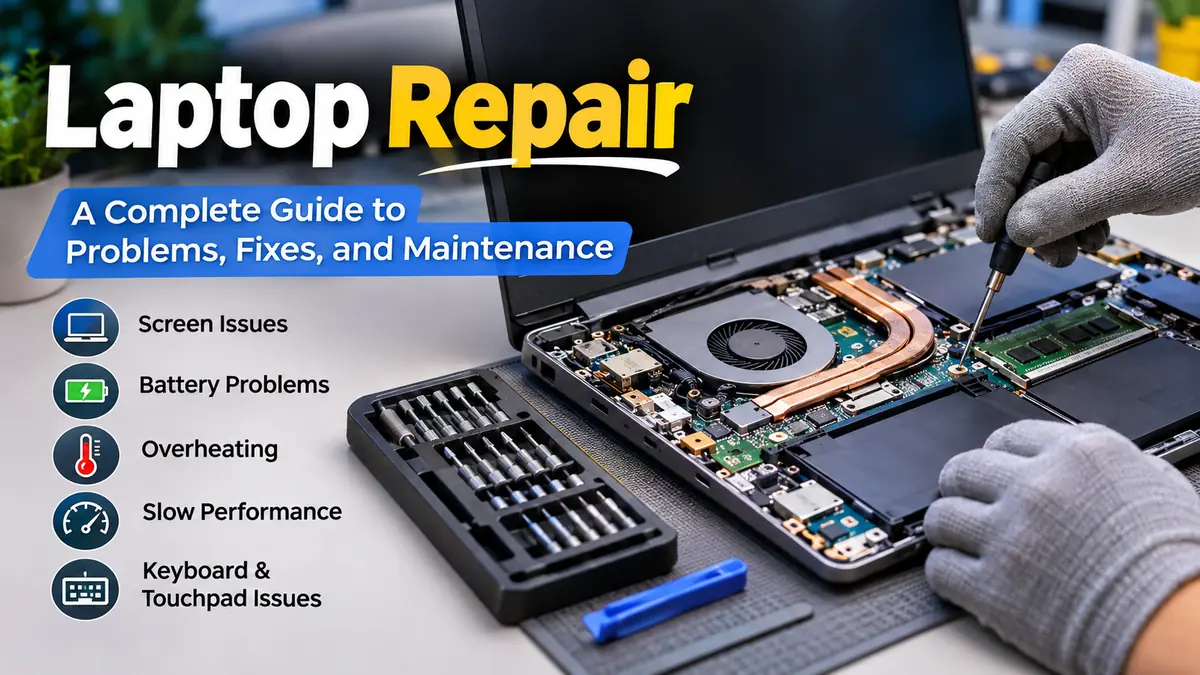

A laptop that suddenly stops charging, overheats, freezes, or refuses to start can interrupt work, school, and everyday tasks. The good news is that not every malfunction means you need a replacement computer. Many laptop problems can be diagnosed with simple checks, while others require a trained technician.
laptop repair involves diagnosing and fixing hardware, software, power, display, and performance problems in portable computers. Common repairs include battery replacement, screen replacement, keyboard repair, cooling-system maintenance, storage upgrades, and operating-system troubleshooting. The safest approach is to identify the symptoms, protect important data, and determine whether the problem can be resolved without opening the device.
Understanding how laptops work makes troubleshooting easier and helps prevent unnecessary expenses.
What Is laptop repair and How Does It Work?
Laptop repair is the process of identifying and correcting faults that prevent a notebook computer from operating normally. Repairs may involve replacing damaged components, repairing electrical connections, removing malware, reinstalling software, or restoring proper cooling.
Unlike desktop computers, laptops contain tightly packed components designed to fit inside a compact chassis. The display, battery, keyboard, motherboard, cooling fan, and storage system often share limited internal space.
This compact design makes laptops portable but can complicate repairs.
Hardware vs. software repairs
| Hardware repair | Software repair |
|---|---|
| Replacing a broken screen | Fixing operating-system errors |
| Installing a new battery | Removing malware |
| Repairing charging connections | Updating drivers |
| Replacing a damaged keyboard | Resolving startup failures |
| Cleaning or replacing cooling fans | Troubleshooting slow performance |
| Replacing an SSD | Repairing corrupted system files |
Hardware problems involve physical components. Software problems involve operating systems, applications, drivers, settings, or stored data.
Sometimes the symptoms overlap. For example, a laptop that freezes frequently may have defective memory, an overheating processor, a failing storage drive, or a software conflict.
Accurate diagnosis matters more than replacing parts immediately.
Common laptop repair Problems and Their Solutions
The following troubleshooting steps begin with lower-risk checks before moving to repairs that may require professional assistance.
1. Laptop won’t turn on
My laptop cannot turn on, how to fix?
A laptop that does not turn on may have a discharged battery, faulty power adapter, damaged charging port, or motherboard problem.
First, distinguish between a laptop that receives no power and one that powers on without displaying an image.
Basic troubleshooting steps:
- Disconnect unnecessary USB devices and accessories.
- Check the wall outlet using another device.
- Inspect the power adapter and charging cable for visible damage.
- Connect a known-compatible charger, if available.
- Leave the laptop charging for approximately 15–30 minutes.
- Attempt to start the laptop again.
- Observe the charging indicator, keyboard lights, and fan activity.
If the manufacturer recommends a power reset, follow the instructions for that specific model.
A laptop that produces fan noise but shows a black screen may have a display, memory, firmware, or graphics-related problem rather than a power failure.
Avoid repeatedly attempting to power on a device showing signs of liquid damage, smoke, or overheating.
2. Laptop battery not charging
Battery charging problems are among the most common reasons people investigate laptop repairs.
Possible causes include:
- A worn lithium-ion battery
- A defective charging adapter
- A loose USB-C or proprietary charging connection
- Damaged charging circuitry
- Firmware or battery-management problems
- Temperature-related charging restrictions
Modern laptops use battery-management systems to regulate charging and protect battery health.
Some models deliberately stop charging before reaching 100% when a battery-conservation setting is enabled. This is not necessarily a fault.
On Windows, a battery report can help identify battery capacity and usage history. Open Terminal or Command Prompt and run:
powercfg /batteryreportCompare the reported design capacity with the full-charge capacity. A substantial reduction may indicate battery aging, although it does not establish the cause of every charging problem.
On a MacBook, battery condition and cycle information are available through macOS system settings or system information, depending on the version.
Safety warning: A swollen, punctured, unusually hot, or leaking battery should not be charged, pressed, or removed without appropriate expertise. Stop using the device and seek qualified assistance.
3. Laptop overheating and shutting down
Overheating occurs when the cooling system cannot dissipate heat efficiently.
Processors and graphics chips produce heat during operation. A cooling system typically uses heat pipes, heat spreaders, fans, and ventilation openings to transfer heat away from sensitive components.
Common causes of overheating include blocked air vents, accumulated dust, malfunctioning fans, high processor utilization, or deteriorated thermal interface material.
How to troubleshoot overheating:
- Place the laptop on a hard, flat surface.
- Ensure ventilation openings are unobstructed.
- Close unnecessary background applications.
- Check CPU usage in Task Manager or Activity Monitor.
- Install appropriate operating-system and firmware updates.
- Listen for unusual fan noises.
- Inspect accessible vents for dust.
If the device continues shutting down unexpectedly, a technician may need to inspect the cooling system.
Thermal paste replacement can help when the existing thermal interface has degraded, but it should not be treated as a universal solution.
Different laptop designs may use thermal pads, liquid metal, or other manufacturer-specific materials. Incorrect replacement can cause damage.
4. Laptop screen is black, flickering, or broken
Display failures can result from a damaged LCD or OLED panel, a loose display cable, a faulty backlight circuit, graphics problems, or software issues.
A cracked panel generally requires replacement.
However, a black screen does not automatically mean the screen itself is defective.
To narrow down the cause, connect the laptop to a compatible external monitor or television.
If the external display works normally, the problem may involve the built-in display assembly, its cable, or associated circuitry.
If both displays fail, the cause could involve firmware, graphics hardware, memory, or system startup.
For intermittent flickering, check display refresh-rate settings and graphics drivers before assuming a physical failure.
Do not press on a damaged display panel or attempt to separate bonded screen layers without the correct equipment.
5. Laptop keyboard or touchpad not working
Keyboard problems may involve debris, liquid exposure, damaged key mechanisms, disconnected ribbon cables, or software configuration.
Start by restarting the laptop and checking whether the issue affects one key, several keys, or the entire keyboard.
An external USB keyboard can help determine whether the problem is limited to the built-in keyboard.
For touchpad issues, verify that it has not been disabled through a function key or operating-system setting.
If liquid has entered the keyboard, shut down the laptop, disconnect external power when safe, and avoid testing individual keys repeatedly.
Many modern laptops integrate the keyboard into the upper case, making replacement more involved than removing a few screws.
6. Laptop running slowly or freezing
Slow performance is not always caused by old hardware.
A laptop may become unresponsive because of insufficient RAM, nearly full storage, background applications, thermal throttling, malware, or a deteriorating storage drive.
Begin by checking resource usage.
On Windows, Task Manager displays CPU, memory, disk, and application activity. On macOS, Activity Monitor provides similar information.
| Symptom | Possible cause | Initial action |
|---|---|---|
| Slow startup | Startup applications or storage issues | Review startup items |
| Freezing under heavy workloads | Memory pressure or overheating | Check RAM and temperatures |
| Applications crash | Software bugs, drivers, or memory faults | Update and diagnose |
| Disk activity remains high | Background processes or storage problems | Check storage health |
| Laptop slows while charging | Power, thermal, or firmware issue | Review power settings and temperatures |
A solid-state drive (SSD) can significantly improve responsiveness compared with an older mechanical hard disk drive (HDD), particularly during startup and application loading.
However, upgrading storage will not solve every performance problem.
How to Diagnose laptop repair Problems Step by Step
A systematic diagnosis reduces the risk of replacing functioning components.
Step 1: Identify the exact symptoms
Record when the problem started, what happens when it occurs, and whether any recent event may have contributed.
Useful details include error messages, unusual noises, charging behavior, and whether the fault appears during startup or only under heavy workloads.
Step 2: Protect important files
If the laptop is still functional, back up essential documents, photographs, and other files before performing invasive troubleshooting.
Windows File History, Windows Backup, macOS Time Machine, and reputable cloud-storage services can support different backup needs.
If a storage device is clicking, repeatedly disconnecting, or showing signs of imminent failure, avoid unnecessary testing and repeated restarts. Continued operation can reduce the chances of successful data recovery.
Step 3: Check power and connected devices
Remove unnecessary accessories and inspect the charger, cable, and external connections.
Use only compatible power equipment with the correct electrical specifications.
A USB-C connector does not guarantee that every USB-C charger provides the power required by a particular laptop.
Step 4: Run built-in diagnostics
Many manufacturers provide diagnostic utilities.
Examples include Dell SupportAssist or preboot diagnostics, HP PC Hardware Diagnostics, Lenovo diagnostics, and Apple Diagnostics.
These tools may identify problems involving memory, storage, batteries, fans, or other supported components.
A successful diagnostic test does not guarantee that every hardware component is functioning perfectly, especially when a fault is intermittent.
Step 5: Check software and firmware
Install relevant operating-system updates, review recent driver changes, and examine system error logs.
If a problem began immediately after an update, investigate whether the update is related before reinstalling the entire operating system.
Firmware updates should be performed using official manufacturer instructions and a reliable power source.
Step 6: Decide whether physical repair is necessary
Physical disassembly should generally follow diagnosis rather than precede it.
Before opening a laptop, check the manufacturer’s service documentation, warranty terms, and whether the model is designed for user-accessible repairs.
Essential Laptop Components and Their Repairability
Nâng cấp SSD,RAM cho Laptop Dell Latitude 15 5540 – Tuanphong.vn
Understanding internal components helps explain why some repairs are straightforward while others are expensive.
| Component | Function | Typical repairability |
|---|---|---|
| Battery | Stores electrical energy | Replaceable on many models, sometimes difficult |
| RAM | Holds active program data | Upgradeable on some models; soldered on others |
| SSD | Stores files and software | Replaceable on many models; integrated on others |
| Motherboard | Connects major electronic components | Specialized repair or replacement |
| Cooling fan | Removes heat | Often replaceable with disassembly |
| Display panel | Produces visual output | Usually replaceable, sometimes as an assembly |
| Keyboard | Provides text input | Varies by chassis design |
| Charging port | Connects external power | May be modular or soldered |
RAM replacement and upgrades
Random-access memory allows the processor to access data used by active applications.
Insufficient RAM can cause slowdowns when several applications or browser tabs are open.
Some laptops use removable SO-DIMM modules. Others have memory soldered directly to the motherboard or integrated into a system-on-chip package.
Before considering an upgrade, confirm the model’s supported memory type, maximum capacity, and physical configuration.
SSD replacement
SSDs commonly use SATA or NVMe interfaces, with M.2 being a widely used physical form factor.
An M.2 connector alone does not establish whether a drive uses SATA or NVMe. Compatibility depends on the laptop’s hardware.
Before replacing storage, back up the data and identify whether the drive is encrypted.
For systems using BitLocker or FileVault, ensure recovery information is available before changing hardware or attempting recovery.
Motherboard repair
The motherboard contains electrical pathways and connections for the processor, memory, storage, power system, and peripheral devices.
Motherboard failures can involve damaged power-management components, short circuits, corrosion, or defective solder connections.
Component-level repair requires specialized tools, electrical knowledge, and diagnostic equipment.
Attempting to heat or reflow motherboard components with improvised equipment is unreliable and may permanently damage the device.
DIY laptop repair vs. Professional Repair
Not every laptop problem requires professional service. The right choice depends on the difficulty of the repair, available tools, and potential consequences of a mistake.
Repairs beginners can often handle
Basic troubleshooting tasks usually require little or no disassembly:
- Restarting the operating system and checking error messages
- Updating drivers and applications
- Running antivirus or malware scans
- Removing unnecessary startup programs
- Cleaning exterior surfaces and accessible ventilation openings
- Testing a compatible power adapter
- Running built-in hardware diagnostics
- Backing up files and checking storage capacity
Replacing removable RAM or an SSD may also be manageable for someone comfortable working with electronics, provided the manufacturer supports the procedure.
Repairs better handled by professionals
Complex repairs include motherboard soldering, liquid-damage restoration, charging-circuit replacement, and repairs involving damaged battery cells.
Screen and keyboard replacements vary significantly in difficulty. Some models use relatively accessible modular assemblies, while others require extensive disassembly or adhesive removal.
Professional repair is particularly appropriate when a laptop has suffered electrical damage, contains irreplaceable data, or requires specialized diagnostic equipment.
For model-specific instructions, iFixit’s laptop repair guides provide component information and repair procedures for many laptop families. iFixit+1
How Much Does laptop repair Cost?
Repair costs depend on the laptop model, component availability, labor requirements, and geographical location.
A simple software problem may cost much less to resolve than a failed motherboard or premium display assembly.
Rather than relying on a universal price list, consider the main factors affecting each repair.
| Repair type | Main cost factors | Relative expense |
|---|---|---|
| Software troubleshooting | Diagnostic time and complexity | Low to moderate |
| Battery replacement | Battery design and part quality | Low to moderate |
| Keyboard replacement | Integrated or modular construction | Moderate |
| Cooling fan replacement | Disassembly and parts | Low to moderate |
| SSD replacement | Storage capacity and compatibility | Low to moderate |
| Screen replacement | Panel technology and assembly design | Moderate to high |
| Charging-port repair | Modular versus soldered connector | Moderate to high |
| Motherboard replacement | Model, availability, and labor | High |
These are relative comparisons, not verified local price quotations.
Is repairing an old laptop worth it?
The decision depends on the device’s current condition, expected remaining lifespan, replacement cost, and repair estimate.
For example, replacing an aging battery may restore useful portability to an otherwise reliable laptop.
A motherboard replacement on an older, low-value computer may be harder to justify, particularly when the battery, storage, and display are also deteriorating.
Consider four questions before approving an expensive repair:
- Will the repair solve the underlying problem?
- Does the laptop still meet your performance requirements?
- Are replacement components readily available?
- Is the total repair cost reasonable compared with a suitable replacement?
A useful comparison includes the cost of transferring data, reinstalling software, and replacing accessories—not just the purchase price of another laptop.
laptop repair for Different Brands
Although laptops share many components, their construction and repair procedures vary by manufacturer and model.
Dell laptop repair
Dell Inspiron, Latitude, Precision, and XPS systems differ in serviceability.
Some business-oriented models provide relatively straightforward access to storage, memory, and batteries. Other models use compact assemblies with fewer replaceable components.
Dell’s service manuals and built-in diagnostics can help identify model-specific procedures.
HP laptop repair
HP Pavilion, Envy, Spectre, EliteBook, and ProBook laptops use different internal layouts.
Battery, display, keyboard, and cooling-system repairs should follow the relevant HP maintenance and service guide.
HP PC Hardware Diagnostics can help investigate supported hardware faults before components are replaced.
Lenovo laptop repair
Lenovo ThinkPad, IdeaPad, Yoga, and Legion laptops cover business, everyday, convertible, and gaming designs.
Repairability varies widely. Some ThinkPad configurations offer replaceable components, while thinner models may rely on soldered memory or integrated assemblies.
Model-specific hardware maintenance manuals are particularly useful.
Apple MacBook repair
MacBook Air and MacBook Pro computers have tightly integrated designs.
Many Apple silicon models use unified memory that cannot be upgraded after purchase, and their internal storage arrangements vary by generation.
Apple Diagnostics can help identify potential hardware problems. The procedure differs between Apple silicon and Intel-based Macs. Apple Support (IN)+1
Apple offers authorized servicing and Self Service Repair for eligible models and regions. Self-service procedures are intended for people experienced with electronic repairs. Official Apple Support+1
ASUS and Acer laptop repair
ASUS VivoBook, Zenbook, ROG, Acer Aspire, Swift, and Nitro models also vary in component accessibility.
Gaming laptops may have more elaborate cooling systems and additional fans, while thin ultraportable models can require more delicate disassembly.
The exact model number is more useful than the brand name alone when identifying replacement parts.
Essential Tools Used in Laptop Repairs
iFixit Pro Tech Toolkit – 3DJake Online Shop
Technicians use specialized tools to reduce the risk of damaging small connectors, screws, and electronic components.
Common equipment includes precision screwdrivers, plastic opening tools, ESD-safe tweezers, antistatic protection, suitable cleaning materials, and diagnostic software.
A digital multimeter may be used for electrical testing, but measurements on powered circuitry require appropriate training.
Why electrostatic discharge protection matters
Electrostatic discharge, or ESD, occurs when static electricity transfers between objects.
Sensitive electronic components can be damaged by discharges that are too small for a person to notice.
When performing an approved internal repair, use a clean, dry workspace and follow the manufacturer’s grounding and power-disconnection instructions.
Avoid working on carpeted surfaces or using metal tools to pry delicate connectors.
How to Prevent Common Laptop Problems
Preventive maintenance can extend a laptop’s useful life and reduce avoidable repairs.
Keep the cooling system clear
Use the laptop on a stable surface that allows proper airflow. Soft bedding and cushions can obstruct ventilation openings.
Clean accessible vents carefully and follow manufacturer instructions before attempting internal fan maintenance.
Maintain battery health
Lithium-ion batteries gradually lose capacity through age, charging cycles, and exposure to heat.
Avoid leaving a laptop in extremely hot environments, such as a parked vehicle in direct sunlight.
Where supported, battery charge-limiting features may help reduce long-term battery wear.
Microsoft recommends avoiding excessive heat and monitoring battery condition. Its Windows battery-report feature provides information about capacity and usage history. Microsoft Support
Protect against liquid damage
Keep drinks away from keyboards and ventilation openings.
If a significant spill occurs, disconnect external power when safe, shut down the laptop, and arrange appropriate inspection.
Do not use a hair dryer, oven, or direct heat to dry internal electronics.
Even when a laptop appears functional after drying, liquid residue may cause corrosion over time.
Keep software updated
Operating-system, browser, application, and security updates help address bugs and known vulnerabilities.
Install firmware updates only from trusted manufacturer sources and follow the accompanying instructions.
Avoid downloading unofficial driver packages from unknown websites.
Back up data regularly
A reliable backup strategy protects against hardware failure, accidental deletion, theft, and ransomware.
Keeping more than one copy of important data, including a separate or offline copy, reduces dependence on a single device.
Periodically verify that backups can actually be restored.
How to Choose a Reliable Laptop Repair Technician
A competent technician should explain the diagnosis, the proposed repair, and the expected cost before proceeding.
Ask whether the replacement part is original, manufacturer-approved, refurbished, or third-party.
Also clarify whether diagnostic fees apply, whether the repair includes a warranty, and how personal data will be handled.
For an Apple device, the Apple repair-provider verification page can help identify authorized and participating independent providers. Official Apple Support
Before handing over a laptop, back up important files when possible and remove unnecessary sensitive information. Do not share account passwords unless a specific, justified procedure requires access and you understand the implications.
A trustworthy repair process should include testing after the work is complete. For example, a battery replacement should be followed by charging and power checks, while a screen replacement should include display and brightness testing.
When Should You Replace a Laptop Instead of Repairing It?
Replacing a laptop may be more sensible when several expensive components have failed, replacement parts are unavailable, or the hardware no longer supports the software needed for everyday tasks.
Security support also matters. A device that cannot run a supported operating system may become increasingly difficult to use safely online.
However, age alone does not make a laptop obsolete.
A functioning laptop with sufficient processing power may remain useful after a battery replacement, storage upgrade, operating-system cleanup, or cooling-system service.
The goal is to evaluate the complete condition of the device rather than deciding solely from its purchase date.
Final Thoughts on laptop repair
Effective laptop repair begins with understanding the symptoms and identifying their actual cause.
Simple problems involving software, settings, external connections, or storage capacity may be resolved without replacing hardware. More complicated failures involving batteries, displays, charging circuits, and motherboards require greater care.
Before attempting a repair, protect important data, check model-specific documentation, and consider the safety risks.
A careful diagnosis, appropriate maintenance, and realistic comparison of repair and replacement costs can help keep a laptop reliable for years without unnecessary expense.
