
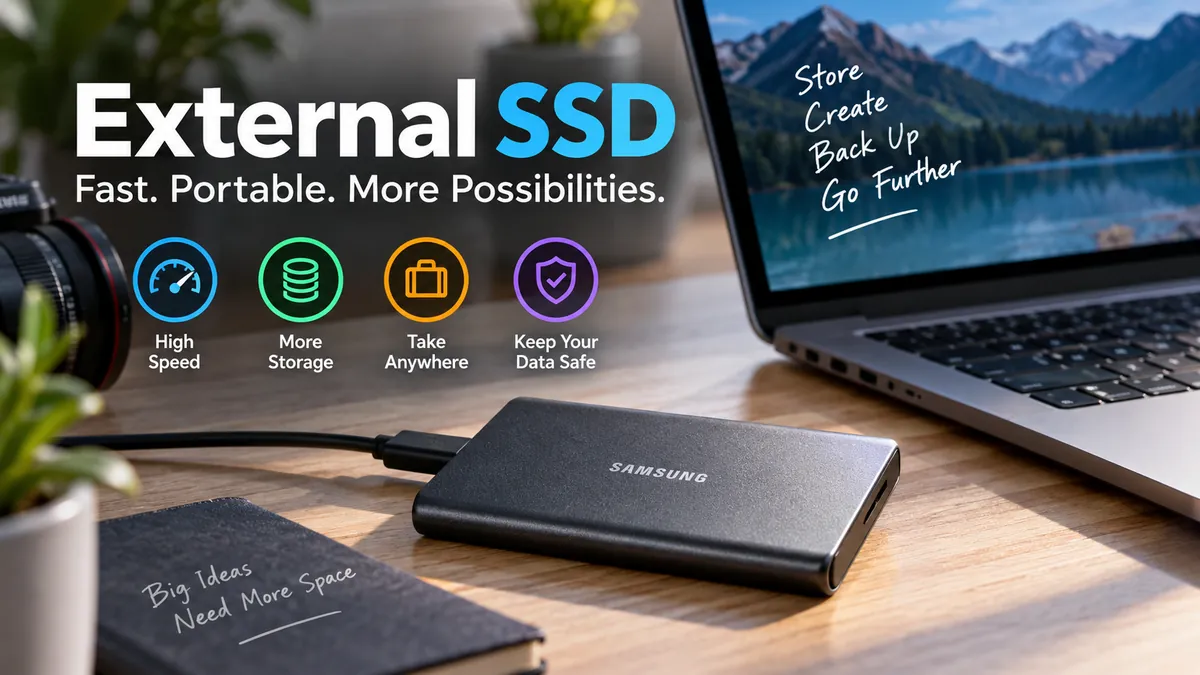

Moving a 100 GB video project, backing up thousands of photos, or expanding a laptop with limited storage can quickly expose the weakness of a slow drive. An external ssd solves much of that problem by putting fast solid-state storage into a portable device that connects to your computer, phone, tablet, camera, or compatible console.
An external ssd is a portable solid-state drive that stores data on non-volatile NAND flash memory and connects to another device through an interface such as USB or Thunderbolt. Unlike a traditional external hard drive, it has no spinning platters or moving read/write heads, giving it faster access, lower latency, quiet operation, and better resistance to everyday movement and shocks.
The basic idea sounds simple, but choosing and using external solid-state storage gets confusing once terms such as USB 3.2 Gen 2, USB4, Thunderbolt, NVMe, TLC, QLC, sequential speed, encryption, and TBW enter the conversation.
This guide explains what those terms actually mean and, more importantly, which ones matter in everyday use.
What Is an External SSD?
An external solid-state drive is essentially solid-state storage packaged so that it can operate outside the computer rather than being permanently installed inside it.
The drive typically contains:
- NAND flash memory for storing data
- An SSD controller that manages the flash
- Firmware
- Cache or memory used to support drive operations
- A USB or Thunderbolt interface
- An enclosure that protects the electronics
- A USB-C, USB-A, or Thunderbolt connection
Some portable drives are purpose-built external SSDs. Others are essentially an internal SATA or M.2 NVMe SSD installed inside a compatible enclosure.
The important characteristic is the storage technology. SSDs use semiconductor-based, non-volatile flash memory, so stored information remains available after power is disconnected. Samsung describes the controller, NAND flash, interface, and cache memory as key elements of solid-state storage.
External SSD vs Internal SSD
Both devices can use similar flash technology, but their connection to the computer differs.
An internal SSD connects directly through an internal interface such as SATA or PCIe/NVMe. An external model communicates through an external interface such as USB or Thunderbolt.
That extra connection matters because it can become a performance bottleneck.
For example, putting a very fast NVMe SSD inside an enclosure does not automatically mean you will receive the SSD’s maximum internal PCIe performance. The external interface, enclosure controller, cable, computer port, operating system, temperature, and workload can all restrict throughput.
Quick Takeaway: An external SSD is not simply defined by the flash memory inside it. Its real-world performance depends on the complete chain from NAND and controller to enclosure, cable, interface, and host device.
How Does an External SSD Work?
SSDs do not read files from spinning magnetic disks. They store information electronically in NAND flash memory.
NAND is organized into memory cells, pages, and blocks. Depending on the technology, individual cells can hold different numbers of bits. The controller manages where information is physically stored and how the host system accesses it.
A simplified write process looks like this:
- Your computer sends data to the drive.
- The external interface transfers the request to the SSD.
- The controller determines where the information should be stored.
- Data is written into NAND flash cells.
- Error-correction and management processes help maintain data integrity.
- The controller records the location so the information can be retrieved later.
When you open the file, the controller locates the appropriate data and sends it back through the external connection.
The SSD controller is therefore much more than a basic connector. It handles tasks involving data placement, logical-to-physical address translation, error correction, and flash management.
What Is NAND Flash?
NAND flash is non-volatile semiconductor memory. Unlike RAM, it does not need continuous power to retain stored information.
Common NAND categories include:
| NAND type | Bits per cell | General characteristics |
|---|---|---|
| SLC | 1 | High endurance and performance, expensive |
| MLC | 2 | Strong endurance and performance |
| TLC | 3 | Good balance of capacity, cost, and performance |
| QLC | 4 | Higher storage density, generally lower endurance/performance |
Modern consumer SSDs commonly use TLC and QLC because storing more bits per cell can reduce the cost of providing higher capacities.
These labels matter, but they should not be considered alone. Controller quality, firmware, cache design, NAND generation, thermal management, workload, and available free space can all influence actual performance.
External SSD Speed: What Determines Real Performance?
This is where specifications become particularly misleading.
You might see one external drive advertised around 1,000 MB/s, another around 2,000 MB/s, and a premium model promising several thousand megabytes per second.
Those figures are generally peak sequential performance under suitable conditions—not a promise that every file transfer will run at that speed.
Current external storage spans everything from mainstream USB 3.2 devices to USB4 and Thunderbolt 5 products. Testing and current drive specifications show USB4 devices reaching multi-gigabyte-per-second territory, while high-end Thunderbolt 5 storage can go considerably further on compatible hardware.
Common External SSD Interfaces
| Interface class | Theoretical bandwidth | Typical purpose |
|---|---|---|
| USB 3.2 Gen 1 | 5 Gbps | Basic external storage |
| USB 3.2 Gen 2 | 10 Gbps | Mainstream portable SSDs |
| USB 3.2 Gen 2×2 | 20 Gbps | Faster portable SSDs |
| USB4 | Up to 40 Gbps or higher depending on implementation | High-performance storage |
| Thunderbolt 3/4 | 40 Gbps | Fast professional storage |
| Thunderbolt 5 | Up to 80 Gbps bidirectional base bandwidth | Very high-performance workflows |
The interface’s raw bandwidth is not the same thing as usable file-transfer speed. Protocol overhead, SSD performance and other limitations reduce the practical result.
USB-C Does Not Tell You the Speed
One of the most common external SSD mistakes is assuming:
USB-C = fast.
USB-C describes the physical connector. It does not, by itself, tell you which USB or Thunderbolt protocol the port supports.
Two computers can have ports that look identical while supporting dramatically different storage speeds.
A high-performance USB4 or Thunderbolt drive connected to a slower compatible port may simply operate at the lower available speed. Some devices also have more complicated compatibility limitations.
That means checking your computer’s port specifications is often more useful than buying the fastest drive available.
Why You May Not Get the Advertised SSD Speed
Real transfers can be limited by:
- Host USB or Thunderbolt capabilities
- Cable bandwidth
- SSD controller
- NAND configuration
- SLC cache exhaustion
- Enclosure controller
- File size
- Large numbers of tiny files
- Available free space
- Operating system
- File system
- Temperature
- Sustained versus short-duration writes
A drive capable of extremely fast short benchmark bursts may slow during a very large sustained write once its fast cache fills.
Heat matters too. Controllers can reduce performance when necessary to keep operating temperatures under control, a process generally called thermal throttling.
Quick Takeaway: Buy external storage for the speed your devices and workloads can actually use—not simply the largest MB/s figure printed on the package.
SATA vs NVMe External SSD
Another common question is whether an external SSD should use SATA or NVMe technology internally.
SATA-Based External SSD
SATA was designed for older storage interfaces and has substantially less bandwidth than modern PCIe/NVMe technology.
A SATA-based portable SSD can still be perfectly adequate for:
- Documents
- Photos
- Backups
- General file storage
- Music libraries
- Everyday file transfers
The lower internal performance may not matter when the workload does not require extreme throughput.
NVMe External SSD
NVMe was designed for high-performance solid-state storage and commonly communicates over PCI Express inside computers.
When NVMe storage is used externally, an appropriate controller or bridge allows it to communicate through USB4, USB 3.x, or Thunderbolt.
NVMe-based external drives can therefore achieve much higher speeds when the complete connection supports them.
SNIA identifies NVMe, SATA, and SAS among current SSD storage interfaces, with NVMe now a major standard for modern SSDs.
But there is an important distinction:
NVMe does not automatically equal fast external transfers.
A powerful NVMe SSD behind a slow external interface will still be limited by that interface.
External SSD vs HDD: What Is the Difference?
An external HDD stores information magnetically on rotating platters. An SSD stores information electronically in NAND flash.
That fundamental difference affects almost everything about the user experience.
| Feature | External SSD | External HDD |
|---|---|---|
| Storage technology | NAND flash | Magnetic platters |
| Moving parts | No | Yes |
| Access latency | Low | Higher |
| Transfer performance | Generally faster | Generally slower |
| Noise | Silent | Can produce mechanical noise |
| Shock resistance | Generally better | More vulnerable while operating |
| Weight/size | Usually compact | Often larger |
| Cost per TB | Usually higher | Usually lower |
| Very large inexpensive storage | Less economical | Strong use case |
| Portable performance | Excellent | Moderate |
Because an SSD has no spinning platters or mechanical read/write head, it generally tolerates normal movement better than a hard disk. HDD mechanisms can be vulnerable to physical shock, particularly while operating.
That does not make an SSD indestructible. Ports can break, circuit boards can fail, NAND can wear, firmware can malfunction, and water or extreme physical damage can still destroy a drive.
Is an External SSD Better Than an HDD?
For speed-sensitive portable use, usually yes.
External SSDs make particular sense when you frequently move large files, work directly from external storage, travel with the drive, or need low-latency access.
HDDs remain useful when the priority is inexpensive capacity rather than speed—for example, keeping large archives that are accessed infrequently.
The better choice therefore depends on the workload rather than one technology being universally superior.
What Is an External SSD Used For?
Portable SSDs have moved far beyond simple file backups.
Expanding Laptop or Desktop Storage
Modern laptops can be difficult or impossible to upgrade internally.
An external drive can add hundreds of gigabytes or several terabytes without opening the computer.
You can store:
- Photos
- Videos
- Documents
- Music
- Project files
- Game libraries
- Software assets
- Archived data
This is particularly useful for laptops shipped with relatively small internal SSDs.
Photo and Video Editing
Creative workloads are one of the strongest cases for fast portable storage.
RAW photographs and high-resolution video consume substantial space, while editing applications can repeatedly read large files.
Modern USB4 and Thunderbolt drives can deliver multiple gigabytes per second on suitable systems, although tests also show that the practical benefit of extremely fast storage depends heavily on the actual photography or editing workflow.
Someone transferring photos occasionally may see little benefit from paying for the fastest interface available. A professional repeatedly handling huge media projects may notice a much larger difference.
Backups
An SSD can be an excellent local backup destination because backups and restores can complete quickly.
But one crucial principle remains:
An external SSD is storage, not automatically a backup.
If the only copy of a file exists on that SSD, losing or damaging the drive means losing the only copy.
Critical information should exist in multiple locations. A common framework is the 3-2-1 backup approach: maintain three copies of important data, across two types of storage, with at least one copy kept separately/off-site.
Gaming
External SSDs can reduce transfer and loading delays compared with hard drives in supported scenarios, but console behavior varies.
For example, some modern console games cannot be played directly from ordinary USB external storage even though games or data can be stored there. Xbox Series X|S optimized titles, for instance, have specific requirements for storage used to run current-generation games.
Always distinguish between:
- storing a game,
- transferring a game, and
- running the game directly from external storage.
They are not necessarily the same capability.
Smartphones and Tablets
USB-C has made portable SSD storage increasingly practical for compatible phones and tablets.
Possible uses include:
- Transferring photos
- Moving large videos
- Recording supported high-bitrate video
- Creating device backups
- Moving files between phone and computer
Compatibility depends on the device, operating system, power requirements, file system, cable, and application.
How Much External SSD Storage Do You Need?
Capacity is easier to choose when you start with your files rather than a generic recommendation.
500 GB
Useful for relatively light storage requirements such as documents, moderate photo collections, temporary file transfers, and selected projects.
1 TB
A practical general-purpose capacity for many users.
It offers enough room for substantial photo libraries, backups, work files, and larger media collections without immediately moving into very high-capacity pricing.
2 TB
Often suitable for photographers, gamers, developers, designers, and people maintaining larger personal archives.
4 TB and Above
Higher capacities make sense for:
- 4K/8K video
- Large RAW libraries
- Professional media production
- Large game collections
- Multiple system backups
- Long-term project archives
Portable SSD capacities have continued expanding; current high-end products have reached 8 TB, including models aimed at professional high-resolution media workflows.
A useful rule is to buy enough space for expected growth rather than only today’s files.
How to Choose an External SSD
Instead of starting with a brand or benchmark number, work backward from the device and workload.
1. Check Your Computer’s Port
Identify whether your device supports:
- USB 5 Gbps
- USB 10 Gbps
- USB 20 Gbps
- USB4
- Thunderbolt 3
- Thunderbolt 4
- Thunderbolt 5
This immediately tells you which performance tiers make sense.
Buying a premium Thunderbolt 5 drive for a laptop limited to ordinary USB speeds may provide little practical advantage.
2. Match Speed to Your Workload
For documents and routine backups, extreme performance is unnecessary.
Faster storage becomes more valuable for:
- Large video projects
- RAW image libraries
- Virtual machines
- Large datasets
- Huge game transfers
- Direct editing from external storage
- Frequent multi-hundred-gigabyte transfers
Current portable SSD testing shows an increasingly wide performance gap between mainstream USB 3.2 storage and newer USB4/Thunderbolt devices.
3. Choose Enough Capacity
Do not fill an SSD to the absolute limit if you can avoid it.
Leave some free space for future files and normal storage management.
4. Check the Included Cable
The cable can determine performance.
A USB-C cable that physically fits does not necessarily support the bandwidth required by your SSD.
If performance suddenly drops after replacing a cable, check the cable specification before assuming the drive is defective.
5. Consider Sustained Performance
Peak sequential speed is useful, but it does not describe every workload.
If you regularly write hundreds of gigabytes at once, look for sustained-transfer testing. Cache behavior and thermal management become far more relevant in long transfers.
6. Consider Physical Protection
People who carry storage between offices, studios, classrooms, or outdoor locations should consider:
- Drop resistance
- Water/dust resistance
- Cable design
- Connector protection
- Enclosure material
- Operating temperature
Some rugged portable drives carry IP ratings indicating tested resistance to dust and water under specified conditions.
7. Consider Encryption
Portable drives are easy to lose.
Sensitive information may justify:
- Hardware encryption
- Password protection
- Operating-system encryption
- Encrypted containers
Some modern portable SSDs support AES 256-bit hardware encryption, although implementation and software compatibility differ between products.
Encryption protects confidentiality, but it does not replace backups.
External SSD File Systems Explained
Formatting determines how the operating system organizes and accesses files.
The right format depends primarily on where the drive will be used.
| File system | Best suited for | Main consideration |
|---|---|---|
| NTFS | Windows-focused use | Limited native write support on some non-Windows environments |
| APFS | Modern Apple ecosystems | Designed primarily for Apple devices |
| exFAT | Windows/macOS cross-platform use | Broad compatibility |
| FAT32 | Older/wide compatibility | 4 GB individual file-size limit |
Which Format Is Best for Windows and Mac?
exFAT is commonly used when a portable drive needs straightforward read/write compatibility between Windows and macOS.
For a drive dedicated entirely to one ecosystem, a native file system such as NTFS or APFS may offer advantages.
Formatting erases existing data, so copy anything important elsewhere before reformatting.
Can You Use an External SSD as Your Main Drive?
Technically, yes in many computer configurations.
Some systems can boot an operating system from external storage, and a sufficiently fast USB4 or Thunderbolt SSD can deliver impressive performance.
However, there are tradeoffs.
The drive must remain connected, boot support varies by hardware and operating system, and disconnecting an active system drive can cause serious problems.
For most people, an internal SSD remains the cleaner primary-storage solution. External storage is better treated as expansion, portable working storage, or backup unless there is a specific reason to boot externally.
Does an External SSD Need Power?
Most portable SSDs are bus-powered, meaning they receive electricity through their USB or Thunderbolt connection.
You usually do not need a separate wall adapter.
This portability is one reason external SSDs work well with laptops and compatible mobile devices.
There is an exception: some high-performance devices may have specific power requirements. A port that provides insufficient power can create compatibility problems even when the physical connector fits. Current Thunderbolt 5 storage, for example, can have more demanding host compatibility requirements than ordinary USB drives.
How Long Does an External SSD Last?
There is no universal number of years.
NAND flash has finite write endurance because memory cells gradually wear as they undergo program/erase cycles.
Manufacturers may express SSD endurance through TBW, or terabytes written.
A TBW figure should not be interpreted as an exact expiration date. It is an endurance specification used in the context of expected drive behavior and warranty coverage rather than a countdown that causes the SSD to stop functioning the moment the figure is reached.
For ordinary consumer workloads, write endurance is often less concerning than people expect.
Other failures can occur first, including:
- Controller failure
- Firmware problems
- Connector damage
- Electronic component failure
- Physical damage
- File-system corruption
That is why no expected lifespan should ever be used as a substitute for backup.
Does Reading Data Wear Out an SSD?
Normal reads do not produce NAND program/erase wear in the same way that writing and erasing data does.
Write-heavy workloads therefore matter more when evaluating NAND endurance.
Can an SSD Lose Data While Unplugged?
SSDs use non-volatile memory, so disconnecting power does not normally erase files.
That does not mean an unplugged SSD should be treated as a permanent archival medium requiring no maintenance. Long-term data retention can be affected by NAND condition, temperature, drive age, wear, and other factors.
For irreplaceable archives, maintain multiple verified copies rather than trusting one unplugged device indefinitely.
How to Use an External SSD Correctly
Basic setup usually takes only a few minutes.
- Connect the SSD with the appropriate cable.
- Wait for the operating system to recognize it.
- Check its existing file system.
- Reformat only if necessary for your intended devices.
- Copy or move your files.
- Verify important transfers before deleting the original files.
- Eject or unmount the drive properly before disconnecting it.
If a new SSD is not detected, try another compatible port and cable before assuming the drive has failed.
Why Safe Ejection Matters
Operating systems may temporarily cache writes instead of immediately committing every operation exactly when it appears complete.
Disconnecting storage while data is still being written can potentially corrupt files or the file system.
Using the operating system’s eject/unmount function is a simple habit that reduces that risk.
Common External SSD Mistakes
A fast drive can still perform badly when it is used incorrectly.
Buying Speed Your Computer Cannot Support
A 40 Gbps-class drive cannot deliver its intended interface performance through a 5 Gbps USB connection.
Check the host first.
Using the Wrong Cable
Identical-looking USB-C cables can have very different data capabilities.
Keep the original high-speed cable clearly identified.
Treating Advertised Speed as Guaranteed Speed
Sequential benchmark results represent particular test conditions.
Copying 100,000 tiny files is fundamentally different from transferring one 100 GB video.
Filling the Drive Completely
Keeping some free space can help with drive management and leaves room for new data.
Assuming Rugged Means Indestructible
An IP rating or drop specification applies only under defined test conditions.
Back up important files regardless of how durable the enclosure appears.
Keeping the Only Copy on the SSD
This is the most serious mistake.
Any storage device can fail.
If losing a file would matter, keep another copy somewhere else.
External SSD Security and Data Protection
Portable storage creates a particular security problem: mobility.
A tiny SSD containing years of business documents or personal photographs can disappear from a bag surprisingly easily.
For sensitive information, consider encryption.
Hardware-based AES encryption is available on some drives, while Windows, macOS, and third-party software can provide additional encryption options.
The password itself should be stored safely. Strong encryption is not useful if you permanently lose the credentials required to decrypt your own files.
Also distinguish between security and reliability:
- Encryption protects information from unauthorized access.
- Backup protects information from loss.
- Neither replaces the other.
External SSD Performance for Photographers and Video Editors
Creative professionals often benefit more from fast external storage than typical office users.
Suppose you are moving 500 GB of footage.
At approximately 500 MB/s, the theoretical transfer time is around 17 minutes before overhead and real-world slowdowns.
At approximately 2,000 MB/s, that theoretical figure falls to roughly four minutes.
At multi-gigabyte-per-second USB4 or Thunderbolt speeds, large sequential transfers can be faster still.
Yet benchmark speed does not automatically translate into an equally large improvement in every editing task. Photography testing comparing USB 3.2, USB4, and Thunderbolt 5 drives illustrates that the value of faster storage depends on the workflow rather than specification numbers alone.
If your software is primarily CPU- or GPU-limited, an ultra-fast drive may sit idle much of the time.
If your workload constantly streams massive files, storage speed becomes far more significant.
Quick Takeaway: For creative work, prioritize sustained performance and compatibility—not just maximum sequential read speed.
Portable SSD vs USB Flash Drive
Both devices use flash memory and connect externally, but they are designed differently.
A typical portable SSD has a more sophisticated controller, more NAND channels, stronger sustained performance, better thermal management, and storage behavior designed for heavier workloads.
USB flash drives are usually optimized around convenience and physical size.
That makes a portable SSD better suited to demanding workloads such as:
- Large backups
- Video editing
- Huge file transfers
- Professional photo libraries
- Regular high-volume writes
A thumb drive remains useful for quickly carrying smaller files.
Do You Need the Fastest External SSD?
For most users, no.
A mainstream 10 Gbps-class portable SSD can already provide excellent performance for everyday backups, photo storage, documents, and routine large-file transfers. PCWorld notes that roughly 1 GB/s-class transfers remain plenty fast for many smaller storage jobs.
Higher-speed USB4 and Thunderbolt storage makes more sense when you can answer yes to both questions:
- Does my computer actually support the faster interface?
- Does my workload regularly benefit from several gigabytes per second of storage throughput?
If either answer is no, extra interface performance may provide little noticeable improvement.
Professional video editors, photographers handling enormous RAW libraries, and users frequently transferring hundreds of gigabytes are more likely to benefit.
The Future of External SSD Storage
External solid-state storage continues moving toward higher capacities and faster interfaces.
USB4 has pushed broadly compatible portable storage into multi-gigabyte-per-second performance, while Thunderbolt 5 products are raising the ceiling further. Current tested high-end models can reach several gigabytes per second, with some Thunderbolt 5 drives rated around 6,700 MB/s sequential read performance under suitable conditions.
Capacity is expanding at the same time. Portable 8 TB devices demonstrate how much flash storage can now fit into a remarkably small enclosure.
But the basic buying principle has not changed:
The fastest external SSD is only as useful as the system connected to it.
Port bandwidth, protocol support, cable capability, sustained NAND performance, thermal behavior, file system, and workload all determine what you actually experience.
Final Thoughts on External SSD Storage
An external ssd is one of the simplest ways to add fast, portable storage without opening a computer. It combines non-volatile NAND flash, an SSD controller, firmware, and an external interface such as USB or Thunderbolt to deliver considerably faster and more responsive storage than a traditional portable hard drive in many workloads.
The key is to look beyond the headline MB/s number. Check your device’s actual port capabilities first, then consider capacity, sustained performance, file-system compatibility, durability, encryption, and the type of files you handle.
For routine documents and backups, mainstream USB SSD performance is usually enough. For high-resolution media and repeated massive transfers, USB4 or Thunderbolt can make a meaningful difference. And regardless of speed, capacity, brand, NAND type, or TBW rating, keep another copy of any data you cannot afford to lose.
