

Fingerprints, dust, and oily smudges can make even a high-quality laptop display look dull. The bigger problem is that using the wrong cleaner or wiping too aggressively can damage the screen’s delicate surface or anti-glare coating.
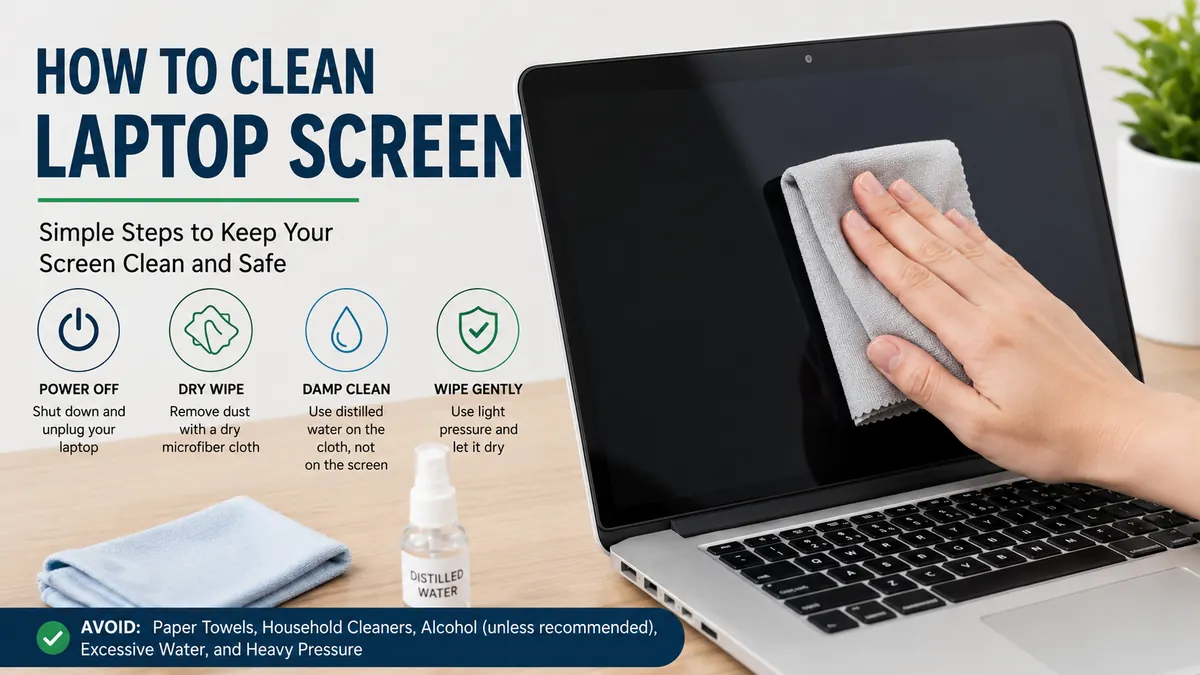
If you want to know how to clean laptop screen safely, start by shutting down and unplugging the laptop. Remove loose dust with a clean microfiber cloth. For fingerprints or stubborn marks, lightly dampen the cloth with water—preferably distilled water—and gently wipe the display. Never spray liquid directly onto the screen, and avoid abrasive materials or household glass cleaners.
The basic method is simple, but not every laptop screen has the same coating. Apple, Dell, HP, Microsoft, and other manufacturers sometimes give different instructions about alcohol and cleaning products. That distinction matters if you want to clean the display without leaving scratches, streaks, or permanent coating damage.
What You Need to Clean a Laptop Screen
You usually don’t need a complicated cleaning kit. For routine screen cleaning, the safest supplies are:
- A clean, soft microfiber or lint-free cloth
- Distilled water for stubborn fingerprints and smudges
- A second dry microfiber cloth, if needed
- A display-safe cleaning solution only when your laptop manufacturer permits it
A dry microfiber cloth should always be your starting point.
Microfiber is soft enough for delicate LCD and LED display surfaces while still being effective at collecting dust and fingerprints. Apple specifically recommends a soft, lint-free cloth, while Dell and HP also recommend microfiber or similarly nonabrasive material.
Why Distilled Water Is a Good Choice
For marks that won’t come off with a dry cloth, distilled water is one of the safest options for many laptop displays.
Unlike ordinary tap water, distilled water contains fewer dissolved minerals that can leave deposits or spots behind as the moisture evaporates. You only need enough to make the cloth slightly damp.
HP recommends distilled water or an appropriate screen-cleaning solution for stubborn smudges, while Apple’s standard MacBook cleaning instructions specify water on a soft, lint-free cloth.
Before using anything stronger, check the manufacturer’s instructions for your exact model.
how to clean laptop screen Step by Step
Cleaning a display shouldn’t involve soaking, scrubbing, or heavy pressure. A careful process protects both the electronic components and the screen coating.
1. Shut Down and Unplug Your Laptop
Turn the laptop completely off rather than simply putting it to sleep. Disconnect the power adapter and other attached devices.
This makes cleaning safer and also makes fingerprints and streaks easier to see against a dark screen.
Major manufacturers including Apple, Dell, HP, and Microsoft recommend disconnecting power before cleaning their devices.
If your laptop has an easily removable battery and its manufacturer specifically recommends removing it for maintenance, follow those instructions as well.
2. Let the Screen Cool
If you’ve just finished using the laptop, give the display a little time to cool before cleaning it.
A cool, dark screen is easier to inspect, and fingerprints, dried droplets, dust, and oily marks become much more visible.
Place the laptop on a stable surface with good lighting.
3. Remove Loose Dust With a Dry Microfiber Cloth
Start with a completely dry, clean microfiber cloth.
Gently move it across the display to collect loose dust. Don’t press hard against the LCD panel.
This dry-cleaning stage is easy to overlook, but it matters. If loose grit is sitting on the display, immediately rubbing it with a wet cloth could drag those particles across the surface.
Use light pressure and let the microfiber do the work.
4. Lightly Dampen the Cloth for Fingerprints
If dry wiping doesn’t remove fingerprints or oily smudges, dampen part of the microfiber cloth with a small amount of water.
The key word is dampen.
The cloth should not drip when squeezed.
Apply the liquid to the cloth rather than the laptop. Apple, Dell, HP, and Microsoft all warn against spraying or pouring cleaning liquid directly onto the device or display.
Direct spraying can allow liquid to run toward the bezel, hinges, keyboard, ports, or internal electronics.
5. Wipe the Screen Gently
Move the damp cloth gently across the screen without pushing into the panel.
Dell’s current guidance recommends wiping display screens in one direction, from the top toward the bottom. HP guidance also describes gentle wiping and warns against applying excessive pressure.
You may see other manufacturers recommend gentle circular motions. The precise pattern matters less than the fundamentals: use a clean, soft cloth, minimal moisture, and very light pressure.
If a mark doesn’t disappear immediately, don’t scrub it.
Pass the damp cloth over the area again and give the moisture a moment to loosen the residue.
6. Remove Remaining Moisture
If necessary, use a dry section of your microfiber cloth—or a second clean microfiber cloth—to remove visible moisture and streaks.
Don’t press against the display to make it dry faster.
7. Let the Laptop Dry Before Turning It On
Wait until the screen and surrounding areas are completely dry before reconnecting power or turning on the laptop.
Dell specifically recommends allowing cleaned surfaces to air-dry and making sure no visible moisture remains before powering the device back on.
Quick Takeaway: Start dry. Add only a tiny amount of moisture when necessary. Keep liquid away from the screen edges and openings, and never use pressure to compensate for a stubborn stain.
How to Clean Fingerprints and Oily Smudges
Fingerprints are usually the reason a laptop screen needs more than dusting.
Natural skin oils can leave cloudy patches, particularly on glossy displays and touchscreens. Trying to polish these marks aggressively is a common mistake.
Instead:
- Wipe loose dust away with a dry microfiber cloth.
- Lightly dampen the cloth with water.
- Hold the damp area against a stubborn mark briefly without pressing hard.
- Wipe gently.
- Repeat if necessary.
- Finish with a clean, dry part of the cloth.
For most everyday fingerprints, this is enough.
Can You Use Isopropyl Alcohol on a Laptop Screen?
Sometimes—but don’t assume alcohol is safe for every display.
This is one area where manufacturer guidance differs.
Apple says that hard-to-remove smudges or fingerprints on supported Mac laptop displays can be gently cleaned with a cloth moistened with a 70% isopropyl alcohol (IPA) solution. Microsoft says a cloth dampened with water or an IPA solution of 70% or less can be used when necessary on Surface touchscreens.
Dell also publishes 70% IPA-based cleaning guidance for certain equipment. However, Dell separately warns against alcohol on some monitor screens because incorrect cleaning can damage the display surface or coating.
That apparent contradiction illustrates why a universal DIY formula isn’t a good idea.
Check the manufacturer’s cleaning instructions for your exact laptop or display before using isopropyl alcohol. If you can’t verify that alcohol is permitted, start with a microfiber cloth and water.
What Not to Use on a Laptop Screen
Knowing what to avoid is just as important as knowing how to clean laptop screen surfaces correctly.
Paper Towels and Tissues
Paper towels feel soft on your hands, but they’re not designed for delicate electronic displays.
HP advises against paper towels and other abrasive materials, and Apple similarly recommends avoiding paper towels and abrasive cloths.
Use microfiber instead.
Household Glass Cleaner
A laptop screen isn’t simply a miniature household window.
Window cleaners may contain ammonia or other ingredients that aren’t appropriate for certain display coatings. Apple advises against window and household cleaners on its displays, while Dell warns that ammonia-containing products can damage some surfaces.
Even when a laptop has a glass outer surface, don’t assume ordinary window cleaner is safe.
Bleach and Hydrogen Peroxide
Strong disinfectants aren’t suitable as universal screen cleaners.
Apple warns against bleach and hydrogen peroxide for its products. Dell also lists chlorine-based cleaners, bleach, and peroxides among chemicals that can damage its equipment.
Acetone and Strong Solvents
Keep acetone, paint thinner, benzene, toluene, and similar solvents away from laptop displays.
These chemicals can attack coatings, plastics, adhesives, and surface finishes. Dell explicitly warns against several of these solvents, while Apple states that acetone-containing cleaner should not be used on its displays.
Excessive Water
Water can be appropriate for cleaning many screens, but more water doesn’t mean better cleaning.
A cloth should be slightly damp, never saturated.
Liquid can migrate underneath the bezel or into ports and internal electronics. Moisture damage can turn a simple cleaning job into an expensive repair.
Heavy Pressure
LCD panels are delicate.
Pressing hard against a stubborn mark can damage the panel beneath the outer surface. Repeated aggressive wiping can also affect coatings.
If something doesn’t come off easily, repeat the gentle cleaning process instead of increasing pressure.
How to Clean a Laptop Screen Without Streaks
Sometimes a screen looks worse immediately after cleaning because it develops cloudy streaks.
This usually happens because:
- Too much liquid was used.
- The microfiber cloth was already dirty or oily.
- Cleaner residue remained on the screen.
- The cloth was saturated rather than slightly damp.
- The display wasn’t finished with a clean section of cloth.
Start again with a clean microfiber cloth.
Use minimal moisture and wipe consistently across the display. If you’re using water, distilled water can reduce the chance of mineral residue.
A microfiber cloth used for eyeglasses or electronics works well, provided it’s completely clean.
Don’t use a cloth that has recently been washed with fabric softener. Residue transferred from the cloth can create another film on the display.
How to Clean a Touchscreen Laptop
Touchscreen laptops collect fingerprints much faster because you’re constantly touching the display.
The basic cleaning method remains similar:
- Turn the device off and unplug it.
- Remove dust with a dry microfiber cloth.
- Lightly dampen the cloth if fingerprints remain.
- Wipe gently without applying pressure.
- Keep moisture away from the bezel and openings.
- Allow the screen to dry completely.
Microsoft notes that Surface touchscreens have a coating designed to make cleaning easier and says hard rubbing shouldn’t be necessary to remove fingerprints and oily spots.
That principle applies broadly: if you’re repeatedly scrubbing a touchscreen, reconsider your cleaning method rather than applying more force.
LCD, LED, OLED, Glossy, and Matte Screens: Does It Matter?
Yes, although the safest basic method is similar.
Terms such as LCD, LED-backlit LCD, OLED, touchscreen, matte, glossy, and anti-glare describe different display technologies or surface characteristics.
LCD and LED Laptop Screens
Most “LED” laptop displays are actually LCD panels illuminated by LED backlighting.
A soft microfiber cloth with minimal moisture is generally the conservative cleaning approach. The outer coating is often more relevant to cleaning than the backlight technology itself.
OLED Laptop Screens
OLED displays don’t use an LED backlight behind an LCD panel, but their surfaces may still have coatings that can be damaged by unsuitable cleaners.
Follow the laptop manufacturer’s instructions rather than choosing a cleaner simply because the display is OLED.
Matte and Anti-Glare Displays
Matte screens use a surface treatment designed to reduce reflections.
Harsh chemicals and excessive polishing can potentially alter delicate surface coatings, so a dry microfiber cloth followed by manufacturer-approved moisture is the safer approach.
Glossy and Glass-Covered Displays
A glossy screen may look like ordinary glass, but that doesn’t automatically make household glass cleaner appropriate.
It may have an anti-reflective, oleophobic, or other specialized coating on top of the glass.
Treat it as an electronic display unless the manufacturer specifically says otherwise.
Special Display Coatings Need Special Care
One of the biggest gaps in generic laptop-cleaning advice is the assumption that every screen has the same surface.
They don’t.
Modern premium laptops can use anti-reflective, anti-glare, oleophobic, anti-fingerprint, or specialty textured coatings.
Apple Nano-Texture Displays
Apple’s nano-texture displays are a good example of why model-specific guidance matters.
Apple instructs owners of supported nano-texture MacBook Pro and other nano-texture displays to use the polishing cloth supplied with the device for ordinary dust and smudges. For infrequent hard-to-remove marks, Apple permits the cloth to be moistened with a 70% IPA solution.
Treat unusual or specialty displays according to their manufacturer’s instructions rather than following a generic homemade-cleaner recipe.
Can You Clean a Laptop Screen With Water?
Yes, water is recommended for many laptop displays when a dry microfiber cloth isn’t enough.
Apple tells MacBook users to dampen a soft, lint-free cloth with water for routine screen cleaning. HP recommends distilled water for stubborn smudges, and Dell also provides screen-cleaning instructions using a microfiber cloth with water.
There is one critical rule: put water on the cloth, not directly on the display.
You want the cloth barely damp.
If droplets can run down the screen, you’re using too much.
Can You Use Windex to Clean a Laptop Screen?
As a general rule, don’t use ordinary Windex or another household window cleaner unless your laptop manufacturer explicitly approves that exact type of cleaner for your display.
Many screen-care instructions specifically warn against ammonia or household glass cleaners.
Apple says not to use window cleaners on its displays, while Dell advises avoiding ammonia-containing glass cleaners on relevant equipment.
A product being safe for windows doesn’t mean it’s safe for anti-glare or anti-reflective coatings.
Can You Use Alcohol Wipes?
This depends on the laptop.
Some manufacturers explicitly allow certain alcohol solutions. Apple permits 70% IPA for hard-to-remove fingerprints on supported Mac laptop displays, and Microsoft allows an IPA solution of 70% or less when necessary on Surface touchscreens.
Other screens may have different restrictions.
Don’t turn “70% alcohol” into a universal rule. Look up your exact manufacturer’s screen-cleaning guidance before using an alcohol wipe.
If you’re unsure, a clean microfiber cloth and a small amount of water are the more conservative starting point.
What If Something Is Stuck to the Screen?
Dried food, drink droplets, and other residue can be harder to remove than fingerprints.
Don’t scrape the spot with a fingernail, card, blade, or other hard object.
Instead, lightly dampen a microfiber cloth with a manufacturer-approved liquid and gently hold it against the affected area for a short period. This can soften the residue.
Then wipe it away using minimal pressure.
You may need several passes. Patience is safer than scrubbing.
If the substance could chemically damage the coating or has entered underneath the bezel, stop cleaning and consult the laptop manufacturer or an authorized service provider.
Common Laptop Screen Cleaning Mistakes
Most screen damage during cleaning comes from a handful of preventable mistakes.
| Mistake | Why It’s Risky | Safer Approach |
|---|---|---|
| Spraying cleaner onto the screen | Liquid can enter the bezel and electronics | Dampen the cloth instead |
| Using paper towels | Fibers can be abrasive | Use clean microfiber |
| Using household glass cleaner | Chemicals may damage coatings | Follow manufacturer guidance |
| Scrubbing stubborn marks | Pressure can damage the panel or coating | Repeat gentle passes |
| Using a soaking-wet cloth | Moisture can enter the laptop | Use a barely damp cloth |
| Cleaning while powered on | Adds unnecessary electrical risk | Shut down and unplug |
| Assuming alcohol is always safe | Screen coatings differ | Check model-specific instructions |
| Using bleach or strong solvents | Can permanently damage surfaces | Use manufacturer-approved methods |
A particularly common mistake is trying several increasingly strong household cleaners when a fingerprint won’t disappear.
The better approach is to identify the laptop model and check its official cleaning instructions.
How Often Should You Clean Your Laptop Screen?
There isn’t a universal schedule.
For a normal non-touch laptop, lightly dusting the screen when visible buildup appears may be enough. A touchscreen used every day will naturally require more frequent attention.
The goal isn’t to polish the display constantly.
Apple warns against excessive wiping, and Microsoft also notes that repeated or excessive wiping can potentially damage surfaces.
A practical routine is to remove dust periodically and perform damp cleaning only when fingerprints, oils, or other marks actually require it.
How to Keep Your Laptop Screen Cleaner for Longer
Cleaning less frequently is easier on the display.
Avoid touching a non-touchscreen with your fingers. When pointing something out, point near the display rather than pressing against it.
Keep food and drinks away from the laptop when possible.
Before closing the lid, check that the keyboard and palm rest are free of crumbs, grit, and other debris. On some laptops, pressure on a closed lid can bring the keyboard area very close to the display.
Also keep the laptop protected during transportation. Excessive pressure inside a tightly packed bag can press the screen against the keyboard.
For touchscreen laptops, clean hands reduce oily fingerprint buildup considerably.
The Safest Way to Clean Your Laptop Screen
If you remember only one approach for how to clean laptop screen surfaces, make it this: power the laptop off, unplug it, start with a clean microfiber cloth, and introduce as little moisture as possible.
A dry microfiber cloth handles ordinary dust. For stubborn fingerprints, lightly dampening the cloth with water works for many displays. Never spray liquid directly onto the laptop, avoid abrasive materials and household cleaners, and don’t scrub the panel.
Most importantly, check the manufacturer’s instructions before using alcohol, disinfectants, vinegar mixtures, or commercial cleaning solutions. Apple, Dell, HP, Microsoft Surface, and other manufacturers don’t give identical recommendations for every screen or coating.
The safest cleaner isn’t necessarily the strongest one. It’s the gentlest method that removes the mark without putting the display or its coating at risk.
