

Need to type the letter ñ on your laptop but cannot find it on your keyboard? This special character appears in Spanish and Filipino words, names, and places, yet most English keyboards do not have a dedicated key for it.
Learning how to type ñ in laptop is simple once you know the correct keyboard shortcut for your operating system.
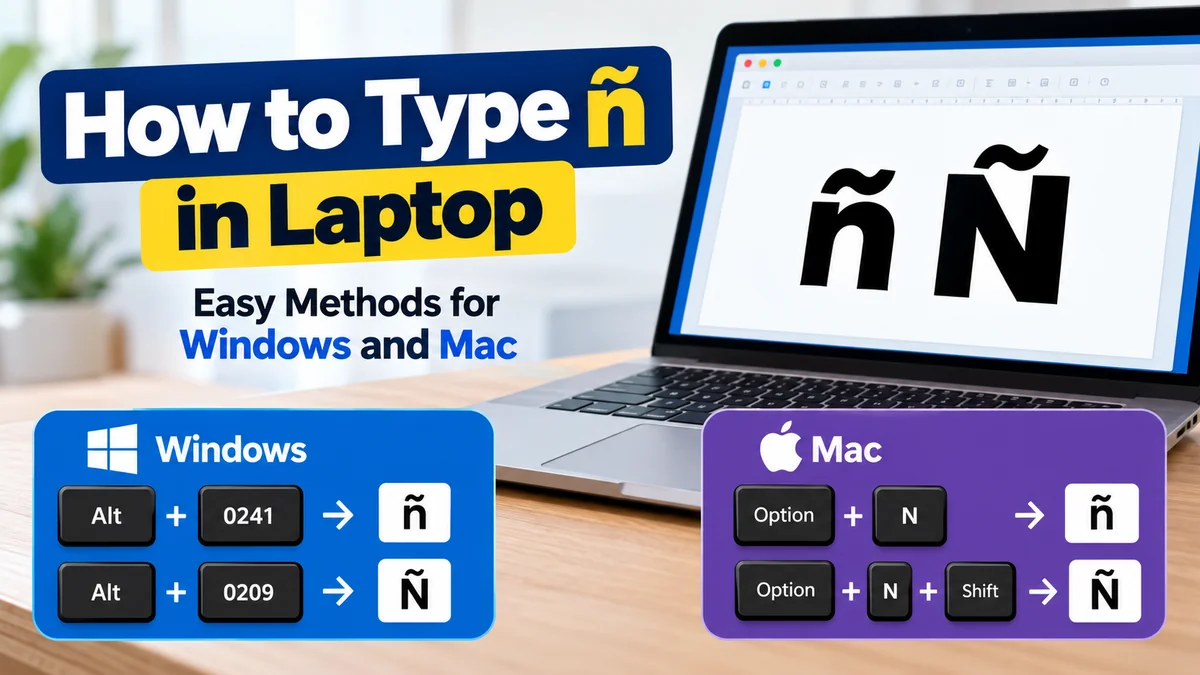
To type ñ on a Windows laptop, hold Alt and enter 0241 using the numeric keypad. For uppercase Ñ, use Alt + 0209. On a MacBook, press Option + N, release both keys, and then press N again. You can also copy ñ or Ñ directly into any document.
How to Type ñ in Laptop Using Different Methods
The letter ñ, pronounced eñe in Spanish, is an N with a tilde above it. It is a separate letter in the Spanish alphabet, not merely a decorative variation of N.
The method for typing it depends on whether you use Windows, macOS, or ChromeOS.
| Device or method | Lowercase ñ | Uppercase Ñ |
|---|---|---|
| Windows Alt code | Alt + 0241 | Alt + 0209 |
| MacBook | Option + N, then N | Option + N, then Shift + N |
| Windows US-International keyboard | Right Alt + N | Right Alt + Shift + N |
| Unicode in Microsoft Word | 00F1, then Alt + X | 00D1, then Alt + X |
| Copy and paste | ñ | Ñ |
The Windows Alt codes require a numeric keypad or compatible embedded numeric keypad. The numbers along the top of a standard keyboard generally will not work for this method.
How to Type ñ in Laptop on Windows 10 and Windows 11
Windows offers several ways to insert special characters. You can use Alt codes, an international keyboard layout, Character Map, or Microsoft Word’s built-in shortcuts.
Method 1: Type ñ Using Alt Codes
Alt codes are useful when your laptop has a numeric keypad.
Follow these steps:
- Open Microsoft Word, Notepad, or another application where you want to type.
- Position the cursor where the letter should appear.
- Make sure Num Lock is enabled, if your keyboard requires it.
- Hold down the Alt key.
- Type
0241using the numeric keypad. - Release Alt to insert ñ.
For uppercase Ñ, repeat the process using 0209.
These shortcuts work in many Windows desktop applications, but some applications and keyboard configurations handle Alt codes differently.
Method 2: Type ñ Without a Numeric Keypad
Many compact laptops do not include a dedicated numeric keypad. Fortunately, you can still type the character without buying an external keyboard.
One practical option is the Windows US-International keyboard layout.
On Windows 11:
- Open Settings.
- Select Time & language.
- Open Language & region.
- Find your preferred language and open its language options.
- Under Keyboards, add United States-International, if available.
- Switch keyboard layouts using Windows + Space.
Once the layout is active, press Right Alt + N to type ñ. Use Right Alt + Shift + N for uppercase Ñ.
You can also press Shift + the backtick/tilde key (usually beside the number 1), release it, and then press N. The tilde acts as a dead key that combines with the next letter.
On Windows 10, similar settings are available under Settings → Time & Language → Language, although the exact labels can vary.
Method 3: Use Windows Character Map
Character Map is helpful when you only occasionally need accented letters.
- Press Windows + S.
- Search for
Character Map. - Open the application.
- Find and select ñ or Ñ.
- Click Select, then Copy.
- Paste the character using Ctrl + V.
Character Map also contains other symbols, including accented vowels, currency signs, and mathematical characters.
Method 4: Use the Windows Touch Keyboard
If you prefer a visual keyboard, Windows provides a touch keyboard that supports accented characters.
Open the touch keyboard from the taskbar, selecting a suitable language layout if necessary. On supported layouts, pressing and holding the N key displays accented alternatives, including ñ.
This approach can be especially convenient on touchscreen laptops.
How to Type ñ in Laptop on MacBook
Apple laptops provide a straightforward shortcut for accented characters. You do not need a numeric keypad or third-party application.
Method 1: Use the Option Key Shortcut
For lowercase ñ:
- Place your cursor in the desired text field.
- Press Option + N.
- Release both keys.
- Press N again.
The result is ñ.
For uppercase Ñ, press Option + N, release both keys, then press Shift + N.
The first shortcut creates the tilde accent, while the second keystroke combines it with the letter.
Method 2: Press and Hold the N Key
Many macOS applications support an accent selection menu.
- Open an application such as Notes or TextEdit.
- Press and hold N.
- Wait for the accent menu to appear.
- Select ñ using its displayed number or your pointer.
This method depends on the application and keyboard settings. In some programs, holding the key may repeat the letter instead.
Method 3: Use the Mac Character Viewer
The Character Viewer provides access to Unicode symbols and special letters.
Press Control + Command + Space to open the character interface, then search for ñ or Latin small letter n with tilde.
Select the character to insert it into your document.
If the keyboard shortcut behaves differently on your macOS version, open the Emoji & Symbols option from the Edit menu of a compatible application.
How to Type ñ in Laptop Using Microsoft Word
Microsoft Word has dedicated shortcuts for inserting accented letters. These are particularly useful for students, writers, and office workers who frequently work with Spanish text.
Use the Ctrl + Shift + Tilde Shortcut
On Word for Windows, you can insert ñ without a numeric keypad.
- Open your Word document.
- Press Ctrl + Shift + ~ (the tilde key).
- Release the keys.
- Press N to insert ñ.
For uppercase Ñ, use the same accent shortcut, followed by Shift + N.
Microsoft documents this shortcut for Spanish and other accented characters.
Microsoft Support
Insert ñ Using Unicode
Unicode is an international character encoding standard that assigns a unique code point to each character.
The Unicode values are:
- Lowercase ñ:
U+00F1 - Uppercase Ñ:
U+00D1
In Microsoft Word for Windows, type 00F1 and press Alt + X. Word converts the code into ñ.
For uppercase Ñ, type 00D1 followed by Alt + X.
This is especially useful on laptops without numeric keypads. However, Alt + X conversion is not universally supported in every text editor.
Microsoft Support
Insert the Symbol Manually
You can also use Word’s symbol library:
- Click the Insert tab.
- Select Symbol.
- Choose More Symbols.
- Find ñ or Ñ in the character list.
- Click Insert.
The symbol becomes part of your document and can be copied wherever needed.
How to Type ñ in Laptop on Chromebook
Chromebooks use ChromeOS, which has different keyboard shortcuts from Windows and macOS.
One of the easiest options is to use the built-in accent menu.
Use the Chromebook Accent Menu
- Open Google Docs or another text field.
- Press and hold the N key.
- When the accent menu appears, navigate to ñ.
- Select the character using the displayed number or arrow keys.
You can also use the Chromebook’s supported Alt + N accent shortcut. Depending on the input method, this may start an accent sequence that requires pressing N afterward.
Enable the International Keyboard
If you regularly type Spanish words, an international keyboard layout is more convenient.
Open Settings, find the keyboard input settings, and add the English (US) International keyboard.
With this layout enabled, press Right Alt (AltGr) + N to type ñ.
You can also use the tilde dead-key sequence: press Shift + `, release the keys, and then press N.
Google’s Chromebook documentation confirms support for accented characters and international keyboard layouts.
Chromebook Help
How to Copy and Paste ñ and Ñ on Any Laptop
If you need the character immediately, copying and pasting is the fastest universal method.
ñ
Copy ñ
Ñ
Copy Ñ
After copying the character, paste it using Ctrl + V on Windows or Chromebook, or Command + V on Mac.
This method works in most applications, including Google Docs, Microsoft Word, email, web browsers, and messaging platforms.
Why Is ñ Different From a Regular N?
The letter ñ is an important part of Spanish spelling and pronunciation.
Although it looks like an ordinary N with a small mark above it, ñ represents a distinct sound.
For example:
| Word with ñ | Meaning |
|---|---|
| Niño | Boy or child |
| Niña | Girl |
| Año | Year |
| Mañana | Tomorrow or morning |
| Español | Spanish |
| Señor | Mr. or gentleman |
| España | Spain |
Replacing ñ with n can change the meaning of a word.
For example, año means year, while ano refers to the anus in Spanish. This illustrates why using the correct character matters.
The letter also appears in Filipino words and names, including piña, señorita, and Parañaque.
What Does the Tilde Above N Mean?
The small wavy mark is called a tilde.
Historically, the Spanish ñ developed from medieval scribal abbreviations. Over time, the tilde became part of a distinct letter.
In modern Spanish, ñ has its own position in the alphabet, following N.
The same tilde shape appears in other contexts, such as Portuguese nasal vowels, but its linguistic role can differ between languages.
Why Is the ñ Alt Code Not Working on Your Laptop?
Sometimes pressing Alt + 0241 does not produce the expected character. Usually, the issue is related to the keyboard hardware, active layout, or application.
Your Laptop Does Not Have a Numeric Keypad
Traditional Windows Alt codes depend on numeric keypad input.
If your laptop only has number keys above the letters, typing Alt + 0241 with those keys usually will not work.
Use the US-International layout, Character Map, or Word’s Unicode method instead.
Num Lock Is Disabled
Some laptops have an embedded numeric keypad that shares keys with letters.
If your device supports this feature, enabling Num Lock may allow Alt codes to work.
Look for a Num Lock key or an Fn combination identified in your laptop’s keyboard documentation.
You Are Using the Wrong Keyboard Layout
Keyboard shortcuts depend on the selected input language.
A shortcut designed for the US-International layout may not work with the standard English (US) keyboard.
On Windows, press Windows + Space to check and switch the active keyboard layout.
Your Application Does Not Support the Shortcut
Not all programs process special-character shortcuts identically.
For example, Microsoft Word supports Unicode conversion through Alt + X, but a browser address bar may not.
If a shortcut fails, try inserting the character in Notepad or Word first. You can then copy it into the intended application.
Which Method Is Best for Typing ñ Regularly?
The most convenient method depends on how often you use the character.
| Situation | Recommended method |
|---|---|
| Typing ñ once | Copy and paste |
| Windows laptop with numeric keypad | Alt + 0241 |
| Windows laptop without numeric keypad | US-International layout |
| Writing in Microsoft Word | Ctrl + Shift + ~, then N |
| Using a MacBook | Option + N, then N |
| Using a Chromebook | Accent menu or international layout |
| Frequently writing in Spanish | Spanish keyboard layout |
For occasional use, copying and pasting saves time. For daily Spanish typing, configuring a Spanish or international keyboard is generally more efficient.
A Spanish keyboard layout also makes it easier to enter accented vowels, inverted question marks, and other punctuation used in Spanish.
How to Type Other Spanish Special Characters on a Laptop
Once you know how to type ñ, you may also need characters such as á, é, í, ó, ú, ü, ¡, and ¿.
These are commonly used in Spanish writing.
On Microsoft Word for Windows, the following shortcuts are useful:
| Character | Word shortcut |
|---|---|
| á | Ctrl + ‘, then A |
| é | Ctrl + ‘, then E |
| í | Ctrl + ‘, then I |
| ó | Ctrl + ‘, then O |
| ú | Ctrl + ‘, then U |
| ü | Ctrl + Shift + :, then U |
| ñ | Ctrl + Shift + ~, then N |
| ¿ | Alt + Ctrl + Shift + ? |
| ¡ | Alt + Ctrl + Shift + ! |
For accented uppercase letters, use Shift when entering the final letter.
These shortcuts can make writing Spanish assignments, messages, and documents much faster.
Final Thoughts on How to Type ñ in Laptop
Knowing how to type ñ in laptop helps you write Spanish words, Filipino names, and other text accurately without struggling to locate special characters.
For Windows laptops with numeric keypads, Alt + 0241 is a convenient shortcut. MacBook users can press Option + N followed by N, while Chromebook users can use their accent menu or an international keyboard layout.
If your laptop does not support the shortcut, copying and pasting ñ or Ñ is a simple alternative that works across most applications.
Once you find the method that suits your keyboard, typing ñ becomes just as easy as entering any other letter.
