
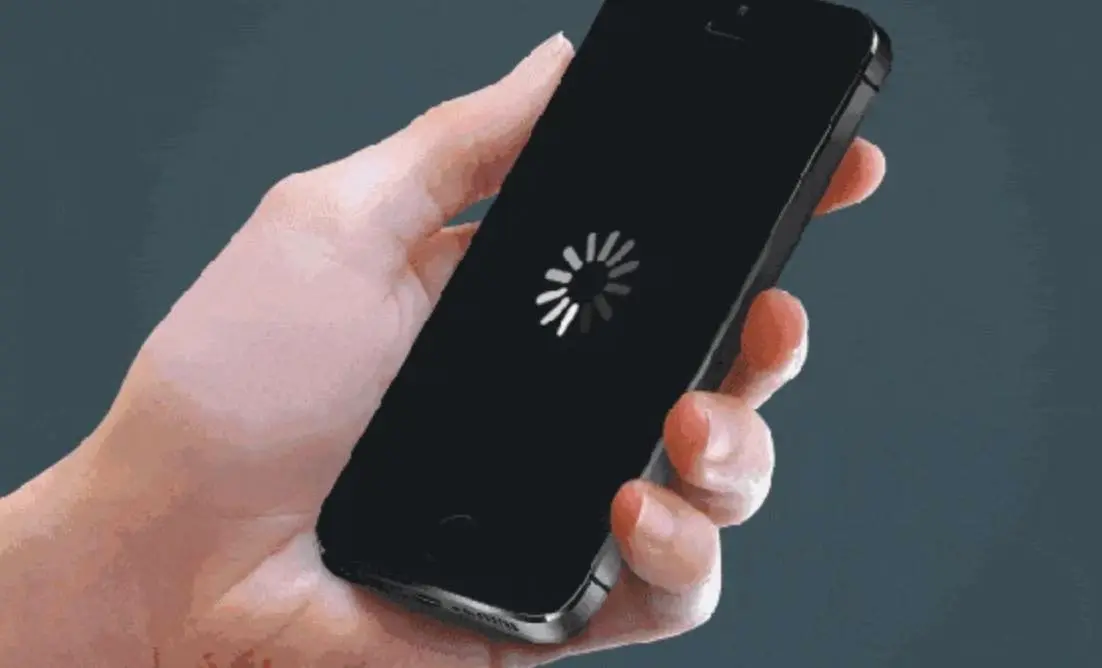

Looking for a phone keeps freezing fix because your screen just stopped responding mid-text, mid-scroll, or mid-payment? No response to taps, sometimes no response to the power button either. It’s one of the most common smartphone complaints out there, and it almost never means your phone is dying — but it does mean something specific is wrong, and guessing at the fix usually wastes more time than it saves.
Quick answer: The fastest phone keeps freezing fix is a force restart, followed by freeing up storage, checking for a pending software update, and letting the device cool down if it’s hot. A phone freezes when it runs out of working memory (RAM) or storage, gets stuck mid-update, overheats, or is fighting a buggy app — and most freezing stops within these four steps, no reset required.
Below is every real cause, in the order you should actually check them, plus the ones almost every other guide skips.
Why Your Phone Keeps Freezing (Before the Fix)
A frozen phone isn’t random. It’s your operating system running out of resources to juggle, or hitting a bug it doesn’t know how to recover from gracefully. The usual suspects, roughly in order of how often they’re the actual culprit:
- Storage is nearly full. Both iOS and Android need free space to write temporary files while running. Push storage past 90–95% and everything from app switching to camera launches starts to stutter and lock up.
- RAM is overloaded. Too many apps competing for active memory at once forces the system to scramble, and sometimes it loses.
- A software bug. New OS versions occasionally ship with freezing bugs that get patched a few weeks later — this happens on both platforms, every year, without exception.
- The device is overheating. Heat forces the processor to throttle itself, and a throttled chip can stall mid-task.
- One bad app. A poorly coded or corrupted app can hang the entire interface, not just itself.
- Aging battery. A battery that can no longer deliver steady power under load can cause exactly the same symptoms as a software problem.
The good news: five of these six are fixable in the next ten minutes, no tools or technician required.
The 60-Second Fix: Force Restart Your Phone
Before anything else, force restart. It clears stuck background processes and RAM without touching your data or settings — it is not the same as a factory reset, and it will not erase anything.
iPhone (Face ID models — iPhone X and newer)
- Press and quickly release Volume Up.
- Press and quickly release Volume Down.
- Press and hold the Side button until the Apple logo appears.
iPhone (Home button models — iPhone 8 and earlier, SE)
- Press and hold both the Home button and the top (or side) button.
- Keep holding until the Apple logo appears, then release.
Android (most modern devices)
- Press and hold the Power button for 10–15 seconds until the screen goes black.
- Some Samsung and Pixel models require holding Power + Volume Down together for 7–10 seconds.
- Wait for the reboot animation, then release.
If the screen is completely unresponsive and won’t force restart on the first try, keep the button combo held for the full duration — it can take longer than expected, occasionally up to 20–30 seconds on older hardware.
Quick takeaway: If a force restart fixes it and the freezing doesn’t come back for a few days, it was a one-off RAM hiccup — nothing to worry about. If it happens again within hours, move to the next fixes.
Fix #1 — Free Up Storage
This is the single most common cause, and it’s also the one people underestimate the most. Both iOS and Android reserve a chunk of storage for system operations — temp files, app caches, virtual memory swapping. When you’re within a few percent of full, that reserve disappears and the OS starts choking.
Aim for at least 10–15% of your total storage free at all times.
What actually moves the needle:
- Delete duplicate photos and burst shots — these quietly eat gigabytes without you noticing.
- Offload (don’t just delete) large, rarely-used apps: iPhone does this natively in Settings > General > iPhone Storage; Android has an equivalent under Settings > Storage.
- Move videos to cloud storage (iCloud, Google Drive, or similar) instead of keeping them local.
- Clear app-specific cache in apps like browsers, social media, and streaming apps — these are usually the biggest hidden storage hogs, sometimes several GB per app.
- Check Downloads and Files apps for forgotten PDFs, installers, and screenshots.
Where to check it:
- iPhone: Settings > General > iPhone Storage
- Android: Settings > Storage (path varies slightly by manufacturer)
Fix #2 — RAM vs. Storage: Know Which One You’re Actually Fighting
This is where most troubleshooting guides get vague, and it’s worth two extra minutes to get right, because the fix is completely different depending on which one is the problem.
Storage is your phone’s long-term hard drive — photos, apps, files. When it’s full, the phone can freeze because it has nowhere to write temporary data.
RAM (memory) is short-term, active workspace — what the phone is doing right now. When too many apps are open and competing for it, the system has to forcibly close or stall processes to cope.
You can’t “clean” RAM the way you clean storage — there’s no cache to delete. The only real reset is closing unused apps or restarting the device; both iOS and Android manage RAM automatically and reclaim it the moment you close an app or reboot. Apps and utilities that promise to “boost RAM” on a modern phone don’t do anything a restart doesn’t already do for free.
Practical fix:
- Close apps you’re not actively using (swipe up/away in the app switcher).
- Turn off Background App Refresh for apps that don’t need to update in real time — keep it on only for messaging and anything time-sensitive.
- If your phone freezes specifically when switching between two or three heavy apps (camera, games, video editors), that’s a RAM ceiling, not a storage one — and it’s more common on phones with 4GB of RAM or less trying to run modern apps.
Fix #3 — Update Your Software (and What to Do If It Freezes Mid-Update)
Outdated software is a frequent, boring, and very fixable cause. Every major OS release patches dozens of stability bugs — if you’ve skipped a few updates, you may be running into problems that were already solved months ago.
- iPhone: Settings > General > Software Update
- Android: Settings > System > System Update (path varies by brand)
If your phone freezes during an update itself — stuck on a progress bar, Apple logo, or Android boot animation for well over 30–45 minutes — don’t panic-restart immediately. Large updates can appear frozen while they’re actually writing data in the background, and interrupting that process is one of the few things that can genuinely cause data loss or a corrupted install.
Give it real time first — at least 30 minutes on a charger. If it’s still stuck after that:
- iPhone: connect to a computer and use Finder (or iTunes on older macOS/Windows) to update or restore.
- Android: most manufacturers offer a recovery-mode reinstall option; check your brand’s support site for the exact key combination, since it varies (Samsung, Pixel, and OnePlus all differ).
Before updating, confirm you have at least 5GB free — updates that start with too little space are a common cause of stalls in the first place.
Fix #4 — Cool It Down: Overheating and Thermal Throttling
Phones throttle their own processors when they get too hot, as a hardware protection measure — and a throttled chip occasionally stalls mid-task instead of just slowing down smoothly. This shows up most during: extended camera use (especially 4K video), gaming, GPS navigation with the screen on, or charging while using the phone heavily.
Fix:
- Remove the case temporarily — cases are the single biggest hidden cause of overheating, since they trap heat against the back of the phone.
- Stop the demanding app and let the phone sit for 10–15 minutes.
- Avoid charging and gaming/streaming at the same time.
- Don’t leave the phone in direct sun or a hot car — heat damage here is cumulative and can shorten battery life permanently, not just cause a temporary freeze.
Fix #5 — Find the App That’s Actually Freezing Your Phone
If freezing tracks to a specific moment — always when you open the camera, always in one game, always after opening a certain app — you likely have one unstable or corrupted app rather than a system-wide problem.
Diagnose with Safe Mode (Android):
- Press and hold the Power button.
- Press and hold “Power off” until a Safe Mode prompt appears.
- Confirm — your phone reboots with all third-party apps temporarily disabled.
- If freezing stops in Safe Mode, a third-party app is the cause. Reboot normally, then uninstall recently added or updated apps one at a time until it stops.
iPhone equivalent: iOS doesn’t have a true Safe Mode, but you can approximate it — offload the suspect app (Settings > General > iPhone Storage > tap the app > Offload App), which removes it without deleting its data, then monitor for a day.
Also worth checking: apps installed from outside the official App Store or Google Play (sideloaded APKs especially) are a disproportionate source of freezing and, occasionally, malware. If you’ve sideloaded anything recently, that’s the first suspect to remove.
Fix #6 — Check Your Battery Health
This one gets skipped constantly, but it’s a real and common cause. As lithium-ion batteries age, they lose their ability to deliver steady power under sudden load — the exact moment a demanding app spikes CPU or GPU use, an aging battery can cause a brief brownout that the OS interprets as a freeze or, in some cases, a random restart.
- iPhone: Settings > Battery > Battery Health & Charging. Below 80% capacity is generally when performance issues start showing up.
- Android: Battery health isn’t as consistently exposed in Settings; most manufacturers include a “Device Care” or “Battery” health check, or you can use a diagnostic app from the App Store/Play Store.
If battery health is low and freezing coincides with heavy use or charging, a battery replacement — not a software fix — is the actual solution.
iPhone vs. Android — Fix Comparison Table
| Issue | iPhone Fix | Android Fix |
|---|---|---|
| Unresponsive screen | Volume Up → Volume Down → hold Side button | Hold Power (+ Volume Down on some brands) 10–15 sec |
| Diagnose a bad app | Offload App (Settings > iPhone Storage) | Boot into Safe Mode |
| Frozen mid-update | Connect to Finder/iTunes, restore if needed | Manufacturer recovery mode reinstall |
| Check battery health | Settings > Battery > Battery Health & Charging | Device Care / manufacturer battery app |
| Clear “memory” | Restart only — no manual RAM clearing exists | Restart, or close background apps manually |
| Storage cleanup path | Settings > General > iPhone Storage | Settings > Storage (varies by brand) |
When Freezing Means a Hardware Problem
Software fixes solve the majority of cases. It’s worth considering a hardware issue — and a professional diagnosis — when:
- Freezing continues after storage is cleared, software is updated, and battery health checks out fine.
- The phone also restarts randomly on its own, not just freezes.
- Freezing happens even in Safe Mode or right after a fresh restart, with nothing running.
- The device has visible damage, has been dropped recently, or has been exposed to liquid.
- It’s several generations behind and no longer receiving security or OS updates — at that point you’re also carrying real security risk, not just a performance one.
At that stage, a qualified repair technician can check RAM health and logic board integrity with diagnostic tools that aren’t available to end users — something no software fix can substitute for. If the phone is old enough that repair costs start approaching the cost of a comparable used replacement, that’s worth weighing honestly rather than sinking repeat repair costs into it.
The Long-Term Phone Keeps Freezing Fix: Prevention Habits
Once it’s running smoothly, a few habits keep it that way:
- Keep 10–15% of storage free permanently, not just when you’re troubleshooting.
- Install software updates within a week or two of release — don’t let several stack up.
- Uninstall apps you haven’t opened in the last 2–3 months.
- Use a case that allows airflow, and remove it during heavy tasks like gaming or 4K recording.
- Restart your phone roughly once a week — it’s a free reset for RAM and background processes.
- Only install apps from the official App Store or Google Play.
Freezing is annoying, but it’s rarely a sign your phone is finished. Work through storage, RAM, updates, heat, and one bad app, in that order, and you’ll almost always find the cause before you need to consider a repair or replacement.
ENJOYED THIS GUIDE? SEE TECHKOU.NET’S HOMEPAGE FOR EVEN MORE TECH HELP.
FAQ Section
Why does my phone freeze all the time?
Repeated freezing is usually low storage, too many background apps competing for RAM, an outdated OS, overheating, or one unstable app. Work through storage and updates first — they resolve most recurring cases without any reset or repair needed.
How do I unfreeze my phone without losing data?
Force restart it. On iPhone: Volume Up, Volume Down, then hold the Side button. On Android: hold Power for 10–15 seconds. This clears stuck processes without deleting anything — it’s not the same as a factory reset.
Is a freezing phone a sign of a virus?
Occasionally, especially if you’ve sideloaded apps from outside the App Store or Google Play. But most freezing is storage, RAM, or software-related, not malware. Check Safe Mode first before assuming a virus is the cause.
Does low storage cause a phone to freeze?
Yes — it’s the most common cause. Both iOS and Android need free space to write temporary files while running. Keep at least 10–15% of total storage free to avoid freezing tied to storage pressure.
Can overheating cause a phone to freeze?
Yes. Phones throttle their processor to prevent damage when they overheat, and a throttled chip can stall mid-task. Remove the case, stop demanding apps, and let it cool for 10–15 minutes.
How do I know if my phone freezing is a hardware issue?
If freezing persists after clearing storage, updating software, and checking battery health — especially alongside random restarts or visible damage — it’s likely hardware and worth a professional diagnostic rather than more software fixes.
Will a factory reset fix a freezing phone?
Often, but it should be a last resort after force restart, storage cleanup, updates, and Safe Mode testing, since it erases the device. Back up first if you go this route.
Why does my phone freeze after an update?
New OS versions occasionally ship with stability bugs that get patched within a few weeks. It can also mean the update itself didn’t fully install — check for a follow-up patch, and confirm you had enough free storage before the update ran.
