
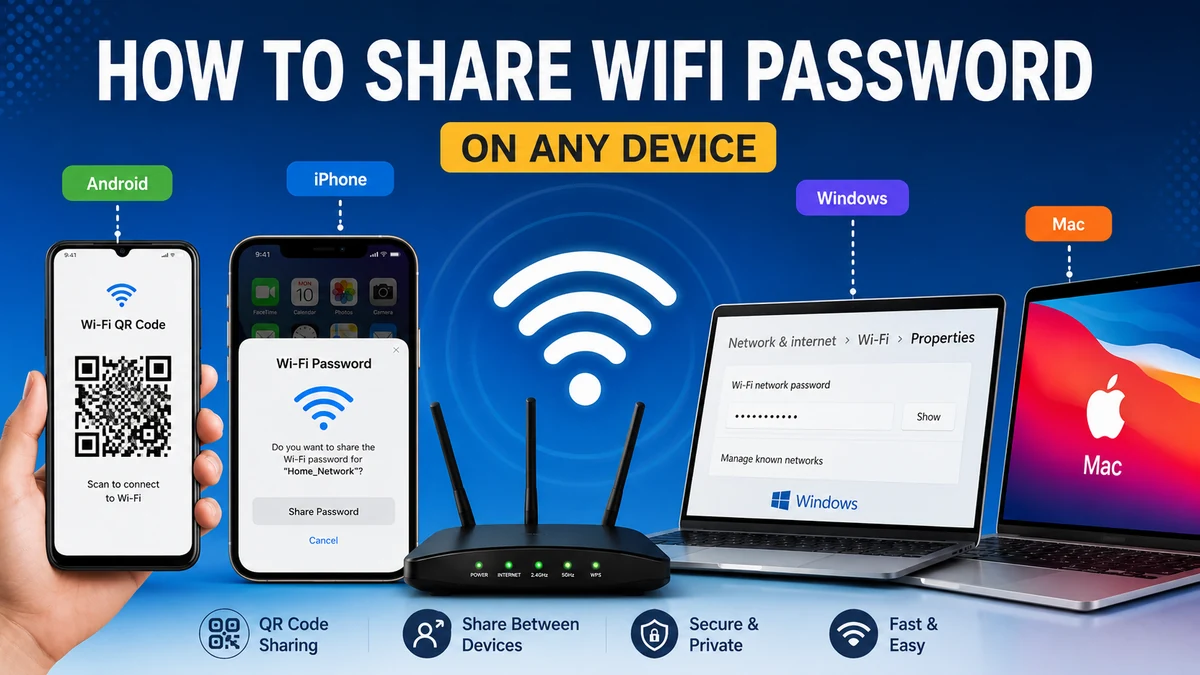

A guest asks for your Wi-Fi password, and suddenly you’re trying to remember a long combination of uppercase letters, numbers, and symbols. Fortunately, modern phones and computers make this much easier.
If you’re wondering how to share wifi password, you can usually send access directly between nearby Apple devices, display a scannable QR code on Android or iPhone, or reveal the saved network password on Windows. The best method depends on the devices involved, but in many cases the other person never needs to type the password manually.
How to Share WiFi Password: Quick Methods by Device
Here’s the simplest way to choose the right method.
| Your device | Receiving device | Best sharing method |
|---|---|---|
| iPhone | iPhone/iPad/Mac | Apple’s Share Password prompt |
| iPhone | Android | Wi-Fi QR code |
| Android | Android | Built-in QR code |
| Android | iPhone | QR code scanned with Camera |
| Mac | iPhone/iPad/Mac | Apple’s Wi-Fi sharing prompt |
| Windows | Phone/PC | Display password or Wi-Fi QR code |
The main difference is that Apple provides proximity-based credential sharing within its ecosystem, while Android commonly uses QR codes. Current Windows versions can also display Wi-Fi credentials and support QR-based connections.
how to share wifi password From iPhone
Apple provides more than one way to share Wi-Fi access from an iPhone. The quickest method for another Apple device is the built-in Share Password feature.
Share a Wi-Fi Password From iPhone to iPhone
Before starting, make sure the iPhone sharing the connection is already connected to the correct Wi-Fi network.
Apple says both devices should have Wi-Fi and Bluetooth enabled. Each person should also be signed in to their Apple Account, Personal Hotspot should be turned off, and the devices should remain close together. The appropriate Apple Account email address or phone number should also be saved in Contacts.
Then:
- Unlock the iPhone that is already connected to Wi-Fi.
- On the receiving iPhone, open Settings > Wi-Fi.
- Tap the network you want to join.
- Wait for the sharing prompt to appear on the connected iPhone.
- Tap Share Password.
- Tap Done when the process finishes.
The receiving device should connect without requiring the person to manually type the network security key.
This feature isn’t limited to two iPhones. The same basic process can work between compatible nearby iPhones, iPads, and Macs.
What If Share Password Doesn’t Appear?
This is one of the most common problems with Apple Wi-Fi sharing.
Check that:
- Wi-Fi is enabled on both devices.
- Bluetooth is enabled on both devices.
- Personal Hotspot is turned off.
- Both devices are unlocked and close together.
- Both users are signed in to their Apple Accounts.
- The required contact information is saved correctly.
- The sharing iPhone is already connected to the network.
If the sharing animation still doesn’t appear, Apple recommends restarting both devices and trying again.
Share Wi-Fi Using a QR Code on iPhone
A QR code is particularly useful when the person connecting doesn’t use another Apple device.
Current iPhone software allows saved Wi-Fi information to be accessed through the Passwords app. Apple also provides a Show Network QR Code option that allows another person to scan the code and join the network.
This solves an old limitation of Apple’s proximity-based system: you can provide Wi-Fi access to devices outside the Apple ecosystem without reading a complicated password aloud.
Find a Saved Wi-Fi Password on iPhone
Sometimes you don’t want automatic sharing at all. You simply need the actual password.
Apple lets you access saved Wi-Fi credentials from the Passwords app:
- Open Passwords.
- Select Wi-Fi.
- Choose the network.
- Tap the Password field.
- Use Copy Password if you need to paste it elsewhere.
Your currently connected network appears at the top, while previously saved networks can also be available.
That can be useful when connecting a smart TV, game console, printer, older laptop, or another device that cannot scan a Wi-Fi QR code.
how to share wifi password on Android
Android has one of the most convenient cross-platform approaches: generate a QR code containing the network credentials.
Google’s standard Android instructions use the Network & internet section of Settings, although menu names can differ slightly between manufacturers.
Share Wi-Fi With an Android QR Code
On a typical Android device:
- Open Settings.
- Tap Network & internet.
- Select Internet.
- Tap your Wi-Fi network.
- Tap Share.
- Complete device authentication if requested.
- A Wi-Fi QR code appears.
- Ask the other person to scan it.
Once scanned, the receiving device can use the encoded network information to join without manually entering the password.
Samsung Galaxy Phones
Samsung uses slightly different menu terminology from stock Android or Google Pixel devices.
You will generally start from:
Settings > Connections > Wi-Fi
Select the connected network and look for the QR-code sharing option. Exact labels and button locations can vary depending on the Galaxy model and One UI version.
The principle is the same: your phone creates a QR representation of the Wi-Fi credentials so another compatible device can connect.
Can an iPhone Scan an Android Wi-Fi QR Code?
Yes, this is one reason QR sharing is so useful.
If an Android phone displays a standard Wi-Fi QR code, an iPhone with compatible software can scan it using its camera functionality and use the detected network information.
This makes QR codes a practical option for mixed-device households where some people use Android and others use iOS.
Automatic Wi-Fi Sharing Between Android Devices
Some Android devices also support cross-device internet-sharing features.
Google documents cross-device services, including automatic Wi-Fi sharing and Instant Hotspot functionality on supported devices. These options require compatible devices and appropriate settings, so they shouldn’t be confused with the more universal QR-code method.
Quick Takeaway: If you need to share Wi-Fi from Android and don’t know what phone the other person has, start with the QR code. It requires fewer ecosystem-specific conditions than proximity sharing.
How to Share WiFi Password From a Mac
A Mac can share Wi-Fi credentials with nearby compatible Apple devices without displaying the actual password.
According to Apple, the Mac should be unlocked, connected to the Wi-Fi network, and signed in to an Apple Account. The recipient should also be signed in, appear in your Contacts, and remain close to the Mac.
Share From Mac to iPhone, iPad, or Mac
Follow these steps:
- Connect your Mac to the desired Wi-Fi network.
- Keep the Mac unlocked.
- On the other Apple device, select the same Wi-Fi network.
- Wait for the Wi-Fi Password notification on the Mac.
- Click Share.
The credentials are transferred to the receiving device so the person can connect without needing you to dictate the network password.
Why Isn’t My Mac Sharing the Wi-Fi Password?
If the notification doesn’t appear, verify the basic requirements first.
The devices should be close enough for Apple’s sharing process, the Mac needs to be unlocked and connected, and the recipient should be correctly identified through Contacts.
Also make sure the person is selecting the same SSID, or network name, that your Mac is currently using.
In homes with separate guest, 2.4 GHz, 5 GHz, or other network configurations, choosing the wrong network name can make it look as though password sharing has failed when the devices are simply targeting different networks.
how to share wifi password on Windows
Windows provides several ways to retrieve Wi-Fi credentials.
Current Microsoft instructions allow users to view the password for a connected or previously saved Wi-Fi network. Windows also supports QR-code-based Wi-Fi connections on compatible devices.
View Your Wi-Fi Password in Windows
On supported Windows versions, open:
Settings > Network & internet > Wi-Fi > Properties
Look for Wi-Fi network password and select Show.
Microsoft also says passwords for previously used networks can be accessed through Manage known networks by selecting the relevant network and choosing the option to show its password.
You can then use that password on another phone, tablet, computer, TV, or other Wi-Fi device.
Share Wi-Fi With a QR Code in Windows
Modern Windows versions have expanded QR-code support.
Microsoft says Wi-Fi credentials can be shared through a QR code, while Windows devices equipped with cameras can also scan compatible Wi-Fi QR codes.
To scan one on a supported Windows PC:
- Open the Camera app.
- Switch to barcode mode.
- Point the camera at the Wi-Fi QR code.
- Select the detected link.
- Windows opens the relevant Settings screen.
- Confirm that you want to connect.
This is especially useful on tablets and laptops with accessible cameras.
Find a Wi-Fi Password Through Control Panel
If your Windows interface doesn’t provide the newer Settings option, Microsoft also documents the traditional Control Panel method.
Navigate to Network and Sharing Center, select the Wi-Fi connection, open Wireless Properties, choose the Security tab, and enable Show characters. The password appears in the Network security key field.
How to Share WiFi Password Between Different Devices
Cross-platform sharing is where people usually get stuck.
An iPhone-to-iPhone connection can use Apple’s direct sharing system. Android has QR sharing. But what happens when the devices use different operating systems?
In most situations, a Wi-Fi QR code is the simplest bridge.
iPhone to Android
Use the Wi-Fi network QR code available on a compatible iPhone, then scan it with the Android device.
If that isn’t available or the receiving device can’t scan the code, retrieve the saved password and enter it manually.
Android to iPhone
On Android:
Settings > Network & internet > Internet > connected Wi-Fi network > Share
Display the generated QR code and scan it with the iPhone.
Google officially documents QR codes as Android’s built-in method for sharing Wi-Fi network information.
Phone to Windows PC
If the Windows computer has a camera and supports Microsoft’s Wi-Fi QR functionality, display the network QR code on the phone and scan it using the Windows Camera app.
Otherwise, reveal the network password on the phone and enter it manually on the PC.
Windows to Phone
Open the network properties in Windows and display the Wi-Fi password or available QR code. The phone can then scan the code or connect using the displayed password.
Is Sharing a Wi-Fi QR Code Safe?
A Wi-Fi QR code is convenient, but treat it like the password itself.
Anyone who can successfully use the QR code may gain access to the network credentials it represents. Don’t publicly post screenshots of private Wi-Fi QR codes, and avoid leaving permanent copies where unauthorized people can easily scan them.
The same applies when copying a password into Messages, email, notes, or another app. Once credentials exist as plain text, they can potentially be forwarded or stored.
For occasional visitors, a guest network is often a better long-term setup.
A guest network separates visitor access from your primary wireless network, depending on how the router is configured. This can reduce the need to reveal the credentials used by your household’s main devices.
QR Code vs. Sharing the Actual Password
| Method | Convenience | Password visible? | Best use |
| Apple Share Password | Very high | No | Nearby Apple devices |
| Wi-Fi QR code | Very high | Usually unnecessary to type | Cross-platform sharing |
| Copy password | High | Yes | Devices without QR support |
| Read password aloud | Low | Yes | Older devices |
| Guest network | High after setup | Separate credentials | Regular visitors |
For most people, built-in device sharing or a QR code provides the best balance of speed and convenience.
What Information Is Actually Being Shared?
Wi-Fi access normally involves two basic pieces of information: the network name and the credentials needed to authenticate with it.
The network name is commonly called the SSID, or Service Set Identifier. It’s the name you see when opening the available Wi-Fi network list.
The password is used by the network’s wireless security system. Home routers commonly use modern WPA-family security rather than leaving the network open.
A Wi-Fi QR code packages the necessary network information into a machine-readable format. Instead of manually finding the SSID and entering the password character by character, a compatible device reads the encoded details.
That’s why scanning a QR code can feel almost instant even when the underlying Wi-Fi password is extremely long.
Why Can’t Someone Connect After You Share the Password?
Sharing the correct password doesn’t guarantee a successful connection.
If another device still won’t join, check these common causes.
The Password Has Changed
A phone or laptop may have old credentials saved for the same SSID.
Forget the network on the receiving device and reconnect using the current credentials.
The Wrong Network Was Selected
Routers, mesh systems, extenders, and neighboring networks can have very similar names.
Confirm the exact network name before troubleshooting the password.
The Device Is Too Far From the Router
Correct credentials can’t compensate for an unusably weak wireless signal.
Move closer to the router or access point and try again.
The QR Code Isn’t Being Recognized
Make the QR code large enough on the sharing device’s screen, increase screen brightness if necessary, clean the receiving device’s camera lens, and hold the camera steady.
If scanning continues to fail, enter the password manually.
Apple Sharing Doesn’t Appear
For Apple’s direct sharing feature, check Wi-Fi, Bluetooth, Contacts, Apple Account sign-in, Personal Hotspot status, device proximity, and whether the sharing device is unlocked.
Apple recommends restarting the devices if the sharing prompt still fails to appear.
Should You Share Your Main Wi-Fi Password With Guests?
For someone you trust and who visits occasionally, built-in password sharing is usually straightforward.
The situation changes if you frequently provide internet access to visitors, customers, contractors, short-term guests, or smart devices.
Consider creating a separate guest Wi-Fi network if your router supports one.
This gives you a separate SSID and password that can be changed without forcing every personal device in your home to reconnect.
It also means you can create a simple QR code for visitors while keeping your primary network credentials private.
One practical setup is:
- Main network for personal phones and computers
- Guest network for visitors
- Separate network or appropriate isolation for smart-home and IoT devices, where supported
- Strong, unique credentials for administrative router access
Don’t confuse the Wi-Fi password with the router’s administrator password. They protect different things and shouldn’t automatically be identical.
Can You Share Wi-Fi Without Telling Someone the Password?
Yes.
Apple’s Share Password feature lets compatible Apple devices receive network credentials without requiring you to read the password to the other person. Wi-Fi QR codes offer a similar experience across a wider range of devices because the recipient can scan the code instead of typing the credentials.
That makes these methods particularly useful for long passwords.
For example, manually entering a password such as a long random sequence on a smart device can be frustrating. A QR scan avoids typing errors when the receiving hardware supports it.
However, don’t assume that hiding the password from view means the network credentials can never be retrieved or reshared later. Give Wi-Fi access only to devices and people you trust.
Does Sharing Wi-Fi Use Your Mobile Data?
Normally, no.
Sharing your Wi-Fi credentials simply helps another device authenticate with the same wireless network. It isn’t the same thing as turning your phone into a mobile hotspot.
A mobile hotspot is different because your phone or computer acts as the connection point and shares an existing internet connection.
Windows, for example, can operate as a mobile hotspot and share Wi-Fi, Ethernet, or cellular connectivity with other devices.
So remember the distinction:
Wi-Fi password sharing = giving another device credentials to an existing wireless network.
Mobile hotspot = your device provides another network connection for other devices.
The Easiest Way to Share Wi-Fi Access
Once you know how to share wifi password, there’s rarely a reason to spell out a complicated security key character by character.
For Apple-to-Apple connections, use the built-in Share Password prompt. On Android, the built-in Wi-Fi QR code is usually the fastest option. Current Windows devices can display saved Wi-Fi passwords and support QR-based connections, while QR codes also provide a practical way to move between different platforms.
For regular visitors, consider setting up a guest network rather than repeatedly distributing your primary credentials. And whichever sharing method you choose, treat the Wi-Fi password and any QR code containing it as private network information.
