
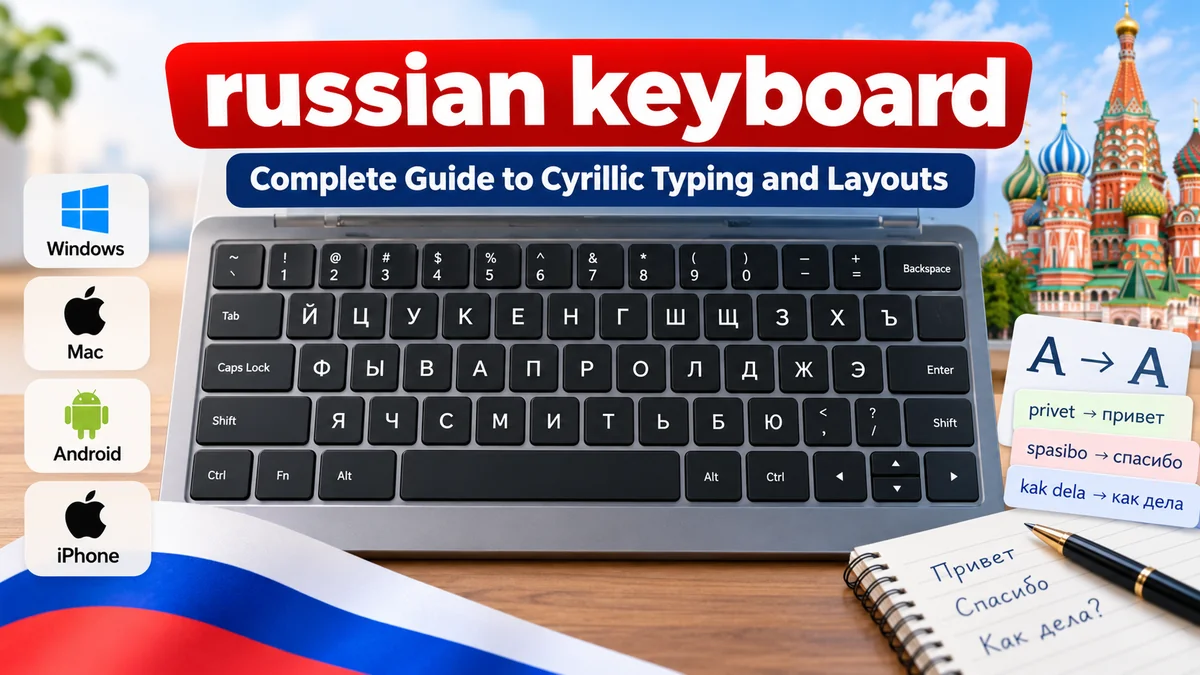

Want to type in Russian but cannot find the right letters on your keyboard? The challenge is usually not the keyboard itself. It is understanding the Cyrillic alphabet, choosing the correct layout, and configuring your device to recognize Russian input.
A russian keyboard is a physical or virtual keyboard configured to type Russian using the Cyrillic alphabet. The standard Russian layout is called JCUKEN (ЙЦУКЕН), named after its first six letters. You can enable it on Windows, macOS, Android, and iPhone without purchasing a separate keyboard.
This guide explains how Russian keyboard layouts work, where Cyrillic letters are located, how to type Russian online, and how to solve common input problems.
What Is a russian keyboard?
A Russian keyboard is an input system that allows users to enter Russian text using Cyrillic characters instead of the Latin letters used in English.
The modern Russian alphabet contains 33 letters, including characters that do not exist in English, such as Ж, Ц, Ч, Ш, Щ, Ы, Э, Ю, and Я.
Russian keyboards are available in several forms:
- Physical keyboards: Standard computer keyboards with Russian letters printed or engraved on the keys.
- Virtual keyboards: On-screen keyboards that allow typing with a mouse, touchscreen, or other pointing device.
- Software layouts: Operating-system settings that assign Cyrillic characters to existing keyboard keys.
- Phonetic keyboards: Alternative layouts that place Russian letters near familiar English sounds.
- Online transliteration tools: Websites that convert Latin-character input into Cyrillic text.
A standard English keyboard can type Russian when the correct software layout is enabled. The physical key labels do not determine which characters appear on the screen.
Understanding the Russian Cyrillic Alphabet
The Cyrillic script is used for Russian and several other languages, including Ukrainian, Bulgarian, Serbian, and Belarusian. However, these languages do not all use identical alphabets or keyboard layouts.
Russian uses 33 letters: 10 vowels, 21 consonants, and two signs that modify pronunciation or grammatical structure.
Complete Russian alphabet with English pronunciation guides
| Russian | Approximate sound or explanation |
|---|---|
| А а | a as in father |
| Б б | b as in boy |
| В в | v as in very |
| Г г | g as in go |
| Д д | d as in dog |
| Е е | ye or e, depending on context |
| Ё ё | yo |
| Ж ж | s in measure |
| З з | z as in zoo |
| И и | ee as in see |
| Й й | y as in boy |
| К к | k as in kite |
| Л л | l as in lamp |
| М м | m as in mother |
| Н н | n as in name |
| О о | o, with pronunciation affected by stress |
| П п | p as in pen |
| Р р | rolled or tapped r |
| С с | s as in sun |
| Т т | t as in top |
| У у | oo as in food |
| Ф ф | f as in fish |
| Х х | voiceless sound similar to Scottish loch |
| Ц ц | ts as in cats |
| Ч ч | ch as in cheese |
| Ш ш | sh as in shoe, but harder |
| Щ щ | long, soft sh-like sound |
| Ъ ъ | Hard sign; no independent sound |
| Ы ы | Russian central/back vowel |
| Ь ь | Soft sign; modifies preceding consonant |
| Э э | e as in met |
| Ю ю | yu |
| Я я | ya |
These English approximations help beginners identify letters, but they cannot fully represent Russian pronunciation.
For example, Russian Р resembles the English letter P visually, but it produces an r sound. Russian Н resembles H but produces an n sound.
Recognizing these differences is essential for typing and reading accurately.
Standard russian keyboard Layout: JCUKEN (ЙЦУКЕН)
The standard Russian keyboard layout is known as JCUKEN, the Latin transliteration of ЙЦУКЕН.
It is the most widely used Russian typing layout and appears as the default Russian input option on major desktop operating systems.
Standard Russian letter arrangement
Й
Ц
У
К
Е
Н
Г
Ш
Щ
З
Х
Ъ
Ф
Ы
В
А
П
Р
О
Л
Д
Ж
Э
Я
Ч
С
М
И
Т
Ь
Б
Ю
Letter-only representation of the standard JCUKEN layout. The Ё key and punctuation keys vary by keyboard configuration.
Why are Russian letters arranged differently?
The Russian layout was developed around Cyrillic typing requirements rather than English QWERTY positions.
Frequently used Russian letters are placed in positions that support efficient typing once the layout is learned.
For example:
- Ф occupies the position associated with A on a US QWERTY keyboard.
- Ы occupies the S position.
- В occupies the D position.
- А occupies the F position.
- П occupies the G position.
This means someone typing Russian on an English-labeled keyboard cannot simply press the corresponding English letter.
The physical keys remain unchanged, but the software interprets them differently.
Where is the Russian letter Ё?
The letter Ё is generally located near the upper-left corner of a standard Russian desktop keyboard, on the key associated with the backtick or tilde on a US keyboard.
Some mobile keyboards and alternative layouts place it behind a long-press option on Е.
Although Ё is sometimes written as Е in ordinary Russian text, the letters are distinct. Using Ё can be necessary to preserve pronunciation and meaning.
How to Install a russian keyboard on Windows 11 and Windows 10
Windows includes Russian language input support, so installing a separate application is normally unnecessary.
Set up Russian typing on Windows 11
- Open Settings.
- Select Time & language.
- Open Language & region.
- Under Preferred languages, select Add a language.
- Search for Russian.
- Select Russian and follow the installation instructions.
- Confirm that the Russian keyboard layout is available under the language’s keyboard options.
After installation, the language indicator should appear in the taskbar when multiple input methods are configured.
Set up Russian typing on Windows 10
- Open Settings.
- Go to Time & Language.
- Select Language.
- Choose Add a preferred language.
- Search for Russian and install it.
- Verify the keyboard layout in the language options.
Windows may offer optional language features. You do not need to change the entire Windows display language just to type Cyrillic.
Switch between English and Russian
The most useful shortcut is:
Win
Space
Hold the Windows key and press Space to cycle through installed keyboard layouts.
You can also select the language indicator, such as ENG or РУС, from the taskbar.
Some Windows configurations support Alt + Shift for switching input languages.
If pressing a key produces an unexpected Cyrillic character, check which layout is currently active.
How to Add a Russian Keyboard on Mac
Apple’s macOS supports Russian through its built-in input sources.
To enable Russian typing:
- Open System Settings.
- Select Keyboard.
- Find Text Input and open the input-source settings.
- Click the option to add an input source.
- Search for Russian.
- Select the standard Russian layout or another available Russian input source.
- Confirm the selection.
On older macOS versions, the settings may appear under System Preferences and Input Sources.
Switching layouts on macOS
You can switch between configured input sources using the menu bar’s input menu or the keyboard shortcut assigned in system settings.
Control + Space is a common default shortcut, although it can be changed or used by another feature.
Mac users can also open Keyboard Viewer to see which Cyrillic character corresponds to each physical key.
This is especially helpful when using a laptop with English-only key labels.
How to Type Russian on Android and iPhone
Modern smartphones support Cyrillic input without requiring a special physical keyboard.
Android: using Gboard
Google’s Gboard keyboard supports Russian and multiple input layouts.
To add Russian:
- Open an app where text can be entered.
- Open the keyboard.
- Access Gboard settings.
- Select Languages.
- Choose Add keyboard.
- Search for Russian.
- Select a preferred layout and finish setup.
You can generally switch languages by holding the spacebar or using the language-switch key, depending on your Gboard configuration.
Some Android devices use Samsung Keyboard or another input app. Their menu names may differ.
iPhone and iPad
Apple includes Russian in the built-in iOS and iPadOS keyboard options.
To enable it:
- Open Settings.
- Select General.
- Open Keyboard.
- Select Keyboards.
- Tap Add New Keyboard.
- Choose Russian.
Once enabled, tap or hold the globe icon on the on-screen keyboard to switch between languages.
The Russian keyboard works in Messages, Notes, Safari, email applications, and other apps that support normal text entry.
Russian Phonetic Keyboard vs. Standard Layout
A phonetic Russian keyboard uses Latin letter positions to make Cyrillic typing more intuitive for English-speaking users.
For instance, a phonetic arrangement may associate A with А, M with М, and T with Т.
However, there is no single universal phonetic layout. Different implementations may assign letters differently, especially when a Russian sound requires multiple Latin letters.
| Feature | Standard JCUKEN | Phonetic layout |
|---|---|---|
| Letter arrangement | Traditional Russian positions | Based on Latin-letter associations |
| Familiarity for native Russian typists | High | Varies |
| Ease for English-speaking beginners | Requires memorization | Often easier initially |
| Availability | Widely built into operating systems | Depends on system and software |
| Best suited for | Regular Russian typing | Learners and occasional users |
Which layout should beginners learn?
If you expect to type Russian frequently, learning JCUKEN is generally worthwhile. It is the standard layout used by Russian-speaking typists.
If you only need to write occasional phrases or short messages, a phonetic layout or transliteration tool may be more convenient.
A phonetic keyboard is not necessarily the same as a transliteration converter. A phonetic keyboard assigns characters to keys, while transliteration software interprets sequences of Latin characters and converts them into Cyrillic.
How to Use an Online russian keyboard
An online Russian keyboard is a web-based tool that lets users enter Cyrillic text without installing an additional operating-system layout.
These tools are particularly useful on shared computers or devices where changing system settings is inconvenient.
Typical features include an on-screen Cyrillic layout, text-entry area, copy function, and sometimes transliteration support.
Basic steps for typing Russian online
- Open a Russian virtual keyboard website.
- Select the Cyrillic layout if multiple languages are available.
- Click Russian letters using your mouse or touchscreen, or use the supported physical-keyboard input.
- Review the text for spelling and punctuation.
- Copy the completed text into the application where you need it.
Examples of online resources include Lexilogos Russian Keyboard and Google Input Tools.
Their interfaces and supported input methods may differ.
Can you type Russian without installing anything?
Yes. A browser-based virtual keyboard can produce Cyrillic text without adding a system keyboard layout.
However, online keyboards have limitations. They may require an internet connection, and copying text between applications can interrupt longer writing sessions.
For sensitive information, avoid entering passwords or private data into unfamiliar third-party typing websites. The operating system’s built-in keyboard is generally a more appropriate choice.
Russian Keyboard Transliteration: Type Russian Using English Letters
Transliteration is useful when you know how a Russian word sounds but do not remember its Cyrillic spelling or keyboard positions.
Instead of memorizing the JCUKEN layout, you type an approximate representation using Latin letters. A transliteration tool converts the input into Russian characters.
For example:
| Latin input | Cyrillic output | English meaning |
|---|---|---|
| privet | привет | Hello |
| spasibo | спасибо | Thank you |
| kak dela | как дела | How are you? |
| dobroe utro | доброе утро | Good morning |
| do svidaniya | до свидания | Goodbye |
| ya tebya lyublyu | я тебя люблю | I love you |
| russkiy yazyk | русский язык | Russian language |
These are illustrative conversions. Actual transliteration tools use different rules, so their results may vary.
Transliteration vs. translation
Transliteration and translation perform different tasks.
Transliteration converts text between writing systems while attempting to preserve pronunciation. For example, privet becomes привет.
Translation converts meaning between languages. The Russian word привет translates to hello in English.
This distinction matters when using tools such as Google Translate, Google Input Tools, and browser-based Cyrillic converters.
A transliteration keyboard does not automatically translate English sentences into Russian.
Russian Keyboard Symbols and Special Characters
Russian typing requires more than the 33 alphabet letters. Punctuation, quotation marks, capitalization, and special symbols also affect written communication.
Russian punctuation and keyboard symbols
| Symbol | Name or purpose |
|---|---|
| . | Period |
| , | Comma |
| ? | Question mark |
| ! | Exclamation mark |
| : | Colon |
| ; | Semicolon |
| « » | Russian-style quotation marks |
| № | Number sign |
| — | Em dash |
| ь | Soft sign |
| ъ | Hard sign |
On a standard Windows Russian layout, several punctuation characters occupy positions different from those on an English keyboard.
For example, the question mark is commonly entered using Shift + 7, while the number sign № is associated with Shift + 3.
Exact assignments depend on the selected layout and operating system.
How to type capital Russian letters
Russian uses uppercase and lowercase characters just as English does.
For example:
- м → М
- п → П
- я → Я
- ж → Ж
Hold Shift while pressing the desired key to produce an uppercase letter, or use Caps Lock for extended uppercase typing.
Why do Russian quotation marks look different?
Russian typography commonly uses guillemets, written as «example», rather than English-style double quotation marks.
These characters are not necessarily assigned to dedicated keys on every Russian layout. They may be inserted using character-selection menus, symbol panels, or text-editing shortcuts.
For professional Russian documents, correct quotation marks and punctuation improve readability.
Common russian keyboard Problems and How to Fix Them
Russian keyboard problems usually result from an incorrect input layout, conflicting language settings, or unfamiliar key positions.
1. Keyboard types Russian instead of English
If pressing familiar keys suddenly produces Cyrillic letters, the Russian input layout is probably active.
Solution: On Windows, press Win + Space and select English. On macOS, switch to the English input source using the input menu or configured shortcut.
You generally do not need to uninstall Russian to restore English typing.
2. Russian language is installed but typing remains English
Installing a language does not always activate its keyboard layout.
Open the operating system’s keyboard or language settings and confirm that Russian input is available and selected.
Microsoft distinguishes between the Windows display language and keyboard layout. Changing one does not necessarily change the other.
Microsoft Support
+1
3. Russian letters do not match physical key labels
This is expected when using a standard Russian layout on an English-labeled keyboard.
The key marked A on a US QWERTY keyboard produces Ф under the standard Russian layout.
You can use an on-screen keyboard, keyboard viewer, or printed layout reference to learn the positions.
4. The letter Ё is missing
Some mobile layouts place Ё behind the Е key. Press and hold Е to check whether an alternative-character menu appears.
On a standard Russian desktop layout, Ё normally has a separate position near the upper-left corner.
If the letter is unavailable, check whether you selected a phonetic or nonstandard layout.
5. Russian text appears as boxes or question marks
This may indicate a font-rendering problem, unsupported characters, or an incorrect text encoding.
Try a modern Unicode-compatible font such as Arial, Times New Roman, or Noto Sans.
For text files and websites, UTF-8 is the preferred encoding for reliably representing Cyrillic characters.
6. Keyboard shortcuts stop working after switching languages
Some applications interpret letter-based shortcuts according to the active keyboard layout.
If a shortcut behaves unexpectedly, temporarily switch to English and try again.
You can also review application-specific keyboard shortcuts and operating-system input settings.
How to Practice Russian Keyboard Typing
Learning Cyrillic key positions becomes easier when practice is consistent and focused.
A beginner should start with accuracy rather than speed.
Step 1: Learn the home-row letters
Begin with the central row:
Ф Ы В А П Р О Л Д Ж Э
These positions are important for developing muscle memory.
Practice pressing each key while looking at an on-screen layout. Gradually reduce how often you check the reference.
Step 2: Type short Russian words
Start with common words that contain frequently used letters.
Russian typing practice
Word 1 of 5
Hello
привет
PreviousNext word
Step 3: Practice complete sentences
Once individual words become comfortable, move to short sentences:
- Меня зовут Анна. — My name is Anna.
- Я изучаю русский язык. — I am studying Russian.
- Сегодня хорошая погода. — The weather is nice today.
- Где находится библиотека? — Where is the library?
Pay attention to spaces, capital letters, punctuation, and unfamiliar Cyrillic characters.
Step 4: Measure typing speed
Typing speed is usually measured in words per minute (WPM).
When practicing Russian, remember that WPM calculations may differ between typing-test websites. Some use standardized character counts rather than actual Russian word counts.
Track both speed and accuracy. A faster result with frequent mistakes is less useful than steady, accurate typing.
Step 5: Practice without looking at the layout
Once you recognize common key positions, cover the keyboard reference for short periods.
Practice familiar words first, then gradually introduce unfamiliar vocabulary.
Regular sessions are more effective than occasionally attempting long typing exercises.
Russian Keyboard Compatibility with Unicode and Different Applications
Modern Russian typing relies on Unicode, the international character-encoding standard that represents text across languages and writing systems.
Cyrillic letters are represented by distinct Unicode code points.
For example:
| Character | Unicode code point |
|---|---|
| А | U+0410 |
| а | U+0430 |
| Б | U+0411 |
| Я | U+042F |
| я | U+044F |
| Ё | U+0401 |
| ё | U+0451 |
This allows Russian text to be stored, transmitted, and displayed consistently across compatible applications.
Typing Russian in Microsoft Word and Google Docs
Both Microsoft Word and Google Docs support Cyrillic characters.
After enabling Russian input, you can type directly into documents, change fonts, and use text-formatting features.
For spelling assistance, configure the document’s proofing language to Russian when available.
Changing the keyboard layout alone may not activate Russian spelling or grammar checking.
Typing Russian in browsers and social media
Russian input generally works in modern web browsers, including Chrome, Firefox, Edge, and Safari.
You can type Cyrillic into search engines, social media platforms, messaging applications, and website forms.
Some websites may restrict certain characters in usernames or other specialized fields, but ordinary text fields usually support Unicode.
Russian text in programming and web development
Developers can include Russian text in websites, applications, and source files that support Unicode.
For HTML documents, declare UTF-8 encoding:
<meta charset="UTF-8">This helps browsers interpret Cyrillic characters correctly.
Developers should also ensure that their database, API, and file-storage systems preserve Unicode text.
How to Choose the Right Russian Keyboard Layout
The best layout depends on how often you type Russian and how familiar you are with Cyrillic.
For native Russian speakers or people who write Russian regularly, standard JCUKEN is the most practical long-term choice.
For English-speaking learners who occasionally need Russian text, phonetic typing may feel easier initially.
For short tasks on shared computers, a browser-based virtual keyboard is convenient because it does not require system-level configuration.
For smartphone users, the built-in Russian keyboard is usually sufficient.
A separate physical Russian keyboard is optional. Dual-language key labels can help with visual recognition, but the actual characters are determined by the selected input layout.
Conclusion
A russian keyboard makes it possible to write Cyrillic text on computers, smartphones, and tablets without specialized hardware.
The standard JCUKEN layout is the most useful option for regular Russian typing, while phonetic keyboards and online transliteration tools offer convenient alternatives for occasional use.
Start by enabling Russian input on your device, familiarize yourself with the 33 Cyrillic letters, and practice common words and sentences. With consistent practice, switching between English and Russian becomes a natural part of everyday typing.
