
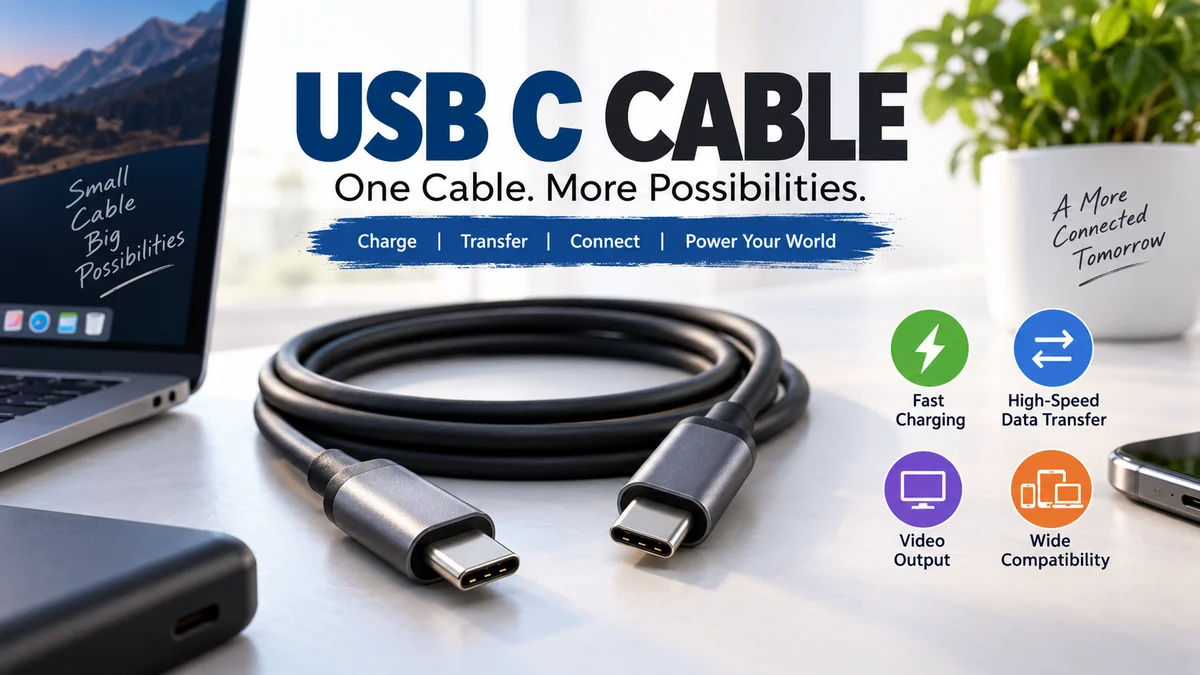

A usb c cable can look identical to another cable yet behave completely differently. One might charge a phone perfectly but transfer files at only 480 Mbps. Another can power a laptop, move data at tens of gigabits per second, and connect an external monitor through the same small connector.
That difference causes much of the confusion around USB-C.
A usb c cable uses the reversible USB Type-C connector to carry power, data, and, when supported, video. Cable capabilities vary by design: charging can reach 240W with USB Power Delivery, while data performance ranges from USB 2.0 speeds to USB4 links reaching 80 Gbps. Video support also depends on the cable and connected devices.
The key point is simple: USB-C describes a connector, not one fixed level of performance.
This guide explains what the specifications actually mean, how USB Power Delivery and E-Marker chips work, why some USB-C cables cannot run monitors, and how to match a cable to phones, laptops, SSDs, docks, and displays.
What Is a usb c cable?
A usb c cable is a cable that uses the compact USB Type-C connector on at least one end. A USB-C-to-USB-C cable has the Type-C connector at both ends, while other configurations can pair USB-C with USB-A or another interface.
The connector was designed to be reversible, so there is no “right side up.” USB Type-C also supports scalable power and performance rather than being tied to one USB speed.
That distinction matters.
USB-C can be involved in several functions:
- Device charging
- USB Power Delivery
- File transfer
- External storage
- Display output
- Docking stations
- Audio and video
- Peripheral connections
- USB4 connectivity
- Thunderbolt connections on compatible hardware
But the presence of a USB-C plug does not guarantee that every one of those functions is available.
USB-C Is the Connector, Not the Data Standard
One of the easiest mistakes to make is treating “USB-C” as if it were a speed rating.
It isn’t.
A cable can physically use USB-C while its USB data capability is relatively basic. Another cable with plugs that look virtually identical may support USB4.
That means you should evaluate three specifications separately:
| Specification | What It Tells You |
|---|---|
| Power rating | How much charging power the cable can safely support |
| Data rating | How quickly compatible devices can transfer data |
| Video capability | Whether the connection can carry a display signal |
Never assume one automatically guarantees the others.
A 240W charging cable, for example, is not automatically an ultra-fast data cable.
usb c cable Charging Speeds and USB Power Delivery
Charging is the main reason many people use USB-C, but the cable is only one part of the charging system.
The complete charging path involves:
Power source → charger → cable → device
Every component has limits.
If your laptop accepts 65W but you connect it to a 30W charger, using a 240W cable will not magically make the laptop charge at 240W.
Likewise, a powerful charger cannot push unlimited power into a phone. The connected devices negotiate supported power levels.
What Is USB Power Delivery?
USB Power Delivery, usually shortened to USB PD, is a USB specification that enables flexible power delivery alongside data.
USB-IF states that USB PD Revision 3.1 expanded USB Power Delivery to as much as 240W over compatible full-featured USB Type-C cables and connectors. Earlier USB PD implementations were limited to 100W.
This expanded range makes USB-C practical for considerably more than smartphones.
It can power compatible:
- Tablets
- Ultrabooks
- Business laptops
- Portable monitors
- Docking stations
- High-performance laptops
- Other USB-C-powered electronics
60W vs 100W vs 240W USB-C Cables
You’ll still encounter products marketed around 60W, 100W, and 240W.
From a consumer perspective, think of them as different power capabilities rather than different connector types.
| Cable Rating | Typical Role |
|---|---|
| 60W | Phones, tablets and many lower-power laptops |
| 100W | Many USB-C laptops and docks |
| 240W | USB PD Extended Power Range applications and higher-power equipment |
There is an important standards detail here: USB-IF’s current certification framework labels certified USB-C-to-USB-C cable categories with 60W or 240W power capability markings, and its compliance updates document the replacement of the former 100W certified cable category by 240W cables.
So don’t be surprised to see “100W” throughout existing retail products while newer official USB-IF certification language emphasizes 60W and 240W.
Does a 240W Cable Make Your Phone Charge Faster?
No.
The cable’s wattage is its supported capability, not a promise that a device will consume that much power.
Imagine connecting a phone that accepts 30W charging to a 240W-rated cable. The cable has plenty of capacity, but the phone still determines what it can accept within the negotiated charging system.
For fast charging, all relevant components must be compatible:
- The device must support the charging protocol and power level.
- The charger must provide it.
- The cable must support the required current and power.
- USB PD negotiation must establish an appropriate power contract where PD is being used.
A higher-rated cable therefore provides capacity, not forced charging speed.
What Is an E-Marker in a usb c cable?
An E-Marker, or electronically marked cable chip, communicates information about the cable’s capabilities to connected USB-C equipment.
This becomes particularly relevant with high-power and high-performance cables.
USB-IF specifically maintains compliance requirements for cables implemented with E-Markers.
The chip can identify characteristics that help USB-C devices determine what the cable supports.
Why E-Markers Matter for High-Power Charging
USB-C power delivery depends on more than thick wires.
The source and device need to know whether the cable is designed for the requested operating conditions.
This is especially important when moving beyond the basic 3A power level into 5A cable operation.
An electronically marked cable can communicate its capabilities so that the USB PD system does not simply assume the cable can safely handle higher current.
Does Every USB-C Cable Need an E-Marker?
No.
A basic USB-C cable designed for modest charging and USB 2.0 data does not necessarily require electronic marking.
Higher-performance cable configurations have different requirements.
This is another reason an E-Marker should not be treated as a generic marketing feature. Its purpose is capability identification; it doesn’t magically improve poorly designed conductors or connectors.
USB-C Data Transfer Speeds Explained
The second major specification is data speed.
This is where visually identical USB-C cables can deliver dramatically different results.
A basic cable may be limited to USB 2.0’s 480 Mbps signaling rate, while high-performance cables can support multi-gigabit USB connections.
Common advertised rates include:
| Advertised Data Rate | Typical Technology/Label You May Encounter |
|---|---|
| 480 Mbps | USB 2.0 |
| 5 Gbps | USB 5Gbps / older USB 3.x terminology |
| 10 Gbps | USB 10Gbps / older USB 3.x terminology |
| 20 Gbps | USB 20Gbps |
| 40 Gbps | USB4-class connections |
| 80 Gbps | Newer USB4 performance |
The USB-IF says current USB4 architecture can provide operation up to 80 Gbps over certified 80 Gbps cables.
USB4 Version 2.0 remains part of the current standards ecosystem, with USB-IF’s document library listing the November 2025 USB4 v2.0 specification and 2026 compliance documentation.
Why a Fast-Charging Cable Can Transfer Files Slowly
Because charging and data are separate capabilities.
This is one of the most useful things to remember about USB-C.
A manufacturer can build a cable primarily for charging while providing only USB 2.0 data connectivity. That may be completely adequate for charging a laptop beside your bed.
Connect that same cable to an external SSD, though, and performance may be disappointing.
Consider the theoretical signaling-rate difference:
480 Mbps vs 10 Gbps
A 10 Gbps connection offers more than twenty times the nominal signaling rate of 480 Mbps before protocol overhead and real-world storage limitations are considered.
If you’re moving large video projects, backups, photo libraries, or virtual machines, data capability matters far more than it does for occasional phone synchronization.
Advertised Speed Is Not Guaranteed File-Transfer Speed
If a cable says “40 Gbps,” don’t expect every file to move at exactly 40 gigabits per second.
The end-to-end connection is limited by factors including:
- Host USB controller
- Device interface
- SSD or storage performance
- Cable specification
- Protocol overhead
- Dock or hub limitations
- File size and workload
- Thermal conditions
The connection generally operates according to the capabilities mutually supported by the hardware involved.
Can a usb c cable Connect a Monitor?
Yes—but only when the required video capability exists across the entire connection.
USB Type-C supports Alternate Modes, which allow compatible non-USB protocols to operate through the Type-C interface. DisplayPort Alt Mode is the most important example for monitors.
A compatible USB-C connection can therefore carry:
Power + USB data + DisplayPort video
through a single physical connector.
That is what makes one-cable laptop docking possible.
What Is DisplayPort Alt Mode?
DisplayPort Alternate Mode, commonly called DP Alt Mode, allows DisplayPort signals to use USB-C’s high-speed lanes.
VESA explains that DisplayPort, USB data, and USB Power Delivery can operate simultaneously through a standard full-featured USB Type-C cable in supported configurations.
This enables setups such as:
Laptop → USB-C cable → monitor
The monitor may receive video while the laptop simultaneously receives charging power from the display.
Why Does a USB-C Monitor Sometimes Show “No Signal”?
The problem isn’t necessarily the monitor.
Four components must be compatible:
- Source device
- USB-C port
- Cable
- Display or adapter
A laptop can have a perfectly functional USB-C port that does not provide DisplayPort Alt Mode.
VESA notes that connecting a display to a Type-C port without DisplayPort-over-USB-C support simply results in no video being received; it does not damage the device.
The cable can create the same frustration. A charging-oriented cable without the necessary high-speed connections is not automatically suitable for display use.
Does Every USB-C Cable Support 4K or 8K?
No.
Never infer display support from the connector alone.
Check specifically for claims such as:
- DisplayPort Alt Mode
- Display support
- 4K
- 4K 60Hz
- 8K
- USB4
- Thunderbolt compatibility
Also verify what the computer’s USB-C port supports.
Even the best cable cannot make a USB-C port generate a video signal it was never designed to provide.
USB-C vs USB-A: What Is the Difference?
USB-A is the familiar rectangular USB connector found on computers, chargers, televisions, game consoles, and countless older accessories.
USB-C is smaller, reversible, and designed around a much more flexible modern connection ecosystem.
| Feature | USB-C | USB-A |
|---|---|---|
| Reversible plug | Yes | No |
| Compact design | Yes | Larger |
| USB Power Delivery ecosystem | Extensive | More limited |
| High-speed modern USB support | Yes | Depends on implementation |
| Display Alt Modes | Yes, when supported | Not in the same native manner |
| USB4 connector | USB Type-C | No |
This does not mean USB-A is automatically slow.
Connector shape and USB data generation should still be considered separately.
USB-C to USB-C vs USB-A to USB-C
A USB-C-to-USB-C cable is generally the natural choice when both devices use USB-C and you want modern USB-C capabilities.
USB-A-to-USB-C remains useful for connecting USB-C peripherals to older computers and chargers.
But don’t assume an adapter will add missing features.
An older USB-A host cannot suddenly gain the complete capabilities of a USB4/USB-C connection merely because an adapter changes the connector shape.
USB4 and Thunderbolt: Why They Matter
USB4 takes greater advantage of USB Type-C’s high-speed architecture.
USB-IF describes USB4 as supporting multiple data and display protocols while dynamically sharing available high-speed bandwidth. It also maintains backward compatibility with previous USB generations.
This is especially useful for demanding applications such as:
- High-speed NVMe external SSDs
- Professional docking stations
- High-resolution displays
- Large data transfers
- Multi-function docks
- Workstation peripherals
USB4 Does Not Mean “Any USB-C Cable”
The connector may look the same, but USB4 places much greater demands on signal integrity and cable design.
USB-IF certification therefore includes specific testing requirements for Type-C cable assemblies, signal integrity, Power Delivery where applicable, and E-Marker implementations.
If you’re connecting a USB4 SSD or dock, use a cable explicitly rated for the data performance you need rather than an unidentified charging cable from a drawer.
What About Thunderbolt?
Thunderbolt has also adopted the USB-C connector for modern generations.
That shared physical connector can make USB-C and Thunderbolt appear interchangeable, but they are not simply different names for the same technology.
A USB-C connector can carry several protocols depending on the devices, ports, and cable involved.
The safest approach is to match the requirements of the device:
Thunderbolt device → verify Thunderbolt-capable host and cable
USB4 device → verify the required USB performance rating
Standard USB device → match its required USB data speed
Do not rely on connector shape alone.
How to Choose the Right usb c cable
Choosing a cable becomes much easier when you stop looking for the mythical “best USB-C cable” and instead identify what the connection needs to do.
Use this sequence.
1. Decide What You Need the Cable For
Start with the actual task.
Are you:
- Charging a phone?
- Charging a laptop?
- Transferring photos?
- Connecting an external SSD?
- Running a monitor?
- Connecting a docking station?
- Using USB4 equipment?
- Connecting professional high-bandwidth peripherals?
A cable for overnight phone charging doesn’t need the same capabilities as one connecting a workstation to a high-speed dock.
2. Check the Required Charging Wattage
Look at the power requirements of the device and charger.
For ordinary phones and tablets, an extremely high cable rating may provide no practical advantage.
For laptops, check the manufacturer’s charging specification.
If the device expects high-power USB PD, select a cable rated appropriately for that level.
For devices designed around USB PD Extended Power Range, look for a compatible 240W cable.
3. Check Data Speed Separately
This is the step people frequently miss.
If you need fast data transfer, look for an explicit rate:
5Gbps, 10Gbps, 20Gbps, 40Gbps, or 80Gbps, depending on the hardware.
If the description mentions only “fast charging” without specifying data performance, don’t assume the cable is suitable for a high-speed SSD.
4. Verify Video Support When Connecting Displays
For monitors, verify the complete path.
Your source device needs video output over USB-C, and the cable needs the required functionality.
VESA recommends checking device documentation for DisplayPort Alt Mode support; compatible ports may also carry a DisplayPort logo.
5. Look for Clear USB-IF Performance Markings
Modern USB labeling is designed to make cable capabilities easier to understand.
For cables passing the USB-IF compliance program, USB-C-to-USB-C categories are required to identify their power capability as 60W or 240W. Except for USB 2.0 Type-C cables, compliant cables are also required to show the appropriate supported data rate.
That makes labels such as a power rating plus data performance much more useful than vague terms like:
“Super fast”
“Ultra speed”
“Premium charging”
Those phrases tell you very little technically.
USB-IF maintains a product search for products certified to bear its logos, providing another verification route when certification matters.
6. Consider Cable Length
Length matters more as data rates rise.
High-speed signals become harder to maintain over longer passive cables. Active electronics can help extend some high-performance connections, but they also make the cable more complex.
For a bedside charger, convenience may matter more than maximum bandwidth.
For an external SSD or workstation dock, a shorter certified high-performance cable is often the more straightforward solution.
7. Check Build Quality, Not Just Braiding
A braided jacket can improve resistance to everyday abrasion and tangling, but braiding alone says nothing about electrical performance.
More meaningful quality indicators include:
- Correct specification
- Certified performance where applicable
- Secure connector fit
- Proper strain relief
- Appropriate conductor design
- Clear wattage rating
- Clear data-speed rating
- Reputable compliance claims
A beautiful braided cable can still be a 480 Mbps cable.
Which USB-C Cable Do You Need?
Here’s a practical way to match specifications to common situations.
| Use | What Matters Most |
|---|---|
| Phone charging | Correct charging protocol and adequate wattage |
| Tablet charging | Power rating and USB PD compatibility |
| Laptop charging | Device wattage, USB PD and suitable cable power rating |
| High-power laptop | 240W/EPR capability when the device requires it |
| Phone file transfer | Data rate appropriate to the phone |
| External SSD | 10Gbps, 20Gbps, 40Gbps or other rate matching the drive |
| USB-C monitor | Video-capable cable plus DP Alt Mode-compatible source |
| Docking station | Power, data and video capabilities together |
| USB4 equipment | Appropriate USB performance-rated cable |
| Basic accessories | Standard USB functionality may be sufficient |
For Phone Charging
Focus primarily on charging compatibility.
A cable capable of far more wattage than your phone requires is safe when standards-compliant equipment is used, but it won’t automatically make charging faster.
For Laptop Charging
Find the laptop’s expected USB-C charging wattage first.
Then ensure the charger and cable both meet it.
A common troubleshooting mistake is replacing the charger while continuing to use an unsuitable cable.
For External SSDs
Prioritize data speed.
A charging-focused USB 2.0 cable can create a severe bottleneck even if the SSD itself supports multi-gigabit transfer rates.
Match the cable to the fastest useful interface supported by both the computer and drive.
For Monitors and Docks
This is where full-featured cables become particularly valuable.
You may need:
High-speed data + DisplayPort video + USB Power Delivery
at the same time.
DisplayPort’s USB-C implementation is specifically designed to allow combinations of video, USB data, and power through compatible connections.
Common USB-C Cable Problems and What Causes Them
USB-C troubleshooting becomes easier once you think of power, data, and video as separate functions.
“My Cable Charges but Won’t Transfer Files”
Possible causes include:
- Charge-focused cable
- Damaged data conductors
- USB port issue
- Device configuration
- Peripheral problem
Try a known data-capable cable before assuming the USB-C port is faulty.
“My Cable Transfers Data but Very Slowly”
Check the actual data rating.
If the cable is limited to USB 2.0, its nominal rate is 480 Mbps regardless of how modern the USB-C connector looks.
Also check the host and peripheral because the slowest link determines usable performance.
“My Laptop Says Slow Charger”
The charger may not provide enough USB PD power, or the cable may not support the required power level.
Compare:
Laptop requirement → charger output → cable capability
All three need to line up.
“USB-C Monitor Isn’t Working”
Check whether the computer’s USB-C port supports video.
Then verify the cable.
A cable successfully charging the laptop proves only that power is working—it does not prove that the necessary display path exists.
“My 240W Cable Doesn’t Charge at 240W”
That’s normal if the device doesn’t request 240W.
240W represents the maximum capability of the compatible cable/USB PD system, not the amount of power automatically sent whenever it is connected.
Common Mistakes to Avoid
The biggest USB-C mistakes usually come from judging a cable by appearance rather than specification.
Assuming Every USB-C Cable Is the Same
Two USB-C connectors can hide radically different internal cable designs.
Always separate:
Power | Data | Video
Buying by Wattage Alone
A 240W cable can be excellent for charging and still be inappropriate for your particular high-speed storage or display requirement unless those capabilities are explicitly supported.
Assuming “Fast Charging” Means Fast Data
It doesn’t.
Charging performance and data bandwidth are independent specifications.
Assuming USB-C Automatically Means Video
USB-C provides the physical interface through which DisplayPort Alt Mode can operate, but the host must support it.
Using an Unknown Cable for High-Power Equipment
High-current charging is not where you want questionable construction or unclear specifications.
For demanding USB PD applications, clearly rated and properly certified equipment provides much more useful assurance than marketing claims alone.
Understanding USB-C Cable Labels
Cable labeling has historically been confusing because terms such as USB 3.1, USB 3.2 generations, SuperSpeed, USB4, and various wattage claims can all appear on packaging.
The more useful approach is to look for actual capability numbers.
For power:
60W or 240W
For performance, look for the specified data rate appropriate to the cable.
USB-IF requires qualifying certified products to pass its compliance testing before using the protected certified USB logos.
This number-first approach answers the questions consumers actually have:
How much power can it carry?
How quickly can it move data?
You can then separately confirm video or protocol requirements.
Is USB-C Backward Compatible?
USB has extensive backward-compatibility provisions, but backward compatibility does not mean every combination retains maximum performance.
USB-IF states that USB4 supports backward compatibility with previous USB versions, with connections scaling according to the mutually supported capabilities of the connected equipment.
In practical terms, connecting newer equipment to an older USB interface may work while operating at the older connection’s limitations.
Adapters can solve physical connector differences in many situations, but they cannot manufacture bandwidth, video capability, or charging protocols that the original port lacks.
Can One USB-C Cable Handle Everything?
Yes, a sufficiently capable cable can handle charging, high-speed data, and video—but buying such a cable doesn’t guarantee every device will use every capability.
Think of the cable as one part of a chain:
Host port ↔ cable ↔ peripheral
For charging, add the power source and USB PD negotiation.
For displays, add DisplayPort Alt Mode or the relevant display transport.
For USB4, both ends need appropriate protocol support to obtain USB4 performance.
The cable cannot compensate for a missing feature elsewhere in the chain.
The Future of USB-C
USB-C has evolved from a convenient reversible connector into a common physical interface for power, peripherals, storage, displays, docks, and high-speed USB.
The standards continue to develop.
USB-IF’s current document library includes USB Type-C Cable and Connector Specification Release 2.5, published in April 2026, as well as USB4 Version 2.0 specifications and 2026 USB4 compliance material.
USB4 now supports operation up to 80 Gbps over appropriate certified cables, while USB Power Delivery can provide up to 240W.
Those numbers make USB-C remarkably capable—but they also reinforce the central lesson of this guide.
A USB-C plug tells you how the cable connects.
It does not, by itself, tell you what the cable can do.
Final Thoughts on Choosing a usb c cable
The right usb c cable is the one whose power, data, and video capabilities match the devices you are connecting.
For simple phone charging, you may need little more than a well-made cable with sufficient power capability. Laptop charging requires closer attention to USB Power Delivery and wattage. External SSDs demand suitable data bandwidth, while monitors and docks may require DisplayPort Alt Mode or other high-performance connectivity.
Before using or choosing a cable, check these three things:
Charging wattage → Data speed → Video requirements
Then verify that the charger, source port, and connected device support the same features.
Once those specifications are treated separately, USB-C becomes much easier to understand—and you are far less likely to end up with a cable that charges correctly but fails at the one other job you actually needed it to do.
