
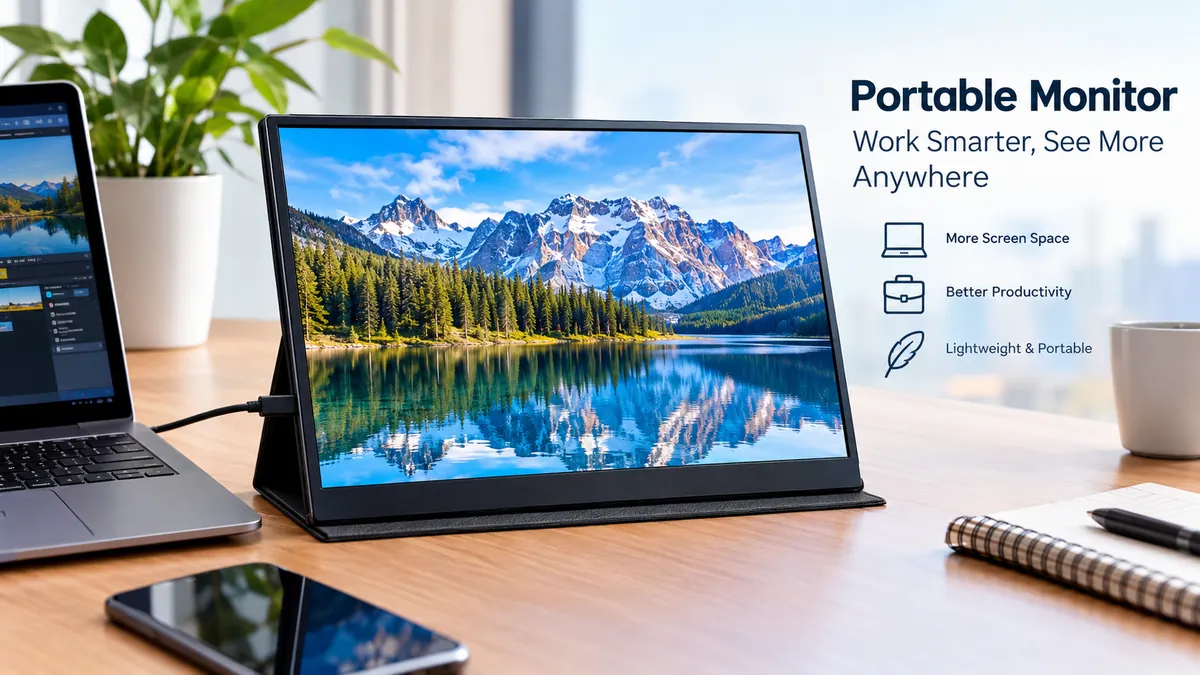

Working from a laptop is convenient until the screen starts feeling cramped. A spreadsheet, browser, video call, reference document, and messaging app can turn one display into a constant cycle of minimizing and switching windows. A portable monitor gives you extra screen space without tying your setup to a permanent desk.
A portable monitor is a thin, lightweight external display designed to travel with a laptop, tablet, smartphone, or compatible game console. Most modern models use an IPS or OLED panel and connect through USB-C with DisplayPort Alt Mode, HDMI, or both. Many USB-C models can receive video and power through a single cable, making them useful for mobile dual-screen setups.
What Is a Portable Monitor?
A portable monitor performs essentially the same job as a traditional desktop monitor but is designed around mobility.
Instead of a heavy base and large enclosure, portable displays generally use thin panels, folding covers, kickstands, or integrated stands. Common sizes sit around the laptop-display range, with 14-inch, 15.6-inch, 16-inch, and 17.3-inch designs widely represented in the current market. Display Ninja’s August 2026 database, for example, lists more than 100 portable-display models spanning brands including Acer, AOC, ASUS, and Arzopa.
A typical unit can be used as an extended desktop or as a mirrored display. That makes it useful for keeping a document open beside a browser, moving communication apps away from the main screen, presenting information to another person, or displaying games and video from compatible devices.
Unlike a laptop screen extender that may physically attach to the computer, many portable monitors are independent displays. You place one beside the laptop and connect it with a cable.
How Does a Portable Monitor Work?
The basic process is straightforward: a source device sends a video signal to the display while either the source device or an external adapter supplies power.
USB-C has made this considerably simpler. On compatible hardware, one USB-C cable can carry both video and power. ASUS, for example, specifies single-cable video and power operation for compatible ZenScreen models, while Lenovo uses dual USB-C implementations on several ThinkVision mobile displays.
There is one compatibility detail that causes more confusion than almost anything else:
A USB-C connector does not automatically mean the port can output video.
For native USB-C video, the computer or mobile device generally needs a USB-C port supporting DisplayPort Alternate Mode, commonly written as DisplayPort Alt Mode or DP Alt Mode. Thunderbolt ports can also provide the required display functionality. Dell specifically notes that USB-C ports carrying only data or power cannot send a display signal to its compatible portable monitors.
USB-C connection
With a compatible USB-C port, setup can be as simple as:
- Connect the monitor to the laptop using a full-featured USB-C cable.
- Turn on the monitor if necessary.
- Open the operating system’s display settings.
- Select Extend if you want additional desktop space or Duplicate/Mirror if both screens should show the same content.
- Adjust resolution, scaling, orientation, and screen position.
This is generally the cleanest portable setup because one cable may handle both power and video.
HDMI connection
HDMI is useful when the laptop, desktop, camera, or game console lacks compatible USB-C video output.
Many travel displays use mini-HDMI or micro-HDMI rather than a full-size HDMI socket to save space. In this configuration, HDMI usually carries the video signal while a separate USB connection or power adapter supplies electricity to the monitor.
ASUS, for example, offers portable ZenScreen models with both USB-C and mini-HDMI, specifically allowing HDMI operation when USB-C DP Alt Mode is unavailable.
Portable Monitor Connections Explained
Compatibility should be checked before resolution, refresh rate, color gamut, or almost any other specification. A technically impressive display is useless if the source device cannot send it a signal.
| Connection | Video | Power | Typical use |
|---|---|---|---|
| USB-C with DP Alt Mode | Yes | Often | Laptop, tablet, compatible phone |
| Thunderbolt | Yes | Often | Compatible laptops and computers |
| HDMI / mini-HDMI | Yes | No | Laptop, console, camera, media device |
| USB-C power input | No, if power-only | Yes | External monitor power |
| Wireless display | Wireless video | Usually separate/battery | Compatible computers and mobile devices |
USB-C Power Delivery, commonly abbreviated USB PD, is related to charging rather than proof of video support. A USB-C port may support charging but not DisplayPort Alt Mode, or vice versa.
Some monitors also offer power pass-through. In that arrangement, a USB-C charger connects to the monitor, which powers itself while passing some available power onward to the laptop. Lenovo’s ThinkVision M14d, for example, supports USB-C power pass-through up to 65W, while Plugable describes similar charging functionality on its portable-monitor designs.
What Screen Size Is Best for a Portable Monitor?
There is no universally ideal size because portability and usable workspace pull in opposite directions.
A 14-inch display is easier to fit beside a compact laptop and usually weighs less. Lenovo’s ThinkVision M14t, for example, uses a 14-inch Full HD IPS panel and is listed at about 698 grams for the display component.
Around 15.6 to 16 inches is a practical middle ground. It provides substantially more working space while still fitting into many laptop bags. This size is heavily represented across ASUS ZenScreen, ViewSonic, Arzopa, and competing portable-display ranges.
A 17.3-inch portable monitor offers a larger canvas but becomes noticeably less convenient to carry. ASUS’s 17.3-inch ZenScreen MB17AHG, for example, weighs about 1.29 kg.
The dimensions of the entire monitor matter too. Two displays with the same diagonal screen size may differ in bezel width, thickness, stand design, and carrying weight.
16:9 vs 16:10
Aspect ratio deserves more attention than it usually receives.
A 16:9 Full HD display at 1920 × 1080 remains common and works well for video, general productivity, and gaming.
A 16:10 screen adds vertical workspace. Common resolutions include 1920 × 1200 and 2560 × 1600. That extra height is useful for documents, spreadsheets, browser windows, coding, timelines, and editing interfaces.
Current models such as the ASUS ZenScreen MB16QHG use a 16-inch 16:10 panel with a 2560 × 1600 resolution, while ViewSonic’s VG1656N uses a 1920 × 1200 16:10 display.
What Resolution Should You Choose?
Resolution determines how many pixels the display contains, but higher is not automatically better in every portable setup.
1920 × 1080 Full HD
Full HD remains one of the most common resolutions for approximately 14- to 16-inch portable displays. It provides enough pixel density for typical office work while placing relatively modest demands on the graphics system and connection bandwidth.
It is well suited to:
- email and browsing
- Microsoft Office or Google Workspace
- presentations
- dashboards
- secondary reference windows
- casual entertainment
1920 × 1200
This WUXGA resolution is particularly useful on a 16:10 screen because it adds 120 vertical pixels compared with Full HD.
That sounds minor, but the extra working area can make long documents, code, websites, and spreadsheets feel less cramped.
2560 × 1440 and 2560 × 1600
QHD-class resolutions produce finer text and more usable detail. They make sense for people who appreciate higher pixel density or regularly work with dense interfaces.
The trade-off is that operating-system scaling becomes more important on small screens. Running a 2560 × 1600 16-inch display at 100% scaling can make interface elements too small for comfortable use.
4K
A 3840 × 2160 portable monitor can provide exceptionally sharp imagery, but 4K is not automatically necessary on a small secondary screen.
It becomes more meaningful for detailed photography, high-resolution video review, specialized creative workflows, or users who strongly prefer very high pixel density.
For general office work, Full HD or 1920 × 1200 is often sufficient.
IPS vs OLED Portable Monitor
Panel technology affects color, contrast, viewing angles, motion characteristics, power behavior, and price.
IPS portable monitors
IPS panels dominate much of the mainstream portable-display market. They generally provide good viewing angles, predictable color, and affordable pricing.
That combination works especially well because portable displays are frequently viewed from imperfect angles on hotel desks, café tables, temporary workspaces, and airplane tray tables.
ASUS, Lenovo, ViewSonic, Arzopa, AOC, and other manufacturers all offer IPS-based portable displays.
OLED portable monitors
OLED panels can produce true blacks at the pixel level, extremely high perceived contrast, rapid response times, and wide color gamuts.
For example, ASUS lists its ZenScreen OLED MQ16AH with 100% DCI-P3 coverage, a 1 ms response time, HDR-10 support, and an OLED panel.
OLED can be attractive for photography, video, movies, and other image-focused use. Its disadvantages can include higher cost and the long-term possibility of image retention or burn-in when static interface elements remain visible repeatedly.
For a second screen displaying spreadsheets, taskbars, browser controls, or dashboards all day, a conventional IPS monitor may remain the simpler choice.
Brightness Matters More Than Many Buyers Expect
Brightness is usually specified in nits, technically candelas per square meter.
Portable displays are commonly used in less controlled lighting than desktop monitors, so weak brightness can become frustrating quickly. HP notes that portable monitors commonly sit around the 250–300-nit range, while conventional desk displays can reach 400 nits or higher.
About 250 nits can be adequate indoors when lighting is controlled.
Around 300 nits provides more flexibility in bright offices and rooms.
Higher brightness becomes valuable if the monitor will regularly face windows or strong ambient light.
Even a bright portable monitor is not necessarily an outdoor display. Reflections and the screen’s anti-glare treatment can matter almost as much as the published brightness number.
Color Gamut and Accuracy
Color specifications become important when the display is used for photography, video editing, design, or other visual work.
sRGB is the most relevant color space for ordinary web and office use. A display approaching full sRGB coverage is preferable when consistent colors matter.
DCI-P3 covers a wider range of colors and is commonly referenced by premium displays intended for creative work and HDR-oriented content.
For example, Lenovo advertises 100% sRGB coverage on its ThinkVision M14d, while ASUS lists 100% DCI-P3 on the ZenScreen MB16QHG.
Do not judge color performance by gamut percentage alone. Accuracy, calibration, panel uniformity, white balance, gamma, and brightness behavior also influence what you actually see.
People doing color-critical professional work should pay considerably more attention to independent measurements than someone buying a second screen for email.
Refresh Rate: Is 60Hz Enough?
For normal productivity, 60Hz is enough for most people.
Documents, spreadsheets, email, dashboards, and web pages do not require 120Hz, 144Hz, or 180Hz to function well.
Higher refresh rates mainly improve motion smoothness. They can make scrolling feel more responsive and are particularly relevant to gaming.
Portable gaming displays increasingly offer higher refresh rates. ASUS currently sells 144Hz portable models, while PCWorld and WIRED have evaluated current displays reaching 180Hz.
Higher refresh rate also needs compatible output hardware. The laptop or console, cable, interface, resolution, and monitor must all support the desired combination.
A 180Hz panel does not guarantee that every connected device will drive it at 180Hz.
Portable Monitor for Laptop Productivity
The strongest argument for carrying a second screen is not that two displays automatically make someone more productive. It is that some workflows become considerably easier when information does not constantly need to be hidden.
One screen can hold the active task while the second shows reference information.
A writer might keep research on the portable display and the document on the laptop. A programmer can dedicate one screen to code and another to documentation or application output. An analyst can place a spreadsheet on one display and a dashboard on the other.
Remote workers can keep a video call visible while continuing to work without shrinking everything onto a single laptop panel.
This is why current guidance from PCWorld, WIRED, Micro Center, and other sources consistently frames portable displays as mobile extensions of the familiar multi-monitor desktop environment.
Portrait mode can be surprisingly useful
A monitor that rotates vertically can work well for:
- long documents
- web pages
- programming
- chat applications
- PDFs
- social feeds
- reference material
ViewSonic and ASUS both offer models designed to support landscape and portrait operation, although automatic rotation capabilities can depend on the display and software environment.
Can You Use a Portable Monitor With a Phone or Tablet?
Sometimes.
The biggest requirement is video output support from the mobile device.
For a direct USB-C connection, the phone or tablet generally needs compatible DisplayPort Alt Mode output. Power must also be considered because some mobile devices cannot provide enough electricity to run the monitor reliably.
Plugable, for example, says its compatible portable display can work with supported USB-C smartphones and tablets, but the source device must support DP Alt Mode; if the mobile device cannot provide the necessary power, a separate USB Power Delivery source is required.
ViewSonic likewise lists compatibility with Android, iOS, iPadOS, Chrome, Windows, and macOS on certain models while noting specific DisplayPort Alt Mode and power requirements.
Older Lightning-equipped iPhones and iPads usually need adapters rather than a direct USB-C display connection.
Compatibility therefore needs to be checked for the exact phone, tablet, monitor, and cable combination.
Can a Portable Monitor Work With a Game Console?
Yes, if the monitor provides an input compatible with the console.
HDMI is usually the simplest option. A monitor with mini-HDMI may require an HDMI-to-mini-HDMI cable, after which a separate USB connection supplies power.
Portable displays can work especially well with devices such as handheld consoles because they provide a larger screen without requiring a permanent television or desktop setup.
Gaming users should check more than basic compatibility. Refresh rate, response time, adaptive-sync support, input lag, speakers, resolution, and console output capabilities all influence the experience.
Touchscreen Portable Monitors
Touch functionality can be useful, but it should not be assumed simply because a monitor connects through USB-C.
A touchscreen monitor needs both video transmission and a data path for touch input. Operating-system and device compatibility can also vary.
Lenovo’s ThinkVision M14t, for example, provides 10-point touch functionality on a 14-inch Full HD display. ViewSonic’s TD1655 similarly combines portable-display functionality with touch support and USB-C DisplayPort Alt Mode connectivity.
Touch makes the most sense for annotation, drawing, interactive presentations, kiosklike applications, or workflows where direct screen interaction genuinely helps.
For ordinary spreadsheet and browser use, it can add cost without adding much practical value.
Battery-Powered and Wireless Portable Monitors
Most portable monitors do not contain their own battery. They draw power from the connected computer or a USB power source.
Battery-equipped models are different. They can reduce reliance on the laptop’s battery and support more flexible placement, although the monitor itself then becomes heavier and needs charging.
ASUS’s ZenScreen Go MB16AWP is one example, combining wireless mirroring with a built-in 7,800 mAh battery, USB-C, mini-HDMI, speakers, and wireless compatibility with supported devices.
Wireless monitors remove the physical video cable but introduce different considerations, including latency, compression, compatibility, network conditions, and battery consumption.
For routine productivity, a direct wired USB-C connection remains simpler and more predictable.
Power Consumption and Laptop Battery Life
A bus-powered portable screen takes energy from the laptop.
That means unplugged runtime will generally fall compared with using the laptop display alone. The exact difference depends on display size, brightness, panel technology, laptop battery capacity, workload, and the efficiency of both devices.
Some lightweight monitors consume relatively little power. ViewSonic lists the TD1655 at approximately 8W typical consumption, illustrating the modest but still meaningful additional load a portable display can place on a mobile setup.
For long mobile sessions, a USB-C charger and power-pass-through monitor can make cable management easier.
For flights, trains, cafés, or locations without outlets, lowering monitor brightness can extend runtime.
Stand Design and Ergonomics
A poor stand can make an otherwise good display unpleasant to use.
Portable monitors generally rely on one of three arrangements: a folding cover that becomes a stand, an integrated kickstand, or a separate mounting system.
Integrated kickstands are usually quicker to deploy and easier to adjust. Cover-style stands save hardware and protect the screen but may provide fewer viewing angles.
More advanced designs include tripod threads and height-adjustable stands. ASUS includes tripod sockets on several ZenScreen models, while Lenovo incorporates adjustable stand mechanisms on selected ThinkVision mobile displays.
Ergonomics still matter even when the display is temporary. If both screens sit too low, users can end up looking downward for hours.
For a semi-permanent desk setup, placing the portable monitor on an elevated stand may be more comfortable than relying on its travel cover.
What to Check Before Using a Portable Monitor
The safest way to avoid connection problems is to verify the entire signal path rather than assuming two matching connector shapes will work.
Check these points in order:
- Confirm the source device can output video. For USB-C, verify DisplayPort Alt Mode or Thunderbolt support.
- Confirm the monitor’s required input. Some USB-C sockets are full-featured while others are intended only for power.
- Use the correct cable. Not every USB-C cable carries high-speed data and video.
- Plan for power. HDMI connections normally need a separate USB power source, and some phones cannot power a monitor themselves.
- Verify resolution and refresh-rate support. The source device and connection must support the target display mode.
- Check operating-system behavior. Touch, automatic rotation, HDR, and wireless display features may require additional support.
- Set the display to Extend rather than Duplicate when your goal is additional desktop space.
Dell’s troubleshooting documentation reinforces the first point: when a compatible portable monitor displays no video over USB-C, the host device’s lack of DisplayPort Alt Mode is a primary cause worth checking.
Common Portable Monitor Problems
The monitor says “No Signal”
Start by checking the laptop’s USB-C specification.
A charging-capable USB-C port is not automatically a video-capable port. Try a known DisplayPort Alt Mode or Thunderbolt connection, or move to HDMI if the monitor supports it.
The monitor turns on and then goes black
Insufficient power is a common cause. Connect the display to an external USB-C charger if it has a dedicated power port.
Reducing brightness can also help on borderline power configurations.
USB-C works for charging but not video
This usually indicates that the port, cable, or both lack the necessary video functionality.
Check for DisplayPort Alt Mode support in the laptop documentation rather than relying on the connector’s appearance.
Text looks too small
Higher-resolution portable displays often need operating-system scaling.
Try 125%, 150%, or another comfortable scaling level rather than lowering the panel’s native resolution immediately.
The second screen mirrors the laptop
Open Windows, macOS, or ChromeOS display settings and switch from mirroring or duplication to an extended desktop.
The screen orientation is wrong
Select landscape or portrait orientation in the operating-system display settings. Some models support automatic rotation, but this may depend on manufacturer software.
Portable Monitor vs Desktop Monitor
A portable display should not automatically replace a conventional desktop monitor.
| Factor | Portable monitor | Desktop monitor |
|---|---|---|
| Portability | Excellent | Poor |
| Typical screen size | Smaller | Larger |
| Desk space required | Low | Higher |
| USB-powered options | Common | Less common |
| Brightness | Often lower | Often higher |
| Ergonomic adjustment | Limited to moderate | Often better |
| Inputs | Usually fewer | Usually more |
| Travel use | Excellent | Impractical |
| Permanent workstation | Good as secondary screen | Usually better |
A conventional 24- to 32-inch monitor is generally more comfortable for an everyday desk. It can provide a larger panel, stronger stand adjustment, more connectivity, and higher brightness without needing to prioritize weight.
A portable display wins when mobility is the requirement.
Is a Portable Monitor Worth It?
A portable monitor is worthwhile when additional screen space repeatedly solves a real problem and you regularly work away from a fixed desktop.
It is particularly practical for hybrid workers, students, programmers, analysts, writers, presenters, and travelers who otherwise spend significant time rearranging windows on a single laptop screen.
It makes less sense when it remains in the bag most of the time. Carrying another fragile screen also adds weight, cables, setup time, and power demand. A short trip dominated by meetings or café stops may not justify it, while a week spent working from the same hotel desk may. Recent travel-focused guidance makes the same distinction: the value depends on workspace, stay length, available power, and the work actually being performed.
The most dependable general-purpose configuration is still relatively simple: an approximately 14- to 16-inch IPS display, Full HD or 1920 × 1200 resolution, useful brightness, a stable stand, and USB-C with DisplayPort Alt Mode support. HDMI is valuable as a fallback because it expands compatibility beyond full-featured USB-C devices.
Higher-resolution panels, OLED, HDR, touchscreen support, 120Hz-plus refresh rates, wireless mirroring, built-in batteries, DCI-P3 coverage, and USB Power Delivery pass-through can all be worthwhile—but only when they solve a specific need.
The key is compatibility first, portability second, and display specifications third. Get those priorities right and a portable monitor can turn an ordinary laptop into a far more capable dual-screen workspace without giving up the mobility that made the laptop useful in the first place.
