
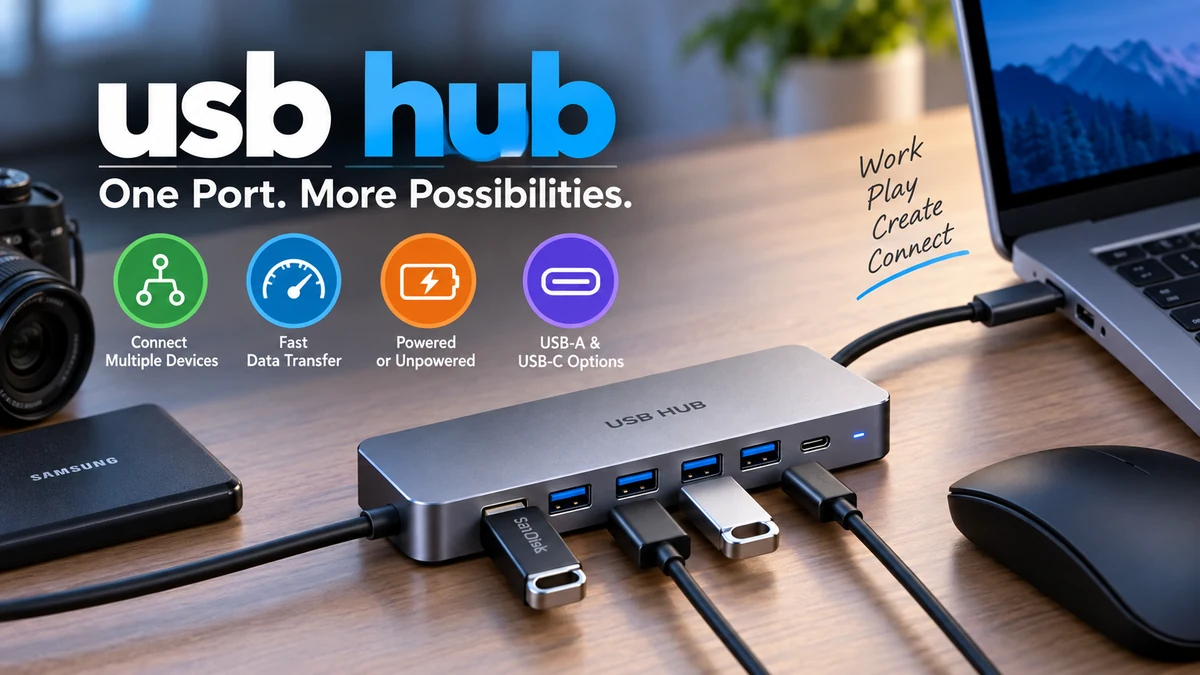

Modern laptops keep getting thinner, but many of us still need to connect keyboards, mice, flash drives, external SSDs, printers, cameras, card readers, and other accessories. A usb hub solves that basic problem by turning one USB connection on a computer into several usable ports.
A usb hub is a device that expands one USB port into multiple downstream ports, allowing several USB devices to communicate with the same host computer. The connected devices share the hub’s upstream connection, which means available data bandwidth and, in many cases, electrical power must be divided among them.
That simple definition hides several important details. USB hubs can use USB-A or USB-C connectors, run at very different data speeds, draw power from the computer or an external adapter, and sometimes support charging, displays, Ethernet, and memory cards.
Understanding those differences makes it much easier to know what a hub can—and cannot—do.
What Is a USB Hub?
A USB hub is essentially a connection multiplier.
Suppose a laptop has one available USB port, but you want to connect:
- A keyboard
- A mouse
- A USB microphone
- A flash drive
A four-port hub lets all four peripherals connect through that single host port.
The computer still communicates with each device individually. The hub sits between the host and those peripherals, directing USB traffic to the correct downstream connection.
USB terminology distinguishes the two sides:
- Upstream port: connects the hub toward the host computer.
- Downstream ports: connect the hub to USB peripherals.
USB hubs can be built into monitors, keyboards, docking stations, computers, and other hardware, or they can be separate external devices. External models range from tiny travel adapters to large powered desktop hubs with numerous ports.
Is a USB hub the same as a splitter?
Not exactly.
A simple electrical splitter merely divides a connection. USB requires devices to be detected, addressed, powered appropriately, and managed through the USB protocol.
A proper hub contains electronics that allow the host controller to communicate with several devices through one USB connection. For that reason, reputable USB expansion devices should be described and designed as hubs rather than passive cable splitters.
How Does a USB Hub Work?
When you connect a hub to a computer, the operating system recognizes the hub as a USB device. Peripherals attached to its downstream ports are then detected and enumerated through the USB hierarchy.
The host remains responsible for controlling communications.
A simplified connection looks like this:
Computer → USB host port → USB hub → multiple USB devices
For example:
Laptop USB-C port → hub → keyboard + mouse + SSD + flash drive
The hub does not normally combine the connected peripherals into one device. Your operating system still sees the keyboard as a keyboard, the SSD as storage, and the mouse as a pointing device.
USB hub topology
USB supports a tiered topology in which hubs can sit between the host and endpoint devices. Historically, USB specifications have permitted multiple hub tiers, although practical systems rarely need deeply chained arrangements.
Each extra hub also adds complexity to power distribution, device compatibility, and bandwidth sharing.
For everyday setups, connecting important high-bandwidth devices as close to the computer as possible is generally the simpler approach.
USB Hub Speeds Explained
One of the biggest misunderstandings about USB hubs is that every port on the hub automatically receives the speed printed on the packaging.
It does not work that way.
The hub’s devices ultimately share the capacity of its upstream USB connection.
Common USB data rates include:
| USB technology | Maximum signaling/data rate commonly advertised | Typical uses |
|---|---|---|
| USB 2.0 | 480 Mbps | Keyboard, mouse, basic printers |
| USB 5Gbps | 5 Gbps | Flash drives, storage, general peripherals |
| USB 10Gbps | 10 Gbps | Faster SSDs and data transfers |
| USB 20Gbps | 20 Gbps | High-performance storage and peripherals |
| USB4 | Up to 40 or 80 Gbps depending on implementation | High-speed data, displays, advanced docks |
USB-IF states that USB 3.2 includes 5Gbps, 10Gbps, and 20Gbps transfer-rate implementations. USB4 extends the architecture further and can support operation up to 80Gbps with appropriate hardware and certified cables.
The numbers represent maximum interface capabilities rather than guaranteed real-world file-copy speeds.
Why USB hub bandwidth is shared
Imagine a 5Gbps hub connected to a 5Gbps computer port.
Connecting one fast external SSD may allow it to use a large portion of the available bandwidth. If you simultaneously transfer files between several high-speed drives, they must compete for the same upstream link.
A hub therefore expands the number of connections, not the bandwidth of the computer’s original USB port. This bandwidth-sharing behavior is fundamental to conventional USB hub operation.
A keyboard and mouse use very little bandwidth, so sharing usually makes no noticeable difference. Multiple external SSDs, capture devices, or other data-heavy peripherals are a different story.
Does a USB hub slow down devices?
Not automatically.
A hub may have virtually no noticeable effect on low-bandwidth devices such as:
- Keyboards
- Mice
- Game controllers
- Basic printers
- USB security keys
Performance becomes more relevant when several high-speed devices transfer data simultaneously.
The final speed depends on the slowest or most restrictive part of the connection path, including:
- Computer’s USB capability
- Hub’s upstream interface
- Hub controller
- Connected peripheral
- USB cable
- Other devices sharing bandwidth
For maximum SuperSpeed operation, the host, hub, device, and connecting cables must all support the required USB mode.
Powered vs Unpowered USB Hub
USB hubs are commonly divided into bus-powered and self-powered designs.
Understanding this distinction is especially important if you plan to connect hard drives or several power-hungry accessories.
Bus-powered USB hub
A bus-powered hub receives its electrical power through the USB connection to the host computer.
There is no separate wall adapter.
These hubs work well with relatively low-power peripherals such as:
- Mouse
- Keyboard
- USB receiver
- Small flash drive
- Memory-card reader
Their main limitation is straightforward: the hub can distribute only the power available from its upstream connection, after accounting for its own operation.
With multiple demanding devices connected, available power can become insufficient.
Powered USB hub
A powered, or self-powered, USB hub connects to an external power supply.
That external supply allows the hub to provide substantially more usable power to its downstream ports without relying entirely on the host computer.
Powered hubs are particularly useful for:
- Multiple external drives
- USB-powered audio equipment
- Several charging devices
- Desktop workstations
- High-power peripherals
- Large multi-port configurations
StarTech notes that an unpowered hub may work normally for low-power peripherals but can have difficulty operating high-demand hardware such as external hard drives. Connecting the hub’s external power adapter improves available power and device stability.
Quick Takeaway
Choose bus-powered for portability and lightweight accessories. Choose externally powered when several devices need substantial power or reliable continuous operation.
USB-A Hub vs USB-C Hub
USB-A and USB-C describe connector types rather than a single guaranteed data speed.
That distinction matters.
USB-A hub
A traditional USB-A hub normally uses a rectangular USB Type-A plug for its upstream connection and provides several Type-A ports.
These remain useful for older and current peripherals that use standard USB-A plugs.
Typical examples include:
- Wired keyboards
- Mice
- Printers
- Flash drives
- Older external drives
- Wireless dongles
USB-C hub
A USB-C hub connects through the smaller reversible USB Type-C connector.
Because USB-C can support more than conventional USB data, many USB-C hubs incorporate functions such as:
- USB-A ports
- Additional USB-C ports
- HDMI or DisplayPort output
- Ethernet
- SD and microSD card readers
- Audio connections
- USB Power Delivery pass-through
But the USB-C connector alone does not guarantee that every one of those capabilities is supported.
Two USB-C ports can look identical while supporting different combinations of data speeds, charging, display output, and other protocols.
Always separate the idea of connector shape from connection capability.
USB 2.0, USB 3.x and USB4 Hubs
Different generations of USB provide very different levels of performance.
USB 2.0 hub
USB 2.0 supports a maximum rate of 480 Mbps.
That is still plenty for devices that transfer little data, including many keyboards, mice, controllers, and printers.
It is much less attractive for modern high-speed storage.
USB 3.x hub
You may encounter labels such as USB 3.0, USB 3.1, USB 3.2, SuperSpeed USB, 5Gbps, 10Gbps, or 20Gbps.
Naming changes over the USB standard’s history have created considerable consumer confusion.
For practical comparison, checking the advertised data rate in Gbps is often more informative than relying only on older generation names.
USB-IF currently describes USB 3.2 implementations around data performance levels of 5Gbps, 10Gbps, and 20Gbps.
USB4 hub
USB4 is designed around USB Type-C and can dynamically allocate a high-speed connection among data and display protocols.
According to USB-IF, the architecture builds on USB 3.2 and USB 2.0 while incorporating technology derived from Intel’s Thunderbolt protocol contribution. USB4 supports backward compatibility and can reach up to 80Gbps in supported configurations.
That does not mean every device labeled USB4 automatically runs at the maximum USB4 speed. Host hardware, peripheral capabilities, cables, and hub specifications still determine the actual connection.
What Can You Connect to a USB Hub?
Most standard USB peripherals can work through an appropriate hub.
Common examples include:
Keyboards and mice
These are ideal hub devices because their data requirements are tiny compared with modern USB bandwidth.
Connecting several input devices generally has little effect on performance.
USB flash drives
Flash drives work well, although transfer speed depends on both the drive and hub.
A fast USB storage device connected through a USB 2.0 hub will be limited to USB 2.0 performance.
External HDDs and SSDs
External storage requires more consideration.
Mechanical hard drives may need sufficient electrical power, while modern SSDs can generate substantial data traffic.
A powered high-speed hub is generally more suitable when multiple external drives will operate simultaneously.
Printers and scanners
Most conventional USB printers and scanners can operate through hubs without difficulty.
Devices that depend on unusual drivers, very high bandwidth, or specific manufacturer configurations may behave differently, so direct connection can help when troubleshooting.
Cameras and card readers
A hub can make transferring photographs and videos much more convenient, particularly when a laptop lacks built-in SD or microSD slots.
Audio interfaces and microphones
USB microphones, DACs, audio interfaces, and headsets may work through hubs, but audio professionals sometimes prefer direct connections for equipment that is sensitive to power stability or latency.
Phones and tablets
Phones and tablets can often connect for data transfer or charging.
Charging performance depends heavily on the hub’s available output and supported charging protocol.
Can a USB Hub Charge Devices?
Yes, many USB hubs can provide power to connected devices, but USB connectivity and fast charging are not the same thing.
A basic bus-powered hub may provide enough power for accessories while delivering relatively modest charging performance.
Other hubs support dedicated charging ports or USB Power Delivery (USB PD).
USB Power Delivery allows compatible USB-C equipment to negotiate higher power levels. On multi-function USB-C hubs, a PD input port often allows a charger to connect to the hub so power can pass through toward the laptop while the hub handles other peripherals.
Do not assume a port supports charging simply because it uses USB-C.
Check whether the specific port is intended for:
- Data
- Charging
- Power input
- Power output
- Display
- A combination of functions
Some hubs also reserve one USB-C socket solely for PD power input.
USB Hub vs Docking Station
USB hubs and docking stations overlap, particularly now that USB-C can carry data, power, and video.
Still, their typical roles differ.
| Feature | USB hub | Docking station |
|---|---|---|
| Main purpose | Add more ports | Create a full workstation connection |
| USB expansion | Yes | Yes |
| Ethernet | Sometimes | Common |
| Display outputs | Sometimes | Common |
| Laptop charging | Some models | Common |
| Multiple monitors | Limited/model dependent | Often supported |
| Size | Usually compact | Usually larger |
| External power | Optional | Often required |
A simple hub mainly expands USB connectivity.
A docking station generally aims to turn one laptop connection into an entire desktop environment with displays, networking, USB peripherals, audio, and power.
The boundary is becoming less distinct because many modern USB-C hubs include HDMI, Ethernet, memory-card slots, and Power Delivery.
USB Hub vs Thunderbolt Hub
Thunderbolt and USB increasingly share the USB-C connector, but they are not identical technologies.
Thunderbolt hubs are designed for Thunderbolt connectivity and can support demanding combinations of high-speed data and display connections when paired with compatible hosts.
USB4 also has a close technical relationship with Thunderbolt. USB-IF states that USB4 was built partly on the Thunderbolt protocol specification contributed by Intel and supports multiple data and display protocols over a shared high-speed connection.
The key lesson is simple:
A USB-C-shaped connector does not prove that a port supports Thunderbolt.
Look for the actual USB or Thunderbolt capabilities of both the computer and hub.
Does a USB Hub Need Power?
Every functioning USB hub needs electrical power for its electronics.
The real question is where that power comes from.
A bus-powered unit receives power from the host USB connection. A self-powered model receives additional power from an external adapter.
You usually do not need an externally powered hub for a basic keyboard, mouse, and USB receiver.
External power becomes more useful as you add:
- Portable hard drives
- Several SSDs
- Charging devices
- Audio hardware
- Numerous peripherals
- Equipment with higher power requirements
If devices repeatedly disconnect, fail to appear, or work only when other peripherals are unplugged, inadequate power is one possible cause.
Can You Connect One USB Hub to Another?
Yes, USB hubs can technically be connected in a chain, but doing so is not always the best arrangement.
Each added hub shares the connection upstream and adds another point where power, cables, compatibility, or bandwidth can become limiting.
A better setup for demanding devices is usually:
- Keep high-bandwidth storage close to the host.
- Avoid unnecessarily long hub chains.
- Use powered hubs where appropriate.
- Separate demanding devices across different host ports when possible.
For simple peripherals such as mice and keyboards, cascading may work without any noticeable problem.
What Happens When Too Many Devices Are Connected?
Three limitations usually matter.
1. Bandwidth
Several high-speed devices may compete for the same upstream data link.
2. Power
A bus-powered hub may not have enough available electrical power for every connected peripheral.
3. Host and controller resources
USB operates through controllers, device addressing, drivers, and operating-system resources. Very large or complicated device chains can introduce compatibility issues even before theoretical USB limits are reached.
For ordinary home and office use, these limits rarely matter when connecting a handful of typical accessories.
Problems become more likely with large arrays of storage devices, capture hardware, industrial equipment, or complicated chains of hubs and adapters.
Why Is My USB Hub Not Working?
Hub problems often have straightforward causes.
The hub is not detected
Try another host port and verify the upstream cable is fully connected.
If the hub uses a detachable cable, test a cable known to support data rather than a charge-only cable.
A connected device keeps disconnecting
Power may be insufficient, especially with external drives.
If the hub supports an external adapter, connect it. You can also test the troublesome device directly on the computer.
Transfer speed is unexpectedly slow
Check every part of the path.
A fast SSD connected to a 10Gbps hub can still run slowly if the hub is plugged into a USB 2.0 host port.
Remember the chain:
Host → cable → hub → cable → peripheral
The connection normally operates according to the capabilities shared by the relevant components. USB 3.2 itself is backward compatible and falls back according to the capabilities of connected hardware.
USB-C video output does not work
USB-C shape alone does not guarantee video capability.
The laptop’s USB-C port, hub, and display path must support the required display functionality.
A hard drive appears and disappears
Try a powered hub or connect the drive directly to the computer.
High-power devices are more likely than keyboards or mice to experience problems when a bus-powered hub cannot supply sufficient power.
How to Choose the Right USB Hub
Instead of focusing only on the number of ports, match the hub to the equipment you actually use.
1. Check your computer’s host port
Identify whether you are connecting through USB-A or USB-C and determine its supported data speed and features.
A high-performance hub cannot create capabilities the computer port does not provide.
2. Count the ports you need
Include devices that remain connected permanently as well as occasional accessories.
Leaving one or two spare ports can be useful.
3. Match the required data speed
For a keyboard and mouse, USB 2.0 can be sufficient.
For SSDs and large file transfers, 5Gbps, 10Gbps, 20Gbps, USB4, or another appropriate high-speed connection makes more sense.
4. Decide whether external power is necessary
Multiple hard drives or other high-demand devices favor a powered design.
A lightweight travel hub for a mouse and flash drive may not need one.
5. Check individual USB-C port functions
A USB-C socket may support data, charging, video, or only a subset of those functions.
Read specifications carefully.
6. Consider cable specifications
Cables matter more than many users realize.
A cable with the right connector may still lack the required data rate, charging capacity, or display capability.
7. Check operating-system and device compatibility
Most basic hubs require no special software, but specialized video, networking, or industrial functions may rely on specific controllers or drivers.
Common USB Hub Mistakes
A few misconceptions cause a large percentage of USB hub problems.
Assuming every port receives full advertised bandwidth: downstream devices generally share the upstream connection.
Treating USB-C as a speed specification: USB-C describes a connector; supported protocols and speeds vary.
Using an unpowered hub for too many demanding devices: power limitations can cause unstable drives and peripherals.
Ignoring the host port: a 10Gbps hub cannot provide a 10Gbps path when attached through a slower host connection.
Using the wrong cable: visually similar cables may support very different capabilities.
Expecting a hub to upgrade the computer: a hub exposes or distributes capabilities already available through the host connection; it cannot magically add unsupported protocols.
Are USB Hubs Safe to Use?
A properly designed, standards-compliant hub is a normal way to expand USB connectivity.
USB specifications and compliance programs are maintained by the USB Implementers Forum (USB-IF), the organization responsible for promoting and maintaining technologies including USB Type-C, USB 3.2, USB4, and USB Power Delivery.
For reliable everyday use:
- Use properly specified hubs and cables.
- Avoid damaged connectors.
- Use the correct external power adapter.
- Do not overload charging ports.
- Keep high-performance hubs ventilated.
- Verify the hub supports the protocols your equipment requires.
A hub becoming mildly warm during heavy data transfer or charging is not necessarily unusual, but excessive heat, electrical odor, visible damage, or repeated power failures are reasons to disconnect it.
Is a USB Hub Worth Using?
For anyone dealing with a shortage of ports, a usb hub is one of the simplest ways to expand a computer’s connectivity.
The main thing to remember is that more ports do not mean unlimited resources. Connected devices share an upstream data connection, and bus-powered models must also share available electrical power.
For keyboards, mice, flash drives, receivers, printers, and similar accessories, a straightforward hub may be all that is required. High-speed SSDs, several external drives, charging devices, displays, or workstation equipment demand more attention to USB speed, Power Delivery, external power, cables, and host capabilities.
Choose the hub around those technical requirements rather than connector count alone, and it becomes a predictable, useful extension of the computer instead of another source of connection problems.
