
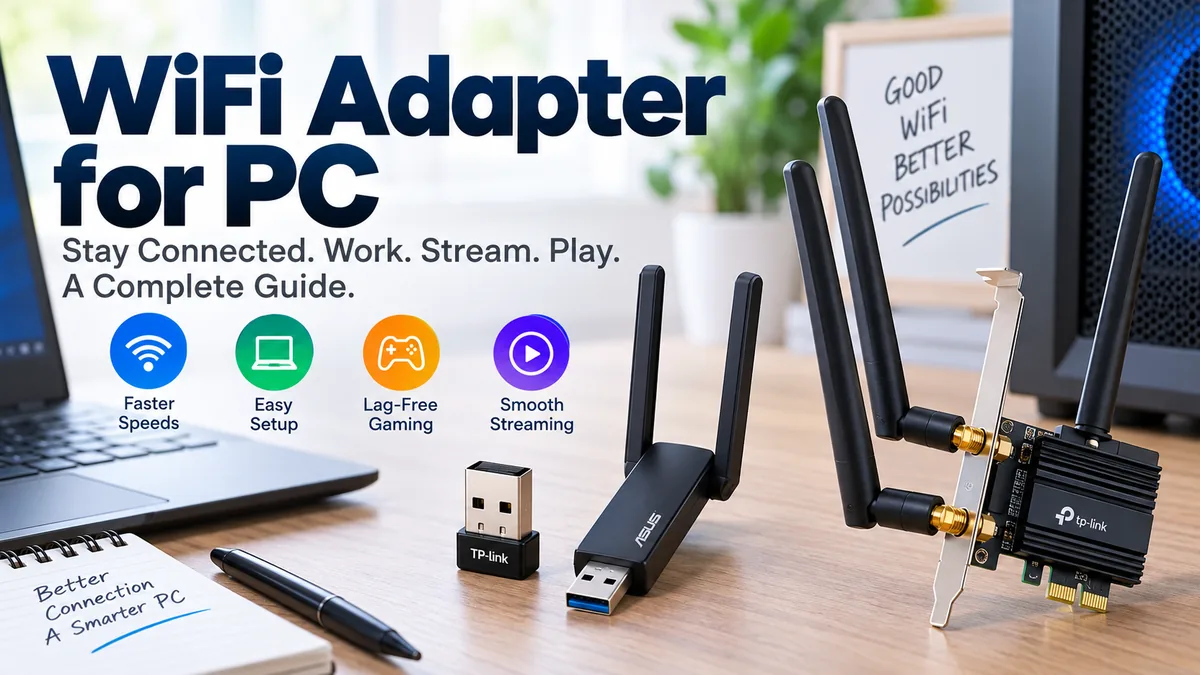

A desktop can be perfectly capable yet still have no practical way to join your home Wi-Fi. Even PCs with built-in wireless may struggle with weak reception, old Wi-Fi standards, or unreliable drivers.
A wifi adapter for pc adds or upgrades wireless network connectivity by giving the computer a radio and antenna system that communicates with a wireless router. Common options include USB adapters, internal PCIe cards, and M.2 wireless modules. The right type depends on your PC, router, operating system, signal conditions, and performance needs.
This guide explains what these adapters actually do, how USB and PCIe models differ, what Wi-Fi 5, Wi-Fi 6, Wi-Fi 6E, and Wi-Fi 7 mean for a PC, and how to install and troubleshoot an adapter correctly.
What Is a wifi adapter for pc?
A Wi-Fi adapter is a network interface that allows a computer to transmit and receive data over a wireless local area network instead of requiring an Ethernet cable.
The adapter communicates with a Wi-Fi router or wireless access point using radio frequencies. Your operating system sees the adapter as a network device, while a driver provides the software layer needed for Windows, Linux, or another supported operating system to communicate with the hardware.
A PC may need an adapter because:
- The motherboard has no built-in Wi-Fi.
- Its existing wireless hardware has failed.
- The built-in adapter supports an older Wi-Fi generation.
- Reception is poor because the internal antenna system is weak.
- The user wants access to another frequency band.
- A desktop needs wireless connectivity because Ethernet is impractical.
Modern desktop motherboards increasingly include integrated wireless networking, but adding a separate adapter remains a straightforward way to give an older or Wi-Fi-less computer wireless access.
How does a Wi-Fi adapter actually work?
Inside the device is a wireless chipset connected to one or more antennas. It converts data from the computer into radio transmissions and converts incoming wireless signals back into data the operating system can use.
The simplified path looks like this:
PC → Wi-Fi adapter → radio signal → router/access point → local network or internet
Traffic coming back follows the reverse path.
This distinction matters because a Wi-Fi adapter does not create an internet connection by itself. You still need a router or compatible access point connected to a network.
Main Types of Wi-Fi Adapters for PCs
For desktop computers, the most common choices are USB and PCIe. Some systems can also use internal M.2 wireless modules.
| Adapter type | Installation | Port/slot | Antenna options | Typical use |
|---|---|---|---|---|
| USB Wi-Fi adapter | Very easy | USB-A or USB-C | Internal or external | Quick upgrades |
| PCIe Wi-Fi card | Moderate | PCIe slot | Usually external | Permanent desktop installation |
| M.2 Wi-Fi module | More involved | Compatible M.2 slot | Separate antenna leads | Motherboard/internal upgrade |
| Built-in Wi-Fi | Factory integrated | Motherboard | Internal/external | Wi-Fi-equipped PCs |
Each approach solves the same basic problem, but installation, portability, antenna placement, and hardware compatibility differ.
USB Wi-Fi Adapter
A USB Wi-Fi adapter, sometimes called a Wi-Fi dongle, connects directly to a USB port. Once the required driver is available, the operating system can use it like any other network interface.
USB adapters are useful when you want to add Wi-Fi without opening the computer.
They are also easy to move between PCs.
Small nano adapters are convenient, but their compact design leaves little room for large antennas. Larger USB models may use adjustable external antennas or a desktop base, making it easier to position the receiver away from the metal PC case.
A high-speed USB adapter should also be matched with a suitable USB interface. USB 2.0 has a theoretical signaling rate of 480 Mbps, so faster wireless adapters generally benefit from USB 3.x connectivity rather than being constrained by an older interface.
PCIe Wi-Fi Adapter
A PCIe wireless card installs inside a desktop and connects to a PCI Express slot on the motherboard.
PCIe adapters commonly include external antennas mounted at the rear of the PC. Some use antenna extension bases that can be positioned on a desk for better reception.
This design makes PCIe attractive for permanent desktop setups because it can provide strong antenna options without occupying an external USB port.
Installation is more involved, however. You must shut down the computer, open its case, locate a suitable PCIe slot, insert the card, secure it, attach its antennas, and install the correct driver.
M.2 Wireless Modules
Some motherboards include an M.2 slot intended for a wireless module.
These small internal cards can provide both Wi-Fi and Bluetooth, but installation is less universal than simply adding a USB dongle. The motherboard must have a compatible slot, and the system also needs suitable antenna connections.
An M.2 module therefore makes the most sense when the PC was designed to accommodate one.
USB vs PCIe: Which Design Makes More Sense?
There is no universal winner because the two designs prioritize different things.
| Feature | USB adapter | PCIe card |
|---|---|---|
| Installation | Simple | Requires opening case |
| Portability | Excellent | Poor |
| External antennas | Model dependent | Common |
| Desktop integration | External device | Internal card |
| USB port required | Yes | No |
| PCIe slot required | No | Yes |
| Antenna positioning | Good with cable/base | Good with movable antenna base |
| Best suited to | Convenience | Permanent desktop setup |
A compact USB adapter works well when the priority is convenience. It can also be useful for diagnosing a failed internal wireless card because it requires little modification to the PC.
A PCIe card makes more sense when you want a permanent installation and have an available expansion slot.
Quick Takeaway: Interface type alone does not determine wireless quality. The chipset, driver, antennas, Wi-Fi generation, router, channel conditions, and antenna placement can matter just as much.
Understanding Wi-Fi 5, Wi-Fi 6, Wi-Fi 6E, and Wi-Fi 7
Adapter names often include labels such as AC1200, AX1800, AX3000, or BE-class specifications. These labels can be useful for identifying a performance class, but they should not be treated as guaranteed internet speeds.
More important is the underlying IEEE 802.11 generation.
Wi-Fi 5 — 802.11ac
Wi-Fi 5 introduced substantial improvements on the 5 GHz band and remains adequate for many older routers and broadband connections.
You may see Wi-Fi 5 hardware described using AC labels.
For a basic older desktop, an 802.11ac adapter can still provide functional wireless connectivity, but newer hardware offers additional capabilities.
Wi-Fi 6 — 802.11ax
Wi-Fi 6 improves wireless efficiency, especially when multiple devices share the network.
Technologies associated with modern Wi-Fi equipment include OFDMA, MU-MIMO, beamforming, and WPA3 support, although the exact feature set depends on the adapter, router, driver, and operating system.
Wi-Fi 6 adapters are usually identified by AX naming.
For many PCs, Wi-Fi 6 provides a useful balance between modern capabilities and broad router availability.
Wi-Fi 6E and the 6 GHz Band
Wi-Fi 6E extends Wi-Fi 6 capabilities into the 6 GHz spectrum where supported.
That extra spectrum can provide access to additional channels and potentially reduce competition from older devices, but there is an important requirement: both ends of the connection must support it.
Installing a Wi-Fi 6E adapter does not make a Wi-Fi 5 router suddenly provide 6 GHz networking.
Availability of 6 GHz channels can also depend on the country, operating system, driver, and device configuration.
Wi-Fi 7 — 802.11be
Wi-Fi 7 is the newer generation and introduces capabilities including wider channels and Multi-Link Operation (MLO).
On PCs, simply installing a Wi-Fi 7 card does not guarantee that every Wi-Fi 7 feature will work. The router, adapter hardware, drivers, operating system, and regulatory environment all matter.
Current Wi-Fi 7 PC guidance also highlights Windows version and driver requirements for advanced features such as MLO and 320 MHz channels.
That makes compatibility checking especially important when upgrading an older computer.
2.4 GHz vs 5 GHz vs 6 GHz
Frequency band is another specification worth understanding.
2.4 GHz
The 2.4 GHz band generally provides better reach through distance and obstacles than higher frequencies, but it has less spectrum available and is commonly crowded by neighboring networks and other wireless equipment.
It can be useful when your PC is several rooms away from the router.
5 GHz
The 5 GHz band provides more capacity and is commonly the better choice for high-throughput connections when the PC is reasonably close to the router.
Its effective coverage can decline more quickly through walls and other obstacles than 2.4 GHz.
6 GHz
The 6 GHz band is available to Wi-Fi 6E and Wi-Fi 7 equipment where regulations and hardware support permit it.
It provides additional spectrum for modern Wi-Fi networks but generally should not be thought of as a long-range replacement for 2.4 GHz.
A dual-band adapter normally supports 2.4 GHz and 5 GHz. A tri-band model may add 6 GHz, depending on its Wi-Fi generation.
How Fast Is a Wi-Fi Adapter?
One of the biggest sources of confusion is the speed printed on the packaging.
An adapter labeled with a multi-gigabit combined rate does not mean your PC will download internet files at that exact speed.
Wireless performance is influenced by:
- Router capabilities
- Wi-Fi generation
- Channel width
- Frequency band
- Number of spatial streams
- Distance from the router
- Walls and furniture
- Radio interference
- Antenna design
- Antenna orientation
- USB or PCIe interface
- Driver quality
- Network congestion
- Internet service speed
- Capabilities of the remote server
Advertised Wi-Fi figures represent theoretical link capabilities under specific conditions rather than guaranteed application throughput.
The connection is also limited by the weakest relevant part of the path. A modern adapter connected to an old router still operates within the capabilities that both devices support.
Does a Wi-Fi adapter increase internet speed?
Sometimes—but only when the old wireless connection was the bottleneck.
Suppose your broadband connection is 500 Mbps, but an old 2.4 GHz adapter delivers only a fraction of that under your actual conditions. Replacing it with a properly configured modern adapter may let the PC use more of the available broadband capacity.
If your internet plan itself is 50 Mbps and your existing adapter already sustains that speed reliably, changing the adapter will not magically turn the internet service into a 500 Mbps connection.
That distinction prevents a lot of unnecessary upgrades.
Antennas, Range, and Signal Strength
The tiny radio inside the adapter is only part of wireless performance. Antenna placement can make a noticeable difference.
A common mistake is plugging a USB adapter into the back of a desktop tower pushed beneath a desk. The adapter then sits beside a large metal enclosure, cables, walls, and furniture.
A USB extension cable can sometimes improve reception simply by moving the adapter into a clearer position. PCIe adapters with a movable magnetic antenna base offer a similar advantage.
External vs internal antennas
Nano USB adapters normally use tiny internal antennas. They are discreet and portable but offer limited positioning flexibility.
Larger adapters may use:
- Adjustable antennas
- Detachable antennas
- Multiple antennas
- Extension cables
- Desktop antenna bases
External antennas are particularly useful when the desktop is located far from the router or tucked underneath furniture.
Beamforming can also help compatible wireless equipment focus communication toward connected devices rather than treating transmission as completely uniform in every direction.
Still, no antenna can overcome every network problem. If the PC is separated from the router by several dense walls or floors, improving access-point placement, adding appropriate network infrastructure, or using Ethernet may be more effective than repeatedly replacing adapters.
What Specifications Should You Check?
Choosing a wifi adapter for pc becomes much easier when you ignore oversized marketing numbers and check compatibility systematically.
1. Operating system support
Start with the manufacturer’s driver page.
Check the exact operating system and version you use, especially with:
- Windows 10
- Windows 11
- Linux distributions
- macOS on supported hardware
Windows often installs drivers automatically, but that should not be assumed for every chipset or hardware revision.
Linux compatibility deserves particular attention because driver support varies by chipset and kernel.
2. Router generation
Match the adapter to the network you actually have.
A Wi-Fi 7 adapter can still communicate with older compatible Wi-Fi equipment, but its newer capabilities require matching network infrastructure.
Likewise, upgrading only the adapter will not give you 6 GHz access if the router does not provide a compatible 6 GHz network.
3. Frequency bands
For general modern networking, dual-band support provides access to both 2.4 GHz and 5 GHz.
Consider 6 GHz support when your router and devices are built around Wi-Fi 6E or Wi-Fi 7 and you specifically want to use that additional spectrum.
4. USB interface
For a USB adapter, check both the connector and interface speed.
A device may physically fit a USB port while still being limited by an older USB interface. High-throughput adapters generally benefit from USB 3.x rather than USB 2.0.
Also distinguish between connector shape and interface speed. USB-C describes a connector; it does not automatically tell you the actual data rate supported by the port.
5. Available PCIe slot
Before installing a PCIe card, inspect the motherboard documentation and physical layout.
Make sure an appropriate slot is available and not blocked by a large graphics card or another expansion device.
6. Antenna configuration
If the PC is near the router, a compact adapter may be sufficient.
For longer distances, movable external antennas give you more flexibility to experiment with orientation and location.
7. Bluetooth
Many PCIe wireless cards combine Wi-Fi and Bluetooth.
Do not assume Bluetooth automatically works through the PCIe connection alone. Some cards use an additional internal USB header cable for their Bluetooth function, so follow the manufacturer’s installation instructions.
8. Security support
Modern wireless networks may use WPA3 security.
Verify support across the adapter, driver, operating system, and router if WPA3 is important for your network configuration.
How to Install a USB wifi adapter for pc
USB installation is normally straightforward.
- Check compatibility. Confirm that your operating system is supported.
- Download the driver if necessary. This is especially useful before disconnecting an existing network connection.
- Insert the adapter. Use an appropriate USB port, preferably USB 3.x for adapters that need higher interface bandwidth.
- Allow Windows to detect it. The operating system may install a suitable driver automatically.
- Install the manufacturer’s driver when required.
- Open Wi-Fi settings.
- Select your wireless network.
- Enter the network password.
- Verify the connection.
If the adapter uses an external antenna, attach and position it before testing performance.
Do not judge reception from only one USB port. Moving a desktop adapter from the back of the tower to a front port or extension cable can change its radio environment considerably.
How to Install a PCIe Wi-Fi Card
Installing a PCIe adapter requires working inside the desktop.
- Shut down Windows completely.
- Turn off and unplug the computer.
- Remove the side panel.
- Locate a compatible free PCIe slot.
- Remove the corresponding expansion-slot cover.
- Insert the wireless card firmly into the slot.
- Secure the bracket to the case.
- Connect any required internal Bluetooth/USB cable.
- Close the case.
- Attach the external antennas.
- Start the computer.
- Install the correct drivers.
- Join your wireless network.
This basic process is consistent with current PCIe adapter installation guidance, although motherboard and adapter instructions should take priority for your specific hardware.
Avoid forcing the card into a slot. If something does not align properly, recheck the motherboard layout and card position.
Drivers Matter More Than Many Users Expect
A powerful wireless chipset with a poor or incorrect driver can behave worse than modest hardware with mature software support.
Driver problems can cause:
- Adapter not detected
- Missing frequency bands
- Random disconnections
- Slow throughput
- High latency
- Sleep/wake failures
- Hotspot problems
- Bluetooth conflicts
- Device Manager errors
When possible, use the driver supplied by the adapter or chipset manufacturer for the exact model and hardware revision.
Hardware revisions matter because two adapters sold under a similar product name can use different internal components and therefore require different drivers. Current adapter guidance specifically warns users to verify the exact hardware revision before selecting software.
Why Is My Wi-Fi Adapter Slow?
Slow wireless networking does not automatically mean the adapter is defective.
Work through the connection logically.
Check the frequency band
If your PC is connected to 2.4 GHz despite being close to a capable router, test the appropriate 5 GHz or 6 GHz network.
Move the antenna
Get the antenna away from the rear of the metal PC case.
For USB hardware, try an extension cable or another suitable port.
Check USB speed
A high-performance adapter connected through an older interface or constrained hub may not operate as expected.
Update the driver
Install the correct current driver for your hardware revision and operating system.
Compare another device
Run a speed test from a modern phone or laptop in approximately the same location.
If every device is slow, the problem may involve the router, broadband service, congestion, or coverage rather than the PC adapter.
Restart network equipment
Restarting the PC and router can clear temporary connection problems, although recurring faults should still be diagnosed rather than repeatedly masked with restarts. Driver reinstallation is also a standard troubleshooting step when the adapter fails to connect correctly.
Why Does the Adapter Keep Disconnecting?
Intermittent Wi-Fi can be more frustrating than consistently slow Wi-Fi.
Possible causes include:
- Weak signal
- Interference
- Driver bugs
- USB power management
- Faulty USB ports
- Loose antennas
- Router instability
- Network congestion
- Incorrect adapter settings
- Incompatible drivers
On Windows, check Device Manager → Network adapters and confirm that the wireless device is recognized without an error indicator.
If disconnects started immediately after a driver update, review the manufacturer’s support information for your exact model. If they happen only after the PC sleeps, investigate power-management settings and driver updates.
Is Wi-Fi Good Enough for Gaming?
Wi-Fi can provide a good gaming experience when signal quality, latency, and network congestion are under control.
However, online gaming depends more heavily on latency consistency and packet loss than on huge headline bandwidth figures.
A game may use relatively little bandwidth while still feeling terrible if packets are delayed or lost.
For a gaming desktop:
- Keep the router reasonably close where possible.
- Prefer a clean modern frequency band.
- Position antennas carefully.
- Avoid hiding the receiver behind the tower.
- Keep drivers current.
- Reduce unnecessary network congestion.
- Use Ethernet when the lowest and most consistent latency is the priority.
Buying an adapter with a larger advertised Mbps number cannot by itself eliminate latency caused elsewhere in the network.
Can a Wi-Fi Adapter Also Create a Hotspot?
Some adapters can participate in hotspot functionality, allowing a PC to share a network connection with other devices.
Support depends on the wireless hardware, driver, and operating system.
On supported Windows systems, hotspot controls are available through network settings.
Remember that using a PC as a hotspot is different from using a dedicated wireless router. The computer must remain powered on, and performance depends on its network interfaces and configuration.
Common Mistakes to Avoid
Most disappointing Wi-Fi upgrades come from mismatched components rather than from Wi-Fi adapters being inherently poor.
Buying by Mbps alone: The largest number on the package is not a guarantee of real-world internet throughput.
Ignoring the router: A new adapter cannot make an old access point support Wi-Fi features it does not have.
Ignoring drivers: Always verify operating-system support before relying on a particular adapter.
Using poor antenna placement: A receiver buried behind a metal desktop tower can lose much of the benefit of better hardware.
Assuming USB-C means faster Wi-Fi: Connector type and USB data rate are separate specifications.
Choosing Wi-Fi 6E or Wi-Fi 7 solely for the name: Newer wireless generations provide their biggest benefits when the rest of the network supports their features.
Confusing Wi-Fi speed with internet speed: Local wireless link capacity and broadband service speed are different measurements.
Assuming more antenna gain solves everything: Interference, walls, router position, channel use, and client capabilities all contribute to wireless performance.
When Ethernet Is Still the Better Option
A Wi-Fi adapter is useful because it removes the need to run a network cable directly to the PC, but wireless is not automatically the right solution for every desktop.
Ethernet is worth considering when:
- The PC never moves.
- A cable can be installed easily.
- Very consistent latency matters.
- You regularly transfer large files to local network storage.
- Wireless coverage is poor.
- The environment has heavy radio congestion.
For a PC located near a router, a short Ethernet cable may be simpler than troubleshooting a difficult wireless environment.
On the other hand, a Wi-Fi adapter is extremely practical when the router is in another room, cabling is inconvenient, or the PC needs flexible placement.
A Practical Checklist Before Using or Choosing an Adapter
Instead of starting with a product name, work through the network requirements in order:
- Check whether the PC already has Wi-Fi.
- Identify the current Wi-Fi generation.
- Check the router’s supported standards and bands.
- Decide between USB, PCIe, or an appropriate internal module.
- Verify Windows, Linux, or other OS driver support.
- Check USB ports or available PCIe/M.2 slots.
- Determine whether 2.4 GHz, 5 GHz, or 6 GHz is needed.
- Consider antenna placement and distance from the router.
- Check whether Bluetooth is also required.
- Confirm the manufacturer’s exact hardware revision and driver.
- Install the adapter and test it under real conditions.
- Compare performance with another device before diagnosing a problem.
This approach is much more reliable than choosing an adapter from its advertised maximum speed alone.
Final Thoughts on a wifi adapter for pc
A wifi adapter for pc is a simple way to add wireless networking to a desktop without built-in Wi-Fi or to replace outdated or faulty wireless hardware. USB adapters emphasize easy installation and portability, while PCIe cards provide a clean permanent desktop solution with flexible external antenna options.
The most important specifications are not just advertised Mbps. Look at the Wi-Fi generation, supported frequency bands, USB or PCIe interface, antenna design, operating-system compatibility, driver support, router capabilities, and the physical location of the PC.
Wi-Fi 6 is already capable enough for many everyday desktop networks, while Wi-Fi 6E adds 6 GHz access and Wi-Fi 7 introduces newer capabilities such as Multi-Link Operation when the complete network supports them.
Before changing hardware, identify the actual bottleneck. If the current adapter is old, poorly positioned, or incompatible with your router’s newer capabilities, an upgrade can make a meaningful difference. If the bottleneck is the internet plan, router placement, interference, or weak coverage, fixing that part of the network will usually matter more than simply choosing an adapter with a bigger number on the box.
