
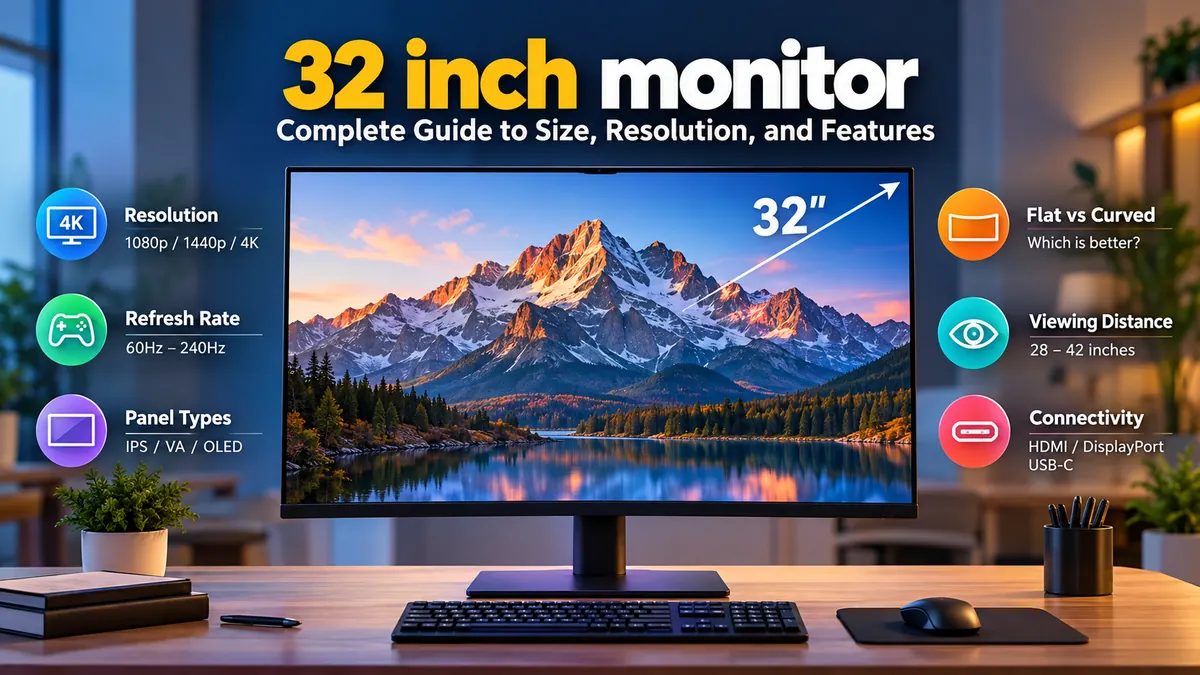

A larger screen can make multitasking easier, gaming more immersive, and everyday computing more comfortable. But choosing a 32 inch monitor involves more than measuring your desk. Resolution, pixel density, refresh rate, panel technology, and viewing distance all affect how the display looks and feels.
A 32 inch monitor is a computer display with a diagonal screen measurement of approximately 32 inches. Most models use a 16:9 widescreen aspect ratio and offer resolutions such as Full HD, QHD, or 4K UHD. The right configuration depends on how you use your computer, how far you sit from the screen, and the visual detail you need.
What Is a 32 inch monitor?
A 32 inch monitor is a large-format desktop display commonly used for office productivity, programming, gaming, creative work, and entertainment.
Unlike a television of similar size, a computer monitor is generally designed for close-range viewing, detailed text rendering, low input latency, and direct connections to desktop or laptop computers.
Common features include:
- Screen sizes marketed as 31.5 or 32 inches
- Flat or curved display designs
- IPS, VA, OLED, or other LCD panel technologies
- Full HD, QHD, and 4K resolutions
- Refresh rates ranging from 60Hz to 240Hz or higher
- HDMI, DisplayPort, and sometimes USB-C connectivity
- Adjustable stands and VESA mounting compatibility
Not every monitor includes all these features. Specifications vary considerably across models.
Actual dimensions of a 32-inch display
Screen size is measured diagonally, not horizontally.
For a typical 16:9 display with an exact 32-inch diagonal, the approximate active screen dimensions are:
| Measurement | Approximate size |
|---|---|
| Diagonal | 32 inches (81.3 cm) |
| Width | 27.9 inches (70.8 cm) |
| Height | 15.7 inches (39.8 cm) |
| Aspect ratio | 16:9 |
| Screen area | 438 square inches |
These measurements exclude the bezel, stand, and any additional housing.
A monitor advertised as 32 inches may have an actual viewable diagonal of 31.5 inches, so its physical dimensions may be slightly smaller.
Understanding 32 inch monitor Resolution
Resolution is one of the most important factors affecting image sharpness on a large display.
A screen’s resolution describes how many pixels it can display horizontally and vertically. Higher resolutions provide more pixels for rendering text, images, and interface elements.
1080p vs 1440p vs 4K
| Feature | Full HD | QHD | 4K UHD |
|---|---|---|---|
| Resolution | 1920 × 1080 | 2560 × 1440 | 3840 × 2160 |
| Total pixels | 2.07 million | 3.69 million | 8.29 million |
| Pixel density at 32 inches | 68.8 PPI | 91.8 PPI | 137.7 PPI |
| Text sharpness | Relatively low | Moderate | High |
| GPU workload | Lower | Medium | Higher |
| Typical suitability | Basic use at greater distances | General work and gaming | Detailed work and multitasking |
Is 1080p good for a 32-inch screen?
Full HD resolution can work on a large display, but it has limitations.
At approximately 69 pixels per inch (PPI), individual pixels may become noticeable when sitting close to the screen. Small text can appear less defined, and fine graphical details may lack sharpness.
A 1080p monitor can still be suitable for displaying dashboards, presentations, or videos from a greater distance.
For reading documents, editing spreadsheets, or working with detailed graphics, higher resolution is generally preferable.
Is 1440p enough for a 32 inch monitor?
QHD, also called 1440p, provides a balance between image quality and computer performance.
At around 92 PPI, it offers substantially more detail than 1080p without the rendering demands of 4K.
A 1440p display can be particularly useful for gaming because graphics cards generally produce higher frame rates at QHD than at 4K, assuming comparable settings.
However, users who spend long hours reading small text may notice that QHD looks less crisp at 32 inches than it does on a smaller screen.
Why 4K works well at 32 inches
A 4K display contains four times as many pixels as Full HD.
At 32 inches, its pixel density is approximately 138 PPI, providing noticeably sharper text and more detailed images.
This resolution is especially useful for:
- Programming and software development
- Photo editing and graphic design
- Video editing and 4K content previewing
- Large spreadsheets and financial dashboards
- Working with multiple applications simultaneously
Operating systems such as Windows and macOS support display scaling, allowing interface elements to remain comfortably readable.
For example, 150% scaling on a 3840 × 2160 display creates an effective desktop workspace similar to 2560 × 1440 while retaining the sharper rendering provided by the additional physical pixels.
32 inch monitor Panel Types Explained
Panel technology influences contrast, viewing angles, color reproduction, response times, and motion clarity.
IPS displays
In-Plane Switching (IPS) is a common LCD technology known for wide viewing angles and relatively consistent colors.
IPS monitors are well suited to general office work, design applications, and mixed productivity tasks.
Their main limitation is typically lower native contrast compared with VA panels, which can make dark scenes look grayish in dim environments.
VA displays
Vertical Alignment (VA) panels generally provide stronger native contrast than conventional IPS LCD panels.
They can produce deeper-looking blacks, making them appealing for movies and darker games.
However, some VA displays exhibit dark-level motion smearing, particularly during rapid transitions between dark shades.
Performance depends heavily on the specific panel and its overdrive implementation.
OLED displays
Organic Light-Emitting Diode (OLED) technology controls light at the individual pixel level.
Because each pixel can turn off independently, OLED monitors deliver extremely deep blacks and excellent perceived contrast.
Other advantages include rapid pixel response times and impressive HDR performance.
Potential drawbacks include:
- Risk of permanent image retention or burn-in
- Different text rendering characteristics depending on subpixel layout
- Automatic brightness limitations in certain conditions
- Additional care considerations for prolonged static desktop content
OLED can be excellent for gaming and entertainment, but users who regularly display static interfaces should understand these tradeoffs.
Mini-LED monitors
Mini-LED is a backlighting technology used with LCD panels rather than a separate LCD panel type.
It uses many small LEDs, often organized into local dimming zones, to improve brightness and contrast.
High-quality Mini-LED displays can provide strong HDR performance without the same organic-pixel burn-in mechanism found in OLED.
However, bright objects against dark backgrounds may show blooming or halos, depending on the number of dimming zones and the monitor’s control algorithm.
Refresh Rate and Response Time for Gaming
A monitor’s refresh rate determines how frequently it can update the displayed image.
Refresh rate is measured in hertz (Hz).
| Refresh rate | Approximate time per refresh | Typical use |
|---|---|---|
| 60Hz | 16.7 ms | Office work, general computing |
| 75Hz | 13.3 ms | Everyday use |
| 120Hz | 8.3 ms | Smooth desktop motion and gaming |
| 144Hz | 6.9 ms | High-refresh gaming |
| 165Hz | 6.1 ms | Fast-paced gaming |
| 240Hz | 4.2 ms | Competitive gaming |
Higher refresh rates can make mouse movement, scrolling, animations, and gameplay appear smoother.
However, a monitor’s refresh rate does not guarantee that a computer will produce the same number of frames per second.
A game running at 70 FPS cannot provide 144 distinct new frames each second simply because the display supports 144Hz.
What is monitor response time?
Response time describes how quickly pixels transition between states.
It is commonly reported using gray-to-gray (GtG) measurements.
A monitor advertised with a 1 ms response time may not achieve that speed consistently across all transitions or settings.
Some manufacturers also advertise moving picture response time (MPRT), which measures a different aspect of motion clarity and should not be directly equated with GtG.
Independent measurements of overshoot, ghosting, and response-time performance are more informative than a single advertised figure.
Adaptive sync technologies
Variable refresh rate (VRR) allows compatible displays to synchronize their refresh timing with the graphics card’s frame output.
Common technologies include AMD FreeSync, NVIDIA G-SYNC, and VESA Adaptive-Sync.
VRR can reduce visible screen tearing and improve the consistency of gameplay when frame rates fluctuate.
Compatibility and supported refresh-rate ranges vary between monitors.
Flat vs Curved 32 inch monitor
Curved monitors are designed to bring the outer edges of the screen somewhat closer to the viewer’s line of sight.
Curvature is expressed using ratings such as 1000R, 1500R, and 1800R.
The number describes the radius of the theoretical circle formed by extending the screen’s curve, measured in millimeters.
A lower R value represents a stronger curve.
Advantages of curved screens
Curved displays may offer a more immersive experience, particularly when gaming or watching video from a centered position.
They can also make the outer portions of a wide screen feel more naturally oriented toward the viewer.
Advantages of flat screens
Flat displays are often preferable for tasks requiring careful evaluation of straight lines and geometric shapes.
They also tend to be more straightforward for multi-monitor arrangements, wall mounting, and collaborative viewing.
For graphic design, technical drawing, or architecture, a flat panel may be easier to work with.
Neither design is universally superior. Personal preference, viewing position, and intended use matter more than curvature alone.
Best Viewing Distance and Desk Setup
The ideal viewing distance depends on your eyesight, screen resolution, and how much of the display you want to see without excessive head movement.
For a 32-inch screen, a practical starting distance is approximately 28–42 inches (70–105 cm). This is consistent with RTINGS’ monitor-size guidance, although personal comfort should determine the final position.
RTINGS.com
Is a 32-inch monitor too big for a desk?
Not necessarily. A large monitor can work well on a desk with enough depth and space for comfortable positioning.
Consider these factors:
- Desk depth: A deeper desk makes it easier to maintain a comfortable viewing distance.
- Stand footprint: Some gaming stands occupy considerable space.
- Screen height: Position the display so your neck remains relaxed.
- Monitor arm: A compatible arm can free up desktop space.
- Glare: Avoid placing the screen where strong reflections interfere with visibility.
A large screen placed too close can require frequent eye or head movements to see content near the corners.
How high should the screen be?
For most users, the top of the visible screen should be approximately at or slightly below eye level.
The main working area should be comfortable to view with a relaxed neck and a slightly downward gaze.
Because a 32-inch display is relatively tall, height adjustment is especially useful.
Users wearing bifocal or progressive lenses may benefit from a different screen position.
Reducing eye strain
Screen-related discomfort is often influenced by viewing habits, lighting, glare, and prolonged periods of near work rather than display size alone.
Helpful practices include adjusting brightness to match room lighting, increasing text size when needed, blinking regularly, and taking periodic visual breaks.
The 20-20-20 rule is a commonly suggested reminder: approximately every 20 minutes, look at something around 20 feet away for 20 seconds.
Connectivity: HDMI, DisplayPort, and USB-C
Connection types affect the resolutions, refresh rates, and additional functions supported by a monitor.
HDMI connections
HDMI is commonly used with laptops, desktop computers, gaming consoles, and media devices.
HDMI 2.1 can support high-resolution, high-refresh-rate signals, but actual capabilities depend on the specific monitor, graphics hardware, cable, and implemented bandwidth.
A port labeled HDMI 2.1 does not automatically guarantee every optional HDMI 2.1 feature.
DisplayPort connections
DisplayPort is widely used on desktop graphics cards and gaming monitors.
DisplayPort 1.4 with Display Stream Compression (DSC) can support demanding display configurations, including certain 4K high-refresh-rate modes.
DisplayPort 2.1 implementations can provide greater bandwidth, although the supported UHBR speed and monitor capabilities must be checked individually.
USB-C and Thunderbolt
Some monitors allow video, data, and laptop charging through a single USB-C connection.
USB-C video commonly relies on DisplayPort Alternate Mode, while compatible Thunderbolt connections can carry display and data signals.
USB Power Delivery (USB-PD) may supply enough power to charge a connected laptop.
However, not every USB-C port supports video output, and charging capabilities differ between models.
Other useful connections
A monitor may also include a USB hub, headphone output, Ethernet port, or integrated KVM switch.
A KVM switch allows one keyboard and mouse setup to control multiple connected computers.
This can be particularly useful when switching between a personal desktop and a work laptop.
HDR, Brightness, and Color Accuracy
High Dynamic Range (HDR) technology is designed to reproduce a wider range of brightness and contrast than conventional Standard Dynamic Range (SDR) content.
However, an HDR-compatible monitor does not necessarily provide impressive HDR image quality.
What makes HDR look good?
Effective HDR performance depends on several characteristics:
- High peak brightness for highlights
- Strong contrast and deep black levels
- Effective local dimming or pixel-level light control
- Wide color gamut support
- Appropriate HDR signal processing and tone mapping
A basic LCD monitor that accepts HDR10 signals may provide only a modest improvement over SDR.
Higher-quality Mini-LED and OLED monitors can offer more convincing HDR results because of their contrast capabilities.
Understanding color gamut
Color gamut describes the range of colors a display can reproduce.
Common color spaces include:
| Color space | Typical application |
|---|---|
| sRGB | Websites, general computing, standard digital images |
| DCI-P3 | Digital cinema and wide-gamut media |
| Display P3 | Wide-gamut displays and compatible creative workflows |
| Adobe RGB | Photography and print-oriented workflows |
| Rec. 709 | Standard HD video production |
| Rec. 2020 | UHD and HDR video standards |
For ordinary office work, accurate sRGB reproduction is generally sufficient.
Photo and video professionals may need broader color coverage, accurate calibration, and reliable color-management support. Recent professional-monitor comparisons also emphasize color accuracy, brightness, and color-space coverage alongside resolution.
Digital Camera World
What does Delta E mean?
Delta E (ΔE) is a measure of the difference between colors.
Lower Delta E values generally indicate smaller color differences, although interpretation depends on the measurement method and testing conditions.
A factory-calibrated display may provide good initial accuracy, but professionals often use a colorimeter or spectrophotometer to verify performance over time.
32 inch monitor for Gaming, Office Work, and Creative Tasks
The same screen size can serve very different purposes depending on its technical configuration.
For gaming
Gaming performance depends on the relationship between resolution, refresh rate, response time, input lag, and graphics processing power.
A 32-inch QHD monitor with a high refresh rate can provide smooth gaming without the rendering demands of 4K.
A 4K high-refresh-rate display offers greater detail but requires more powerful hardware to maintain high frame rates in demanding games.
Modern gaming monitors also commonly support variable refresh rates and HDMI 2.1 connectivity for compatible PCs and consoles.
RTINGS.com
For office productivity
A large display can make it easier to work with two or more application windows.
For example, a user might place a spreadsheet on one side of the screen and a browser or document on the other.
A 4K IPS monitor with good text clarity, adjustable height, and reliable connectivity is often a practical configuration.
For long work sessions, ergonomic adjustments and comfortable scaling can matter more than extremely high refresh rates.
For programming
Programmers often benefit from vertical workspace, clear text, and the ability to keep an editor, terminal, and documentation visible simultaneously.
A 32-inch 4K display can provide generous working space, especially when combined with appropriate operating-system scaling.
However, individual font preferences and viewing distance influence whether a 27-inch or 32-inch display feels more comfortable.
For photo and video editing
Creative professionals should consider color accuracy, gamut coverage, screen uniformity, calibration options, and resolution.
A 4K display allows detailed inspection of high-resolution images and UHD video.
For professional color grading, reliable HDR performance and appropriate calibration are particularly important.
For console gaming
Modern consoles such as PlayStation 5 and Xbox Series X can output 4K signals at up to 120Hz in supported games and configurations.
A compatible monitor needs appropriate HDMI bandwidth and support for the desired signal format.
Features such as VRR and automatic low-latency mode can also improve the experience when supported by both devices.
27-Inch vs 32-Inch Monitor: What Changes?
A 32-inch display provides a larger physical viewing area than a 27-inch display of the same aspect ratio.
However, the difference in image sharpness depends on resolution.
| Feature | 27-inch monitor | 32-inch monitor |
|---|---|---|
| Physical size | More compact | Larger |
| Desk requirements | Generally easier to accommodate | Benefits from more depth |
| QHD pixel density | Approximately 109 PPI | Approximately 92 PPI |
| 4K pixel density | Approximately 163 PPI | Approximately 138 PPI |
| Viewing experience | More compact field of view | More expansive |
| Window arrangement | Good for multitasking | More physical room for windows |
A 27-inch QHD display has noticeably higher pixel density than a 32-inch QHD display.
On the other hand, a 32-inch 4K monitor combines a large screen with relatively high pixel density.
The larger model does not automatically provide more digital workspace when resolution and scaling are identical. It provides more physical screen area.
Is a 32-inch monitor better than dual monitors?
One large monitor offers an uninterrupted screen without a bezel dividing the workspace.
It can be convenient for wide spreadsheets, timelines, and side-by-side documents.
Two smaller monitors, however, provide physically separate work areas and may offer more flexibility for arranging applications.
The better arrangement depends on the number of windows used, desk space, and personal workflow.
Common Problems With Large Monitors
Understanding common display issues can help users configure their screens more effectively.
Blurry text
Blurry text may result from low pixel density, non-native resolution settings, operating-system scaling issues, or application-specific rendering.
Start by selecting the monitor’s native resolution.
Then adjust display scaling and text-rendering settings rather than lowering the resolution unnecessarily.
Screen tearing
Screen tearing occurs when different portions of the display show information from different rendered frames.
Enabling compatible VRR technology or adjusting vertical synchronization settings can help.
Ghosting and motion smearing
Ghosting appears as a visible trail behind moving objects.
It can result from slow pixel transitions or poorly configured overdrive settings.
Extreme overdrive modes may introduce inverse ghosting, where bright or dark artifacts appear around moving objects.
A balanced overdrive setting often produces better results than the fastest advertised mode.
Display flickering
Flickering can have several causes, including unstable connections, VRR behavior, software problems, or certain brightness-control methods.
Troubleshooting may involve checking cables, changing refresh-rate settings, updating graphics drivers, or testing the display with another device.
Incorrect refresh rate
A monitor advertised as 144Hz or 240Hz may initially operate at 60Hz.
Check the operating system’s advanced display settings and confirm that the selected cable and port support the intended mode.
Poor HDR appearance
HDR content may appear washed out or excessively dim when the monitor, operating system, or application uses inappropriate settings.
Verify that HDR is enabled only when needed, check the monitor’s HDR mode, and use available operating-system calibration tools.
How to Evaluate a 32-Inch Display’s Specifications
Instead of relying on a single specification, examine how the monitor’s features work together.
Step 1: Check the native resolution
Determine whether the monitor uses Full HD, QHD, or 4K.
For close-range desktop work, pixel density is especially important.
Step 2: Identify the panel technology
IPS, VA, and OLED displays have different strengths.
Choose according to the importance of text clarity, contrast, viewing angles, and motion performance.
Step 3: Examine refresh rate and response performance
For everyday computing, 60Hz can be adequate.
Higher refresh rates offer smoother motion, but gaming performance also depends on the graphics card and measured pixel response times.
Step 4: Verify brightness and contrast
Brightness is commonly measured in nits, equivalent to candelas per square meter (cd/m²).
A brighter display may be helpful in a well-lit environment, but glare handling and screen coating also matter.
Step 5: Review connection compatibility
Confirm that the monitor supports the output capabilities of the computer or console.
Check whether USB-C charging, DisplayPort, HDMI, and USB hub features meet the intended setup.
Step 6: Consider ergonomics
Height adjustment, tilt, swivel, and VESA mounting can make a substantial difference in daily comfort.
A monitor with excellent image quality but limited positioning options may be inconvenient on a shallow desk.
Step 7: Read independent measurements
Manufacturer specifications do not always describe real-world performance accurately.
Independent testing can reveal actual response times, input lag, color accuracy, contrast, brightness, and HDR behavior.
Final Thoughts: Is a 32 inch monitor Worth It?
A 32 inch monitor can be an excellent display size for productivity, gaming, programming, and creative applications. Its larger viewing area provides room for multiple windows and creates a more expansive visual experience than smaller desktop screens.
For most users who prioritize sharp text and detailed images, 4K resolution is a strong match for this screen size. QHD remains useful for gaming and general computing, particularly when maintaining high frame rates matters more than maximum pixel density.
Panel technology, refresh rate, connectivity, and ergonomics are equally important. IPS offers a balanced experience, VA emphasizes native contrast, and OLED provides exceptional blacks and motion performance with additional considerations for static content.
The most effective approach is to match the display’s resolution and features to the computer, viewing distance, desk arrangement, and daily workload. A well-configured 32-inch screen can provide a comfortable and versatile workspace for years.
