
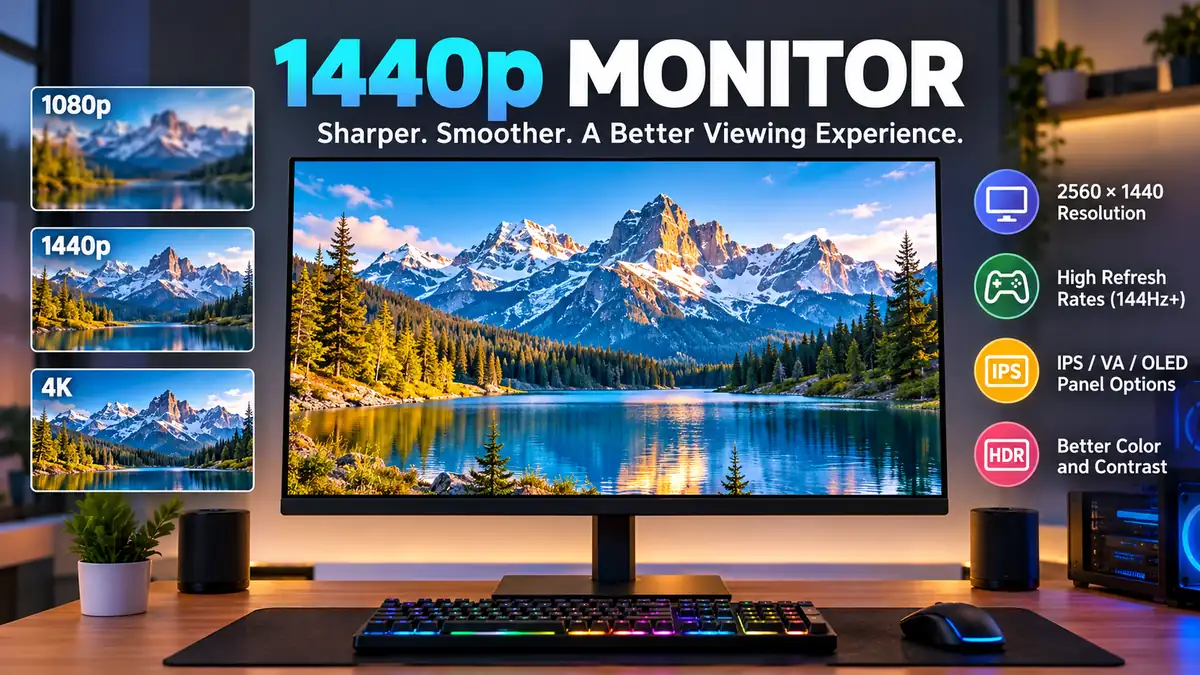

A sharper display can make everyday computer use noticeably more comfortable. Text looks cleaner, games reveal more detail, and working with multiple windows becomes easier. But higher resolution isn’t always better if your computer struggles to support it.
A 1440p monitor offers a practical middle ground between Full HD and 4K, combining improved image clarity with manageable graphics performance.
A 1440p monitor typically has a resolution of 2560 × 1440 pixels, also called QHD or WQHD. It displays approximately 3.7 million pixels, providing 77.8% more pixels than 1080p. This resolution is especially popular for 27-inch screens, PC gaming, productivity, programming, and everyday computer use.
What Is a 1440p monitor?
A 1440p monitor is a computer display with 1,440 vertical pixels and, in the standard 16:9 format, 2,560 horizontal pixels.
The term 1440p refers to the vertical resolution, while the letter “p” historically indicates progressive scanning. Modern computer monitors generally use progressive display technology.
Several names describe this resolution:
- QHD (Quad High Definition): Four times the pixel count of 1280 × 720 HD.
- WQHD (Wide Quad High Definition): Commonly used for 2560 × 1440 widescreen displays.
- 2K: Sometimes used informally in monitor marketing, although 2560 × 1440 is not technically the standard 2K cinema resolution.
- 1440p: The most familiar term among PC gamers and general computer users.
A standard QHD display contains exactly 3,686,400 pixels.
That increased pixel count allows smaller visual details to appear more clearly than on an equivalent-size 1080p screen.
Why 1440p resolution matters
Screen resolution affects how much information a display can represent and how finely it renders that information.
Higher pixel counts can improve:
- Text sharpness in documents and web browsers.
- Detail in photographs and digital illustrations.
- Visibility of distant objects in video games.
- Workspace capacity for spreadsheets and programming.
- Smoothness of diagonal lines and interface elements.
However, resolution alone doesn’t determine overall image quality. Contrast ratio, panel technology, brightness, color accuracy, viewing distance, and pixel density also influence the viewing experience.
1440p vs 1080p vs 4K: What’s the Difference?
The three most common desktop monitor resolutions are Full HD, QHD, and 4K UHD.
Each has different advantages for screen clarity, computer performance, and everyday usability.
| Feature | 1080p | 1440p | 4K UHD |
|---|---|---|---|
| Resolution | 1920 × 1080 | 2560 × 1440 | 3840 × 2160 |
| Total pixels | 2.07 million | 3.69 million | 8.29 million |
| Common name | Full HD | QHD / WQHD | Ultra HD |
| Pixels per inch at 27″ | 81.6 | 108.8 | 163.2 |
| Relative GPU pixel workload | 1× | 1.78× | 4× |
| Typical desktop scaling | 100% | 100% | Often 150% |
| Common applications | General computing, esports | Gaming, productivity | Detailed creative work |
The GPU workload figures compare pixel counts, not guaranteed rendering times or frame rates.
Is 1440p noticeably better than 1080p?
For many users, yes.
On a 27-inch monitor, 1080p produces approximately 82 pixels per inch (PPI), while 1440p produces approximately 109 PPI.
That represents roughly a 33% improvement in linear pixel density.
The difference is particularly noticeable when reading small text, examining fine details, or working with dense interfaces.
At normal desk viewing distances, 1440p generally provides a clearer image without requiring the substantial display scaling often associated with 4K.
Is 1440p better than 4K?
Not in absolute sharpness. A 4K monitor contains 2.25 times as many pixels as a 1440p display.
However, 1440p can be a more balanced choice when graphics performance matters.
Rendering games at native 4K requires substantially more pixel processing than rendering them at 1440p. This can reduce frame rates, depending on the game, graphics card, settings, and upscaling technology.
For a 27-inch desktop monitor, the visual improvement from 1440p to 4K may also be less dramatic than the improvement from 1080p to 1440p, especially at longer viewing distances.
Quick takeaway: 1080p prioritizes low hardware demands, 1440p balances clarity and performance, and 4K prioritizes maximum detail.
What Is the Best Screen Size for a 1440p monitor?
Screen size and resolution work together to determine pixel density.
A larger display spreads the same number of pixels across a greater physical area, reducing pixels per inch.
24-inch 1440p monitor
A 24-inch QHD display offers approximately 122 PPI.
This produces particularly sharp text and interface elements while keeping the monitor compact.
It can be useful for small desks, programming setups, and users who prefer a closer viewing distance.
However, text and icons may appear relatively small at 100% scaling.
27-inch 1440p monitor
A 27-inch 1440p monitor is widely considered a balanced configuration.
It delivers approximately 109 PPI, offering a useful combination of:
- Clear text without excessive scaling.
- Comfortable screen dimensions.
- Enough workspace for side-by-side applications.
- Good gaming immersion.
- Manageable viewing distances.
For many people, 27 inches is the natural starting point when evaluating QHD displays.
32-inch 1440p monitor
At 32 inches, the pixel density drops to approximately 92 PPI.
The larger screen provides a more expansive physical viewing area, but individual pixels become easier to distinguish at close distances.
This configuration may suit users who prefer larger interface elements, sit farther from the monitor, or value screen size over maximum sharpness.
Pixel density comparison
| Screen size | Approximate PPI | General experience |
|---|---|---|
| 24 inches | 122.4 | Very sharp, compact |
| 25 inches | 117.5 | Sharp and space-efficient |
| 27 inches | 108.8 | Balanced clarity and size |
| 32 inches | 91.8 | Larger image, lower density |
These figures assume a standard 2560 × 1440 resolution and a 16:9 aspect ratio.
1440p monitor Refresh Rates Explained
Refresh rate describes how many times a display can update its image every second.
It is measured in hertz (Hz).
For example, a 144Hz monitor can refresh its image up to 144 times per second, while a 60Hz monitor refreshes up to 60 times per second.
A higher refresh rate can improve motion clarity and responsiveness, particularly in fast-moving games.
60Hz and 75Hz displays
A 60Hz or 75Hz QHD monitor is generally sufficient for office applications, web browsing, document editing, and watching videos.
The increased resolution still provides sharper text and more workspace than Full HD, even without a high refresh rate.
144Hz and 165Hz displays
A 1440p 144Hz monitor is a common configuration for PC gaming.
Compared with 60Hz, 144Hz reduces the interval between screen refreshes from approximately 16.7 milliseconds to 6.9 milliseconds.
This can make camera movement, scrolling, and animations appear smoother.
A 165Hz display reduces that interval to approximately 6.1 milliseconds.
The difference between 144Hz and 165Hz is relatively small compared with the jump from 60Hz to 144Hz.
240Hz and higher refresh rates
A 1440p 240Hz monitor can appeal to competitive players who prioritize low latency and fast motion.
At 240Hz, the display refresh interval is approximately 4.17 milliseconds.
Some QHD gaming monitors offer even higher refresh rates, including 360Hz and above.
However, benefiting from these speeds requires a computer capable of producing sufficiently high frame rates.
A monitor’s refresh rate and a game’s frame rate are related but different. A 240Hz display does not automatically make a game run at 240 frames per second.
Refresh rate comparison
| Refresh rate | Refresh interval | Typical use |
|---|---|---|
| 60Hz | 16.67 ms | Office work, general use |
| 75Hz | 13.33 ms | Everyday computing |
| 144Hz | 6.94 ms | Smooth gaming |
| 165Hz | 6.06 ms | Gaming and multitasking |
| 240Hz | 4.17 ms | Competitive gaming |
| 360Hz | 2.78 ms | High-frame-rate esports |
Refresh intervals are not the same as pixel response times or total input latency.
Understanding Monitor Panel Technologies
A display’s panel technology influences contrast, colors, viewing angles, response times, and motion handling.
The most common technologies are IPS, VA, TN, and OLED.
IPS panels
In-Plane Switching (IPS) LCD panels are known for consistent colors and wide viewing angles.
They are popular for productivity, gaming, graphic design, and general desktop computing.
Typical strengths include accurate color reproduction, stable image appearance, and good all-around performance.
Their main limitation is relatively modest native contrast, often around 1,000:1 for conventional IPS panels, although actual specifications vary.
Some IPS displays also exhibit visible IPS glow in dark environments.
VA panels
Vertical Alignment (VA) LCD panels generally offer higher native contrast than conventional IPS panels.
They can produce deeper blacks, making them attractive for movie watching and gaming in dim rooms.
However, some VA panels have slower dark-pixel transitions, which can cause visible smearing during movement.
Modern fast-VA implementations can reduce this issue considerably.
TN panels
Twisted Nematic (TN) panels have historically been associated with fast response times and competitive gaming.
Their disadvantages often include narrower viewing angles and less consistent color reproduction.
Improvements in IPS and OLED technology have made TN less common in general-purpose premium displays.
OLED panels
Organic Light-Emitting Diode (OLED) displays use self-emissive pixels that can turn off individually.
This enables extremely deep blacks, excellent perceived contrast, and very fast pixel response times.
OLED technology is particularly appealing for gaming and HDR content.
However, OLED monitors have trade-offs, including potential burn-in from prolonged static content, variations in text rendering, and differences in brightness behavior.
| Panel type | Main advantage | Main limitation |
|---|---|---|
| IPS | Color consistency and viewing angles | Lower native contrast |
| VA | Strong native contrast | Potential dark-level smearing |
| TN | Fast response in some models | Limited viewing angles |
| OLED | Pixel-level contrast and fast response | Burn-in considerations |
Panel type provides a useful starting point, but individual monitor testing is more informative than assuming every panel of one type performs identically.
Is a 1440p monitor Good for Gaming?
A 1440p monitor is well suited to PC gaming because it combines detailed graphics with achievable high frame rates on many modern gaming systems.
The resolution provides greater image detail than 1080p without imposing the same rendering demands as 4K.
Independent monitor testing also highlights the combination of QHD resolution, high refresh rates, and variable refresh rate technology as a major advantage for gaming.
RTINGS.com
+1
Gaming performance and graphics cards
The graphics processing unit (GPU) plays a major role in determining how smoothly games run at 1440p.
Common GPU families used for QHD gaming include:
- NVIDIA GeForce RTX graphics cards.
- AMD Radeon RX graphics cards.
- Intel Arc graphics cards.
Actual performance depends on the GPU model, graphics settings, processor, video memory, and game engine.
Competitive titles such as Valorant and Counter-Strike 2 may achieve high frame rates on suitable hardware. Graphically intensive games such as Cyberpunk 2077 can demand considerably more processing power, especially with ray tracing enabled.
Does 1440p reduce FPS?
Compared with 1080p, rendering at native 1440p generally increases GPU workload because the graphics card must process approximately 78% more pixels.
This can reduce frames per second (FPS), particularly when the graphics card is already operating near full capacity.
However, the FPS reduction is not necessarily 78%. Performance depends on whether the game is GPU-limited, CPU-limited, or constrained by another component.
Upscaling technologies can help manage performance.
NVIDIA DLSS, AMD FidelityFX Super Resolution (FSR), and Intel XeSS can render games internally at lower resolutions and reconstruct a higher-resolution output.
Their image quality and performance benefits vary by game, hardware, and selected mode.
FreeSync, G-SYNC, and variable refresh rate
Variable refresh rate (VRR) technology synchronizes the monitor’s refresh timing with the graphics card’s frame delivery.
This can reduce screen tearing and improve the appearance of uneven frame rates.
Common technologies include AMD FreeSync, NVIDIA G-SYNC, and VESA Adaptive-Sync.
Some displays also support HDMI VRR.
Compatibility depends on the graphics card, monitor, cable, connection type, and supported refresh-rate range.
For gaming, effective VRR support and fast pixel response times can matter as much as a high advertised refresh rate.
Is a 1440p monitor Good for Work and Productivity?
QHD resolution is useful beyond gaming.
For office work, software development, studying, and creative applications, a 1440p monitor provides a more spacious desktop than a similarly sized 1080p display at the same scaling level.
Programming and software development
Developers often work with code editors, documentation, terminals, and browser windows simultaneously.
The extra horizontal and vertical pixels can make these workflows more comfortable.
A 27-inch QHD monitor can accommodate two moderately sized windows side by side, although the usefulness of this arrangement depends on application layout and font size.
Office work and spreadsheets
Spreadsheet applications such as Microsoft Excel and Google Sheets benefit from additional screen resolution.
More rows and columns can remain visible without excessive scrolling.
Similarly, word processing, presentation editing, and research tasks become easier when multiple applications are displayed together.
Photo and video editing
A QHD display provides useful workspace for Adobe Photoshop, Lightroom, Premiere Pro, DaVinci Resolve, and similar applications.
However, resolution should not be confused with color accuracy.
Creative professionals should also consider:
- sRGB color gamut coverage.
- DCI-P3 and Adobe RGB coverage where relevant.
- Factory calibration quality.
- Color accuracy, often expressed as Delta E.
- Gamma and white-point consistency.
- Hardware calibration support.
- Panel uniformity.
For color-critical work, a well-calibrated 1440p display can be more useful than a poorly calibrated 4K monitor.
For native 4K video editing, a 4K display has the additional advantage of showing full-resolution UHD footage without downscaling.
HDR, Brightness, and Color Quality
High Dynamic Range (HDR) is designed to reproduce a wider range of brightness and color information than traditional Standard Dynamic Range (SDR) content.
A 1440p monitor can support HDR, but HDR performance varies substantially between models.
HDR10 and DisplayHDR
HDR10 is a widely used HDR format.
VESA DisplayHDR certifications define performance requirements for different display capabilities.
However, an HDR-compatible label alone does not guarantee impressive HDR image quality.
A display’s actual contrast performance, peak brightness, color volume, and local dimming behavior are more informative.
Mini LED and local dimming
Mini LED is a backlighting technology used in some LCD monitors.
It enables manufacturers to create many individually controlled dimming zones.
With effective full-array local dimming, bright highlights can appear alongside darker regions without illuminating the entire screen uniformly.
The result can be stronger HDR contrast than conventional edge-lit LCD designs.
However, LCD local dimming may produce blooming or halos around bright objects.
OLED avoids conventional backlight blooming because its pixels emit their own light.
Color depth and color gamut
An 8-bit display can represent 256 levels per color channel, producing approximately 16.7 million RGB color combinations.
A true 10-bit display can represent 1,024 levels per channel, or approximately 1.07 billion combinations.
Some monitors use 8-bit panels with Frame Rate Control (FRC) to approximate additional shades.
Color depth is separate from color gamut. A display can support 10-bit input while still having limited color coverage.
For everyday use, good sRGB accuracy is often more important than the largest advertised color gamut.
HDMI, DisplayPort, and USB-C Connectivity
The connection between a computer and monitor determines which display modes can be supported.
Resolution, refresh rate, color depth, chroma format, and HDR all affect the required transmission bandwidth.
HDMI connections
HDMI is commonly used with desktop computers, laptops, gaming consoles, and multimedia devices.
HDMI 2.0 connections can support 2560 × 1440 at high refresh rates under suitable conditions.
HDMI 2.1 provides additional bandwidth capabilities, but supported features depend on the actual implementation.
A monitor labeled HDMI 2.1 does not necessarily support every maximum-bandwidth mode associated with the standard.
DisplayPort connections
DisplayPort is widely used for high-refresh-rate PC monitors.
DisplayPort 1.4 supports QHD at high refresh rates, and Display Stream Compression (DSC) can enable demanding display modes while preserving visually lossless image quality.
DisplayPort 2.1 implementations can provide greater bandwidth, depending on their supported transmission rates.
For high-refresh-rate QHD gaming, check the monitor’s supported modes rather than relying only on the connector version.
USB-C connections
Some monitors accept video through USB-C using DisplayPort Alternate Mode.
Others also provide USB Power Delivery, USB hubs, or a built-in KVM switch.
These features are particularly useful for laptops.
A USB-C monitor may allow a compatible laptop to connect video, peripherals, and charging through one cable.
However, not every USB-C port supports video output, and charging power varies between monitors.
How to Set Up a 1440p monitor Correctly
Using the monitor’s native resolution helps preserve image clarity.
The following setup process applies to most modern Windows computers.
- Connect the monitor using a compatible HDMI, DisplayPort, or USB-C connection.
- Open Settings → System → Display.
- Select the external monitor if multiple displays are connected.
- Under Display resolution, choose 2560 × 1440 (Recommended).
- Open Advanced display and select the desired refresh rate.
- Confirm that the graphics driver and monitor settings support the selected mode.
- Adjust display scaling, brightness, and color settings for comfortable viewing.
On macOS, display resolution and refresh-rate options are generally found under System Settings → Displays.
Why does a 1440p monitor look blurry?
A blurry image can result from several issues.
Common causes include running a non-native resolution, incorrect scaling behavior, poor application rendering, or unsuitable sharpness settings.
Check that the computer outputs 2560 × 1440 rather than 1920 × 1080.
On Windows, ClearType text tuning may improve the appearance of text on compatible LCD panels.
Some OLED displays can show color fringing around text because of their subpixel arrangements. This is a panel characteristic rather than necessarily a configuration problem.
Why is the monitor stuck at 60Hz?
If a high-refresh-rate QHD monitor only offers 60Hz, possible explanations include:
- A cable or adapter with insufficient bandwidth.
- A laptop port with limited display output capabilities.
- A monitor input that supports a lower maximum refresh rate.
- Incorrect graphics driver or display settings.
- A monitor setting that limits the available refresh rate.
- Bandwidth restrictions when using multiple external displays.
Consult the monitor’s supported timing table and the computer’s display-output specifications.
What scaling should you use?
At 27 inches, many users find 100% scaling comfortable with 1440p.
Others may prefer 125%, especially when viewing small text.
Higher scaling makes interface elements physically larger but reduces the amount of usable desktop workspace.
The best setting depends on eyesight, viewing distance, and personal comfort.
Can Gaming Consoles Use a 1440p monitor?
Modern gaming consoles can support 1440p output, although compatibility and available refresh rates vary.
The PlayStation 5 supports 1440p output on compatible displays, including supported 120Hz modes and VRR configurations.
Xbox Series X and Series S also support 1440p display output.
However, a console sending a 1440p signal does not mean every game renders internally at that exact resolution.
Games may use dynamic resolution, temporal reconstruction, or other rendering techniques.
For console use, HDMI compatibility, supported refresh rates, HDR behavior, and VRR functionality are particularly important.
Advantages and Disadvantages of a 1440p monitor
QHD displays offer a strong combination of clarity and versatility, but they are not ideal for every situation.
| Advantages | Disadvantages |
|---|---|
| Sharper than 1080p at the same size | More demanding on graphics hardware |
| Good workspace at 27 inches | Less detailed than 4K |
| Wide range of refresh rates | Some applications may need scaling |
| Suitable for gaming and productivity | Older devices may have output limitations |
| Available in IPS, VA, OLED, and Mini LED models | Premium models can be expensive |
| Often usable at 100% scaling | 32-inch models have lower pixel density |
The benefits are most apparent when screen size, viewing distance, hardware performance, and usage requirements are considered together.
How to Evaluate a 1440p monitor in 2026
The QHD monitor market now includes basic productivity screens, fast IPS gaming monitors, Mini LED LCD displays, and advanced OLED models.
Independent testing in September 2026 shows that 1440p displays span a particularly wide range of gaming refresh rates, including models above 500Hz at native QHD resolution.
RTINGS.com
These developments make it useful to evaluate more than resolution alone.
Match specifications to actual usage
| Usage | Useful characteristics |
|---|---|
| Office and study | 27-inch IPS, comfortable ergonomics, accurate text |
| General gaming | 27-inch QHD, 144–180Hz, VRR |
| Competitive gaming | 240Hz or higher, fast response, low input lag |
| Photo editing | Accurate color, calibration, good uniformity |
| HDR entertainment | OLED or effective Mini LED local dimming |
| Laptop workstation | USB-C video, adequate power delivery, USB hub |
These are practical reference points, not strict requirements.
Response time versus refresh rate
Monitor manufacturers frequently advertise response times such as 1ms or 0.5ms.
These figures may represent best-case measurements rather than typical real-world performance.
Gray-to-gray (GtG) response time measures how quickly pixels transition between specified brightness levels.
Moving Picture Response Time (MPRT) is a different measurement associated with perceived motion persistence.
They should not be treated as interchangeable.
Overshoot, inverse ghosting, and performance across different refresh rates also matter.
Independent response-time testing provides a more complete picture than a single advertised number.
Ergonomics and viewing comfort
Monitor ergonomics can affect comfort during long computer sessions.
Useful adjustments include height, tilt, swivel, and pivot.
VESA mounting compatibility allows the display to be installed on a suitable monitor arm.
For a comfortable workstation, position the monitor at an appropriate distance, avoid excessive reflections, and adjust brightness to match the surrounding environment.
A 27-inch QHD screen is often comfortable at approximately 60–80 cm, although ideal distance varies by individual.
Common Misconceptions About 1440p Displays
Is 1440p the same as 2K?
Not technically.
The term 2K traditionally refers to cinema resolutions around 2,048 horizontal pixels.
A standard 1440p monitor has 2,560 horizontal pixels.
Although retailers sometimes describe QHD as 2K, QHD or 2560 × 1440 is more precise.
Is 1440p exactly twice 1080p?
No.
1440p has approximately 1.78 times as many total pixels as 1080p.
It has one-third more horizontal pixels and one-third more vertical pixels.
Multiplying those increases gives approximately 77.8% more total pixels.
Does 1440p automatically improve video quality?
Not necessarily.
A higher-resolution display can show more detail when the source contains that information.
However, streaming compression, video bitrate, original recording resolution, and scaling quality influence the final image.
A low-bitrate 1080p video does not become true 1440p content simply because it is displayed on a QHD monitor.
Is 1440p outdated in 2026?
No.
1440p remains relevant for gaming, productivity, and general computer use.
The availability of high-refresh-rate OLED displays, modern IPS panels, and Mini LED monitors demonstrates continued development within this resolution category.
The appropriate resolution depends on how a display will be used, not simply on which pixel count is highest.
Final Thoughts: Is a 1440p monitor Worth Using?
A 1440p monitor offers a useful balance between image sharpness, workspace, and graphics performance.
Its 2560 × 1440 resolution provides substantially more detail than Full HD, while requiring fewer rendering resources than 4K UHD.
For many desktop setups, a 27-inch QHD display offers particularly comfortable pixel density. Gaming users can benefit from high refresh rates and variable refresh rate support, while office users gain more room for documents, spreadsheets, and applications.
The most useful next step is to match resolution with screen size, panel quality, refresh rate, connectivity, and computer capabilities. A well-matched 1440p display can provide an excellent experience without requiring the highest resolution available.
