
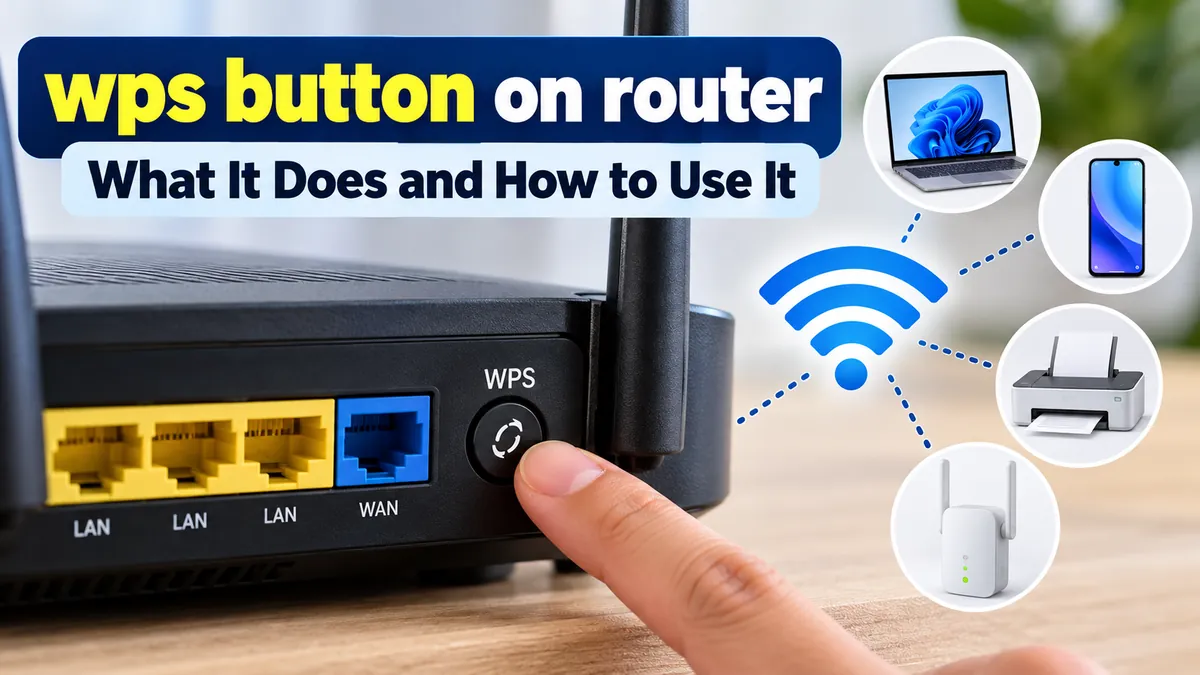

Ever noticed a small button labeled WPS on your Wi-Fi router and wondered what happens when you press it? That button can connect compatible devices to your wireless network without requiring you to type a long Wi-Fi password.
The wps button on router stands for Wi-Fi Protected Setup, a feature designed to simplify wireless connections. Pressing it temporarily enables a connection process that allows compatible devices, such as printers and Wi-Fi extenders, to join your network. However, WPS has security limitations, and not every modern device supports it.
Understanding how WPS works, when to use it, and when to disable it can help you manage your home network more confidently.
What Is the wps button on router?
The WPS button activates Wi-Fi Protected Setup, a wireless networking feature introduced to make connecting devices easier.
Normally, joining a protected Wi-Fi network requires selecting the network name (SSID) and entering its password. WPS provides an alternative setup process for supported equipment.
Instead of manually entering your wireless password, you press the router’s WPS button and initiate WPS on the device you want to connect.
The router and device then exchange the information needed to establish a wireless connection.
What does WPS stand for?
WPS stands for Wi-Fi Protected Setup. It was developed by the Wi-Fi Alliance to simplify the configuration of protected wireless networks.
It is especially useful for devices that lack convenient keyboards or screens, including some wireless printers, range extenders, and smart home equipment.
How does the WPS button work?
The most familiar WPS connection method is called Push Button Configuration (PBC).
When activated, the router temporarily accepts WPS connection requests from compatible devices. The device and router then complete a setup exchange to establish the wireless connection.
WPS does not normally remove your existing Wi-Fi password or make the network permanently open.
The connection still uses the wireless security configuration supported by the router and device.
Where Is the WPS Button Located on a Router?
The location of the WPS button varies depending on the router manufacturer and model.
You can usually find it on the back, side, or front panel of the device.
Look for one of these identifiers:
- A physical button labeled WPS
- Two curved arrows forming a circular symbol
- A combined WPS/Wi-Fi button
- A WPS indicator near the router’s status lights
Some routers provide WPS controls only through their web-based administration interface.
WPS button locations by router brand
| Router brand | Common WPS location |
|---|---|
| TP-Link | Rear or side panel, sometimes combined with Wi-Fi |
| NETGEAR | Front, top, or side panel |
| ASUS | Rear or side panel on supported models |
| Linksys | Front, side, or rear panel |
| D-Link | Side or rear panel |
| Huawei | Side or rear panel on supported models |
| Tenda | Rear or side panel, sometimes combined with reset |
| Spectrum-provided routers | Varies by model; some have no physical WPS button |
These are general locations, not universal rules. Check your router’s exact model documentation before pressing an unfamiliar button.
What if your router has no WPS button?
A missing button does not necessarily indicate a problem.
Some routers omit WPS because of security considerations, while others offer a software-based WPS setting.
Newer wireless equipment may prioritize QR-code connection methods, mobile setup applications, or traditional password-based authentication instead.
If WPS is unavailable, connect devices using the network’s Wi-Fi password.
How to Use the wps button on router to Connect Wi-Fi
Using WPS is usually straightforward, provided both the router and the receiving device support the feature.
Step 1: Turn on the device you want to connect
Switch on your wireless printer, range extender, television, or other compatible device.
Open its network settings and locate the WPS connection option.
Depending on the equipment, it may appear as:
- Connect using WPS
- WPS Push Button
- Push Button Configuration
- Wireless Setup using WPS
Step 2: Press the WPS button on your router
Press the WPS button according to your router’s instructions.
On many models, a brief press activates WPS pairing mode.
A WPS indicator may begin blinking to show that the router is ready to accept a connection request.
Avoid holding a combined WPS/Reset button for an extended period because some models use long presses for other functions.
Step 3: Activate WPS on your device
Choose the WPS connection option on the device you want to connect.
Some devices require you to initiate WPS on the device first and then press the router’s button.
Follow the order specified by the device manufacturer.
Step 4: Wait for the connection
WPS pairing commonly provides a window of approximately two minutes, although the exact timing depends on the equipment.
During this period, the router and device attempt to establish a secure wireless connection.
When successful, the device should display a connected status or the router’s WPS indicator may change.
Step 5: Test the wireless connection
Confirm that the device appears on your network.
For example, print a test page from a connected printer or check whether a Wi-Fi extender has successfully joined the router’s wireless network.
If the connection fails, repeat the process or use the standard Wi-Fi password.
What Happens When You Press the WPS Button?
Pressing the WPS button generally activates a temporary wireless pairing mode.
It does not ordinarily restart the router, erase your network settings, or change the Wi-Fi password.
However, its behavior depends on the router model.
| Router behavior | What it usually means |
|---|---|
| WPS light starts blinking | Pairing mode is active |
| WPS light becomes steady | Pairing may have succeeded |
| WPS light turns off | Pairing ended or timed out |
| WPS light flashes rapidly | Connection failed or an error occurred |
| No visible light change | WPS may be disabled, unsupported, or indicated elsewhere |
Indicator patterns are not standardized across all routers, so consult your device manual for the precise meaning.
How long should you press the WPS button?
Many routers require only a short press of approximately one to three seconds.
Other models have different requirements.
Do not assume that holding the button longer improves pairing. On combination buttons, a prolonged press may disable Wi-Fi or trigger another function.
Does pressing WPS disconnect other devices?
Normally, no.
Activating WPS should not disconnect computers, smartphones, or other devices already connected to the wireless network.
Existing devices should continue operating while the router handles the pairing request.
Which Devices Can Connect Using WPS?
WPS support depends on the device’s operating system, wireless hardware, and firmware.
Older and specialized wireless devices are more likely to offer WPS than some modern phones and tablets.
Connecting a wireless printer using WPS
Many HP, Canon, Brother, and Epson printers include WPS connection functionality on supported models.
A typical process involves selecting WPS from the printer’s wireless setup menu, pressing the router’s WPS button, and waiting for the printer to connect.
Printers without touchscreens may use a combination of physical buttons instead.
The exact procedure varies by model.
Connecting a Wi-Fi extender using WPS
WPS is commonly used to configure compatible wireless range extenders.
First, plug the extender into a power outlet near the router.
Activate WPS on the router, then press the extender’s WPS button within the pairing window.
Wait for the extender’s connection indicator to confirm pairing.
After configuration, relocate the extender to a position where it can still receive a reliable signal from the main router.
Can Android phones connect through WPS?
Some older Android devices offered WPS Push Button and WPS PIN connection options.
Google removed standard WPS support from Android beginning with Android 9.
Consequently, most current Android smartphones do not provide a native WPS connection option.
Use the Wi-Fi password or a supported Wi-Fi QR code instead.
Can iPhones connect using WPS?
Apple iPhones do not provide a standard WPS push-button connection feature.
To connect an iPhone, open Settings, select Wi-Fi, choose the network, and enter the password.
Supported Apple devices can also use convenient password-sharing methods, but these are separate from WPS.
Do smart TVs support WPS?
Some smart televisions, including certain older Sony and Samsung models, support WPS.
Others require a password or use their own wireless setup process.
Check the television’s network settings for a WPS or Push Button option before attempting pairing.
Is the wps button on router Safe to Use?
WPS is convenient, but it has security weaknesses that users should understand before enabling it.
The main concern involves the WPS PIN method, although push-button pairing also introduces a temporary opportunity for unintended connections.
WPS push-button method vs. WPS PIN method
WPS supports different methods for registering devices.
| Feature | WPS Push Button | WPS PIN |
|---|---|---|
| Connection process | Press pairing controls | Enter a numerical PIN |
| Password entry | Not required | Wi-Fi password not required |
| Convenience | High | Moderate |
| Security concern | Unauthorized pairing during activation | PIN guessing and implementation vulnerabilities |
| Recommended use | Limited, supervised setup | Generally avoid |
The WPS PIN method became widely criticized after researchers identified vulnerabilities that could allow attackers to recover PINs through repeated authentication attempts.
Cisco has also highlighted security concerns involving both WPS connection methods.
Cisco Blogs
+1
Can someone hack your Wi-Fi using WPS?
A vulnerable WPS implementation can increase the risk of unauthorized access to a wireless network.
The risk depends on factors including router firmware, PIN authentication protections, physical proximity, and whether WPS is enabled.
An attacker who successfully exploits a vulnerable WPS configuration may gain access to the wireless network without knowing its password beforehand.
For that reason, disabling unused WPS functionality is a sensible precaution.
Should you leave WPS enabled?
For most home networks, keeping WPS disabled when it is not needed is the safer approach.
If you must connect a device using WPS, use the push-button method when supported, supervise the pairing process, and disable WPS afterward if the router permits it.
For regular connections, prefer WPA3-Personal or WPA2-Personal with a strong, unique wireless password.
Microsoft recommends WPA3 where supported because it provides stronger security than older Wi-Fi protection methods.
Microsoft Support
WPS vs. WPA2 vs. WPA3: What’s the Difference?
WPS, WPA2, and WPA3 are related to wireless networking, but they perform different jobs.
WPS simplifies device setup. WPA2 and WPA3 provide wireless authentication and security protections.
| Technology | Primary purpose | Key characteristic |
|---|---|---|
| WPS | Simplify Wi-Fi device pairing | Reduces manual setup |
| WPA2 | Protect wireless connections | Commonly uses AES-based protection |
| WPA3 | Provide newer Wi-Fi security | Improved authentication and security protections |
| Wi-Fi Easy Connect | Simplify secure device onboarding | Uses Device Provisioning Protocol (DPP) |
Does WPS work with WPA3?
Compatibility depends on the router’s firmware, operating mode, and client implementation.
Some routers support WPS in WPA3-related configurations, but that does not mean every WPA3 network or device can use it.
The Wi-Fi Alliance’s WPA3 deployment guidance recommends against enabling WPS on a network configured in WPA3-Personal Only mode.
Wi Fi
Does WPS work on 2.4 GHz and 5 GHz Wi-Fi?
WPS can be supported on both 2.4 GHz and 5 GHz wireless networks, depending on the router.
Some devices restrict WPS pairing to a particular frequency band.
For example, certain ASUS routers provide a setting for selecting the frequency used by WPS.

DOI Product Assets
The receiving device must also support the relevant Wi-Fi band.
Does WPS make your internet faster?
No. WPS does not directly increase Wi-Fi speed, improve signal strength, or reduce internet latency.
It is a connection setup mechanism rather than a performance optimization feature.
Your actual wireless performance depends on factors such as signal strength, interference, router capabilities, network congestion, and internet service speed.
Why Is the WPS Button Not Working?
If WPS pairing fails, the cause is usually a compatibility issue, incorrect timing, disabled router settings, or a connection problem.
1. WPS is disabled in router settings
Some routers allow users to disable WPS through the administration dashboard.
If the feature is disabled, pressing the physical button may have no effect.
To check the setting:
- Connect to the router’s network.
- Open its administration interface using the address or app specified by the manufacturer.
- Sign in with the router’s administrator credentials.
- Locate the Wireless, Wi-Fi, or WPS settings.
- Check whether WPS is enabled.
Only enable WPS temporarily if you need it for a compatible device.
2. The pairing window expired
WPS does not remain active indefinitely.
Many devices require pairing to be completed within approximately two minutes.
If the window expires, start the connection process again.
3. Your device does not support WPS
Not every wireless device supports Wi-Fi Protected Setup.
Modern smartphones are a common example.
If the device does not provide a WPS option, use the standard Wi-Fi password or another manufacturer-supported setup method.
4. The router uses incompatible security settings
Certain security modes may prevent WPS pairing.
For example, a router operating in a particular WPA3-only configuration may not support the WPS method required by an older device.
Check the compatibility documentation before changing any security settings.
Avoid downgrading your entire wireless network to an outdated security mode simply to make WPS work.
5. The devices are too far apart
A weak wireless signal can interrupt the setup process.
Move the receiving device closer to the router and retry pairing.
This is especially helpful when initially configuring a Wi-Fi range extender.
6. Router firmware has a problem
Outdated firmware may contain compatibility bugs or security vulnerabilities.
Check the manufacturer’s official support page for firmware updates appropriate to your exact router model.
Do not install firmware intended for a different hardware revision.
WPS troubleshooting checklist
| Problem | Recommended action |
|---|---|
| WPS light does not blink | Check WPS settings and button instructions |
| Pairing times out | Restart the pairing process |
| Printer cannot connect | Verify printer WPS support |
| Extender fails to pair | Move it closer to the router |
| Phone has no WPS option | Connect using the Wi-Fi password |
| WPS previously worked but stopped | Check firmware and wireless security settings |
| Multiple devices try pairing | Pair only one device at a time |
If repeated attempts fail, manual wireless setup is often the most reliable solution.
How to Enable or Disable WPS on Your Router
Many routers allow WPS to be controlled from the administration interface.
The precise steps depend on the manufacturer.
How to enable WPS
- Connect a computer or smartphone to your router.
- Open the router’s official administration address or management app.
- Sign in using your administrator account.
- Navigate to the wireless network settings.
- Find the Wi-Fi Protected Setup section.
- Enable WPS if the option is available.
- Save the changes and initiate pairing when needed.
Some routers provide separate settings for WPS push-button and WPS PIN functionality.
If you must use WPS, avoid enabling PIN-based pairing unnecessarily.
How to disable WPS
Open the same wireless configuration section and turn off WPS.
Save the settings and verify that the feature is disabled.
Disabling WPS normally does not disconnect devices that have already completed wireless setup. Those devices can continue authenticating using their stored network credentials.
On certain routers, disabling WPS may also disable the physical WPS button.
What if the WPS setting is missing?
Some internet service provider routers hide advanced wireless settings.
Others remove WPS functionality entirely.
If the option is missing, consult the official documentation for your router’s exact model and firmware version.
Do not confuse the WPS setting with the wireless network’s main security configuration.
Alternatives to WPS for Connecting Devices
WPS is not the only way to connect equipment to a wireless network.
Several alternatives provide greater compatibility or more modern onboarding options.
Manual Wi-Fi password connection
This is the most widely supported method.
Select the correct wireless network name and enter its password.
For home networks, use WPA3-Personal when all devices support it, or an appropriate WPA2 configuration for compatibility.
Wi-Fi QR code
Some smartphones and operating systems allow users to share wireless connection details using a QR code.
A compatible device scans the code and uses the supplied network information to connect.
This avoids manually typing the password, but it is not the same protocol as WPS.
Treat Wi-Fi QR codes as sensitive because they can contain network credentials.
Wi-Fi Easy Connect
Wi-Fi Easy Connect uses Device Provisioning Protocol (DPP) to help configure supported wireless devices.
It was developed as a more modern approach to onboarding equipment, particularly devices with limited user interfaces.
Support depends on both the network equipment and the device being connected.
Manufacturer setup applications
Many printers, smart home devices, and networking products provide dedicated mobile applications.
These applications may guide users through network discovery, credential sharing, and device configuration.
Use official applications and follow the manufacturer’s security recommendations.
Final Thoughts on the wps button on router
The wps button on router is designed to simplify connecting compatible wireless devices without manually entering a Wi-Fi password.
It can be useful for setting up printers, Wi-Fi extenders, and older networking equipment, especially when those devices have limited input controls.
However, convenience comes with security considerations. WPS PIN vulnerabilities and potential unauthorized pairing make it sensible to leave the feature disabled when it is not needed.
For everyday wireless connections, a strong password combined with WPA3 or properly configured WPA2 protection is generally preferable.
If you need WPS for a particular device, follow the manufacturer’s instructions, use push-button pairing where possible, verify the connection, and disable the feature afterward if your router supports that option.
