
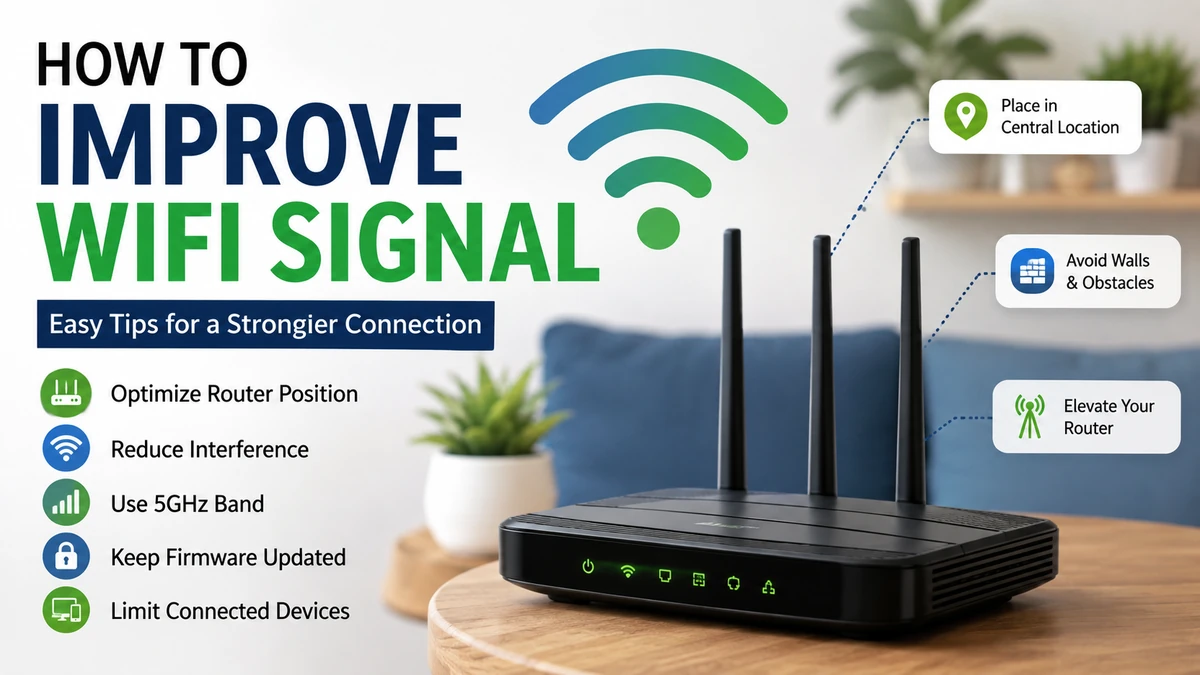

A Wi-Fi connection can look perfectly healthy beside the router and become painfully slow two rooms away. In many homes, the internet plan is not actually the problem. Router placement, walls, interference, crowded wireless channels, frequency bands, and aging hardware can all weaken the connection before it reaches your device.
If you’re trying to figure out how to improve wifi signal, start with the free fixes before buying new equipment. Moving your router, choosing the right frequency band, reducing interference, updating firmware, and adjusting wireless channels can produce a noticeable improvement.
Quick answer: To improve Wi-Fi signal, place the router centrally and in the open, reduce walls and metal obstacles between the router and devices, use 5 GHz or 6 GHz at shorter distances and 2.4 GHz for longer range, choose less congested channels, update firmware, and use mesh Wi-Fi or wired access points when one router cannot cover the entire home.
1. Start by Finding Out What Is Actually Wrong
Before changing settings or replacing your router, determine whether you have a Wi-Fi problem or an internet connection problem.
They are not the same thing.
Your internet connection is the service delivered by your internet service provider (ISP). Wi-Fi is the wireless network created inside your home by your router or access point.
A fast broadband or fiber connection can therefore feel slow if the wireless link between your device and router is poor.
Compare Ethernet and Wi-Fi speeds
If possible, connect a laptop or desktop directly to the router using an Ethernet cable and run a speed test.
Then repeat the test over Wi-Fi:
- Close to the router.
- In your normal working or streaming location.
- In the room where the connection is weakest.
If Ethernet performance is good but Wi-Fi becomes dramatically slower as you move away, your wireless network is probably the bottleneck.
If both Ethernet and Wi-Fi are slow, investigate your ISP connection, modem or gateway before spending money on Wi-Fi equipment.
Signal strength and internet speed are different
Full Wi-Fi bars don’t guarantee fast internet.
Signal strength describes how well your device can communicate with an access point. Actual performance also depends on interference, network congestion, router capabilities, client hardware, ISP speed, latency, channel width and how many devices are transmitting.
This distinction matters because the correct solution depends on the actual bottleneck.
Quick Takeaway: Establish a wired baseline first. It prevents you from replacing a perfectly good router when the ISP connection is actually responsible for the slowdown.
2. how to improve wifi signal With Better Router Placement
Router location is one of the most important—and cheapest—things to fix.
Wi-Fi uses radio waves. Every wall, floor and large obstruction between your router and connected device can affect those radio signals. Dense materials and metal are particularly troublesome.
Both Microsoft and router manufacturers recommend moving an access point toward the middle of the coverage area, reducing obstacles, and positioning it higher rather than hiding it under furniture or in a corner.
Put the router near the center of your home
A router sends Wi-Fi in multiple directions. If you put it against an outside wall, part of its useful coverage is effectively directed outside the area where you need it.
A central location gives devices on different sides of the house a better chance of maintaining a strong connection.
Instead of:
Router → wall → wall → wall → bedroom
you want something closer to:
Room ← router → room
Central placement becomes particularly useful in apartments and single-story houses.
Keep the router in the open
Avoid hiding a wireless router:
- Inside a cabinet
- Behind a television
- Under a desk
- Beside large metal furniture
- On the floor
- In a basement corner
- Behind several electronic devices
An exposed shelf or other elevated, open position is usually better.
Think about vertical coverage
In a multi-story home, the horizontal center of the building isn’t the only consideration. You also need to account for height.
For example, placing the router high on the ground floor can sometimes provide a better balance between ground-floor and upstairs coverage than putting it near the floor.
If moving the main router cannot provide adequate coverage across multiple floors, an additional access point or mesh node is usually a more effective long-term solution.
3. Remove Sources of Wireless Interference
Distance isn’t the only reason a Wi-Fi signal becomes unreliable.
Other radio networks and household electronics can create interference, particularly around the 2.4 GHz frequency band.
Potential sources include:
- Neighboring Wi-Fi networks
- Microwave ovens
- Bluetooth equipment
- Some cordless phones
- Baby monitors
- Other wireless devices
- Nearby access points
- Certain USB 3.0 devices and equipment
- Large metal appliances
TP-Link specifically recommends keeping wireless equipment away from common interference sources and physical obstructions, while Microsoft also advises checking the area around the access point for objects that may affect reception.
Don’t put the router next to another router
Two wireless routers positioned close together can create unnecessary competition for the same wireless spectrum, especially when their radios operate on overlapping channels.
If your ISP gateway is still broadcasting Wi-Fi while you’ve installed a separate router or mesh system, check whether you actually need both wireless networks.
Where appropriate, the unused wireless radio can be disabled, or the access points can be configured to avoid conflicting channels.
4. Choose Between 2.4 GHz, 5 GHz, and 6 GHz Correctly
Modern Wi-Fi isn’t a single radio frequency.
Depending on your router and devices, you may have access to 2.4 GHz, 5 GHz and 6 GHz bands. Each has different characteristics, so simply choosing the highest number isn’t always the best solution.
| Wi-Fi band | General strength | Main limitation | Useful for |
|---|---|---|---|
| 2.4 GHz | Longer reach and better obstacle penetration | More congestion and lower potential throughput | Distant rooms, smart-home devices |
| 5 GHz | Higher potential speeds and more available spectrum | Shorter effective range | Streaming, gaming, laptops near the router |
| 6 GHz | Large amount of clean spectrum on compatible Wi-Fi generations | Shorter reach and requires compatible hardware | High-performance nearby devices |
When should you use 2.4 GHz?
Use 2.4 GHz when coverage matters more than maximum throughput.
It can be useful for:
- Devices farther from the router
- Smart plugs and other IoT equipment
- Areas separated by several obstacles
- Older devices that don’t support newer bands
The drawback is congestion. Many household wireless devices and neighboring networks occupy the same general spectrum.
When should you use 5 GHz?
For a modern laptop, smartphone, streaming device or game console reasonably close to the router, 5 GHz is often the better choice.
TP-Link notes that 5 GHz offers higher speeds but generally has shorter range and is more affected by obstacles than 2.4 GHz.
So if your connection is fast in the living room but disappears at the far end of the house, forcing everything onto 5 GHz may actually make coverage worse.
What about 6 GHz?
Wi-Fi 6E and Wi-Fi 7 equipment can use the 6 GHz spectrum where supported.
Its extra spectrum can provide excellent performance for compatible devices, particularly where older Wi-Fi bands are crowded. However, it isn’t a magic long-range solution. For distant rooms or signals passing through substantial obstacles, placement and additional access points remain important.
The practical rule is simple:
Use faster bands where the signal is strong; use longer-reaching bands when distance becomes the priority.
5. Change a Crowded Wi-Fi Channel
Think of a Wi-Fi band as a road containing several lanes.
If your router and several neighboring routers are competing in the same part of the spectrum, performance can suffer even when your signal bars look reasonably strong.
This is especially common in:
- Apartment buildings
- Dormitories
- Offices
- Dense residential neighborhoods
Best channels for 2.4 GHz
For conventional 2.4 GHz Wi-Fi configurations, channels 1, 6 and 11 are commonly preferred because they avoid overlapping with one another under the standard 20 MHz channel arrangement.
Microsoft recommends choosing among channels 1, 6 and 11 based on nearby access points and their signal levels. Intel provides similar guidance for minimizing interference.
Don’t automatically choose channel 1 simply because you’ve read that it is good. The best choice depends on the wireless environment around your home.
Use a Wi-Fi analyzer
A Wi-Fi analyzer can show nearby wireless networks, channels and signal levels.
Walk around your home and inspect:
- Your network’s signal
- Neighboring networks
- Channel utilization
- Congested areas
- Places where your network becomes weak
Many routers also provide automatic channel selection.
Auto mode can work well, but if you’re experiencing persistent congestion, manually testing different appropriate channels can reveal whether channel selection is part of the problem.
Don’t make channels unnecessarily wide
Wider channels can increase potential throughput, but they also consume more spectrum and can become more vulnerable to interference in congested environments.
For 2.4 GHz, Microsoft suggests trying 20 MHz if a wider or automatic setting is causing reliability problems. Intel likewise recommends considering narrower widths when wireless drops or interference are occurring.
On 5 GHz and 6 GHz, wider channels can make sense when the spectrum is clean and your devices support them.
The goal isn’t to select the biggest number in the settings menu. It’s to find the best balance of throughput, stability and interference for your environment.
6. Update Router Firmware and Device Drivers
Routers are small computers running their own operating software.
That software—called firmware—can receive updates that address security vulnerabilities, bugs, compatibility problems and sometimes performance issues.
Check your router manufacturer’s app or administration interface for firmware updates.
Some modern routers update automatically. Older models may require you to install updates manually.
While you’re troubleshooting, also update:
- Laptop Wi-Fi drivers
- Phone and tablet operating systems
- Mesh system software
- Wireless adapter drivers
- Access point firmware
Ubiquiti, for example, recommends keeping access points and affected client Wi-Fi drivers updated as part of wireless-performance troubleshooting.
Restarting helps, but it isn’t a permanent fix
Restarting a router can clear temporary problems, but a network that requires constant reboots may have a deeper issue.
Possible causes include:
- Old firmware
- Overheating
- Failing hardware
- ISP problems
- Software bugs
- Congestion
- Poor access-point placement
Treat rebooting as a troubleshooting step rather than your entire Wi-Fi strategy.
7. Adjust the Router Antennas
If your router has external adjustable antennas, their orientation can affect how radio energy is distributed.
For same-floor coverage, vertical antennas are a sensible starting point. In multi-level environments, experimenting with mixed antenna angles can help.
TP-Link’s current guidance recommends vertical antenna positioning for same-floor coverage and angled antennas when trying to serve multiple floors.
Don’t point every antenna directly at the device you’re trying to reach. Router antennas don’t work like flashlights.
If you have multiple antennas, slightly different orientations may also help devices whose own antennas are positioned differently.
Quick Takeaway: Antenna adjustments can refine coverage, but moving a poorly located router usually produces a bigger improvement.
8. Secure Your Wi-Fi Network
A poorly secured wireless network creates both a security problem and a potential performance problem.
Use a strong Wi-Fi password and modern encryption supported by your equipment.
WPA3 is the current security standard on compatible equipment. WPA2 remains widely used where WPA3 support is unavailable. Avoid obsolete WEP security.
Microsoft recommends WPA3 where possible and advises against older security methods such as WEP.
Also review the router’s connected-device list occasionally.
You might discover:
- An old phone still connected
- A forgotten streaming box
- Smart-home equipment
- Guest devices
- Unknown clients
Changing your password is appropriate if you find devices that shouldn’t have access.
9. Manage Devices That Consume Large Amounts of Bandwidth
Sometimes what feels like a weak Wi-Fi signal is actually a busy network.
Imagine someone is downloading a large game while another person is backing up thousands of photos and two TVs are streaming high-resolution video. The Wi-Fi signal may still be strong, but available capacity is being heavily used.
Check your router’s client list or network-monitoring tools for unusually heavy traffic.
Common bandwidth-intensive activities include:
- Large cloud backups
- Operating-system downloads
- Game downloads
- High-resolution streaming
- File synchronization
- Security-camera uploads
- Large file transfers
Some routers provide Quality of Service (QoS) or device-priority features. These can help manage contention by prioritizing important traffic.
QoS cannot create additional ISP bandwidth, however. It only helps distribute available capacity more intelligently.
10. Add a Wi-Fi Extender When You Have One Small Dead Zone
A Wi-Fi range extender, sometimes called a repeater, receives an existing wireless connection and rebroadcasts it.
It can make sense when:
- Most of the house already has good Wi-Fi
- One room has a weak signal
- Running Ethernet isn’t practical
- You need a relatively simple coverage extension
Placement is crucial.
Don’t install an extender directly inside a dead zone where it can barely communicate with the main router. It needs a sufficiently strong upstream connection to relay useful service farther away.
A better starting point is somewhere between the router and the weak area.
Wi-Fi extender vs mesh Wi-Fi
| Feature | Wi-Fi extender | Mesh Wi-Fi |
| Best use | One or two isolated weak areas | Whole-home coverage |
| Cost | Usually lower | Usually higher |
| Setup | Relatively simple | Designed as a coordinated system |
| Roaming | Can vary by setup | Usually smoother |
| Scalability | Limited | Better for larger homes |
| Backhaul options | Product dependent | Wireless or wired, depending on system |
An extender isn’t inherently bad. It simply solves a narrower problem than a well-designed multi-access-point network.
11. Use Mesh Wi-Fi for Larger Homes and Multiple Dead Zones
If you’re constantly moving the router, adding repeaters and still finding dead spots, one access point may simply be insufficient for the building.
A mesh Wi-Fi system uses multiple coordinated nodes to distribute wireless coverage.
This can be useful for:
- Multi-story homes
- Long floor plans
- Large houses
- Multiple concrete or masonry walls
- Detached workspaces
- Several persistent dead zones
Mesh node placement still matters.
Google recommends placing a mesh point roughly halfway toward the area that needs stronger coverage rather than putting it at the far edge of the existing signal. Linksys similarly recommends positioning mesh nodes where they can maintain a strong connection while extending coverage toward weak areas.
Don’t place mesh nodes in the dead zone
This is one of the most common mistakes.
A mesh satellite must communicate with the primary router or another node. If you put it where the original Wi-Fi is already unusable, the backhaul connection can become the bottleneck.
Start closer to the main router and gradually reposition the satellite until you find the best compromise between backhaul quality and extended coverage.
Wired backhaul is even better when practical
When mesh nodes or access points can communicate over Ethernet instead of using wireless spectrum for their upstream connection, you can often achieve more consistent performance.
This is called wired backhaul.
Wireless mesh is convenient, but every wireless hop has to use radio resources. Ubiquiti notes that wireless meshing can be considerably less performant than a wired connection, particularly in high-interference environments.
For demanding home offices, gaming systems and high-speed fiber connections, Ethernet-connected access points are worth considering.
12. Consider Powerline or Ethernet When Walls Defeat Wi-Fi
Sometimes the building itself is the problem.
Concrete, brick, reinforced walls, metal structures and multiple floors can make it difficult for a single wireless access point to deliver consistent performance everywhere.
In that situation, trying to force one router to cover the entire property isn’t always sensible.
Ethernet
Ethernet is usually the most predictable option for fixed devices such as:
- Desktop PCs
- Game consoles
- Smart TVs
- Network storage
- Home-office computers
You can also run Ethernet to another part of the building and connect an additional access point there.
That brings the wireless source closer to the devices rather than asking a distant router to transmit through several barriers.
Powerline adapters
Powerline networking sends data through compatible electrical wiring.
Results vary substantially depending on the wiring, electrical circuits and interference in the building, so it shouldn’t automatically be assumed to outperform Wi-Fi.
Still, it can be worth testing when Ethernet installation is difficult and wireless signals struggle through structural obstacles.
How to Improve Wi-Fi Signal Through Thick Walls
Thick walls require a different approach from ordinary interference.
Increasing transmit power isn’t a universal solution because Wi-Fi communication is two-way: your phone or laptop must also be able to send data back to the access point.
For a house with substantial concrete, masonry or other dense barriers, prioritize:
- Moving the router closer to the center of the occupied area.
- Reducing the number of walls between the router and important devices.
- Using 2.4 GHz when range is more important than peak speed.
- Adding strategically positioned access points.
- Using Ethernet backhaul where practical.
- Deploying a mesh system when several areas need coverage.
The best solution is often more intelligently placed access points, not simply a more powerful router.
how to improve wifi signal Upstairs
Weak upstairs Wi-Fi is common because the signal must travel through floors, ceilings, walls and furniture.
Start by moving the router higher and closer to the middle of the house.
If the router has adjustable antennas, experiment with their orientation. Router manufacturers provide different recommendations based on floor layout, so practical testing in your own building matters.
For a larger two- or three-story home, a mesh node or wired access point on another floor will usually provide a more dependable solution than trying to make one distant router cover everything.
Should You Upgrade to Wi-Fi 6, Wi-Fi 6E, or Wi-Fi 7?
Not every signal problem requires a new router.
A modern router cannot eliminate the laws of radio propagation. If you install an expensive router inside a metal cabinet at one end of a large house, you’ll still have coverage problems.
Newer Wi-Fi generations can, however, improve efficiency, capacity and potential throughput when both the network and client devices support the relevant features.
Wi-Fi 6
Wi-Fi 6, based on IEEE 802.11ax technology, is widely supported by modern phones, laptops and routers. It is a meaningful upgrade from much older equipment, particularly in homes with numerous connected devices.
Wi-Fi 6E
Wi-Fi 6E extends compatible Wi-Fi 6 technology into the 6 GHz band, opening additional spectrum for supported devices.
Wi-Fi 7
Wi-Fi 7, based on IEEE 802.11be, introduces technologies such as wider channels and Multi-Link Operation (MLO) for compatible hardware.
That can provide major performance benefits in the right environment, but buying Wi-Fi 7 specifically to fix a poorly positioned access point isn’t the best first move.
Upgrade when your existing hardware is genuinely limiting you—for example, when the router is old, doesn’t support the bands your devices use, struggles with your connection speed, lacks security updates or cannot handle the number of devices in your home.
How to Measure Wi-Fi Signal Strength Properly
Don’t rely exclusively on the Wi-Fi icon.
Wireless signal strength is commonly represented using dBm, or decibels relative to one milliwatt. Wi-Fi measurements are typically negative numbers.
The closer the measurement is to zero, the stronger the received signal.
For example:
- -40 dBm is stronger than -60 dBm.
- -60 dBm is stronger than -75 dBm.
- Very weak readings can lead to slower data rates, retries and disconnections.
Exact performance cannot be predicted from signal strength alone because interference, channel utilization, device capabilities and network load also matter.
Create a simple Wi-Fi map
You don’t need professional equipment.
Use a Wi-Fi analyzer and record the signal in:
- The room containing the router
- Your bedroom
- Home office
- Living room
- Upstairs
- Outdoor areas you use regularly
- Known dead zones
Then make one change at a time.
Move the router and test again. Change the channel and retest. Move a mesh node and retest.
This method is far more useful than randomly changing five settings and wondering which one helped.
Common Wi-Fi Fixes That Don’t Always Work
Some popular recommendations are oversimplified.
“Just buy a faster internet plan”
A higher-speed plan doesn’t automatically improve wireless coverage.
If a room has a poor radio connection to the router, upgrading from 100 Mbps to 500 Mbps at the modem won’t necessarily fix that weak wireless link.
“Buy the most powerful router”
Router specifications matter, but building layout matters too.
For a large or difficult property, several well-positioned access points can outperform one premium router located far from the devices.
“Put the extender where Wi-Fi stops working”
An extender needs a usable upstream signal.
Move it closer to the router so it can receive a healthy connection before rebroadcasting it toward the dead zone.
“5 GHz is always better”
5 GHz can deliver excellent performance, but its effective coverage is generally shorter than 2.4 GHz.
Choose the band based on distance, interference and device needs rather than assuming one band is universally superior.
“More Wi-Fi bars mean faster internet”
Signal strength is only one component of network performance.
Congestion, interference, ISP capacity, client hardware and background traffic can still produce poor speeds when the displayed signal appears strong.
A Practical Order for Troubleshooting Weak Wi-Fi
When you’re learning how to improve wifi signal, making changes in the right order saves both time and money.
Try this sequence:
- Run an Ethernet speed test to establish your ISP baseline.
- Test Wi-Fi close to the router and in weak rooms.
- Restart the modem and router to eliminate temporary faults.
- Move the router centrally, higher and into the open.
- Remove nearby interference and major obstructions.
- Test 2.4 GHz and 5 GHz separately where possible.
- Analyze neighboring networks and channel congestion.
- Select an appropriate Wi-Fi channel and channel width.
- Update router firmware and client Wi-Fi drivers.
- Review connected devices and network usage.
- Add an extender for one isolated dead zone.
- Use mesh Wi-Fi or additional access points for widespread coverage problems.
- Use Ethernet or wired backhaul for devices and locations where reliability matters most.
- Replace aging hardware only after confirming that the router itself is the limiting factor.
This approach separates free configuration problems from genuine hardware limitations.
Final Thoughts on how to improve wifi signal
The most effective way to how to improve wifi signal is to treat Wi-Fi as a coverage system rather than assuming faster internet service will solve every slowdown.
Start with router placement. Put the access point centrally, elevated and in the open. Test 2.4 GHz and 5 GHz according to distance, reduce interference, choose sensible channels, update firmware and measure the results instead of guessing.
If one router still cannot cover the building, the answer is usually better network design: strategically placed mesh nodes, wired access points or Ethernet backhaul.
The key is to diagnose first and spend second. A five-minute router relocation can sometimes accomplish more than an expensive hardware upgrade.
