
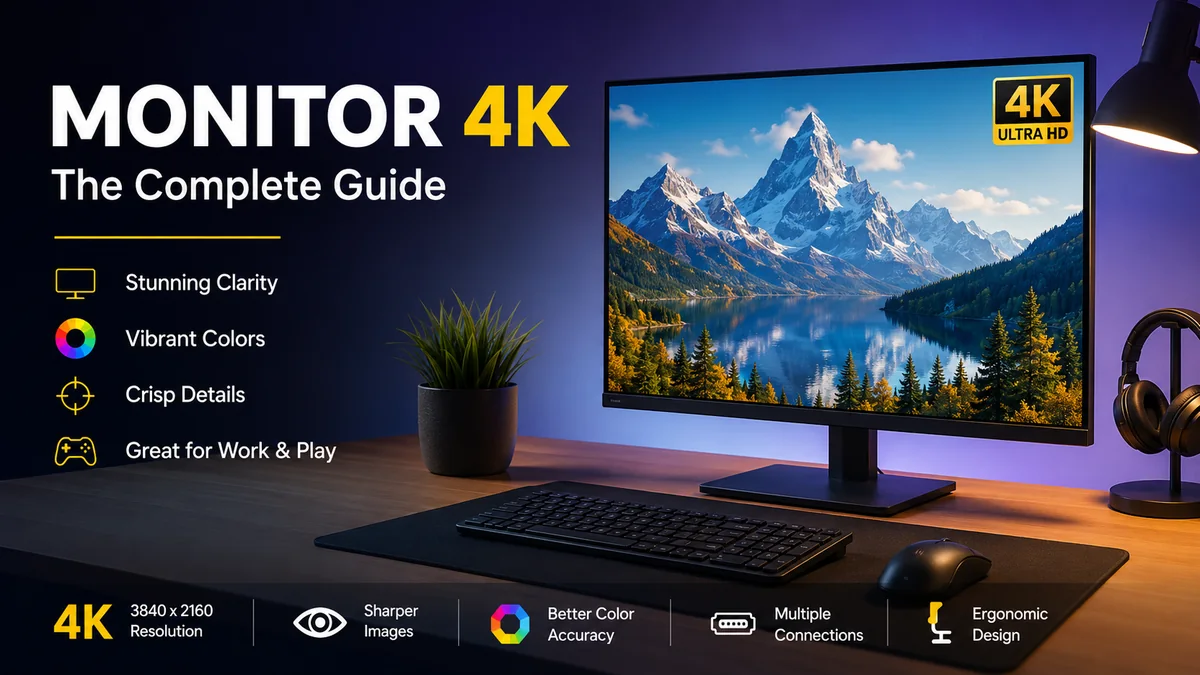

A sharper desktop can change more than how photos and videos look. Text becomes cleaner, editing timelines gain useful detail, and large spreadsheets can fit more information without feeling cramped. That is why monitor 4k displays have become increasingly common for productivity, creative work, entertainment, and gaming.
A monitor 4k typically uses a 3840 × 2160-pixel UHD resolution, producing about 8.29 million pixels on a 16:9 screen. That is four times the pixel count of 1920 × 1080 Full HD. The result can be significantly sharper text, finer image detail, and more usable workspace, particularly on 27-inch and 32-inch displays.
Understanding 4K, however, requires more than looking at resolution. Screen size, pixel density, panel technology, refresh rate, HDR performance, graphics hardware, operating-system scaling, HDMI or DisplayPort bandwidth, and viewing distance can all affect the actual experience.
What Is a monitor 4k?
A monitor 4k is a computer display with roughly 4,000 horizontal pixels. For mainstream desktop monitors, the standard resolution is 3840 × 2160, commonly described as 4K UHD, Ultra HD, UHD, or 2160p.
There is an important distinction between consumer 4K and cinema 4K:
| Format | Resolution | Total Pixels | Typical Use |
|---|---|---|---|
| Full HD | 1920 × 1080 | 2.07 million | General computing, budget gaming |
| QHD / 1440p | 2560 × 1440 | 3.69 million | Gaming, productivity |
| 4K UHD | 3840 × 2160 | 8.29 million | Desktop monitors, TVs, gaming |
| DCI 4K | 4096 × 2160 | 8.85 million | Digital cinema |
| 5K | 5120 × 2880 | 14.75 million | High-density professional displays |
| 8K UHD | 7680 × 4320 | 33.18 million | Specialized high-resolution use |
Consumer monitor manufacturers normally mean 3840 × 2160 when they advertise a display as 4K. DCI 4K’s 4096 × 2160 format comes from professional digital cinema rather than the conventional desktop-monitor standard.
Why is 4K called 4K?
The name refers approximately to the number of horizontal pixels.
Older display terminology often emphasizes vertical resolution, which is why 1920 × 1080 is called 1080p. With 4K, the industry commonly refers instead to the roughly 4,000-pixel horizontal dimension.
This explains why 3840 × 2160, 2160p, UHD, and 4K UHD are frequently used to describe the same consumer display format.
How Much Better Is 4K Than 1080p or 1440p?
Resolution differences become clearer when you compare total pixel counts.
A 1920 × 1080 screen contains:
2,073,600 pixels
A 2560 × 1440 screen contains:
3,686,400 pixels
A 3840 × 2160 screen contains:
8,294,400 pixels
Therefore, 4K contains exactly four times as many pixels as Full HD and 2.25 times as many as 1440p.
That extra information can improve fine detail considerably, but resolution alone does not determine image quality.
1080p vs 1440p vs 4K
| Feature | 1080p | 1440p | 4K UHD |
| Resolution | 1920 × 1080 | 2560 × 1440 | 3840 × 2160 |
| Pixel count | 2.07M | 3.69M | 8.29M |
| GPU demand | Lowest | Moderate | Highest |
| Text clarity | Good at smaller sizes | Very good | Excellent |
| Desktop space | Basic | Spacious | Very spacious |
| Common desktop size | 21–27″ | 25–32″ | 27–32″+ |
| Gaming hardware needs | Lower | Moderate | Higher |
| Creative work | Basic | Good | Excellent |
For ordinary productivity and content creation, 4K generally offers the strongest detail of these three resolutions. Gaming is less straightforward because the GPU must render substantially more pixels. RTINGS consequently considers 4K particularly attractive for productivity, editing, console gaming, and mixed use, while 1440p remains useful for PC gamers prioritizing performance.
Quick Takeaway: 4K’s main advantage is not simply that images look better. The combination of high pixel density and additional workspace can make text, photographs, video previews, design interfaces, and multitasking noticeably more comfortable.
What Screen Size Is Best for a 4K Monitor?
For desktop use, 27 and 32 inches are two of the most practical sizes for 3840 × 2160 resolution.
A 27-inch 4K screen provides particularly high pixel density, producing very fine text and interface elements. A 32-inch model gives you a larger physical workspace while retaining excellent sharpness.
Recent monitor-resolution guidance generally places 4K naturally in the 27-to-32-inch desktop range, although much larger 4K displays are also available.
27-inch 4K
At 27 inches, 3840 × 2160 provides approximately 163 pixels per inch (PPI).
Advantages include:
- Extremely sharp text
- Fine photographic detail
- Compact desktop footprint
- Excellent clarity for coding and documents
- High pixel density for design applications
The tradeoff is that native interface elements can appear very small, so operating-system scaling is usually useful.
32-inch 4K
A 32-inch 4K screen provides approximately 138 PPI.
It offers an appealing balance between physical size and resolution. Text remains considerably sharper than on a lower-resolution display of the same size, while the larger panel gives applications more breathing room.
For spreadsheets, programming, photo editing, video editing, CAD, and multi-window productivity, 32 inches can be especially comfortable.
Is 24-inch 4K worth it?
It can be, but the benefit becomes more specialized.
Because 3840 × 2160 pixels are packed into a relatively small screen, pixel density is extremely high. Most users will need significant interface scaling.
A 24-inch 4K monitor therefore emphasizes sharpness more than raw usable desktop space.
Pixel Density Matters as Much as Resolution
Two monitors can have exactly the same 4K resolution but look different because their screen sizes differ.
This is where pixels per inch, or PPI, becomes useful.
Pixel density measures how tightly pixels are packed across the physical display. Increasing the screen size without increasing resolution reduces PPI.
Approximate pixel density for 3840 × 2160 displays is:
| Screen Size | Approx. Pixel Density |
| 24-inch | 184 PPI |
| 27-inch | 163 PPI |
| 28-inch | 157 PPI |
| 32-inch | 138 PPI |
| 43-inch | 102 PPI |
This explains why a 27-inch 4K display looks exceptionally crisp at desktop viewing distances, while a much larger 4K screen has physically larger pixels.
Resolution should therefore always be considered alongside screen size, PPI, viewing distance, and scaling.
Understanding Display Scaling on a 4K Monitor
Running 3840 × 2160 at completely unscaled desktop dimensions can make menus, icons, buttons, and text too small on many monitor sizes.
Windows, macOS, and Linux desktop environments can use display scaling to make interface elements physically larger while retaining the visual benefits of the higher pixel density.
For example, scaling a 4K screen does not normally mean giving up the panel’s physical pixels. Instead, the operating system renders interface elements at an appropriate size for a high-density display.
Common starting points include:
- 27-inch 4K: around 150% scaling can be comfortable
- 32-inch 4K: roughly 125–150% may work well
- Larger displays: lower scaling may become practical
These are not universal settings. Eyesight, viewing distance, application compatibility, and desk depth matter.
Does scaling defeat the purpose of 4K?
No.
This is a common misunderstanding.
Even when scaling makes the effective workspace resemble a lower-resolution desktop, text and interface graphics can still be rendered using far more physical pixels. That produces smoother curves, cleaner fonts, and finer details.
IPS, VA, OLED, and Other 4K Panel Types
Resolution tells you how many pixels are present. It does not tell you how those pixels perform.
Panel technology affects contrast, viewing angles, motion clarity, response time, black levels, brightness, color reproduction, and other aspects of image quality.
IPS
IPS (In-Plane Switching) panels are widely used in 4K office and professional monitors.
They are known for:
- Wide viewing angles
- Consistent colors
- Good text clarity
- Strong general-purpose performance
- Broad availability
Professional IPS displays may also offer factory calibration and wide-gamut color reproduction. For example, professional 4K models can combine IPS technology with calibrated color accuracy for design and content-creation workflows.
VA
VA panels typically emphasize stronger native contrast than conventional IPS displays.
They can work well for:
- Movies
- Dark-room use
- General entertainment
- Mixed productivity
Their motion characteristics and viewing-angle performance vary considerably between individual models.
OLED and QD-OLED
OLED technology allows individual pixels to emit their own light rather than relying on a conventional LCD backlight.
That enables:
- Near-perfect blacks
- Extremely high contrast
- Very fast pixel response
- Strong HDR presentation
- Excellent gaming motion performance
Modern 4K OLED gaming monitors can combine 3840 × 2160 resolution with refresh rates around 240Hz, showing how far high-resolution gaming displays have progressed.
OLED does have tradeoffs. Long-term static-content retention is a consideration, and text rendering can differ depending on the panel’s subpixel structure.
Refresh Rate: Is 60Hz Enough for monitor 4k?
Refresh rate describes how many times the monitor can update its image each second.
A 60Hz display refreshes up to 60 times per second. A 120Hz panel can refresh up to 120 times, while 144Hz, 160Hz, 240Hz, and higher-refresh displays can provide progressively smoother motion when the source can supply enough frames.
4K 60Hz
For office applications, browsing, programming, photography, and conventional video consumption, 60Hz remains functional.
It also reduces the graphics-performance requirements compared with trying to run modern games at extremely high frame rates.
4K 120Hz and 144Hz
Moving to 120Hz or 144Hz makes:
- Cursor movement smoother
- Scrolling more fluid
- Animation cleaner
- Games more responsive
- Fast motion easier to follow
These refresh rates make sense for users combining productivity with gaming.
4K 240Hz
High-end 4K gaming monitors now reach 240Hz, particularly with OLED technologies.
The challenge is not simply finding a monitor capable of 240Hz. Your computer must also generate sufficiently high frame rates, and the display connection must provide enough bandwidth.
Quick Takeaway: Resolution controls spatial detail; refresh rate controls temporal smoothness. A 4K 60Hz monitor can look extremely sharp but will not feel as fluid in motion as a 4K 144Hz or 240Hz display.
Response Time and Input Lag Are Different
Gaming monitor specifications frequently advertise response times such as 1ms or 0.03ms.
Pixel response time describes how quickly pixels transition between states. Slow transitions can produce visible blur or ghosting.
Input lag measures the delay between an input or incoming signal and its visible result on the screen.
They are related to perceived responsiveness but are not the same measurement.
For gaming, especially competitive titles, both motion handling and input latency deserve attention rather than relying on a single advertised response-time figure.
What Does HDR Mean on a 4K Monitor?
HDR, or High Dynamic Range, is designed to reproduce a broader range between bright highlights and dark portions of an image while supporting richer color information.
But having “HDR” written on a specification sheet does not automatically mean the display delivers impressive HDR.
Effective HDR depends on factors such as:
- Peak brightness
- Black level
- Contrast
- Local dimming capability
- Color gamut
- Tone mapping
- Panel technology
- HDR format support
HDR10 is common across monitors, while certain models support additional formats.
Professional displays may combine HDR support with wide color gamuts such as DCI-P3 and sRGB, while OLED’s deep blacks can produce especially strong perceived HDR contrast.
Why cheap HDR can look disappointing
An LCD monitor with limited brightness, weak contrast, and no meaningful local dimming may accept an HDR signal without reproducing the dramatic dynamic range associated with high-quality HDR displays.
So when comparing monitors, treat “HDR supported” and “excellent HDR performance” as two different claims.
Color Accuracy, sRGB, DCI-P3, and Adobe RGB
Anyone working with photographs, graphics, video, or print should look beyond resolution.
Important specifications include:
sRGB
sRGB is a widely used color space for web content and conventional computer applications.
A display covering close to 100% sRGB is useful for everyday digital work.
DCI-P3
DCI-P3 represents a wider color gamut and has become increasingly relevant for video, HDR, modern operating systems, and creative workflows.
Current professional 4K displays may advertise coverage around 95–98% DCI-P3 alongside full sRGB coverage.
Delta E
Delta E (ΔE) expresses measured color difference.
Lower values generally indicate greater color accuracy. Professional monitors may advertise average Delta E values below 2 or even below 1 after calibration.
For color-critical work, however, factory specifications should not replace proper calibration and profiling.
8-bit, 10-bit, and FRC
Color depth affects how many tonal values a display can represent.
Some monitors marketed as 10-bit use an 8-bit + FRC (Frame Rate Control) implementation rather than a native 10-bit panel. This approach can still provide smooth gradients, but professionals should verify the actual panel specification when color depth matters.
HDMI vs DisplayPort for a 4K Monitor
Both HDMI and DisplayPort can carry 4K signals, but the maximum combination of resolution, refresh rate, color depth, and HDR depends on the versions implemented by the monitor and source device.
RTINGS notes that either connection can generally support a monitor’s native resolution, although individual displays may provide different bandwidth capabilities through different ports.
HDMI
HDMI is particularly common on:
- Desktop PCs
- Laptops
- PlayStation
- Xbox
- Streaming hardware
- Media devices
Older HDMI implementations may limit the refresh rate available at 4K.
DisplayPort
DisplayPort is extremely common on desktop graphics cards and computer monitors.
It is often a natural choice for PC gaming and high-resolution workstation setups.
HDMI 2.1
HDMI 2.1 is particularly relevant when high refresh rates at 4K are required, especially with modern game consoles and gaming PCs.
Do not assume a port offers every capability associated with the version name. Actual monitor and source-device implementations still matter.
Display Stream Compression
High-resolution, high-refresh displays may use Display Stream Compression (DSC) to transmit demanding signals efficiently over available display-link bandwidth.
This has become particularly useful as monitors combine 4K resolution with 144Hz, 160Hz, 240Hz, HDR, and higher color depths.
USB-C Makes 4K Monitors More Useful for Laptops
USB-C can turn a monitor into something closer to a desktop docking station.
Depending on the implementation, a single USB-C cable may carry:
- Display signal
- USB data
- Laptop charging
- Keyboard and mouse connections
- Ethernet through a monitor hub
- Other peripheral connections
Some current 4K productivity displays provide around 90W to 96W USB-C Power Delivery, enough to power many laptops while carrying the video signal.
This can create an extremely clean setup: connect one cable when arriving at the desk, and the laptop immediately gains a large display, power, and attached peripherals.
Check USB-C specifications carefully
Not every USB-C port supports video.
Likewise, not every video-capable USB-C connection provides sufficient charging power for every laptop.
Verify:
- DisplayPort Alt Mode or equivalent video capability
- Maximum resolution and refresh rate
- USB data speed
- Power Delivery wattage
- Whether bandwidth is shared with other monitor functions
Is a 4K Monitor Good for Office Work?
Yes. Productivity is one of the strongest arguments for 4K.
Higher pixel density improves text clarity, while 3840 × 2160 provides enough physical pixels for detailed applications and multi-window workflows.
It can be particularly useful for:
- Large spreadsheets
- Programming
- Research
- Financial applications
- Document editing
- Web development
- Data analysis
- CAD
- Remote work
- Multitasking
RTINGS rates 4K particularly strongly for productivity compared with 1440p because of the increased detail and available screen information.
4K for coding
Programmers often benefit from sharper text because code editors display enormous amounts of small typography.
A 27-inch or 32-inch 4K screen with appropriate scaling can provide clean fonts without forcing the user to sit excessively close to the display.
Portrait rotation can also be useful for long code files or documentation if the stand supports pivot adjustment.
Is a monitor 4k Better for Photo and Video Editing?
4K can be highly useful for both, but creative professionals should avoid judging a display by resolution alone.
For photo editing, consider:
- Color accuracy
- Gamut coverage
- Uniformity
- Calibration
- Bit depth
- Panel type
- Viewing angles
For video editing, also consider:
- HDR capability
- Refresh-rate support
- DCI-P3 coverage
- Black levels
- Connectivity
- Timeline workspace
A high-resolution panel allows editors to inspect fine image details more closely. It can also provide enough workspace for a video preview alongside editing controls.
Professional 4K displays frequently combine UHD resolution with IPS technology, wide color gamut coverage, factory calibration, and low Delta E values specifically for color-sensitive workflows.
Is 4K Good for Gaming?
4K gaming can deliver extremely detailed graphics, but it places much greater demand on the GPU than 1080p or 1440p.
Rendering 3840 × 2160 means producing more than eight million pixels for every frame.
At 60 frames per second, that represents nearly half a billion pixel positions per second before accounting for the complexity of shading, lighting, geometry, ray tracing, and other rendering tasks.
This is why the ideal gaming resolution depends heavily on hardware and priorities.
4K makes sense when you value:
- Detailed single-player graphics
- Large displays
- High-end GPU performance
- Console gaming
- Sharp desktop productivity alongside gaming
1440p may make more sense when you value:
- Higher frame rates
- Competitive gaming
- Lower GPU requirements
- Better performance on mid-range hardware
RTINGS similarly identifies 4K as especially suitable for single-player gaming on powerful PCs, while 1440p remains attractive for most PC hardware and competitive gaming.
Adaptive Sync, FreeSync, and G-SYNC
Frame rates do not remain perfectly constant in most demanding games.
Variable Refresh Rate (VRR) technologies allow the display’s refresh cycle to adapt to the graphics output, helping reduce visible tearing and judder.
Common technologies include:
- AMD FreeSync
- NVIDIA G-SYNC
- VESA Adaptive-Sync
Some modern monitors support multiple VRR ecosystems, making them flexible across different graphics hardware.
For 4K gaming, VRR can be particularly useful because maintaining a perfectly fixed high frame rate is difficult even with powerful GPUs.
Can You Run Games Below Native 4K?
Yes.
Owning a 4K monitor does not mean every game must be rendered internally at 3840 × 2160.
Games and graphics drivers can use techniques such as:
- Resolution scaling
- NVIDIA DLSS
- AMD FSR
- Intel XeSS
- NVIDIA Image Scaling
- AMD Radeon Super Resolution
These approaches can reduce rendering demands while producing output suitable for the monitor’s native resolution.
RTINGS also notes that modern GPU-based upscaling can often produce better results than simply sending a low-resolution image to the display and relying on monitor-side scaling.
The practical advantage is significant: you can retain a sharp 4K desktop while adjusting individual games according to GPU performance.
4K Monitors for PlayStation and Xbox
Modern consoles make 4K displays particularly relevant.
For console use, examine:
- HDMI bandwidth
- 4K 120Hz support
- VRR compatibility
- HDR quality
- Input lag
- Correct console resolution support
- Audio output
- HDCP compatibility
A 4K monitor designed around console gaming can provide a compact alternative to a television, especially on a desk.
Do not judge console compatibility from the resolution alone. A monitor may have a 3840 × 2160 panel while lacking the connectivity or VRR implementation required to use every console feature.
Do You Need a Powerful Graphics Card for 4K?
For ordinary desktop use, not necessarily.
Integrated graphics in many modern systems can output a 4K desktop, provided the computer and connection support the required resolution and refresh rate.
Gaming is different.
The GPU must render dramatically more pixels at native 4K than at 1080p. High-quality settings, ray tracing, and high refresh rates increase the workload further.
Before connecting a 4K display, check:
- Maximum GPU output resolution
- HDMI or DisplayPort version
- Supported refresh rate at 3840 × 2160
- HDR capabilities if required
- Cable bandwidth
- Game-performance expectations
A computer capable of displaying the Windows desktop at 4K 60Hz is not automatically capable of running demanding games at native 4K 60fps.
How to Set Up a 4K Monitor Correctly
Getting the display out of the box is only the first step. Incorrect settings can leave a high-end monitor running at the wrong resolution, refresh rate, or color configuration.
1. Use an appropriate cable
Connect through HDMI, DisplayPort, or USB-C using a cable capable of the required bandwidth.
A cable or source limitation can prevent the monitor from reaching its intended resolution or refresh rate. Xiaomi, for example, specifically advises confirming that both the cable and signal source support the display’s maximum resolution when 3840 × 2160 is unavailable.
2. Select native resolution
Set the operating system to:
3840 × 2160
Using native resolution generally provides the sharpest desktop output.
3. Set the correct refresh rate
A 144Hz monitor may initially operate at 60Hz depending on the system configuration.
Check the operating system’s advanced display settings and confirm that the intended refresh rate is selected.
4. Adjust scaling
Choose a scaling percentage that keeps text comfortable without wasting too much workspace.
5. Select the appropriate picture mode
General-purpose modes are usually suitable for everyday work.
For color-sensitive tasks, use an accurate sRGB, DCI-P3, or calibrated mode where appropriate.
6. Configure HDR only when useful
Enable HDR when your monitor, operating system, applications, and content support it properly.
HDR does not automatically improve ordinary SDR material.
7. Enable VRR for gaming
If supported, configure Adaptive-Sync, FreeSync, or G-SYNC through the monitor and graphics settings.
Common 4K Monitor Problems and Their Causes
The monitor only runs at 30Hz
This often indicates a bandwidth limitation involving the port, cable, adapter, dock, or graphics hardware.
Check the entire signal chain rather than assuming the monitor is faulty.
Text looks too small
Increase operating-system scaling instead of lowering the desktop resolution.
Using a non-native resolution can make the image softer.
The picture looks blurry
Confirm that:
- Resolution is 3840 × 2160
- GPU scaling is configured correctly
- The correct input mode is active
- The cable is functioning properly
- Application-level scaling is not causing the problem
HDR looks washed out
Possible causes include:
- Incorrect operating-system HDR configuration
- SDR content being displayed in HDR mode
- Poor monitor HDR capability
- Incorrect black-level settings
- Limited brightness or contrast
- Color-profile issues
4K resolution is unavailable
Check whether the GPU, port, adapter, dock, cable, and monitor input all support the required output.
One weak link can limit the entire connection.
Features That Matter Beyond Resolution
A specification sheet with “4K” printed prominently at the top can hide major differences between monitors.
When evaluating the overall display, consider these areas:
Ergonomic stand
Useful adjustments include:
- Height
- Tilt
- Swivel
- Pivot
A VESA-compatible mount can provide more flexibility.
KVM switch
A built-in KVM can let one keyboard and mouse control multiple computers connected to the monitor.
This is particularly convenient for users switching between a personal desktop and work laptop.
USB hub
Built-in USB ports reduce cable clutter and make frequently connected peripherals easier to access.
Picture-by-Picture and Picture-in-Picture
PBP and PIP modes allow multiple sources to share one display.
This can be useful on large 4K monitors where there is enough physical space to display two computers simultaneously.
Low-blue-light and flicker-control features
These features may improve comfort for some users during long sessions, although good ergonomics, sensible brightness, appropriate viewing distance, and regular breaks remain important.
4K Monitor vs 4K TV
Both can use the same 3840 × 2160 resolution, but they are designed around different viewing environments.
A computer monitor generally emphasizes:
- Close viewing distances
- Text clarity
- Desktop connectivity
- DisplayPort and USB-C
- Low latency
- Ergonomic stands
- PC-oriented refresh rates
- Accurate chroma reproduction
A television generally emphasizes:
- Larger screen sizes
- Living-room viewing
- Video processing
- Built-in smart applications
- Speakers
- Remote controls
- Broadcast and streaming features
For desktop work, monitor-specific behavior such as clear text rendering and proper 4:4:4 chroma handling can matter more than simply having 4K resolution.
Who Benefits Most From a 4K Monitor?
A 4K display is particularly useful for people whose work benefits from either high pixel density or detailed screen content.
Office users
Sharper fonts and greater visual detail make long sessions with documents, spreadsheets, and browsers more comfortable.
Programmers
High-density text can make code exceptionally crisp while larger displays provide room for editors, terminals, documentation, and browsers.
Designers and photographers
The resolution helps expose fine details, although color accuracy remains equally important.
Video editors
A 4K workspace provides detailed previews and substantial room for editing interfaces.
Gamers
High-resolution graphics can look excellent, provided GPU performance, refresh rate, and connectivity are adequate.
Laptop users
A 4K USB-C monitor with Power Delivery, USB hub functionality, and possibly a KVM can become the center of a single-cable workstation.
When 4K May Not Be the Best Choice
Higher resolution is not automatically the correct choice for every setup.
A 1440p monitor may be more sensible when:
- Competitive gaming is the priority
- GPU performance is limited
- Maximum frame rate matters more than fine detail
- The display is relatively small
- Budget is limited
A 1080p monitor can still be practical for basic systems, smaller screens, and esports-oriented setups where very high refresh rates matter more than resolution.
There are also resolutions beyond 4K. 5K and 6K displays can achieve even higher pixel density, while 8K desktop monitors remain comparatively specialized because of hardware requirements and limited practical benefit for many users.
How to Evaluate a monitor 4k
Instead of focusing on one impressive specification, work through the display systematically.
- Confirm the native resolution. For conventional 4K UHD monitors, look for 3840 × 2160.
- Choose an appropriate screen size. Around 27–32 inches works particularly well for desktop 4K.
- Consider pixel density and scaling. More PPI means finer detail, but interfaces may need scaling.
- Select the panel type for your use. IPS suits broad productivity and creative work; OLED excels in contrast and motion; VA can provide strong LCD contrast.
- Match refresh rate to your workload. 60Hz is adequate for conventional productivity, while 120Hz and above deliver smoother motion.
- Check real HDR capability. Do not rely solely on an HDR label.
- Review color specifications. Look at sRGB, DCI-P3, Delta E, calibration, and bit depth when accuracy matters.
- Verify connectivity. HDMI, DisplayPort, USB-C, DSC, and Power Delivery capabilities should match your hardware.
- For gaming, check VRR and GPU performance. Resolution alone says little about gaming responsiveness.
- Look at practical features. Ergonomics, VESA mounting, KVM, USB hubs, PBP, and warranty can affect daily use more than minor specification differences.
Final Thoughts on monitor 4k
A monitor 4k is fundamentally a 3840 × 2160 UHD desktop display with roughly 8.29 million pixels, but those numbers tell only part of the story. The real benefit comes from combining that resolution with an appropriate screen size, strong panel performance, correct scaling, sufficient connectivity, and hardware capable of driving it properly.
For productivity, coding, photography, video editing, and mixed desktop use, 4K provides a substantial improvement in text and image detail over lower resolutions. For gaming, the choice requires more balance: higher refresh rates, GPU performance, VRR, response behavior, and HDMI or DisplayPort bandwidth become just as important as pixel count.
The most useful approach is therefore not to ask whether 4K is universally “better.” Start with what you do at the computer, decide how much you value sharpness versus performance, and then evaluate screen size, panel technology, refresh rate, HDR, color accuracy, scaling, and connectivity together. That is what determines whether a 4K monitor actually improves your setup.
