
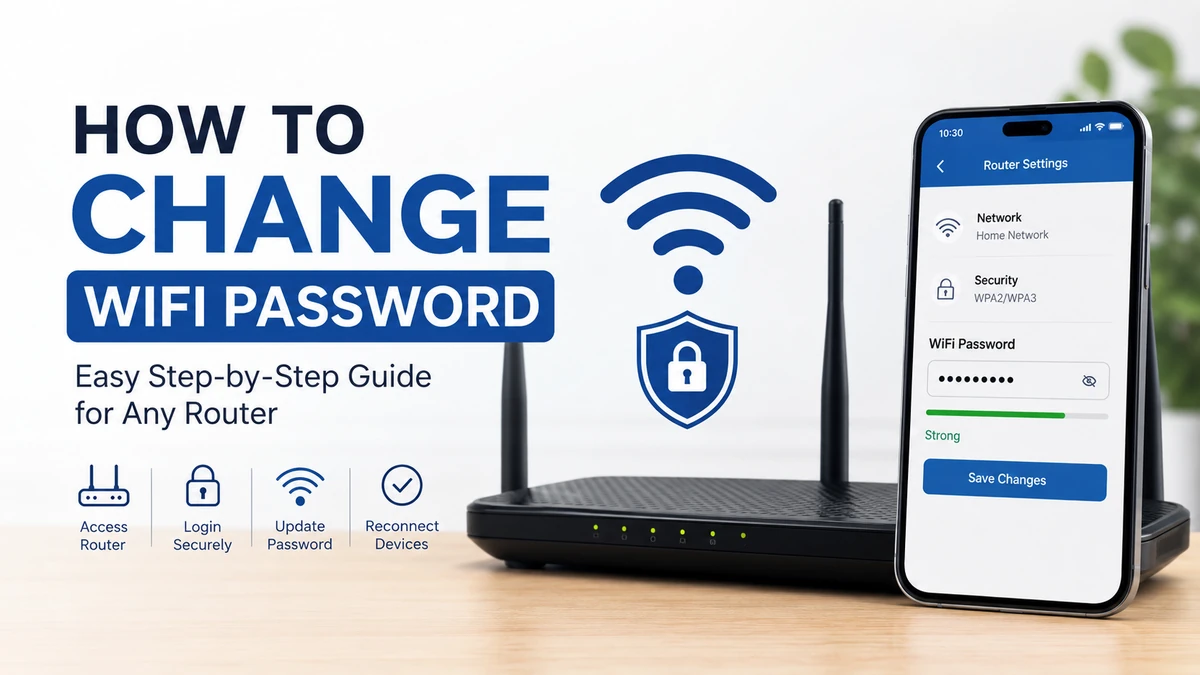

Changing your Wi-Fi password is one of those small tasks that can prevent much bigger network problems. Maybe too many people know your current password, an unfamiliar device has appeared on your network, or you simply want stronger security. Whatever the reason, updating it usually takes only a few minutes.
The exact menus vary between routers, but the basic process is remarkably similar across TP-Link, NETGEAR, ASUS, D-Link, Linksys, Google Nest Wifi, Xfinity gateways, and other home networking equipment.
To learn how to change wifi password, connect to your router, open its admin page or management app, sign in with the router administrator credentials, find Wireless or Wi-Fi settings, enter a new network password, and save the changes. Your connected devices will usually disconnect and must then reconnect using the new password.
Before You Change Your Wi-Fi Password
A Wi-Fi password protects access to your wireless network. It is sometimes called the wireless password, network key, WPA key, or security key.
It is different from your router’s administrator password.
The distinction matters:
| Password | What It Controls |
|---|---|
| Wi-Fi password | Lets phones, laptops, TVs, and other devices join your wireless network |
| Router admin password | Lets you access and modify the router’s configuration |
| ISP account password | Lets you access your internet provider’s online account or app |
For example, someone might know your Wi-Fi password without having permission to change your router settings.
Before starting, have the following ready:
- A phone, tablet, or computer
- Access to your current Wi-Fi or a wired Ethernet connection
- Your router’s IP address or management app
- Router administrator credentials
- A new strong Wi-Fi password
If possible, use a computer connected to the router with an Ethernet cable. Changing wireless settings can disconnect Wi-Fi devices immediately after you save them.
how to change wifi password Through Your Router
For most traditional routers, changing the password through the router’s web-based administration interface is the most universal method.
1. Connect to Your Router
Connect your computer or phone to the network whose password you want to change.
You can normally use Wi-Fi, but Ethernet is more convenient because changing the wireless password may disconnect your device.
2. Find Your Router’s IP Address
Your router has a local IP address that allows devices inside your network to access its configuration page.
Common addresses include:
192.168.0.1192.168.1.110.0.0.1
Do not assume one of these addresses will work with every router. The correct address depends on the manufacturer, ISP, and network configuration.
How to Find Your Router IP on Windows
Press Windows + R, type:
cmd
and press Enter.
Then type:
ipconfig
Look for Default Gateway under the network connection you are currently using.
You might see something similar to:
Default Gateway . . . . . : 192.168.1.1
That address normally belongs to your router. This is also the method described in current router-password guidance when the usual addresses do not work.
How to Find Your Router IP on a Mac
On recent versions of macOS:
- Open System Settings.
- Select Network.
- Choose your active Wi-Fi connection.
- Select Details.
- Open TCP/IP.
- Look beside Router.
Copy that address.
Finding the Router Address on a Phone
The router or gateway address is also usually available within the details of your current Wi-Fi connection on Android and iPhone.
Depending on the operating system, it may appear as Router, Gateway, or a similar label.
Another easy option is checking the label on your router. Manufacturers often print the default management address, network name (SSID), Wi-Fi information, or administration details there.
3. Open the Router Admin Page
Open a web browser such as Chrome, Edge, Firefox, or Safari.
Enter your router’s IP address directly into the address bar.
For example:
192.168.1.1
Press Enter.
You should see your router’s login screen.
This page is hosted locally by your router, so it isn’t the same thing as visiting a normal website on the internet.
4. Log In to Your Router
Enter your router administrator username and password.
Do not automatically enter your Wi-Fi password. The router may have completely separate administrator credentials.
Check:
- The router label
- Router documentation
- Your ISP documentation
- The manufacturer’s management app
- Credentials you created during initial setup
Avoid relying on generic combinations such as “admin/password.” Modern routers increasingly use unique credentials or require an administrator password to be created during setup.
If you previously changed the administrator password, use the password you created.
5. Find Wireless or Wi-Fi Settings
After logging in, look for a section named something similar to:
- Wireless
- Wi-Fi
- WLAN
- Wireless Settings
- Wireless Security
- Network
- Wi-Fi Settings
The wording differs by manufacturer.
Inside this section, you’ll normally see your SSID, which is simply your Wi-Fi network name.
For example:
HomeNetwork
Your password field may be labeled:
- Password
- Wi-Fi Password
- Wireless Password
- Pre-Shared Key
- WPA Key
- Security Key
- Passphrase
Select the appropriate field and enter your new password.
6. Choose a Strong Wi-Fi Password
A Wi-Fi password should be difficult for someone else to guess while remaining manageable for you.
A good approach is to create a long, unique passphrase.
For example, instead of something predictable such as:
David1234
use an unrelated combination of words, numbers, and characters.
Aim for at least 12 characters, and longer is generally better when your router permits it. TP-Link’s current guidance likewise recommends at least 12 characters.
Avoid passwords based on easily discoverable information such as:
- Your name
- Phone number
- Home address
- Birthday
- Wi-Fi network name
12345678password- A short dictionary word
Don’t reuse an important email, banking, social-media, or other account password for your Wi-Fi.
WPA2 vs. WPA3
While you’re reviewing wireless security settings, you may notice options such as WPA2 and WPA3.
WPA3 is the newer Wi-Fi security standard and is preferable when your router and devices support it. Some networks provide a WPA2/WPA3 transitional mode to maintain compatibility with older hardware.
Avoid obsolete security options such as WEP.
If an old smart-home device stops connecting after switching security modes, compatibility may be the reason.
7. Save Your New Password
Select Save, Apply, or the equivalent button.
The router may take a few seconds to apply the new configuration.
Don’t worry if your phone or computer suddenly loses its Wi-Fi connection.
That’s expected.
The router is now rejecting devices that are still trying to authenticate with your old password.
8. Reconnect Your Devices
Open the Wi-Fi settings on your device, select your network, and enter the new password.
Repeat this for every wireless device in your home.
Commonly forgotten devices include:
- Smart TVs
- Streaming devices
- Printers
- Security cameras
- Smart speakers
- Gaming consoles
- Tablets
- Smart plugs
- Thermostats
- Robot vacuums
- Wi-Fi extenders
Changing a network password disconnects devices until their saved credentials are updated. Google explicitly documents this behavior for Nest Wifi and Google Wifi as well.
Quick Takeaway: If your internet appears to have “stopped working” immediately after changing the password, first check whether the device simply needs the new Wi-Fi credentials.
how to change wifi password Using a Router App
Many modern routers and mesh Wi-Fi systems are primarily managed through smartphone apps rather than traditional browser interfaces.
The general process is:
- Open the router manufacturer’s app.
- Sign in to your account or router.
- Select your network.
- Open Wi-Fi, Wireless, or Network Settings.
- Find the password option.
- Enter your new password.
- Save the changes.
- Reconnect your devices.
The terminology varies considerably between manufacturers.
TP-Link Routers and Deco Systems
TP-Link routers may be managed through a browser interface or supported management apps, depending on the product.
For browser-based administration, access the router, open the wireless settings, change the network password, and save the configuration.
Modern TP-Link equipment may also support WPA3.
NETGEAR Routers
NETGEAR routers follow the same basic pattern: access the router’s management interface, locate wireless settings, and modify the network name (SSID) or password.
The critical point is to distinguish between the password used to administer the router and the password devices use to join Wi-Fi.
ASUS, Linksys, and D-Link
The menu names differ, but the workflow remains similar:
Router login → Wireless/Wi-Fi settings → Security/password → Save
Some current models also provide manufacturer apps that make these settings easier to manage from a phone.
How to Change the Password on Google Nest Wifi or Google Wifi
Google handles password changes through the Google Home app.
Google’s current instructions are:
- Open the Google Home app.
- Select your home.
- Open Wi-Fi.
- Go to Network settings and the existing password.
- Enter your new password.
- Tap Save.
Google states that its network passwords must contain 8–63 characters, with restrictions including no spaces.
Once saved, connected devices must authenticate again using the new credentials.
How to Change an Xfinity Wi-Fi Password
ISP-provided gateways can work differently from privately owned routers.
For current Xfinity gateways, the Xfinity app is often the main management method.
The current process is:
- Open and sign in to the Xfinity app.
- Select WiFi.
- Select WiFi details.
- Choose Edit WiFi settings.
- Change the Wi-Fi name or password.
- Select Save.
Xfinity gateways may broadcast 2.4 GHz, 5 GHz, and 6 GHz bands depending on the hardware. Xfinity recommends using the same network name and password across bands for its supported configurations.
After changing the credentials, your Wi-Fi devices need to reconnect.
This ISP-app approach is becoming increasingly common, which is why older tutorials telling everyone to open 192.168.1.1 don’t always match modern gateway setups.
Should 2.4 GHz and 5 GHz Have the Same Password?
Many dual-band and tri-band routers support:
- 2.4 GHz
- 5 GHz
- 6 GHz on newer Wi-Fi equipment
They may share one SSID and password, or the router may allow separate network names and credentials for individual bands.
For most households, keeping a unified network name and password is easier because compatible routers can handle band selection automatically.
Separate bands can still be useful for troubleshooting or managing devices that have specific compatibility requirements.
Before changing anything, check whether your router combines its bands automatically. Otherwise, you might update the password for one network while accidentally leaving another unchanged.
Can You Change Your Wi-Fi Password From Your Phone?
Yes.
You can change a Wi-Fi password from an Android phone or iPhone if your router supports either:
- A browser-based administration interface accessible from the phone
- A manufacturer or ISP management app
You don’t need a desktop computer just to change the password.
Connect your phone to the router, access the management interface or app, change the wireless credentials, and save them.
Your phone will probably disconnect immediately afterward. Reconnect to the same SSID and enter your new password.
What If You Can’t Access the Router Login Page?
This is one of the most common problems.
If entering 192.168.1.1 does nothing, don’t immediately assume your router is faulty.
Check the Router IP Address
Your router may use:
192.168.0.1
instead of:
192.168.1.1
Or it may use another private address entirely.
Find the actual Default Gateway on your device instead of trying random addresses.
Make Sure You’re Connected to the Correct Network
You generally need to be connected to the router’s local network to access its administration page.
If your phone has switched to mobile data, reconnect to Wi-Fi.
Don’t Search Google for the IP Address
Enter the IP address directly into your browser’s address bar.
If you put 192.168.1.1 into a search box, your browser may perform a web search instead of opening the router.
Try the Manufacturer’s App
Some newer routers and ISP gateways expect settings to be changed through an app.
If the web interface doesn’t provide wireless controls, check your router manufacturer’s official instructions.
What If You Forgot the Router Admin Password?
A forgotten Wi-Fi password and forgotten administrator password are two different problems.
If you don’t remember your router’s administrator credentials, first check:
- The router label
- Manufacturer documentation
- Router management app
- ISP app
- Password manager
- Setup records
If you created a custom administrator password and cannot recover it, a factory reset may be necessary.
But treat this as a last resort.
Changing a Password Is Not the Same as Resetting the Router
This distinction can save a lot of frustration.
Changing the Wi-Fi password modifies your wireless authentication credentials.
A factory reset can erase customized router settings and return the device to its original configuration.
Depending on the equipment, you may then have to configure the network again.
Verizon, for example, notes that a factory reset may be required when a previously changed router administration password cannot be remembered.
Don’t press and hold the router’s physical Reset button simply because you want a different Wi-Fi password.
Why Won’t Devices Connect After Changing the Password?
Suppose your laptop reconnects successfully but your TV keeps reporting an authentication error.
The TV may still have your old credentials saved.
Try:
- Open the device’s Wi-Fi settings.
- Select your network.
- Choose Forget Network, Forget, or Remove.
- Search for the network again.
- Select it.
- Enter the new password carefully.
Also check for accidental capitalization errors.
Wi-Fi passwords are case-sensitive, so:
HomeNetwork2026!
is different from:
homenetwork2026!
If multiple devices fail to connect, verify that you didn’t accidentally change the network’s security mode to something those devices don’t support.
Should You Change the Wi-Fi Name Too?
You don’t have to change your SSID when updating the password.
However, changing both can make sense if you’ve just moved into a property, inherited a router, or want to replace an identifiable default network name.
Avoid putting personal information into an SSID.
Instead of something like:
David-Smith-Apartment-14
use a neutral network name that doesn’t reveal who owns it or exactly where it is located.
If you change both the SSID and password, every device will effectively see it as a different network and need to connect again.
How Often Should You Change Your Wi-Fi Password?
You don’t need to change a strong, unique Wi-Fi password every week.
Changing it makes particular sense when:
- You suspect unauthorized access.
- You shared it with someone who should no longer have access.
- Too many people know it.
- You’ve moved into a new property.
- The password is weak or predictable.
- The router still uses credentials you don’t trust.
- Your network security has potentially been compromised.
Changing the password immediately removes straightforward access for devices that only know the previous credentials.
However, if you believe your router itself has been compromised, changing only the Wi-Fi password may not be enough. Review the router’s administrator password, firmware, connected-device list, security settings, remote-management options, and other configuration as appropriate.
What Happens After You Change Your Wi-Fi Password?
The biggest inconvenience is reconnecting everything.
Your router doesn’t automatically send the new password to your devices. Phones, computers, smart-home equipment, TVs, and other clients still have the old credential stored.
Once the router requires the new password, those devices can no longer authenticate.
This behavior is normal and is documented by both Google and Xfinity for their Wi-Fi systems.
One practical trick is to make a quick list of connected smart-home devices before changing the password. It’s easy to remember your phone and laptop and completely forget the printer or security camera.
Common Mistakes When Changing a Wi-Fi Password
The process is simple, but several mistakes create unnecessary problems.
Confusing the Wi-Fi and Admin Password
The administrator password controls the router.
The Wi-Fi password controls access to the wireless network.
Changing one does not necessarily change the other.
Accidentally Performing a Factory Reset
Don’t use the physical reset button unless troubleshooting genuinely requires resetting the router.
Forgetting Other Wi-Fi Bands
If your router maintains separate 2.4 GHz and 5 GHz networks, check both configurations.
Using Another Weak Password
Replacing:
password123
with:
password456
doesn’t meaningfully improve your security.
Use a long, unique passphrase instead.
Forgetting Smart Devices
A smart doorbell or camera that suddenly appears “offline” after the password change may simply need updated Wi-Fi credentials.
Changing Too Many Settings at Once
If your only goal is updating your password, avoid changing channels, DNS servers, DHCP settings, security modes, SSIDs, and other advanced options simultaneously.
If something breaks, you’ll have a much harder time identifying the cause.
A Simple Security Checklist After Changing Your Password
Once you know how to change wifi password, spend another minute checking the rest of your router’s basic security.
Confirm that:
- Your Wi-Fi password is long and unique.
- Your router administrator password is different from your Wi-Fi password.
- WPA3 is enabled when appropriate and supported.
- WPA2 remains available where compatibility requires it.
- WEP isn’t being used.
- Router firmware is current.
- Your network name doesn’t expose unnecessary personal information.
- Unknown devices aren’t connected to your network.
- Remote administration isn’t enabled unless you actually need it.
These steps provide much better protection than simply changing one weak password for another.
Final Takeaway
Learning how to change wifi password comes down to a straightforward process: access your router through its IP address or official management app, sign in with administrator credentials, open the wireless settings, create a strong new password, save it, and reconnect your devices.
For traditional routers, the browser-based admin panel is usually the starting point. For newer mesh systems and ISP gateways, an official app may handle the same job instead.
Most importantly, remember that changing your Wi-Fi password and resetting your router are not the same thing. Change only the setting you need, use a long and unique password, and update every trusted device afterward.
