

Forgetting your Wi-Fi password is surprisingly easy. Most phones and computers remember wireless credentials automatically, so you may go months—or years—without typing the password again.
The good news is that you usually don’t need to reset your network. If a Windows PC, Mac, iPhone, iPad, or Android device has already joined the network, there is often a built-in way to retrieve or share the saved credentials.
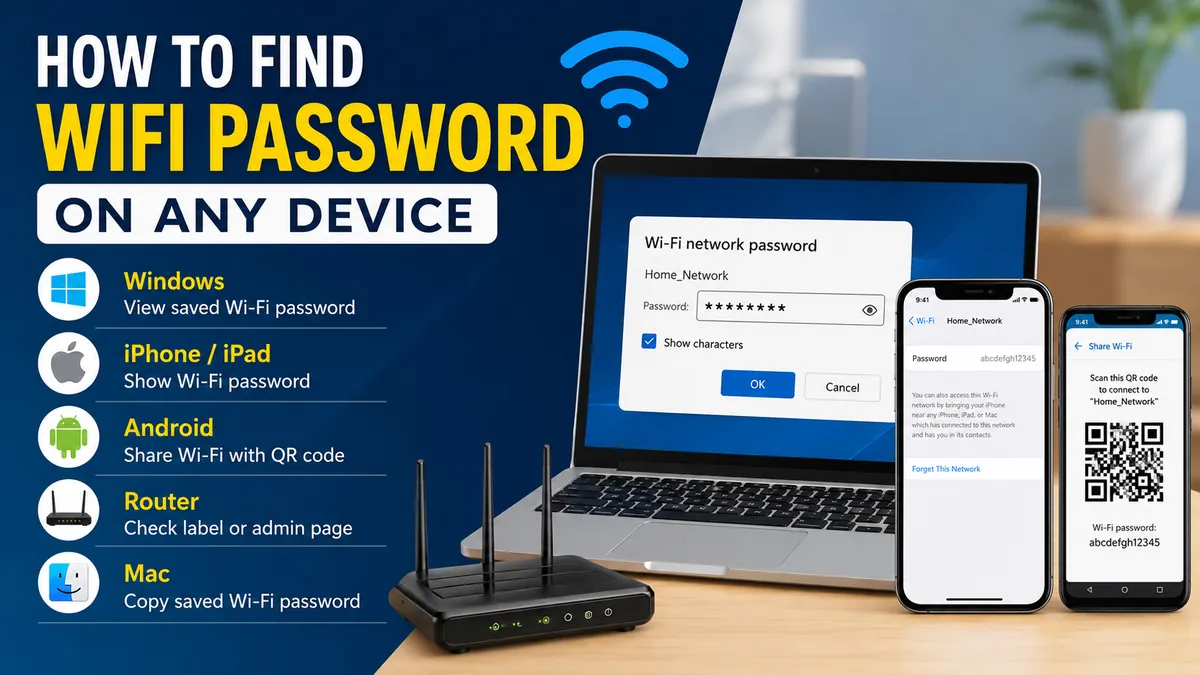
To quickly understand how to find wifi password, start with a device that has already connected to the network. Windows can display passwords for connected and saved networks, iPhone and iPad can reveal saved Wi-Fi credentials after authentication, Android can generate a sharing QR code, and a Mac can copy passwords for known networks.
This guide covers those methods, plus what to do when you don’t have a connected device.
how to find wifi password: Choose the Fastest Method
The best method depends on what device you can access.
| Device or situation | Where to look | What you get |
|---|---|---|
| Windows PC | Network & internet settings | Password and potentially a QR code |
| iPhone/iPad | Wi-Fi settings or Passwords app | Saved password |
| Android | Internet/Wi-Fi settings | QR code for sharing |
| Mac | Network > Wi-Fi > Advanced | Copy Password option |
| Router | Label, admin page, or provider app | Default or current Wi-Fi credentials |
| Public Wi-Fi | Staff, signage, or information sheet | Network credentials |
A useful distinction here is between the Wi-Fi password and the router administrator password. They are often different credentials.
Your Wi-Fi password lets devices join the wireless network. The administrator password protects the router’s configuration interface.
You should only retrieve credentials for a network you own or have permission to use.
How to Find WiFi Password on Windows 11
A Windows PC that has already connected to your wireless network is one of the easiest places to recover the password.
Current versions of Windows provide a direct password-viewing option.
Find the Password Through Windows Settings
On a supported Windows 11 PC:
- Open Settings.
- Select Network & internet.
- Open the properties for your Wi-Fi connection.
- Find Wi-Fi network password.
- Select Show.
Windows can also display credentials for networks saved on the computer. Go to Settings > Network & internet > Wi-Fi > Manage known networks, choose the appropriate SSID, and use the password display option when available.
An SSID, or Service Set Identifier, is simply the name of the wireless network you see when choosing Wi-Fi—for example, HomeWiFi.
Recent Windows versions can also display Wi-Fi sharing information as a QR code, allowing another compatible device to scan the code instead of manually entering a long network security key.
Use Network and Sharing Center
If your version of Windows presents the older interface, Microsoft also documents the traditional Control Panel method:
- Open Network and Sharing Center.
- Find Connections.
- Select your Wi-Fi network.
- Choose Wireless Properties.
- Open the Security tab.
- Select Show characters.
The password appears in the Network security key field.
How to Find a Previously Saved WiFi Password on Windows
You don’t necessarily have to be connected to a network right now.
If Windows still has its profile saved, newer versions let you open:
Settings > Network & internet > Wi-Fi > Manage known networks
Choose the saved wireless network and look for Wi-Fi network password > Show.
This can be particularly useful when you need credentials for another home, office, or personal hotspot that your laptop previously used.
Quick Takeaway: Before resetting your router because you forgot the password, check a Windows computer that has connected before. The credential may already be stored there.
How to Find WiFi Password on iPhone or iPad
Modern versions of iOS and iPadOS make saved wireless passwords much easier to retrieve than older versions did.
Apple says iOS 16 and iPadOS 16.1 or later can reveal saved Wi-Fi passwords after you authenticate with your passcode, Face ID, or Touch ID.
Find the Password for Your Current Wi-Fi Network
On an iPhone:
- Open Settings.
- Tap Wi-Fi.
- Find the connected network.
- Tap the Info (i) button beside it.
- Tap the Password field.
- Authenticate using Face ID, Touch ID, or your device passcode.
The password is then revealed and can be copied.
The process is similar on a compatible iPad.
Find Passwords for Previously Connected Networks
What if your iPhone isn’t currently connected to the network?
You may still be able to retrieve its credentials.
Go to:
Settings > Wi-Fi > Edit
Authenticate when prompted, select the information button beside the previously joined network, and tap its password field.
Use the Passwords App
On iOS 18 and later, Apple provides another convenient route.
- Open the Passwords app.
- Authenticate with Face ID, Touch ID, or your passcode.
- Select Wi-Fi.
- Choose the network.
- Tap its password field.
The Passwords app can display Wi-Fi information for networks your device previously joined.
This is especially useful if you have dozens of saved networks and don’t remember exactly when you last connected.
Can You Share an iPhone Wi-Fi Password Without Typing It?
Yes.
Apple devices can share Wi-Fi credentials directly with another nearby compatible Apple device. Wi-Fi and Bluetooth should be enabled, the devices should be nearby, and Apple Account/contact requirements need to be met. The connected device can then approve the Share Password prompt.
This is often safer and easier than sending the password as plain text.
How to Find WiFi Password on Android
Android behaves somewhat differently because the exact menus can vary by manufacturer and software version.
On Google’s Android interface, the standard approach is to share the network using a QR code.
Find or Share Wi-Fi Information on Android
Google documents this process:
- Open Settings.
- Tap Network & internet.
- Select Internet.
- Tap your Wi-Fi network.
- Choose Share.
- Authenticate if your phone requests it.
- Use the generated QR code.
Another device can scan that code to join the same network.
On a Google Pixel, you can similarly open the network’s settings and select Share, verify your identity if required, and display the QR code.
Why Doesn’t My Android Phone Show the Password as Text?
Android implementations differ.
Some manufacturers display the wireless password below or near the QR code, while others focus on QR-based sharing. Therefore, don’t assume something is wrong simply because you don’t see the password written underneath the code.
The QR code itself contains the connection information required by a compatible device.
Menus may also have slightly different names on Samsung Galaxy, Google Pixel, OnePlus, Xiaomi, and other Android devices.
Look for options such as:
- Wi-Fi
- Internet
- Network & internet
- Connections
- Saved networks
- Share
- QR code
Avoid installing an unknown “Wi-Fi password finder” application just because the built-in menu looks different. Your phone’s native settings should be your first option.
How to Find WiFi Password on a Mac
A Mac that has previously connected to the wireless network can also be an excellent source for recovering the password.
On current versions of macOS, you can copy the password directly from Wi-Fi settings.
Copy a Saved Wi-Fi Password on macOS
For macOS Ventura or later, Apple provides this route:
- Open the Apple menu.
- Select System Settings.
- Select Network.
- Click Wi-Fi.
- Scroll down and select Advanced.
- Find the network under known networks.
- Click the More button beside it.
- Select Copy Password.
Paste the copied value into a text field if you need to see the actual characters.
This method isn’t limited to the network you’re using at that moment. Known networks that remain saved on the Mac may also provide a Copy Password option. Apple notes that this option may not be available for every network.
What About Keychain Access?
Older guides commonly recommend Keychain Access, because macOS has historically stored credentials in Apple’s keychain system.
That method can still be relevant on some Macs and older macOS releases, but current macOS versions provide a much simpler route through System Settings. For most users, checking Network > Wi-Fi > Advanced first is faster.
How to Find WiFi Password From Your Router
If none of your phones or computers can reveal the credential, check the router.
There are two possibilities:
- The router still uses its original wireless password.
- Someone changed the Wi-Fi password after installation.
Check the Router Label
Look at the bottom, back, or side of the router.
Depending on the manufacturer or internet service provider, the label might show terms such as:
- Wi-Fi Password
- Wireless Password
- Wi-Fi Key
- Wireless Key
- Network Key
- WPA Key
- SSID
- Network Name
If the Wi-Fi credentials were never changed after setup, the printed password may still work.
However, the router sticker generally represents its factory or originally supplied information. If someone later changed the network password, the printed credential may no longer be valid.
Log In to the Router
If you administer the network, another option is the router’s web interface or management app.
Apple’s current Wi-Fi support guidance similarly recommends checking the router’s administration webpage or app if you manage the router, because the network password may be viewed or changed there.
The exact procedure depends on the manufacturer, but it usually involves:
- Connect to the router.
- Open its administration page or official management app.
- Sign in using the router administrator credentials.
- Find Wireless, Wi-Fi, WLAN, or a similarly named section.
- Locate the network security settings.
- View or update the wireless password if the interface permits it.
Routers from TP-Link, ASUS, Netgear, Linksys, Google Nest, and ISP-provided equipment can use different menus, so there isn’t one universal navigation path.
For example, Google Nest Wifi and Google Wifi allow users to check and share Wi-Fi information through the Google Home app.
Router Password vs. Wi-Fi Password
This distinction causes a lot of confusion.
| Credential | Purpose |
| Wi-Fi password | Connects phones, laptops, TVs, and other devices to Wi-Fi |
| Router admin password | Gives access to router configuration |
| SSID | Identifies the wireless network |
| Guest Wi-Fi password | Connects users to a separate guest network |
Knowing the Wi-Fi password does not necessarily give you access to the router’s administration panel.
Likewise, knowing the router administrator password does not automatically tell you the wireless password, although an administrator may be able to view or change it.
How to Find WiFi Password When You Are Already Connected
If you are already connected but can’t remember the password, don’t disconnect the device yet.
Use the connected device to retrieve or share the network information first.
Try these options in this order:
- Check the connected device’s Wi-Fi settings.
- Look through its saved or known networks.
- Use its built-in password or QR-code sharing feature.
- Check another computer, tablet, or phone that previously joined the network.
- Inspect the router label.
- Log in to the router’s administration interface if you manage it.
A saved network profile is often more useful than the router sticker because it may contain the current password rather than the original factory credential.
Can You Find a Password for Wi-Fi You Used Before?
Sometimes.
The deciding factor is usually whether the device still has the network stored.
On an iPhone or iPad, previously connected networks can be accessed through the saved-network interface, and iOS 18 also provides Wi-Fi entries through the Passwords app.
On current Windows versions, Manage known networks can expose the password for a saved network when that capability is available.
On a Mac, Known Networks can include previously configured networks, with a Copy Password option available for supported entries.
If you selected Forget This Network, removed the profile, reset network settings, wiped the device, or never connected to the network in the first place, the credential may no longer be stored there.
What to Do If the WiFi Password Isn’t Working
Finding a password doesn’t always mean it will connect your device.
Several problems can make a seemingly correct credential fail.
Check Capitalization Carefully
Wi-Fi passwords are case-sensitive. HomeNetwork2026 and homenetwork2026 are different passwords.
Apple specifically advises checking uppercase and lowercase characters when troubleshooting wireless passwords.
Also watch for easily confused characters such as:
0andO1,I, andl5andS8andB
Copying the password rather than typing it can prevent these mistakes.
Make Sure You Have the Correct SSID
Homes and offices often have several network names.
You might see:
- HomeWiFi
- HomeWiFi-5G
- HomeWiFi-Guest
- Upstairs-WiFi
Confirm that the password belongs to the exact network you’re trying to join.
The Router Sticker May Be Outdated
Suppose the router says the Wi-Fi key is Example123, but every connected device has been using a different password for years.
That probably means someone changed the wireless credentials after the router was installed.
Use a connected device or the router’s current settings instead of assuming the sticker is authoritative.
You May Be Looking at the Admin Password
Another common mistake is entering the router’s administrative login password into the Wi-Fi connection screen.
Remember: these credentials serve different purposes.
The Network May Use Different Authentication
Not every wireless network uses a simple shared password.
Home networks commonly use WPA2 or WPA3 security, while workplaces, universities, and managed organizations may use enterprise authentication such as 802.1X, which can involve usernames, certificates, profiles, or other credentials instead of a normal shared Wi-Fi key.
macOS, for example, includes configuration support for 802.1X networks in its advanced network settings.
In that situation, contact the network administrator rather than trying to recover a conventional shared password.
Should You Reset the Router If You Forgot the Password?
A factory reset should generally be a last resort.
Before resetting anything, check:
- Windows saved networks
- iPhone or iPad Wi-Fi settings
- Android’s Wi-Fi sharing feature
- Mac known networks
- The router label
- The router’s official management app
- The router administration page
A factory reset can remove customized settings and may restore the network name, wireless security configuration, and credentials to their defaults.
If you change the Wi-Fi password rather than merely finding it, devices using the old credential may also need to reconnect with the new one.
That can mean updating phones, laptops, tablets, smart TVs, streaming devices, printers, security cameras, speakers, and other smart-home equipment.
Recovering the existing password is therefore usually less disruptive than changing it.
Is It Safe to Share Your WiFi Password?
Share your main wireless password only with people you trust.
For frequent visitors, a guest network can be a better approach. It lets guests access the internet using separate credentials instead of distributing the password for your primary network.
Google Nest Wifi and Google Wifi, for example, support a separate Guest Wi-Fi network and allow its password to be shared through the Google Home app.
QR codes are another convenient option because a guest can connect without you manually spelling a long password.
Still, remember that a QR code contains access information. Treat a printed or saved Wi-Fi QR code with similar care to the password itself.
For public Wi-Fi at a hotel, library, café, or business, don’t try to retrieve credentials from equipment you don’t manage. Ask staff or check official signs and information provided by the venue. Apple recommends the same approach for shared public networks.
The Simplest Way to Recover Your Wi-Fi Credentials
If you’re trying to work out how to find wifi password, start with a device that’s already connected or has connected before. That is usually faster than changing router settings.
Windows can display wireless passwords directly, iPhones and iPads can reveal saved credentials after authentication, Android devices can share network information through QR codes, and modern Macs can copy passwords for known networks.
If those options fail, check the router label or sign in to the router’s official administration interface or app. Resetting the router should be the final option because it can affect every connected device and customized network setting.
Once you’ve recovered the password, store it somewhere secure or use your device’s built-in sharing tools the next time someone needs to connect.
