
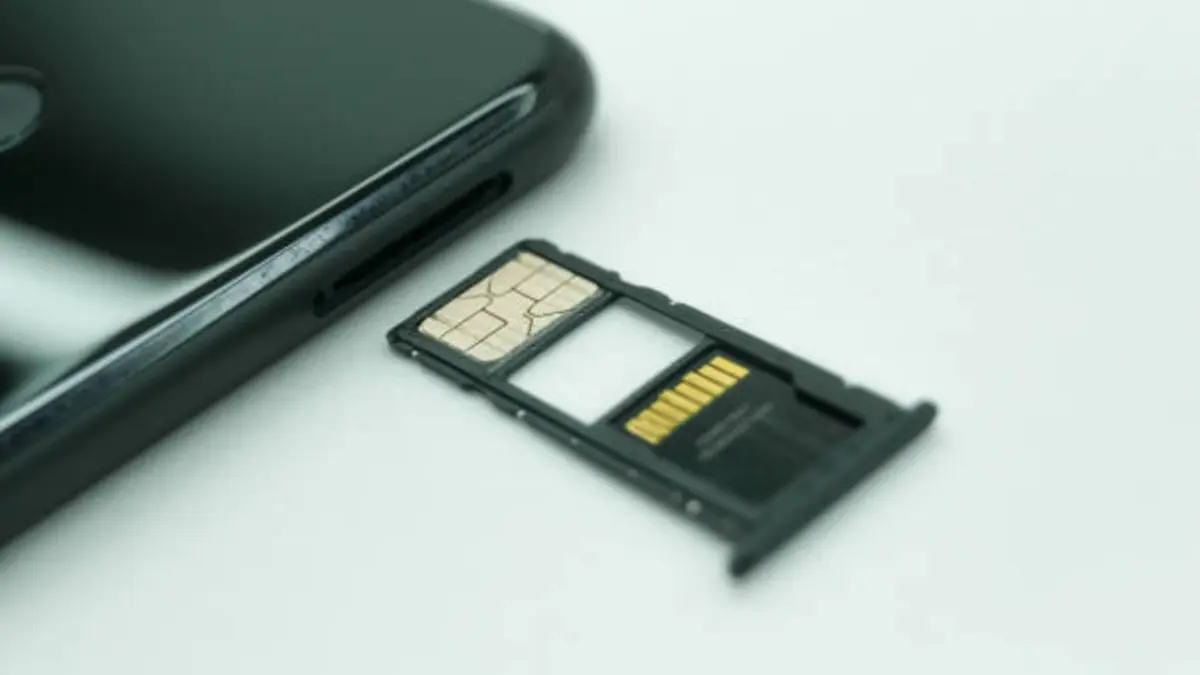

Your phone buzzes with a “storage almost full” warning right as you’re trying to take a photo. Again. If you’ve deleted every blurry screenshot and duplicate selfie you can find and you’re still getting squeezed, learning how to expand phone storage with an SD card is usually the cheapest fix available — assuming your phone still has a slot for one.
Quick answer: To expand phone storage SD card, confirm your phone has a microSD slot, buy a card rated for your needed capacity and speed class (A1/A2 for app performance), insert it via the SIM/SD tray, then choose portable or adoptable storage in your phone’s settings. Most Android phones support up to 1–2TB microSDXC cards.
Why You Need to Expand Phone Storage in the First Place
Phones actually juggle two separate pools of memory. Device memory (RAM) handles what’s running right now — apps in the background, the camera app warming up, your keyboard predicting your next word. Device storage is the long-term pool: photos, downloaded apps, cached data, that podcast episode you never finished. When people talk about “storage full,” they mean the second one.
The usual suspects behind a full storage pool are predictable: 4K video eats space fast, WhatsApp and Telegram silently cache every image and video sent to you, and app updates quietly grow larger over time. Clearing cache and deleting duplicate photos buys you a little breathing room, but it’s a temporary patch, not a fix. If you’re shooting video regularly or keeping a large offline music or podcast library, you’ll hit the ceiling again within weeks.
A microSD card solves this differently — instead of squeezing more out of a fixed pool, it adds a second pool entirely.
What an Expand Phone Storage SD Card Actually Does
A microSD card is a small removable flash storage chip, roughly the size of a fingernail, that slots into a dedicated tray on supported phones. It comes in three practical formats: microSD (up to 2GB, essentially obsolete), microSDHC (4GB–32GB), and microSDXC (64GB up to 2TB), which is what nearly every phone-compatible card sold today uses.
Functionally, it gives you a second storage bucket you can point your camera, downloads, and file manager toward — or, on many Android phones, merge with your internal storage so the phone treats it as one combined pool. It’s not the same as cloud storage: nothing leaves your device, there’s no subscription, and the files stay accessible without an internet connection. The tradeoff is that a card can be lost, damaged, or worn out, which cloud storage doesn’t risk in the same way.
Does Your Phone Support an SD Card for Storage Expansion?
This is the step people skip, and it’s the one that actually matters most — no card, however good, works in a slot that doesn’t exist.
Phones that still have a slot in 2026
Flagship phones have mostly abandoned expandable storage in favor of higher fixed-tier pricing, but budget and mid-range lines have held onto it because it’s a real selling point at that price bracket. As of 2026, models that still include a microSD slot include <cite index=”20-1″>Samsung’s Galaxy A series, where the Galaxy A55 and A35 support up to 1TB of expandable storage</cite>, and newer entries like the <cite index=”23-1″>Galaxy A17 5G, which shares its microSD slot with the SIM tray and supports up to 2TB of added storage</cite>. Samsung’s rugged line has also kept the feature — <cite index=”20-1″>the Galaxy XCover 7 ships with a built-in microSD slot</cite> alongside its durability features.
Motorola has leaned into this as a mid-range differentiator too: the <cite index=”25-1″>Moto G Stylus (2025) includes a microSD slot supporting up to 1TB</cite> on top of its onboard storage, and the <cite index=”23-1″>2026 Moto G 5G carries a dedicated microSD slot supporting up to 1TB</cite> at a $199 price point. On the higher end, <cite index=”19-1″>Sony’s Xperia 1 VI pairs a flagship Snapdragon 8 Gen 3 chip with a microSDXC slot</cite>, and Sony’s lineup is <cite index=”19-1″>noted for supporting expansion up to 1.5TB</cite> — an unusually generous ceiling for a phone still shipping in 2026.
Quick Takeaway: If storage flexibility matters to you, look at Samsung’s Galaxy A-series and rugged XCover line, Motorola’s Moto G family, and Sony’s Xperia range. Always check the exact model number on the spec sheet — carrier variants sometimes drop the slot even when the base model has it.
Phones that never will
If you own an <cite index=”4-1″>iPhone or a Google Pixel phone, neither supports microSD card storage</cite>, and no future software update changes that — it’s a hardware limitation, not a settings toggle. If you’re on one of these, skip to the alternatives section further down.
How to Choose the Right SD Card to Expand Phone Storage
Buying blind here is how people end up with a card that’s technically installed but doesn’t actually improve anything.
How much capacity do you actually need?
As a rough guide: 128GB comfortably covers photos, music, and light app use for most people; 256GB–512GB suits anyone shooting regular 4K video or keeping large offline media libraries; 1TB–2TB is really for heavy creators, gamers, or anyone consolidating years of backups onto one card. Buying more than you need “just in case” is rarely worth the price jump — cards get noticeably more expensive per GB at the top end of the range, so it’s often cheaper to buy a mid-size card now and replace it later than to overbuy today.
Speed classes, decoded
SD and microSD cards carry several overlapping speed ratings, and most buyers only need to understand two of them for phone use.
| Rating | What it measures | Why it matters for a phone |
|---|---|---|
| Speed Class / UHS Class (U1, U3) | Minimum sustained sequential write speed | Matters most for continuous video recording |
| Video Speed Class (V6–V90) | Same as above, for high-res video | Relevant if you shoot 4K/8K directly to the card |
| Application Performance Class (A1/A2) | Random read/write speed, measured in IOPS | The one that matters most for phone responsiveness |
<cite index=”10-1″>A1-rated cards guarantee a minimum random read of 1,500 IOPS and a minimum random write of 500 IOPS, while A2-rated cards raise that to 4,000 IOPS read and 2,000 IOPS write</cite>, and <cite index=”10-1″>both classes also guarantee a minimum sustained write speed of 10MB/s</cite>. This rating exists specifically because <cite index=”18-1″>apps and games constantly read and write small chunks of data rather than one long continuous stream, so a phone running apps off a card benefits from A1 or A2 in a way a camera generally doesn’t</cite>.
Bus interface matters too, but less than most buyers assume. <cite index=”17-1″>UHS-I tops out around 104MB/s of theoretical transfer speed, while UHS-II can reach roughly 312MB/s</cite> — but almost every phone’s microSD slot is built for UHS-I, so paying extra for a UHS-II card in a phone context buys you very little in practice. Save UHS-II spending for cameras that actually support it.
A1 vs A2 — does it matter for a phone?
Yes, more than most buying guides admit, because most buying guides are written for photographers, not phone users. If you plan to move apps and games onto the card (see the next section), A2 will noticeably reduce app launch stutter. If the card is purely for photos, videos, and downloaded files that don’t run as applications, A1 is enough and usually cheaper.
How to Expand Phone Storage: Installing and Setting Up Your SD Card
Physically inserting the card
- Power off the phone or at minimum have it unlocked and ready.
- Locate the SIM/SD tray — usually on the side edge of the phone.
- Insert the ejector pin (or an unfolded paperclip) into the small pinhole next to the tray and press gently until the tray pops out.
- Place the microSD card into its slot on the tray, matching the orientation shown on the tray itself.
- Slide the tray back in until it clicks flush with the phone’s edge.
- Power on (if you turned it off) and wait for the notification that a new storage device was detected.
Portable storage vs. adoptable storage
The moment your phone detects the card, Android will typically ask how to use it, and this choice matters more than people expect.
- Portable storage keeps the card as a separate, removable drive. You can pop it into another phone, a camera, or a laptop card reader and read the files directly. You cannot install apps onto it in this mode.
- Adoptable storage encrypts the card and merges it with internal storage as one combined pool, letting you install apps directly onto it. The tradeoff: <cite index=”4-1″>once formatted this way, the card generally won’t work in another device unless you reformat it first</cite>, and if the card fails, you risk losing app data tied to it, not just files.
For most people who just want more room for photos and downloads, portable storage is the safer, more flexible default. Choose adoptable storage only if you specifically need to install large games or apps onto the card and you’re comfortable with the card becoming a permanent, non-removable part of your phone’s storage in practice.
Moving Apps, Photos, and Files to Your SD Card
Once the card is set up, you can point new content at it directly, or migrate what’s already on your phone.
- Camera storage location: Most camera apps let you choose the save destination under Settings → Storage Location, so new photos and videos go straight to the card going forward.
- Manual file moves: Open your file manager, select files or entire folders, and use “Move” or “Copy” with the SD card as the destination.
- Moving installed apps: On Android, this is typically under Settings → Apps → [app name] → Storage, where a “Change” or “Move to SD card” option appears if the app supports it — not every app does.
- Root-based tools: Utilities like Link2SD promise deeper app-to-SD migration than Android’s native tools allow, but <cite index=”7-1″>they require rooting the device first, which is a complicated procedure that can void your warranty or destabilize the system if done incorrectly</cite>. This isn’t a step to take casually, and most people don’t need it.
Quick Takeaway: Native Android tools cover 90% of what most people need. Reach for root-based workarounds only if you have a specific app that refuses to move and you understand the warranty tradeoff.
Troubleshooting SD Card Storage Problems
Card not detected: Power off, reseat the card, and check it’s inserted the correct way up. Try the card in a laptop’s card reader — if the computer doesn’t see it either, the card itself may be faulty rather than the phone.
Card works but feels slow: This usually means the card’s rated speed doesn’t match what you’re asking of it — a Class 10 card with no A-rating will feel sluggish running apps, even though it’s perfectly fine for storing photos.
Files corrupted or missing: Always use the “Safely eject” option in storage settings before physically removing a card. Pulling it out while the phone is writing to it is the single most common cause of corruption.
Format confusion: Most phones expect exFAT for high-capacity microSDXC cards, since standard FAT32 caps individual file sizes at 4GB — a real problem for long 4K video files. If your phone offers a choice during formatting, exFAT is almost always the right call for a phone used to shoot video.
Is Expanding Phone Storage With an SD Card Still Worth It in 2026?
It’s worth being honest about the tradeoffs rather than pretending a card fixes everything.
What it’s genuinely good for: cheap capacity per gigabyte compared to paying for a higher fixed internal storage tier at purchase, offline access with no ongoing subscription, and easy portability between devices.
What it doesn’t fix: a card can fail, get lost, or wear out over years of writes — it’s not a backup, and treating it as your only copy of irreplaceable photos is a real risk, not a hypothetical one. It’s also worth pairing a card with a lightweight backup habit; <cite index=”9-1″>Google Photos still offers free storage for reduced-size photos and videos, plus 15GB of free storage for full-resolution originals</cite>, which makes a reasonable safety net alongside local card storage rather than a replacement for it.
If your phone supports one, a well-chosen microSD card remains one of the most cost-effective storage upgrades available in 2026 — just don’t skip the compatibility check, and don’t treat it as your only copy of anything you can’t afford to lose.
Final Takeaway
Expanding phone storage with an SD card comes down to three checks, in order: confirm your phone has a slot, match the card’s capacity and speed rating to what you’ll actually do with it, and choose portable or adoptable storage deliberately rather than by default. Get those three right and the rest — moving files, adjusting camera settings — takes minutes.
If you’re shopping for a card today, prioritize A2-rated microSDXC cards from established brands if you plan to run apps off it, or A1-rated cards if it’s purely for photos and files — either way, buy a size tier above what you think you need now, since storage needs only grow.
LOOKING FOR MORE FIXES? BROWSE MORE HOW-TO GUIDES AND KEEP LEARNING.
FAQ Section
Does my phone support a microSD card?
Check your phone’s official spec sheet under “Storage” or “Memory” for a microSD/microSDXC slot listing. As a rule of thumb, iPhones and Google Pixel phones never support them, while many Samsung Galaxy A-series, Motorola Moto G, and Sony Xperia models still do.
What size SD card should I buy?
128GB suits light photo and app use, 256GB–512GB fits regular 4K video or large media libraries, and 1TB–2TB is best reserved for heavy creators or gamers consolidating a lot of content onto one card.
Should I choose portable or adoptable storage?
Portable storage keeps the card removable and readable on other devices, which suits most users. Adoptable storage merges the card with internal storage and lets you install apps on it, but the card generally becomes tied to that one phone.
What’s the difference between A1 and A2 SD cards?
A1 guarantees at least 1,500 random read IOPS and 500 write IOPS; A2 guarantees at least 4,000 read IOPS and 2,000 write IOPS. A2 is worth the extra cost if you plan to run apps or games from the card.
Is it safe to move apps to an SD card?
Native Android tools support this safely for apps that allow it, but not all apps do. Root-based tools like Link2SD offer more control but can void your warranty and destabilize the device if done incorrectly.
Why isn’t my SD card showing up on my phone?
Reseat the card, confirm it’s inserted correctly, and test it in a laptop card reader to rule out a faulty card. If the computer can’t read it either, the card is likely the problem, not the phone.
Can an iPhone use a memory card?
No. iPhones have no microSD slot and Apple has no plans to add one — expandable storage isn’t part of the iPhone’s hardware design.
Should I use an SD card instead of cloud storage?
They serve different purposes. A microSD card gives offline access with no subscription; cloud storage protects against the card being lost, damaged, or worn out. Using both together is the safest approach for photos and files you can’t afford to lose.
