
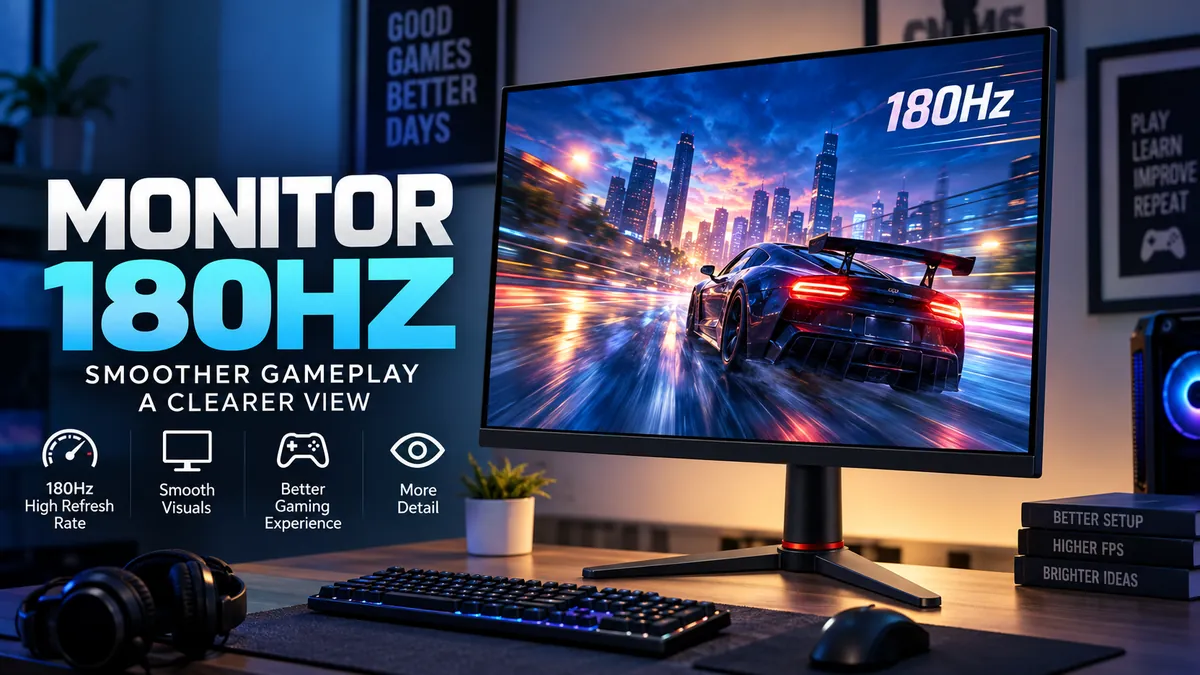

A monitor 180hz can refresh the image on its screen up to 180 times every second. That makes motion look considerably smoother than on a conventional 60Hz display and can improve motion clarity and responsiveness in fast games. However, refresh rate is only one part of monitor performance—you also need suitable frame rates, response times, connectivity, and variable refresh rate support.
Quick answer: A 180Hz monitor updates its displayed image every 5.56 milliseconds, compared with 6.94 ms at 144Hz and 16.67 ms at 60Hz. It is particularly useful for PC gaming because fast-moving objects appear smoother and the screen can show newly rendered frames sooner, provided the computer and connection can deliver them.
What Does monitor 180hz Actually Mean?
The “180Hz” specification refers to the monitor’s refresh rate. Hertz, abbreviated Hz, measures how many refresh cycles occur each second.
Therefore:
| Refresh rate | Refreshes per second | Time between refreshes |
|---|---|---|
| 60Hz | 60 | 16.67 ms |
| 75Hz | 75 | 13.33 ms |
| 120Hz | 120 | 8.33 ms |
| 144Hz | 144 | 6.94 ms |
| 165Hz | 165 | 6.06 ms |
| 180Hz | 180 | 5.56 ms |
| 240Hz | 240 | 4.17 ms |
The difference is easy to understand when you think about animation. A 60Hz monitor has 60 opportunities each second to display an updated image. A 180Hz display has 180.
RTINGS defines refresh rate as how often the display refreshes its pixels each second and points out that refresh rate and frame rate are separate measurements.
That distinction matters.
Refresh rate describes the display.
Frame rate (FPS) describes how quickly the computer or console produces frames.
A game running at 180 FPS and displayed correctly on a 180Hz monitor can therefore provide a much smoother experience than the same game on a 60Hz panel.
Does 180Hz mean 180 FPS?
No.
A 180Hz monitor is capable of displaying up to 180 refresh cycles per second, but it does not make your computer generate 180 FPS.
For example, if your GPU renders a demanding game at around 80 FPS, buying a 180Hz monitor will not magically turn that game into 180 FPS.
Your processor, graphics card, game settings, resolution and game engine all influence frame rate.
This is one of the most common misunderstandings around high-refresh displays.
Why Does a 180Hz Monitor Look Smoother?
The biggest difference is visible during motion.
Move a character quickly, turn the camera in a first-person shooter, scroll through a webpage or follow a vehicle in a racing game. A higher-refresh display has more opportunities to update the object’s position.
The result can be:
- smoother camera movement;
- clearer fast-moving objects;
- reduced perceived judder;
- quicker visual feedback;
- a more responsive feeling when using a mouse;
- better motion presentation in high-frame-rate games.
Manufacturers commonly pair 180Hz panels with fast pixel-response technologies for this reason. For example, MSI’s G255F combines a 180Hz refresh rate with a 1ms GtG Rapid IPS panel and Adaptive-Sync. ASUS likewise offers 180Hz Fast IPS models with technologies such as FreeSync and Extreme Low Motion Blur.
The key point is that 180Hz alone does not determine motion quality.
Pixel response time matters too.
Refresh rate vs response time
These two specifications are often confused.
Refresh rate tells you how frequently the monitor can refresh.
Response time describes how quickly pixels can transition between states.
A panel can technically operate at 180Hz while still having slow pixel transitions. If those transitions cannot keep up with the refresh cycle, moving objects may show visible trails or smearing.
This is why advertised specifications such as:
- 1ms GtG;
- 1ms MPRT;
- 0.5ms GtG;
- overdrive;
- motion-blur reduction;
should be considered alongside refresh rate.
Also remember that GtG and MPRT are not interchangeable measurements. Manufacturer response-time claims are normally achieved under specific settings and testing conditions, so independent measurements are more useful when comparing actual motion performance.
Acer, for example, explicitly notes that some quoted 1ms VRB/MPRT figures depend on specific test conditions and that actual refresh rates can vary according to model, hardware and setup.
monitor 180hz vs 60Hz, 120Hz, 144Hz, 165Hz and 240Hz
The biggest upgrade occurs when moving from a conventional 60Hz display to a high-refresh monitor.
The improvements become progressively smaller as refresh rates increase.
180Hz vs 60Hz
The difference between 60Hz and 180Hz is substantial.
At 60Hz, each refresh lasts approximately 16.67ms.
At 180Hz, that falls to approximately 5.56ms.
That means a 180Hz screen refreshes three times as frequently.
Fast mouse movement and camera rotation can consequently appear much smoother.
For someone moving directly from a basic 60Hz office monitor to a 180Hz gaming monitor, refresh rate is likely to be one of the first differences they notice.
180Hz vs 120Hz
A 120Hz screen updates every 8.33ms.
A 180Hz screen reduces that interval to about 5.56ms.
Both already belong to the high-refresh category, so the difference is less dramatic than 60Hz versus 180Hz.
Still, the extra refreshes can improve fluidity in games capable of running well above 120 FPS.
180Hz vs 144Hz
This comparison is more subtle.
A 144Hz monitor refreshes approximately every 6.94ms, whereas 180Hz refreshes approximately every 5.56ms.
So 180Hz provides 25% more refresh cycles per second than 144Hz, but that does not mean the experience is 25% “better.”
The practical improvement is smaller because 144Hz is already fast.
If you already own a high-quality 144Hz display, refresh rate alone may not justify replacing it. Improvements in resolution, HDR performance, contrast, response behavior or panel technology may matter more.
180Hz vs 165Hz
These specifications are extremely close.
165Hz produces a refresh approximately every 6.06ms.
180Hz lowers that to roughly 5.56ms.
That is only about half a millisecond between refreshes.
For this reason, panel quality should usually carry more weight than choosing purely between 165Hz and 180Hz.
A good 165Hz monitor with fast transitions, strong contrast and well-tuned variable refresh rate can provide a better experience than a poorly tuned 180Hz panel.
180Hz vs 240Hz
At 240Hz, the refresh interval drops to approximately 4.17ms.
The difference from 180Hz is therefore about 1.39ms per refresh.
Players chasing very high frame rates in competitive shooters may value that improvement. For general gaming, 180Hz can already deliver highly fluid motion without requiring the consistently extreme frame rates that make better use of 240Hz.
Is a 180Hz Monitor Good for Gaming?
Gaming is where 180Hz makes the most sense.
High refresh rates are particularly useful in games where the scene changes rapidly and player inputs happen frequently.
MSI specifically associates 180Hz monitors with genres such as first-person shooters, fighting games, racing simulations, real-time strategy and sports games.
Examples include competitive shooters, racing games and other fast multiplayer titles where players regularly achieve high frame rates.
A higher refresh rate can make aiming and tracking moving objects feel smoother because more visual updates are presented each second.
Competitive gaming
Competitive games frequently prioritize frame rate over maximum graphical quality.
A player might lower shadows, effects or other demanding graphics settings to reach 144, 180, 200 or more FPS.
That is exactly the environment where a 180Hz monitor becomes useful.
The monitor cannot improve the player’s skill, but it can present high-frame-rate gameplay more fluidly.
Single-player games
180Hz can still benefit single-player gaming, although the difference depends heavily on performance.
A visually demanding title running between 60 and 90 FPS cannot continuously feed a 180Hz monitor with 180 unique frames every second.
Variable refresh rate becomes especially useful here because it helps coordinate the monitor’s refresh behavior with changing GPU frame rates.
Everyday use
High refresh rates are not limited to games.
You can see the smoother motion when:
- moving windows;
- scrolling webpages;
- navigating menus;
- scrolling through documents;
- moving the mouse pointer;
- using animation-heavy software.
Lenovo also notes that high refresh rates can make activities such as scrolling through code and moving between windows appear smoother.
The benefit exists, but gaming remains the stronger reason for choosing 180Hz.
What FPS Do You Need for a 180Hz Monitor?
You do not need exactly 180 FPS at all times.
The ideal frame rate depends on the game and whether variable refresh rate is enabled.
Consider a 180Hz display while gaming at:
| Game performance | What to expect |
|---|---|
| 60 FPS | Monitor works, but most 180Hz potential is unused |
| 90 FPS | Smooth, especially with VRR |
| 120 FPS | Very good high-refresh experience |
| 144 FPS | Excellent motion fluidity |
| 165 FPS | Near the monitor’s maximum capability |
| 180 FPS | Full use of 180Hz refresh capability |
| 200+ FPS | Monitor still displays at its configured maximum refresh rate |
Ideally, the GPU should produce sufficiently high frame rates to take advantage of the display.
RTINGS similarly explains that a high-refresh monitor requires a graphics card capable of producing high frame rates if you want to exploit its maximum refresh rate.
However, variable refresh rate means performance below 180 FPS can still look excellent.
Why Adaptive-Sync, FreeSync and G-SYNC Matter
A game’s frame rate is rarely perfectly constant.
One scene might run at 176 FPS. A more demanding scene could fall to 142 FPS, then rise again.
That creates a synchronization problem between the GPU and monitor.
Variable refresh rate (VRR) technologies address this by allowing the monitor’s refresh behavior to adapt to the GPU’s output within a supported range.
Common technologies and labels include:
- Adaptive-Sync;
- VESA AdaptiveSync;
- AMD FreeSync;
- FreeSync Premium;
- NVIDIA G-SYNC Compatible.
AMD explains that FreeSync-capable graphics hardware can identify the minimum and maximum refresh rates supported by a compatible display.
NVIDIA’s G-SYNC Compatible program similarly focuses on providing a validated variable-refresh-rate experience on compatible displays.
What is screen tearing?
Screen tearing occurs when parts of different frames appear on the display during the same screen update.
It can look like the image has been horizontally split.
VRR helps reduce this mismatch by coordinating refreshes with frame delivery.
That makes Adaptive-Sync support an important specification to check alongside 180Hz.
Quick Takeaway: Don’t judge a gaming display by “180Hz” alone. A well-tuned VRR implementation and consistently fast pixel response can matter just as much to perceived smoothness.
1080p or 1440p for a monitor 180hz?
Both resolutions are common.
Current 180Hz models demonstrate how broad the category has become. MSI’s G255F combines 1920×1080 with 180Hz, while its G274QPF E2 uses a 2560×1440 Rapid IPS panel at the same refresh rate. ASUS also offers multiple Full HD Fast IPS 180Hz models.
The choice changes how demanding the display is on your GPU.
1080p 180Hz
Full HD has a resolution of:
1920 × 1080
It requires the GPU to render fewer pixels than 1440p, making high frame rates easier to achieve.
This combination is particularly sensible when frame rate is the priority.
Screen size matters, though. Full HD generally appears sharper on a smaller 23.8- or 24.5-inch screen than on a larger 27-inch screen viewed from the same distance because pixel density is higher.
1440p 180Hz
QHD or WQHD commonly means:
2560 × 1440
It provides substantially more pixels than 1080p, producing finer detail and more desktop workspace.
A 27-inch 1440p 180Hz monitor can provide an appealing balance between:
sharpness + screen size + high refresh rate.
The tradeoff is GPU workload.
Rendering a modern game at 2560×1440 and 180 FPS is considerably harder than reaching the same frame rate at 1920×1080.
This is why resolution and refresh rate should always be considered together.
IPS vs VA: Which Panel Makes Sense at 180Hz?
Two common LCD technologies in this category are IPS and VA.
IPS and Fast IPS
IPS panels are common among high-refresh gaming monitors.
Examples include MSI’s Rapid IPS displays and ASUS’s Fast IPS gaming models. Current 180Hz products can combine IPS technology with 1ms-class advertised GtG response times and wide viewing angles.
IPS is commonly associated with:
- wide viewing angles;
- good color consistency;
- fast modern implementations;
- strong all-purpose performance.
Fast IPS and Rapid IPS are manufacturer terms used for IPS implementations optimized for faster gaming performance.
VA
VA panels generally emphasize stronger native contrast than typical IPS LCDs.
They can therefore produce deeper-looking dark scenes, but motion performance varies considerably among individual models.
AOC’s 27G15N, for example, demonstrates that VA panels are also available with 180Hz refresh rates and Adaptive-Sync.
The panel label by itself doesn’t tell you enough.
Independent response-time measurements remain useful because two monitors advertised at the same refresh rate and nominal response time can behave differently in practice.
Does HDMI Support 180Hz?
Sometimes—but you cannot assume every HDMI port will run every 180Hz monitor at its maximum resolution and refresh rate.
Three things need to align:
- the monitor’s input capabilities;
- the graphics card or device output;
- the cable and signal bandwidth.
RTINGS notes that both the display input and source need enough bandwidth to reach a monitor’s maximum refresh rate at its native resolution. It gives the example of a 1440p 180Hz AOC monitor that reaches only 144Hz through its HDMI implementation while supporting the higher refresh rate through another connection.
That is why checking only for an “HDMI” logo is not sufficient.
DisplayPort and 180Hz
DisplayPort is extremely common on high-refresh PC monitors.
For example, current 1440p 180Hz products can use DisplayPort 1.4 alongside HDMI 2.0, while 1080p 180Hz models may offer both DisplayPort and HDMI.
For a gaming PC, DisplayPort is often the straightforward connection to check first, but the correct choice ultimately depends on the exact monitor and GPU.
HDMI and DisplayPort also differ in supported features and bandwidth according to their respective versions and implementations.
Practical rule: Check the monitor manual or manufacturer’s specification table for the maximum refresh rate supported through each individual input.
How to Enable 180Hz on a Monitor
Connecting a 180Hz monitor does not always mean the operating system will automatically use 180Hz.
After connecting it, verify the refresh-rate setting.
On Windows 11, the usual path is:
Settings → System → Display → Advanced display → Choose a refresh rate
Select 180Hz when it is available.
If 180Hz is missing, work through these checks:
- Confirm that the monitor actually supports 180Hz at the resolution you’re using.
- Check whether its HDMI or DisplayPort input supports that combination.
- Try the appropriate DisplayPort or HDMI connection.
- Update your NVIDIA, AMD or Intel graphics driver.
- Check the monitor’s on-screen display for an overclock or high-refresh mode if the manufacturer requires one.
- Confirm that Windows is using the monitor’s native resolution.
- Check your GPU control panel for available refresh rates.
Do not assume a cable is suitable simply because the connector physically fits.
A bandwidth or device limitation can prevent the desired resolution-and-refresh combination.
How can you tell whether 180Hz is actually working?
Start with Windows’ Advanced display page or the GPU control panel.
Many monitors also display the current resolution and refresh rate inside their on-screen information menu.
You can then compare motion at 60Hz and 180Hz. Mouse movement and fast scrolling usually make the difference obvious.
Do You Need a Powerful GPU for 180Hz?
You need a sufficiently fast GPU to take full advantage of 180Hz gaming, but there is no single graphics-card requirement.
The workload depends on:
- resolution;
- game;
- graphics settings;
- ray tracing;
- CPU performance;
- target frame rate.
An esports title at 1080p low settings may reach 180 FPS relatively easily on suitable hardware.
A demanding AAA game at 1440p ultra settings can be dramatically harder.
The CPU can also become the limiting factor at high frame rates because the processor must prepare frames quickly enough for the graphics card.
That means the correct question is not simply:
“Can my GPU support a 180Hz monitor?”
The more useful question is:
“Can my system run the games I play at high enough frame rates at my chosen resolution?”
You can still use the monitor when the answer is no. You simply won’t continuously exploit all 180 refreshes.
Is 180Hz Useful for PS5 and Xbox?
A 180Hz monitor can work with consoles, but the console does not necessarily use the monitor’s entire 180Hz capability.
RTINGS notes that the PlayStation 5 and Xbox Series X|S have a maximum output of 120 FPS, unlike gaming PCs that can operate at higher frame rates.
Consequently, buying a 180Hz display specifically for a 180 FPS console experience does not make sense.
Instead, console users should pay particular attention to:
- 120Hz support;
- HDMI compatibility;
- VRR support;
- supported resolutions;
- HDR capabilities;
- console-specific compatibility.
A 180Hz monitor can still be useful if the same screen is shared between a console and a gaming PC.
What Specifications Matter Besides 180Hz?
Refresh rate is easy to market because it gives shoppers one simple number to compare.
Real monitor quality is more complicated.
Response-time performance
Fast transitions help pixels keep pace with high refresh rates.
Pay attention to actual GtG performance rather than relying exclusively on the lowest advertised “1ms” figure.
Variable refresh rate
FreeSync, G-SYNC Compatible and Adaptive-Sync can make changing frame rates appear smoother while reducing tearing.
Resolution
Choose a resolution your GPU can realistically drive.
1080p generally makes very high FPS easier to achieve, while 1440p delivers higher image detail.
Screen size and pixel density
Resolution cannot be separated from screen size.
A 24-inch 1080p screen and 27-inch 1440p screen can provide very different sharpness despite both operating at 180Hz.
Color gamut
Specifications such as sRGB and DCI-P3 indicate color-gamut coverage.
Some modern 180Hz monitors advertise wide color gamuts in addition to gaming performance. For instance, ASUS lists 99% or 100% sRGB on various Fast IPS 180Hz models, while some QHD models advertise expanded DCI-P3 coverage.
Contrast and HDR
An “HDR” label alone does not guarantee impressive HDR.
Meaningful HDR performance depends on factors including peak brightness, contrast, local dimming capability and color performance.
A basic HDR-compatible gaming monitor may accept an HDR signal without producing anything close to the experience of a higher-end HDR display.
Ergonomics
Check whether the stand provides:
- height adjustment;
- tilt;
- swivel;
- pivot.
VESA mounting is useful if you intend to use a monitor arm.
These features are easy to overlook but affect everyday comfort more often than a small refresh-rate difference does.
Common Mistakes With 180Hz Monitors
The first mistake is assuming 180Hz automatically means 180 FPS. The monitor and computer perform separate jobs.
Another is running the monitor at 60Hz accidentally. A high-refresh display can be connected correctly while Windows remains configured for a lower refresh rate.
People also sometimes choose a higher resolution without considering GPU performance. A 1440p 180Hz monitor looks sharper than 1080p, but reaching high frame rates requires considerably more rendering power.
Another mistake is comparing displays purely by the advertised “1ms” specification. Response-time marketing can use different measurements such as GtG, MPRT and manufacturer-specific blur-reduction modes.
Finally, don’t overlook the connection. A monitor may support 180Hz through one input but a lower maximum through another.
Is monitor 180hz Worth Using?
A monitor 180hz makes the most sense when you want noticeably smoother PC gaming without moving into extremely high-refresh territory such as 360Hz or beyond.
It is especially well suited to fast games when the computer can produce high frame rates. The leap from 60Hz to 180Hz is substantial; the difference from 144Hz or 165Hz is much smaller.
For that reason, refresh rate should not be evaluated alone.
A balanced 180Hz setup combines:
high refresh rate + fast pixel response + VRR + suitable resolution + sufficient GPU performance + correct HDMI/DisplayPort bandwidth.
If you’re setting one up, start by confirming that the display is actually running at 180Hz at its native resolution, then enable Adaptive-Sync, FreeSync or compatible VRR where supported. Those two checks ensure you’re using the capabilities that make a 180Hz monitor worthwhile in the first place.
