
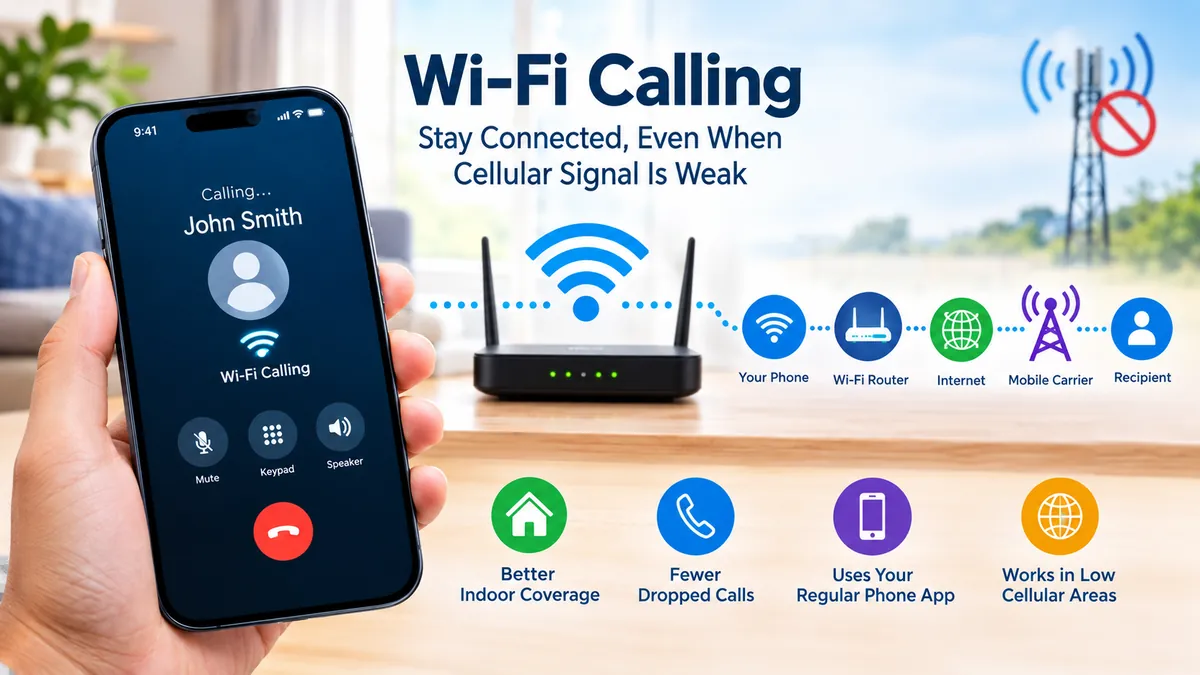

Weak cellular reception can turn an ordinary phone call into a frustrating series of dropped words, robotic audio, and disconnected calls. The problem is especially common inside thick-walled buildings, basements, offices, hotels, and rural locations.
wifi calling is a phone feature that lets a compatible smartphone route voice calls through a Wi-Fi internet connection instead of relying entirely on a nearby cellular tower. It normally uses your existing mobile number and standard Phone app, making it useful when cellular reception is weak but reliable Wi-Fi is available.
Unlike WhatsApp, FaceTime, Messenger, or similar internet-calling apps, carrier-based Wi-Fi Calling is integrated into the mobile network. The person you call usually doesn’t need a special app or even need to know that your call is traveling through Wi-Fi.
This guide explains how the technology works, when to use it, how to enable it on iPhone and Android, what it costs, and what to check when it isn’t working.
What Is wifi calling?
Wi-Fi Calling, sometimes called Voice over Wi-Fi (VoWiFi), allows compatible smartphones and mobile networks to carry calls through a Wi-Fi connection.
Normally, your phone connects to a cellular tower using technologies such as LTE or 5G. If cellular reception becomes poor, a Wi-Fi Calling-capable device can instead communicate with the carrier through your internet connection.
The experience remains similar to an ordinary mobile call. You generally:
- Open the normal Phone app.
- Select a contact or dial a telephone number.
- Tap the call button.
- Talk normally.
The major difference is happening behind the scenes: part of the connection travels through your Wi-Fi network and internet connection rather than depending entirely on radio coverage from a cellular tower.
Depending on the carrier, Wi-Fi Calling may support voice calls, SMS/MMS messaging, or other communications. Verizon, for example, describes its implementation as supporting voice calls, texts, and video calls over Wi-Fi. Features vary between carriers and devices.
Is Wi-Fi Calling the Same as an Internet Call?
Not exactly.
Applications such as WhatsApp, Signal, Skype, FaceTime, and Messenger also transmit communications over the internet. However, these are generally app-based services.
Carrier Wi-Fi Calling is integrated with your mobile service.
| Feature | Wi-Fi Calling | App-Based Internet Calling |
|---|---|---|
| Uses internet | Yes | Yes |
| Uses normal Phone app | Usually | Usually no |
| Uses mobile number | Yes | Depends on app |
| Recipient needs same app | No | Often yes |
| Carrier support required | Yes | No |
| SIM/eSIM service normally involved | Yes | Not necessarily |
| Can integrate with carrier voice network | Yes | No |
That distinction explains why you can usually call an ordinary telephone number through Wi-Fi Calling without asking the other person to install anything.
How Does wifi calling Work?
The easiest way to understand Wi-Fi Calling is to imagine Wi-Fi becoming an alternative access route into your mobile carrier’s network.
With an ordinary cellular call, the simplified path looks like this:
Phone → Cellular tower → Mobile network → Recipient
With Wi-Fi Calling, it becomes:
Phone → Wi-Fi router → Internet → Mobile carrier network → Recipient
Your smartphone establishes a secure connection with infrastructure operated or supported by your carrier. Voice traffic can then move through that connection.
This technology is commonly known as VoWiFi, while VoLTE (Voice over LTE) handles voice calls over an LTE cellular network.
Modern smartphones and networks can sometimes move calls between these technologies. Apple states that if Wi-Fi is lost during a call, an iPhone may automatically switch to the carrier’s cellular network using VoLTE when the required services are available and enabled.
Does Wi-Fi Calling Work Without Cellular Signal?
It can.
This is one of the feature’s most useful capabilities.
Suppose your office has almost no cellular reception because of reinforced walls, but the building has fast broadband and good Wi-Fi coverage. A supported phone and carrier may still allow calls through that Wi-Fi network.
Google notes that some carriers even allow Wi-Fi Calling without mobile service being available at that moment. Carrier support remains essential.
This makes the technology particularly useful in:
- Basements
- Large office buildings
- Apartments with weak indoor coverage
- Underground areas with Wi-Fi
- Rural homes with broadband
- Hotels
- Warehouses
- Buildings with thick concrete walls
The availability of Wi-Fi alone, however, doesn’t guarantee that the feature will work. Your device, SIM/eSIM, account, software, and carrier must support the necessary configuration.
What Are the Benefits of Wi-Fi Calling?
The biggest advantage is improved communication where cellular coverage is unreliable.
Better Indoor Coverage
Cellular radio signals can struggle to penetrate concrete, metal, energy-efficient glass, and underground structures.
Your Wi-Fi router is already inside the building, so it may provide a much stronger local connection than a distant cell tower.
If your phone regularly shows one bar of cellular reception in your bedroom but has excellent Wi-Fi, enabling the feature may significantly improve calling reliability.
Fewer Dropped Calls in Weak-Signal Areas
Weak cellular signals can cause distorted speech, long silences, and dropped calls.
A stable broadband connection gives your phone another route to the carrier network.
That doesn’t guarantee perfect calls—poor internet can create its own problems—but it can be much better than struggling with extremely weak cellular reception.
No Separate Calling App Is Usually Needed
This is one of the practical advantages over third-party VoIP applications.
Once configured, you normally continue using your regular:
- Phone app
- Contacts
- Mobile number
- Call history
The recipient doesn’t have to enable Wi-Fi Calling.
Useful When Cellular Networks Don’t Reach Indoors
A home may have excellent fiber or cable internet while receiving almost no usable mobile signal.
Wi-Fi Calling can bridge that coverage gap without requiring the user to stand beside a window or walk outside whenever the phone rings.
It Can Work With Airplane Mode in Some Situations
Some carrier/device combinations can make Wi-Fi calls when Airplane Mode is enabled and Wi-Fi has subsequently been turned back on.
This can be useful when traveling or when you deliberately don’t want the device connecting to cellular networks.
Carrier rules still apply, particularly for emergency and international calling.
Quick Takeaway: Wi-Fi Calling is most valuable when your internet connection is stronger and more reliable than your cellular signal.
What Are the Disadvantages of Wi-Fi Calling?
Wi-Fi Calling solves a coverage problem; it doesn’t eliminate network problems entirely.
Call Quality Depends on Your Internet Connection
A Wi-Fi icon doesn’t automatically mean the connection is good.
Voice communication is sensitive to latency, packet loss, congestion, and unstable connectivity. A crowded public network can therefore produce worse results than a strong LTE or 5G connection.
Common symptoms include:
- Delayed speech
- Robotic audio
- One-way audio
- Brief silences
- Failed calls
- Dropped calls
If several people are simultaneously streaming 4K video, downloading large files, or gaming on a limited broadband connection, voice quality may suffer.
Moving Outside Wi-Fi Coverage Can Affect a Call
Walking around your home normally isn’t a problem if your wireless network covers the entire property.
Walking out of the building is different.
The phone may need to hand the call from Wi-Fi to the cellular network. Whether that transition happens smoothly depends on the device, carrier, network configuration, and availability of technologies such as VoLTE.
Not Every Carrier Supports It
Google explicitly notes that not all mobile operators support calls over Wi-Fi.
Even when a carrier supports the technology generally, it might not support:
- Every smartphone model
- Imported phones
- Certain prepaid accounts
- Older SIM cards
- Every geographic market
- Devices running outdated software
That’s why one person’s Android phone can display a Wi-Fi Calling option while another seemingly similar phone doesn’t.
Public Wi-Fi Can Be Unreliable
Airport, hotel, café, university, and shopping-center networks may require you to complete a captive-portal login before internet access becomes available.
Some networks may also restrict certain traffic.
For dependable calling, a stable home or office Wi-Fi connection is generally preferable.
How to Turn On wifi calling on iPhone
On current iPhone software, Apple directs users to the Cellular settings to activate the feature.
The typical process is:
- Open Settings.
- Tap Cellular.
- If you use multiple SIMs, select the relevant mobile line.
- Tap Wi-Fi Calling.
- Enable Wi-Fi Calling on This iPhone.
- Follow any carrier instructions displayed on screen.
- Enter or confirm an emergency address if requested.
When the service is active, Apple says you can see Wi-Fi associated with the carrier information in Control Center/status information, depending on the current iOS interface.
The exact menus can vary slightly between iOS versions, regions, and carrier configurations.
Why Can’t I Find Wi-Fi Calling on My iPhone?
First check carrier compatibility.
Apple specifically states that Wi-Fi Calling isn’t available with every carrier or in every country or region.
Other possibilities include:
- Unsupported carrier
- Unsupported account
- Outdated iOS version
- Carrier-settings update required
- SIM/eSIM configuration issue
- Feature unavailable for that particular device/carrier combination
Restarting the iPhone after updating software and carrier settings can also resolve temporary configuration problems.
How to Turn On wifi calling on Android
Android settings vary more because manufacturers customize their interfaces.
On phones using Google’s standard settings structure, the path can be:
Settings → Network & internet → SIMs → Carrier SIM → Wi-Fi Calling
Then switch the feature on.
Depending on the manufacturer, you might instead find it under:
- Connections
- Mobile Network
- SIM Manager
- Calls
- Phone app settings
- Network & Internet
The fastest method on many phones is simply opening Settings and searching for Wi-Fi Calling.
Google notes that if the option can’t be found, the carrier may not support the feature.
However, an absent setting can also result from device firmware or account provisioning, so carrier confirmation is worthwhile before assuming your phone is incompatible.
Does Wi-Fi Calling Cost Money?
There isn’t one universal pricing rule.
Wi-Fi Calling uses an internet connection, but the call is still associated with your mobile service. The carrier therefore determines how the call is billed.
For example, Verizon states that qualifying Wi-Fi calls and texts to U.S. numbers don’t use its cellular network or count against the plan’s mobile-data allowance. It also says calls to non-U.S. numbers can be treated as international calls according to the applicable plan.
Google similarly warns Android users that additional charges may apply and recommends checking with their mobile service provider.
So don’t assume that “using Wi-Fi” means “free international calls.”
Does Wi-Fi Calling Use Mobile Data?
When a call is actually routed through Wi-Fi, it uses the Wi-Fi network’s internet connection rather than your normal cellular-data connection for that portion of the communication.
That internet usage still exists.
Verizon estimates voice Wi-Fi Calling at roughly 1–5 MB of data, while video communication can consume substantially more. Actual usage varies.
For most home broadband plans, ordinary voice-call usage is tiny compared with video streaming.
Wi-Fi Calling vs VoLTE: What’s the Difference?
These technologies solve related problems but use different access networks.
VoLTE means Voice over LTE. It carries voice over your carrier’s LTE cellular network.
VoWiFi means Voice over Wi-Fi. It routes the connection through Wi-Fi and an internet connection into the carrier’s infrastructure.
| Feature | Wi-Fi Calling / VoWiFi | VoLTE |
|---|---|---|
| Primary connection | Wi-Fi | LTE cellular network |
| Internet connection needed | Yes, via Wi-Fi | Carrier LTE network |
| Useful with weak indoor cellular signal | Yes | Less so |
| Carrier support needed | Yes | Yes |
| Uses normal mobile number | Usually | Yes |
| Can support call handover | Depending on carrier/device | Depending on carrier/device |
You don’t necessarily have to choose one permanently.
A properly configured smartphone can use the most appropriate supported network according to signal conditions and carrier rules.
Wi-Fi Calling vs Cellular Calling
Traditional cellular calling works best when you have strong mobile coverage.
Wi-Fi Calling becomes particularly useful when the opposite is true.
Imagine two scenarios.
At a city intersection with full 5G reception, cellular calling is already reliable, so Wi-Fi Calling may offer little practical benefit.
Inside a basement with almost no cellular signal but strong fiber-backed Wi-Fi, routing the call through Wi-Fi can make a major difference.
This means the feature isn’t inherently “better” than cellular calling. Its value depends on the network available at that moment.
Is Wi-Fi Calling Safe?
Carrier Wi-Fi Calling isn’t simply an ordinary unprotected voice stream sent openly across a wireless network. The device establishes carrier-managed connectivity for transmitting communications.
Still, the wider security environment matters.
Your phone and operating system should be kept updated, and unfamiliar public Wi-Fi networks deserve caution. A fake access point can create risks for general internet activity even if the carrier’s calling system uses protected communications.
Good everyday practices include:
- Install current iOS or Android security updates.
- Protect your home Wi-Fi with a strong password.
- Keep router firmware updated.
- Avoid unknown wireless networks when possible.
- Confirm you’re joining the legitimate network at hotels, airports, and cafés.
The security of Wi-Fi Calling and the security of every other activity performed through a Wi-Fi hotspot aren’t necessarily the same thing.
How Do Emergency Calls Work Over Wi-Fi?
This is one area users shouldn’t overlook.
Emergency services need to know where a caller is physically located. A cellular network may provide location-related information differently from a call routed over an internet connection.
Some carriers therefore ask users to register an emergency address when activating Wi-Fi Calling.
Verizon explains that its registered location is used to help route 911 calls when cellular service isn’t available. It also warns that an outdated registered address or internet outage can affect emergency-call routing or reliability.
Apple says iPhones use cellular service for emergency calls when it is available. If cellular service isn’t available and Wi-Fi Calling is enabled, an emergency call may use Wi-Fi; device location information may also be used to assist emergency response.
Emergency systems differ between countries, carriers, and devices, so users should follow the instructions provided by their own operator rather than assuming 911-specific behavior applies worldwide.
When making any emergency call, clearly telling the operator your physical location remains a sensible precaution.
Can You Use Wi-Fi Calling Internationally?
Technically, Wi-Fi networks exist almost everywhere, but carrier rules determine whether Wi-Fi Calling can be activated or used while traveling.
The more important issue is billing.
A Wi-Fi connection does not automatically transform an international telephone call into a free call.
Carriers may classify charges according to:
- Your mobile plan
- Destination number
- Country you’re visiting
- Roaming rules
- International calling package
- Carrier Wi-Fi Calling policy
Before traveling, check the specific operator’s current Wi-Fi Calling and international-rate rules.
This can prevent an unpleasant surprise on your next bill.
Why Is wifi calling Not Working?
When Wi-Fi Calling stops working, troubleshoot the connection systematically rather than immediately assuming the phone is defective.
1. Confirm Carrier Support
Start here.
Your carrier must support Wi-Fi Calling for your device and account.
If the setting has never appeared on your phone, compatibility or account provisioning should be your first suspicion.
2. Check the Internet Connection
Open a website or another internet service.
If everything is slow, repeatedly disconnecting, or failing to load, the problem may be the Wi-Fi network rather than the calling feature.
3. Reconnect to Wi-Fi
Turn Wi-Fi off, wait a few seconds, and reconnect.
This simple step can clear a temporary network problem.
4. Restart the Phone
A restart can force the phone to reconnect to the carrier and reload network configuration.
Google notes that restarting the device or contacting the carrier may be necessary when persistent Wi-Fi Calling problems cause the feature to be disabled.
5. Update Your Software
Install available:
- Android updates
- iOS updates
- Carrier settings
- Security patches
Carrier features can depend on current software and configuration profiles.
6. Test Another Wi-Fi Network
This is one of the quickest diagnostic techniques.
If calling works perfectly on another network, your original router, firewall, ISP connection, or Wi-Fi quality may be responsible.
7. Move Closer to the Router
Strong broadband entering your house doesn’t guarantee strong Wi-Fi in every room.
Walls, distance, interference, and router placement can weaken the wireless link.
Verizon recommends improving wireless coverage when weak Wi-Fi is causing calling problems, including using equipment such as a Wi-Fi extender where appropriate.
8. Contact Your Mobile Carrier
If internet access works normally but Wi-Fi Calling doesn’t, the carrier may need to check:
- Account provisioning
- SIM/eSIM status
- Device eligibility
- Network registration
- Emergency-address configuration
- Regional availability
This is especially relevant if the feature previously worked and suddenly disappeared.
Quick Takeaway: Test both sides of the connection. A Wi-Fi Calling failure can originate from the phone, router, internet service, SIM/eSIM, carrier account, or mobile network configuration.
How to Improve Wi-Fi Calling Quality
Call quality depends heavily on the underlying network.
Start with router placement. A router hidden inside a cabinet at one end of a large house will generally provide worse coverage than one positioned centrally and openly.
For larger properties, a mesh Wi-Fi system or appropriately positioned access points can reduce dead zones.
Also consider network congestion. If calls become distorted only while someone is downloading huge files or several televisions are streaming high-resolution video, your connection may be experiencing congestion.
A few practical improvements can help:
- Move closer to the wireless access point.
- Reposition the router.
- Reduce unnecessary heavy network traffic.
- Restart problematic networking equipment.
- Use mesh Wi-Fi or additional access points for large buildings.
- Keep router firmware current.
- Test broadband performance when call problems occur.
Raw download speed isn’t the only factor. Stability, latency, and packet loss can matter greatly for real-time voice communication.
Should You Keep wifi calling Turned On?
For most people whose carrier and phone support it, leaving the feature enabled is convenient—particularly if indoor cellular reception is inconsistent.
You don’t need to manually activate it before every telephone call. Once properly configured, the device and carrier can determine when Wi-Fi Calling should be used according to network conditions and their implementation.
It is especially useful if you spend time in places where you consistently have:
weak cellular coverage + strong, reliable Wi-Fi.
If your Wi-Fi itself is unstable, however, calls may perform better over a strong cellular network.
The feature is therefore best understood as an additional connection option rather than a complete replacement for mobile coverage.
Final Thoughts on wifi calling
wifi calling gives your smartphone another route for making and receiving calls when traditional cellular reception isn’t good enough. Instead of relying solely on a nearby tower, a compatible phone can connect through Wi-Fi and the internet to your carrier’s voice network.
Its biggest strengths are improved indoor coverage, normal phone-number integration, and the ability to communicate in some places with little or no usable cellular signal. Its limitations are equally straightforward: carrier support is required, internet quality affects performance, international charges can still apply, and emergency calling requires special consideration.
If your phone regularly loses signal indoors, check whether your carrier and device support Wi-Fi Calling, enable it in your network settings, confirm any requested emergency-location information, and test a normal call on a reliable Wi-Fi connection.
