
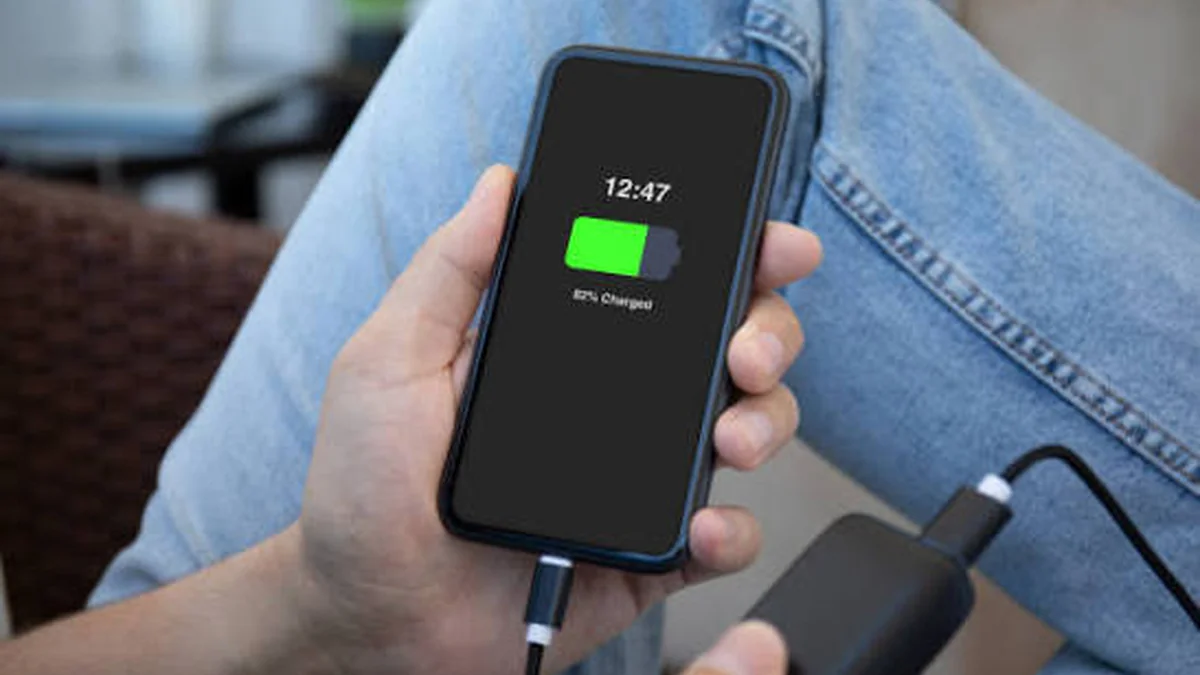

Your phone battery isn’t dying because you’re doing something dramatically wrong. It’s dying a little every single day, from the moment you first charged it — and most of the “tips” floating around either barely move the needle or actively contradict each other. One site tells you to charge to 100% every night; another says never go past 80%. Somebody’s grandfather is convinced you have to “train” a new battery. None of that is helping.
Quick answer: To extend phone battery lifespan, keep your charge between roughly 20% and 80% when possible, avoid heat (direct sun, fast charging in a case, wireless charging pads), use your phone’s built-in Optimized or Adaptive Charging feature, and don’t leave it plugged in at 100% for hours. These habits slow the two processes — calendar aging and cycle aging — that permanently reduce how much charge a lithium-ion battery can hold.
Here’s what’s actually backed by battery research, what’s marketing fluff, and what to do about it today.
What Actually Kills a Phone Battery
Every phone battery is built around a lithium-ion cell, and lithium-ion cells don’t fail suddenly — they fade. Two separate processes drive that fade, and understanding both is the difference between guessing and actually protecting your battery.
Calendar aging happens just from time passing, regardless of use. It speeds up when a battery sits at a high state of charge (like 100%) or in a hot environment, because heat and high voltage both accelerate a chemical side reaction on the battery’s electrode surface (often called SEI growth) that permanently eats into usable capacity.
Cycle aging happens from actually using the battery — charging and discharging it. Every full cycle causes microscopic physical stress on the electrodes. Push the current too hard (fast charging) or the temperature too high, and you can trigger lithium plating, a more damaging form of wear that shows up especially with aggressive fast charging in less-than-ideal conditions.
A “charge cycle” doesn’t mean plugging in once. It means using 100% of your battery’s capacity cumulatively — so charging from 50% to 100% twice adds up to one full cycle. Apple states that an iPhone 15 battery is designed to retain at least 80% of its original capacity after 1,000 complete charge cycles under ideal conditions. Most Android manufacturers cite similar figures, though the number varies by battery chemistry and how the phone is used.
Quick takeaway: You can’t stop a lithium-ion battery from aging. You can only slow it down — mostly by managing heat and avoiding time spent at very high or very low charge.
The 20–80% Rule — and Why It Actually Works
You’ve probably seen the “20–80% rule”: keep your battery between 20% and 80% instead of running it from empty to full. It’s real, but it’s worth understanding why, because that changes how strictly you need to follow it.
A lithium-ion battery experiences the most electrochemical stress at the very top and very bottom of its charge range. Pushing voltage up toward 100% stresses the cathode; running it down toward 0% stresses the anode. Staying in the middle band avoids both extremes.
The catch: the real-world benefit is measurable but modest. Independent estimates suggest that consistently following the 20–80% rule instead of charging carelessly might preserve an extra 10–15% of capacity over two years — noticeable, but not the difference between a battery lasting one year versus five.
If constantly watching your percentage sounds exhausting, you don’t have to be strict about it. Two habits deliver most of the benefit with almost no effort:
- Don’t let your phone regularly sit at 0% for long periods, and don’t let it regularly sit fully charged for hours on end.
- Unplug soon after it hits 100% instead of leaving it on the charger overnight, every night — or let your phone’s software handle this for you (more on that below).
Heat Is the Real Enemy of Battery Lifespan
If you only fix one habit, fix this one. Heat is consistently identified as the single biggest driver of battery degradation — more than charge cycles, more than fast charging, more than which percentage you charge to.
The numbers are stark. Research modeling on lithium-ion degradation shows that a battery held around 45°C (113°F) can degrade more than twice as fast as one kept near 25°C (77°F) — in one comparison, a battery cycled at 45°C lost roughly 6.7% of capacity after 200 cycles, versus about 3.3% at 25°C. Multiple studies, including work referenced by Argonne National Laboratory and the U.S. Department of Energy, point to a similar pattern: keeping a lithium-ion cell in a roughly 15–35°C (59–95°F) window minimizes long-term capacity loss, while sustained heat above that accelerates it sharply.
Everyday sources of that heat are easy to miss:
- Leaving your phone on a car dashboard or in direct sun
- Gaming or navigating with GPS while it’s also fast charging
- Charging with a thick case still on
Fast charging and heat
Fast charging itself isn’t inherently destructive — modern phones manage current and voltage carefully — but pushing more current into a cell generates more heat as a side effect, especially in the last stretch of a charge or in a warm room. That’s part of why most fast-charging systems taper the charge speed as the battery approaches full: less current, less heat, less stress.
Wireless charging and heat
Wireless (inductive) charging is convenient but inherently less efficient than a cable — some of the energy is lost as heat during transfer, both in the coil and in the phone itself. It’s not going to ruin your battery overnight, but if you wireless charge for hours daily, it’s a small, consistent heat source your battery is dealing with that a cable avoids. Removing a case while wireless charging, and avoiding stacking your phone under blankets or pillows while it charges, both help the heat dissipate.
Let Your Phone’s Software Do the Work
You don’t need to manually babysit your charge percentage — every modern phone already has a feature built for this. It just goes by a different name depending on the brand.
| Brand/Platform | Feature Name | How It Works |
|---|---|---|
| iPhone (iOS 13+) | Optimized Battery Charging | Learns your daily routine and delays charging past 80% until shortly before you typically unplug |
| iPhone 15 and newer | 80% Charge Limit | A hard cap — stops charging at 80% every time, no learning involved |
| Google Pixel | Adaptive Charging | Learns overnight patterns and, if you have an alarm set, times full charge to finish right before it goes off |
| Samsung | Protect Battery | Caps charging around 85% to reduce voltage stress, or offers a similar “Battery Care” toggle depending on the software version |
| Other Android (OnePlus, Xiaomi, etc.) | Battery Care / Smart Charging | Slows charging speed overnight based on your usage pattern |
| Android 15 (stock) | Charging optimization → Adaptive Charging or Limit to 80% | Native OS-level toggle offering both a learning mode and a hard percentage cap |
iPhone: Optimized Battery Charging
Go to Settings > Battery > Battery Health & Charging and enable Optimized Battery Charging. Apple’s own documentation describes it as using on-device machine learning to predict your charging routine so your phone can delay the final push to 100% until it thinks you’ll actually need it — reducing the total time your battery spends fully charged. If you need a full charge right away, you can override it by pressing and holding the charging notification and selecting “Charge Now.”
Google Pixel: Adaptive Charging
On Pixel devices, go to Settings > Battery > Charging optimization, where you can choose Adaptive Charging (learns your schedule, especially useful if you have a morning alarm set) or Limit to 80% (a hard cap). Android 15 brought this option natively into the OS rather than leaving it up to individual manufacturers.
Samsung and other Android brands
Samsung’s Protect Battery setting (found under Settings > Battery and device care > Battery) is more straightforward — it just caps your maximum charge, typically around 85%, rather than learning your schedule. Other manufacturers implement their own version under names like Battery Care or Smart Charging, generally found in the same battery settings menu.
Quick takeaway: Turn this on once, and it runs quietly in the background. This single setting probably has more real-world impact on your battery’s lifespan than any manual habit you could maintain.
Daily Battery Life vs. Long-Term Battery Lifespan (Comparison Table)
This is where a lot of advice gets muddled. Some tips make your battery last longer per charge (daily battery life). Others make your battery itself last longer over months and years (lifespan). They’re related but not the same thing, and treating them as identical is why advice online feels contradictory.
| Habit | Improves Daily Battery Life | Improves Long-Term Lifespan |
|---|---|---|
| Lowering screen brightness | Yes | Indirectly (fewer charge cycles) |
| Enabling dark mode (OLED screens) | Yes | Indirectly |
| Closing background apps | Slightly | Minimal |
| Avoiding heat while charging | No direct effect | Yes — significantly |
| Keeping charge between 20–80% | No | Yes — modestly |
| Using Optimized/Adaptive Charging | No | Yes — meaningfully |
| Removing case while fast charging | No | Yes |
| Avoiding 0% and 100% extremes | No | Yes — modestly |
If your goal is simply “make it to the end of the day,” focus on the left column. If your goal is “make this battery still hold a good charge in three years,” focus on the right column — and understand that most daily-battery-life tips don’t do much for long-term health at all.
Cold Weather, Storage, and Other Overlooked Factors
Most battery advice fixates on heat and ignores the cold — but temperature extremes at either end matter.
Cold weather: Lithium-ion chemistry slows down noticeably below around 20°C (68°F), and charging performance degrades more sharply the colder it gets. A phone that seems to lose charge unusually fast in freezing temperatures often isn’t actually damaged — it’s a temporary performance drop that recovers once the phone warms back up. That said, avoid fast charging a genuinely cold phone (fresh out of a freezing car, for instance); let it warm to closer to room temperature first, since charging a very cold cell increases the risk of the more damaging lithium plating mentioned earlier.
Long-term storage: If you’re putting a phone away for weeks or months — an old backup phone, for example — don’t store it at 0% or 100%. Battery guidance generally points to charging it to roughly 50% before long-term storage, and topping it up periodically if it dips very low, since a lithium-ion cell left fully depleted for a long stretch can degrade to the point of struggling to hold a charge at all.
Case removal while charging: If your phone runs warm on the charger, especially with fast charging or wireless charging, removing a thick case lets heat dissipate rather than getting trapped against the back of the phone.
Checking Your Battery Health — and Knowing When to Replace It
You don’t have to guess how degraded your battery is — both platforms will tell you directly.
iPhone
Go to Settings > Battery > Battery Health & Charging. This shows your Maximum Capacity as a percentage of the battery’s original capacity when new. Apple considers a battery still within normal specifications above 80%; below that, you’ll typically start noticing shorter runtime and, on some models, unexpected shutdowns under heavy load.
Android
The exact path varies by manufacturer, but it’s generally under Settings > Battery > Battery Health/Diagnostics or Battery and device care > Diagnostics, which will show your battery’s condition and sometimes an estimated cycle count. If your phone doesn’t expose this directly, some manufacturers provide a diagnostics app instead.
Signs your battery may need replacing:
- Battery health/maximum capacity has dropped below roughly 80%
- The phone shuts down unexpectedly at 20–30% remaining
- It visibly swells or the back of the case starts lifting (stop using it immediately and have it professionally serviced)
- Daily battery life has dropped sharply compared to a few months ago, with no change in how you use the phone
If you’re seeing these signs and the phone is otherwise in good shape, a battery replacement is usually far cheaper than a new device and effectively resets the lifespan clock.
Battery Myths That Won’t Die
Myth: You have to fully charge a new phone before first use to “calibrate” it. Not true for modern lithium-ion batteries — this was relevant advice for older nickel-based batteries. You can use a new phone normally from the first charge.
Myth: Using your phone while it’s charging damages the battery. Modern phones manage this fine electrically. The only real downside is that heavy use while charging generates extra heat, which loops back to the heat-degradation issue above — it’s not the “using it” that’s the problem, it’s the added warmth.
Myth: Modern phones can be “overcharged” if left plugged in past 100%. Phones stop actively charging once they hit 100% and only trickle small amounts of power to maintain the level, so you won’t blow up the battery by leaving it plugged in overnight occasionally. The real cost of doing it constantly is the extended time spent sitting at a high, stressful voltage — which is exactly what Optimized/Adaptive Charging is designed to reduce.
Myth: Closing all your background apps saves meaningful battery life. For most apps, this does very little and can even cost more battery by forcing the app to fully reload from scratch next time you open it, rather than resuming from a low-power suspended state.
The Bottom Line
You can’t stop a phone battery from aging — but you can control most of the variables that decide whether it ages gracefully or falls off a cliff in eighteen months. Turn on Optimized or Adaptive Charging today, keep the phone out of direct heat while it charges, and don’t sweat the exact percentage on the screen. Those three habits, done consistently, deliver almost all of the real-world benefit that longer, stricter routines chase.
If your phone is already showing signs of a worn battery, check its battery health setting before assuming you need a whole new device — a replacement battery is often the faster, cheaper fix.
ENJOYED THIS GUIDE? BROWSE MORE HOW-TO GUIDES FOR EVEN MORE TECH HELP.
FAQ Section
Is it bad to let your phone battery drop to 0%? Occasionally, no — modern phones handle it fine. But regularly draining to 0% adds extra stress at the low end of the charge range, contributing to faster long-term capacity loss compared to recharging in the 20–80% band.
Is it bad to charge your phone overnight? Not inherently — phones stop actively charging at 100% and only trickle-charge to maintain the level. The real issue is the extended time spent sitting at 100%, which is why Optimized/Adaptive Charging exists to shorten that window automatically.
Does fast charging damage your battery? Not directly, but it generates more heat, and heat is the main driver of battery degradation. Occasional fast charging is fine; relying on it constantly, especially in warm conditions, adds up over time.
How many charge cycles does a phone battery have? Most modern smartphone batteries are rated for several hundred to around 1,000 full charge cycles before dropping to about 80% of original capacity, though this varies by phone model and battery chemistry.
Should I use an 80% charge limit feature? It helps if you’re not in a rush and don’t mind slightly less daily battery life in exchange for longer-term battery health. It’s optional, not essential — Optimized/Adaptive Charging offers most of the benefit without the daily inconvenience of a hard cap.
Does cold weather damage phone batteries? Extreme cold temporarily reduces performance rather than causing permanent damage in most cases, though charging a very cold phone increases the risk of longer-term harm and should be avoided until it warms up.
Is wireless charging worse for battery lifespan than a cable? Slightly, mainly because it generates more heat through energy loss during transfer. It’s not dramatically worse for occasional use, but daily all-day wireless charging adds a small, consistent heat source.
How do I know if my phone needs a new battery? Check your battery health setting — below roughly 80% maximum capacity, combined with noticeably shorter runtime or unexpected shutdowns, is a strong signal it’s time for a replacement.
