
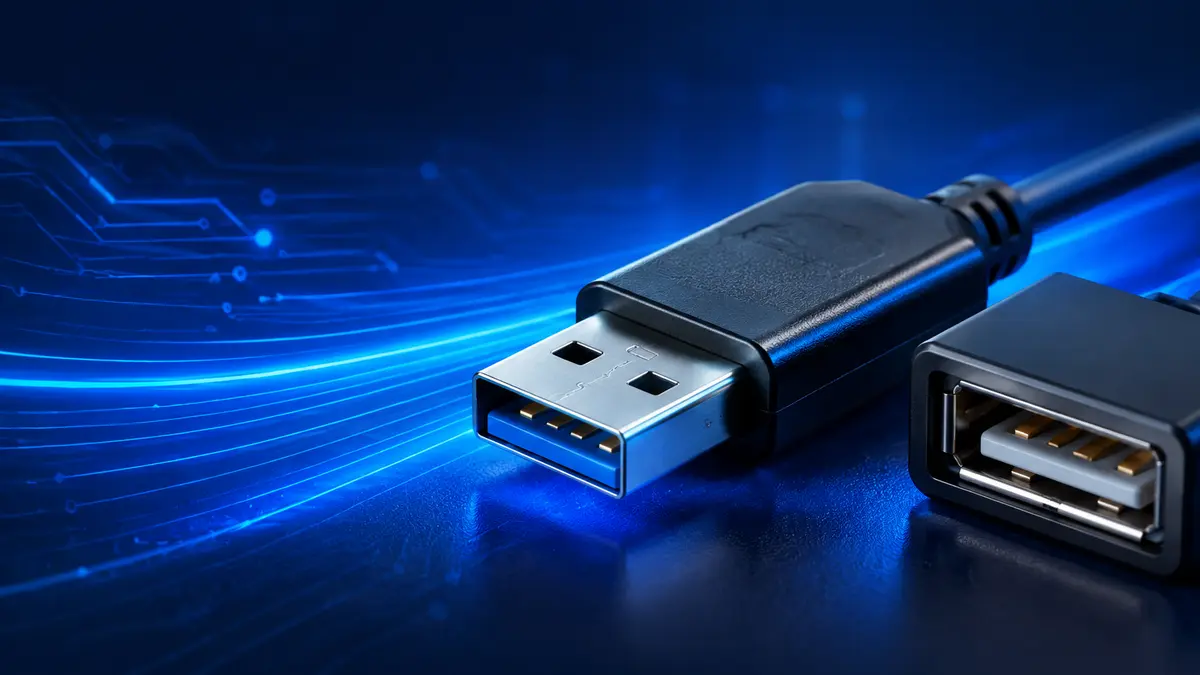

The familiar rectangular USB connector is still attached to countless keyboards, chargers, flash drives, game controllers, and external drives. Yet its appearance alone cannot tell you how fast it is or how much charging power it provides.
usb a, formally called USB Standard-A or USB Type-A, is a flat, rectangular connector commonly found on computers, chargers, hubs, televisions, and game consoles. It can carry data and electrical power, but its actual speed and charging capability depend on the USB version, cable, port, device, and charging protocol—not simply the connector’s shape.
USB-A remains useful because it connects an enormous range of existing accessories. Its main limitations are a non-reversible design, modest standard charging capabilities, and less flexibility than USB-C for modern high-power, video, and high-bandwidth applications.
What Is usb a?
USB-A is one physical connector in the Universal Serial Bus ecosystem. It was designed primarily for the host side of a USB connection—the side attached to a desktop computer, laptop, charger, console, or powered hub.
A standard USB-A plug has a wide rectangular metal shell and must be inserted in the correct orientation. Inside, USB 2.0 versions normally have four contacts:
- VBUS for electrical power
- D− and D+ for USB data
- Ground for completing the electrical circuit
SuperSpeed USB-A connectors add five contacts, bringing the total to nine. Those extra connections allow faster, simultaneous data movement while retaining the original contacts for backward compatibility.
USB-A describes the connector’s physical form. It does not identify the USB generation, maximum transfer rate, charging wattage, or supported features. Two identical-looking ports can therefore perform very differently.
USB-A plugs and ports
A USB-A plug is the male connector at the end of a cable or device. A USB-A receptacle is the female port built into a computer, wall charger, television, power bank, or hub.
Common configurations include:
- USB-A to USB-B printer cables
- USB-A to Micro-USB charging cables
- USB-A to Mini-USB cables for older electronics
- USB-A to USB-C cables
- Flash drives with integrated USB-A plugs
- Wireless keyboard and mouse receivers
- USB extension cables and hubs
The connector usually links a host to a peripheral. Conventional USB-A-to-USB-A cables are not intended for directly connecting two ordinary computers and can cause problems if incorrectly wired. Specialized bridge cables contain electronics that safely manage such transfers.
usb a Versions and Maximum Data Speeds
Connector type and USB version are separate concepts. A USB-A port may support an early USB specification, USB 2.0, or one of several SuperSpeed modes.
| USB standard or current speed label | Theoretical maximum | USB-A support | Typical use |
|---|---|---|---|
| USB 1.1 Full Speed | 12 Mbps | Yes | Legacy keyboards, mice and controllers |
| USB 2.0 Hi-Speed | 480 Mbps | Yes | Printers, basic flash drives and accessories |
| USB 5Gbps | 5 Gbps | Yes | External drives, hubs and faster flash storage |
| USB 10Gbps | 10 Gbps | Yes | SSDs and high-speed peripherals |
| USB 20Gbps | 20 Gbps | No standard USB-A implementation | Full-featured USB-C connections |
| USB4 | 20–120 Gbps, depending on mode | No | USB-C only |
USB 5Gbps was previously marketed under names such as USB 3.0, USB 3.1 Gen 1, and USB 3.2 Gen 1. USB 10Gbps was formerly called USB 3.1 Gen 2 or USB 3.2 Gen 2. The USB Implementers Forum, or USB-IF, now favors consumer-facing labels that state the supported speed directly.
Why real transfer speeds are lower
The figures in the table are signaling rates, not guaranteed file-copy speeds. Actual performance is reduced by protocol overhead and limited by the slowest part of the connection.
For example, a USB 5Gbps portable SSD connected to a USB 2.0 port will operate at USB 2.0 speed. A slow flash drive will not become faster merely because it is connected to a 10Gbps port.
Performance can be constrained by:
- The host controller and port
- The peripheral’s internal storage
- The cable’s wiring and quality
- A USB hub or adapter
- File size and filesystem overhead
- Computer storage performance
- Operating-system and driver behavior
For fast external storage, check the specified Gbps rating of the port, cable, adapter, and drive. Matching the connector shape is only the first step.
How to Identify a USB-A Port
USB-A is easy to recognize by its broad, rectangular opening. Identification becomes harder when you need to determine its speed.
A colored insert can provide a clue:
- Black or white commonly indicates USB 2.0 or an older connection.
- Blue often indicates a 5Gbps SuperSpeed port.
- Teal may be used for a 10Gbps connection.
- Yellow, orange, or red may indicate an always-on or charging-capable port.
These colors are not universally reliable. Manufacturers sometimes use brand-specific colors or omit color coding entirely. A blue port is a useful hint, not conclusive proof.
Look for printed markings beside the port. The original SuperSpeed “SS” symbol generally indicates a faster USB connection, while newer certified logos may display an explicit rate such as 5Gbps or 10Gbps. A battery symbol can identify a port that continues supplying power while a laptop is asleep or turned off.
The product manual or manufacturer’s specification sheet remains the most dependable source. On computers, operating-system utilities can also reveal the USB controller and negotiated connection speed.
Quick takeaway: Identify the connector by shape, but identify its capabilities through the speed logo or official device specifications.
USB-A Compatibility and Backward Compatibility
Backward compatibility is one of USB-A’s strongest advantages. In most cases, a USB 2.0 Type-A plug fits a USB 3.x Type-A receptacle, and a SuperSpeed Type-A plug fits an older USB 2.0 receptacle.
The devices should communicate using the fastest mode supported across the entire connection. That means a newer peripheral can often work in an older port, but with reduced performance.
| Connection | Will it usually fit? | Expected result |
|---|---|---|
| USB 2.0 device into a 5Gbps USB-A port | Yes | Operates at USB 2.0 speed |
| 5Gbps device into a USB 2.0 USB-A port | Yes | Operates at USB 2.0 speed |
| 10Gbps device into a 5Gbps USB-A port | Yes | Limited to 5Gbps or a lower supported mode |
| USB-C plug directly into USB-A port | No | Requires a suitable cable or adapter |
| USB-A plug directly into USB-C port | No | Requires an adapter, hub, or different cable |
Physical compatibility does not guarantee that every feature will work. A device may require more electrical power than an older port can provide. Certain adapters support charging but not data, while others support USB 2.0 data even when their connectors look modern.
Some high-performance features are exclusive to USB-C. USB 20Gbps dual-lane operation, USB4, DisplayPort Alt Mode, and modern high-wattage USB Power Delivery are not standard USB-A capabilities.
Charging and Power Through usb a
USB-A can supply power, but the available current depends on the host, port, cable, device, and charging protocol.
Under traditional USB specifications:
- A standard USB 2.0 downstream port provides up to 500 mA at approximately 5 volts after proper configuration, or about 2.5 watts.
- A standard USB 3.x downstream port provides up to 900 mA at approximately 5 volts, or about 4.5 watts.
- USB Battery Charging specifications and proprietary charging systems can provide more current.
Many wall chargers and power banks exceed basic USB data-port limits by using USB Battery Charging 1.2 or manufacturer-specific systems. Technologies such as Qualcomm Quick Charge may also negotiate higher power through compatible USB-A equipment.
The printed wattage on a charger is the most useful guide, but a multiport charger’s advertised total may be shared across all ports. A weak or damaged cable can further limit charging performance.
Can USB-A fast-charge a phone?
Yes, if the phone, charger, and cable support the same fast-charging protocol. A compatible USB-A charger can charge considerably faster than a basic computer port.
It generally cannot match the broad capabilities of a modern USB-C Power Delivery connection. USB-C PD supports standardized power negotiation and can deliver enough power for many tablets, laptops, and other demanding devices. Current USB Power Delivery implementations use USB-C rather than ordinary USB-A connections.
Does a USB-A-to-USB-C cable support fast charging?
Sometimes. The cable may charge a USB-C phone from a USB-A charger, but the result depends on the charger’s protocol and the phone’s support. It will not turn the USB-A port into a full USB-C Power Delivery source.
Poorly designed cables are a safety and reliability risk. Use compliant cables from reputable manufacturers, especially for higher-current charging.
USB-A vs USB-C
USB-C is a newer, smaller connector designed to address several limitations of earlier USB formats. Unlike USB-A, it is reversible, so it can be inserted either way.
| Feature | USB-A | USB-C |
|---|---|---|
| Shape | Wide rectangle | Small rounded rectangle |
| Reversible | No | Yes |
| Typical role | Host-side connection | Host, device, charger or display |
| Maximum common data rate | Up to 10Gbps | From USB 2.0 to USB4 modes |
| USB 20Gbps support | No | Yes, with compatible hardware |
| USB4 support | No | Yes |
| USB Power Delivery | Not typical for current implementations | Yes, when supported |
| DisplayPort Alt Mode | No | Yes, on supported ports |
| Legacy accessory support | Excellent | Often requires an adapter or hub |
USB-C is a connector, not a performance guarantee. Some USB-C cables carry only USB 2.0 data, while others support 10Gbps, 20Gbps, 40Gbps, 80Gbps, video, or high-power charging. A device’s documentation must be checked to establish its actual capabilities.
USB-A is still practical for low-bandwidth peripherals and existing accessories. USB-C is usually the stronger choice for laptop charging, docking stations, display output, high-speed SSDs, and a more future-facing setup.
Common USB-A Devices and Best Uses
USB-A remains common because millions of dependable peripherals require little bandwidth or power.
Keyboards, mice and wireless receivers
Input devices exchange small amounts of data, so USB 2.0 is normally sufficient. Connecting a mouse to a 10Gbps port does not improve its tracking performance. Saving faster ports for storage and capture devices is often more sensible.
Flash drives and external storage
A flash drive may use USB 2.0, 5Gbps, or 10Gbps technology. Large file transfers benefit greatly from SuperSpeed hardware, although the drive’s memory can be much slower than the interface’s theoretical limit.
Portable hard drives generally work well over a 5Gbps connection. Modern external SSDs can benefit from 10Gbps, while faster models increasingly use USB-C, USB4, or Thunderbolt.
Printers, scanners and cameras
Many printers and scanners use a USB-A-to-USB-B cable. Cameras and older portable devices may use Mini-USB or Micro-USB at the device end. These products rarely need the newest USB bandwidth.
Chargers and power banks
USB-A charger ports remain useful for phones, headphones, smartwatches, speakers, and other accessories. Charging speed varies widely, so the port’s wattage and protocol matter more than its shape.
Televisions, cars and game consoles
USB-A ports may support media playback, software updates, wired controllers, storage expansion, or basic charging. Their functions can be restricted by the manufacturer. A car’s USB-A port, for example, may support smartphone integration, charging only, or audio files in selected formats.
Choosing the Right USB-A Cable or Adapter
Start by identifying both endpoint connectors. A computer may have USB-A while the peripheral uses USB-B, Micro-B, or USB-C.
Then determine what the connection must do:
- Check data requirements. Basic accessories can use USB 2.0, while external SSDs should have a 5Gbps or 10Gbps connection.
- Confirm charging needs. Match the charger, cable, and device protocol rather than relying on connector shape.
- Check cable length. Longer passive cables can experience signal degradation and voltage drop, particularly at higher speeds.
- Verify data support. Some inexpensive cables are charging-only and contain no functional data lines.
- Inspect adapters carefully. An adapter changes the physical connection but cannot create unsupported speed, video, or power features.
- Look for credible certification. USB-IF-certified products provide greater assurance that the cable or device meets the relevant specification.
For a USB-A-to-USB-C cable, pay particular attention to compliance. The cable must correctly identify its power role so that connected devices do not draw inappropriate current.
Common Problems and Practical Fixes
The plug will not go in
USB-A is not reversible. Rotate the plug 180 degrees and try again without forcing it. Inspect the port for debris, a bent internal tongue, or damaged contacts if it still does not fit.
A device connects but runs slowly
A USB 2.0 port, cable, hub, or peripheral may be limiting the entire connection. Move the device to a port marked 5Gbps or 10Gbps and use a cable rated for the same speed.
Front-panel desktop ports and unpowered hubs can sometimes perform differently from motherboard ports. Connecting directly to a rear motherboard port is a useful diagnostic step.
Charging is unexpectedly slow
Try the charger’s highest-rated port, use a shorter undamaged cable, and confirm that the charger and device share a fast-charging protocol. A computer port often charges more slowly than a dedicated wall adapter.
The device disconnects repeatedly
Possible causes include a loose connector, worn port, defective cable, insufficient power, overloaded hub, driver problem, or aggressive power-management setting. Test the device with another cable and a direct port before assuming the peripheral has failed.
The USB-A port does not recognize anything
Restart the computer, test a known-working device, inspect the port, and check the operating system’s device manager or hardware information utility. If several ports fail together, the problem may involve drivers, the USB controller, firmware, or internal hardware.
Is USB-A Obsolete?
USB-A is gradually giving way to USB-C on thin laptops, phones, tablets, and modern docking equipment. Regulations and industry adoption are also pushing consumer electronics toward USB-C as a more consistent charging connector.
That does not make USB-A immediately obsolete. It remains widespread on desktop computers, monitors, routers, televisions, cars, consoles, chargers, industrial equipment, and inexpensive peripherals. Its large installed base means cables, hubs, and adapters will remain useful for years.
Replacing every working USB-A accessory rarely provides a practical benefit. A keyboard or printer does not need USB4 bandwidth. For new high-performance equipment, however, USB-C usually offers better charging, expansion, and long-term compatibility.
The Bottom Line on usb a
usb a is the classic rectangular USB connector used to connect computers, chargers, hubs, and consoles to a huge range of peripherals. It remains dependable and broadly compatible, but the connector alone reveals little about performance.
When checking a USB-A connection, focus on three separate factors: connector shape, supported data rate, and available charging power. Use the printed Gbps or wattage specifications rather than port color alone. Keep USB-A for compatible everyday accessories, and choose USB-C when you need reversible connections, laptop-class charging, display output, USB4, or higher bandwidth.
