
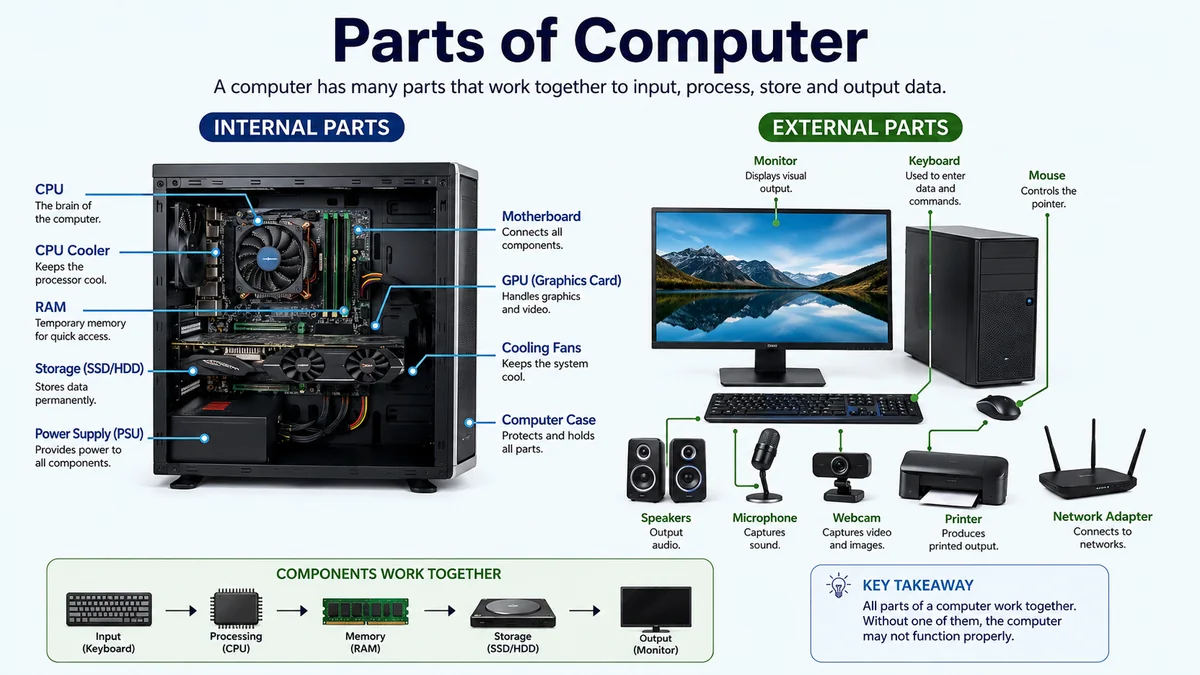

A computer can look like one machine from the outside, but dozens of components work together every time you open a program, type a document, browse the web, or play a video. Understanding the parts of computer makes it much easier to learn how computers work, recognize common hardware, and troubleshoot basic problems.
A computer consists of processing, memory, storage, input, output, power, communication, and cooling components. Its main internal parts include the CPU, motherboard, RAM, storage drive, GPU, and power supply. External parts such as the monitor, keyboard, mouse, speakers, webcam, and printer allow users to interact with the computer.
What Are the Main parts of computer?
There is no universal number of computer parts. A simple school computer, gaming desktop, workstation, laptop, and server can contain different hardware.
At the most basic functional level, however, computers need a processor, memory, storage, and a way to receive input and produce output. Modern desktop computers usually add a motherboard, power system, graphics hardware, cooling components, networking hardware, ports, and peripherals.
Here is a practical overview:
| Computer Part | Main Function | Type |
|---|---|---|
| Motherboard | Connects computer components | Internal |
| CPU | Processes instructions | Internal |
| RAM | Temporarily stores active data | Internal |
| SSD/HDD | Stores files permanently | Internal |
| GPU | Processes graphics and video | Internal/integrated |
| Power Supply Unit | Supplies usable electrical power | Internal |
| Cooling system | Removes excess heat | Internal |
| Computer case | Houses and protects hardware | External enclosure |
| Monitor | Displays visual output | Output |
| Keyboard | Enters text and commands | Input |
| Mouse | Controls the pointer | Input |
| Speakers | Produce audio | Output |
| Microphone | Captures sound | Input |
| Webcam | Captures video | Input |
| Printer | Produces physical output | Output |
| Network adapter | Connects the computer to networks | Communication |
The easiest way to understand these components is to separate them into internal computer parts and external computer parts.
Internal parts of computer and Their Functions
Internal components are located inside the computer case or system unit. These parts perform most of the processing, storage, power management, and communication required for the computer to function.
Motherboard
The motherboard, sometimes called the mainboard or system board, is the large printed circuit board that connects the computer’s major components.
The processor, RAM, storage interfaces, expansion cards, and various controllers communicate through or connect to the motherboard. Modern boards may include CPU sockets, DIMM memory slots, PCI Express slots, M.2 connectors, SATA ports, chipset components, USB connections, and networking hardware.
Think of the motherboard as the computer’s central connection system. It does not perform every task itself; rather, it gives other components the electrical and communication pathways they need to work together.
CPU — Central Processing Unit
The CPU, or Central Processing Unit, executes program instructions and performs much of the computer’s general-purpose processing.
Software provides instructions. The CPU retrieves those instructions, interprets them, performs the required operations, and handles the resulting data. This process is commonly described as the fetch-decode-execute cycle.
Modern processors contain multiple cores, allowing them to work on multiple streams of instructions more efficiently. Processor specifications may also mention clock speed in gigahertz (GHz), threads, cache, and architecture.
The CPU is often called the “brain of the computer.” That comparison is useful for beginners, although a computer depends on many other components to function.
One common mistake is calling the entire computer tower a “CPU.” The CPU is actually a relatively small processor installed on the motherboard; the tower itself is the computer case or system unit.
RAM — Random Access Memory
RAM, or Random Access Memory, provides fast temporary storage for information the computer is actively using.
When you launch a browser, open a document, edit a photograph, or start a game, relevant working data is loaded into RAM so the CPU can access it quickly.
RAM is volatile memory. Its contents normally disappear when power is removed.
This makes RAM fundamentally different from an SSD or hard drive:
| RAM | SSD/HDD |
|---|---|
| Temporary working memory | Long-term storage |
| Very fast access | Generally slower than RAM |
| Data disappears when power is lost | Data remains after shutdown |
| Holds active programs and data | Holds files, apps, and operating systems |
Having more RAM does not automatically make every computer faster, but insufficient RAM can cause noticeable slowdowns when several demanding applications are open.
Modern desktop computers commonly use memory modules installed in DIMM slots on the motherboard, with DDR4 and DDR5 among the memory generations found in current systems.
Storage Devices: SSD and HDD
Storage keeps data even when the computer is switched off.
This is where the operating system, applications, photographs, videos, documents, games, and other files are stored.
Two major storage technologies are common.
Solid-State Drive (SSD)
A solid-state drive stores information electronically using flash memory and has no mechanical read/write mechanism.
SSDs generally provide fast startup, application loading, and file access. Modern PCs may use SATA SSDs or compact M.2 drives, including high-performance NVMe SSDs that communicate over PCI Express.
Hard Disk Drive (HDD)
A hard disk drive stores data magnetically on rotating platters.
HDDs are an older mechanical technology but remain useful when large amounts of storage capacity are needed.
Neither RAM nor the CPU should be confused with permanent storage. RAM holds current working information; an SSD or HDD keeps data for later use.
GPU — Graphics Processing Unit
The GPU, or Graphics Processing Unit, performs graphics-related calculations and helps create the images displayed on a monitor.
GPUs are particularly useful for tasks involving large numbers of calculations that can be performed in parallel, including 3D graphics, video effects, visualization, and many modern computing workloads.
A computer may have:
Integrated graphics, where graphics capability is built into or closely associated with the processor, or discrete graphics, where a separate graphics card is installed.
A discrete graphics card usually connects to a PCI Express slot and may contain its own graphics processor, video memory, cooling system, and display outputs.
Basic office PCs may work perfectly well with integrated graphics. Gaming, 3D rendering, professional visualization, and some creative workloads can benefit greatly from a dedicated GPU.
Power Supply Unit
The Power Supply Unit (PSU) provides electrical power to the internal components of a desktop computer.
Electricity arriving from a wall socket is not supplied directly to the motherboard, CPU, GPU, and drives in its original form. The PSU converts incoming AC electricity into regulated DC voltages that computer hardware can use.
The power supply therefore affects the entire system. A desktop may appear completely dead when its PSU fails even though the processor, RAM, and storage remain functional.
Laptop computers use a different physical power arrangement, typically involving an external adapter, internal power-management circuitry, and a rechargeable battery.
Cooling System
Computer components generate heat while operating. Excessive heat can reduce performance, cause instability, or damage hardware over time.
Cooling hardware may include CPU heatsinks, fans, case fans, GPU coolers, thermal interface material, and, in some systems, liquid-cooling components.
A heatsink absorbs and disperses heat from a component. Fans then help move warm air away and bring cooler air through the case.
Good airflow matters because adding powerful hardware without adequate cooling can make a computer noisy, unstable, or prone to thermal throttling.
Expansion Cards
A desktop motherboard can provide expansion slots for additional hardware.
PCI Express, commonly written as PCIe, is the major modern expansion interface. Depending on the computer, PCIe slots can accommodate graphics cards, sound cards, capture cards, network adapters, storage controllers, and other specialist devices.
Not every PC requires additional cards because many once-separate functions—including audio, Ethernet, Wi-Fi, and graphics—may already be integrated into the motherboard or processor.
Computer Case or System Unit
The computer case is the enclosure that holds and protects internal components such as the motherboard, processor, memory, storage, power supply, graphics hardware, and cooling equipment.
The term system unit refers to the main computer enclosure and the components inside it. A monitor, mouse, keyboard, and printer are peripherals rather than parts of the system unit.
Desktop cases come in different sizes and layouts. An all-in-one PC takes a different approach by integrating much of the computer hardware behind or within the display.
Quick takeaway: The motherboard connects the system, the CPU processes instructions, RAM holds active information, storage preserves files, the GPU handles graphics, the PSU provides power, and cooling hardware controls heat.
External parts of computer
External computer components are the pieces users can see, touch, connect, or interact with outside the system unit.
On a traditional desktop, the most recognizable basic parts are the computer case, monitor, keyboard, mouse, and power connection.
Monitor
The monitor is an output device that displays visual information produced by the computer.
It can show text, graphics, websites, software interfaces, games, photographs, and video. Modern monitors generally use flat-panel display technologies and connect through interfaces such as HDMI or DisplayPort, depending on the hardware.
The monitor is not the computer itself. Turning off a monitor normally turns off only the display; the computer may continue running.
Keyboard
A keyboard is an input device used to enter letters, numbers, symbols, shortcuts, and commands.
Besides standard alphanumeric keys, keyboards can contain function keys, arrow keys, modifier keys, a numeric keypad, and dedicated media controls.
Keyboards can connect through USB, Bluetooth, or other wireless technologies.
Mouse
A mouse is a pointing input device that allows users to control an on-screen pointer.
Moving the mouse moves the pointer, while its buttons and scroll wheel can be used to select objects, open programs, drag files, scroll pages, and perform other interface actions.
Laptops usually replace the conventional mouse with an integrated touchpad, although an external mouse can still be connected.
Speakers and Headphones
Speakers and headphones are audio output devices.
They convert the computer’s digital audio signal into sound people can hear. They may be used for music, videos, calls, games, accessibility feedback, notifications, and other audio.
Some monitors and laptops include built-in speakers, while desktop systems may use separate speakers.
Microphone
A microphone is an input device because it sends sound into the computer.
It can be used for voice calls, video meetings, speech recognition, audio recording, gaming communication, and voice commands.
A microphone may be built into a laptop or webcam, incorporated into a headset, or connected as a separate device.
Webcam
A webcam captures images and video and sends them to the computer.
Webcams are widely used for video calls, online classes, streaming, recording, and identity or presence-related features.
Most laptops include an integrated camera. Desktop computers frequently use a monitor-mounted or standalone USB webcam.
Printer
A printer converts digital information into physical output, usually on paper.
That makes it an output device. Some multifunction printers also contain scanners, giving one device both input and output capabilities.
Scanner
A scanner works in the opposite direction from a traditional printer. It captures information from a physical document or image and converts it into digital data.
For that reason, a scanner is an input device.
Input and Output Parts of a Computer
Another useful way to classify computer components is by what they do with information.
Input devices send data or instructions into the computer. Examples include keyboards, mice, touchpads, microphones, scanners, webcams, and touchscreens.
Output devices receive processed information from the computer and present it to the user. Monitors, speakers, headphones, projectors, and printers are common examples.
Some hardware can perform both roles. A touchscreen displays information while also detecting touch input, and a network interface both sends and receives data. IBM’s hardware overview similarly groups computer hardware around input, output, processing, storage, and communication functions.
This leads to a simple model:
Input → Processing → Storage/Memory → Output
Suppose you type the letter A.
The keyboard sends an input signal. The processor handles the instruction using information in memory. The relevant software determines what should happen, and the graphics system produces the information needed to show A on the monitor.
That entire sequence may happen so quickly that it feels instantaneous.
Ports, Networking, and Communication Components
Computers also need ways to exchange information with peripherals and other computers.
USB
USB, or Universal Serial Bus, is used to connect many peripherals, including keyboards, mice, storage drives, printers, phones, webcams, and audio devices.
Different USB connector shapes and performance standards exist, so two ports that look similar do not necessarily support identical capabilities.
HDMI and DisplayPort
HDMI and DisplayPort are commonly used to transmit digital video, and often audio, from a computer to a monitor, television, or other display.
Ethernet
An Ethernet connection provides wired networking.
The computer’s network interface communicates with network equipment so the machine can exchange data with other devices and access wider networks, including the internet when an internet connection is available.
Wi-Fi and Bluetooth
Wi-Fi provides wireless network connectivity, while Bluetooth is commonly used for shorter-range connections to peripherals such as headphones, mice, keyboards, controllers, and phones.
Networking hardware can be built into the motherboard or supplied through a separate network interface card or adapter.
How the parts of computer Work Together
Computer hardware makes more sense when viewed as a system rather than a collection of independent parts.
Imagine opening a photograph saved on an SSD.
The storage drive retrieves the required data. Relevant information is loaded into RAM. The CPU executes the application’s instructions. The GPU helps process the image for display. The motherboard provides communication pathways among components. The monitor presents the result.
At the same time, the PSU powers the system, cooling hardware removes heat, and the keyboard or mouse allows you to give additional commands.
This coordinated flow explains why one faulty component can affect seemingly unrelated functions. A computer with a fast processor can still feel slow if it lacks adequate memory or uses problematic storage. A powerful GPU cannot operate normally if the power supply is unsuitable or the cooling system cannot handle the generated heat.
Computer performance is therefore the result of a system of interconnected components, not one specification.
Hardware vs Software
The physical parts of a computer are called hardware. The instructions and programs that run on that hardware are called software.
Hardware includes the CPU, RAM, motherboard, SSD, monitor, keyboard, and mouse. Software includes operating systems, browsers, word processors, games, media applications, and other programs.
IBM describes this distinction simply: hardware consists of tangible physical computer components, while software provides the programs and instructions that direct the hardware.
An operating system such as Windows, macOS, or Linux is therefore not an internal physical part of the computer. It is software stored on a storage device and executed by the hardware.
This distinction matters because lists of computer “parts” sometimes incorrectly mix hardware such as RAM with software such as an operating system.
Desktop Computer Parts vs Laptop Parts
Desktop and laptop computers perform largely the same core computing functions.
Both can contain a processor, RAM, storage, graphics hardware, motherboard circuitry, network hardware, input devices, output devices, and cooling systems. The main difference is how those components are packaged.
A desktop normally separates the system unit, monitor, keyboard, and mouse.
A laptop integrates the display, keyboard, touchpad, speakers, battery, webcam, and much of its computer hardware into one portable enclosure.
Laptop components are also commonly designed to reduce power consumption and save physical space. Many are less convenient to replace than their desktop equivalents.
An all-in-one computer sits between these designs: its internal computer hardware is usually integrated with the monitor, eliminating the traditional separate tower.
Which Parts Are Essential for a Computer to Work?
A useful distinction exists between components required for computing and peripherals required for convenient human interaction.
At a conceptual level, a functioning general-purpose computer needs processing capability, working memory, persistent storage or another means of obtaining instructions/data, supporting system circuitry, and power. A practical desktop also requires appropriate cooling.
A monitor, keyboard, and mouse are not necessarily required for a computer to continue operating. Servers, embedded computers, and remotely controlled machines often work without conventional displays or input devices.
For a normal desktop user, however, these peripherals are essential for practical interaction.
That is why different educational sources give different answers to questions such as “What are the four, five, or ten main computer parts?” One source may describe visible desktop equipment, while another describes internal hardware or functional computing units.
Common Mistakes When Learning Computer Parts
Beginners often encounter terminology that makes basic hardware more confusing than it needs to be.
Calling the tower the CPU is perhaps the most common mistake. The tower is the case or system unit; the CPU is the processor installed inside it.
RAM and storage are also frequently confused. RAM is temporary working memory, while an SSD or HDD provides persistent storage.
The GPU and monitor are not the same thing either. The GPU processes graphics information; the monitor displays the resulting image.
Likewise, the internet is not a physical part inside the PC. A computer uses networking hardware—such as Ethernet or Wi-Fi—to communicate over a network that may provide internet access.
Finally, software is not hardware. An operating system and the applications installed on a computer depend on physical components, but they are sets of instructions rather than tangible computer parts.
Understanding the parts of computer
Learning the parts of computer becomes straightforward once each component is connected to its job.
The CPU processes instructions, the motherboard connects hardware, RAM provides temporary working memory, an SSD or HDD stores data, the GPU processes graphics, the power supply provides electrical power, and the cooling system controls heat.
External components complete the system from a user’s perspective. A keyboard and mouse provide input, a monitor and speakers provide output, and devices such as webcams, microphones, scanners, printers, and network adapters extend what the computer can do.
The key is not simply memorizing computer parts names. Understand the flow: information enters through an input device, is processed by the CPU with help from memory, can be saved to storage, and is returned through an output device. Once that pattern is clear, the relationship between almost every major computer component becomes much easier to understand.
