
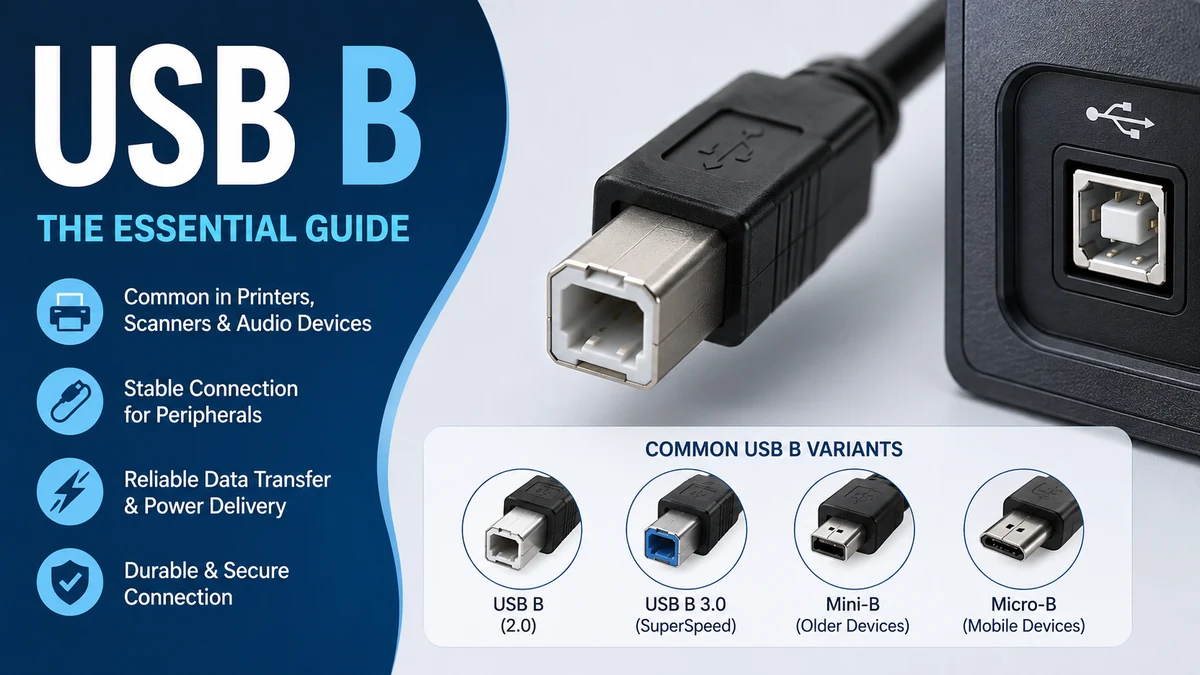

If you have ever connected a printer, scanner, audio interface, or digital piano to a computer, there is a good chance you have encountered a usb b connector. Its distinctive square shape makes it easy to recognize, yet its different versions can cause confusion.
USB Type-B was designed primarily for the peripheral side of a Universal Serial Bus connection. Standard versions remain common on printers and professional equipment, while Mini-B, Micro-B, and SuperSpeed variants appeared on smaller or faster devices over the years.
Quick answer: USB-B, formally called USB Type-B or Standard-B, is a USB connector traditionally installed on peripheral devices rather than host computers. It is commonly found on printers, scanners, audio interfaces, MIDI equipment, development boards, and some external drives. Standard USB-B can support USB 2.0, while redesigned SuperSpeed versions support faster USB 3.x connections.
What Is usb b?
USB-B is one of the physical connector types developed for USB, or Universal Serial Bus.
The original USB architecture separated the two ends of a typical connection. Type-A was normally associated with the host, such as a desktop computer or laptop, while Type-B was placed on the peripheral device. That is why the classic printer cable usually has two visibly different plugs.
The familiar Standard-B connector looks roughly square when viewed from the front. Its upper corners are beveled, preventing the plug from being inserted upside down.
You may see it described as:
- USB-B
- USB Type-B
- USB B-Type
- Standard-B
- USB printer connector
- USB printer cable connector
These terms often refer to the classic square connector, although the broader Type-B family also includes smaller variants.
What Does the B in USB-B Mean?
The letter B identifies the connector type. It should not be interpreted as a separate performance rating or USB generation.
USB itself stands for Universal Serial Bus, but the “B” in Type-B is a connector designation. Type-A and Type-B were used to distinguish different roles and physical interfaces in traditional USB connections.
This distinction is useful because a connector’s letter does not automatically tell you its maximum transfer speed.
A USB-B-shaped connection might operate under USB 2.0 or a later specification depending on the port, cable, and hardware involved.
What Does a USB-B Connector Look Like?
Standard USB-B is considerably different from the flat rectangular USB-A connector.
It has a chunky, almost square profile with two beveled upper corners. The design makes its orientation easy to identify and provides a relatively sturdy connection for equipment that stays in one place. TE Connectivity describes Standard-B connectors as commonly suited to larger, stationary peripheral devices.
That durability is one reason USB-B became so closely associated with printers and professional hardware.
A typical setup looks like this:
Computer → USB-A or USB-C cable end → cable → USB-B end → peripheral
On older and many current desktop computers, the computer-side connector may be USB-A. On newer laptops with USB-C ports, a USB-C-to-USB-B cable can provide the same basic host-to-device connection when the equipment supports it.
USB-B Male vs Female
Like other connector families, USB-B can be described as male or female.
A male USB-B connector is normally the plug at the end of the cable.
A female USB-B connector is the receptacle installed in the printer, scanner, audio interface, development board, or other peripheral.
SparkFun notes that female Standard-B connectors are useful where physical size is less important and a robust removable connection is desirable. They are commonly implemented as board-mounted connectors.
What Is usb b Used For?
USB-B is primarily associated with equipment that acts as a peripheral rather than the main USB host.
Common applications include:
- Printers
- Document and flatbed scanners
- Audio interfaces
- Digital pianos
- MIDI controllers
- Synthesizers
- DACs
- USB hubs
- Development boards
- Industrial equipment
- Older external hard drives and enclosures
- Some 3D printers
Printers are easily the most familiar example. A traditional USB printer connection typically uses USB-A on the computer side and USB-B on the printer side.
Printers and Scanners
USB-B became particularly common on printers because these devices usually remain stationary and have enough physical space for the larger connector.
A desktop printer might therefore have a USB-B female port on its rear panel.
The corresponding cable has:
USB-A male → USB-B male
If your computer has only USB-C, the appropriate connection may instead be:
USB-C male → USB-B male
You do not necessarily need to replace an older USB-B printer just because your new computer no longer has USB-A.
Audio Interfaces and Music Equipment
USB-B is also widespread in music production.
Audio interfaces, MIDI controllers, synthesizers, and digital pianos often use Standard-B because its larger connector is mechanically robust and equipment in a studio generally does not need an ultra-small port.
For musicians, this is sometimes called a “printer cable” even when it connects a musical instrument rather than a printer. The nickname refers to the connector style, not a special printer-only protocol.
Arduino and Development Boards
Standard-B has also been used on electronics development hardware.
For example, Arduino boards such as the Uno have historically used female USB-B connectors. SparkFun points to durability, low cost, and widespread cable availability as reasons for the connector’s popularity in applications where compact size is not critical.
3D Printers
Some 3D printers use USB-B for direct communication with a computer, Raspberry Pi, or print-management system.
The connector varies by printer generation. For example, some machines use Standard-B, while others use Mini-USB, Micro-USB, or USB-C. SimplyPrint’s current connection guide identifies USB-B on some Prusa i3 and Ultimaker 2 series machines, while newer printers may use USB-C.
The safest approach is always to inspect the actual port rather than assume that every printer uses the same connector.
Types of usb b Connectors
One source of confusion is that “USB-B” can refer to a family rather than one physical plug.
Several B-style connectors have existed.
| Connector | Typical Shape | Common Historical Uses | Typical USB Capability |
|---|---|---|---|
| Standard USB-B | Large, square-like | Printers, scanners, audio gear | USB 1.x/2.0 |
| SuperSpeed USB-B | Taller modified B shape | High-speed peripherals | USB 3.x |
| Mini-B | Small trapezoidal connector | Cameras, older devices | Mainly USB 2.0-era hardware |
| Micro-B | Thin, small connector | Older phones and electronics | USB 2.0 |
| USB 3.x Micro-B | Wide two-part connector | External hard drives | SuperSpeed USB |
These connectors belong to related USB families, but their physical differences matter.
Standard USB Type-B
This is the classic connector most people mean when they say USB-B.
It is large, square-ish, and typically found on:
- Printers
- Scanners
- Audio equipment
- Instruments
- Development hardware
Classic Standard-B is closely associated with USB 1.x and USB 2.0 equipment. USB 2.0 High-Speed has a theoretical signaling rate of up to 480 Mbps.
USB 3.0 Type-B
SuperSpeed USB required additional electrical connections.
As a result, the USB 3.x Standard-B connector has a modified physical design with additional contacts rather than simply reusing the four-contact USB 2.0 Standard-B arrangement.
USB 3.0 introduced signaling up to 5 Gbps, substantially higher than USB 2.0’s 480 Mbps maximum. TE Connectivity lists USB-B implementations supporting USB 2.0 at up to 480 Mbps and USB 3.0 at up to 5 Gbps.
This illustrates an important point: connector shape and USB speed are related concepts, but they are not the same thing.
Mini USB-B
Mini-B was developed for equipment that could not accommodate the much larger Standard-B connector.
It appeared on older:
- Digital cameras
- GPS devices
- MP3 players
- Controllers
- Portable electronics
Mini-USB has largely disappeared from mainstream consumer electronics, but cables are still needed for legacy hardware.
Micro USB-B
Micro-B made the connector even smaller.
It became extremely common on earlier generations of Android phones and other portable devices before USB-C took over much of the consumer market.
Micro-B and Standard-B are physically different. A normal square printer-style USB-B cable cannot be inserted into a Micro-B port.
USB 3.x Micro-B
USB 3.x Micro-B is easy to recognize because it looks like a wider, two-section version of Micro-B.
It became particularly common on:
- Portable external hard drives
- External SSD and HDD enclosures
- Other SuperSpeed storage equipment
The extra section accommodates additional contacts required for higher-speed communication. TE Connectivity notes that USB 3.0 Micro-B has more pins and an additional connector extension for SuperSpeed data.
usb b Speeds: USB 2.0 vs USB 3.x
One of the most common mistakes is assuming that “USB-B” describes a specific speed.
It doesn’t.
USB-B describes a connector form, while specifications such as USB 2.0 and USB 3.x describe technical capabilities and signaling standards.
Consider these two examples:
| Specification | Maximum Signaling Rate | B-Style Connector Example |
|---|---|---|
| USB 1.1 Full Speed | 12 Mbps | Standard-B |
| USB 2.0 High-Speed | 480 Mbps | Standard-B |
| USB 3.0 / USB 3.1 Gen 1 | 5 Gbps | SuperSpeed Type-B / Micro-B |
Real transfer rates are normally lower than theoretical signaling rates because protocol overhead, device performance, storage speed, drivers, and other factors affect throughput.
Does Every USB-B Cable Support 480 Mbps?
No.
The classic USB 2.0 Standard-B interface can support High-Speed USB at up to 480 Mbps, but actual operation depends on the entire connection.
The host port, peripheral, cable, USB controller, and negotiated USB mode all matter.
Using a faster-rated cable cannot force a USB 2.0 printer to operate like a USB 3.x device.
Can USB-B Carry Power?
USB connections can carry both data and electrical power, but the amount of usable power depends on the USB specification and device design.
Many USB-B peripherals, especially printers and larger audio devices, use their own AC power supplies because USB alone may not provide enough power for the equipment.
Therefore, seeing a USB-B port does not mean the connected device can operate entirely from bus power.
usb b vs USB-A
USB-A and USB-B were designed to serve different physical roles in traditional USB connections.
| Feature | USB-A | USB-B |
|---|---|---|
| Shape | Flat rectangular | Square-ish |
| Traditional role | Host side | Peripheral side |
| Common location | Computers, hubs | Printers, scanners, audio equipment |
| Reversible | No | No |
| Common cable | A-to-B | A-to-B |
| USB generation | Multiple generations | Multiple generations |
The host/device distinction explains why classic printer cables have different connectors at each end.
Legrand describes the Type-A socket as a downstream connection intended for host controllers and hubs, while the Type-B socket serves as an upstream connector on peripherals.
That architecture also reduced the chance of making inappropriate connections between devices that were intended to occupy the same role.
usb b vs USB-C
USB-C changed USB connectivity considerably.
Unlike Standard-B, USB-C is compact and reversible. It can also support a much broader collection of modern capabilities depending on the implementation.
| Feature | USB-B | USB-C |
|---|---|---|
| Shape | Square-ish | Small oval |
| Reversible | No | Yes |
| Traditional use | Peripheral devices | Hosts and peripherals |
| Mobile-friendly | No | Yes |
| Modern adoption | Mostly legacy/specialized equipment | Very widespread |
| Data capability | Depends on USB version | Depends on USB version |
| Power capability | Depends on implementation | Can support advanced USB power features |
USB-C was finalized as a connector specification in 2014 and has since become the dominant connector on many modern laptops, phones, tablets, docks, and peripherals.
That does not make every USB-B device obsolete.
A printer or audio interface with USB-B can often connect to a USB-C computer using a properly wired USB-C-to-USB-B data cable.
Is USB-C Always Faster Than USB-B?
No.
This is another case where connector type and protocol version must be separated.
USB-C describes a physical connector. USB-B also describes a connector family.
The actual data speed depends on the USB modes supported by the devices and cable. A USB-C connection can operate at relatively modest USB speeds, while a SuperSpeed B-style interface can support multi-gigabit signaling.
Never determine performance from the plug shape alone.
How to Choose the Correct USB-B Cable
Choosing a cable is much easier when you identify both ends before ordering or connecting anything.
1. Check the Peripheral Port
Start with the device.
If the port is large and almost square with beveled corners, it is probably Standard USB-B.
If it has an additional upper section or visibly different SuperSpeed shape, check whether it is USB 3.x Type-B.
If the port is tiny, you may actually be looking at Mini-B or Micro-B.
2. Check the Computer Port
Next, identify the host-side connection.
Older desktops and laptops commonly have rectangular USB-A ports. Many newer laptops rely heavily or exclusively on USB-C.
That means your required cable may be:
- USB-A to USB-B
- USB-C to USB-B
- USB-A to Mini-B
- USB-A to Micro-B
- USB-A to USB 3.x Micro-B
- USB-C to one of the appropriate B-style variants
Match the exact connector rather than searching only for “USB cable.”
3. Confirm the USB Generation
For ordinary printers, the transfer-rate requirement is generally modest.
Storage devices are different. If you are connecting an external drive, using the correct SuperSpeed cable can be critical to achieving the supported data rate.
A cable that physically connects is not automatically capable of every USB mode supported by the devices.
4. Make Sure It Is a Data Cable
When communication with a printer, MIDI controller, audio interface, or development board is required, the cable must carry data.
Do not assume that every cable with USB connectors provides identical capabilities.
5. Avoid Excessive Cable Length
USB has electrical limits, so extremely long passive cables can cause unreliable communication.
For USB 2.0 connections, passive cable runs are commonly kept around the specification’s practical maximum rather than extended indefinitely. DataPro, for example, recommends an active booster when its USB 2.0 A-to-B connections need to exceed 15 feet.
For a printer sitting beside a computer, using the shortest practical cable is usually the simplest solution.
Can You Connect USB-B to USB-C?
Yes, in many cases.
If a modern laptop has USB-C and your printer, audio interface, scanner, MIDI keyboard, or other peripheral has USB-B, you can generally use a USB-C-to-USB-B data cable designed for the appropriate USB standard.
The USB-C end connects to the host, and the USB-B end connects to the peripheral.
However, compatibility depends on more than physical connectors.
You should confirm:
- The peripheral supports USB communication
- The cable supports data
- The required drivers are available
- The operating system supports the device
- The correct Standard-B or SuperSpeed-B variant is being used
An adapter can solve a connector mismatch, but it cannot add capabilities that the peripheral itself does not support.
Is USB-B Still Used?
Yes.
USB-B is less visible in modern mobile electronics, but it remains useful in several categories where compact size is not the main priority.
Printers, scanners, industrial hardware, audio interfaces, digital instruments, MIDI controllers, and older development platforms may continue using it for years because these products can remain in service for a long time. Current connector manufacturers also continue to offer USB Type-B hardware for legacy and specialized applications.
USB-C has replaced many older connectors on newly designed consumer products, but replacing a proven USB-B interface provides little practical benefit for some stationary equipment.
A printer does not need a tiny reversible port in the same way a smartphone does.
Is USB-B the Same as a Printer Cable?
Not technically, but the terms are commonly associated.
A classic USB printer cable is usually an A-to-B cable:
- USB-A plugs into the computer.
- USB-B plugs into the printer.
This arrangement is so common that retailers and users frequently call any Standard-B cable a printer cable.
But USB-B is not limited to printers.
The same connector is found on scanners, audio equipment, MIDI devices, development boards, and other peripherals.
Likewise, not every modern printer uses Standard-B. Some devices now use USB-C, while certain 3D printers and legacy hardware use Mini-USB or Micro-USB.
Are USB 2.0 and USB 3.0 Type-B Connectors the Same?
Not exactly.
Standard USB 2.0 Type-B uses the familiar square-ish connector. SuperSpeed USB 3.x Type-B adds contacts and has a modified shape to accommodate the additional signaling connections.
That means you should inspect the port before buying a replacement cable.
Color alone should not be your only identification method. Some manufacturers use blue plastic to indicate SuperSpeed connections, but the physical connector and the device documentation provide stronger evidence.
Quick takeaway: If the B-side plug has an unfamiliar extended section and will not fit your standard printer-style cable, do not force it. You may be dealing with a SuperSpeed Type-B variant.
Common USB-B Problems and How to Fix Them
USB-B connections are generally simple, but several common problems can prevent a device from working.
Device Is Not Detected
If your computer does not recognize the peripheral:
- Disconnect and reconnect both ends.
- Try another USB port on the computer.
- Test with another known-good data cable.
- Restart the peripheral.
- Check the manufacturer’s driver or software requirements.
- Test the device on another computer if possible.
If another cable solves the problem, the original cable may have damaged conductors or connectors.
Cable Fits but Data Transfer Is Slow
First determine the USB version supported by both devices.
A USB 3.x computer port cannot make a USB 2.0 peripheral transfer at USB 3.x speeds. The connection is limited by the slowest relevant component and supported operating mode.
For external storage, also check that you are using the correct SuperSpeed cable rather than an older USB 2.0 connection.
USB-B Plug Will Not Fit
Do not force it.
Standard-B, SuperSpeed Type-B, Mini-B, Micro-B, and USB 3.x Micro-B have different physical designs.
Compare the plug with the port carefully. Forcing the wrong connector can damage the port or the cable.
Printer Still Does Not Work With the Correct Cable
The cable may not be the problem.
Possible causes include:
- Missing printer drivers
- Incorrect printer selection
- Offline printer status
- Damaged USB port
- Operating-system compatibility problems
- Faulty printer electronics
- A charge/power-oriented cable without the required data connection in scenarios where such cables are involved
Test the simplest variables first: another port, another cable, and another computer.
USB-B Compatibility and Backward Compatibility
USB compatibility can be confusing because there are two separate questions:
Does the plug physically fit?
and
Can the devices communicate using compatible USB modes?
These are not always the same thing.
USB specifications have historically provided significant backward compatibility, but connector changes can require different cables or adapters. TE Connectivity, for example, notes that USB Type-C adapters can help bridge newer hosts with legacy USB Type-A and Type-B ecosystems.
Even when the connection works, performance generally falls back to a mutually supported mode.
For example, connecting a USB 2.0 printer to a newer USB host does not turn that printer into a SuperSpeed device.
Why Has USB-C Replaced USB-B on Many Devices?
USB-C solves several limitations associated with older USB connectors.
It is:
- Smaller
- Reversible
- Suitable for both host and peripheral roles
- Better suited to thin portable devices
- Designed around modern USB capabilities
- Capable of supporting advanced power and alternate functions when properly implemented
Standard USB-B, by contrast, is large and directional.
For a smartphone or ultra-thin laptop, those disadvantages matter considerably. For a desktop printer or rack-mounted audio interface, they may barely matter at all.
That is why the transition has been gradual rather than universal.
Should You Replace Equipment Just Because It Uses usb b?
Usually, no.
USB-B itself is not a sign that a device has stopped being useful.
If your printer, scanner, digital piano, DAC, MIDI controller, or audio interface still performs the job you need, the connector is rarely a reason to replace it. A compatible USB-A-to-B or USB-C-to-B data cable may be all that is necessary to connect it to a newer computer.
Focus on the actual requirements:
- Does the device still have compatible drivers?
- Does it deliver enough performance?
- Can your operating system communicate with it?
- Can you obtain the correct cable?
- Is the USB port physically healthy?
If the answers are yes, USB-B can remain perfectly practical.
Final Thoughts on usb b
usb b is the classic peripheral-side USB connector best known from printers, scanners, audio interfaces, MIDI equipment, development boards, and other stationary hardware. The familiar Standard-B connector is square-ish and robust, while Mini-B, Micro-B, and SuperSpeed versions were created for different device sizes and performance requirements.
The most useful thing to remember is that connector type and USB speed are not the same thing. USB-B tells you about the physical interface; USB 2.0, USB 3.x, and related specifications determine supported communication capabilities.
When connecting older USB-B equipment to a modern computer, identify the exact B-style port first, check whether your computer uses USB-A or USB-C, and choose a properly wired data cable that supports both devices. In many cases, that is enough to keep reliable USB-B hardware working for years.
