
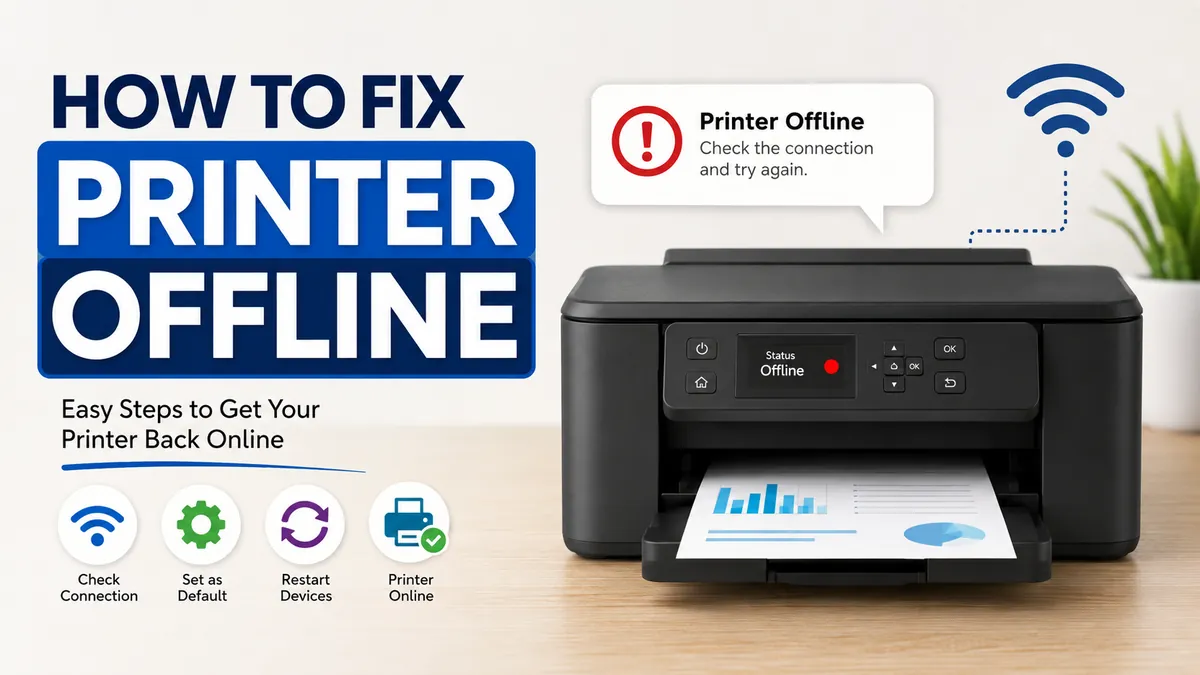

You click Print, wait for the familiar sound of the printer starting, and nothing happens. Instead, Windows or macOS reports that the printer is Offline even though it is switched on.
If you’re trying to figure out how to fix printer offline, start by restarting the printer, checking its USB or Wi-Fi connection, confirming both devices are on the same network, clearing stuck print jobs, and making sure “Use Printer Offline” isn’t enabled. If those steps fail, restart the Print Spooler, update the printer driver, or remove and reinstall the printer.
The message doesn’t necessarily mean your printer is broken. It usually means your computer can no longer communicate with the printer correctly.
This guide starts with the quickest fixes and moves into deeper Windows, macOS, network, driver, and printer-specific troubleshooting.
Why Does My Printer Say Offline?
“Printer Offline” is primarily a communication status.
Your computer sends a print job through a printing service and connection—such as Wi-Fi, Ethernet, or USB—to the printer. When that communication path breaks, the operating system may report the printer as unavailable or offline.
Common causes include:
- Printer powered off or stuck in sleep mode
- Temporary printer error
- Loose or faulty USB cable
- Lost Wi-Fi connection
- Printer and computer connected to different networks
- Router connectivity problems
- Incorrect default printer
- “Use Printer Offline” enabled in Windows
- Paused printing
- Stuck print queue
- Print Spooler problems
- Incorrect or outdated printer driver
- Changed printer IP address
- Duplicate printer installations
- Paper jams or printer hardware errors
Microsoft recommends beginning with basic power and connection checks before moving to settings, services, or reinstalling the device.
Printer Offline vs. Printer Not Printing
These problems can look similar, but they aren’t necessarily the same.
| Status | What It Usually Means |
|---|---|
| Printer Offline | Computer cannot properly communicate with the printer |
| Printer Paused | Print jobs are intentionally being held |
| Print job stuck | A document may be blocking the print queue |
| Printer unavailable | Device cannot currently be reached |
| Driver error | Windows or macOS cannot communicate correctly through the installed software |
| Paper/ink error | Printer itself requires attention |
Knowing which message you actually see can save considerable troubleshooting time.
how to fix printer offline: Try These Quick Fixes First
Before changing drivers or network settings, eliminate the simple causes.
1. Check the Printer Itself
Look directly at the printer.
Confirm that:
- The power light is on.
- The printer isn’t displaying an error.
- There is paper in the tray.
- No paper is jammed.
- Covers and access doors are properly closed.
- Ink or toner warnings aren’t preventing operation.
- The printer isn’t stuck in a deep sleep state.
A physical error can make a perfectly connected printer appear unavailable.
2. Power-Cycle the Printer
A full power cycle can clear temporary printer errors.
Microsoft’s current troubleshooting guidance recommends turning the printer off, unplugging it, waiting about 30 seconds, reconnecting it, and turning it back on.
Then try printing a simple document.
3. Restart Your Computer
Restarting Windows or macOS refreshes printing components and can restore communication with the printer.
If you’re using a network printer, consider restarting the router as well.
HP similarly recommends restarting the printer, the device you’re printing from, and the router when troubleshooting an offline printer.
Quick Takeaway: Don’t start by reinstalling everything. Check the printer, connection, Wi-Fi network, print queue, and offline setting first. These steps solve many cases without touching drivers or advanced network configuration.
How to Fix Printer Offline in Windows 11
Windows 11 provides both automatic and manual ways to troubleshoot printer problems.
Microsoft currently recommends starting with its automated printer troubleshooter in the Get Help app.
Run the Windows Printer Troubleshooter
Open the Get Help app and search for printer troubleshooting.
Follow the diagnostic instructions provided by Windows.
The troubleshooter can detect several common configuration and communication problems automatically.
If the printer remains offline, continue manually.
Check Printers & Scanners
Go to:
Start → Settings → Bluetooth & devices → Printers & scanners
Select the affected printer and review its status.
Make sure Windows is working with the printer you actually intend to use. This becomes especially important when the same printer has previously been installed through USB and Wi-Fi because multiple entries may exist.
Make Sure the Correct Printer Is Selected
Suppose you have entries such as:
- Office Printer
- Office Printer (Copy 1)
- Office Printer Network
- Office Printer USB
Sending your document to an old installation can make it seem as though your working printer is offline.
Open your application’s print dialog and manually select the correct device.
Disable “Use Printer Offline”
One of the most important Windows settings to check is Use Printer Offline.
When this mode is enabled, Windows can hold jobs instead of sending them normally to the device.
Open your printer’s print queue and locate the printer controls. If Use Printer Offline is selected, disable it. Also make sure Pause Printing isn’t enabled.
Microsoft specifically includes clearing the “Use Printer Offline” and “Pause Printing” states among its troubleshooting steps.
Try printing again immediately afterward.
Set the Correct Default Printer
If multiple printers are installed, Windows may send jobs to the wrong one.
Go to:
Settings → Bluetooth & devices → Printers & scanners
Choose the printer you normally use and configure it appropriately as your default printer if you prefer managing the default manually.
Then retry the document.
Clear the Print Queue
Sometimes the connection is fine but an old print job is preventing everything behind it from printing.
This often happens after:
- A large document fails
- The computer sleeps during printing
- Wi-Fi disconnects
- The printer loses power mid-job
- An application crashes while printing
Open your printer’s print queue.
Cancel unnecessary or stuck documents and wait for the queue to become empty.
Send a small test page afterward rather than immediately retrying a large PDF or image-heavy document.
What If a Print Job Won’t Delete?
If a job refuses to disappear, the Windows Print Spooler may need to be restarted.
That’s the next step.
Restart the Windows Print Spooler
The Print Spooler is a Windows service responsible for managing print jobs.
If it freezes or enters an error state, your printer can appear offline or documents can remain permanently stuck.
To restart it:
- Open Windows Search.
- Type Services.
- Open the Services application.
- Find Print Spooler.
- Right-click it.
- Select Restart.
Microsoft recommends restarting the Print Spooler as part of its current offline-printer troubleshooting process.
Wait a few seconds and test the printer again.
Why Restarting the Spooler Works
Think of the spooler as a traffic controller.
Your application doesn’t normally communicate directly with the physical printer for every part of the job. Windows places print jobs into a queue and manages them through its printing system.
When that service becomes stuck, restarting it gives the printing pipeline a fresh start without requiring a complete Windows reinstall.
How to Fix a Wireless Printer Offline
Wireless printers introduce another potential failure point: the network.
A printer can be switched on and functioning normally while still being unreachable from your laptop.
Make Sure Both Devices Use the Same Wi-Fi Network
Check the network name, or SSID, on both devices.
For example:
Laptop: HomeWiFi
Printer: HomeWiFi
That’s what you want.
Problems commonly appear when the printer is connected to:
HomeWiFi
while the laptop is connected to:
HomeWiFi-Guest
A guest network may isolate devices from one another even though both devices technically have internet access.
Microsoft and HP both recommend confirming that the printer and the device sending the print job are connected appropriately to the same network.
Check the Printer’s Wireless Indicator
Many printers display a Wi-Fi symbol or wireless status light.
If it is flashing, disabled, or showing an error, reconnect the printer to your wireless network using its control panel or the manufacturer’s setup procedure.
Restart the Router
A router restart can restore local network communication.
After restarting it, allow the router to finish booting completely. Then wait for the printer to reconnect to Wi-Fi before trying another print job.
Move the Printer Closer to the Router
Weak Wi-Fi can create intermittent offline errors.
Walls, floors, metal furniture, interference, and long distances can reduce wireless reliability.
If the printer works reliably when moved closer to the router, Wi-Fi coverage—not the printer driver—may be the real issue.
Check the Printer’s IP Address
Network printers communicate using an IP address.
For example:
192.168.1.45
Many home networks use DHCP, which automatically assigns addresses to connected devices.
That works well most of the time, but the printer’s IP address can sometimes change. If the computer continues trying to reach an old address or printer port, the device may appear offline.
Signs of an IP Address Problem
Suspect network addressing when:
- The printer repeatedly goes offline after router restarts.
- Other devices can print but one PC cannot.
- The printer is clearly connected to Wi-Fi.
- Removing and re-adding the printer temporarily fixes the issue.
- The printer’s network address has changed.
You can usually find the current IP address through the printer’s network menu, configuration page, or router interface.
Should You Give the Printer a Fixed IP Address?
For a printer that repeatedly becomes unreachable because its address changes, keeping its network address consistent can improve reliability.
One common approach is a DHCP reservation on the router, which associates a particular IP address with the printer’s network hardware.
This is more useful for recurring network problems than for a one-time offline error.
Quick Takeaway: If your wireless printer works after being re-added but becomes offline again days later, investigate its Wi-Fi stability and IP addressing instead of repeatedly reinstalling drivers.
How to Fix a USB Printer Showing Offline
A USB printer removes Wi-Fi from the equation, making troubleshooting simpler.
Start with the physical connection.
Check Both Ends of the USB Cable
Disconnect and reconnect the cable at:
- The printer
- The computer
Make sure each connection is firm.
Try Another USB Port
A malfunctioning computer USB port can interrupt printer communication.
Connect the printer directly to another USB port and allow the operating system a moment to detect it.
Avoid troubleshooting through an unpowered USB hub if you can connect directly to the computer instead.
Test Another USB Cable
Cables can fail internally even when they look normal.
HP’s support guidance for USB-connected printers recommends checking that the cable is fully inserted and trying another USB cable if the printer continues to show offline.
If changing the cable fixes the problem, no software repair is necessary.
Remove and Reinstall the Printer
If the physical connection and basic settings are correct, rebuild the printer installation.
In Windows 11, go to:
Settings → Bluetooth & devices → Printers & scanners
Select the printer and remove it.
Then return to Printers & scanners, make sure the printer is switched on and connected, and use Add device to install it again.
Microsoft recommends removing and reinstalling the printer when earlier troubleshooting steps fail.
Why Reinstalling Can Help
A printer installation contains more than the printer’s visible name.
It can involve:
- Printer driver
- Device configuration
- Printer port
- Network information
- Queue configuration
Removing and re-adding the device can rebuild those associations.
Update or Reinstall the Printer Driver
A printer driver allows the operating system and printer hardware to communicate correctly.
Driver problems become more likely after:
- Windows updates
- Operating-system upgrades
- Printer replacement
- Network configuration changes
- Driver corruption
- Installing several versions of the same printer
Check Windows Update first where appropriate.
For model-specific software, use the official support site from your printer manufacturer rather than random third-party driver websites.
Major manufacturers such as HP Support, Canon Support, Epson Support, and Brother Support provide drivers and troubleshooting resources for supported models.
Always match the software to the exact printer model and operating system.
How to Fix Printer Offline on a Mac
A printer can also become unavailable on macOS because of network, queue, or configuration problems.
Start with the same universal checks:
- Verify that the printer is switched on.
- Clear physical printer errors.
- Confirm the USB, Ethernet, or Wi-Fi connection.
- Make sure the Mac and wireless printer use the appropriate network.
- Restart the printer and Mac.
- Check the print queue for stalled jobs.
Open:
System Settings → Printers & Scanners
Select the printer and inspect its status.
If the printer is duplicated or no longer configured correctly, removing it and adding it again can rebuild the connection.
When to Reset the macOS Printing System
Resetting the entire printing system is a much more aggressive step because it can remove configured printers and related settings.
Use it as a later troubleshooting measure rather than your first response to a temporary offline message.
For one problematic printer, removing and re-adding that specific device is usually the more sensible first approach.
Brand-Specific Offline Printer Troubleshooting
The underlying problem is usually similar across manufacturers, but official utilities can provide model-specific diagnostics.
HP Printer Offline
For an HP printer, start by checking the connection and restarting the printer, computer or mobile device, and router.
HP also provides printer diagnostics through the HP app, which can help identify common printing and connection problems.
Check:
- Wi-Fi status
- Printer error messages
- Correct printer selection
- Print queue
- Windows offline setting
- Driver installation
Canon Printer Offline
For a Canon PIXMA, MAXIFY, imageCLASS, or other Canon printer, first determine whether the problem is occurring over USB or the network.
For wireless models, verify that the printer remains connected to the intended access point and hasn’t retained settings from an old router or SSID.
If the problem follows a network change, reconnecting the printer to Wi-Fi and adding it again to the computer may be necessary.
Epson Printer Offline
For an Epson EcoTank, WorkForce, Expression, or similar model, check its network connection before reinstalling software.
If the printer itself has lost Wi-Fi, changing Windows settings alone won’t solve the underlying problem.
Reconnect the printer first, then verify that the computer detects the correct Epson device.
Brother Printer Offline
Brother printers can experience the same connection, queue, driver, and network-address problems.
Check the printer’s status, network connection, Windows queue, port configuration, and driver.
For managed or networked Brother printers in an office, confirm that you’re not changing a configuration controlled by your organization’s IT administrator.
Printer Is Online but Still Won’t Print
Suppose you’ve removed the Offline status but documents still don’t come out.
That’s progress: you’ve probably moved from a connectivity problem to a printing problem.
Check these areas next.
Clear Every Stuck Job
A damaged or stalled document may still be blocking the queue.
Cancel everything and send a simple test page.
Try Printing From Another Application
If Microsoft Word won’t print, try a browser or another application.
If everything except one application prints normally, the printer itself probably isn’t the problem.
Print a Test or Configuration Page
Many printers can print an internal test or network configuration page directly from their control panel.
If the printer can produce its own test page but cannot print from the computer, focus on:
- Computer configuration
- Driver
- Queue
- Network path
- Application
If the printer cannot even print its own internal page, investigate the printer’s physical error state.
Why Does My Printer Keep Going Offline?
A printer that goes offline once and a printer that goes offline every day should be treated differently.
Recurring problems often point to an underlying condition that hasn’t been fixed.
Changing Network Address
A wireless printer may reconnect with a different IP address while a computer continues using an outdated configuration.
Check the printer’s current address and consider a DHCP reservation if changing addresses are confirmed as the cause.
Weak Wi-Fi
If the printer sits at the edge of your wireless coverage, it may disconnect while idle and struggle to reconnect.
Improving signal quality can be more effective than repeatedly reinstalling printer software.
Sleep or Power-Saving Behavior
Some printers enter aggressive power-saving modes.
If the offline problem appears primarily after the printer has been unused for several hours, check its sleep, deep-sleep, or network standby options.
Don’t disable useful power-saving features automatically. Adjust them only if testing shows they’re interfering with network availability.
Duplicate Printer Entries
Old USB and wireless installations can leave multiple copies of the same physical printer.
Remove obsolete entries once you’ve identified which installation is actually being used.
Router or Network Changes
A printer may stop working after:
- New router installation
- Wi-Fi password change
- SSID change
- Network reset
- Moving between 2.4 GHz and 5 GHz configurations
- Enabling a guest network
In these situations, reconnect the printer to the current network rather than treating the problem purely as a Windows driver error.
What About 2.4 GHz and 5 GHz Wi-Fi?
This issue deserves special attention with older wireless printers.
Some printers support only 2.4 GHz Wi-Fi, while modern routers may provide both 2.4 GHz and 5 GHz bands.
That doesn’t automatically mean a computer using 5 GHz cannot communicate with a printer using 2.4 GHz. If both bands belong to the same local network and the router allows devices to communicate, printing can still work.
Problems arise when the router isolates devices, uses separate incompatible network configurations, or the printer simply cannot join the available wireless network.
So don’t assume “different frequency = offline.” Check actual local connectivity first.
Advanced Fixes When Nothing Else Works
If you’ve worked through the standard troubleshooting sequence, move to more technical checks.
Verify the Printer Port
Windows sends network print jobs through a configured printer port.
If the port points to an old network address, the printer can remain offline even though it is available elsewhere on the network.
Check the printer’s properties and port configuration carefully.
This is especially relevant for manually configured Standard TCP/IP Port installations.
Don’t randomly change port values unless you’ve confirmed the printer’s actual network configuration.
Check Firewall or Security Software
A firewall or security suite can sometimes interfere with local device discovery or printer software.
Don’t permanently disable security protection simply to make a printer work.
Instead, test carefully and use the printer manufacturer’s documented firewall requirements when troubleshooting a suspected conflict.
Test From Another Device
Try printing from another laptop, desktop, phone, or tablet.
The result immediately narrows the problem:
| Test Result | Likely Area to Investigate |
| No devices can print | Printer or network |
| Only one PC cannot print | That PC’s configuration, driver, queue, or port |
| USB works but Wi-Fi doesn’t | Network connection |
| Wi-Fi works but USB doesn’t | Cable, USB port, or USB installation |
| Internal test page fails | Printer hardware/error state |
| Internal test works but computer fails | Computer-to-printer communication |
This is one of the most useful troubleshooting techniques because it tells you which side of the connection deserves attention.
Mistakes to Avoid When Fixing an Offline Printer
Random troubleshooting often makes printer problems harder.
Reinstalling Drivers Before Checking Wi-Fi
A new driver won’t reconnect a printer that has dropped off the wireless network.
Check connectivity first.
Repeatedly Sending the Same Print Job
Clicking Print ten times doesn’t improve communication.
It can create a large queue that you’ll have to clear later.
Assuming the Printer Is Broken
An Offline message often reflects a communication or configuration problem rather than physical hardware failure.
Changing Several Settings at Once
Make one change and test.
If you simultaneously reset the router, reinstall the printer, change its IP address, update the driver, and modify Windows settings, you won’t know which change solved the problem—or which one created a new issue.
Downloading Drivers From Unknown Websites
Printer drivers operate closely with your system.
Use Windows Update or the printer manufacturer’s official support resources whenever possible.
The Best Troubleshooting Order
When you need to solve the problem quickly, work from simple checks toward deeper changes:
- Check that the printer is powered on and free of physical errors.
- Power-cycle the printer.
- Restart the computer.
- Verify USB, Ethernet, or Wi-Fi connectivity.
- Confirm the computer and wireless printer are on the correct network.
- Select the correct printer.
- Disable Use Printer Offline and Pause Printing if enabled.
- Clear the print queue.
- Restart the Print Spooler on Windows.
- Restart the router for network printers.
- Run the Windows printer troubleshooter.
- Remove and re-add the printer.
- Update or reinstall the correct driver.
- Check the printer’s IP address and port if the problem keeps returning.
- Test from another device to isolate the failure.
This order matters. It prevents a simple connection problem from turning into an unnecessary driver or network reconfiguration project.
When Does an Offline Printer Need Professional Help?
Software troubleshooting won’t fix every problem.
Consider manufacturer support, your organization’s IT department, or qualified repair assistance when:
- The printer repeatedly loses power.
- It displays persistent hardware error codes.
- Ethernet or USB ports appear physically damaged.
- The printer cannot connect to any known-good network.
- Multiple computers cannot communicate with it after network settings have been verified.
- The printer cannot complete its own internal self-test.
- A business printer is controlled by a print server or managed network.
- Firmware or administrative credentials prevent you from completing the required troubleshooting.
For office printers, avoid changing static addresses, VLAN settings, print-server configurations, or other managed network settings without authorization.
Final Thoughts on how to fix printer offline
Learning how to fix printer offline problems is mostly about finding where communication stopped.
Begin with the printer itself. Check power and error messages, verify the USB or network connection, confirm the correct printer is selected, disable offline mode, and clear the queue. On Windows, restarting the Print Spooler and running the printer troubleshooter are sensible next steps.
If the printer keeps going offline rather than failing just once, investigate the underlying network connection, Wi-Fi signal, IP address, printer port, sleep behavior, and driver configuration.
Work through the fixes one at a time and test after each change. That approach doesn’t just get the printer online—it helps identify why it went offline in the first place.
