
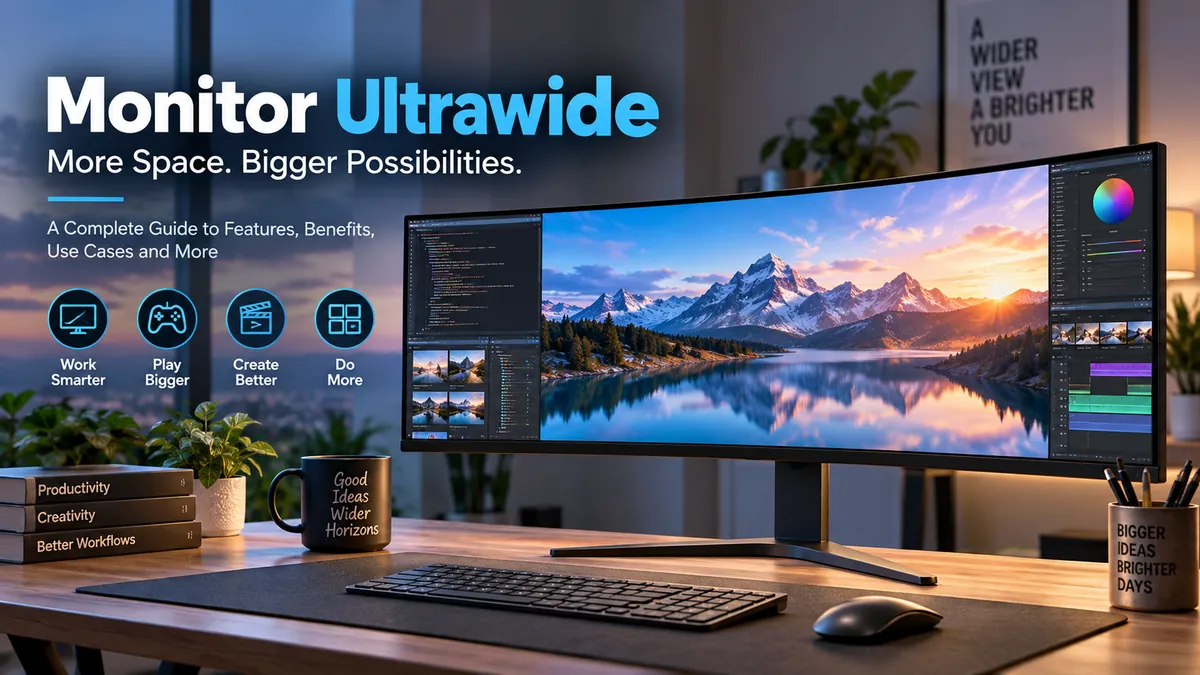

A normal monitor can feel surprisingly cramped once you start working with several windows, a long editing timeline, or a game that benefits from a wider field of view. That is exactly the problem ultrawide displays are designed to solve.
A monitor ultrawide is a computer display that uses a wider aspect ratio than the conventional 16:9 format. Most models use 21:9, while larger super-ultrawide displays use 32:9. Common resolutions include 2560×1080, 3440×1440, 3840×1600, 5120×1440, and 5120×2160.
The extra horizontal space can make multitasking easier, provide more room for creative applications, and create a more immersive PC gaming experience. But ultrawide isn’t automatically better. Resolution, panel technology, refresh rate, desk depth, graphics-card performance, software compatibility, and your actual workflow all matter.
This guide explains how ultrawide monitors work, where their advantages are meaningful, and when a conventional display or dual-monitor arrangement may still make more sense.
What Is a monitor ultrawide?
An ultrawide monitor is essentially a display designed with substantially more horizontal screen space than a standard widescreen monitor.
Most desktop monitors and televisions use a 16:9 aspect ratio. Ultrawide monitors commonly use 21:9, while super-ultrawide monitors stretch to 32:9.
Aspect ratio describes the relationship between the width and height of the screen. It doesn’t tell you its physical size or resolution by itself.
For example:
| Display format | Typical aspect ratio | Common resolution | Typical use |
|---|---|---|---|
| Standard widescreen | 16:9 | 1920×1080 | Everyday computing |
| Standard QHD | 16:9 | 2560×1440 | Work and gaming |
| Standard 4K | 16:9 | 3840×2160 | Productivity and creative work |
| Ultrawide | 21:9 | 2560×1080 | Entry-level ultrawide |
| Ultrawide | 21:9 | 3440×1440 | Work and PC gaming |
| Ultrawide | ~21:9 | 3840×1600 | Large workspace |
| Super ultrawide | 32:9 | 5120×1440 | Heavy multitasking and simulation |
| High-resolution ultrawide | ~21:9 | 5120×2160 | High-detail professional work |
One terminology trap is worth clearing up: widescreen and ultrawide are not synonyms.
The move from older 4:3 displays to 16:9 was generally described as widescreen. Ultrawide extends the screen farther horizontally beyond conventional 16:9.
21:9 vs 32:9
The majority of mainstream ultrawide monitors are around 21:9.
A 34-inch 3440×1440 display is a familiar example. It provides significantly more horizontal workspace than a conventional 2560×1440 monitor while maintaining the same 1440-pixel vertical resolution.
A 32:9 super-ultrawide, meanwhile, is much wider. A typical 49-inch 5120×1440 model provides a desktop resembling two 2560×1440 screens positioned side by side, except without a bezel separating them.
That can be extremely useful for certain workflows, but it also requires considerably more physical desk space.
monitor ultrawide Resolutions Explained
Screen size receives most of the attention when people compare monitors, but resolution is just as important.
Resolution describes how many individual pixels form the image. More pixels generally allow greater detail and potentially more usable desktop space, although perceived sharpness also depends on physical screen size and viewing distance.
Common ultrawide resolutions include 2560×1080, 3440×1440, 3840×1600, 5120×1440, and 5120×2160.
2560×1080
This is an entry-level ultrawide resolution frequently associated with smaller displays around 29 inches.
Its main advantage is lower GPU demand. Because there are fewer pixels to render than at 3440×1440, maintaining high frame rates is easier.
The compromise is vertical workspace.
With only 1080 vertical pixels, large spreadsheets, web pages, editing applications, and documents can feel constrained compared with 1440p alternatives.
3440×1440
For many users, 3440×1440 is the sweet spot for a 34-inch ultrawide.
You get substantially more horizontal room than 2560×1440 while retaining a useful 1440-pixel vertical resolution. Current ultrawide guides also identify 3440×1440 as the standard resolution associated with mainstream 34-inch models.
It works particularly well for:
- programming
- spreadsheets
- research
- writing
- video timelines
- audio production
- photo editing
- PC gaming
- side-by-side applications
A browser can occupy one part of the display while a document or communication application remains visible beside it.
3840×1600
Moving to 3840×1600 gives you both additional width and more vertical workspace.
It is commonly found on larger ultrawide displays around 38 inches.
Those extra 160 vertical pixels compared with 3440×1440 may not sound dramatic, but they can be noticeable in applications packed with toolbars, panels, timelines, and menus.
The downside is higher graphics demand and usually greater cost.
5120×1440
This resolution is closely associated with 49-inch 32:9 super-ultrawide displays.
It effectively provides the pixel dimensions of two 2560×1440 screens side by side:
2560 × 2 = 5120
That makes it particularly attractive for people who previously used two QHD monitors.
Applications can be divided into several large zones while the desktop remains physically continuous.
5120×2160
A 5120×2160 ultrawide combines extensive horizontal workspace with 2160 vertical pixels.
It is sometimes described as 5K2K. RTINGS lists 5120×2160 among ultrawide resolutions and distinguishes it from conventional 3840×2160 4K.
This format can be especially appealing for productivity and creative workloads where both width and fine detail matter.
However, it pushes considerably more pixels than 3440×1440, which becomes particularly relevant for gaming.
Is 3440×1440 actually 4K?
No.
This is one of the most common sources of confusion around ultrawide monitors.
A conventional consumer 4K UHD display has a resolution of 3840×2160, or approximately 8.3 million pixels.
3440×1440 contains approximately 4.95 million pixels.
So while 3440×1440 is wider than ordinary 2560×1440 QHD, it does not provide the 2160-pixel vertical resolution of 4K UHD.
Quick Takeaway: Don’t judge an ultrawide by diagonal size alone. For most 34-inch displays, 3440×1440 offers a strong balance of usable workspace, sharpness, and manageable graphics requirements.
Benefits of Using a monitor ultrawide
The real advantage of an ultrawide isn’t simply having a bigger screen. It is having more continuous horizontal workspace.
That distinction changes how you can organize applications.
More room for multitasking
Imagine researching information while writing a report.
On a standard monitor, you might repeatedly switch between your browser and document. On an ultrawide, both can remain visible.
A larger screen can accommodate three practical columns:
Research | Main document | Communication
That can reduce unnecessary window switching.
The same principle applies to developers who want an IDE beside documentation, financial users working with large spreadsheets, or project managers keeping communication and planning tools visible together.
One continuous workspace
Two monitors can provide enormous desktop space, but the bezel sits between them.
An ultrawide creates one continuous canvas.
This is particularly helpful when working with long timelines because the application can stretch across the entire display rather than being divided between physical screens.
Video editors can see more of a sequence. Music producers can display more tracks. Designers can leave palettes open without covering as much of the working area.
Better immersion in supported games
Gaming is another major reason ultrawide displays became popular.
A supported PC game can render a wider field of view on a 21:9 monitor than on a conventional 16:9 screen. RTINGS notes that ultrawide monitors can provide a more immersive gaming experience by showing more of the surroundings.
The effect is particularly noticeable in:
- racing games
- flight simulators
- open-world games
- strategy titles
- role-playing games
- cinematic single-player games
A curved display can make the effect stronger because the outer portions of the panel angle toward the viewer.
Cleaner alternative to dual monitors
A single display means:
- no central bezel
- one monitor stand
- simpler alignment
- fewer display panels to configure
- a visually cleaner desktop
This doesn’t mean fewer cables in every case because USB hubs, charging, peripherals, and multiple computers can complicate the setup. Still, the physical display arrangement is generally simpler.
Long timelines become easier to navigate
This advantage deserves special attention for creators.
Traditional monitors often force editors to zoom or scroll frequently through long timelines.
The horizontal space of a 21:9 or 32:9 screen lets applications expose more of that timeline simultaneously.
The same benefit applies to digital audio workstations, animation software, CAD environments, and other applications where horizontal space directly represents time or workspace.
monitor ultrawide vs Dual Monitors
One of the most useful comparisons isn’t ultrawide versus standard monitor. It’s one ultrawide versus two monitors.
Neither configuration wins universally.
| Feature | Ultrawide | Dual monitors |
|---|---|---|
| Center bezel | None | Usually present |
| Continuous workspace | Excellent | Divided |
| Window separation | Software-based | Naturally separated |
| Position flexibility | Limited | Excellent |
| Different orientations | Usually no | Yes |
| Cable management | Usually simpler | More complex |
| Long editing timelines | Excellent | Good |
| Full-screen app + second app | Can be awkward | Excellent |
| Desk appearance | Clean | More equipment |
| Replacing one failed display | Entire display affected | Other monitor remains usable |
When ultrawide works better
Choose the ultrawide approach when your workflow benefits from one continuous desktop.
Editing timelines are a prime example.
So are huge spreadsheets, panoramic design work, simulation games, development environments, and dashboards containing several related windows.
It can also help keep your primary work centered rather than forcing you to spend hours looking toward a secondary monitor.
When two monitors work better
Dual monitors remain excellent when applications need clear physical separation.
You could run a full-screen application on the primary monitor while keeping email, chat, reference material, or monitoring tools on the second.
You can also mix display types.
For example, one high-quality 4K monitor might be used for image editing while a cheaper secondary monitor handles communication.
Portrait orientation is another advantage. Programmers and writers sometimes rotate their second display vertically to see more code or text.
So the claim that an ultrawide simply “replaces two monitors” needs context. It can replace them, but the experience isn’t identical.
Quick Takeaway: Ultrawide favors continuity. Dual monitors favor independence. Base the decision on how you arrange applications rather than total screen inches.
Is a monitor ultrawide Good for Productivity?
For many desk-based workflows, yes.
The strongest productivity benefit comes from displaying several applications simultaneously without shrinking each one into an unusably narrow window.
A 3440×1440 monitor, for example, provides 880 additional horizontal pixels compared with 2560×1440.
That space can make side-by-side window arrangements much more practical.
Office and remote work
A typical remote-work arrangement could contain:
- browser on the left
- document or spreadsheet in the center
- messaging or meeting window on the right
Operating-system window snapping makes this much easier than manually resizing every window.
Microsoft Windows provides built-in window organization features, while many monitor manufacturers also provide desktop-management utilities.
Programming
Developers can use the width for:
Code editor | Application preview | Documentation
Alternatively, a large IDE can occupy most of the screen while a terminal remains visible beside it.
The benefit is less about fitting as many windows as possible and more about reducing unnecessary switching between the two or three tools you actively need.
Video and audio editing
Creative applications are naturally suited to ultrawide screens.
Video editors benefit from wider timelines and room for preview, project, effects, and media panels.
Audio producers can see more tracks and a longer portion of a project.
A wider screen can therefore improve navigation without requiring multiple physical displays.
Spreadsheets and financial work
Large spreadsheets often extend horizontally.
More width means additional columns can remain visible without constant scrolling.
A 32:9 screen can go much further, allowing a spreadsheet, browser, dashboard, and communication application to remain visible simultaneously.
But more isn’t always better. If you spend the day turning your head from one edge of a 49-inch screen to the other, the setup needs adjustment.
Is a monitor ultrawide Good for Gaming?
For PC gaming, ultrawide can be excellent.
Modern 21:9 gaming monitors combine wide resolutions with features such as high refresh rates, low response times, variable refresh rate (VRR), HDR, OLED or QD-OLED panels, and adaptive-sync technologies.
Current high-end ultrawide models can reach very high refresh rates; for example, RTINGS’ August 2026 roundup includes a 34-inch 3440×1440 QD-OLED model rated at 360Hz.
But several practical issues matter.
Your graphics card has more pixels to render
Consider the pixel counts:
| Resolution | Approx. pixels |
|---|---|
| 1920×1080 | 2.07 million |
| 2560×1440 | 3.69 million |
| 3440×1440 | 4.95 million |
| 3840×2160 | 8.29 million |
| 5120×1440 | 7.37 million |
| 5120×2160 | 11.06 million |
Moving from 2560×1440 to 3440×1440 means the GPU has to render about 34% more pixels per frame.
So a game that performs comfortably at conventional 1440p may run at a lower frame rate at 3440×1440 using otherwise identical graphics settings.
This is why GPU capability should be considered alongside monitor resolution rather than after buying the display. TechRadar similarly identifies hardware performance as a key consideration when moving into ultrawide gaming.
Not every game handles ultrawide perfectly
Modern PC games increasingly support wide aspect ratios, but support isn’t universal.
Possible issues include:
- black bars
- 16:9 cutscenes
- stretched interfaces
- misplaced HUD elements
- limited field-of-view options
- menus rendered at conventional aspect ratios
Older games can require configuration changes or community fixes.
What about consoles?
This is a major limitation.
Ultrawide is primarily a PC-oriented gaming format. Current consoles generally target conventional television-oriented 16:9 output rather than native 21:9 or 32:9 gameplay. RTINGS specifically warns that gaming consoles don’t support ultrawide aspect ratios in the same way PCs do.
A console may therefore display a 16:9 image with black areas on the sides rather than filling the entire ultrawide screen.
For someone primarily gaming on a console, a high-quality 16:9 monitor or television will usually make more sense.
Curved vs Flat Ultrawide Monitors
You’ll notice that many ultrawide monitors are curved.
There’s a practical reason.
As a display becomes wider, its edges move farther away from your eyes when the panel is completely flat. Curving the display brings those outer sections toward your viewing position.
RTINGS notes that ultrawides commonly use curved screens for this reason.
Understanding curvature ratings
Monitor curvature is usually expressed as a radius, such as:
- 1000R
- 1500R
- 1800R
- 2300R
A lower number represents a stronger curve.
For example, 1000R is more aggressively curved than 1800R.
Is curved always better?
No.
Curvature is particularly useful on very wide screens, where the physical distance between the viewer and the panel edges becomes significant.
For gaming and multitasking, a moderate curve often feels natural.
Some creative professionals, however, may prefer flatter screens depending on their workflow and sensitivity to geometric representation.
The best curve is also influenced by screen width and viewing distance.
IPS vs VA vs OLED and QD-OLED
Panel technology can affect your experience as much as aspect ratio.
IPS
IPS panels are known for strong viewing angles and consistent color.
They are commonly used for:
- office productivity
- design
- photo editing
- content creation
- general-purpose computing
For professional color work, don’t assume “IPS” automatically means accurate. Look for measured color accuracy and appropriate gamut coverage.
VA
VA panels traditionally emphasize strong native contrast.
They are widely found in curved ultrawide monitors and can work well for general productivity, media consumption, and gaming.
Potential disadvantages vary by model, but some VA displays show more dark-level motion smearing than faster alternatives.
OLED and QD-OLED
OLED displays can provide:
- effectively perfect black levels
- exceptional contrast
- extremely fast pixel response
- strong HDR impact
- excellent gaming motion
QD-OLED combines OLED’s self-emissive behavior with quantum-dot color conversion.
These technologies are particularly attractive for gaming and entertainment, but they introduce another consideration: burn-in risk from persistent static elements.
Desktop work often involves toolbars, taskbars, browser interfaces, and application panels sitting in the same place for hours. Modern OLED monitors use protection mechanisms to mitigate uneven wear, but buyers doing intensive static desktop work should still understand the trade-off.
Refresh Rate, Response Time and Adaptive Sync
Resolution isn’t the only specification that matters.
Refresh rate
Refresh rate describes how many times a monitor can refresh its displayed image each second.
Common examples include:
- 60Hz
- 75Hz
- 100Hz
- 120Hz
- 144Hz
- 165Hz
- 240Hz
- 360Hz
Higher refresh rates can make movement, scrolling, and gaming appear smoother when the computer can deliver sufficiently high frame rates.
A 100–165Hz ultrawide can already feel substantially smoother than a traditional 60Hz office monitor.
Competitive gamers may prefer even higher rates.
Response time
Pixel response time describes how quickly pixels transition between states.
Slow transitions can create visible trailing or blur during motion.
Manufacturer response-time claims should be treated carefully because measurement methods differ. Independent testing is more useful than comparing two boxes that both claim “1ms.”
FreeSync, G-SYNC and VRR
Variable refresh rate technology synchronizes the monitor’s refresh behavior with the GPU’s frame delivery.
This can reduce screen tearing and improve perceived smoothness when frame rates fluctuate.
AMD FreeSync and NVIDIA G-SYNC are commonly associated with gaming monitors, and many modern displays offer broader adaptive-sync compatibility. RTINGS highlights VRR support as an important consideration for ultrawide gaming.
What Size monitor ultrawide Makes Sense?
Bigger is not automatically better.
The correct size depends on resolution, desk dimensions, viewing distance, and what you actually do with the display.
29-inch
A 29-inch 2560×1080 monitor can be an accessible entry into ultrawide.
It doesn’t require enormous desk space and is relatively easy for a GPU to drive.
Its biggest limitation is 1080-pixel vertical resolution.
34-inch
For most people exploring 21:9, 34 inches at 3440×1440 is a sensible starting point.
It provides meaningful horizontal expansion without becoming overwhelmingly large.
This size is also widely supported across IPS, VA, OLED, and QD-OLED product categories.
38 to 40 inches
Larger 21:9 displays provide a more expansive workspace.
Resolutions such as 3840×1600 can provide valuable additional vertical space, while newer high-resolution formats can deliver even greater pixel density.
These displays need more desk depth and width.
49-inch
This is where 32:9 becomes particularly interesting.
A 49-inch 5120×1440 display can act like two QHD monitors merged together.
It’s excellent for simulation, complex dashboards, financial applications, development environments, and workflows involving many simultaneous windows.
But measure your desk before considering one.
The physical footprint is substantial.
Above 49 inches
Ultrawide displays now extend beyond 50 inches, including extremely wide gaming-oriented models. RTINGS notes that current ultrawide sizes range from around 34 inches to models exceeding 50 inches.
At this scale, ergonomics become increasingly important.
How to Choose the Right monitor ultrawide
Instead of beginning with brands, start with your workload.
1. Decide what you need the width for
Ask yourself what will actually occupy the additional space.
If the answer is “a browser beside a document,” a 34-inch 3440×1440 model may already be enough.
If you’re replacing two QHD monitors used for four or five simultaneous applications, 5120×1440 could make more sense.
2. Choose resolution before obsessing over inches
A large low-resolution display can look less sharp than a smaller high-resolution one.
Match physical size with an appropriate pixel count.
For general use:
29-inch → 2560×1080
34-inch → 3440×1440
38-inch → 3840×1600
49-inch → 5120×1440
These aren’t absolute rules, but they are useful reference points and align with common ultrawide configurations.
3. Check your computer’s output capabilities
Make sure your GPU, laptop, or dock can drive the monitor’s native resolution at your intended refresh rate.
Look at:
- DisplayPort version
- HDMI capabilities
- USB-C video support
- Thunderbolt support where relevant
- GPU maximum output resolution
- supported refresh rate
- cable bandwidth
A laptop technically supporting an external display doesn’t necessarily mean it can drive a high-resolution ultrawide at its maximum refresh rate.
4. Consider USB-C for laptop workflows
USB-C can make an ultrawide particularly useful for laptop users.
Depending on the monitor and computer, a single cable may carry:
- video
- data
- USB peripherals
- laptop charging
Some productivity-focused monitors also contain USB hubs, Ethernet, or KVM functionality.
A KVM switch allows the keyboard, mouse, and sometimes other USB peripherals connected through the monitor to be shared between multiple computers.
That can be valuable if you regularly switch between a work laptop and personal desktop.
5. Match refresh rate to your use
For documents and spreadsheets, extreme refresh rates aren’t necessary.
For mixed productivity and gaming, 100Hz or above provides noticeably smoother motion.
For serious gaming, 144Hz, 165Hz, 240Hz, or higher may be desirable, assuming your GPU can generate enough frames at the native resolution.
6. Consider HDR carefully
The letters “HDR” on a specification sheet don’t guarantee impressive HDR.
Real HDR performance depends on factors including:
- peak brightness
- contrast
- black levels
- local dimming
- color gamut
- panel technology
- HDR tone mapping
OLED and QD-OLED can produce exceptional contrast because individual pixels can turn off. LCD-based monitors require effective backlighting and, for stronger HDR, capable local dimming.
7. Check ergonomics
Look for:
- height adjustment
- tilt
- swivel
- VESA mounting
- stable stand
- appropriate viewing distance
This becomes increasingly important as screen width increases.
Common Ultrawide Monitor Mistakes
A few purchasing mistakes repeatedly cause disappointing setups.
Buying by screen size alone
A 34-inch display sounds impressive, but resolution determines much of the actual image quality and workspace.
Always consider size and resolution together.
Assuming every ultrawide is “4K”
As explained earlier, 3440×1440 isn’t 4K UHD.
Neither is 5120×1440 simply because its horizontal pixel count exceeds 3840.
Resolution terminology becomes messy with non-16:9 displays, so comparing the actual pixel dimensions is safer than relying on marketing labels.
Ignoring GPU requirements
This is particularly problematic for gaming.
Going from conventional QHD to ultrawide QHD significantly increases pixel workload.
Going all the way to 5120×2160 increases it dramatically.
Check realistic GPU benchmarks at the intended resolution rather than assuming performance will match your existing monitor.
Assuming every application fills the screen perfectly
Most desktop applications adapt easily because you can resize their windows.
Full-screen video and games are different.
A 16:9 video displayed correctly on a 21:9 monitor normally leaves unused space at the sides unless the content is cropped or stretched.
That isn’t a monitor defect. It’s a mismatch between the content and display aspect ratios.
Buying an enormous display for a shallow desk
A very wide curved monitor placed too close can force excessive head and eye movement.
Measure the desk’s depth, not just its width.
A monitor arm can help reclaim desk space and improve positioning, provided both the monitor and arm support the appropriate VESA mounting and weight requirements.
Drawbacks of Ultrawide Monitors
Ultrawide has genuine benefits, but the disadvantages shouldn’t be minimized.
First, they occupy considerable desk space. This becomes particularly significant with 38-, 40-, and 49-inch models.
Second, high-resolution ultrawide gaming is demanding. More pixels require more graphics processing power.
Third, content compatibility varies. Some games and videos won’t use the full display area.
Fourth, ultrawides can be more expensive than standard monitors with otherwise similar specifications.
Fifth, extremely wide displays aren’t automatically ergonomic. A poorly positioned super-ultrawide can create more head movement rather than less.
Finally, one huge display lacks the physical independence of two monitors. If your workflow depends on rotating, repositioning, or dedicating each screen to a separate full-screen task, dual monitors can remain more practical.
Who Should Use an Ultrawide Monitor?
An ultrawide is particularly well suited to people whose work naturally expands horizontally.
That includes:
- programmers
- video editors
- music producers
- designers
- analysts
- spreadsheet-heavy office workers
- researchers
- remote workers
- project managers
- PC gamers
- racing and flight-simulation players
- people replacing dual monitors with one continuous screen
A standard 16:9 monitor may still be preferable for users with limited desk space, console gamers, people who primarily consume 16:9 media, or anyone who values vertical resolution more than horizontal workspace.
For professional photo or video work, prioritize color accuracy, gamut coverage, calibration capabilities, resolution, and panel performance before aspect ratio.
Is a monitor ultrawide Worth It?
A monitor ultrawide is worth considering when extra horizontal space directly improves the way you work or play.
For general productivity and PC gaming, a 34-inch 3440×1440 21:9 display remains one of the most balanced configurations. It provides a meaningful increase in workspace without reaching the enormous physical dimensions and GPU demands associated with 32:9 super-ultrawides.
For heavier multitasking, simulation, or replacing two QHD monitors, 5120×1440 at 32:9 offers a much larger continuous desktop. For detail-focused professional work, higher-resolution formats such as 5120×2160 provide additional vertical pixels and sharper workspace.
The key is not to buy the widest screen available. Match the aspect ratio, resolution, panel type, refresh rate, curvature, connectivity, GPU capability, and physical size to what you actually do at your desk.
When those pieces line up, ultrawide stops feeling like an oversized monitor and starts functioning as a genuinely different kind of workspace.
