
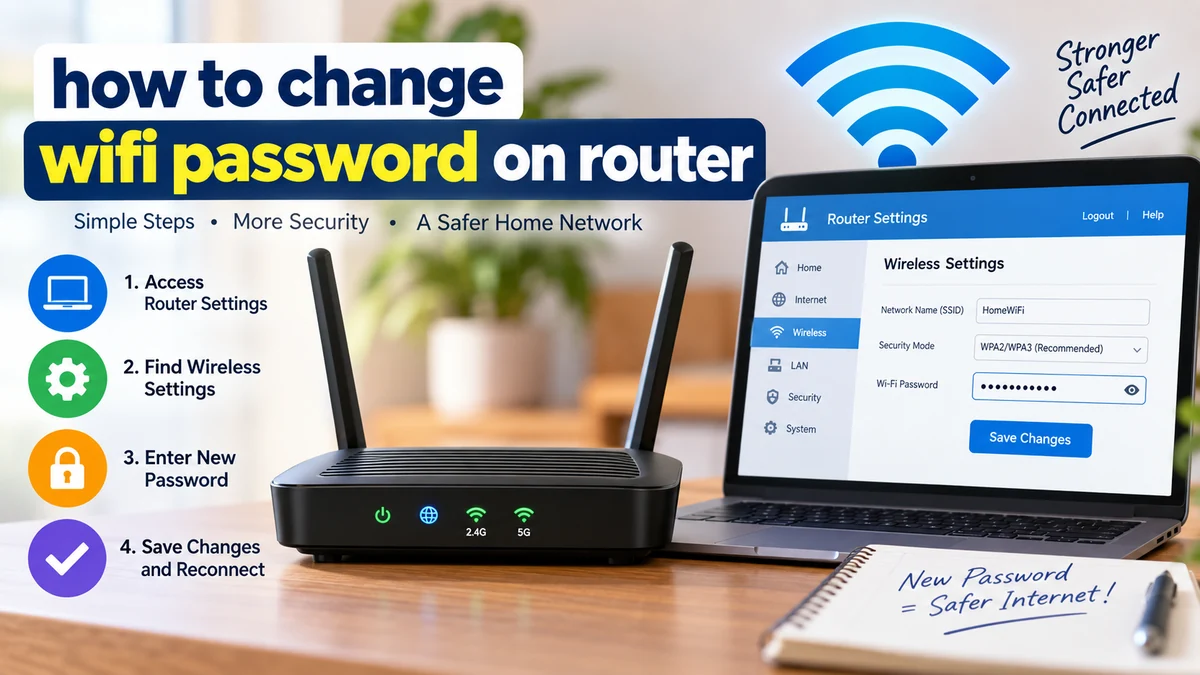

Changing your Wi-Fi password sounds technical until you know where the setting lives. In most homes, you do not change it from your phone’s normal Wi-Fi menu. The password is controlled by your router, gateway, or the management app supplied by the router manufacturer or internet provider.
To learn how to change wifi password on router, connect to your router, open its admin page or management app, sign in with the router administrator credentials, find the Wireless, Wi-Fi, or WLAN settings, enter a new network password, and save your changes. Your wireless devices will normally disconnect and need the new password to reconnect.
The exact menu names differ between TP-Link, NETGEAR, ASUS, Linksys, D-Link, Google Nest Wifi, Xfinity gateways, and other hardware, but the underlying process is largely the same.
How to change wifi password on router step by step
Before changing anything, make sure you are connected to the router you want to manage. A laptop connected by Ethernet is particularly convenient because changing the wireless password will not immediately break that wired connection.
Here is the basic process:
- Connect your phone or computer to the router through Wi-Fi or Ethernet.
- Open a web browser such as Chrome, Edge, Firefox, or Safari.
- Enter your router’s IP address or supported local management address in the address bar.
- Sign in using the router administrator username and password.
- Open Wireless, Wi-Fi, WLAN, or Wireless Settings.
- Select the appropriate wireless network or frequency band if necessary.
- Find the field labeled Password, Wi-Fi Password, Passphrase, Pre-Shared Key, Network Key, or similar.
- Replace the old password with your new password.
- Check that an appropriate modern wireless security mode is enabled.
- Select Save, Apply, or Done.
- Wait for the wireless settings to update.
- Reconnect your phones, laptops, TVs, printers, cameras, and smart-home devices with the new password.
Changing the network password disconnects devices that still have the old credentials stored. Google, for example, explicitly notes that devices disconnect after a Nest Wifi or Google Wifi password change and must be updated with the new password.
Quick takeaway
A Wi-Fi password and a router admin password are not necessarily the same thing. The Wi-Fi password lets devices join your wireless network. The administrator password lets someone enter the router’s configuration interface. Make sure you are changing the correct one.
How to find your router IP address
One of the most common problems is simple: you do not know what address to enter in the browser.
Many home routers use private addresses such as:
| Common router address | Where you may see it |
|---|---|
192.168.1.1 | Many home routers |
192.168.0.1 | Many home routers |
10.0.0.1 | Some gateways and ISP equipment |
192.168.1.254 | Some ISP gateways |
| Brand-specific local address | Certain router manufacturers |
These are examples, not universal addresses. Your router may use something completely different. Current guides commonly recommend checking your device’s Default Gateway or Router value rather than repeatedly guessing addresses.
Find the router IP on Windows
On a Windows computer:
- Press Windows + R.
- Type
cmdand press Enter. - Type
ipconfigand press Enter. - Find the active Wi-Fi or Ethernet adapter.
- Look for Default Gateway.
If it displays something such as 192.168.1.1, enter that number into your browser’s address bar.
You can also find gateway information through Windows network settings, although the exact path can vary between Windows versions.
Find the router IP on a Mac
On current macOS versions, open:
System Settings → Network → Wi-Fi → Details → TCP/IP
Look for the value beside Router. That is normally the local address you need for the router’s management interface.
Find the router address on a phone
Android and iPhone devices can normally show gateway or router information within the details for the currently connected Wi-Fi network. Menu names vary by operating-system version and manufacturer.
Another option is to check the label on the bottom or back of the router. Manufacturers often print setup information there.
How to log in to your router
Once you know the correct address, type it directly into the browser’s address bar.
You should see the router’s management login page.
The router may request:
- Administrator username
- Administrator password
- A locally created management password
- Manufacturer account credentials
- Internet provider account credentials
Do not automatically enter your current Wi-Fi password. The management login and wireless network credentials serve different purposes.
For example, TP-Link documentation distinguishes between the wireless password and the local management/admin password.
Where can you find the router admin password?
Start with the router label. Depending on the manufacturer and model, it may show the default:
- Admin address
- Username
- Admin password
- SSID
- Wireless password
- QR code
If you previously changed the administrator password, the factory information on the sticker may no longer work.
Avoid downloading random “router admin” applications just because you cannot remember the login. The manufacturer’s official app, official support documentation, or your ISP’s official app is a safer route.
Finding the Wi-Fi password setting
Once inside the admin panel, look for a menu named something like:
Wireless → Wireless Security
or:
Wi-Fi → Network Settings
or:
Basic → Wireless
or:
WLAN → Security
Router firmware varies substantially, so the wording will not always match a tutorial exactly.
The field you want may be called:
| Router interface term | What it usually means |
|---|---|
| SSID | Wi-Fi network name |
| Wireless Password | Password used to join Wi-Fi |
| Passphrase | Wi-Fi password |
| Pre-Shared Key / PSK | Wi-Fi authentication key |
| Network Key | Wi-Fi password/security key |
| Security Mode | WPA/WPA2/WPA3 configuration |
| Admin Password | Password for router management |
The SSID, or Service Set Identifier, is your wireless network’s name. Changing the SSID is optional when your goal is only to replace the password.
TP-Link’s router guidance, for example, separates the wireless network name from its wireless password and security settings.
Changing the password on 2.4 GHz, 5 GHz, and 6 GHz Wi-Fi
Modern routers can operate on multiple frequency bands, commonly 2.4 GHz and 5 GHz, with newer equipment also supporting 6 GHz.
Your router might use one Wi-Fi name and password across all supported bands. In that case, there may be only one password to change.
Other configurations let you manage each band separately. You might see networks such as:
HomeWiFi_5G
If separate credentials are enabled, check the settings for every active band so you know which password each network uses.
Xfinity, for example, notes that supported gateways can broadcast 2.4 GHz, 5 GHz, and, depending on the model, 6 GHz bands, with settings managed through its Wi-Fi interface.
A mesh system may behave differently again. One network name can represent several access points and multiple frequency bands, with the mesh controller managing those settings centrally.
How to choose a strong Wi-Fi password
Do not replace a weak password with another predictable one.
Avoid passwords based on:
- Your name
- Phone number
- Home address
- Birthday
12345678password- Your Wi-Fi network name
- Simple keyboard patterns
- Information visible on social media
A long, unique passphrase is generally easier to remember while being harder to guess than a short predictable password.
For example, rather than using a person’s name plus a birth year, use an unrelated sequence of words and characters that is unique to this network.
Your specific router can impose its own password requirements. Google Nest Wifi and Google Wifi, for example, currently require network passwords of 8–63 characters.
Do not reuse a sensitive password from your email, banking, social-media, or other online accounts as your Wi-Fi password.
WPA2 vs. WPA3: check security while changing the password
The password is only one part of wireless security. The router’s security mode matters too.
You may encounter settings including:
- WEP
- WPA
- WPA2
- WPA2/WPA3 mixed mode
- WPA3
WEP is obsolete and should not be selected simply to support an old device. Older WPA configurations are also not preferable when stronger options are supported.
CISA’s router-security guidance recommends stronger WPA-family security rather than obsolete WEP and stresses using a long pre-shared key for home and small-office wireless networks.
For a modern home network, use the strongest security mode that your router and devices reliably support. WPA3 is available on newer equipment, while WPA2 remains common where compatibility with older hardware is necessary.
If an old printer, camera, smart plug, or other IoT device stops connecting after a security-mode change, compatibility may be the issue rather than the password itself.
Quick takeaway
Changing the Wi-Fi password does not require changing every advanced router setting. If your network is working correctly, avoid randomly modifying channels, DHCP, DNS, WAN, NAT, firewall, or other unrelated settings while you are in the administration panel.
How to change Wi-Fi password on TP-Link routers
On many TP-Link routers, connect to the network and enter the router’s web management interface. Depending on the model and firmware, the Wi-Fi configuration can appear under Basic → Wireless or related Wireless/Wireless Security menus.
Change the wireless password, save the setting, and reconnect your devices.
TP-Link’s own guidance confirms that the Wi-Fi password is managed through the wireless settings, whereas the local administrator credentials are managed separately.
Newer TP-Link devices may also support management through the manufacturer’s app, and exact paths differ by hardware and firmware version.
How to change Wi-Fi password on NETGEAR routers
NETGEAR routers use the same underlying idea: access the router management interface, open the wireless settings, locate the security configuration, and replace the existing passphrase.
Some NETGEAR models support local management addresses rather than requiring you to remember the numeric gateway address. Older and newer interfaces can look different, so follow the labels presented by your particular firmware.
NETGEAR support discussions direct users to the Wireless Settings area to change the SSID and passphrase.
After applying the setting, wireless devices using the old password need to reconnect.
How to change Wi-Fi password on ASUS, Linksys, and D-Link routers
ASUS, Linksys, and D-Link interfaces differ visually, but the workflow remains familiar:
Router login → Wireless/Wi-Fi settings → Security/password → Save/Apply
Look for terminology such as Wireless, General, Security, WLAN, Network Key, or Pre-Shared Key.
Do not rely blindly on an online list of default admin usernames or passwords. Router manufacturers change their setup procedures, and newer models often require the owner to create an administrator password during initial installation.
Your model’s label and official manual are better sources when the interface does not match a generic tutorial.
How to change Google Nest Wifi password
Google Nest Wifi and Google Wifi are app-centric, so you normally manage the network through the Google Home app instead of using a conventional router admin webpage.
Google’s current instructions are:
Google Home → Favourites → Wi-Fi → Network settings → existing password → enter new password → Save.
Once saved, connected devices using the previous credentials will lose their Wi-Fi connection until you enter the new password on them.
This is a good example of why 192.168.1.1 should not be treated as a universal solution. Modern mesh systems and ISP gateways may expect you to use an app.
How to change an ISP router or gateway password
If your router was supplied by your internet service provider, its Wi-Fi settings may be controlled through the provider’s app or account rather than a normal manufacturer interface.
For example, current Xfinity instructions direct supported users to:
Xfinity app → WiFi → WiFi details → Edit WiFi settings
From there, users can edit the network name, password, and supported security settings, then save the changes.
Other providers have their own apps, portals, and gateway interfaces.
If the normal router address opens a page with limited settings, that does not necessarily mean anything is wrong. The ISP may intentionally manage some features through its own application.
Can you change the router password from your phone?
Yes. You usually do not need a computer.
There are two common methods.
Browser method: Connect the phone to your Wi-Fi, open a browser, enter the router’s gateway address, sign in, and open the wireless settings.
App method: Open the official router manufacturer, mesh-system, or ISP application and navigate to the network settings.
The second method is increasingly common with mesh Wi-Fi and provider-managed gateways.
The crucial distinction is that opening your phone’s normal Settings → Wi-Fi screen does not usually change the password stored by the router. That screen controls how your phone connects to networks.
What happens after you change your Wi-Fi password?
Expect your wireless connection to disappear temporarily.
When the router begins using the new password, devices that have the old credentials saved can no longer authenticate. Google explicitly documents this behavior for its Wi-Fi products.
You may need to update:
- Smartphones
- Tablets
- Laptops
- Desktop computers using Wi-Fi
- Smart TVs
- Streaming devices
- Game consoles
- Wireless printers
- Security cameras
- Video doorbells
- Smart speakers
- Smart plugs
- Thermostats
- Other IoT devices
For a few devices, simply selecting the network and entering the new password is enough.
Others may repeatedly attempt to use the old stored password. If that happens, choose Forget Network or the equivalent option, then join the network again using the new credentials.
This reconnecting work is why it is worth making a quick mental inventory of your connected devices before changing the password.
Should you change the Wi-Fi name at the same time?
You can, but you do not have to.
The Wi-Fi network name is the SSID. Changing it at the same time as the password can be useful when you want a clean start or need to distinguish your network from nearby networks.
However, changing both creates more work because your devices will see the network as a different connection.
Avoid putting unnecessarily identifying information in your SSID. A network name such as your full name plus apartment number reveals more information than necessary.
If your only goal is to remove someone who knows the existing password, changing the password alone is normally sufficient.
What if the router page will not open?
If 192.168.1.1 or another address does not work, do not immediately factory-reset the router.
First check these points:
Make sure you are connected to the correct router
Your device should be connected to that router through Wi-Fi or Ethernet.
If you are using a phone, temporarily turning off mobile data can make troubleshooting less confusing.
Check the actual Default Gateway
Do not assume your router uses 192.168.1.1.
Find the Default Gateway on Windows or the Router address on macOS and use the displayed value.
Type the address into the address bar
A common mistake is entering the IP into a search engine rather than the browser address bar.
Enter the local address directly.
Try Ethernet
If possible, connect a laptop or desktop directly to a LAN port on the router. This is especially helpful when wireless configuration is already malfunctioning.
Restart before resetting
A normal restart or reboot does not generally erase your settings. A factory reset does.
That distinction matters.
What if you forgot the router admin password?
Forgetting the Wi-Fi password and forgetting the router administrator password are different problems.
If you can still connect to Wi-Fi but cannot access the admin panel, first check:
- The router’s label.
- The original setup information.
- The manufacturer’s official app.
- Your ISP’s management app, if applicable.
- The official documentation for your exact router model.
If you created a custom administrator password and cannot recover it through a supported method, a factory reset may eventually be necessary.
But treat that as a last resort.
Changing a Wi-Fi password vs. resetting the router
These two actions should never be confused.
| Action | What it does | Devices disconnect? | Other settings lost? |
|---|---|---|---|
| Change Wi-Fi password | Replaces network credentials | Yes | Usually no |
| Change SSID | Renames Wi-Fi network | Yes | Usually no |
| Restart/reboot | Restarts router | Temporarily | Usually no |
| Factory reset | Restores factory configuration | Yes | Yes |
A factory reset can erase your custom SSID, password, security configuration, ISP-related settings, port-forwarding rules, parental controls, guest networks, and other customizations.
Some routers make recovery easy; others may require additional ISP configuration afterward.
Do not press and hold the physical Reset button merely because you want a new Wi-Fi password.
Why is the old Wi-Fi password still working?
If you changed the password but a device can still connect with the old one, several explanations are possible.
First, verify that you changed the wireless password, not the administrator password. TP-Link support documentation highlights this exact distinction because it is an easy mistake to make.
Next, check whether your router has separate networks for 2.4 GHz and 5 GHz. You may have updated only one band.
You might also have:
- A guest network with different credentials
- A Wi-Fi extender broadcasting another network
- A second router
- A mesh configuration that has not synchronized
- Separate SSIDs for different frequency bands
TP-Link notes, for example, that OneMesh/EasyMesh configurations can synchronize wireless settings between compatible devices.
Confirm the SSID your device is actually connected to before troubleshooting further.
Why won’t devices connect after changing the password?
Start with the simplest explanation: the device still remembers the old credentials.
Forget the network and reconnect manually.
Then verify the password carefully. Wireless passwords are case-sensitive, so capitalization matters.
If every device fails to connect, log back into the router using Ethernet if possible and check:
- The new password
- Security mode
- SSID
- Active wireless bands
- Whether Wi-Fi broadcasting is enabled
If only an older device fails, check whether you changed the security mode at the same time. Legacy hardware may not support the newest wireless security configuration.
Should you use the same password for the router admin and Wi-Fi?
No.
Your Wi-Fi password and administrator password protect different things, so keeping them separate reduces the damage if one credential becomes known.
Think of them as two doors:
Wi-Fi password: allows a device onto your wireless network.
Router admin password: allows someone to change the network’s configuration.
The administrator credential deserves especially careful protection because access to the management interface can expose or modify important network settings.
How to change wifi password on router safely
Once you understand the distinction between your router’s management login and its wireless credentials, how to change wifi password on router becomes straightforward: access the router or its official app, open Wireless/Wi-Fi settings, replace the passphrase, save it, and reconnect your devices.
While you are there, verify that you are using an appropriate modern security mode, keep the administrator password separate from the Wi-Fi password, and avoid unnecessary changes to advanced settings. Most importantly, record the new credentials somewhere secure before reconnecting the rest of your household devices.
