
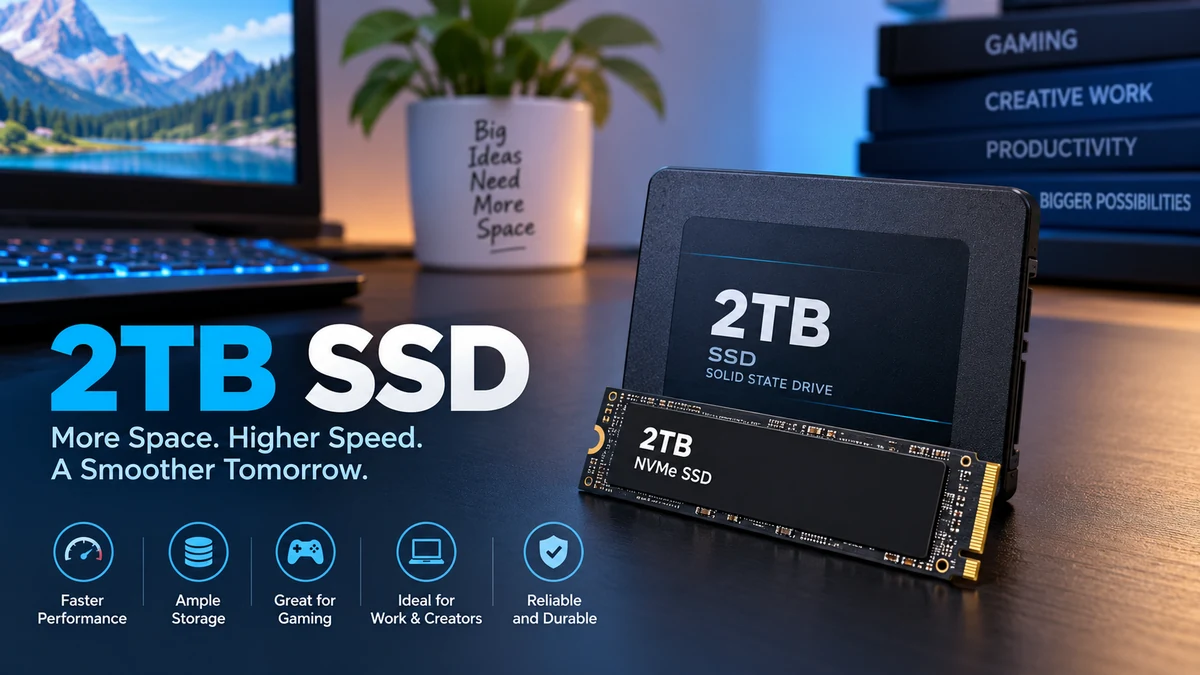

A 2tb ssd gives you enough solid-state storage for a large game library, everyday applications, photos, video projects, virtual machines, and other sizable files without the mechanical parts of a traditional hard drive. But capacity alone does not tell you whether an SSD will be fast, compatible, durable, or suitable for your workload.
A 2tb ssd is a solid-state drive with 2 terabytes—2,000,000,000,000 bytes—of advertised storage capacity. It can use SATA or NVMe, come in formats such as 2.5-inch or M.2, and use different NAND flash technologies. Actual usable capacity shown by an operating system can be lower because of measurement conventions and formatting.
The important part is understanding what sits behind that “2TB” label. Interface, PCIe generation, NAND type, controller, cache, endurance, cooling, and form factor can make two drives with the same capacity behave very differently.
What Is a 2tb ssd?
A solid-state drive stores information in NAND flash memory rather than on spinning magnetic platters. Because there are no moving read/write heads, SSDs provide very low access latency and much faster random access than traditional hard disk drives.
The “2TB” part describes storage capacity, not speed.
Manufacturers normally use decimal units, where:
- 1 TB = 1,000 GB
- 2 TB = 2,000 GB
- 2 TB = 2,000,000 MB
- 2 TB = 2,000,000,000,000 bytes
Samsung, for example, specifies SSD capacity using the industry convention of 1GB equaling 1,000,000,000 bytes and notes that actual available capacity can vary because some capacity is used for system and maintenance purposes.
Why Does a 2TB SSD Show Less Space?
This catches many first-time SSD owners by surprise.
Storage manufacturers advertise capacity using decimal units, while operating systems and software may report storage using binary-based measurements or display conventions. Formatting, partitions, recovery areas, over-provisioning, and system files can reduce the amount of space that appears available to you.
So a drive advertised as 2TB should not be expected to show exactly 2,000GB of freely usable storage in every operating system.
This does not normally mean the manufacturer gave you a smaller SSD.
How Much Can 2TB Actually Hold?
It depends entirely on file sizes, but 2TB is substantial for consumer computing.
For illustration, before accounting for the operating system and other overhead, 2TB could theoretically accommodate roughly:
| Type of Data | Example File Size | Approximate Quantity |
|---|---|---|
| Documents | 1 MB | ~2,000,000 |
| Photos | 10 MB | ~200,000 |
| Large RAW photos | 50 MB | ~40,000 |
| 50GB games | 50 GB | ~40 |
| 100GB games | 100 GB | ~20 |
| 150GB games | 150 GB | ~13 |
| 4K video/projects | Varies greatly | Depends on codec/bitrate |
These are capacity illustrations rather than guarantees. Games, especially, may need additional room for patches, downloadable content, temporary update files, and shader caches.
For that reason, you should plan around your actual data rather than assuming every byte of the advertised capacity will remain available.
Is a 2tb ssd Enough?
For many people, yes.
Current storage guidance commonly places 2TB in the range suited to large game libraries, video editing, photography, media production, virtual machines, development environments, and other storage-heavy workloads.
The more useful question is not simply “Is 2TB enough?” but how quickly will your workload consume 2TB?
| User Type | 2TB Capacity |
|---|---|
| Web browsing and office work | More than most users need |
| Students | Generous |
| General home PC | Generous |
| Gaming PC | Very practical |
| PS5 expansion | Practical capacity |
| Photography | Good for sizable libraries |
| 4K video editing | Useful, but can fill quickly |
| Software development | Excellent for many workloads |
| Virtual machines | Useful, workload dependent |
| Large professional media archive | May require additional storage |
Someone using a laptop mainly for browsing, Microsoft Office, streaming, and cloud storage may never come close to filling 2TB.
A photographer working with thousands of RAW files can consume it considerably faster. A video editor working with high-bitrate 4K or higher-resolution footage may treat 2TB as working storage rather than long-term archival capacity.
Is 2TB Enough for Gaming?
For many gaming PCs, 2TB provides comfortable capacity.
Current storage guides commonly recommend roughly 1TB or more for gaming, with 2TB becoming useful when you want a larger library installed without regularly deleting games.
Game size varies dramatically. Competitive titles may consume tens of gigabytes, while large AAA games can exceed 100GB once updates and optional content are included.
If your average installed game consumed 100GB, 2TB represents theoretical room for about 20 such installations before accounting for Windows, applications, free-space headroom, updates, and other files.
That is why the practical number will always be lower.
Quick Takeaway: For gaming, the advantage of 2TB is convenience. You can keep more large games installed simultaneously instead of repeatedly uninstalling and downloading them.
2tb ssd SATA vs NVMe: What Is the Difference?
Two 2TB SSDs can have identical capacities while delivering very different transfer speeds.
The first distinction to understand is SATA versus NVMe.
SATA SSD
SATA is the older storage interface familiar from 2.5-inch SSDs.
A modern SATA III interface has a theoretical bandwidth of 6Gb/s. Actual high-performance SATA SSDs generally operate well below that theoretical figure because of interface overhead.
SATA remains useful for older desktops and laptops, secondary storage, and systems without an available NVMe-compatible M.2 slot.
NVMe SSD
NVMe is a storage protocol designed to work over PCI Express.
Modern consumer NVMe drives typically come in the M.2 form factor and connect directly to the motherboard, eliminating the separate SATA data and power cables required by a 2.5-inch SATA drive.
Kingston explains that M.2 itself is a form factor, not a speed standard. M.2 drives can use SATA or PCIe/NVMe depending on the drive and system.
That distinction matters because an M.2 SSD is not automatically an NVMe SSD.
| Feature | SATA SSD | NVMe SSD |
|---|---|---|
| Common form | 2.5-inch | M.2 |
| Interface | SATA III | PCIe |
| Protocol | AHCI | NVMe |
| Sequential performance | Around SATA limits | Potentially several GB/s |
| Cables | Usually required for 2.5-inch desktop installation | None for M.2 |
| Best use | Older systems, secondary storage | Modern PCs, gaming, demanding work |
Will NVMe Make Everything Feel Faster?
Not equally.
The difference between a hard drive and an SSD is immediately noticeable in booting, launching applications, random file access, and general responsiveness.
The difference between a competent SATA SSD and an extremely fast NVMe drive is much more workload dependent.
Large sequential transfers, professional media work, scratch-disk workloads, and certain content-creation tasks can benefit significantly from higher NVMe throughput.
Ordinary browsing and lightweight applications may show a much smaller practical difference.
PCIe 3.0 vs PCIe 4.0 vs PCIe 5.0
NVMe performance also depends on the PCI Express generation.
A modern 2tb ssd may use PCIe 3.0, PCIe 4.0, or PCIe 5.0. Newer generations provide more potential bandwidth, but that does not mean every user needs the newest generation.
PCIe 3.0
PCIe 3.0 NVMe drives remain useful in older systems and can still provide excellent everyday performance.
If your computer only supports PCIe 3.0, installing a newer backward-compatible drive may work, but its performance will be restricted by the older interface.
PCIe 4.0
PCIe 4.0 is widely used by current gaming and performance PCs.
High-performance Gen4 drives can exceed 7,000 MB/s sequential reads under suitable benchmark conditions. Samsung’s 990 PRO, for example, is a PCIe 4.0 x4 NVMe 2.0 M.2 2280 drive rated for sequential reads up to 7,450 MB/s and writes up to 6,900 MB/s.
Those figures illustrate what a high-end drive can achieve; they should not be treated as the expected speed of every Gen4 SSD.
PCIe 5.0
PCIe 5.0 increases available bandwidth again.
It is relevant to high-end workstations and workloads that can exploit very high sequential throughput. However, PCIe 5.0 SSDs can also require more attention to cooling, motherboard compatibility, and cost.
For everyday computing and gaming, headline sequential speed alone should not determine which drive is appropriate.
M.2 2280 and Other SSD Form Factors Explained
A common mistake is assuming that every 2TB drive physically fits every computer.
It does not.
SSDs are available in multiple physical formats.
2.5-Inch SATA
This rectangular format is common in desktops and older laptops.
Desktop installation generally requires:
- A suitable drive bay or mounting location
- SATA data connection to the motherboard
- SATA power from the power supply
Laptop compatibility depends on whether the laptop has a 2.5-inch drive bay.
M.2
M.2 drives look more like small circuit boards than conventional drives.
Common M.2 sizes include:
- 2230
- 2242
- 2260
- 2280
- 22110
The first two digits represent width, while the remaining digits represent length in millimeters. For example, an M.2 2280 drive is 22mm wide and 80mm long.
M.2 2280 is particularly common in desktop motherboards and laptops.
But physical fit is only one part of compatibility. You must also confirm whether the slot supports SATA, PCIe/NVMe, or both.
Quick Takeaway: “2TB,” “M.2,” and “NVMe” describe different characteristics. 2TB is capacity, M.2 is a physical form factor, and NVMe is a storage protocol used over PCIe.
NAND Flash: TLC vs QLC in a 2tb ssd
Not every SSD uses the same flash memory.
Consumer drives commonly use NAND configurations such as TLC and QLC. These terms refer to how many bits are stored per memory cell.
TLC NAND
TLC stands for Triple-Level Cell, meaning three bits are stored per cell.
TLC is widely used in mainstream and premium consumer SSDs because it offers a useful balance between capacity, performance, endurance, and cost.
Samsung’s 990 PRO, for example, specifies Samsung V-NAND 3-bit TLC.
QLC NAND
QLC stands for Quad-Level Cell, storing four bits per cell.
Its greater storage density can help manufacturers offer high capacities at competitive costs. The tradeoff is that QLC can have lower native write performance and endurance than comparable TLC designs, particularly once an SSD’s fast cache is exhausted.
That does not automatically make QLC bad.
A QLC SSD can be entirely suitable for gaming, media storage, everyday computing, and read-heavy workloads. The difference becomes more relevant when you frequently write hundreds of gigabytes or terabytes of data.
Kingston, for example, lists a 2TB industrial QLC M.2 2280 NVMe model with a 640 TBW endurance specification, demonstrating why endurance should be checked at the individual model level rather than inferred only from capacity.
DRAM, DRAM-Less SSDs, and SLC Cache
Another specification that often causes confusion is DRAM cache.
Some SSD controllers use dedicated DRAM to maintain mapping information efficiently. High-performance drives may therefore include their own DRAM.
Samsung lists 2GB of LPDDR4 DRAM on the 2TB version of its 990 PRO.
Other SSDs are DRAM-less.
Some modern DRAM-less NVMe drives use Host Memory Buffer (HMB), which allows the SSD controller to use a small portion of system memory.
This can help keep cost and power consumption down while maintaining good everyday performance.
What Is SLC Cache?
Many TLC and QLC SSDs temporarily operate part of their NAND in an SLC-like mode to accelerate writes.
Imagine copying a small folder onto an SSD. The transfer may initially run extremely fast because the data fits inside this cache.
Now copy several hundred gigabytes continuously.
Once the fast cache fills, write speed can decline substantially depending on the SSD design.
That is why the advertised maximum sequential write speed does not tell the complete performance story.
For video editing, frequent large transfers, workstation workloads, or other sustained-write applications, independent sustained-write testing can be more informative than the number printed on the box.
Sequential Speed vs Random Performance
SSD specifications normally advertise sequential read and write speeds because the numbers are easy to compare.
But sequential throughput represents only one workload.
Sequential Performance
Sequential speed matters when transferring large contiguous files, such as:
- Video footage
- Disk images
- Large archives
- Project files
- Backups
Random Performance
Operating systems and applications frequently access many small files scattered across storage.
Random performance is therefore important for:
- Booting an operating system
- Launching applications
- Multitasking
- Software development
- Databases
- General system responsiveness
Random SSD performance is commonly expressed in IOPS, or input/output operations per second.
A high sequential-read figure should therefore never be interpreted as a complete measurement of how responsive an SSD will feel.
SSD Endurance, TBW, and Warranty
Flash memory has finite write endurance.
Manufacturers commonly communicate endurance through TBW, meaning terabytes written.
Suppose a 2TB SSD has a 1,200 TBW rating. That means its specified endurance limit is 1,200 terabytes of host writes under the manufacturer’s warranty conditions.
For perspective, writing 100GB every single day would total about 36.5TB per year.
At that write rate, reaching 1,200TB would mathematically take more than three decades. That does not mean the drive is guaranteed to operate for that long; other components, environmental conditions, warranty limits, and failures unrelated to NAND wear can intervene.
Samsung currently specifies the 2TB 990 PRO at 1,200 TBW with a five-year limited warranty, while endurance specifications differ across models and NAND designs.
Does Reading Data Wear Out an SSD?
Normal reads do not consume NAND program/erase cycles in the same way writes do.
For typical home and gaming workloads, SSD write endurance is therefore often less concerning than buyers initially assume.
Heavy content creation, database workloads, scratch disks, continuous recording, and professional write-intensive tasks deserve closer attention to TBW.
Does a 2tb ssd Need a Heatsink?
Sometimes.
SATA SSDs generally do not require the type of dedicated heatsink associated with high-performance M.2 NVMe drives.
Fast PCIe NVMe SSDs can generate considerably more heat during sustained workloads. If the controller becomes too hot, it may reduce performance to control temperature—a behavior known as thermal throttling.
Desktop motherboards increasingly include M.2 heatsinks. Some SSDs also ship with integrated heatsinks.
For a standard PC, cooling requirements depend on the drive, workload, motherboard, airflow, and manufacturer guidance.
For PlayStation 5 storage expansion, heat dissipation is specifically part of Sony’s requirements.
Can You Use a 2tb ssd in PS5?
Yes, provided the SSD meets Sony’s technical requirements.
The capacity itself is supported: Sony currently allows compatible M.2 SSD storage from 250GB to 8TB. But you cannot simply install any 2TB SSD.
Sony specifies:
| PS5 Requirement | Specification |
|---|---|
| Interface | PCIe Gen4 x4 M.2 NVMe |
| Capacity | 250GB–8TB |
| Recommended sequential read | 5,500 MB/s or faster |
| Socket | Socket 3, Key M |
| Supported lengths | 2230, 2242, 2260, 2280, 22110 |
| Maximum width with cooling | 25mm |
| Maximum total thickness | 11.25mm |
| Cooling | Effective heat dissipation required |
Sony specifically states that M.2 SATA SSDs are not supported.
This illustrates why “2TB M.2 SSD” is not enough information to establish compatibility.
Does PS5 Benefit From PCIe 5.0?
A PCIe 5.0 SSD does not provide PCIe 5.0 performance inside the PS5.
Kingston notes that compatible Gen5 drives provide no additional performance advantage because the console operates the expansion storage at PCIe 4.0 speeds.
A suitable Gen4 SSD is therefore technically sufficient.
Can a 2TB SSD Work in a Laptop?
Yes—if the laptop supports the particular SSD.
Before upgrading, check the laptop manufacturer’s service manual or specification sheet for:
- Supported form factor
- M.2 dimensions
- SATA or NVMe support
- PCIe generation
- Available M.2 slots
- Maximum supported capacity, where specified
- Single-sided or double-sided clearance
- BIOS/UEFI requirements
Some laptops have an M.2 2280 slot, while compact machines may use 2242 or 2230 drives. Other systems rely on a 2.5-inch SATA bay.
A drive can physically resemble the correct component and still use an incompatible interface.
Is a 2TB SSD Faster Than a 1TB SSD?
Not automatically.
Capacity and performance are separate specifications.
Within the same SSD family, larger capacities can sometimes perform better because the controller may have more NAND dies or channels available for parallel operations. Cache size and endurance can also vary by capacity.
But you cannot conclude that a random 2TB SSD is faster than a random 1TB SSD.
A high-performance 1TB PCIe 4.0 NVMe SSD can easily outperform a low-end 2TB SATA or budget NVMe drive.
Compare the actual specifications rather than capacity alone:
- Sequential read/write
- Random read/write IOPS
- Sustained write behavior
- Controller
- NAND type
- DRAM/HMB design
- PCIe generation
- Thermal behavior
1TB vs 2TB vs 4TB SSD
Capacity should be chosen around the data you actually expect to store.
| Capacity | Suitable For | Main Tradeoff |
|---|---|---|
| 512GB | Light everyday use | Limited space for large libraries |
| 1TB | General PCs and moderate gaming | Can fill quickly with large games/media |
| 2TB | Gaming, creators, power users | Higher cost |
| 4TB | Large libraries and professional media | Considerably more capacity than many users need |
A 1TB drive remains adequate when most large files live in cloud or external storage.
A 2TB drive gives substantially more breathing room for local applications, games, and projects.
A 4TB drive becomes more attractive when 2TB would force regular storage management.
Current capacity guidance generally places 2TB as a strong option for large game libraries and creative workloads, while 4TB and higher capacities become increasingly relevant to users with extensive local media or specialist workloads.
Internal vs External 2TB SSD
A 2TB SSD does not have to live inside a computer.
External SSDs provide portable high-speed storage and typically connect over USB or Thunderbolt, depending on the model.
Internal SSD
An internal drive is appropriate for:
- Operating systems
- Installed applications
- PC games
- PS5 expansion
- Scratch storage
- Frequently accessed project files
External SSD
External storage works well for:
- Moving large files between computers
- Photo libraries
- Video footage
- Backups
- Portable project storage
- Additional laptop capacity without opening the machine
External performance is limited not only by the SSD itself but also by the enclosure, controller, USB or Thunderbolt interface, cable, and host computer.
Putting an extremely fast NVMe SSD behind a slow USB interface can therefore prevent it from reaching its native performance.
TRIM, S.M.A.R.T., and SSD Maintenance
Modern SSDs perform substantial maintenance internally.
One important feature is TRIM. It allows the operating system to inform the SSD which data blocks are no longer required, helping the controller manage flash efficiently.
Modern SSDs may also support:
- Garbage collection
- S.M.A.R.T. health monitoring
- Firmware updates
- Hardware encryption
- Wear leveling
Samsung lists TRIM, garbage collection, S.M.A.R.T., AES 256-bit full-disk encryption, TCG/Opal 2.0, and related features on its 990 PRO specification sheet.
You generally should not manually defragment an SSD in the traditional HDD sense. Modern operating systems recognize solid-state storage and use appropriate optimization methods.
It is also sensible to keep some free space available rather than operating the drive permanently at near-total capacity. SSD controllers need room to manage caching, garbage collection, and flash operations efficiently.
What Specifications Matter Most?
A long SSD specification sheet can look intimidating, but only a handful of fields usually determine whether a drive is appropriate.
1. Capacity
Confirm that 2TB actually matches your workload rather than choosing capacity solely because it sounds future-proof.
2. Interface
Determine whether your computer requires SATA or supports PCIe NVMe.
3. Form Factor
Check whether you need 2.5-inch, M.2 2280, M.2 2230, or another physical format.
4. PCIe Generation
PCIe 4.0 is appropriate for many current high-performance systems. PCIe 5.0 offers greater potential bandwidth but requires compatible hardware to exploit it.
5. NAND Type
TLC is attractive for balanced performance and endurance. QLC can make sense for value-oriented, read-heavy, and capacity-focused applications.
6. Cache Architecture
Look at whether the SSD uses dedicated DRAM, Host Memory Buffer, dynamic SLC cache, or another design.
7. Sustained Performance
Maximum benchmark speed is less useful if your workload regularly exceeds the SSD’s cache.
8. TBW
Check endurance if you regularly perform heavy writes.
9. Warranty
Consumer SSD warranties commonly range from roughly three to five years, although terms vary by model and write limit.
10. Cooling
High-performance NVMe drives need adequate thermal management, especially during sustained transfers.
Common Mistakes When Evaluating a 2tb ssd
The biggest mistake is comparing drives using only their advertised sequential read speed.
A “7,000 MB/s” label does not tell you the NAND type, sustained write speed, random performance, cache behavior, thermal characteristics, endurance, or compatibility.
Another common error is treating M.2 and NVMe as synonyms. They are not. M.2 describes the physical format; NVMe describes the protocol. An M.2 drive can also use SATA.
Do not assume a newer PCIe generation will automatically improve every workload either. The system must support it, and the application must generate enough storage activity to benefit.
Finally, never use an SSD as the only copy of irreplaceable data.
SSDs can fail unexpectedly just like hard drives and other electronics. Important photos, business files, project data, and personal documents should exist in a separate backup location.
How Long Can a 2TB SSD Last?
There is no universal lifespan for a 2TB SSD.
Its useful life depends on NAND quality, controller design, firmware, temperature, write volume, workload, manufacturing quality, and other factors.
TBW provides a useful endurance reference, but it is primarily a warranty specification—not an expiration timer.
For example, two 2TB drives can have very different TBW ratings even though their capacity is identical. Samsung currently lists several 2TB performance models, including the 990 PRO, at 1,200 TBW, while Kingston’s cited 2TB QLC industrial model is rated at 640 TBW.
That difference demonstrates why capacity alone should never be used as a proxy for endurance.
For ordinary consumer workloads, modern SSD endurance can be ample. Users who write huge amounts of data every day should pay much closer attention to TBW and warranty conditions.
When Does a 2tb ssd Make Sense?
A 2tb ssd is particularly useful when you want one fast drive to handle the operating system, applications, games, and personal files without constantly monitoring available storage.
It makes especially good sense for gaming PCs, modern laptops with limited upgrade slots, PS5 expansion, photography libraries, video projects, development environments, and other workloads where 1TB could become restrictive.
The key is not to treat all 2TB drives as interchangeable.
First verify form factor and interface compatibility. Then compare NVMe versus SATA, PCIe generation, TLC versus QLC NAND, DRAM or HMB architecture, sustained performance, TBW, warranty, and cooling.
Once those factors match your system and workload, 2TB provides a practical combination of high-speed storage and enough capacity for demanding everyday use without immediately moving into much larger 4TB or 8TB storage tiers.
