
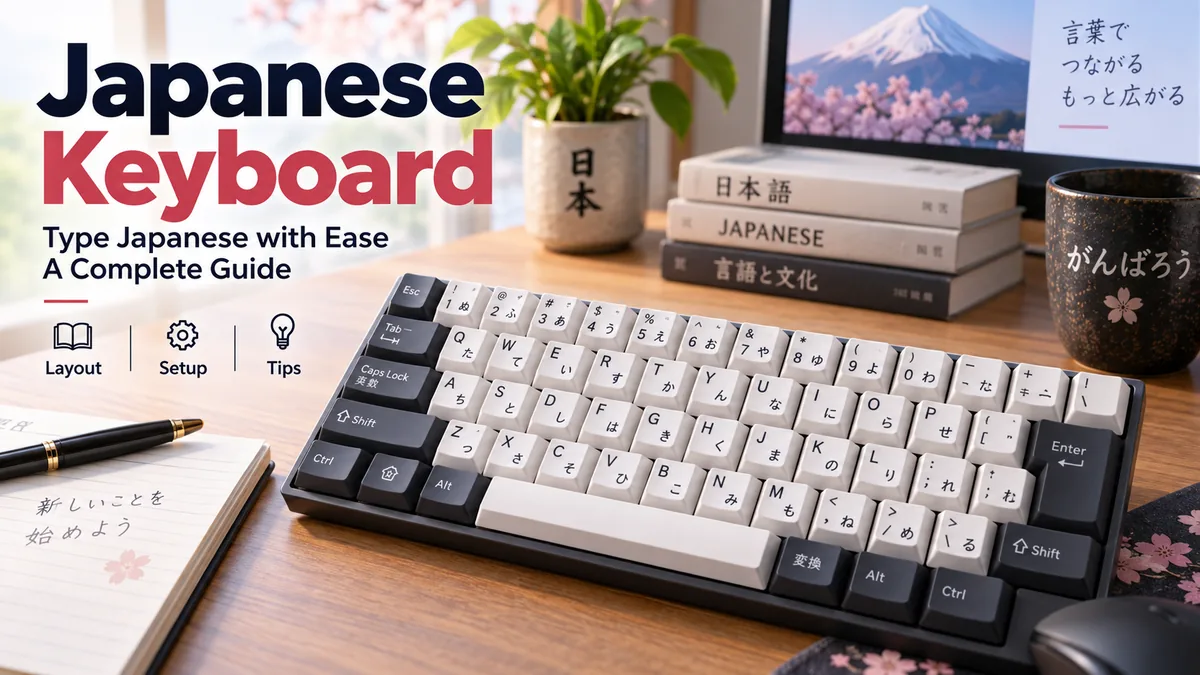

A japanese keyboard can look complicated at first. Some keys show Latin letters and Japanese kana at the same time, several unfamiliar keys sit around the spacebar, and typing a single Japanese word may produce a list of possible kanji.
The system becomes much easier once you understand one key idea: the physical keyboard and Japanese text input are separate things.
A japanese keyboard typically uses a QWERTY-based layout together with an Input Method Editor (IME). You can type Japanese phonetically with Romaji or enter Kana directly. The IME first produces hiragana, then lets you convert that text into kanji, katakana, or other appropriate characters. A special physical Japanese keyboard is not required.
That means an ordinary English QWERTY keyboard can handle Japanese perfectly well once the operating system’s Japanese input method is enabled.
What Is a japanese keyboard?
The term japanese keyboard can describe two related but different things:
- A physical Japanese-layout keyboard, commonly associated with the JIS layout.
- A Japanese software input method installed on a computer, phone, or tablet.
This distinction matters.
A physical keyboard supplies the keys you press. The Input Method Editor, or IME, interprets those keystrokes and creates Japanese text.
For example, with Romaji input enabled:
nihongo → にほんご → 日本語
The first step uses Latin letters. The IME interprets the pronunciation and creates hiragana. You can then request conversion, and the software presents suitable kanji candidates.
This input-and-conversion system solves a fundamental problem: Japanese writing contains far more characters than could reasonably fit on individual keyboard keys.
The writing systems involved
When typing Japanese, you will regularly encounter:
| Writing system | Example | Common role |
|---|---|---|
| Hiragana | こんにちは | Grammar and native Japanese words |
| Katakana | コンピューター | Foreign words, names, emphasis |
| Kanji | 日本語 | Words and concepts represented by Chinese-derived characters |
| Romaji | nihongo | Japanese sounds written with Latin letters |
| Latin characters | ABC | English, URLs, codes and other Roman-alphabet text |
The keyboard and IME allow you to move among these systems without needing thousands of physical keys.
How a japanese keyboard Actually Works
Japanese computer input usually follows a simple sequence:
Keystroke → phonetic input → kana → conversion candidate → confirmed text
Suppose you want to type 日本.
With Romaji input, you might type:
nihon
The IME composes:
にほん
You then request conversion, and candidates may include:
日本
You select the intended candidate and confirm it.
The exact candidate list depends on the text being entered and the input system. Modern Japanese input methods also use surrounding context and prediction to make candidate selection more convenient.
Microsoft’s Japanese IME, for example, provides prediction candidates, conversion functions, input-mode controls, and customizable keyboard shortcuts.
Apple’s Japanese input method similarly provides candidate selection and can use Live Conversion to convert hiragana into kanji while text is being entered.
Why Japanese needs conversion
Japanese contains many words with identical or similar pronunciations but different kanji and meanings.
Simply knowing the pronunciation therefore does not always tell the computer which characters you want.
The IME offers candidates so that you can choose the correct written form.
This is one reason learning Japanese typing involves more than memorizing key locations. Efficient candidate selection and conversion are important parts of the workflow.
Quick Takeaway: The keyboard does not directly contain every kanji. You enter a phonetic reading, and the IME helps convert that reading into the intended Japanese characters.
japanese keyboard Layout: JIS vs US QWERTY
A physical keyboard made for the Japanese market usually looks familiar because the main alphabet section still follows QWERTY.
However, the Japanese JIS keyboard layout includes differences in key placement, punctuation, key size, and Japanese-specific controls.
Microsoft distinguishes Japanese 106/109-key keyboards from English 101/102-key layouts in its Japanese IME documentation.
Common JIS keyboard characteristics
A Japanese hardware keyboard may include:
- Latin QWERTY legends
- Kana legends
- Japanese input-control keys
- A relatively short spacebar
- Additional keys around the spacebar
- Different punctuation and symbol positions from a US keyboard
- Keys for conversion and non-conversion
The presence of kana characters on the keycaps does not mean Japanese users must type by pressing one kana key at a time.
Romaji input is also available.
JIS vs US keyboard
| Feature | Japanese JIS keyboard | US QWERTY keyboard |
|---|---|---|
| Main letter arrangement | QWERTY | QWERTY |
| Kana printed on keys | Usually yes | Usually no |
| Japanese-specific keys | Yes | Usually no |
| Spacebar | Typically shorter | Typically longer |
| Romaji Japanese input | Yes | Yes with Japanese IME |
| Direct Kana input | Designed for it | Possible through software, but labels absent |
| Kanji conversion | Through IME | Through IME |
| English typing | Yes | Yes |
For someone learning Japanese, the most useful point is simple: you usually do not need to replace your existing keyboard.
Software can provide the Japanese input functionality.
Special Keys on a Japanese JIS Keyboard
The extra keys are among the first things people notice when seeing Japanese hardware.
Their behavior can vary somewhat by operating system and IME configuration, but several functions are particularly common.
半角/全角 — Hankaku/Zenkaku
半角/全角 (Hankaku/Zenkaku) is commonly used to turn Japanese input on or off.
Microsoft lists Hankaku/Zenkaku as the key for switching Japanese input on and off on supported Japanese keyboard configurations.
The names refer to half-width and full-width character concepts.
In everyday use, many people primarily recognize the key as a convenient way to change input states.
変換 — Henkan
変換 (Henkan) means conversion.
It is associated with converting entered text or performing reconversion depending on the software and current state.
Microsoft’s current IME documentation identifies the Convert key with reconversion functionality.
無変換 — Muhenkan
無変換 (Muhenkan) literally means “no conversion.”
Its exact behavior depends on configuration. Microsoft’s IME, for example, can use the NonConvert key to cycle among hiragana, full-width katakana, and half-width katakana.
Kana-related input controls
Japanese keyboards may also provide controls for switching among Japanese input modes.
Microsoft documents functions involving Hiragana, Katakana, Romaji, ImeOn (あ), and ImeOff (A) on supported Japanese hardware keyboards.
These dedicated controls make frequent language and mode changes faster, but their absence on an English keyboard does not prevent Japanese typing.
Romaji Input vs Kana Input
There are two major ways to enter Japanese from a keyboard:
Romaji input and Kana input.
Understanding the difference will save beginners a lot of confusion.
Romaji input
With Romaji input, you type Japanese pronunciation using Latin letters.
Examples:
| Type | Hiragana produced |
|---|---|
| a | あ |
| ka | か |
| ki | き |
| neko | ねこ |
| sushi | すし |
| nihongo | にほんご |
The IME interprets the Roman-letter sequence and produces kana.
You can then convert appropriate words into kanji.
For example:
watashi → わたし → 私
This method is especially convenient when using a standard English QWERTY keyboard.
Apple specifically notes that Romaji input is useful when you are not using a Japanese physical keyboard.
Kana input
Kana input maps Japanese kana more directly to physical keys.
A JIS keyboard normally prints kana alongside Latin characters, which makes those mappings visible.
This can reduce the number of keystrokes required for some Japanese text, but there is a larger key-position learning burden.
For someone already comfortable with QWERTY and Romanized Japanese, Romaji usually has the gentler learning curve.
Which method should beginners learn?
For most international learners using an English keyboard, Romaji input is the easiest starting point.
You already know where the Latin letters are located. Instead of memorizing a new set of physical key positions, you learn the spelling patterns that the Japanese IME recognizes.
Direct Kana input becomes more attractive if you specifically want that workflow or regularly work with a Japanese physical keyboard.
Quick Takeaway: Romaji and Kana input ultimately produce the same Japanese writing systems. They differ mainly in how your initial keystrokes are interpreted.
How to Type Hiragana, Katakana and Kanji
Once Japanese input is configured, you need to understand how the three major scripts fit into the typing process.
Typing hiragana
With Romaji input active, type the pronunciation.
For example:
arigatou
becomes:
ありがとう
Similarly:
ohayou → おはよう
gakkou → がっこう
tomodachi → ともだち
The IME composes hiragana as you type.
Typing kanji
Start by entering the pronunciation in hiragana.
Suppose you want:
学校
Type:
gakkou
The IME creates:
がっこう
Request conversion and select:
学校
Then confirm the candidate.
The Space key is commonly involved in conversion/candidate selection in Japanese input workflows, though exact controls depend on the IME and platform.
Typing katakana
Katakana is commonly used for foreign loanwords, foreign names, technical terminology, onomatopoeia, and certain forms of emphasis.
For example:
konpyuutaa
can produce the reading corresponding to:
コンピューター
Your Japanese input system can convert or switch the composed reading into katakana.
Small っ
The small っ often represents a doubled following consonant.
For example:
gakkou
produces:
がっこう
The doubled k tells the input method to insert small っ before こ.
Small ゃ, ゅ and ょ
Combined sounds are commonly entered with Romaji combinations such as:
kya → きゃ
shu → しゅ
cho → ちょ
Learning these patterns makes Romaji input considerably faster.
Typing ん
The kana ん deserves special attention because n can also begin another syllable.
Input methods use contextual Romaji rules to determine whether you mean ん or a syllable beginning with n. When a sequence is ambiguous, entering an additional n or using the IME’s supported spelling convention can make the intended boundary clear.
This is one of the small details worth practicing rather than trying to type purely by intuition.
How to Set Up a japanese keyboard on Windows
You do not need Japanese hardware to type Japanese in Windows.
The key component is Microsoft Japanese IME.
On current Windows systems, Japanese language and input settings are managed through the language configuration. Microsoft documents Japanese IME as supporting conversion, prediction, candidate selection, keyboard shortcuts, and customization.
Windows 11 setup
The general process is:
- Open Settings.
- Go to Time & language.
- Open Language & region.
- Add Japanese if it is not already installed.
- Make sure Microsoft IME is available as the keyboard/input method.
- Switch to Japanese when you want to type.
- Select the appropriate Japanese input mode.
Microsoft also documents Windows key + Spacebar as a way to cycle through installed input languages.
Once the Japanese IME is active, you can use an ordinary English keyboard and type Japanese through Romaji.
Useful Microsoft IME controls
On compatible configurations, Microsoft documents functions such as:
| Key/control | Function |
|---|---|
| Hankaku/Zenkaku | Turn Japanese input on/off |
| Eisu | Toggle Hiragana and alphanumeric modes |
| Hiragana | Enter Hiragana mode |
| Shift + Hiragana | Enter Katakana mode |
| Convert | Reconversion |
| NonConvert | Cycle selected Japanese input modes |
Exact shortcuts depend on whether you are using Japanese 106/109-key hardware, an English 101/102-key keyboard, and customized IME settings.
How to Set Up a japanese keyboard on Mac
macOS includes Japanese input support, so you can type Japanese without purchasing a different keyboard.
Apple’s current setup process is:
- Open Apple menu > System Settings.
- Select Keyboard.
- Find Text Input and choose Edit.
- Add a new input source.
- Select Japanese.
- Choose Japanese – Romaji or Japanese – Kana.
- Add the input source.
If you have an ordinary non-Japanese keyboard, Japanese – Romaji is usually the straightforward choice.
Apple’s Japanese input system can also display candidate choices and supports Live Conversion, which can convert hiragana into kanji while you type.
That creates a fluid workflow once you become accustomed to Japanese composition.
Using a japanese keyboard on Smartphones
Japanese input on phones works somewhat differently from desktop typing because touchscreens are not restricted to fixed physical keycaps.
Mobile devices can therefore offer layouts designed specifically for Japanese.
Two common approaches are:
- QWERTY-based Romaji input
- Japanese Kana input
A QWERTY layout feels familiar to someone coming from a desktop English keyboard. You type Romanized pronunciation and let the software generate kana.
Kana-oriented mobile layouts can provide a much more Japanese-specific interface.
The Japanese 12-key layout
A particularly recognizable mobile design is the 12-key Kana keyboard.
Instead of placing every possible kana on its own key, the interface groups sounds around kana rows. Touch and flick gestures can select related vowels.
This makes efficient Japanese input possible on a relatively small touchscreen.
The experience is therefore quite different from direct Kana input on a desktop JIS keyboard.
Do You Need a Physical Japanese Keyboard?
For most learners, no.
If your goal is to:
- study Japanese,
- write assignments,
- send messages,
- search Japanese websites,
- take notes,
- communicate with Japanese speakers, or
- practice kanji,
your existing keyboard is usually enough.
Enable Japanese input and use Romaji.
Apple explicitly supports Japanese Romaji input on standard keyboards, while Microsoft provides Japanese IME functionality for Windows.
When a physical JIS keyboard makes sense
Japanese hardware becomes more useful when you:
- specifically prefer the JIS layout,
- use Kana input heavily,
- want dedicated conversion controls,
- regularly work on Japanese-market computers,
- need to become familiar with Japanese office hardware,
- frequently alternate between Japanese input modes.
The dedicated keys can streamline repeated operations.
When it may be inconvenient
A JIS keyboard is not automatically better for everyone.
Someone who has years of muscle memory on a US ANSI layout may initially find symbol positions and key sizes inconvenient.
Likewise, owning keycaps printed with kana does not teach Japanese typing by itself. You still need to understand the input method and conversion process.
japanese keyboard vs English Keyboard
The biggest misconception is that Japanese keyboards operate like an entirely separate alphabetic system.
They do not.
Both can use QWERTY letters, and either can type Japanese when suitable software is configured.
The differences are mainly in physical layout and dedicated input controls.
| Question | Japanese keyboard | English keyboard + Japanese IME |
|---|---|---|
| Can type hiragana? | Yes | Yes |
| Can type katakana? | Yes | Yes |
| Can type kanji? | Yes | Yes |
| Supports Romaji? | Yes | Yes |
| Has kana key labels? | Usually | Usually not |
| Dedicated Japanese keys? | Usually | No |
| Requires new hardware? | Already included | No |
| Good for Japanese learners? | Yes | Yes |
The IME is doing much of the important work in both cases.
Understanding Full-Width and Half-Width Characters
One detail that surprises new Japanese typists is the distinction between full-width and half-width characters.
Japanese computing historically needed to accommodate character forms with different display widths.
You may encounter:
- full-width Japanese characters,
- full-width Latin letters,
- half-width Latin characters,
- half-width katakana.
For example, Latin text can appear in ordinary half-width form or a full-width form:
ABC
versus
ABC
Modern everyday writing often does not require you to think deeply about this distinction, but it still appears in Japanese software, forms, legacy systems, data entry, and IME controls.
Apple’s Japanese input documentation includes controls for entering full-width or half-width numbers and symbols, while Microsoft’s IME provides mode-switching functions involving full- and half-width character forms.
Why the Spacebar Is So Important in Japanese Typing
On an English keyboard, Space mostly means one thing: insert a space.
Japanese text traditionally does not place spaces between words in the same way English does.
As a result, the spacebar can play a major role in Japanese conversion.
A typical workflow might look like:
- Type a reading in Romaji.
- Let the IME compose hiragana.
- Request conversion.
- Review the kanji candidates.
- Move through candidates if necessary.
- Confirm the correct text.
Once you become comfortable with this process, Japanese typing feels less like manually selecting characters and more like composing and confirming phrases.
That is a useful mindset shift for beginners.
Common japanese keyboard Problems and Fixes
Most early problems are caused by input modes rather than broken hardware.
“I type English letters instead of Japanese”
The IME may be installed but Japanese input is not currently active.
Check the language/input indicator and switch to the Japanese input source or Hiragana mode.
“I get hiragana but can’t type kanji”
Hiragana is normally the composition stage.
Enter the complete reading, then use your IME’s conversion function to display kanji candidates.
“My punctuation keys produce unexpected characters”
Check whether your operating system thinks you are using a JIS keyboard while your physical hardware is actually US ANSI—or vice versa.
Physical layout and software layout need to agree if you expect the printed symbols to match the characters produced.
“The wrong kanji keeps appearing”
Do not automatically accept the first candidate.
Japanese contains many homophones. Read the candidate carefully and choose the characters matching the intended meaning.
Context-aware conversion helps, but it does not eliminate the need to proofread.
“I can’t find the Japanese characters printed on tutorials”
You may be looking at a physical JIS keyboard tutorial while using an English keyboard.
That is fine if you use Romaji input. You do not need kana printed on your keys.
“The keyboard suddenly types katakana”
Your input mode may have changed.
Check whether the IME is currently in Hiragana, full-width Katakana, half-width Katakana, or alphanumeric mode. Microsoft IME explicitly supports switching among several of these modes.
Practical Tips for Learning Japanese Typing Faster
Typing Japanese comfortably is mostly about building the right habits.
1. Start with Romaji
If QWERTY already feels natural, do not create unnecessary difficulty.
Learn common Romaji-to-kana patterns first.
Practice sequences such as:
ka ki ku ke ko
sa shi su se so
ta chi tsu te to
Then progress to combined sounds, small kana, doubled consonants, and ん.
2. Stop looking for individual kanji keys
There aren’t thousands of hidden kanji keys.
Think in terms of pronunciation → kana → conversion.
That mental model makes the whole system easier to understand.
3. Type words, not isolated characters
Practice:
neko → ねこ
Then:
neko ga suki desu → ねこがすきです
As your vocabulary grows, practice complete phrases and sentences.
This better reflects how an IME uses context.
4. Learn conversion early
Do not spend weeks typing only hiragana.
Japanese computer literacy includes selecting the correct kanji candidates.
Practice the complete workflow from the beginning.
5. Watch your current input mode
Many apparent “keyboard problems” are simply mode problems.
If strange characters appear, check whether you are in:
- alphanumeric,
- Hiragana,
- Katakana,
- full-width alphanumeric, or
- another IME mode.
6. Proofread conversions
IME conversion is powerful, but pronunciation alone can correspond to several written words.
Always verify that the kanji matches your intended meaning.
7. Learn shortcuts gradually
You do not need to memorize every IME command on day one.
First master:
switch input → type reading → convert → choose candidate → confirm
Then add keyboard shortcuts as repetitive actions become obvious.
Is a japanese keyboard Hard to Learn?
The unusual appearance is harder than the actual concept.
A beginner may see kana labels, unfamiliar keys, kanji candidates, Hiragana and Katakana modes, and assume an entirely new keyboard layout has to be memorized.
For Romaji input, that is not the case.
You can continue using familiar QWERTY key positions. The main new skill is understanding how an IME converts phonetic input into Japanese writing.
After that, the learning curve is mainly about:
- becoming faster with Romaji patterns,
- handling small kana correctly,
- switching input modes,
- choosing kanji candidates efficiently,
- recognizing conversion mistakes.
Direct Kana input has a steeper initial learning curve because it requires familiarity with many kana key positions.
Final Takeaway
A japanese keyboard is best understood as a combination of hardware and intelligent input software. Japanese JIS keyboards provide kana legends and dedicated controls such as Hankaku/Zenkaku, Henkan, and Muhenkan, but those keys are conveniences rather than requirements for writing Japanese.
An ordinary QWERTY keyboard can type hiragana, katakana, and kanji once a Japanese IME is enabled. On Windows, Microsoft Japanese IME provides conversion, prediction, modes, and shortcuts; on macOS, Apple’s Japanese input sources support both Romaji and Kana entry.
For most learners, the simplest path is to enable Japanese input, choose Romaji, practice the basic Romaji-to-kana patterns, and then learn how candidate conversion works. Once the sequence Romaji → hiragana → kanji conversion becomes automatic, Japanese typing feels far less complicated than the keyboard initially suggests.
