
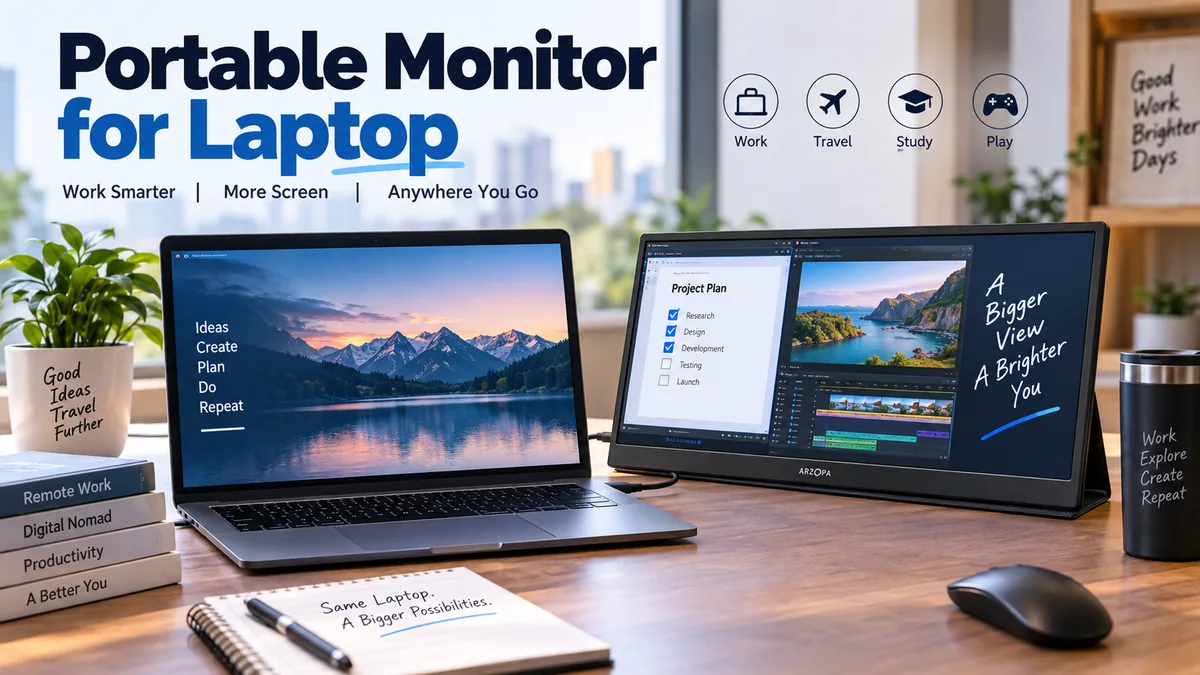

Working from a laptop is convenient until you need a spreadsheet, browser, video call, and notes open at the same time. Constantly switching windows can make even simple tasks feel cramped. A portable monitor for laptop use gives you extra screen space without turning your workspace into a permanent desktop setup.
A portable monitor is a thin, lightweight external display designed to work alongside a laptop, tablet, or compatible device. Most modern models connect through USB-C with DisplayPort Alt Mode or HDMI, typically range from about 14 to 17 inches, and provide an easy way to create a dual-monitor workspace while traveling or working in limited spaces.
This guide explains how portable monitors work, which connections matter, what specifications actually affect everyday use, how to set one up, and how to avoid common compatibility problems.
What Is a Portable Monitor for Laptop Use?
A portable monitor is essentially a compact external monitor built around mobility.
Unlike a tablet, it normally doesn’t run applications independently. It receives a video signal from another device, such as a laptop, mini PC, smartphone, tablet, or game console. Most portable displays also need power either from the connected device, a USB charger, or an internal battery if one is included.
The concept is similar to connecting a traditional desktop monitor to your laptop. The main differences are size, weight, power requirements, and stand design.
Typical portable displays include:
- A 14- to 17-inch panel
- USB-C connectivity
- HDMI or Mini HDMI on many models
- An integrated kickstand or folding cover
- Full HD, WUXGA, QHD, or 4K resolution
- IPS or OLED display technology
- 60Hz or higher refresh rates
- USB-powered operation
- A thin chassis designed for laptop bags
A standard external monitor makes more sense when you work permanently at one desk. Portable displays are particularly useful when your workspace changes frequently.
Why Use a Portable Monitor for Laptop Productivity?
The main advantage is straightforward: more usable desktop space.
Instead of repeatedly switching between windows, you can leave important information visible.
For example, a writer might keep research on the portable display while writing on the laptop. A programmer can keep documentation or a terminal on one screen and code on another. A remote worker might keep a video meeting on the second display while taking notes on the primary screen.
Common uses include
| Use | Laptop Screen | Portable Monitor |
|---|---|---|
| Research | Writing/document | Browser/reference material |
| Programming | Code editor | Documentation/terminal |
| Spreadsheets | Main workbook | Email/reference data |
| Video meetings | Notes/work | Meeting window |
| Photo editing | Editing workspace | Tools/reference images |
| Studying | Assignment | Lecture/research |
| Presentations | Presenter controls | Presentation |
| Gaming | Main display | Chat/stream controls |
This flexibility is particularly useful for remote workers, students, developers, consultants, photographers, content creators, and frequent travelers.
There is another benefit that specifications don’t capture: workflow continuity.
If you normally work with two monitors at home, moving to a single laptop screen while traveling can feel restrictive. A portable second monitor allows you to reproduce a similar arrangement in a hotel room, classroom, coworking space, or temporary office.
Quick Takeaway
A portable monitor isn’t automatically more productive. Its value comes from keeping information visible that would otherwise require constant window switching.
How Does a Portable Monitor Connect to a Laptop?
Connectivity should be the first specification you check, not resolution or screen size.
A laptop having USB-C does not automatically mean it can send video through that port.
Modern portable displays generally use one of three connection methods:
| Connection | Video | Power | Driver Usually Required? |
|---|---|---|---|
| USB-C with DisplayPort Alt Mode | Yes | Often | No |
| HDMI/Mini HDMI | Yes | No | No |
| USB-A with DisplayLink | Yes | Sometimes | Yes |
| Thunderbolt/USB4 | Yes | Often | No |
Understanding these differences prevents one of the most common portable-monitor problems: buying a USB-C monitor and discovering that the laptop’s USB-C port cannot output video.
USB-C With DisplayPort Alt Mode
USB-C is generally the cleanest connection.
A compatible USB-C cable can potentially carry:
- Video
- Power
- USB data
- Touchscreen data on supported configurations
This can produce a true single-cable desk setup.
The critical term is DisplayPort Alternate Mode, usually shortened to DisplayPort Alt Mode or DP Alt Mode.
A USB-C port must support video output for a normal USB-C portable display to receive an image. ASUS specifically distinguishes USB-C connections supporting DP Alt Mode from USB connections using technologies such as DisplayLink.
So:
USB-C connector ≠ guaranteed video output.
Check the laptop manufacturer’s specifications for terms such as:
- DisplayPort over USB-C
- DisplayPort Alt Mode
- DP Alt Mode
- Thunderbolt
- USB4
- External display support
Also check the portable monitor’s specifications.
Both ends need compatible capabilities.
Why the USB-C cable matters
The cable matters too.
Some USB-C cables are intended primarily for charging and may not support the video functionality your setup requires.
Using the monitor’s supplied full-featured cable is usually the safest starting point when troubleshooting. ASUS likewise recommends using the USB-C cable supplied with compatible ZenScreen models.
HDMI and Mini HDMI
HDMI remains one of the most reliable alternatives.
A typical configuration looks like this:
Laptop HDMI → Portable monitor HDMI/Mini HDMI
But HDMI normally carries the video and audio signal rather than powering the display.
That means the monitor may require another connection:
USB charger → USB-C power input → Portable monitor
The result is a two-cable setup rather than USB-C’s potential one-cable arrangement.
The upside is compatibility. HDMI is still common across laptops, desktops, game consoles, cameras, and other devices.
For older laptops without USB-C video output, HDMI can therefore be the simpler solution.
USB-A and DisplayLink
Some external displays can operate through USB data using DisplayLink technology.
This works differently from DisplayPort Alt Mode.
Instead of the USB-C port directly carrying a native display signal, software and compatible hardware handle USB graphics. Drivers may therefore be required. ASUS, for example, documents driver installation for its DisplayLink-based USB display configurations.
DisplayLink can be useful when:
- The laptop lacks suitable video outputs
- USB-A is available but USB-C video isn’t
- Multiple external screens are needed
- A compatible docking station is being used
There are tradeoffs, however.
Native DisplayPort Alt Mode or HDMI is usually preferable for latency-sensitive uses such as gaming. DisplayLink also introduces a software dependency that may be undesirable on company-managed laptops where driver installation is restricted.
Thunderbolt and USB4
Thunderbolt and USB4 can simplify high-bandwidth external-display setups.
A Thunderbolt-capable laptop may support displays, storage devices, docking stations, networking, and power delivery through a USB-C-shaped connector.
Don’t identify a port solely by its physical shape, though.
Two USB-C ports can look identical while supporting very different functions.
Always check the laptop’s technical documentation.
How to Choose the Right Portable Monitor for Laptop Use
Portable monitor specifications can look impressive on a product page, but only a handful significantly affect everyday experience.
Start with these:
- Laptop compatibility
- Screen size
- Resolution and aspect ratio
- Brightness
- Panel type
- Refresh rate
- Weight
- Stand quality
- Power requirements
- Port selection
1. Check compatibility first
Before comparing displays, determine what your laptop can output.
Check:
Laptop side
- USB-C DP Alt Mode?
- Thunderbolt?
- USB4?
- HDMI?
- Maximum external resolution?
- Maximum number of supported displays?
Monitor side
- USB-C video input?
- HDMI or Mini HDMI?
- Separate USB-C power input?
- Power Delivery passthrough?
- DisplayLink?
- Required drivers?
This five-minute compatibility check can save considerably more time later.
What Screen Size Is Best?
Portable displays commonly fall around 14 to 17 inches. ViewSonic identifies this as a typical range for the category.
For many users, 14 to 16 inches provides the most practical balance between workspace and portability.
14-inch portable monitor
Good for:
- Frequent flights
- Small desks
- Compact backpacks
- 13- or 14-inch laptops
- University use
A smaller display takes up less table space and is easier to transport.
15.6-inch portable monitor
This remains a common format because it provides noticeably more workspace without becoming excessively bulky.
A current ASUS ZenScreen MB166C, for example, uses a 15.6-inch Full HD IPS panel and weighs about 780 grams.
The format works particularly well beside mainstream 15-inch laptops.
16-inch portable monitor
A 16-inch screen becomes especially interesting when paired with a 16:10 aspect ratio.
The additional vertical workspace is useful for:
- Documents
- Coding
- Websites
- Spreadsheets
- Editing timelines
- Research
17 inches and larger
Larger displays provide more workspace but gradually lose the advantage that makes portable monitors attractive.
Think about the entire travel package—not merely panel size.
You need room for the display, protective sleeve, cables, charger, and laptop.
16:9 vs 16:10 Aspect Ratio
Screen shape can matter as much as diagonal size.
16:9 is the traditional widescreen format associated with 1920 × 1080 Full HD displays.
16:10 provides extra vertical space.
Common examples include:
- 1920 × 1080 — 16:9
- 1920 × 1200 — 16:10
- 2560 × 1440 — 16:9
- 2560 × 1600 — 16:10
For movies and general secondary-display duties, 16:9 works perfectly well.
For productivity, 16:10 can be more comfortable because more document lines, spreadsheet rows, code, and webpage content remain visible.
What Resolution Should a Portable Monitor Have?
Resolution determines how many pixels the display contains, but more pixels aren’t automatically better.
Common portable-monitor resolutions include Full HD, 2K-class resolutions, and 4K.
1920 × 1080 Full HD
Full HD remains a practical resolution for 14- to 16-inch displays.
Advantages include:
- Lower cost
- Moderate power requirements
- Broad compatibility
- Straightforward operating-system scaling
- Adequate sharpness for everyday productivity
For email, web browsing, office applications, video meetings, and general travel use, 1080p is often sufficient.
1920 × 1200 WUXGA
WUXGA provides the same horizontal resolution as Full HD but adds vertical pixels.
That seemingly small difference can make a 16:10 portable screen noticeably more useful for documents and productivity.
2560 × 1440 or 2560 × 1600
QHD and similar 2K-class resolutions provide higher pixel density.
They’re particularly useful for:
- Detailed spreadsheets
- Programming
- Photo editing
- Graphic design
- Dense interfaces
- Small text
Operating-system scaling becomes more relevant at these resolutions.
3840 × 2160 4K
4K provides excellent pixel density on a small display, but it isn’t automatically the sensible choice.
Potential drawbacks include:
- Higher price
- Greater power consumption
- More GPU bandwidth
- Greater dependence on scaling
- Small native interface elements
For ordinary productivity, the practical difference between a good 2K portable display and a 4K one may matter less than brightness, color accuracy, or stand quality.
Quick resolution comparison
| Resolution | Typical Strength | Main Tradeoff |
|---|---|---|
| 1920×1080 | General productivity | Less workspace |
| 1920×1200 | Documents and coding | Usually costs more than basic FHD |
| 2560×1440 | Sharp productivity display | Scaling may be needed |
| 2560×1600 | High-density 16:10 workspace | Higher power/cost |
| 3840×2160 | Detailed creative work | Power, price, scaling |
Brightness Matters More Than Many People Expect
Brightness is measured in nits.
A monitor that looks perfectly acceptable in a dim bedroom may become difficult to see beside a bright office window.
As a practical framework:
- Around 250 nits — acceptable for controlled indoor environments
- Around 300 nits — more flexible for normal indoor use
- 350–400+ nits — useful in brighter environments
These aren’t absolute thresholds. Ambient lighting, panel coating, contrast, and reflections all influence perceived visibility.
An anti-glare or matte surface can be particularly valuable for travel because you can’t always control where the lights or windows are located.
A glossy OLED display might look spectacular in controlled lighting but show distracting reflections in an airport lounge.
IPS vs OLED Portable Monitors
IPS
IPS remains widely used because it provides a useful combination of:
- Wide viewing angles
- Good color
- Reasonable cost
- Broad availability
- Predictable productivity performance
For most laptop users, IPS is the safe general-purpose choice.
OLED
OLED displays can provide:
- Very deep blacks
- Excellent contrast
- Fast pixel response
- Rich image quality
They’re attractive for media consumption and creative workflows.
However, OLED models can cost more, and prolonged static desktop elements introduce burn-in considerations over the long term.
If the screen will spend eight hours displaying spreadsheets and static application toolbars, IPS may be the simpler option.
Color Accuracy and Color Gamut
Color specifications become more important for photographers, video editors, designers, and other creative professionals.
Look for meaningful coverage of color spaces such as:
- sRGB
- DCI-P3
- Adobe RGB
Don’t assume a display marketed as “HDR” is automatically color accurate.
HDR capability, color gamut, factory calibration, contrast, and brightness are separate characteristics.
For email, spreadsheets, research, programming, and office applications, extreme color accuracy is usually unnecessary.
For editing photographs that will be printed or delivering color-sensitive client work, display accuracy becomes much more important.
Refresh Rate: Is 60Hz Enough?
Most productivity-oriented portable displays have traditionally operated at 60Hz, while gaming-focused models may support 120Hz, 144Hz, or higher. ViewSonic notes that 60Hz remains common, with gaming and higher-end models offering faster refresh rates.
For:
- Documents
- Browsing
- Spreadsheets
- Coding
- Video meetings
60Hz is generally sufficient.
Higher refresh rates become more valuable for:
- Gaming
- Fast motion
- Smoother scrolling
- High-frame-rate video
- Certain creative workflows
Remember that your laptop, connection, resolution, cable, and monitor must all support the intended resolution/refresh-rate combination.
A 144Hz monitor doesn’t guarantee you’ll actually receive 144Hz from every connection.
Portable Monitor for Laptop Gaming
A portable gaming monitor requires slightly different priorities.
Instead of focusing primarily on portability and productivity, look closely at:
- 120Hz or higher refresh rate
- Low response time
- Adaptive sync support
- Low input latency
- Sufficient USB-C/HDMI bandwidth
- Stable stand
- Adequate brightness
Resolution also needs to match the laptop’s graphics capability.
Running games at 2560 × 1600 requires substantially more GPU work than 1920 × 1080.
A higher-resolution panel therefore isn’t necessarily the better gaming screen.
Does a Portable Monitor Drain Laptop Battery?
Usually, yes—if the laptop is powering it.
Most portable displays don’t have an internal battery and therefore draw power from the connected laptop or an external power source. RTINGS highlights this as a common characteristic of portable monitors.
Battery impact depends on:
- Screen brightness
- Display size
- Panel technology
- Resolution
- Refresh rate
- Laptop battery capacity
- Monitor power consumption
If you’re working near an outlet, external power is usually preferable.
A separate USB-C charger can power the monitor while reducing the load placed on the laptop battery.
What Is USB-C Power Delivery Passthrough?
Some portable displays support USB Power Delivery (USB PD) passthrough.
This can produce a particularly tidy configuration:
Wall charger → Portable monitor → Laptop
The monitor receives power while passing supported charging power to the computer.
For example, Plugable documents portable-monitor configurations in which USB-C PD passthrough can provide charging through the display to the connected system.
Actual delivered wattage matters.
If your laptop normally uses a 65W charger, but the complete monitor configuration passes substantially less power, the laptop may charge slowly or continue losing battery under heavy workloads.
Always check the monitor’s input and passthrough limits.
Built-In Battery vs USB-Powered Monitor
Some portable monitors contain batteries.
Built-in battery advantages
- Less laptop battery drain
- Useful away from outlets
- Cleaner temporary setup
- Helpful with some phones and handheld devices
Disadvantages
- Added weight
- Higher price
- Battery degradation
- Another device to charge
For frequent mobile use without power outlets, a battery can be useful.
For hotels, offices, classrooms, and coworking spaces where power is usually available, a normal USB-powered display is often simpler.
Stand Design Is More Important Than It Looks
The stand is one of the easiest specifications to overlook online and one of the first things you’ll notice in real use.
Portable monitors generally use:
- Folding folio covers
- Integrated kickstands
- Detachable stands
- Tripod mounts
- Magnetic stands
A poor stand can wobble while typing or occupy too much desk depth.
An integrated kickstand is often convenient because there’s nothing separate to lose.
Check whether the display supports:
- Landscape orientation
- Portrait orientation
- Adjustable viewing angles
- VESA mounting
- Tripod mounting
Portrait orientation can be particularly useful for programmers, writers, researchers, and anyone reading long documents.
Weight and Thickness
Don’t evaluate monitor weight in isolation.
Your actual travel load includes:
Laptop + portable monitor + case + charger + cables + accessories
A difference of a few hundred grams becomes noticeable when the equipment stays in a backpack all day.
The protective case also matters.
Thin portable displays can be more vulnerable to pressure than laptops because the panel occupies most of their surface area. A proper sleeve or rigid compartment can therefore be more valuable than shaving a few millimeters from chassis thickness.
Touchscreen Portable Monitors
Some portable displays support touch input.
This can be useful for:
- Drawing
- Presentations
- Kiosks
- Point-of-sale interfaces
- Touch-enabled Windows workflows
- Interactive demonstrations
But touch compatibility isn’t universal.
Video and touch data may use different parts of the USB connection, and operating-system support varies.
A touchscreen isn’t necessarily worth paying extra for if the display will mainly show email, documents, or reference material.
How to Set Up a Portable Monitor for Laptop Use
The exact procedure depends on your connection.
For the simplest USB-C setup:
- Confirm the laptop’s USB-C port supports video output.
- Connect the portable monitor using a compatible USB-C cable.
- Turn on the display if necessary.
- Wait for the operating system to detect it.
- Open your display settings.
- Select Extend rather than Duplicate/Mirror.
- Arrange the displays to match their physical positions.
- Set the native resolution.
- Adjust scaling if text looks too small.
- Set brightness and color temperature for comfortable viewing.
HP describes essentially this workflow across Windows, macOS, and ChromeOS: connect the appropriate cable, open the operating system’s display controls, arrange the screens, then adjust resolution and scaling.
Setting Up the Monitor in Windows
Open:
Settings → System → Display
Windows should show numbered rectangles representing your displays.
Select Identify if you’re unsure which screen is which.
Then choose:
Multiple displays → Extend these displays
Drag the monitor icons until their arrangement matches your physical desk.
This detail matters more than it seems.
If the portable monitor sits physically to the left of the laptop but Windows thinks it’s on the right, your cursor movement will feel confusing.
You can also adjust:
- Display resolution
- Scale
- Orientation
- Refresh rate
- HDR where supported
- Primary display
Use each screen’s native resolution whenever practical.
Setting Up a Portable Monitor on macOS
Open:
System Settings → Displays
From there you can arrange displays, adjust resolution, configure mirroring, and change related display options.
Mac users should pay particular attention when trying to run multiple external monitors, especially through docks or multi-screen extender systems.
The number of external displays supported varies between Mac models and Apple silicon configurations. A dock having two HDMI ports does not automatically mean your Mac can natively extend the desktop across both.
DisplayLink-based solutions can sometimes provide additional display functionality, but they require compatible software and hardware.
Portable Monitor Not Working? Check These Problems First
A blank portable monitor doesn’t automatically mean the display is defective.
Problem 1: USB-C supplies power but no picture
This is extremely common.
The USB-C port may support charging/data but not DisplayPort Alt Mode.
Check the laptop’s official specifications.
If video output isn’t supported, use HDMI or a compatible DisplayLink solution instead.
Problem 2: Wrong USB-C cable
Try the cable supplied with the monitor.
A charging-focused cable may not support the necessary display functionality.
Problem 3: Monitor keeps turning off
The laptop may not be supplying enough power.
Connect external USB-C power to the monitor.
Problem 4: HDMI produces video but the display won’t stay powered
Remember that HDMI generally doesn’t power the portable display.
Connect its USB power cable as well.
Problem 5: Image looks blurry
Check that you’re using the panel’s native resolution.
Also review operating-system scaling.
Problem 6: Screen flickers
Possible causes include:
- Insufficient power
- Poor cable
- Excessive cable length
- Unsupported refresh rate
- USB-C bandwidth limitations
- Docking-station problems
Start by reducing the refresh rate and connecting the monitor directly to the laptop.
Problem 7: DisplayLink screen isn’t detected
Confirm that the required DisplayLink software or driver is installed and supported by your operating system.
Plugable notes that DisplayLink-equipped docks can provide additional external-display functionality in appropriate configurations.
Can You Connect Two Portable Monitors to One Laptop?
Potentially, yes.
The determining factor isn’t simply how many physical USB-C or HDMI ports you have.
Your laptop’s:
- GPU
- Display engine
- Operating system
- Drivers
- Dock
- USB-C/Thunderbolt implementation
all affect the number of external displays available.
ViewSonic notes that multiple portable monitors can be used when the laptop’s graphics hardware and drivers support them, sometimes with a USB-C or Thunderbolt dock providing the required outputs.
Before building a three-screen travel workstation, check your laptop manufacturer’s official maximum external-display specifications.
Portable Monitor vs Laptop Screen Extender
These terms are sometimes used interchangeably, but the hardware can be different.
A portable monitor is normally an independent screen placed beside the laptop.
A laptop screen extender often refers to a monitor—or pair of monitors—physically attached to the laptop lid or supported by a mounting frame.
| Feature | Portable Monitor | Screen Extender |
|---|---|---|
| Placement | Independent | Often attached to laptop |
| Flexibility | High | Moderate |
| Setup | Simple | More hardware |
| Weight on laptop | None | Can be significant |
| Portrait use | Often possible | Usually limited |
| Travel convenience | High | Depends on design |
| Dual extra screens | Requires compatible setup | Common on some systems |
An independent portable monitor is usually more flexible.
Screen extenders can create a compact multi-screen workstation, but their extra brackets, weight, cables, and display-output requirements deserve careful attention.
Portable Monitor vs Tablet as a Second Screen
A tablet can sometimes serve as an additional display through features such as wireless display systems or software-based screen extension.
That doesn’t make it identical to a dedicated portable monitor.
Portable monitor advantages
- Standard video inputs
- Lower dependency on apps
- Direct HDMI support on many models
- Native USB-C video
- Wider device compatibility
- Often larger displays for the price
Tablet advantages
- Works independently
- Has its own battery
- Touch interface
- Can run apps directly
- Useful even when disconnected
A tablet makes sense when you already need a tablet.
A portable monitor makes more sense when your primary goal is simply adding dependable display space to a laptop.
Portable Monitor vs Regular Desktop Monitor
Portability requires compromises.
A conventional 24- or 27-inch desktop display usually provides better ergonomics for a permanent workspace.
It can offer:
- Larger screen area
- Greater height adjustment
- Stronger stands
- More ports
- Higher sustained brightness
- Better ergonomics
- Better value per inch
Portable monitors win in a different category:
mobility.
If your monitor never leaves your desk, a normal desktop monitor is often the more practical solution.
If you regularly move between home, office, university, hotels, client sites, or coworking spaces, portability becomes far more valuable.
Common Mistakes When Choosing a Portable Monitor
Buying based on resolution alone
A 4K label can distract from poor brightness, weak stands, limited ports, or mediocre color.
Evaluate the complete display.
Assuming every USB-C port supports video
This remains one of the biggest compatibility traps.
Check for DP Alt Mode, Thunderbolt, USB4, or explicitly documented display output.
Ignoring power consumption
A laptop-powered display affects battery runtime.
Plan for external power during longer sessions.
Choosing the largest possible screen
A 17-inch screen looks appealing until it doesn’t fit comfortably into your laptop bag or hotel desk.
Measure your actual bag compartment.
Ignoring the stand
A great panel on an unstable stand becomes frustrating very quickly.
Paying for features you won’t use
Touch, OLED, 4K, built-in batteries, speakers, and 144Hz+ refresh rates all have legitimate uses.
None is universally necessary.
Spend your specification budget on the features your workflow actually benefits from.
A Practical Portable Monitor Specification Checklist
Before settling on a portable monitor for laptop use, work through this checklist:
| Specification | Practical Question |
|---|---|
| USB-C | Does my laptop support DP Alt Mode? |
| HDMI | Do I need compatibility with older devices? |
| Power | Can the laptop power the display reliably? |
| USB PD | Do I want passthrough charging? |
| Size | Will it fit my bag and workspace? |
| Resolution | Do I prioritize battery efficiency or workspace density? |
| Aspect ratio | Would 16:10 help my workflow? |
| Brightness | Will I work near windows or in bright rooms? |
| Panel | Is IPS enough, or does OLED benefit my work? |
| Color gamut | Am I doing color-sensitive creative work? |
| Refresh rate | Is this mainly productivity or gaming? |
| Stand | Is it stable and adjustable? |
| Weight | What is my total travel weight? |
| Battery | Will I frequently work away from outlets? |
| Touch | Will I genuinely use touch input? |
| Speakers | Are built-in speakers actually necessary? |
| Case | Does it adequately protect the panel? |
The most useful rule is simple:
Start with your laptop, not the monitor.
Identify its available display outputs and power capabilities first. Then choose a screen that fits those capabilities and your actual working environment.
Is a Portable Monitor for Laptop Use Worth It?
A portable monitor makes the most sense when you genuinely benefit from two screens but can’t rely on having a permanent desk.
It’s particularly useful for remote work, research, programming, spreadsheets, studying, presentations, content creation, and travel. Current portable displays can provide high pixel density and sharp text in a form factor similar in size to a laptop screen.
But portability shouldn’t override usability.
For most general productivity setups, a 14- to 16-inch IPS display with Full HD or 1920 × 1200 resolution, a stable stand, matte finish, and USB-C DisplayPort Alt Mode connectivity provides a sensible baseline. Higher resolutions, OLED, touch, batteries, and high refresh rates become worthwhile when your particular workflow benefits from them.
Before choosing any portable monitor for laptop, verify three things first: your laptop’s video-output capability, the monitor’s power requirements, and the screen size that actually fits your workspace and bag. Get those fundamentals right, and the second display becomes a genuinely useful extension of your laptop rather than another accessory you have to troubleshoot.
