
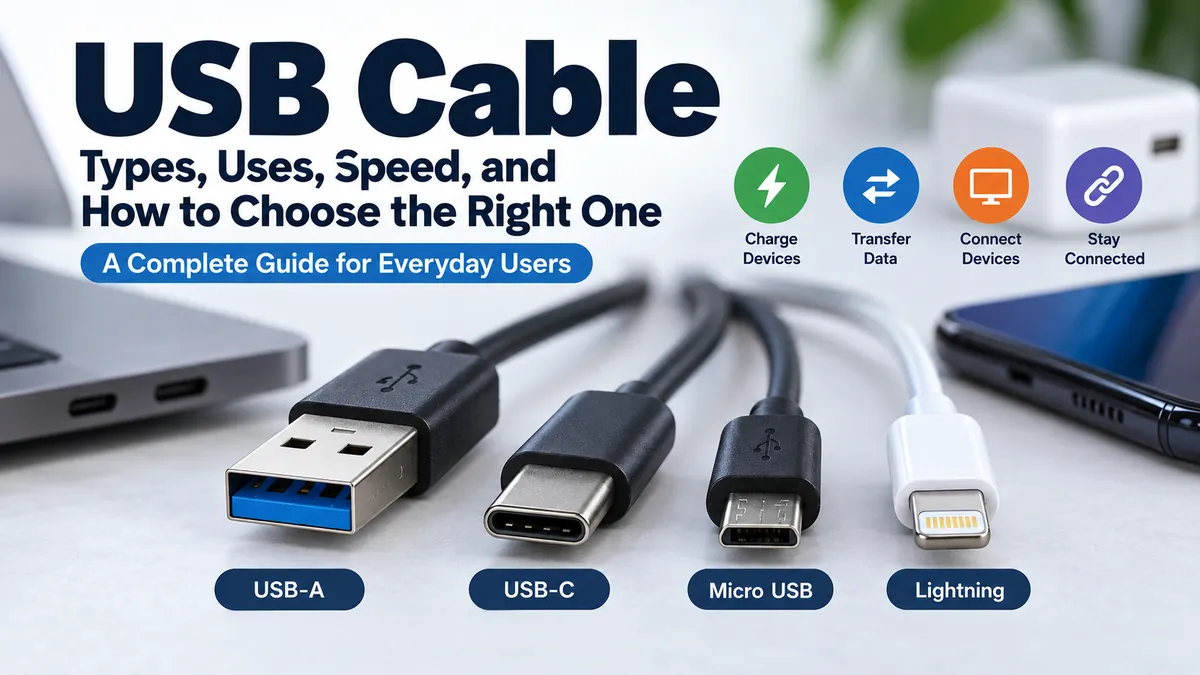

A cable that fits your device is not necessarily a cable that supports its fastest charging, data transfer, or display features. Two USB-C cables can look nearly identical while having dramatically different capabilities.
A usb cable is a wired connection based on the Universal Serial Bus standard that can carry electrical power, digital data, or both between devices. Depending on its connectors and specification, it may support simple charging, data transfers from 480 Mbps to 80 Gbps, USB Power Delivery, and—in compatible configurations—video and other protocols.
Understanding that distinction makes USB much easier to navigate. The key is to separate three things that are often confused: connector shape, data standard, and power capability.
What Is a usb cable?
USB stands for Universal Serial Bus, a standard developed to provide a common way for computers and peripheral devices to communicate and receive power.
A USB connection can be used with many kinds of equipment, including:
- Smartphones and tablets
- Laptops and desktop computers
- Keyboards and mice
- Printers and scanners
- External SSDs and hard drives
- Cameras
- Game controllers
- Power banks
- Chargers
- USB hubs and docking stations
- Monitors and displays
The USB ecosystem is overseen by the USB Implementers Forum (USB-IF), which maintains specifications and compliance programs for technologies including USB 2.0, USB 3.2, USB4, USB Type-C, and USB Power Delivery.
A typical cable has connectors at both ends, but those connectors do not have to be the same. For example, a cable might be USB-A to USB-C, USB-A to Micro-USB, or USB-C to USB-C.
That leads to the first major USB concept.
USB Cable Types: Understanding the Connectors
When people talk about “USB types,” they often mean the physical connector.
The most familiar connectors are USB-A, USB-B, Mini-USB, Micro-USB, and USB-C.
| Connector | Shape/Design | Common Uses | Reversible? |
|---|---|---|---|
| USB-A | Flat rectangular | PCs, chargers, hubs | No |
| USB-B | Squarish | Printers, older peripherals | No |
| Mini-USB | Small legacy connector | Older cameras/devices | No |
| Micro-USB | Thin, small connector | Older Android devices/accessories | No |
| USB-C | Small rounded symmetrical connector | Phones, laptops, tablets, docks | Yes |
USB-A
USB Type-A, commonly called USB-A, is the classic rectangular USB connector.
For decades, it has appeared on desktop computers, laptops, wall chargers, televisions, game consoles, power banks, and countless other devices.
One limitation is immediately obvious: USB-A is not reversible. The plug must be inserted in the correct orientation.
USB-A also describes the connector, not automatically the speed. A USB-A connection may support different USB generations depending on the host, device, and cable.
USB-B
USB-B is the larger, more square-shaped connector commonly associated with printers and certain external devices.
A typical printer cable, for example, may have USB-A on the computer end and USB-B on the printer end.
Although USB-B is less visible in modern consumer electronics, many printers and professional devices still use variants of it.
Mini-USB
Mini-USB is an older compact connector that appeared on cameras, MP3 players, GPS devices, external drives, and early portable electronics.
It has largely disappeared from new mainstream consumer devices but remains relevant when working with older hardware.
Micro-USB
Micro-USB became extremely common before USB-C took over much of the mobile-device market.
You may still encounter it on:
- Older Android smartphones
- Bluetooth speakers
- Headphones
- Power banks
- E-readers
- Cameras
- Small electronic accessories
Micro-USB is smaller than traditional USB-A and USB-B connectors, but unlike USB-C, its plug has a fixed orientation.
USB-C
USB Type-C, usually shortened to USB-C, is the modern reversible connector now widely found on phones, tablets, laptops, chargers, external storage, monitors, hubs, and docking stations.
The USB-IF describes USB Type-C as a slim connector designed for devices ranging from mobile hardware to laptops and tablets. Its plug orientation and cable direction are reversible, and the connector is designed for scalable power and performance.
That convenience has made USB-C increasingly important, but it has also created one of USB’s biggest sources of confusion:
USB-C describes the connector—not one guaranteed speed or feature set.
USB-C Cable Does Not Automatically Mean High Speed
Imagine two USB-C to USB-C cables sitting on a desk.
They look nearly identical.
One might only provide USB 2.0-level data transfer. Another could support a much faster USB data mode. A third might also support high-power charging.
That is why identifying a cable solely by its connector is unreliable.
USB-IF guidance explicitly notes that a USB 2.0 Type-C cable cannot carry USB 3.2 or USB4 signaling. When such a cable is connected to faster USB 3.2 or USB4 equipment, the connection operates at the slower capability available to it.
Think of USB-C as the shape of the doorway. The technologies running through that doorway determine what the connection can actually do.
Quick Takeaway: USB-C tells you what connector you have. It does not, by itself, tell you the cable’s data speed, charging wattage, or complete feature set.
USB Cable Speeds: USB 2.0, USB 3.2, and USB4
The second major concept is the USB data standard.
This is separate from connector shape.
Modern USB performance ranges from basic USB 2.0 connections to high-bandwidth USB4 connections.
| USB Performance | Maximum Signaling/Data Rate | Typical Relevance |
|---|---|---|
| USB 2.0 High-Speed | 480 Mbps | Basic peripherals and data |
| USB 5Gbps | 5 Gbps | External storage and peripherals |
| USB 10Gbps | 10 Gbps | Faster SSDs and docks |
| USB 20Gbps | 20 Gbps | High-performance storage/docks |
| USB 40Gbps | 40 Gbps | High-bandwidth USB4 applications |
| USB 80Gbps | 80 Gbps | Latest high-performance USB4 applications |
These figures describe theoretical signaling capabilities rather than guaranteed real-world file-transfer speeds. Storage performance, protocol overhead, hardware, operating system, controller, cable, and connected device can all affect actual throughput.
USB 2.0
USB 2.0 remains widespread because many accessories simply do not need enormous bandwidth.
USB 2.0 High-Speed supports up to 480 Mbps. USB-IF documentation also confirms that USB 2.0 functionality can be implemented through a Type-C connection.
That means a USB-C cable can physically look modern while carrying data at USB 2.0 speed.
For charging a phone or connecting a simple peripheral, that might be perfectly adequate.
For moving hundreds of gigabytes to an external SSD, it becomes a major limitation.
USB 3.2
USB 3.2 covers faster performance levels.
According to USB-IF, USB 3.2 identifies transfer rates of 5 Gbps, 10 Gbps, and 20 Gbps. The specification supports multi-lane operation, including two 10 Gbps lanes to achieve 20 Gbps.
These faster connections are particularly useful for devices such as:
- External SSDs
- High-resolution webcams
- Capture equipment
- USB hubs
- Docking stations
- Large file-storage devices
USB 3.2 is also backward compatible with existing USB products, with the connection operating according to the capabilities shared by the connected equipment.
USB4
USB4 takes USB bandwidth further and uses the USB Type-C connector.
Current USB-IF information describes USB4 operation reaching up to 80 Gbps over appropriate 80 Gbps certified cables. USB4 can dynamically share a high-speed connection among data and display protocols.
USB4 also maintains compatibility with previous USB generations, although a connection scales according to the mutual capabilities of the equipment involved.
USB-IF’s current document library lists USB4 Specification v2.0 as well as newer USB Type-C and Power Delivery specification material, reflecting the continuing development of the standard.
Charging Through a usb cable
Data transfer is only half the story.
USB is also a major charging interface.
When charging a device, four components matter:
- The power source or charger
- The usb cable
- The device receiving power
- The charging protocol supported by the system
The charging speed cannot simply be determined by looking at the connector.
USB Power Delivery
USB Power Delivery, usually abbreviated USB PD, is the USB ecosystem’s power-delivery technology.
USB-C enables much more sophisticated power configurations than the basic USB charging many people remember from older devices.
USB-IF’s current cable certification rules divide compliant USB-C to USB-C cables into power capability categories identified as 60W or 240W. USB-IF requires appropriate power markings for cables going through its compliance program.
However, a 240W-capable cable does not force 240 watts into a device.
The connected system negotiates supported power levels. Actual charging is constrained by the charger, cable, device, and supported power-delivery configuration.
For example, connecting a high-capacity cable to a device designed for much lower charging power does not make the device consume the cable’s maximum rating.
What Is an E-Marker?
Higher-capability USB-C cables may incorporate an electronically marked cable, commonly called an E-Marker cable.
This electronic identification helps compatible equipment determine cable characteristics and capabilities.
USB-IF specifically includes E-Marker considerations in its cable compliance procedures and directs electronically marked cables through relevant USB Power Delivery cable testing requirements.
For users, the practical lesson is simple: high-power USB-C charging is not just about thicker wire or a connector that fits. Cable electronics and specification compliance can matter.
Data Cable vs Charging Cable: What’s the Difference?
A common question is whether every USB charging cable can transfer data.
Do not assume it can.
Some cables are intended primarily for power, while full-featured USB cables can carry data as well as power. Even among data-capable cables, maximum transfer speeds can vary enormously.
Consider these scenarios:
| Cable Use | Data Needed? | Power Important? |
|---|---|---|
| Charging a phone | Not necessarily | Yes |
| Connecting an external SSD | Yes | Yes |
| Connecting keyboard/mouse | Yes | Usually low |
| Charging a laptop | Possibly | Very important |
| Connecting a dock | Yes | Yes |
| File transfer from phone to PC | Yes | Moderate |
| Powering a small accessory | Possibly not | Yes |
A frustrating example occurs when someone connects a phone to a computer and charging begins, but the expected data connection does not work properly.
The first troubleshooting step should be checking whether the cable actually supports the required data functionality.
How to Identify USB Cable Speed and Power
Visual inspection alone is often unreliable, especially with USB-C.
USB-IF has tried to make cable capabilities clearer through certification logos and markings.
Under its current compliance rules, USB-C to USB-C cable categories must carry appropriate 60W or 240W power markings. Except for High-Speed USB 2.0 USB-C cables, compliant cables are also required to show their supported data rate. USB-IF gives the example of combined markings such as 20Gbps/60W.
So when identifying an unknown cable, check for:
- Data-rate markings
- Wattage markings
- USB certification logos
- Manufacturer specifications
- Original packaging
- Model information
Do not assume cable color determines speed. Historically, port colors have sometimes been used to distinguish USB generations, but appearance is not a dependable universal specification system.
The written performance rating is far more useful.
Why USB Speed May Be Slower Than Expected
A high-speed cable does not make every USB connection high-speed.
The complete connection acts as a system.
Suppose you connect a fast external SSD using a high-bandwidth cable, but the computer’s port supports a slower standard. The faster cable cannot increase the port’s underlying capability.
Likewise, a high-performance computer and SSD connected through a USB 2.0-only cable will be constrained by that cable.
This principle can be summarized as:
Host + port + cable + peripheral must support the required capability.
USB-IF explicitly describes backward compatibility for USB 3.2 and USB4, with connections operating according to compatible capabilities rather than automatically at the fastest theoretical USB speed.
The slowest-link problem
Think of four sections of road:
Computer → Port → Cable → External Drive
If three sections support extremely fast traffic but one becomes a narrow lane, overall throughput is restricted at that bottleneck.
The same principle applies to charging.
A 240W-capable cable connected to a low-power charger does not suddenly create a 240W charging system.
Quick Takeaway: Check the capabilities of the device, port, charger, and cable—not just the cable itself.
Can a USB Cable Carry Video?
Some USB-C connections can support display functionality, but again, the connector alone does not guarantee it.
USB-C can serve as the physical interface for systems that carry display information, and USB4 is designed to support multiple data and display protocols over a shared high-speed link.
This capability is particularly useful with:
- USB-C monitors
- Laptop docking stations
- Multiport adapters
- High-resolution displays
- Workstation docks
But plugging a USB-C cable between a laptop and monitor does not guarantee an image will appear.
The host, destination device, connection mode, and cable all need the appropriate capabilities.
This is one reason basic charging cables may fail when reused with a monitor or sophisticated docking station.
Passive vs Active USB Cables
Most ordinary short USB cables are passive cables. They primarily carry signals and power without actively regenerating the high-speed signal.
An active cable contains electronics designed to help maintain or manage signal transmission, particularly where demanding bandwidth or cable length makes passive operation difficult.
USB-IF maintains dedicated testing material for active and repeater cables covering USB 3.2, USB Type-C, and USB4 implementations.
Active cables can be useful in specialized high-performance setups, but they introduce another reason why two physically similar cables should not automatically be treated as interchangeable.
Does USB Cable Length Affect Performance?
Length matters, particularly as signaling speeds increase.
Electrical signals degrade as they travel through a conductor. Maintaining reliable high-speed transmission becomes harder as distance increases, which is why cable construction and certification become increasingly significant at higher bandwidths.
This does not mean that every longer cable is bad.
It means you should avoid assuming that a very long cable can deliver exactly the same maximum performance as a shorter cable merely because both ends use USB-C.
For ordinary charging, a longer quality cable may be convenient.
For a high-speed external SSD, display, or dock, the cable’s explicitly supported performance should take priority over convenience.
If unusually long distances are required, active or other specialized solutions may be appropriate.
USB-C vs USB-A: What Actually Changes?
USB-C and USB-A are connector types, so comparing them requires some nuance.
| Feature | USB-A | USB-C |
|---|---|---|
| Reversible connector | No | Yes |
| Compact design | Moderate | Yes |
| Common on older computers | Very common | Less common |
| Common on modern phones | Rare | Very common |
| USB4 support | No as USB4 connector | Yes |
| High-power modern USB charging | More limited | Designed for scalable power |
| Same connector at both cable ends possible | Yes | Yes |
USB-C was designed to address limitations of older USB connector designs. USB-IF specifically highlights its reversible orientation, compact form factor, and scalable power and performance.
But a USB-C connector does not automatically make a cable superior for every task.
A basic USB-C cable operating at USB 2.0 speeds can transfer data much more slowly than a faster USB connection using another supported configuration.
Always compare actual capabilities rather than connector age.
USB-C vs Micro-USB
The differences between USB-C and Micro-USB are easier to see physically.
Micro-USB has an asymmetrical plug that must be inserted in the correct orientation. USB-C is reversible.
USB-C is also the connector ecosystem associated with modern high-bandwidth USB standards and scalable power capabilities.
Micro-USB still has practical value because millions of older accessories remain in use. Replacing a perfectly functional Micro-USB device solely because its connector is older is usually unnecessary.
Use the cable the device was designed to accept.
How to Choose the Right usb cable
The easiest mistake is choosing by connector alone.
Instead, work through the requirements in order.
1. Identify both connectors
Look at the ports on the devices you want to connect.
You may need:
- USB-A to USB-C
- USB-C to USB-C
- USB-A to Micro-USB
- USB-A to USB-B
- Another device-specific configuration
A connector mismatch cannot be solved by data speed or wattage.
2. Determine whether you need data
If the cable is only charging a simple device, extreme bandwidth may provide no practical benefit.
If you’re transferring large video files or using an external SSD, data performance becomes much more important.
Check for explicit rates such as:
- 480 Mbps
- 5 Gbps
- 10 Gbps
- 20 Gbps
- 40 Gbps
- 80 Gbps
USB-IF recommends performance-focused naming such as USB 5Gbps, USB 10Gbps, USB 20Gbps, USB 40Gbps, and USB 80Gbps to communicate supported data capabilities more clearly.
3. Check charging requirements
For USB-C charging, determine how much power the device and charger support.
Then make sure the cable is rated appropriately.
For a phone, modest power requirements may be enough. A high-performance laptop can have considerably greater demands.
Current USB-IF certified USB-C cable markings make 60W and 240W important power labels to recognize.
4. Check display requirements
If you intend to connect a monitor or docking station, verify that the entire connection supports the necessary display functionality.
A charging-focused USB-C cable should never be assumed to handle a high-bandwidth display configuration.
5. Choose an appropriate length
Buy enough length for comfortable use, but avoid unnecessary excess when demanding high-speed performance.
For desks and fixed workstations, measure the actual distance first. A slightly longer cable is useful; several unnecessary meters may not be.
6. Look for reliable specifications
A good cable should clearly tell you what it supports.
Statements such as “fast cable” or “high speed” are much less useful than measurable ratings.
Look for specific information about:
- Data rate
- Maximum power
- USB specification
- Connector type
- Certification
- Display support where relevant
USB-IF operates a certification program specifically because not all USB cables offer the same capabilities. The organization advises users to choose a certified cable whose capabilities match the intended USB environment.
Common USB Cable Problems and How to Diagnose Them
Many apparent device failures are actually connection problems.
Device charges but isn’t detected
Try another known data-capable cable.
The existing cable may provide power without the required data connection, or it may have damaged data conductors.
File transfers are unusually slow
Check every part of the chain:
- Computer USB port
- Cable data rating
- Connected device
- Hub or adapter, if present
- Storage performance
If any component falls back to USB 2.0, the connection can be dramatically slower than a modern multi-gigabit USB link.
Laptop charges slowly
Verify the charger wattage, cable power rating, and laptop’s supported USB PD charging capability.
A high-wattage charger paired with an unsuitable cable can prevent the setup from reaching the expected charging performance.
USB-C monitor shows no picture
A connector that physically fits is not proof of display capability.
Check the laptop port, cable, adapter or dock, and monitor specifications.
Connection keeps dropping
Inspect the connectors for:
- Dirt or debris
- Bent or damaged contacts
- Loose plugs
- Frayed cable sections
- Severe bends near the connector
- Excessive cable length for the intended performance
Test with a short, known-good cable before assuming the port or peripheral has failed.
Can You Use an Older USB Cable With a New Device?
Often, yes—provided the connectors and required capabilities are compatible.
Backward compatibility has long been an important part of USB. USB 3.2 remains backward compatible with existing USB products, while USB4 supports compatibility with earlier USB generations.
But backward compatibility does not mean identical performance.
An older or slower cable can become the limiting component.
For example, USB-IF states that a USB 2.0 Type-C cable used with USB 3.2 or USB4 equipment results in operation at the slower USB 2.0 capability.
So “it works” and “it works at full performance” are two different questions.
How to Make USB Cables Last Longer
Cable reliability depends partly on everyday handling.
Avoid pulling a cable out by its wire. Grip the connector body instead.
Do not repeatedly fold the cable sharply near the plug, because this area experiences significant mechanical stress.
For cables used with laptops and phones every day, loose coils are preferable to tight wrapping.
Also inspect heavily used cables periodically. Replace a cable if you notice exposed conductors, damaged insulation, overheating, severely loose connectors, or intermittent operation.
A damaged high-power charging cable should not remain in regular service simply because it still charges.
Common USB Cable Myths
USB terminology has become complicated enough that several misconceptions persist.
“Every USB-C cable is the same”
False.
USB-C defines a connector ecosystem, while individual cables can differ in data performance, power capability, and supported functions. USB-IF’s separate certification categories exist precisely because cable capabilities vary.
“USB-C always means the fastest USB”
Not necessarily.
USB-IF documentation explicitly recognizes USB 2.0 Type-C cables limited to USB 2.0 functionality.
“A faster cable makes my device faster”
Only when the cable is the bottleneck.
A cable capable of 80 Gbps cannot make a device with a much slower interface operate at 80 Gbps.
“If it charges, it supports data”
Not safely assumed.
Power delivery and data capability are separate considerations.
“Higher wattage damages low-power devices”
A properly implemented USB Power Delivery system negotiates power rather than simply forcing the cable’s maximum rated wattage into the device.
The cable rating indicates capability, not a constant amount of power delivered.
Understanding USB Labels Without the Confusion
The USB ecosystem makes much more sense when you stop treating “USB” as one specification.
Think of every connection as having separate layers:
Connector: What physically fits?
Data: How quickly can information move?
Power: How much charging capability is supported?
Protocols/features: What else can the connection carry?
Cable: Can it support all of those requirements?
For example, “USB-C” answers the connector question but does not fully answer the other four.
USB-IF’s current labeling approach reflects this distinction. Certified USB-C cables can communicate power capability with 60W or 240W markings and, where required, display supported data performance as well.
That is much more useful than relying on connector appearance.
Final Thoughts on Choosing a usb cable
The most useful rule for understanding a usb cable is simple: the plug shape is only the beginning of the specification.
USB-A, USB-B, Mini-USB, Micro-USB, and USB-C tell you about physical connectivity. USB 2.0, USB 3.2, and USB4 tell you much more about potential data performance. USB Power Delivery and cable power ratings determine another part of the equation.
For basic charging, a simple compatible cable may be all you need. For laptops, external SSDs, monitors, docking stations, and other demanding hardware, check the cable’s stated data rate, power rating, connector type, and supported features.
When replacing an unknown cable, start with the specifications of the devices you’re connecting, then choose a cable that meets those requirements. That approach is far more reliable than judging USB cables by appearance alone.
