
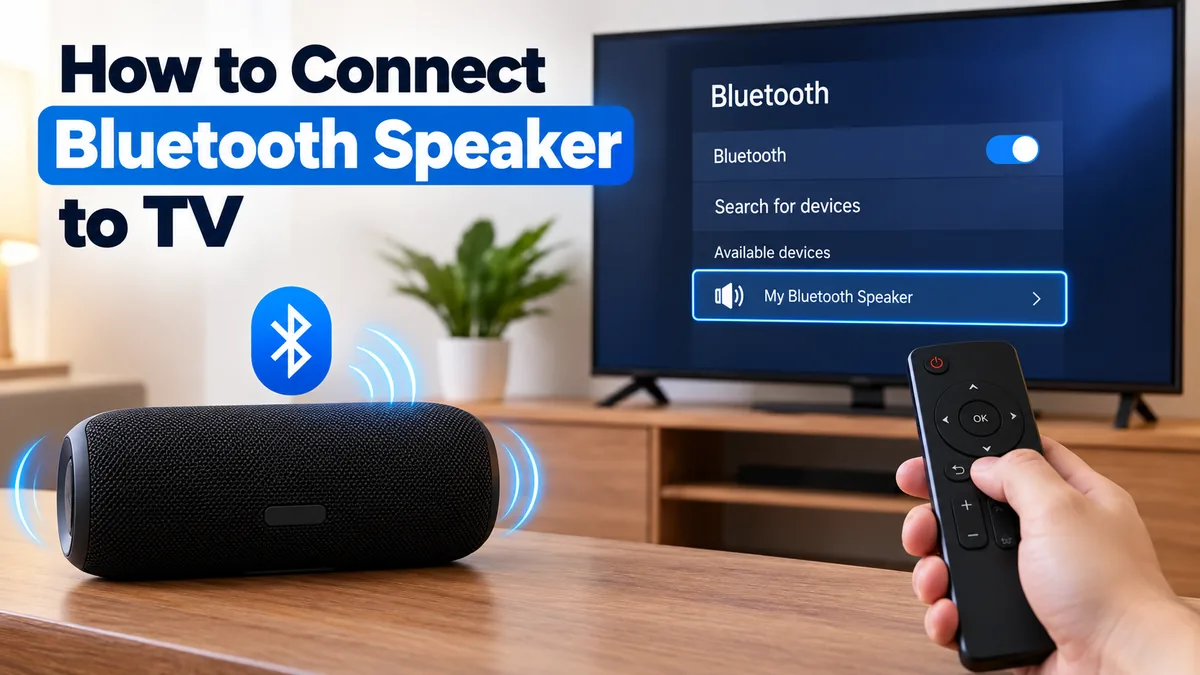

TV speakers are convenient, but their small drivers often struggle to produce clear dialogue, strong bass, and room-filling sound. A Bluetooth speaker can be a simple wireless upgrade—provided your television supports Bluetooth audio output.
If you are wondering how to connect bluetooth speaker to tv, the basic process is simple: put the speaker in pairing mode, open your TV’s Bluetooth or Sound Output settings, find the speaker, and select it as the audio output. If the TV cannot transmit Bluetooth audio, you can usually add this capability with an external Bluetooth transmitter.
Quick answer: Turn on your Bluetooth speaker and activate pairing mode. On the TV, open Settings > Sound/Audio Output > Bluetooth, scan for available devices, and select your speaker. Once paired, make sure Bluetooth is selected as the TV’s active sound output. TVs without Bluetooth audio support require a transmitter connected through an available audio output such as optical, AUX, or RCA.
Check Whether Your TV Supports Bluetooth Audio
Before trying to pair anything, confirm that your television can actually send audio over Bluetooth.
This distinction matters because having Bluetooth does not automatically mean a TV supports Bluetooth speakers. Some televisions use Bluetooth only for accessories such as remote controls, keyboards, game controllers, or other peripherals. Bluetooth audio generally requires the television to support an appropriate audio-streaming profile such as A2DP.
Start by opening your television’s settings and looking under areas such as:
- Sound
- Audio
- Sound Output
- Speaker
- Bluetooth
- Bluetooth Devices
- Bluetooth Speaker List
- Wireless Speaker
- Remotes & Accessories
If you see an option specifically mentioning Bluetooth speakers, headphones, or Bluetooth audio output, the TV probably supports direct wireless audio.
You can also check your TV’s specifications or user manual using its exact model number. This is more reliable than assuming that every smart TV includes Bluetooth audio.
Bluetooth Support vs. Bluetooth Audio Output
These two features are easy to confuse.
| TV Feature | Can It Connect to a Bluetooth Speaker? |
|---|---|
| Bluetooth audio output | Usually yes |
| A2DP audio support | Usually yes |
| Bluetooth for remote only | No |
| Bluetooth keyboard/mouse support only | No |
| No Bluetooth hardware | No, unless you add a transmitter |
If Bluetooth audio output is available, you can move directly to pairing.
How to Connect Bluetooth Speaker to TV Step by Step
The exact menu names vary among Samsung, LG, Sony, Google TV, Hisense, TCL, and other manufacturers, but the general process is similar.
1. Turn On the Bluetooth Speaker
Switch on your speaker and make sure it has enough battery power or is connected to a power source.
For the initial setup, place it relatively close to the television. Once everything works correctly, you can move the speaker to its normal listening position.
2. Put the Speaker Into Pairing Mode
Press the Bluetooth or pairing button on your speaker.
On many models, you need to press and hold the button until an LED begins flashing or you hear an audible pairing notification. The exact procedure depends on the speaker.
The flashing Bluetooth indicator normally means that the speaker is discoverable.
One common problem occurs when the speaker automatically reconnects to a previously paired phone, tablet, or computer. If that happens, disconnect the speaker from that device or temporarily turn off Bluetooth on the other device.
3. Open the TV’s Bluetooth Settings
Use your television remote to open Settings.
Look for a path similar to:
Settings > Sound > Sound Output > Bluetooth Speaker
Other televisions may place the feature under:
Settings > Bluetooth > Add Device
or:
Settings > Remotes & Accessories > Add Accessory
Menu names and locations vary by manufacturer, operating system, model year, region, and software version.
4. Search for Available Bluetooth Devices
Tell the television to search or scan for nearby devices.
After a few seconds, your speaker’s model or device name should appear.
If several Bluetooth devices appear, make sure you select the correct speaker.
5. Select and Pair the Speaker
Highlight your Bluetooth speaker and choose Pair, Connect, or OK.
Wait for the connection to complete. Your television may display a confirmation message, while the speaker may produce a tone indicating a successful connection.
6. Select the Bluetooth Speaker as the Audio Output
Some televisions automatically switch from their internal speakers to the Bluetooth device.
Others require you to change the sound output manually.
Open:
Settings > Sound > Sound Output
Then choose your connected Bluetooth speaker instead of TV Speaker, Internal Speaker, or a similar option.
7. Test the Connection
Play a movie, TV show, video, or music track.
Check three things:
- Sound comes from the Bluetooth speaker.
- Volume controls work correctly.
- Voices match the movement of people’s lips on screen.
If all three work properly, the setup is complete.
How to Connect a Bluetooth Speaker to a Samsung TV
Samsung’s exact menus vary by model and year, but compatible televisions commonly place Bluetooth audio controls in the Sound Output menu.
Look for a path similar to:
Settings > All Settings > Sound > Sound Output > Bluetooth Speaker List
Put your speaker into pairing mode, open the Bluetooth Speaker List, select the speaker, and confirm the connection. Samsung menu wording can vary across models and software versions.
If you cannot find a Bluetooth Speaker List or similar audio option, check the specifications for your exact Samsung TV model rather than assuming that a general Bluetooth setting supports audio.
How to Connect a Bluetooth Speaker to an LG TV
On compatible LG televisions, Bluetooth audio settings are normally available through Sound Out.
Depending on your webOS version, look for a menu path similar to:
Settings > All Settings > Sound > Sound Out
Then select an option such as Use Wireless Speaker or Bluetooth Device.
Place the speaker in pairing mode, allow the TV to search for it, and select it when its name appears.
Because LG has changed menu layouts between webOS versions, your TV may use slightly different wording.
How to Connect a Bluetooth Speaker to Sony or Google TV
Sony televisions running Android TV or Google TV may place Bluetooth devices under Remotes & Accessories, Bluetooth settings, or the television’s audio-output menu.
A common process is:
- Open Settings.
- Find Remotes & Accessories or Bluetooth settings.
- Choose Add Device or Pair Accessory.
- Put the Bluetooth speaker into pairing mode.
- Select the speaker when it appears.
- Confirm that it is being used for audio.
For Sony televisions, checking A2DP support for the specific model is useful because Bluetooth capability alone does not guarantee Bluetooth audio output.
How to Connect Bluetooth Speaker to TV Without Bluetooth
An older television—or even some newer models—may not support Bluetooth audio output.
You can still use a Bluetooth speaker.
The usual solution is a Bluetooth audio transmitter. This device receives sound from one of the TV’s physical audio outputs and wirelessly transmits it to the Bluetooth speaker.
Common connection options include:
| TV Audio Output | What You Need |
|---|---|
| 3.5 mm headphone/AUX | Bluetooth transmitter with 3.5 mm input |
| RCA red/white output | RCA-compatible transmitter or RCA-to-3.5 mm cable |
| Optical/TOSLINK | Bluetooth transmitter with optical input |
| Compatible HDMI ARC | Transmitter designed to receive HDMI ARC audio |
Check the ports on your television before buying an adapter.
Connecting Through a 3.5 mm AUX Output
If your TV has a headphone or 3.5 mm audio-output jack:
- Connect the Bluetooth transmitter to the TV’s 3.5 mm output.
- Supply power to the transmitter if required.
- Put the transmitter into pairing mode.
- Put the Bluetooth speaker into pairing mode.
- Wait for them to connect.
- Play something on the TV and test the sound.
This is one of the simplest setups for older televisions.
Connecting Through an Optical Output
Many TVs have a square optical digital audio port labeled Optical, Digital Audio Out, or TOSLINK.
For this setup:
- Connect an optical cable between the TV and Bluetooth transmitter.
- Select Optical or External Audio as the television’s sound output.
- Put the transmitter and speaker into pairing mode.
- Connect the devices.
- Test the audio.
If the devices connect but you hear nothing, check the TV’s digital audio format.
Some Bluetooth transmitters work best when the TV is configured for PCM rather than Dolby Digital or another multichannel format.
Why Won’t My Bluetooth Speaker Connect to My TV?
Pairing failures are common, but they usually have straightforward causes.
The Speaker Does Not Appear
First, confirm that the speaker is actually in pairing mode.
A speaker being powered on is not necessarily discoverable.
If it still does not appear:
- Move the speaker closer to the TV.
- Disconnect it from previously paired devices.
- Turn Bluetooth off on nearby phones or tablets temporarily.
- Restart the speaker.
- Restart the television.
- Re-enter pairing mode.
- Run the TV’s device scan again.
If no Bluetooth audio devices appear at all, verify that your television supports Bluetooth audio output, not merely Bluetooth accessories.
The Speaker Is Connected but There Is No Sound
A successful Bluetooth connection does not always mean that the TV has routed its audio to the speaker.
Open your TV’s sound settings and check the selected output.
It should show the Bluetooth speaker rather than the internal TV speakers.
Also check:
- TV volume
- Speaker volume
- Mute settings
- Audio output selection
- Digital audio format
- Speaker battery level
If you’re using an optical Bluetooth transmitter and receive no sound, try setting Digital Audio Output to PCM.
How to Fix Bluetooth Audio Delay on a TV
One of the biggest disadvantages of Bluetooth TV audio is latency.
You may hear a character speak slightly after their mouth moves. This happens because audio must be encoded, transmitted wirelessly, received, and decoded before the speaker plays it.
Several factors can affect the delay, including the television, speaker, transmitter, Bluetooth implementation, audio codec, and processing settings.
Use the TV’s A/V Sync Setting
Look under advanced sound settings for options named:
- A/V Sync
- AV Synchronization
- Lip Sync
- Audio Delay
- Digital Audio Delay
Adjust the setting while watching dialogue until the speech and picture line up.
Try PCM Audio
If your TV provides several digital audio formats, try switching the output to PCM.
This can simplify the audio processing chain and may help with compatibility or synchronization on some transmitter setups.
Reduce Extra Audio Processing
Features such as virtual surround sound, enhanced dialogue processing, or other sound effects can introduce additional processing.
Temporarily disable them and test again.
Consider a Low-Latency Transmitter
If you’re using an external transmitter, both ends of the Bluetooth connection need compatible technology to benefit fully from a particular low-latency codec.
Don’t choose a transmitter based only on a claim such as “Bluetooth 5.x.” Bluetooth version alone does not guarantee low-latency TV audio.
Why Does My Bluetooth Speaker Keep Disconnecting?
Intermittent Bluetooth connections can have several causes.
First, keep the speaker within a reasonable distance of the television and avoid placing major obstacles between the two devices.
Wireless congestion may also matter. Routers, phones, wireless peripherals, and other Bluetooth devices can contribute to interference in a crowded environment.
Also check whether the speaker is attempting to reconnect automatically to another paired device.
If disconnections continue:
- Remove or forget the speaker from the TV.
- Restart both devices.
- Put the speaker back into pairing mode.
- Pair it with the television again.
- Install available TV firmware updates.
You can also reset the speaker’s stored Bluetooth connections if its manufacturer provides that option.
Can You Connect Two Bluetooth Speakers to a TV?
Sometimes, but this depends entirely on the television and speaker ecosystem.
Many televisions support only one Bluetooth audio device at a time. Other models provide dual-audio or multi-output functions for compatible devices.
If your television cannot send audio to two Bluetooth speakers simultaneously, a compatible dual-link Bluetooth transmitter may provide an alternative.
However, two independently paired portable speakers are not automatically a proper stereo pair. If synchronized left/right audio matters, use speakers specifically designed to operate together or an audio system built for TV use.
Can TV Speakers and a Bluetooth Speaker Play at the Same Time?
Again, it depends on the TV.
Some televisions provide multi-output or accessibility features that allow internal speakers and an external audio device to operate together. Others automatically mute the internal speakers whenever Bluetooth audio is selected.
Check your television’s Sound Output, Accessibility, or Multi Audio Output settings to see whether simultaneous playback is supported.
Be aware that using two different audio paths can sometimes create an echo because one output may be delayed relative to the other.
Is a Bluetooth Speaker Better Than a Soundbar for TV?
They solve slightly different problems.
A portable Bluetooth speaker is convenient when you already own one and want better TV sound without installing additional equipment.
A soundbar is designed specifically for television audio and often provides TV-focused connectivity such as HDMI ARC/eARC or optical audio.
| Feature | Bluetooth Speaker | TV Soundbar |
|---|---|---|
| Wireless convenience | Excellent | Good |
| Portability | Excellent | Limited |
| Easy temporary setup | Excellent | Good |
| Potential Bluetooth latency | Yes | Usually avoidable with wired TV connection |
| HDMI ARC/eARC | Usually no | Common |
| TV-focused controls | Limited | Usually better |
| Existing-device convenience | Excellent | Requires dedicated hardware |
For casual viewing, a Bluetooth speaker can work very well. For permanent TV use, gaming, or situations where audio synchronization is critical, a wired optical or HDMI ARC/eARC audio system may be more predictable.
Practical Tips for Better Bluetooth TV Audio
Once everything is connected, a few small changes can improve the experience.
Place the speaker near the center of the television rather than far to one side. This makes dialogue feel more closely associated with the picture.
Avoid hiding the speaker inside a closed cabinet. Physical obstructions can affect both sound quality and wireless reliability.
For movies and TV shows, prioritize synchronization over aggressive audio effects. A simpler audio configuration often works better than adding several layers of processing.
Keep both your TV firmware and, where supported, your speaker firmware updated. Manufacturers sometimes address Bluetooth compatibility problems through software updates.
Finally, remember that a speaker previously paired with your phone may reconnect to it automatically. If the TV suddenly cannot find the speaker, checking your phone’s Bluetooth connection should be one of your first troubleshooting steps.
Final Thoughts on How to Connect Bluetooth Speaker to TV
Learning how to connect bluetooth speaker to tv usually comes down to one question: can your television transmit Bluetooth audio?
If it can, put the speaker in pairing mode, find it in the TV’s Bluetooth or Sound Output settings, connect it, and select it as the active audio device. The entire process can take only a few minutes.
If your TV doesn’t support Bluetooth audio, you don’t necessarily need a new television. A Bluetooth transmitter connected through the TV’s AUX, RCA, optical, or another compatible audio output can add wireless speaker capability.
For problems after pairing, check the audio-output selection first. For lip-sync problems, experiment with A/V sync controls, PCM output, and reduced audio processing. Those simple adjustments solve many of the issues that make Bluetooth TV audio seem more complicated than it actually is.
