
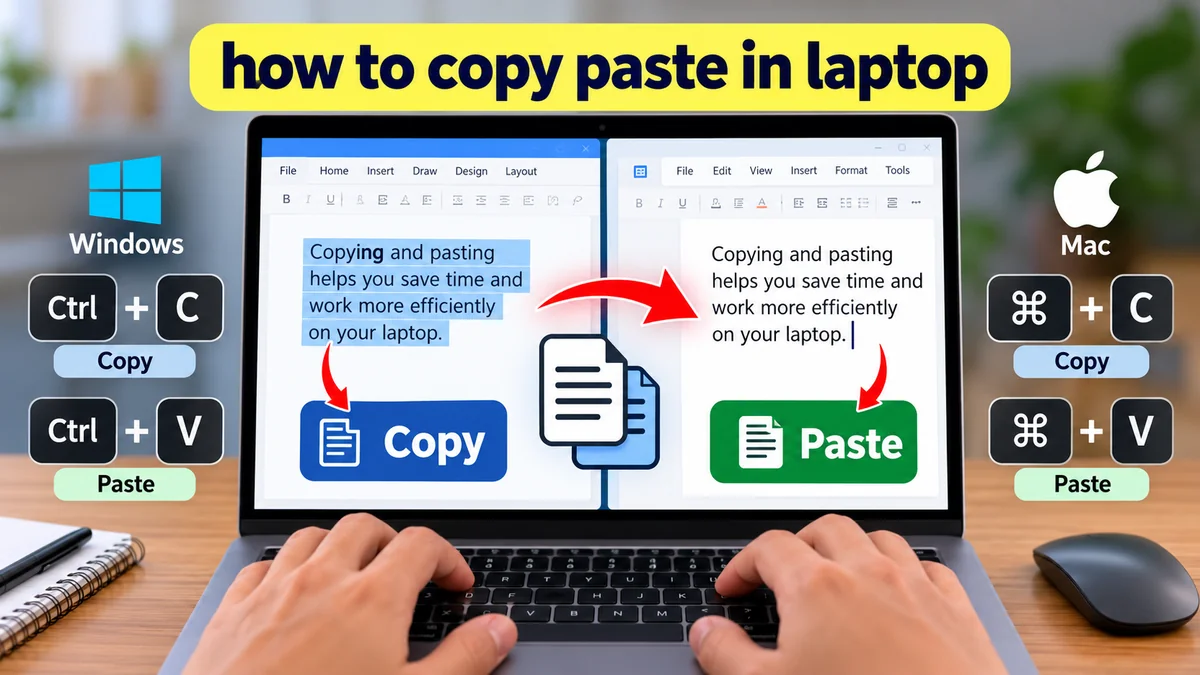

Copying and pasting is one of the easiest ways to save time while using a laptop. Instead of typing the same information again, you can move text, images, files, and links from one place to another in seconds.
If you’re learning how to copy paste in laptop, you can use keyboard shortcuts, a mouse, or your laptop’s touchpad. The steps are simple and work across most applications, including Microsoft Word, Google Docs, web browsers, and file managers.
Quick answer: To copy and paste on a Windows laptop, select the text or file, press Ctrl + C to copy it, click where you want to insert it, and press Ctrl + V to paste. On a MacBook, use Command + C and Command + V instead.
How to copy paste in laptop using keyboard shortcuts
Keyboard shortcuts are usually the fastest method because you don’t need to open menus or switch between your keyboard and mouse.
Step 1: Select the text you want to copy
Open the document, website, email, or application containing the text.
To select text using your mouse or touchpad:
- Position the pointer at the beginning of the text.
- Press and hold the left mouse button or touchpad click.
- Drag the pointer across the words you want.
- Release when the text is highlighted.
You can also select text using your keyboard. Hold Shift and press the arrow keys to highlight characters or lines.
Step 2: Copy the selected text
After highlighting the text, press:
- Ctrl + C on Windows and most Linux laptops.
- Command (⌘) + C on MacBooks.
- Ctrl + C on Chromebooks.
The selected text is copied to your computer’s clipboard, a temporary storage area used for copying and pasting.
Step 3: Choose where to paste
Click inside the document, text box, email, or application where you want the copied content to appear.
Make sure the text cursor is visible in the correct position.
Step 4: Paste the copied content
Press Ctrl + V on Windows, Linux, or Chromebook, or Command + V on Mac.
Your copied text should appear immediately.
For example, if you copy a paragraph from a website and paste it into Microsoft Word, you can reuse the text without manually typing every word.
Essential copy, paste, and cut keyboard shortcuts
These shortcuts are useful for everyday laptop tasks.
| Action | Windows / Chromebook | MacBook |
|---|---|---|
| Copy | Ctrl + C | Command + C |
| Paste | Ctrl + V | Command + V |
| Cut | Ctrl + X | Command + X |
| Select all | Ctrl + A | Command + A |
| Undo | Ctrl + Z | Command + Z |
| Redo | Ctrl + Y (commonly) | Command + Shift + Z |
| Paste without formatting | Ctrl + Shift + V (supported apps) | Command + Shift + V (some apps) |
The exact shortcuts for pasting without formatting and redoing an action can vary by application.
What is the difference between copy and cut?
Copying creates a duplicate of the selected content while leaving the original in place.
Cutting prepares the selected content to be moved elsewhere. For text, the original selection is usually removed immediately. For files, the move normally takes effect when you paste them into the destination.
Use Ctrl + C when you want to duplicate something and Ctrl + X when you want to move it.
How to copy paste in laptop without using the keyboard
You don’t have to remember shortcuts to copy and paste. Most laptop applications provide copy and paste options through the right-click menu.
Copy and paste using a mouse
- Highlight the text you want to copy.
- Right-click the highlighted text.
- Select Copy from the menu.
- Move to the destination.
- Right-click and select Paste.
This method works in many Windows applications, including Microsoft Word, Notepad, and web browsers.
Some websites and applications restrict right-click actions, so the menu may not always be available.
Copy and paste using a laptop touchpad
If you don’t have an external mouse, your laptop’s built-in touchpad can perform the same actions.
On many Windows laptops:
- Use the touchpad to position the pointer.
- Click and drag to highlight the text.
- Tap the touchpad with two fingers to open the context menu.
- Choose Copy.
- Move to the destination and open the context menu again.
- Choose Paste.
On some laptops, pressing the lower-right area of the touchpad also opens the right-click menu.
Touchpad gestures depend on the device and its settings.
Copy and paste using application menus
Applications such as Microsoft Word and Google Docs offer editing commands in their menus.
For example, in Microsoft Word, you can use the Home tab to access Copy, Cut, and Paste.
On macOS, many applications provide these options under the Edit menu.
This method is helpful when keyboard shortcuts are unfamiliar or temporarily unavailable.
How to copy and paste on different laptop operating systems
Although copying and pasting work similarly across devices, keyboard shortcuts and available features can differ.
Windows 10 and Windows 11 laptops
On Windows laptops from manufacturers such as HP, Dell, Lenovo, ASUS, Acer, and Microsoft Surface, the standard shortcuts are:
- Ctrl + C to copy.
- Ctrl + V to paste.
- Ctrl + X to cut.
- Ctrl + A to select everything.
These shortcuts work in most standard applications.
Windows also provides clipboard history, which can store multiple recently copied items.
To access it, press Windows + V.
If clipboard history hasn’t been enabled, Windows will offer an option to turn it on.
Once enabled, you can choose from previously copied text and supported images rather than pasting only the most recent item.
Clipboard history has limits, and some content types or sensitive items may not be retained.
Apple MacBook Air and MacBook Pro
MacBooks use the Command key instead of the Control key for most standard copy-and-paste operations.
Follow these steps:
- Select the desired content.
- Press Command + C.
- Open the destination document or application.
- Press Command + V.
You can also use the Edit menu or the trackpad’s secondary-click gesture.
In many Mac applications, Option + Shift + Command + V pastes text while matching the destination’s formatting, although support varies.
Chromebook laptops
Chromebooks use shortcuts similar to Windows laptops.
Select the content and press Ctrl + C, then Ctrl + V.
Chromebook users can also press Search + V or Launcher + V to access clipboard history on supported ChromeOS versions.
This feature makes it easier to reuse several copied items.
Linux laptops
Most Linux desktop environments support Ctrl + C and Ctrl + V in ordinary graphical applications.
However, terminal applications commonly use Ctrl + Shift + C to copy and Ctrl + Shift + V to paste.
This difference matters because Ctrl + C in a terminal is normally used to interrupt a running command.
How to copy and paste files, folders, and images
Copying and pasting isn’t limited to written text. You can also duplicate files, organize folders, and transfer images.
Copy and paste files on a Windows laptop
Suppose you want to copy a PDF document from your Downloads folder to your Desktop.
- Open File Explorer using Windows + E.
- Navigate to the Downloads folder.
- Click the PDF file once to select it.
- Press Ctrl + C.
- Open the Desktop folder.
- Press Ctrl + V.
Windows creates another copy of the file in the destination.
The original remains in Downloads.
To move the file instead, use Ctrl + X followed by Ctrl + V.
Copy and paste multiple files at once
You don’t need to copy files individually.
To select several files:
- Hold Ctrl and click individual files on Windows.
- Hold Shift and click to select a continuous range.
- Press Ctrl + A to select everything in the current folder.
Once selected, press Ctrl + C, navigate to the destination, and press Ctrl + V.
This is useful when organizing photos, documents, and downloaded files.
Copy and paste files on a MacBook
Open Finder and select the file you want to duplicate.
Press Command + C, open the destination folder, and press Command + V.
To move a copied file instead of duplicating it, use Option + Command + V in Finder after copying.
Copy and paste images
You can copy many images directly from websites or documents.
For example:
- Open a webpage containing an image.
- Right-click the image.
- Select Copy image if available.
- Open an application that accepts pasted images.
- Press Ctrl + V or Command + V.
Keep in mind that copying an image is different from copying its web address. Copy image address copies a URL rather than the image itself.
Some websites restrict copying, and not every application supports pasted images.
How to paste text without formatting
When copying text from a website into a document, the pasted content may retain its original font, color, size, or hyperlinks.
This can make a document look inconsistent.
Pasting without formatting usually removes the source’s visual styling while keeping the text.
On Windows
In many applications, use Ctrl + Shift + V.
This commonly works in Google Docs, Gmail, and modern browsers, but it isn’t universal.
In Microsoft Word, you can use the paste options menu and choose Keep Text Only.
On Mac
In supported applications, use the Edit menu and select an option such as Paste and Match Style.
The keyboard shortcut varies depending on the application.
Example
Suppose you copy this sentence from a webpage:
Learning keyboard shortcuts saves time.
If you paste it normally, the bold formatting may be preserved.
If you paste it as plain text, the words appear using the destination’s formatting.
This is especially useful when preparing assignments, writing emails, or combining text from multiple sources.
How to copy and paste in Microsoft Word, Google Docs, and Excel
Different applications handle pasted content slightly differently, particularly when working with tables, formulas, and formatting.
Copy and paste in Microsoft Word
Microsoft Word supports standard keyboard shortcuts and several paste options.
To copy a paragraph:
- Open your Word document.
- Highlight the paragraph.
- Press Ctrl + C.
- Position your cursor where the paragraph should appear.
- Press Ctrl + V.
Word may display a small Paste Options button after pasting.
You can use it to keep the original formatting, merge formatting with the destination, or retain only the text.
Copy and paste in Google Docs
Google Docs works with common keyboard shortcuts.
Select the content, press Ctrl + C, then Ctrl + V at the destination.
To paste without the original formatting, use Ctrl + Shift + V on Windows or Command + Shift + V on Mac.
This is useful when transferring information from websites into school assignments or shared documents.
Copy and paste in Microsoft Excel
Excel lets you copy text, numbers, formulas, and entire cell ranges.
For example:
- Select cell A1.
- Press Ctrl + C.
- Select cell B1.
- Press Ctrl + V.
If A1 contains a formula, Excel may adjust its relative cell references when the formula is pasted.
To copy only the calculated result, use Paste Special → Values.
You can also copy multiple rows or columns by selecting the appropriate range before copying.
How to use clipboard history on a laptop
The clipboard temporarily stores information you’ve copied or cut.
Normally, pressing Ctrl + V pastes the most recently copied item. Clipboard history provides access to some earlier items.
Access clipboard history in Windows
Windows 10 and Windows 11 include built-in clipboard history.
- Press Windows + V.
- Select Turn on if prompted.
- Copy several pieces of text.
- Press Windows + V again.
- Choose the item you want to paste.
Microsoft documents a limit of 25 entries for Windows clipboard history, with older unpinned entries removed as new ones are added.
Microsoft Support
+1
Access clipboard history on Chromebook
Press Launcher + V or Search + V.
A clipboard menu will appear, allowing you to select a previously copied item. Google also documents Ctrl + Shift + V for pasting plain text.
Chromebook Help
Clipboard features on Mac
Standard copy and paste on macOS uses the system clipboard. Newer macOS versions also provide clipboard-history functionality, although availability depends on the installed version.
Apple documents Command + C, Command + V, and Option + Shift + Command + V for common clipboard actions.
Apple Support
Why is copy and paste not working on my laptop?
Sometimes Ctrl + C or Ctrl + V stops working, or the Paste option appears disabled.
The problem may involve the selected content, destination application, keyboard, or clipboard.
1. Check whether the content is selected
Copy commands usually require you to select text, an image, or a file first.
If nothing is selected, pressing Ctrl + C may have no effect.
Try highlighting a short sentence and copying it again.
2. Check the destination
Not every application accepts every type of content.
For example, a plain-text editor may accept copied words but not an embedded image.
Try pasting into Notepad or another compatible application to determine whether the problem is specific to the destination.
3. Test the keyboard shortcuts
If Ctrl + C isn’t working, try right-clicking and selecting Copy.
If the context-menu method works, check whether the Ctrl key or another keyboard key is malfunctioning.
On a MacBook, remember to use Command rather than Control for standard copying and pasting.
4. Restart the application
Occasionally, an application becomes unresponsive or fails to process clipboard commands.
Save your work, close the application, reopen it, and try again.
5. Check clipboard history
On Windows, press Windows + V to see whether recent copied items appear.
If clipboard history is enabled but behaving unexpectedly, open Settings → System → Clipboard to review its settings.
You can also clear clipboard history, although doing so removes stored entries that haven’t been pinned.
6. Restart your laptop
If copying and pasting fails across several applications, restarting your computer may resolve temporary software problems.
Save any unsaved documents before restarting.
7. Check for restricted content
Some secure applications, remote desktops, password fields, and protected documents intentionally limit clipboard operations.
In those situations, copying or pasting may be disabled by design rather than because of a technical fault.
Useful copy-and-paste tricks for everyday laptop use
Once you understand the basics, a few additional shortcuts can make everyday tasks easier.
Select an entire document instantly
Instead of dragging your mouse through several pages, press Ctrl + A on Windows or Command + A on Mac.
This selects all applicable content in the active document or text field.
Then press the copy shortcut to copy everything selected.
Copy a website link
To copy the address of a webpage:
- Click the browser’s address bar.
- Press Ctrl + L on Windows or Command + L on Mac to focus the address bar.
- Press Ctrl + C or Command + C.
- Paste the link into a message, document, or email.
You can also right-click a hyperlink and select an option such as Copy Link Address.
Copy text from a PDF
Many PDF readers allow you to highlight and copy selectable text.
Open the PDF, select the text, and use the usual copy shortcut.
However, scanned PDFs may contain images of text rather than selectable characters. Those documents may require optical character recognition (OCR) before the text can be copied.
Copy a screenshot
On Windows, press Windows + Shift + S to open the screen-capture interface.
Select the area you want to capture. The screenshot is copied to the clipboard, allowing you to paste it into a compatible application.
Microsoft Support
On Mac, Control + Shift + Command + 4 lets you capture a selected area directly to the clipboard.
Copy and paste between devices
Some operating systems support sharing clipboard content between compatible devices.
For example, Windows provides clipboard synchronization options for supported devices signed into the appropriate account.
Apple’s Universal Clipboard can transfer copied content between compatible Apple devices when its requirements are met.
These features are useful when switching between a laptop, phone, and tablet.
Common mistakes to avoid when copying and pasting
Copying and pasting is simple, but a few mistakes can lead to missing content or unexpected results.
| Mistake | What happens | How to avoid it |
|---|---|---|
| Forgetting to select text | Nothing useful is copied | Highlight the content first |
| Pressing Ctrl + X instead of Ctrl + C | Original text is removed | Use Copy when you need a duplicate |
| Copying something else before pasting | Clipboard content changes | Paste immediately or use clipboard history |
| Pasting into the wrong field | Content appears in the wrong location | Check cursor position |
| Keeping unwanted formatting | Fonts and colors become inconsistent | Use plain-text paste |
| Copying a link instead of an image | A URL appears instead of the picture | Choose Copy Image |
| Overwriting an existing file | Existing content may be replaced | Review file-conflict prompts |
For important documents, verify that the pasted content is complete before deleting or moving the original.
How to practice copying and pasting on your laptop
If you’re completely new to laptop shortcuts, try this simple exercise.
Open Notepad on Windows, TextEdit on Mac, or a blank Google Docs document.
Type:
I am learning how to use my laptop.
Select the sentence and press Ctrl + C (or Command + C on Mac).
Move to a new line and press Ctrl + V (or Command + V).
You should now see the same sentence twice.
Next, select the second sentence and press Ctrl + X or Command + X. Move to another line and paste it.
This demonstrates the difference between copying and cutting.
Finally, try selecting all the text and pasting it into a new document.
Practicing these actions a few times helps make the shortcuts feel natural.
Final Thoughts
Learning how to copy paste in laptop is a basic computer skill that makes writing, studying, browsing, and file management much easier.
The most useful shortcuts to remember are Ctrl + C for copying, Ctrl + V for pasting, and Ctrl + X for cutting on Windows and Chromebook. Mac users can perform the same actions using the Command key.
You can also copy and paste with a mouse, touchpad, or application menu when keyboard shortcuts aren’t convenient.
Start by practicing with a short sentence, then try copying links, images, and files. Once you’re comfortable with these methods, you’ll be able to move information between applications quickly and accurately.
