
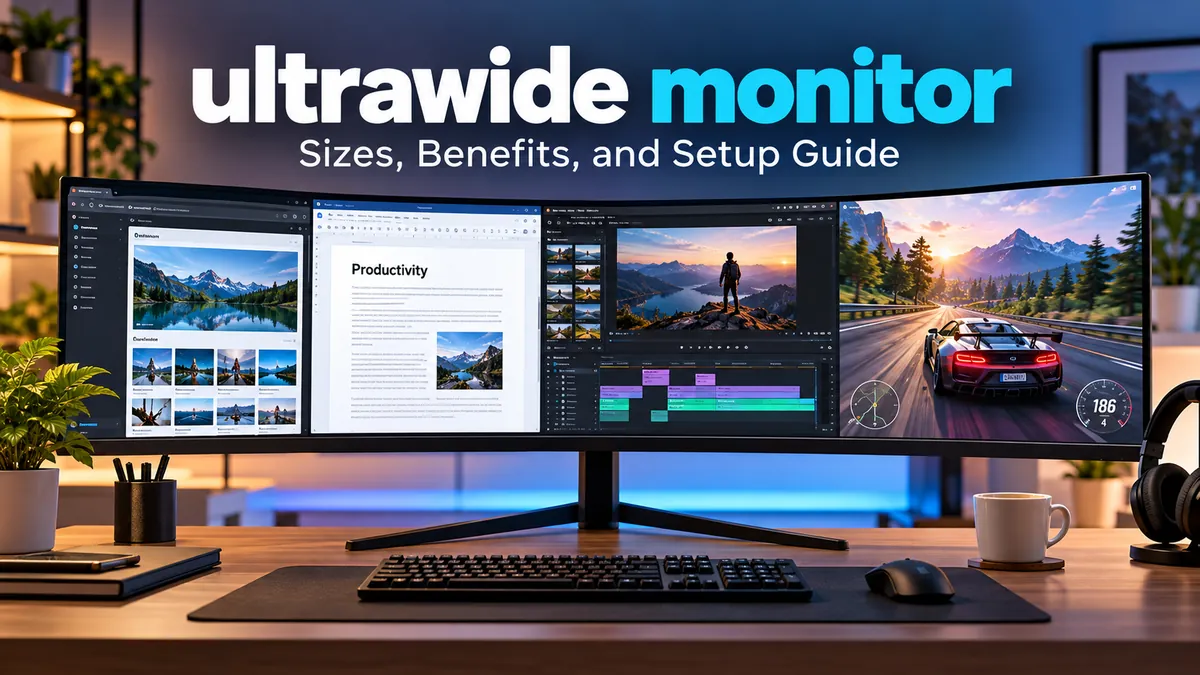

A standard monitor can feel cramped when you’re juggling spreadsheets, browser tabs, editing timelines, and multiple applications. Adding a second screen helps, but it also introduces bezels, extra cables, and more desk clutter.
An ultrawide monitor offers another approach: a single, wider display that gives you more horizontal room without dividing your workspace into separate screens.
An ultrawide monitor is a computer display with a wider aspect ratio than the traditional 16:9 format, typically 21:9 or 32:9. It provides additional horizontal screen space for multitasking, immersive gaming, video editing, and productivity. Common resolutions include 2560 × 1080, 3440 × 1440, and 5120 × 1440.
The extra width can make everyday computing more comfortable, but it also creates trade-offs involving desk space, software compatibility, graphics performance, and ergonomics.
Understanding those differences is the key to deciding when a wider screen is genuinely useful.
What Is an ultrawide monitor?
An ultrawide monitor is a display designed with a wider screen aspect ratio than a conventional widescreen computer monitor.
The aspect ratio describes the relationship between a screen’s width and height.
Most standard desktop monitors use a 16:9 aspect ratio. Ultrawide displays commonly use approximately 21:9, while super ultrawide models often use 32:9.
The result is a screen that extends farther horizontally, giving users more room to arrange applications or view wide-format content.
Ultrawide vs. standard monitors
| Feature | Standard monitor | Ultrawide monitor |
|---|---|---|
| Common aspect ratio | 16:9 | 21:9 or 32:9 |
| Typical sizes | 24–32 inches | 29–49 inches and larger |
| Popular resolutions | 1920 × 1080, 2560 × 1440, 3840 × 2160 | 2560 × 1080, 3440 × 1440, 5120 × 1440 |
| Multitasking | One or two windows comfortably | Multiple windows side by side |
| Gaming view | Conventional widescreen | Wider field of view when supported |
| Desk requirements | Usually compact | More horizontal space |
| Content compatibility | Broad support | Some applications show side bars |
The distinction is not simply physical size. A 34-inch ultrawide monitor and a 32-inch standard monitor have different proportions, even though their diagonal measurements are similar.
The wider display prioritizes horizontal workspace rather than overall screen height.
Is 21:9 the same as ultrawide?
The term 21:9 is widely used to describe ultrawide monitors, although many displays marketed this way have a slightly different mathematical ratio.
For example, 3440 × 1440 has a width-to-height ratio of approximately 2.39:1, rather than exactly 21:9.
Manufacturers use the 21:9 label as a convenient category for these wider displays.
ultrawide monitor Sizes and Resolutions Explained
Screen size and resolution are two of the most important characteristics of an ultrawide display.
Screen size determines its physical dimensions, while resolution determines how many pixels are available to display text, images, and interface elements.
A larger screen does not automatically produce a sharper image.
Common ultrawide resolutions
| Resolution | Approximate aspect ratio | Typical screen size | Pixel count |
|---|---|---|---|
| 2560 × 1080 | 21:9 class | 29–34 inches | 2.76 million |
| 3440 × 1440 | 21:9 class | 34–35 inches | 4.95 million |
| 3840 × 1600 | 21:9 class | 38–40 inches | 6.14 million |
| 5120 × 1440 | 32:9 | 49 inches | 7.37 million |
| 5120 × 2160 | 21:9 class | 40–45 inches | 11.06 million |
| 7680 × 2160 | 32:9 | 57 inches | 16.59 million |
These are common configurations rather than a complete list of available displays.
29-inch ultrawide monitors
A 29-inch ultrawide is a relatively compact entry into wide-screen computing.
Many use 2560 × 1080 resolution, providing extra horizontal room compared with a 1920 × 1080 monitor while maintaining the same vertical pixel count.
This configuration can work well for web browsing, office applications, and casual multitasking.
However, users accustomed to 1440p or 4K displays may notice the limited vertical resolution.
34-inch ultrawide monitors
A 34-inch ultrawide monitor is one of the most established display formats.
Many models use 3440 × 1440 resolution, often called UWQHD.
This configuration offers approximately 34% more pixels than a conventional 2560 × 1440 monitor.
It provides enough horizontal space for two substantial application windows while retaining 1440 pixels of vertical resolution.
At this size and resolution, pixel density is approximately 110 pixels per inch (PPI), which is generally suitable for everyday desktop use at a comfortable viewing distance.
38-inch and 40-inch ultrawide monitors
Larger ultrawide screens often use resolutions such as 3840 × 1600 or 5120 × 2160.
The additional vertical pixels are particularly helpful for programming, document editing, complex spreadsheets, and creative applications.
A 5120 × 2160 display offers the same vertical pixel count as a conventional 4K UHD monitor while extending the workspace horizontally.
This makes it useful for users who want both high pixel density and a wide desktop.
49-inch super ultrawide monitors
A 49-inch super ultrawide display commonly uses a 32:9 aspect ratio with 5120 × 1440 resolution.
That provides the same total pixel dimensions as two 2560 × 1440 monitors placed side by side.
The difference is that the image appears on one continuous panel without a physical bezel separating the center.
Super ultrawide displays are often used for racing simulators, financial dashboards, large spreadsheets, and complex multitasking setups.
They also require substantial desk space and careful consideration of viewing distance.
What about 57-inch super ultrawide displays?
Some larger monitors use 7680 × 2160 resolution, effectively providing the pixel dimensions of two 3840 × 2160 UHD screens side by side.
These displays have significantly greater graphics bandwidth requirements than conventional ultrawide monitors.
The graphics card, video connection, refresh rate, color depth, and display compression support must all be considered.
Curved vs. Flat Ultrawide Displays
One of the most visible differences between ultrawide models is whether the screen is curved or flat.
Both designs have advantages, and neither is universally better.
How curved monitors work
A curved display bends the panel inward toward the viewer.
The curvature is commonly described using a radius measurement such as 1000R, 1500R, or 1800R.
The number refers to the radius of the theoretical circle, measured in millimeters, that matches the curve.
A smaller radius means a more pronounced curve.
For example:
- 1000R represents a relatively aggressive curve.
- 1500R provides a moderate curve.
- 1800R offers a gentler curve.
Curvature can make the far edges of a very wide screen feel more directly oriented toward the viewer.
This is especially noticeable on large 32:9 displays.
Benefits of a curved ultrawide monitor
A curved monitor may improve the viewing experience by keeping distant parts of the screen more naturally aligned with the user’s seated position.
Potential advantages include a more enveloping gaming experience, comfortable viewing across wide panels, and a more consistent viewing angle near the edges.
However, curvature does not automatically reduce eye strain or eliminate the need for proper ergonomics.
When a flat ultrawide makes sense
Flat ultrawide monitors remain useful for many applications.
They can be preferable when straight-line geometry matters, when multiple people regularly view the screen from different positions, or when a display is mounted in a setup where curvature creates practical difficulties.
Some graphic designers and technical professionals prefer flat panels because they find them easier to evaluate visually.
For very wide screens, though, a curved design can make edge-to-edge viewing more comfortable.
ultrawide monitor Benefits for Productivity and Multitasking
The most practical advantage of an ultrawide monitor is the ability to display more information horizontally.
Rather than switching constantly between applications, users can keep related windows visible at the same time.
Working with multiple windows
Consider a typical research workflow.
A user might keep a browser open on the left, a document editor in the center, and reference notes on the right.
On a standard 16:9 monitor, these windows may become too narrow to use comfortably.
A 3440 × 1440 ultrawide display provides more room to distribute them.
This does not mean every application will automatically use the additional space effectively. Window management remains important.
Windows 11 includes Snap Layouts, while macOS provides window tiling and other workspace-management features. Third-party tools such as Microsoft PowerToys FancyZones can provide more customized arrangements.
Programming and software development
Developers can benefit from keeping code, documentation, terminal windows, and application previews visible simultaneously.
A wide display can be particularly useful for comparing files or reviewing code changes side by side.
However, screen height also matters.
A programmer who frequently reads long files may prefer a monitor with additional vertical resolution rather than simply greater width.
Video editing and content creation
Video editors often benefit from a longer visible timeline.
Applications such as Adobe Premiere Pro and DaVinci Resolve can use the extra horizontal space for tracks, panels, media bins, and previews.
A wider screen may reduce the need to scroll through a complex timeline.
For photo editing, applications such as Adobe Photoshop and Lightroom can also use the extra workspace for panels and tools.
Color accuracy, uniformity, calibration, and panel technology remain more important than aspect ratio alone when evaluating a display for color-critical work.
Spreadsheets and financial analysis
Large spreadsheets can become easier to navigate when more columns remain visible.
An ultrawide display can also accommodate multiple dashboards, financial charts, or analytical applications without requiring a separate physical monitor.
For these workflows, the most useful specification is often the combination of resolution, physical size, and text readability.
Quick takeaway: Ultrawide monitors improve productivity most when users regularly work with multiple windows or applications that benefit from horizontal space. They offer less advantage for tasks that primarily involve reading one narrow document.
Is an ultrawide monitor Good for Gaming?
Ultrawide monitors are popular among PC gamers because compatible games can display a wider horizontal field of view.
This can make environments feel more immersive, particularly in racing games, flight simulators, exploration games, and cinematic single-player experiences.
However, the benefits depend on game compatibility, graphics hardware, and display performance.
Wider field of view
Field of view (FOV) describes how much of the game world appears on screen.
A game that properly supports 21:9 may reveal more scenery on the left and right compared with 16:9.
In racing simulators, this can make approaching corners and nearby vehicles easier to see. In exploration games, the expanded view can create a stronger sense of immersion.
Not every game handles ultrawide resolutions the same way.
Some expand horizontal visibility, while others crop the image, restrict the field of view, or display black bars.
Refresh rate and response time
Refresh rate measures how many times a monitor updates its image each second.
Common refresh rates include 60Hz, 100Hz, 144Hz, 165Hz, 240Hz, and higher.
A 144Hz monitor can display up to 144 distinct frames per second when the computer delivers them.
Higher refresh rates can make movement appear smoother and reduce the delay between updated frames.
Response time measures how quickly pixels transition between states. Slow pixel transitions can produce motion blur or ghosting.
Refresh rate and response time are different specifications, so a high refresh rate alone does not guarantee excellent motion clarity.
Adaptive sync technologies
Variable refresh rate (VRR) technologies help synchronize monitor updates with the frame rate produced by the graphics card.
Common technologies include:
- AMD FreeSync
- NVIDIA G-SYNC and G-SYNC Compatible
- VESA Adaptive-Sync
These technologies can reduce visible tearing and stuttering when operating within supported conditions.
Actual compatibility depends on the monitor, graphics card, connection type, and driver support.
Does ultrawide gaming require a better graphics card?
Generally, yes, when comparing displays with the same vertical resolution.
A 3440 × 1440 monitor renders approximately 4.95 million pixels per frame, compared with 3.69 million on a 2560 × 1440 display.
That is approximately 34% more pixels.
The additional workload can reduce frame rates, although the actual performance difference depends on the game, GPU, graphics settings, and rendering technology.
Features such as NVIDIA DLSS, AMD FSR, and Intel XeSS can help improve performance in supported games by using upscaling techniques.
Do all PC games support ultrawide resolutions?
No.
Many modern PC games support 21:9 displays, but compatibility is not universal.
Some titles limit gameplay to 16:9, and others support ultrawide gameplay while keeping menus or cinematic sequences in narrower formats.
Competitive games may also restrict unusually wide fields of view to preserve consistent gameplay conditions.
Before relying on an ultrawide display for a particular game, check its supported resolutions and display settings.
Ultrawide Monitor Panel Types: IPS, VA, OLED, and Mini-LED
Panel technology influences contrast, color reproduction, viewing angles, response time, and overall picture quality.
Ultrawide monitors are available with several different panel technologies.
| Technology | Main strengths | Main limitations |
|---|---|---|
| IPS | Wide viewing angles, consistent colors | Often lower native contrast than VA |
| VA | Strong native contrast, deep-looking blacks | Some models show dark-level motion smearing |
| OLED | Pixel-level black control, excellent response times | Burn-in risk and possible text-rendering concerns |
| QD-OLED | OLED contrast with quantum-dot color technology | Burn-in risk and lighting-dependent black appearance |
| Mini-LED LCD | High HDR brightness and local dimming | Blooming and performance differences between implementations |
IPS panels for office work
In-plane switching (IPS) panels are commonly associated with wide viewing angles and consistent color reproduction.
These characteristics are useful when working with documents, design software, and multiple application windows.
IPS Black technology is a variation designed to improve contrast compared with conventional IPS implementations.
However, panel quality varies significantly between individual monitors.
VA panels for contrast
Vertical alignment (VA) panels typically offer higher native contrast than standard IPS panels.
This can improve the appearance of dark scenes and make them attractive for entertainment and gaming.
Some VA displays suffer from slower transitions between dark shades, creating visible smearing during motion.
Better implementations can substantially reduce this problem.
OLED and QD-OLED displays
Organic light-emitting diode (OLED) displays control light at the pixel level.
Because individual pixels can switch off, OLED panels can produce extremely deep blacks and excellent perceived contrast.
QD-OLED combines OLED technology with quantum dots for color reproduction.
OLED ultrawides are especially attractive for gaming and HDR entertainment, but they require additional consideration for office use.
Static interface elements, such as taskbars and application toolbars, can contribute to uneven pixel aging over extended use.
Manufacturers provide protective features, including pixel refresh routines, screen shifting, and automatic dimming.
These reduce risk but do not eliminate it.
What does Mini-LED mean?
Mini-LED is a backlighting technology used with LCD panels, rather than a separate LCD panel type.
It divides the backlight into multiple independently controlled dimming zones.
This can improve HDR contrast and brightness compared with conventional edge-lit LCD monitors.
However, bright objects against dark backgrounds may produce visible halos, commonly called blooming.
HDR performance also depends on peak brightness, local dimming algorithms, contrast, and color capability.
A DisplayHDR certification can provide useful information, but actual independent testing remains valuable.
Ultrawide vs. Dual Monitors vs. 4K Displays
An ultrawide monitor is not the only way to increase desktop workspace.
Two conventional monitors or one high-resolution 4K display may serve the same purpose differently.
Ultrawide vs. dual monitors
| Consideration | One ultrawide | Two monitors |
|---|---|---|
| Center bezel | None | Usually present |
| Window flexibility | One continuous desktop | Separate physical displays |
| Screen positioning | Limited independent adjustment | Each display adjusts independently |
| Cable management | Usually simpler | More display connections |
| Gaming immersion | Excellent with supported titles | Multi-monitor gaming varies |
| Full-screen applications | Occupy the wide display | Can run on one monitor |
| Sharing one screen | Requires window selection or partitioning | Easy to dedicate one display |
| Upgrade flexibility | Replace or add another screen | Upgrade either display separately |
A 49-inch 5120 × 1440 super ultrawide offers the same total pixel dimensions as two 27-inch 2560 × 1440 displays.
That makes the comparison particularly useful.
Dual monitors provide independent positioning and make it easier to dedicate one display to full-screen content.
An ultrawide provides a continuous workspace and avoids a bezel through the middle.
Ultrawide vs. 4K
A standard 4K UHD monitor uses 3840 × 2160 resolution.
A common 3440 × 1440 ultrawide has fewer total pixels and less vertical resolution.
| Specification | 34-inch ultrawide | 32-inch 4K |
|---|---|---|
| Resolution | 3440 × 1440 | 3840 × 2160 |
| Aspect ratio | 21:9 class | 16:9 |
| Total pixels | 4.95 million | 8.29 million |
| Approximate pixel density | 110 PPI | 138 PPI |
| Primary advantage | Wider desktop layout | Higher resolution and vertical space |
A 4K monitor can display finer details and more vertical information, provided scaling settings and viewing distance make that information readable.
An ultrawide prioritizes horizontal workspace.
For photo editing and detailed design work, 4K may offer greater practical benefits.
For timelines, side-by-side documents, and immersive gaming, ultrawide proportions may be more useful.
How to Set Up an ultrawide monitor Properly
Correct setup makes a substantial difference to the experience.
A wide monitor positioned too close, too high, or off-center can become uncomfortable even when the display itself performs well.
1. Check desk dimensions
Start by measuring the available horizontal space.
Approximate panel widths for common display formats are:
| Monitor size | Approximate panel width |
|---|---|
| 29-inch 21:9 | 26.7 inches |
| 34-inch 21:9 | 31.3 inches |
| 38-inch 21:9 | 35.0 inches |
| 49-inch 32:9 | 47.2 inches |
Actual measurements vary with curvature, bezels, and monitor design.
Remember that the stand may extend farther forward than expected.
2. Position the screen at a comfortable distance
A monitor should be far enough away that the user can comfortably view the content without excessive head movement or leaning forward.
The appropriate distance depends on screen size, resolution, scaling, eyesight, and personal comfort.
For many desk setups, beginning around an arm’s length away and adjusting from there is reasonable.
Very wide monitors may require greater distance.
The central portion of the screen should sit directly in front of the primary seating position.
3. Adjust screen height
Position the monitor so the top of the active screen is approximately at or slightly below eye level, then adjust for comfortable viewing.
Users should generally be able to look slightly downward at the central working area without bending the neck.
A height-adjustable stand or VESA-compatible monitor arm can make positioning easier.
For large displays, verify that the arm supports the monitor’s weight, mounting pattern, and dimensions.
4. Use the correct display connection
Ultrawide monitors commonly support DisplayPort, HDMI, or USB-C video connections.
The supported resolution and refresh rate depend on the capabilities of both devices and the connection.
Important standards and technologies include DisplayPort 1.4, DisplayPort 2.1, HDMI 2.1, Display Stream Compression (DSC), and USB-C DisplayPort Alt Mode.
A newer connector does not automatically guarantee that every resolution and refresh-rate combination will work.
For example, a USB-C port may support charging and data without supporting video output.
Check the specifications of the computer, monitor, and cable.
5. Select the native resolution
After connecting the monitor, open the operating system’s display settings.
In Windows 11, navigate to:
Settings → System → Display
Select the monitor’s native resolution and an appropriate scaling percentage.
Then open advanced display settings to verify the refresh rate.
On macOS, display resolution and refresh-rate controls are available in System Settings under Displays, with available options depending on the connected hardware.
Using a non-native resolution may cause blurry text or unwanted stretching.
6. Configure window management
Organize the workspace into practical zones.
For example, a 3440-pixel-wide desktop can accommodate a large primary window and a smaller reference window.
On a 32:9 screen, a three-column layout may be more practical.
Picture-by-Picture (PBP) support on some monitors allows two separate video inputs to appear simultaneously.
Picture-in-Picture (PIP) displays one input in a smaller window over another.
These features can be helpful when working with two computers, but their availability and limitations vary by model.
Common Ultrawide Monitor Problems and Solutions
Wider screens introduce a few issues that are less noticeable on standard displays.
Most are related to software scaling, aspect ratio, bandwidth, or configuration.
Black bars on the sides of videos
Most television programs and many online videos use a 16:9 aspect ratio.
When displayed without cropping on a 21:9 screen, they leave unused space on the left and right.
This is called pillarboxing.
Films mastered in wider cinematic formats may use more of an ultrawide display, although streaming platforms sometimes embed black bars directly in the video.
Stretching an image to fill the screen distorts its proportions, while zooming may crop content.
Blurry text or incorrect scaling
Text clarity depends on native resolution, pixel density, subpixel structure, operating system scaling, and application support.
First, confirm that the display is using its native resolution.
Then adjust scaling and text-rendering settings.
Windows ClearType can improve text appearance on some LCD displays, but OLED subpixel layouts may require different expectations.
Monitor not displaying the maximum refresh rate
If a monitor advertised at 165Hz operates at 60Hz, check the following:
- Verify the refresh-rate setting in the operating system.
- Confirm that the computer’s graphics output supports the required mode.
- Check the cable and connection specifications.
- Review the monitor’s on-screen display settings.
- Update graphics drivers when appropriate.
- Check whether HDR, color depth, or multiple active displays affect available bandwidth.
Some monitors only support their highest refresh rates through specific inputs.
Applications look stretched
This may happen when software outputs a 16:9 image but the monitor or graphics driver stretches it across the full panel.
Use aspect-ratio-preserving scaling rather than full-screen stretching.
Older applications may also have fixed interface dimensions that do not adapt correctly to ultrawide displays.
Screen sharing is difficult
Sharing an entire 32:9 desktop during a video meeting can make content appear tiny on participants’ conventional screens.
A better approach is often to share one application window or a designated portion of the desktop.
Keeping important presentation content within a conventional 16:9 region can also improve readability for viewers.
Advantages and Disadvantages of Ultrawide Monitors
The benefits are meaningful, but they are not universal.
| Advantages | Disadvantages |
|---|---|
| More horizontal workspace | Requires additional desk width |
| Easier side-by-side multitasking | Some applications do not scale well |
| Immersive gaming in supported titles | Higher GPU demands |
| Continuous screen without a center bezel | Less flexibility than independent monitors |
| Spacious editing timelines | Many videos retain side bars |
| Can simplify a multi-screen desk | Large models may be difficult to position |
| Wide range of panel technologies | Premium configurations can be expensive |
Who benefits most?
Ultrawide displays are particularly useful for people who regularly need several windows open simultaneously.
Software developers, video editors, spreadsheet users, researchers, and simulation gamers often have workflows that benefit from the additional width.
They can also be useful in home offices where a single continuous display is preferable to two separate monitors.
Who might prefer a standard monitor?
A conventional display may be more practical for someone who primarily reads documents, watches 16:9 video, plays games without ultrawide support, or works on a narrow desk.
A high-resolution 16:9 display may also be preferable when vertical workspace or maximum text sharpness matters more than horizontal space.
For some professionals, two independently adjustable monitors remain the better arrangement.
How to Evaluate Ultrawide Monitor Specifications
Display specifications should be interpreted together rather than individually.
A high refresh rate does not compensate for poor contrast, and a large screen does not guarantee sharp text.
Resolution and pixel density
Pixel density is measured in pixels per inch (PPI).
It describes how closely packed the pixels are.
For a monitor with horizontal resolution \(W\), vertical resolution \(H\), and diagonal size \(D\) in inches:
\[ PPI=\frac{\sqrt{W^2+H^2}}{D} \]
For example, a 34-inch 3440 × 1440 monitor has approximately 110 PPI.
A 34-inch 2560 × 1080 display has approximately 82 PPI.
That difference can noticeably affect text sharpness at similar viewing distances.
Color gamut and color accuracy
Color gamut describes the range of colors a display can reproduce.
Common standards include sRGB, DCI-P3, and Adobe RGB.
For general web content, accurate sRGB reproduction is particularly useful.
Creative professionals may need wider-gamut coverage depending on their work.
Color accuracy is often described using Delta E measurements, but a manufacturer’s stated gamut percentage does not prove that a monitor is accurately calibrated.
Brightness and HDR
Brightness is typically expressed in nits, equivalent to candelas per square meter.
For standard desktop work, brightness should be adjusted to the room rather than simply set to maximum.
HDR performance requires more than a high advertised brightness number.
Contrast, local dimming, peak brightness behavior, color volume, and tone mapping all influence HDR quality.
Connectivity and docking
Some ultrawide monitors include integrated USB hubs, Ethernet connections, KVM switches, and USB-C power delivery.
A KVM switch allows one keyboard, mouse, and monitor setup to work with multiple computers.
This can be particularly useful when switching between a personal desktop and a work laptop.
USB-C power delivery may also reduce cable clutter, but the available wattage must be sufficient for the connected laptop’s needs.
Warranty and reliability
Warranty terms deserve attention, especially for premium OLED displays.
Coverage may differ for pixel defects, burn-in, backlight problems, and other panel issues.
It is also worth checking the manufacturer’s dead-pixel policy and whether repairs are performed locally.
Are Ultrawide Monitors Worth It in 2026?
Ultrawide monitors have become an established display category rather than an unusual specialty product.
The market includes IPS, VA, OLED, QD-OLED, and Mini-LED LCD models, with options ranging from basic productivity screens to high-refresh-rate gaming displays.
Recent monitor testing also shows that display quality varies substantially even within the same screen size or panel category.
The real question is whether the extra width improves the activities performed most frequently.
A 34-inch 3440 × 1440 monitor provides a balanced combination of screen space, pixel density, and manageable dimensions for many desktop workflows.
A 49-inch 5120 × 1440 monitor can replace the pixel layout of two conventional 1440p displays, but it requires more room and careful window organization.
Higher-resolution 5120 × 2160 displays offer another option for people who want ultrawide proportions without giving up substantial vertical resolution.
For gaming, panel response time, refresh rate, VRR support, and graphics performance may matter as much as screen dimensions.
For office work, text clarity, ergonomics, connectivity, and consistent image quality are often more important.
The most useful ultrawide monitor is therefore not necessarily the largest or the one with the highest refresh rate. It is the display whose dimensions, resolution, and features fit the actual workflow.
Final Thoughts
An ultrawide monitor offers a practical way to expand desktop workspace, improve multitasking, and create a more immersive experience in compatible games.
The 21:9 format works well for many general-purpose setups, while 32:9 super ultrawide screens provide substantially more horizontal room for specialized workflows.
Neither format is automatically better than a conventional 4K monitor or a dual-monitor arrangement.
Before settling on a display configuration, compare the available desk space, preferred viewing distance, native resolution, software compatibility, and graphics capabilities.
Those factors will determine whether the extra width makes daily computing easier or simply creates a larger screen to manage.
